Page 4 - Avoid water and wet locations.
Korea Warning Statements: 당해 무선설비는 운용중 전파혼신 가능성이 있음 . NCC Notice: 注意! 依據 低功率電波輻射性電機管理辦法 第十二條 經型式認證合格之低功率射頻電機,非經許可,公司、商號或使用者均不得擅自變更頻 率、加大功率或變更原設計之特性或功能。 第十四條 低功率射頻電機之使用不得影響飛航安全及干擾合法通行;經發現有干擾現象時,應立 即停用,並改善至無干擾時方得繼續使用。前項合法通信,指依電信規定作業之無線電信。低功率 射頻電機需忍受合法通信或工業、科學以及醫療用電波輻射性電機設備之干擾。 安全諮詢及注意事項 ●請使用原裝電源供應器或只能...
Page 6 - DECLARATION OF CONFORMITY; For the following equipment:; 50Mbps Wireless N Nano Router; The product carries the CE Mark:; Person is responsible for marking this declaration:; Yang Hongliang
TP-LINK TECHNOLOGIES CO., LTD TP-LINK TECHNOLOGIES CO., LTD. Building 24 (floors 1, 3, 4, 5), and 28 (floors 1-4) Central Science and Technology Park, Shennan Rd, Nanshan, Shenzhen, China DECLARATION OF CONFORMITY For the following equipment: Product Description: 150Mbps Wireless N Nano Router Model...
Page 7 - CONTENTS
- I - CONTENTS Package Contents..................................................................................................................................1 Chapter 1. Introduction ....................................................................................................................
Page 13 - Package Contents; missing, please contact your distributor.
TL-WR702N 150Mbps Wireless N Nano Router - 1 - Package Contents The following items should be found in your package: ¾ One TL-WR702N 150Mbps Wireless N Nano Router ¾ Quick Installation Guide ¾ One Power Adapter ¾ One USB Cable ¾ One RJ-45 Ethernet Cable ¾ One Resource CD for TL-WR702N 150Mbps Wirele...
Page 14 - Chapter 1. Introduction; Overview of the Router; complete data privacy.; Flexible Access Control
TL-WR702N 150Mbps Wireless N Nano Router - 2 - Chapter 1. Introduction 1.1 Overview of the Router Small enough to fit in the average pocket, the TL-WR702N 150Mbps Wireless N Nano Router is uniquely suited to provide robust wireless networking to travelers, students, or anyone else for work or play. ...
Page 16 - This port is used to connect the provided power adapter.; a pin to press and hold the; Reset; button (about 5 seconds) until the SYS LED becomes
TL-WR702N 150Mbps Wireless N Nano Router - 4 - ¾ LAN/WAN: This LAN/WAN port works as LAN in AP/Repeater/ Bridge/Client mode and as WAN in Router mode. As LAN, it connects the Router to the local PC; as WAN, it enables you connect the DSL/cable Modem, or Ethernet. ¾ Power: This port is used to connec...
Page 17 - Chapter 2. Connecting the Router; System Requirements; Installation Environment Requirements; Client
TL-WR702N 150Mbps Wireless N Nano Router - 5 - Chapter 2. Connecting the Router 2.1 System Requirements ¾ Each PC in the LAN needs a working Ethernet Adapter ¾ TCP/IP protocol must be installed on each PC ¾ Web browser, such as Microsoft Internet Explorer 5.0 or later, Mozilla Firefox, Apple Safari ...
Page 18 - is the last unique eight numbers of each Router’s MAC address.
TL-WR702N 150Mbps Wireless N Nano Router - 6 - 2.3.1 AP Mode As the supplement of wired LAN, TL-WR702N enables the wired LAN to connect to the Internet wirelessly. The default mode of TL-WR702N is AP. Plug the power plug of TL-WR702N in electrical wall socket and connect the Ethernet cable correctly...
Page 19 - Figure 2-2 Hardware Installation of the TL-WR702N in Router Mode
TL-WR702N 150Mbps Wireless N Nano Router - 7 - Figure 2-2 Hardware Installation of the TL-WR702N in Router Mode 1. Connect the WAN port of TL-WR702N to the LAN Port on the DSL/Cable Modem. 2. Connect the WAN port on the DSL/Cable Modem to the wired Internet. 3. Plug the power plug of TL-WR702N in el...
Page 20 - wireless signal of the existing AP or wireless router.
TL-WR702N 150Mbps Wireless N Nano Router - 8 - ) Note: It is recommended that you connect a PC/notebook to the LAN port of the Router with an Ethernet cable, and then login the Router from the PC/notebook to set the Router in AP Repeater mode. 2.3.4 Bridge Mode Similar to the Bridge mode, TL-WR702N ...
Page 21 - Figure 2-5 Hardware Installation of the TL-WR702N in Client Mode
TL-WR702N 150Mbps Wireless N Nano Router - 9 - Figure 2-5 Hardware Installation of the TL-WR702N in Client Mode 1. Connect the PC to the LAN/WAN port of TL-WR702N router with an Ethernet cable. 2. Plug the power plug of TL-WR702N in electrical wall socket. 3. Power on the PC(s). ) Note: TL-WR702N ca...
Page 22 - Chapter 3. Quick Installation Guide; Quick Setup; Figure 3-1 Success result of Ping command
TL-WR702N 150Mbps Wireless N Nano Router - 10 - Chapter 3. Quick Installation Guide This chapter will show you how to configure the basic functions of your TL-WR702N 150Mbps Wireless N Nano Router using Quick Setup Wizard within minutes. 3.1 TCP/IP Configuration The default IP address of the TL-WR70...
Page 23 - Figure 3-2 Failure result of Ping command; Please check the connection following these steps:; The LED of LAN/WAN ports which you link to on the Router should be lit.; Quick Installation Guide; admin
TL-WR702N 150Mbps Wireless N Nano Router - 11 - Figure 3-2 Failure result of Ping command Please check the connection following these steps: 1. Is the connection between your PC and the Router correct? ) Note: The LED of LAN/WAN ports which you link to on the Router should be lit. 2. Is the TCP/IP c...
Page 24 - Figure 3-3 Login Windows; the Using Proxy checkbox, and click; OK; After a successfully login, you can click the; menu to quickly configure your; Figure 3-4 Quick Setup; Next
TL-WR702N 150Mbps Wireless N Nano Router - 12 - Figure 3-3 Login Windows ) Note: If the above screen does not pop-up, it means that your Web-browser has been set to a proxy. Go to Tools menu>Internet Options>Connections>LAN Settings, in the screen that appears, cancel the Using Proxy checkb...
Page 25 - When you choose; AP; on; Working Mode; page will appear as shown in Figure 3-6.
TL-WR702N 150Mbps Wireless N Nano Router - 13 - Figure 3-5 Quick Setup - Working Mode ) Note: The Router supports five working modes for multi-user to access the Internet: AP, Router, Repeater, Bridge and Client. In AP mode, TL-WR702N enables the wired LAN to connect to the Internet wirelessly. In R...
Page 26 - TEST; Region
TL-WR702N 150Mbps Wireless N Nano Router - 14 - Figure 3-6 Quick Setup - Wireless AP ¾ Wireless Radio - Enable or disable the wireless radio choosing from the pull-down list. ¾ SSID - Enter a string of up to 32 characters. The same name of SSID (Service Set Identification) must be assigned to all wi...
Page 28 - Figure 3-8 Quick Setup – Finish; Router; Router mode are the same as that on AP mode.; Figure 3-9 Quick Setup - Wireless Router; page will appear as shown in
TL-WR702N 150Mbps Wireless N Nano Router - 16 - Figure 3-8 Quick Setup – Finish 3.2.2 Router Mode When you choose Router on Working Mode page in Figure 3-5 , take the following steps: 1. Click Next in Figure 3-5, and you will see the following screen. The wireless settings on Router mode are the sam...
Page 29 - Figure 3-10 Quick Setup - WAN Connection Type
TL-WR702N 150Mbps Wireless N Nano Router - 17 - Figure 3-10 Quick Setup - WAN Connection Type The Router supports three popular ways PPPoE , Dynamic IP and Static IP to connect to the Internet. To make sure the connection type your ISP provides, please refer to the ISP. Make sure the cable is secure...
Page 30 - Figure 3-12 Quick Setup – MAC Clone; Static IP; and proceed to Figure; page as shown in Figure 3-14. Click the; Reboot; button to; Figure 3-14 Quick Setup – Finish
TL-WR702N 150Mbps Wireless N Nano Router - 18 - Figure 3-12 Quick Setup – MAC Clone ¾ Static IP - This type of connection uses a permanent, fixed (static) IP address that your ISP assigned. In this type, you should fill in the IP address, Subnet Mask, Default Gateway, and DNS IP address manually, wh...
Page 31 - Figure 3-15 Quick Setup - Wireless Repeater
TL-WR702N 150Mbps Wireless N Nano Router - 19 - 3.2.3 Repeater Mode When you choose Repeater Mode on Working Mode page in Figure 3-5 , take the following steps: 1. Click Next , and then Wireless Repeater page will appear as shown in Figure 3-15. Figure 3-15 Quick Setup - Wireless Repeater ¾ SSID - T...
Page 33 - Bridge; page will appear as shown in Figure 3-18.; Figure 3-18 Quick Setup - Wireless Bridge
TL-WR702N 150Mbps Wireless N Nano Router - 21 - Figure 3-17 Quick Setup - Finish 3.2.4 Bridge Mode When you choose Bridge on Working Mode page in Figure 3-5 , take the following steps: 1. Click Next , and then Wireless Repeater page will appear as shown in Figure 3-18. Figure 3-18 Quick Setup - Wire...
Page 34 - If; Mode; selecting; Security Options
TL-WR702N 150Mbps Wireless N Nano Router - 22 - ¾ Region - Select your region from the pull-down list. This field specifies the region where the wireless function of the Router can be used. It may be illegal to use the wireless function of the Router in a region other than one of those specified in ...
Page 35 - password in this blank.; Survey; page will appear as shown
TL-WR702N 150Mbps Wireless N Nano Router - 23 - ¾ PassWord - If the AP your Router is going to connect needs password, you need to fill the password in this blank. Click Survey button on the Wireless page as shown in Figure 3-18, and then AP List page will appear as shown in Figure 3-19. Find the SS...
Page 37 - Figure 3-22 Quick Setup - Wireless Client
TL-WR702N 150Mbps Wireless N Nano Router - 25 - Figure 3-22 Quick Setup - Wireless Client ¾ SSID - Enter the SSID that you want to access. ¾ MAC of AP - Enter the MAC address of AP that you want to access. ¾ Region - Select your region from the pull-down list. This field specifies the region where t...
Page 38 - the; button in Figure 3-24. You will then see the; Finish
TL-WR702N 150Mbps Wireless N Nano Router - 26 - Figure 3-23 AP List 3. Click the Next button in Figure 3-24. You will then see the Finish page. Click the Reboot button to make your wireless configuration take effect and finish the Quick Setup. Figure 3-24 Quick Setup - Finish
Page 39 - In an elevated location such as a high shelf.
TL-WR702N 150Mbps Wireless N Nano Router - 27 - ) Note: 1. The operating distance or range of your wireless connection varies significantly based on the physical placement of the Router. For best results, place your Router. z Near the center of the area in which your wireless stations will operate. ...
Page 40 - Chapter 4. Configuration for AP Mode
TL-WR702N 150Mbps Wireless N Nano Router - 28 - Chapter 4. Configuration for AP Mode This chapter will show each Web page's key functions and the configuration way for AP Mode of TL-WR702N. 4.1 Login After your successful login, you can configure and manage the device. There are main menus on the le...
Page 41 - Figure 4-2 Status; LAN
TL-WR702N 150Mbps Wireless N Nano Router - 29 - Figure 4-2 Status ¾ Firmware Version - The version information of the Router’s firmware. ¾ Hardware Version - The version information of the Router’s hardware. ¾ LAN - This field displays the current settings or information for the LAN, you can configu...
Page 42 - Figure 4-3 Wireless Working Mode Settings
TL-WR702N 150Mbps Wireless N Nano Router - 30 - • Channel Width - The current wireless channel width in use. • MAC address - The physical address of the Router, as seen from the WLAN. • WDS Status - The status of WDS connection. ¾ System Up Time - The length of the time since the Router was last pow...
Page 43 - Figure 4-5 the Network menu; server in this device will not start up.
TL-WR702N 150Mbps Wireless N Nano Router - 31 - 4.5 Network Figure 4-5 the Network menu There is only one submenu under the Network menu (shown in Figure 4-5): LAN . 4.5.1 LAN Choose menu “ Network → LAN ”, and then you can configure the IP parameters of the LAN on the screen as below. Figure 4-6 LA...
Page 44 - Figure 4-7 Wireless menu; Wireless Settings
TL-WR702N 150Mbps Wireless N Nano Router - 32 - 4.6 Wireless Figure 4-7 Wireless menu There are five submenus under the Wireless menu (shown in Figure 4-7): Wireless Settings , Wireless Security, MAC Filtering, Wireless Advanced and Wireless Statistics. Click any of them, and you will be able to con...
Page 47 - Away from large metal surfaces.; Wireless; ”, and then you can configure the security; Figure 4-9 Wireless Security
TL-WR702N 150Mbps Wireless N Nano Router - 35 - z Away from large metal surfaces. 2. Failure to follow these guidelines can result in significant performance degradation or inability to wirelessly connect to the Router. 4.6.2 Wireless Security Choose menu “ Wireless → Wireless Security ”, and then y...
Page 52 - Figure 4-12 Wireless Advanced; Fragmentation Threshold -; This value is the maximum size determining whether packets
TL-WR702N 150Mbps Wireless N Nano Router - 40 - Figure 4-12 Wireless Advanced ¾ Transmit Power - Here you can specify the transmit power of Router. You can select High, Middle or Low which you would like. High is the default setting and is recommended. ¾ Beacon Interval - Enter a value between 20-10...
Page 53 - Figure 4-13 Wireless Statistics; This page will be refreshed automatically every 5 seconds.
TL-WR702N 150Mbps Wireless N Nano Router - 41 - ¾ Enabled AP Isolation - This function isolate all connected wireless stations so that wireless stations cannot access each other through WLAN. This function will be disabled if WDS/Bridge is enabled. ) Note: If you are not familiar with the setting it...
Page 54 - Figure 4-15 DHCP Settings
TL-WR702N 150Mbps Wireless N Nano Router - 42 - 4.7 DHCP Figure 4-14 The DHCP menu There are three submenus under the DHCP menu (shown in Figure 4-14), DHCP Settings , DHCP Clients List and Address Reservation. Click any of them, and you will be able to configure the corresponding function. 4.7.1 DH...
Page 55 - Figure 4-16 DHCP Settings
TL-WR702N 150Mbps Wireless N Nano Router - 43 - Figure 4-16 DHCP Settings ¾ DHCP Server - Enable or Disable the DHCP server. If you disable the Server, you must have another DHCP server within your network or else you must configure the computer manually. ¾ Start IP Address - Specify an IP address f...
Page 56 - Figure 4-17 DHCP Clients List
TL-WR702N 150Mbps Wireless N Nano Router - 44 - 4.7.2 DHCP Clients List Choose menu “ DHCP → DHCP Clients List ”, and then you can view the information about the clients attached to the Router in the screen as shown in Figure 4-17. Figure 4-17 DHCP Clients List ¾ Client Name - The name of the DHCP c...
Page 57 - Figure 4-19 Add or Modify an Address Reservation Entry
TL-WR702N 150Mbps Wireless N Nano Router - 45 - ¾ Reserved IP Address - The IP address reserved for the PC by the Router. ¾ Status - The status of this entry either Enabled or Disabled . To Reserve an IP address: 1. Click the Add New… button. Then Figure 4-19 will pop-up. 2. Enter the MAC address (i...
Page 59 - function. Option “Tracert Hops” are used for; Tracert; Figure 4-23 Firmware Upgrade
TL-WR702N 150Mbps Wireless N Nano Router - 47 - ¾ IP Address/Domain Name - Type the destination IP address (e.g. 202.108.22.5) or Domain
Page 60 - configuration, you can try to upgrade the firmware.; Figure 4-24 Restore Factory Default
TL-WR702N 150Mbps Wireless N Nano Router - 48 - ¾ Hardware Version - This displays the current hardware version. The hardware version of the upgrade file must accord with the Router’s current hardware version. To upgrade the Router's firmware, follow these instructions below: 1. Download a more rece...
Page 61 - All changed settings will be lost when defaults are restored.; Figure 4-25 Backup & Restore Configuration; upgrading process to prevent any damage.; Figure 4-26 Reboot the Router
TL-WR702N 150Mbps Wireless N Nano Router - 49 - ) Note: All changed settings will be lost when defaults are restored. 4.8.4 Backup & Restore Choose menu “ System Tools → Backup & Restore ”, and then you can save the current configuration of the Router as a backup file and restore the configu...
Page 62 - Figure 4-27 Password; spaces. Enter the new Password twice to confirm.; Save
TL-WR702N 150Mbps Wireless N Nano Router - 50 - • Change the LAN IP Address (system will reboot automatically). • Change the DHCP Settings. • Change the Wireless configurations. • Change the Web Management Port. • Upgrade the firmware of the Router (system will reboot automatically). • Restore the R...
Page 63 - Choose menu “; System Tools; ”, and then you can view the logs of the Router.; Figure 4-28 System Log; Refresh the page to show the latest log list.
TL-WR702N 150Mbps Wireless N Nano Router - 51 - 4.8.7 System Log Choose menu “ System Tools → System Log ”, and then you can view the logs of the Router. Figure 4-28 System Log ¾ Refresh - Refresh the page to show the latest log list. ¾ Clear All - All the logs will be deleted from the Router perman...
Page 64 - Chapter 5. Configuration for Router Mode
TL-WR702N 150Mbps Wireless N Nano Router - 52 - Chapter 5. Configuration for Router Mode This chapter will show each Web page's key functions and the configuration way for Router Mode of TL-WR702N. 5.1 Login After your successful login, you can configure and manage the device. There are main menus o...
Page 65 - The version information of the Router’s firmware.
TL-WR702N 150Mbps Wireless N Nano Router - 53 - Figure 5-2 ¾ Firmware Version - The version information of the Router’s firmware. ¾ Hardware Version - The version information of the Router’s hardware.
Page 67 - Figure 5-3 Wireless Working Mode Settings
TL-WR702N 150Mbps Wireless N Nano Router - 55 - • Received (Packets) - Traffic that counted in packets has been received out from the WAN port. ¾ System Up Time - The length of the time since the Router was last powered on or reset. Click the Refresh button to get the latest status and settings of t...
Page 68 - Figure 5-5 the Network menu
TL-WR702N 150Mbps Wireless N Nano Router - 56 - 5.5 Network Figure 5-5 the Network menu There are three submenus under the Network menu (shown in Figure 5-5): WAN , LAN and MAC Clone. Click any of them, and you will be able to configure the corresponding function. 5.5.1 WAN Choose menu “ Network → W...
Page 71 - Only when you have configured the system time on “; function can take effect.
TL-WR702N 150Mbps Wireless N Nano Router - 59 - ¾ Secondary Connection - It’s available only for PPPoE Connection. If your ISP provides an extra Connection type such as Dynamic/Static IP to connect to a local area network, then you can check the radio button of Dynamic/Static IP to activate this sec...
Page 72 - Figure 5-9 PPPoE Advanced Settings
TL-WR702N 150Mbps Wireless N Nano Router - 60 - Figure 5-9 PPPoE Advanced Settings ¾ MTU Size - The default MTU size is “1480” bytes, which is usually fine. It is not recommended that you change the default MTU Size unless required by your ISP. ¾ Service Name/AC Name - The service name and AC (Acces...
Page 76 - Address pool in the DHCP server will be configured automatically; Network; Figure 5-13 MAC Address Clone
TL-WR702N 150Mbps Wireless N Nano Router - 64 - 5.5.2 LAN Choose menu “ Network → LAN ”, and then you can configure the IP parameters of the LAN on the screen as below. Figure 5-12 LAN ¾ MAC Address - The physical address of the LAN ports, as seen from the LAN. The value can't be changed. ¾ IP Addre...
Page 77 - Only the PC on your LAN can use the; MAC Address Clone; Figure 5-14 Wireless menu
TL-WR702N 150Mbps Wireless N Nano Router - 65 - Some ISPs require that you register the MAC Address of your adapter. Changes are rarely needed here. ¾ WAN MAC Address - This field displays the current MAC address of the WAN port. If your ISP requires you to register the MAC address, please enter the...
Page 81 - Figure 5-16 Wireless Security
TL-WR702N 150Mbps Wireless N Nano Router - 69 - Figure 5-16 Wireless Security ¾ Disable Security - The wireless security function can be enabled or disabled. If disabled, the wireless stations will be able to connect the Router without encryption. But it’s strongly recommended to choose one of the f...
Page 83 - Figure 5-17 Wireless MAC Filtering
TL-WR702N 150Mbps Wireless N Nano Router - 71 - For ASCII , the key can be made up of any numbers 0 to 9 and any letters A to Z, the length should be between 8 and 63 characters. For Hexadecimal , the key can be made up of any numbers 0 to 9 and letters A to F, the length should be between 8 and 64 ...
Page 84 - Figure 5-18 Add or Modify Wireless MAC Address Filtering entry
TL-WR702N 150Mbps Wireless N Nano Router - 72 - Figure 5-18 Add or Modify Wireless MAC Address Filtering entry To add or modify a MAC Address Filtering entry, follow these instructions: 1. Enter the appropriate MAC Address into the MAC Address field. The format of the MAC Address is XX-XX-XX-XX-XX-X...
Page 87 - Figure 5-20 Wireless Statistics
TL-WR702N 150Mbps Wireless N Nano Router - 75 - Figure 5-20 Wireless Statistics ¾ MAC Address - The connected wireless station's MAC address ¾ Current Status - The connected wireless station's running status, one of STA-AUTH / STA-ASSOC / STA-JOINED / WPA / WPA-PSK / WPA2 / WPA2-PSK / AP-UP / AP-DOW...
Page 88 - Figure 5-22 DHCP Settings
TL-WR702N 150Mbps Wireless N Nano Router - 76 - Configuration Protocol) server, which provides the TCP/IP configuration for all the PC(s) that are connected to the Router on the LAN. Figure 5-22 DHCP Settings ¾ DHCP Server - Enable or Disable the DHCP server. If you disable the Server, you must have...
Page 89 - Figure 5-23 DHCP Clients List
TL-WR702N 150Mbps Wireless N Nano Router - 77 - ) Note: To use the DHCP server function of the Router, you must configure all computers on the LAN as "Obtain an IP Address automatically". 5.7.2 DHCP Clients List Choose menu “ DHCP → DHCP Clients List ”, and then you can view the information ...
Page 90 - Figure 5-24 Address Reservation
TL-WR702N 150Mbps Wireless N Nano Router - 78 - Figure 5-24 Address Reservation ¾ MAC Address - The MAC address of the PC for which you want to reserve an IP address. ¾ Reserved IP Address - The IP address reserved for the PC by the Router. ¾ Status - The status of this entry, either Enabled or Disa...
Page 92 - Figure 5-28 Add or Modify a Virtual Server Entry; service, and enter the same IP Address for that computer or server.
TL-WR702N 150Mbps Wireless N Nano Router - 80 - To setup a virtual server entry: 1. Click the Add New… button, the next screen will pop-up as shown in Figure 5-28. 2. Select the service port you want to use from the Common Service Port list. If the Common Service Port list does not have the service ...
Page 93 - ” page to be any other value except 80 such as 8080.
TL-WR702N 150Mbps Wireless N Nano Router - 81 - ) Note: If you set the service port of the virtual server as 80, you must set the Web management port on “ Security → Remote Management ” page to be any other value except 80 such as 8080. Otherwise there will be a conflict to disable the virtual serve...
Page 94 - Figure 5-30 Add or Modify a Port Triggering Entry
TL-WR702N 150Mbps Wireless N Nano Router - 82 - To add a new rule, follow the steps below: 1. Click the Add New… button, the next screen will pop-up as shown in Figure 5-30. 2. Select a common application from the Common Applications drop-down list, then the Trigger Port field and the Incoming Ports...
Page 95 - connection of other hosts on LAN will be refused.
TL-WR702N 150Mbps Wireless N Nano Router - 83 - ) Note: 1. When the trigger connection is released, the corresponding opening ports will be closed. 2. Each rule is allowed to be used only by one host on LAN synchronously. The trigger connection of other hosts on LAN will be refused. 3. Incoming Port...
Page 96 - Figure 5-33 The Security menu
TL-WR702N 150Mbps Wireless N Nano Router - 84 - Figure 5-32 UPnP ¾ Current UPnP Status - UPnP can be enabled or disabled by clicking the Enable or Disable button. ¾ Current UPnP Settings List - This table displays the current UPnP information. • App Description - The description provided by the appl...
Page 97 - MAC Filtering are enabled, their settings are ineffective.; Enable IP Address Filtering -; set IP Address Filtering is enabled or disabled. There are two; Enable Domain Filtering -; set Domain Filtering is enabled or disabled.; Enable MAC Filtering -
TL-WR702N 150Mbps Wireless N Nano Router - 85 - 5.9.1 Firewall Using the Firewall page, you can turn the general firewall switch on or off. The default setting for the switch is off. If the general firewall switch is off, even if IP Address Filtering, DNS Filtering and MAC Filtering are enabled, the...
Page 104 - Figure 5-42 Advanced Security settings
TL-WR702N 150Mbps Wireless N Nano Router - 92 - Figure 5-42 Advanced Security settings ¾ Packets Statistic interval (5 ~ 60) - The default value is 10. Select a value between 5 and 60 seconds in the pull-down list. The Packets Statistic interval value indicates the time section of the packets statis...
Page 105 - Figure 5-43 Blocked DoS Host Table; Static Routing
TL-WR702N 150Mbps Wireless N Nano Router - 93 - ¾ Ignore Ping Packet from WAN Port - Enable or Disable ignore ping packet from WAN port. The default is disabled. If enabled, the ping packet from the Internet cannot access the router. ¾ Forbid Ping Packet from LAN Port - Enable or Disable forbidding ...
Page 108 - button for the change to take effect.; Binding Setting
TL-WR702N 150Mbps Wireless N Nano Router - 96 - 4. IP address range for different entries could not have intersection with each other. 5. After the configurations, click the Save button for the change to take effect. 5.12 IP & MAC Binding Setting Figure 5-47 the IP & MAC Binding menu There a...
Page 110 - interference to the IP & MAC Binding list.; DDNS
TL-WR702N 150Mbps Wireless N Nano Router - 98 - 5.12.2 ARP List To manage the computer, you could observe the computers in the LAN by checking the relationship of MAC address and IP address on the ARP list, and you could configure the items on the ARP list also. This page displays the ARP List; it s...
Page 111 - button, then input your new username and password and click the; Login; , the page will appear as shown
TL-WR702N 150Mbps Wireless N Nano Router - 99 - service providers such as
Page 112 - Figure 5-53 PeanutHull DDNS Settings; To set up for DDNS, follow these instructions:; If the dynamic DNS; Service Provider
TL-WR702N 150Mbps Wireless N Nano Router - 100 - Figure 5-53 PeanutHull DDNS Settings To set up for DDNS, follow these instructions: 1. Enter the User Name for your DDNS account. 2. Enter the Password for your DDNS account. 3. Click the Login button to login to the DDNS service. Connection Status - ...
Page 114 - Figure 5-56 The System Tools menu
TL-WR702N 150Mbps Wireless N Nano Router - 102 - Figure 5-55 Dyndns.org DDNS Settings To set up for DDNS, follow these instructions: 1. Type the User Name for your DDNS account. 2. Type the Password for your DDNS account. 3. Type the Domain Name you received from dynamic DNS service provider here. 4...
Page 116 - The time will be lost if the router is turned off.
TL-WR702N 150Mbps Wireless N Nano Router - 104 - ¾ The time will be lost if the router is turned off. ¾ The router will obtain GMT automatically from Internet if it has already connected to Internet. 5.14.2 Diagnostic Choose menu “ System Tools → Diagnostic ”, you can transact Ping or Traceroute fun...
Page 118 - Set your IP address as static IP before upgrading.; File
TL-WR702N 150Mbps Wireless N Nano Router - 106 - New firmware is posted at
Page 119 - restoring process to prevent any damage.
TL-WR702N 150Mbps Wireless N Nano Router - 107 - 5.14.5 Backup & Restore This page allows you to save current configuration of router as backup or restore the configuration file you saved before. Figure 5-62 Backup & Restore Configuration ¾ Click the Backup button to save all configuration s...
Page 120 - any spaces. Enter the new Password twice to confirm it.
TL-WR702N 150Mbps Wireless N Nano Router - 108 - ¾ Web Service Port of the router ¾ Upgrade the firmware of the router (system will reboot automatically). ¾ Restore the router's settings to factory default (system will reboot automatically.) 5.14.7 Password This page allows you to change the factory...
Page 123 - Chapter 6. Configuration for Repeater Mode
TL-WR702N 150Mbps Wireless N Nano Router - 111 - Chapter 6. Configuration for Repeater Mode This chapter will show each Web page's key functions and the configuration way for Repeater Mode of TL-WR702N. 6.1 Login After your successful login, you can configure and manage the device. There are main me...
Page 124 - Figure 6-2 Status
TL-WR702N 150Mbps Wireless N Nano Router - 112 - Figure 6-2 Status ¾ Firmware Version - The version information of the Router’s firmware. ¾ Hardware Version - The version information of the Router’s hardware. ¾ LAN - This field displays the current settings or information for the LAN, you can config...
Page 125 - Figure 6-3 Working Mode; Figure 6-5 the Network menu
TL-WR702N 150Mbps Wireless N Nano Router - 113 - 6.4 Working Mode The Router supports five operation mode types: AP, Router, Repeater, Bridge and Client . Please select one your want. Click Save to save your choice, which is shown as Figure 4-3. Figure 6-3 Working Mode ¾ AP - The wireless access poi...
Page 126 - Figure 6-7 Wireless menu
TL-WR702N 150Mbps Wireless N Nano Router - 114 - 6.5.1 LAN Choose menu “ Network → LAN ”, and then you can configure the IP parameters of the LAN on the screen as below. Figure 6-6 LAN ¾ Address Type - Choosing Smart IP(DHCP) to get IP address from DHCP server, or choosing Static IP to configure IP ...
Page 129 - Figure 6-10 DHCP Settings; Figure 6-11 DHCP Settings; or; Disable; the DHCP server. If you disable the Server, you must; Address Lease Time; is the amount of time a network user will
TL-WR702N 150Mbps Wireless N Nano Router - 117 - Figure 6-10 DHCP Settings Figure 6-11 DHCP Settings ¾ DHCP Server - Enable or Disable the DHCP server. If you disable the Server, you must have another DHCP server within your network or else you must configure the computer manually. ¾ Start IP Addres...
Page 130 - Figure 6-12 DHCP Clients List
TL-WR702N 150Mbps Wireless N Nano Router - 118 - time is up, the user will be automatically assigned a new dynamic IP address. The range of the time is 1 ~ 2880 minutes. The default value is 120 minutes. ¾ Default Gateway (Optional) - It is suggested to input the IP address of the LAN port of the Ro...
Page 131 - Figure 6-13 Address Reservation
TL-WR702N 150Mbps Wireless N Nano Router - 119 - address for a PC on the LAN, that PC will always receive the same IP address each time when it accesses the DHCP server. Reserved IP addresses should be assigned to the servers that require permanent IP settings. Figure 6-13 Address Reservation ¾ MAC ...
Page 132 - Figure 6-15 The System Tools menu
TL-WR702N 150Mbps Wireless N Nano Router - 120 - Click the Enable/Disabled All button to make all entries enabled/disabled. Click the Delete All button to delete all entries. Click the Next button to go to the next page and Click the Previous button to return the previous page. 6.8 System Tools Figu...
Page 134 - Figure 6-18 Firmware Upgrade
TL-WR702N 150Mbps Wireless N Nano Router - 122 - ¾ Traceroute Max TTL - The max number of hops for a Traceroute connection. The default is 20. Click Start to check the connectivity of the Internet. The Diagnostic Results page displays the result of diagnosis. If the result is similar to the followin...
Page 135 - Figure 6-19 Restore Factory Default
TL-WR702N 150Mbps Wireless N Nano Router - 123 - 2. Type the path and file name of the update file into the File field, or click the Browse button to locate the update file. 3. Click the Upgrade button. ) Note: 1. New firmware versions ar
Page 136 - Figure 6-20 Backup & Restore Configuration; Figure 6-21 Reboot the Router
TL-WR702N 150Mbps Wireless N Nano Router - 124 - 6.8.4 Backup & Restore Choose menu “ System Tools → Backup & Restore ”, and then you can save the current configuration of the Router as a backup file and restore the configuration via a backup file as shown in Figure 6-20. Figure 6-20 Backup ...
Page 137 - Figure 6-22 Password
TL-WR702N 150Mbps Wireless N Nano Router - 125 - • Change the Wireless configurations. • Change the Web Management Port. • Upgrade the firmware of the Router (system will reboot automatically). • Restore the Router's settings to factory defaults (system will reboot automatically). • Update the confi...
Page 138 - Figure 6-23 System Log
TL-WR702N 150Mbps Wireless N Nano Router - 126 - 6.8.7 System Log Choose menu “ System Tools → System Log ”, and then you can view the logs of the Router. Figure 6-23 System Log ¾ Refresh - Refresh the page to show the latest log list. ¾ Clear All - All the logs will be deleted from the Router perma...
Page 139 - Chapter 7. Configuration for Bridge Mode
TL-WR702N 150Mbps Wireless N Nano Router - 127 - Chapter 7. Configuration for Bridge Mode This chapter will show each Web page's key functions and the configuration way for Bridge Mode of TL-WR702N. 7.1 Login After your successful login, you can configure and manage the device. There are main menus ...
Page 140 - Figure 7-2 Status
TL-WR702N 150Mbps Wireless N Nano Router - 128 - Figure 7-2 Status ¾ Firmware Version - The version information of the Router’s firmware. ¾ Hardware Version - The version information of the Router’s hardware. ¾ LAN - This field displays the current settings or information for the LAN, you can config...
Page 141 - Figure 7-3 Working Mode
TL-WR702N 150Mbps Wireless N Nano Router - 129 - • Channel Width - The current wireless channel width in use. • MAC address - The physical address of the Router, as seen from the WLAN. • WDS Status - The status of WDS connection. ¾ System Up Time - The length of the time since the Router was last po...
Page 142 - Figure 7-5 the Network menu
TL-WR702N 150Mbps Wireless N Nano Router - 130 - Figure 7-4 7.5 Network Figure 7-5 the Network menu There is only one submenu under the Network menu (shown in Figure 7-5): LAN . 7.5.1 LAN Choose menu “ Network → LAN ”, and then you can configure the IP parameters of the LAN on the screen as below. F...
Page 143 - Figure 7-7 Wireless menu; Wireless Settings and; ”, and then you can configure the basic settings
TL-WR702N 150Mbps Wireless N Nano Router - 131 - server in this device will not start up. 3. If the new LAN IP address you set is not in the same subnet with the previous one, the IP Address pool in the DHCP server will be configured automatically, but the Virtual Server and DMZ Host will not take e...
Page 146 - Figure 7-9 Wireless Security
TL-WR702N 150Mbps Wireless N Nano Router - 134 - Figure 7-9 Wireless Security ¾ Disable Security - The wireless security function can be enabled or disabled. If disabled, the wireless stations will be able to connect the Router without encryption. But it’s strongly recommended to choose one of the f...
Page 149 - Figure 7-11 DHCP Settings
TL-WR702N 150Mbps Wireless N Nano Router - 137 - Figure 7-11 DHCP Settings Figure 7-12 DHCP Settings ¾ DHCP Server - Enable or Disable the DHCP server. If you disable the Server, you must have another DHCP server within your network or else you must configure the computer manually. ¾ Start IP Addres...
Page 150 - Figure 7-13 DHCP Clients List
TL-WR702N 150Mbps Wireless N Nano Router - 138 - amount of time in minutes and the user will be "leased" this dynamic IP Address. After the time is up, the user will be automatically assigned a new dynamic IP address. The range of the time is 1 ~ 2880 minutes. The default value is 120 minute...
Page 151 - Figure 7-14 Address Reservation
TL-WR702N 150Mbps Wireless N Nano Router - 139 - 7.7.3 Address Reservation Choose menu “ DHCP → Address Reservation ”, and then you can view and add a reserved address for clients via the next screen (shown in Figure 7-14).When you specify a reserved IP address for a PC on the LAN, that PC will alwa...
Page 152 - Figure 7-16 The System Tools menu
TL-WR702N 150Mbps Wireless N Nano Router - 140 - 2. Modify the information. 3. Click the Save button. Click the Enable/Disabled All button to make all entries enabled/disabled. Click the Delete All button to delete all entries. Click the Next button to go to the next page and Click the Previous butt...
Page 154 - Figure 7-19 Firmware Upgrade
TL-WR702N 150Mbps Wireless N Nano Router - 142 - ¾ Traceroute Max TTL - The max number of hops for a Traceroute connection. The default is 20. Click Start to check the connectivity of the Internet. The Diagnostic Results page displays the result of diagnosis. If the result is similar to the followin...
Page 155 - Figure 7-20 Restore Factory Default
TL-WR702N 150Mbps Wireless N Nano Router - 143 - 2. Type the path and file name of the update file into the File field, or click the Browse button to locate the update file. 3. Click the Upgrade button. ) Note: 1. New firmware versions ar
Page 156 - Figure 7-21 Backup & Restore Configuration; Figure 7-22 Reboot the Router
TL-WR702N 150Mbps Wireless N Nano Router - 144 - 7.8.4 Backup & Restore Choose menu “ System Tools → Backup & Restore ”, and then you can save the current configuration of the Router as a backup file and restore the configuration via a backup file as shown in Figure 7-21. Figure 7-21 Backup ...
Page 157 - Figure 7-23 Password
TL-WR702N 150Mbps Wireless N Nano Router - 145 - • Change the Wireless configurations. • Change the Web Management Port. • Upgrade the firmware of the Router (system will reboot automatically). • Restore the Router's settings to factory defaults (system will reboot automatically). • Update the confi...
Page 158 - Figure 7-24 System Log
TL-WR702N 150Mbps Wireless N Nano Router - 146 - 7.8.7 System Log Choose menu “ System Tools → System Log ”, and then you can view the logs of the Router. Figure 7-24 System Log ¾ Refresh - Refresh the page to show the latest log list. ¾ Clear All - All the logs will be deleted from the Router perma...
Page 159 - Chapter 8. Configuration for Client Mode
TL-WR702N 150Mbps Wireless N Nano Router - 147 - Chapter 8. Configuration for Client Mode This chapter will show each Web page's key functions and the configuration way for Client Mode of TL-WR702N. 8.1 Login After your successful login, you can configure and manage the device. There are main menus ...
Page 160 - Figure 8-2 Status
TL-WR702N 150Mbps Wireless N Nano Router - 148 - Figure 8-2 Status ¾ Firmware Version - The version information of the Router’s firmware. ¾ Hardware Version - The version information of the Router’s hardware. ¾ LAN - This field displays the current settings or information for the LAN, you can config...
Page 161 - Figure 8-3 Working Mode; Figure 8-5 the Network menu
TL-WR702N 150Mbps Wireless N Nano Router - 149 - 8.4 Working Mode The Router supports five operation mode types: AP, Router, Repeater, Bridge and Client . Please select one your want. Click Save to save your choice, which is shown as Figure 8-3. Figure 8-3 Working Mode ¾ AP - The wireless access poi...
Page 162 - Figure 8-7 Wireless menu
TL-WR702N 150Mbps Wireless N Nano Router - 150 - 8.5.1 LAN Choose menu “ Network → LAN ”, and then you can configure the IP parameters of the LAN on the screen as below. Figure 8-6 LAN ¾ Address Type - Choosing Smart IP(DHCP) to get IP address from DHCP server, or choosing Static IP to configure IP ...
Page 165 - Figure 8-10 DHCP Settings
TL-WR702N 150Mbps Wireless N Nano Router - 153 - 8.7.1 DHCP Settings Choose menu “ DHCP → DHCP Settings ”, and you can see the page as shown in Figure 8-10, if you have chose Smart IP(DHCP) in Network → LAN , in which situation the device will help you configure the DHCP automatically as you need. I...
Page 166 - Figure 8-12 DHCP Clients List
TL-WR702N 150Mbps Wireless N Nano Router - 154 - ¾ DHCP Server - Enable or Disable the DHCP server. If you disable the Server, you must have another DHCP server within your network or else you must configure the computer manually. ¾ Start IP Address - Specify an IP address for the DHCP Server to sta...
Page 167 - Figure 8-13 Address Reservation
TL-WR702N 150Mbps Wireless N Nano Router - 155 - ¾ Assigned IP - The IP address that the Router has allocated to the DHCP client ¾ Lease Time - The time of the DHCP client leased. After the dynamic IP address has expired, a new dynamic IP address will be automatically assigned to the user. You canno...
Page 168 - Figure 8-14 Add or Modify an Address Reservation Entry
TL-WR702N 150Mbps Wireless N Nano Router - 156 - Figure 8-14 Add or Modify an Address Reservation Entry To modify or delete an existing entry: 1. Click the Modify in the entry you want to modify. If you want to delete the entry, click the Delete . 2. Modify the information. 3. Click the Save button....
Page 170 - Figure 8-18 Firmware Upgrade
TL-WR702N 150Mbps Wireless N Nano Router - 158 - ¾ Traceroute Max TTL - The max number of hops for a Traceroute connection. The default is 20. Click Start to check the connectivity of the Internet. The Diagnostic Results page displays the result of diagnosis. If the result is similar to the followin...
Page 171 - Figure 8-19 Restore Factory Default
TL-WR702N 150Mbps Wireless N Nano Router - 159 - 2. Type the path and file name of the update file into the File field, or click the Browse button to locate the update file. 3. Click the Upgrade button. ) Note: 1. New firmware versions ar
Page 172 - Figure 8-20 Backup & Restore Configuration; Figure 8-21 Reboot the Router
TL-WR702N 150Mbps Wireless N Nano Router - 160 - 8.8.4 Backup & Restore Choose menu “ System Tools → Backup & Restore ”, and then you can save the current configuration of the Router as a backup file and restore the configuration via a backup file as shown in Figure 8-20. Figure 8-20 Backup ...
Page 173 - Figure 8-22 Password
TL-WR702N 150Mbps Wireless N Nano Router - 161 - • Change the Wireless configurations. • Change the Web Management Port. • Upgrade the firmware of the Router (system will reboot automatically). • Restore the Router's settings to factory defaults (system will reboot automatically). • Update the confi...
Page 174 - Figure 8-23 System Log
TL-WR702N 150Mbps Wireless N Nano Router - 162 - 8.8.7 System Log Choose menu “ System Tools → System Log ”, and then you can view the logs of the Router. Figure 8-23 System Log ¾ Refresh - Refresh the page to show the latest log list. ¾ Clear All - All the logs will be deleted from the Router perma...
Page 177 - Figure A-4 Virtual Servers; Forwarding; ” menu on the left; DMZ; radio
TL-WR702N 150Mbps Wireless N Nano Router - 165 - Figure A-4 Virtual Servers Figure A-5 Add or Modify a Virtual server Entry ) Note: Your opposite side should call your WAN IP, which is displayed on the “Status” page. 4) How to enable DMZ Host: Log in to the Router, click the “ Forwarding ” menu on t...
Page 179 - Figure A-9 Add or Modify a Virtual server Entry; The wireless stations cannot connect to the Router.; of your wireless stations.
TL-WR702N 150Mbps Wireless N Nano Router - 167 - Figure A-9 Add or Modify a Virtual server Entry 5. The wireless stations cannot connect to the Router. 1) Make sure the " Enable Wireless Router Radio " is checked. 2) Make sure that the wireless stations' SSID accord with the Router's SSID. 3...
Page 180 - Appendix B: Configuring the PC; Start; button, and then click; Control Panel; Network and Internet Connections; icon, and then click on the; tab in the appearing window.
TL-WR702N 150Mbps Wireless N Nano Router - 168 - Appendix B: Configuring the PC In this section, we’ll introduce how to install and configure the TCP/IP correctly in Windows XP. First make sure your Ethernet Adapter is working, refer to the adapter’s manual if necessary. 1. Configure TCP/IP componen...
Page 183 - Click; to keep your settings.
TL-WR702N 150Mbps Wireless N Nano Router - 171 - Now: Click OK to keep your settings.
Page 184 - Appendix C: Specifications; General
TL-WR702N 150Mbps Wireless N Nano Router - 172 - Appendix C: Specifications General Standards IEEE 802.11n, 802.11b, 802.11g Protocols TCP/IP, PPPoE, DHCP, ICMP, NAT, SNTP Port One 10/100Mbps LAN/WAN port, one USB port 10BASE-T: UTP category 3, 4, 5 cable (maximum 100m) EIA/TIA-568 100 Ω STP (maximu...
Page 185 - Appendix D: Glossary
TL-WR702N 150Mbps Wireless N Nano Router - 173 - Appendix D: Glossary ¾ 802.11n - 802.11n builds upon previous 802.11 standards by adding MIMO (multiple-input multiple-output). MIMO uses multiple transmitter and receiver antennas to allow for increased data throughput via spatial multiplexing and in...


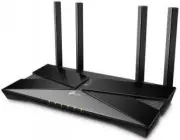 TP-Link Archer AX10
User Manual
TP-Link Archer AX10
User Manual
 TP-Link ARCHER AX11000
User Manual
TP-Link ARCHER AX11000
User Manual
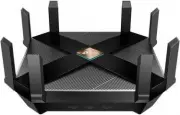 TP-Link Archer AX6000
User Manual
TP-Link Archer AX6000
User Manual
 TP-Link ARCHER AX73 AX5400 (ARCHER-AX73)
User Manual
TP-Link ARCHER AX73 AX5400 (ARCHER-AX73)
User Manual
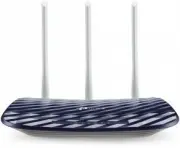 TP-Link Archer C20 v5.0
User Manual
TP-Link Archer C20 v5.0
User Manual
 TP-Link ARCHER GX90 AX6600
User Manual
TP-Link ARCHER GX90 AX6600
User Manual
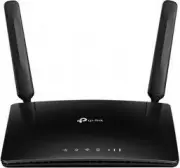 TP-Link Archer MR400
User Manual
TP-Link Archer MR400
User Manual
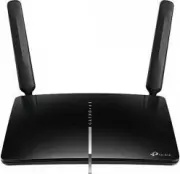 TP-Link Archer MR600
User Manual
TP-Link Archer MR600
User Manual
 TP-Link CPE210 N300, 10/100BASE-TX White
User Manual
TP-Link CPE210 N300, 10/100BASE-TX White
User Manual
 TP-Link CPE510 N300, 10/100BASE-TX White
User Manual
TP-Link CPE510 N300, 10/100BASE-TX White
User Manual
 TP-Link Deco E3
User Manual
TP-Link Deco E3
User Manual
 TP-Link Deco E4
User Manual
TP-Link Deco E4
User Manual
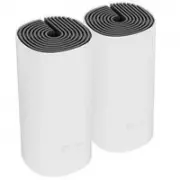
 TP-Link Deco E4 (2-Pack)
User Manual
TP-Link Deco E4 (2-Pack)
User Manual
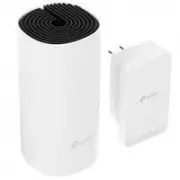
 TP-Link Deco E4 +
User Manual
TP-Link Deco E4 +
User Manual
 TP-Link Deco M3
User Manual
TP-Link Deco M3
User Manual
 TP-Link Deco M4
User Manual
TP-Link Deco M4
User Manual
 TP-Link Deco M4 AC1200 (3-PK)
User Manual
TP-Link Deco M4 AC1200 (3-PK)
User Manual
 TP-Link Deco M5
User Manual
TP-Link Deco M5
User Manual
 TP-Link DECO M9 1 pcs AC2200
User Manual
TP-Link DECO M9 1 pcs AC2200
User Manual
 TP-Link Deco M9 Plus
User Manual
TP-Link Deco M9 Plus
User Manual