Page 3 - Country Restriction
FCC RF Radiation Exposure Statement This equipment complies with FCC RF radiation exposure limits set forth for an uncontrolled environment. This device and its antenna must not be co-located or operating in conjunction with any other antenna or transmitter. “To comply with FCC RF exposure complianc...
Page 4 - Industry Canada Statement:; 당해
III Industry Canada Statement: This device complies with RSS-210 of the Industry Canada Rules. Operation is subject to the following two conditions: (1)This device may not cause harmful interference, and (2)This device must accept any interference received, including interference that may cause unde...
Page 5 - DECLARATION OF CONFORMITY; For the following equipment:; The product carries the CE Mark:; Person is responsible for marking this declaration:; Yang Hongliang
TP-LINK TECHNOLOGIES CO., LTD DECLARATION OF CONFORMITY For the following equipment: Product Description: Portable 3G/3.75G Battery Powered Wireless N Router Model No.: TL-MR3040 Trademark: TP-LINK We declare under our own responsibility that the above products satisfy all the technical regulations ...
Page 6 - CONTENTS
CONTENTS Package Contents .......................................................................................................................... 1 Chapter 1. Introduction................................................................................................................. 2 1.1 Overvi...
Page 11 - Portable 3G/3.75G Battery Powered Wireless N Router; Package Contents; missing, please contact your distributor.
TL-MR3040 Portable 3G/3.75G Battery Powered Wireless N Router Package Contents The following items should be found in your package: ¾ TL-MR3040 Portable 3G/3.75G Battery Powered Wireless N Router ¾ Power Adapter ¾ Battery ¾ USB Cable ¾ Ethernet cable ¾ Quick Installation Guide ¾ Resource CD for TL-M...
Page 12 - Chapter 1. Introduction; Overview of the Router
TL-MR3040 Portable 3G/3.75G Battery Powered Wireless N Router Chapter 1. Introduction Thank you for choosing the TL-MR3040 Portable 3G/3.75G Battery Powered Wireless N Router. 1.1 Overview of the Router TL-MR3040 from TP-LINK is a truly mobile wireless networking platform that when paired with a 3G ...
Page 15 - Chapter 2. Connecting the Router; System Requirements; TCP/IP protocol on each PC; Installation Environment Requirements; Avoid direct irradiation of any strong light (such as sunlight)
TL-MR3040 Portable 3G/3.75G Battery Powered Wireless N Router Chapter 2. Connecting the Router 2.1 System Requirements ¾ 3G/3.75G Mobile Broadband Internet Access Service (With a UMTS/HSPA/EVDO USB dongle) ¾ PCs with a working Ethernet Adapter and an Ethernet cable with RJ45 connectors ¾ TCP/IP prot...
Page 16 - Chapter 3. Quick Installation Guide; Battery Powered Wireless N Router using; Quick Setup; Four Typical Working Mode; G Router Mode; shown as the figure below.; Wireless Router Mode; the device by only wireless way. DHCP server is enabled by default.
TL-MR3040 Portable 3G/3.75G Battery Powered Wireless N Router Chapter 3. Quick Installation Guide This chapter will show you how to configure the basic functions of your Portable 3G/3.75G Battery Powered Wireless N Router using Quick Setup Wizard within minutes. 3.1 Four Typical Working Mode 3G Rout...
Page 17 - Provider) and share the internet to multiple users.; Standard AP Mode; Bridge with AP and Client.
TL-MR3040 Portable 3G/3.75G Battery Powered Wireless N Router WISP Client Router Mode In this mode, the TL-MR3040 is wirelessly connected to the WISP (Wireless Internet Service Provider) and share the internet to multiple users. Standard AP Mode The Standard AP Mode includes the following four conne...
Page 18 - computer’s IP address manually.
TL-MR3040 Portable 3G/3.75G Battery Powered Wireless N Router TL-MR3040 is used to extend the range of wireless signal of the existing AP or wireless router. In this mode, the only wired port works as LAN. Computer could connect to the device by either wired or wireless way. The SSID of TL-MR3040sho...
Page 19 - Client; PC configuration; you need instructions as to how to do this, please refer to
TL-MR3040 Portable 3G/3.75G Battery Powered Wireless N Router ¾ Client TL-MR3040 is used as a wireless network card to connect the wireless network signal or wireless router. In this mode, the only wired port works as LAN. Computer could connect to the device by either wired or wireless way. To avoi...
Page 20 - characters of the router’s MAC address.)
TL-MR3040 Portable 3G/3.75G Battery Powered Wireless N Router Settings → Control Panel → View network status and tasks → Manage network connection . Right click Wireless Network Connection , and select Properties . 2. For Windows XP, double click Internet Protocol (TCP/IP) in the item list; for Wind...
Page 21 - Figure 3-2 Login Windows; OK; and then click; Figure 3-3 Quick Setup; Next; Figure 3-4 Operation Mode
TL-MR3040 Portable 3G/3.75G Battery Powered Wireless N Router Figure 3-2 Login Windows ) Note: If the above screen does not pop-up, it means that your Web-browser has been set to a proxy. Go to Tools menu>Internet Options>Connections>LAN Settings, in the screen that appears, cancel the Usin...
Page 23 - finish the connecting.
TL-MR3040 Portable 3G/3.75G Battery Powered Wireless N Router then click Next . 1) Create a unique and easy-to-remember Wireless Network Name . 2) Select WPA-Personal/WPA2-Personal under Wireless Security and enter a password in the field. Figure 3-7 Quick Setup – Wireless 4. Click Reboot to make th...
Page 25 - Figure 3-12 Quick Setup – MAC Clone; Yes; click; Clone MAC Address; computer, please select; WAN MAC Address; This is the WAN IP address seen by external users on the Internet
TL-MR3040 Portable 3G/3.75G Battery Powered Wireless N Router ¾ If the connection type is Dynamic IP, the next screen will appear as shown in Figure 3-12. Figure 3-12 Quick Setup – MAC Clone z If you are visiting the Router from the main computer, please select Yes , and then click Clone MAC Address...
Page 27 - AP
TL-MR3040 Portable 3G/3.75G Battery Powered Wireless N Router ) Note: After the rebooting, please reconnect to the network according to 3.2.1Connect to Network. If Wireless Security is enabled, you need to enter the password you’ve just set to successfully finish the connecting. 3. Standard AP Mode ...
Page 31 - After the rebooting, please change the PC’s TCP/IP settings to “; Use the following IP Address; and “; Use the following DNS Server Addresses; ” and enter the address and DNS server; WISP Client Router Mode
TL-MR3040 Portable 3G/3.75G Battery Powered Wireless N Router ) Note: After the rebooting, please change the PC’s TCP/IP settings to “ Use the following IP Address ” and “ Use the following DNS Server Addresses ” and enter the address and DNS server address manually, and then reconnect to the networ...
Page 34 - and you will see the page as shown in Figure 3-28. Click the; Reboot; button to; recommended to go to; Wireless; Figure 3-28 Quick Setup – Finish
TL-MR3040 Portable 3G/3.75G Battery Powered Wireless N Router 3. Click Next and you will see the page as shown in Figure 3-28. Click the Reboot button to make your wireless configuration take effect and finish the Quick Setup . (You’re recommended to go to Wireless > Wireless Security to set up t...
Page 35 - Chapter 4. Configuration—3G Router Mode; Mode. The default mode of the Router is 3G Router.
TL-MR3040 Portable 3G/3.75G Battery Powered Wireless N Router Chapter 4. Configuration—3G Router Mode This chapter will show each Web page's key functions and the configuration way on 3G Router Mode. The default mode of the Router is 3G Router. 4.1 Login After your successful login, you will see the...
Page 36 - Figure 4-1 Router Status; Operation Mode; If you want to use other modes, select them as Figure 4-2 shown.
TL-MR3040 Portable 3G/3.75G Battery Powered Wireless N Router Figure 4-1 Router Status 4.3 Quick Setup Please refer to Chapter 3 Quick Installation Guide. 4.4 Operation Mode On this page, you can choose the operation mode of the Router. The default mode is 3G Router. If you want to use other modes, ...
Page 38 - ) If you are using the; G Preferred; or; WAN Preferred; PPTP, L2TP) and some related parameters could not be set manually.; Network
TL-MR3040 Portable 3G/3.75G Battery Powered Wireless N Router ¾ 3G Preferred In this mode, the router will try 3G access first. When 3G access fails, or when no 3G USB modem is inserted, the router would switch to WAN access; when the router succeeds to connect to the 3G network, the router would st...
Page 39 - Please select the location where you're enjoying the 3G card.; Mobile ISP; The router will show the default Dial Number and APN of that ISP.
TL-MR3040 Portable 3G/3.75G Battery Powered Wireless N Router Figure 4-5 3G Figure 4-6 ¾ Location - Please select the location where you're enjoying the 3G card. ¾ Mobile ISP - Please select the ISP (Internet Service Provider) you apply to for 3G service. The router will show the default Dial Number...
Page 41 - Figure 4-9 3G USB Modem Settings
TL-MR3040 Portable 3G/3.75G Battery Powered Wireless N Router Sometimes the connection cannot be disconnected although you specify a time to Max Idle Time because some applications visit the Internet continually in the background. ¾ Connect Automatically - Connect automatically after the Router is d...
Page 43 - change settings on; Dynamic IP
TL-MR3040 Portable 3G/3.75G Battery Powered Wireless N Router 1. Download a most recent 3G USB modem configuration file from our website (http://www.tp-link.com). 2. Click the Add New... button in Figure 4-10, and then you will see Figure 4-11. 3. Click Browse… to select the path name where you save...
Page 44 - If you get Address not found error when you access a Web site,
TL-MR3040 Portable 3G/3.75G Battery Powered Wireless N Router Figure 4-12 WAN - Dynamic IP This page displays the WAN IP parameters assigned dynamically by your ISP, including IP address, Subnet Mask, Default Gateway, etc. Click the Renew button to renew the IP parameters from your ISP. Click the Re...
Page 47 - Only when you have configured the system time on; Time-based Connecting; function can take effect.
TL-MR3040 Portable 3G/3.75G Battery Powered Wireless N Router ¾ Time-based Connecting - The connection will only be established in the period from the start time to the end time (both are in HH:MM format). ) Note: Only when you have configured the system time on System Tools -> Time page, will th...
Page 52 - PPPoE; Connections which use dynamic IP address assignment.; Static IP; Connections which use static IP address assignment.
TL-MR3040 Portable 3G/3.75G Battery Powered Wireless N Router ¾ Dynamic IP/ Static IP - Choose either as you are given by your ISP and enter the ISP’s IP address or the domain name. If you choose static IP and enter the domain name, you should also enter the DNS assigned by your ISP. And click the S...
Page 53 - ur LAN can use the; MAC Address Clone; Only the PC on yo
TL-MR3040 Portable 3G/3.75G Battery Powered Wireless N Router The Router can not detect PPTP/L2TP/BigPond connections with your ISP. If your ISP uses one of these protocols, then you must configure your connection manually. 4.5.4 MAC Clone Choose menu “ Network → MAC Clone ”, you can configure the M...
Page 54 - DHCP server will change accordingly at the same time
TL-MR3040 Portable 3G/3.75G Battery Powered Wireless N Router Figure 4-20 LAN ddress - The physical address of the Router, as seen from the LAN. The value - An address code that determines the size of the network. Normally use as the subnet mask. ) Note: 1) If you change the IP Address of LAN, you m...
Page 55 - TEST; Region
TL-MR3040 Portable 3G/3.75G Battery Powered Wireless N Router Figure 4-22 Wireless Settings ¾ Wireless Network Name - The same name of Wireless Network Name must be assigned to all wireless devices in your network. Considering your wireless network security, the default Wireless Network Name is set ...
Page 56 - If; Mode
TL-MR3040 Portable 3G/3.75G Battery Powered Wireless N Router 11bgn mixed - Select if you are using a mix of 802.11b, 11g, and 11n wireless clients. Select the desired wireless mode. When 802.11g mode is selected, only 802.11g wireless stations can connect to the Router. When 802.11n mode is selecte...
Page 57 - indicates the authorization type of the Root AP.; Password; the password in this blank.; ”, you can configure the security settings of your; Disable Security; It’s the WPA/WPA2 authentication type
TL-MR3040 Portable 3G/3.75G Battery Powered Wireless N Router • Auth Type - This option should be chosen if the key type is WEP(ASCII) or WEP(HEX).It indicates the authorization type of the Root AP. • Password - If the AP your Router is going to connect needs password, you need to fill the password ...
Page 60 - selected Shared Key as Authentication Type.; Figure 4-27 Wireless MAC address Filtering
TL-MR3040 Portable 3G/3.75G Battery Powered Wireless N Router • WEP Key- Select which of the four keys will be used and enter the matching WEP key that you create. Make sure these values are identical on all wireless stations in your network. • Key Typ e - You can select the WEP key length (64-bit, ...
Page 64 - This page will be refreshed automatically every 5 seconds.
TL-MR3040 Portable 3G/3.75G Battery Powered Wireless N Router Figure 4-30 The Router attached wireless stations ¾ MAC Address - The connected wireless station's MAC address. ¾ Current Status - The connected wireless station's running status, one of STA-AUTH / STA-ASSOC / STA-JOINED / WPA / WPA-PSK /...
Page 69 - service, and enter the same IP Address for that computer or server.; Note; page to be any other value except 80 such as 8080.
TL-MR3040 Portable 3G/3.75G Battery Powered Wireless N Router 5. Select the Enable check box to enable the virtual server. 6. Click the Save button. Figure 4-38 Add or Modify a Virtual Server Entry ) Note : If your computer or server has more than one type of available service, please select another...
Page 71 - rigger
TL-MR3040 Portable 3G/3.75G Battery Powered Wireless N Router 6. Click the Save button to save the new rule. Figure 4-40 Add or Modify a Triggering Entry To modify or delete an nt to modify. If you want to delete the entry, click the e information. to make all entries enabled d. he trigger connectio...
Page 77 - defaults on the Router’s Web-Based Utility.
TL-MR3040 Portable 3G/3.75G Battery Powered Wireless N Router Figure 4-46 Local Management By default, the radio button “ All the PCs on the LAN are allowed to access the Router's Web-Based Utility ” is checked. If you want to allow PCs with specific MAC Addresses to access the Setup page of the Rou...
Page 78 - Parental Control
TL-MR3040 Portable 3G/3.75G Battery Powered Wireless N Router Figure 4-47 Remote Management ¾ Web Management Port - Web browser access normally uses the standard HTTP service port 80. This Router's default remote management web port number is 80. For greater security, you can change the remote manag...
Page 82 - Figure 4-52 Access Control Rule Management
TL-MR3040 Portable 3G/3.75G Battery Powered Wireless N Router Figure 4-52 Access Control Rule Management ¾ Enable Internet Access Control - Select the check box to enable the Internet Access Control function, so the Default Filter Policy can take effect. ¾ Rule Name - Here displays the name of the r...
Page 83 - Figure 4-53 Quick Setup – Create a Host Entry
TL-MR3040 Portable 3G/3.75G Battery Powered Wireless N Router There are two methods to add a new rule. Method One: 1. Click Setup Wizard button and the next screen will appear as shown in Figure 4-53. Figure 4-53 Quick Setup – Create a Host Entry ¾ Host Description - In this field, create a unique d...
Page 85 - Figure 4-55 Quick Setup – Create an Advanced Schedule Entry
TL-MR3040 Portable 3G/3.75G Battery Powered Wireless N Router Figure 4-55 Quick Setup – Create an Advanced Schedule Entry ¾ Schedule Description - In this field, create a description for the schedule. Note that this description should be unique (e.g. Schedule_1). ¾ Day - Choose Select Days and selec...
Page 86 - Figure 4-57 Add Internet Access Control Entry
TL-MR3040 Portable 3G/3.75G Battery Powered Wireless N Router ¾ Rule - In this field, create a name for the rule. Note that this name should be unique (e.g. Rule_1). ¾ Host - In this field, select a host from the drop-down list for the rule. The default value is the Host Description you set just now...
Page 92 - Advanced Routing
TL-MR3040 Portable 3G/3.75G Battery Powered Wireless N Router Figure 4-65 Advanced Schedule Settings For example : If you desire to restrict the internet activities of host with MAC address 00-11-22-33-44-AA to access www.google.com only from 18:00 to 20:00 on Saturday and Sunday , you should first ...
Page 94 - Bandwidth Control
TL-MR3040 Portable 3G/3.75G Battery Powered Wireless N Router Other configurations for the entries: Click the Delete button to delete the entry. Click the Enable All button to enable all the entries. Click the Disable All button to disable all the entries. Click the Delete All button to delete all t...
Page 98 - Figure 4-77 Find IP & MAC Binding Entry
TL-MR3040 Portable 3G/3.75G Battery Powered Wireless N Router 3. Click the Find button in the page as shown in Figure 4-77. Figure 4-77 Find IP & MAC Binding Entry Click the Enable All button to make all entries enabled. Click the Delete All button to delete all entries. 4.14.2 ARP List To manag...
Page 99 - interference to the IP & MAC Binding list.
TL-MR3040 Portable 3G/3.75G Battery Powered Wireless N Router Click the Load All button to load all items to the IP & MAC Binding list. Click the Refresh button to refresh all items. ) Note: An item could not be loaded to the IP & MAC Binding list if the IP address of the item has been loade...
Page 102 - Figure 4-83 Time Settings
TL-MR3040 Portable 3G/3.75G Battery Powered Wireless N Router Password, System Log and Statistics. Click any of them, and you will be able to configure the corresponding function. The detailed explanations for each submenu are provided below. 4.16.1 Time Settings Choose menu “ System Tools → Time Se...
Page 103 - Figure 4-84 Daylight Saving; The time will be lost if the router is turned off.
TL-MR3040 Portable 3G/3.75G Battery Powered Wireless N Router To set time manually: 1. Select your local time zone. 2. Enter the Date in Month/Day/Year format. 3. Enter the Time in Hour/Minute/Second format. 4. Click Save . To set time automatically: 1. Select your local time zone. 2. Enter the addr...
Page 105 - function. Option “Tracert Hops” are used for; Tracert
TL-MR3040 Portable 3G/3.75G Battery Powered Wireless N Router Click Start to check the connectivity of the Internet. The Diagnostic Results page displays the result of diagnosis. If the result is similar to the following screen, the connectivity of the Internet is fine. Figure 4-86 Diagnostic Result...
Page 106 - configuration, you can try to upgrade the firmware.
TL-MR3040 Portable 3G/3.75G Battery Powered Wireless N Router ) Note: 1) New firmware versions are posted at http://www.tp-link.com and can be downloaded for free. There is no need to upgrade the firmware unless the new firmware has a new feature you want to use. However, when experiencing problems ...
Page 107 - upgrading process to prevent any damage.
TL-MR3040 Portable 3G/3.75G Battery Powered Wireless N Router Figure 4-89 Backup & Restore Configuration ¾ Click the Backup button to save all configuration settings as a backup file in your local computer. ¾ To upgrade the Router's configuration, follow these instructions. • Click the Browse… b...
Page 108 - spaces. Enter the new Password twice to confirm.
TL-MR3040 Portable 3G/3.75G Battery Powered Wireless N Router 4.16.7 Password Choose menu “ System Tools → Password ”, you can change the factory default user name and password of the Router in the next screen as shown in Figure 4-91. Figure 4-91 Password It is strongly recommended that you should c...
Page 112 - Chapter 5. Configuration—Wireless Router / WISP Mode; Mode and Wireless Router Mode.
TL-MR3040 Portable 3G/3.75G Battery Powered Wireless N Router Chapter 5. Configuration—Wireless Router / WISP Mode This chapter will show each Web page's key functions and the configuration way on WISP Mode and Wireless Router Mode. 5.1 Login After your successful login, you will see the main menus ...
Page 113 - Figure 5-1 Router Status
TL-MR3040 Portable 3G/3.75G Battery Powered Wireless N Router Figure 5-1 Router Status -103-
Page 114 - Operation Mode; WAN
TL-MR3040 Portable 3G/3.75G Battery Powered Wireless N Router 5.3 Quick Setup Please refer to Chapter 3: "Quick Installation Guide." 5.4 Operation Mode On this page, you can choose the operation mode of the Router. Here take the WISP Mode as example. If you want to use other modes, select th...
Page 125 - Only the PC on your LAN can use the
TL-MR3040 Portable 3G/3.75G Battery Powered Wireless N Router Figure 5-11 MAC Address Clone Some ISPs require that you register the MAC Address of your adapter. Changes are rarely needed here. ¾ WAN MAC Address - This field displays the current MAC address of the WAN port. If your ISP requires you t...
Page 126 - Wireless Settings; and; Wireless Statistics.; Choose menu “; ”, and then you can configure the basic settings for
TL-MR3040 Portable 3G/3.75G Battery Powered Wireless N Router ¾ Subnet Mask - An address code that determines the size of the network. Normally use 255.255.255.0 as the subnet mask. ) Note: 1. If you change the IP Address of LAN, you must use the new IP Address to login the Router. 2. If the new LAN...
Page 132 - If you know the; Save; button to save your settings on this page.; ”, and then you can configure the security
TL-MR3040 Portable 3G/3.75G Battery Powered Wireless N Router ) Note: If you know the SSID of the desired AP, you can also input it into the field "SSID" manually. Be sure to click the Save button to save your settings on this page. ) Note: 1. The operating distance or range of your wireless...
Page 133 - If you check the
TL-MR3040 Portable 3G/3.75G Battery Powered Wireless N Router Figure 5-18 ¾ Disable Security - If you do not want to use wireless security, select this check box, but it’s strongly recommended to choose one of the following modes to enable security. ¾ WPA/WPA2 – Personal (Recommended) - It’s the WPA...
Page 147 - other hosts on the LAN will be refused.; Incoming Ports; ranges cannot overlap each other.
TL-MR3040 Portable 3G/3.75G Battery Powered Wireless N Router Once the Router is configured, the operation is as follows: 1. A local host makes an outgoing connection to an external host using a destination port number defined in the Trigger Port field. 2. The Router records this connection, opens t...
Page 148 - Figure 5-37 UPnP Setting
TL-MR3040 Portable 3G/3.75G Battery Powered Wireless N Router 5.8.4 UPnP Choose menu “ Forwarding → UPnP ”, and then you can view the information about UPnP in the screen (shown in Figure 5-37). The Universal Plug and Play (UPnP) feature allows the devices, such as Internet computers, to access the ...
Page 149 - Figure 5-39 Basic Security
TL-MR3040 Portable 3G/3.75G Battery Powered Wireless N Router 5.9 Security Figure 5-38 The Security menu There are four submenus under the Security menu as shown in Figure 5-38: Basic Security , Advanced Security , Local Management and Remote Management. Click any of them, and you will be able to co...
Page 151 - Figure 5-40 Advanced Security; Traffic Statistics; in “; System Tool; Enable or Disable the ICMP-FLOOD Attack
TL-MR3040 Portable 3G/3.75G Battery Powered Wireless N Router Figure 5-40 Advanced Security ¾ Packets Statistics Interval (5~60) - The default value is 10. Select a value between 5 and 60 seconds from the drop-down list. The Packets Statistics Interval value indicates the time section of the packets...
Page 154 - Figure 5-42 Remote Management; Web Management Port -; Web browser access normally uses the standard HTTP service; Remote Management IP Address; This is the current address you will use when; Parental Control; ”, and then you can configure the parental control in the screen
TL-MR3040 Portable 3G/3.75G Battery Powered Wireless N Router Figure 5-42 Remote Management ¾ Web Management Port - Web browser access normally uses the standard HTTP service port 80. This Router's default remote management web port number is 80. For greater security, you can change the remote manag...
Page 155 - Figure 5-43 Parental Control Settings; To add a new entry, please follow the steps below.; the; Add New...; button and the next screen will pop-up as shown in Figure 5-44.
TL-MR3040 Portable 3G/3.75G Battery Powered Wireless N Router Figure 5-43 Parental Control Settings To add a new entry, please follow the steps below. 1. Click the Add New… button and the next screen will pop-up as shown in Figure 5-44. Figure 5-44 Add or Modify Parental Control Entry -145-
Page 157 - Figure 5-46 Access Control
TL-MR3040 Portable 3G/3.75G Battery Powered Wireless N Router 2. Click “ Access Control → Schedule ” on the left to enter the Schedule Settings page. Click Add New... button to create a new schedule with Schedule Description is Schedule_1, Day is Sat and Time is all day-24 hours. 3. Click “ Parental...
Page 158 - Figure 5-47 Access Control Rule Management
TL-MR3040 Portable 3G/3.75G Battery Powered Wireless N Router Figure 5-47 Access Control Rule Management ¾ Enable Internet Access Control - Select the check box to enable the Internet Access Control function, so the Default Filter Policy can take effect. ¾ Rule Name - Here displays the name of the r...
Page 159 - Figure 5-48 Quick Setup – Create a Host Entry
TL-MR3040 Portable 3G/3.75G Battery Powered Wireless N Router There are two methods to add a new rule. Method One: 1. Click Setup Wizard button and the next screen will appear as shown in Figure 5-48. Figure 5-48 Quick Setup – Create a Host Entry ¾ Host Description - In this field, create a unique d...
Page 161 - Figure 5-50 Quick Setup – Create an Advanced Schedule Entry
TL-MR3040 Portable 3G/3.75G Battery Powered Wireless N Router Figure 5-50 Quick Setup – Create an Advanced Schedule Entry ¾ Schedule Description - In this field, create a description for the schedule. Note that this description should be unique (e.g. Schedule_1). ¾ Day - Choose Select Days and selec...
Page 162 - Figure 5-52 Add Internet Access Control Entry
TL-MR3040 Portable 3G/3.75G Battery Powered Wireless N Router ¾ Rule - In this field, create a name for the rule. Note that this name should be unique (e.g. Rule_1). ¾ Host - In this field, select a host from the drop-down list for the rule. The default value is the Host Description you set just now...
Page 168 - Advanced Routing; Figure 5-61 Advanced Routing
TL-MR3040 Portable 3G/3.75G Battery Powered Wireless N Router Figure 5-60 Advanced Schedule Settings For example : If you desire to restrict the internet activities of host with MAC address 00-11-22-33-44-AA to access www.google.com only from 18:00 to 20:00 on Saturday and Sunday , you should first ...
Page 169 - Figure 5-62 Static Routing
TL-MR3040 Portable 3G/3.75G Battery Powered Wireless N Router 5.12.1 Static Routing List Choose menu “ Advanced Routing → Static Routing List ”, and then you can configure the static route in the next screen (shown in Figure 5-62). A static route is a pre-determined path that network information mus...
Page 170 - Figure 5-64 System Routing Table; Bandwidth Control; Figure 5-65 Bandwidth Control
TL-MR3040 Portable 3G/3.75G Battery Powered Wireless N Router Click the Delete button to delete the entry. Click the Enable All button to enable all the entries. Click the Disable All button to disable all the entries. Click the Delete All button to delete all the entries. Click the Previous button ...
Page 171 - Figure 5-66 Bandwidth Control Settings
TL-MR3040 Portable 3G/3.75G Battery Powered Wireless N Router There are two submenus under the Bandwidth Control menu as shown in Figure 5-65: Control Settings and Rules List . Click any of them, and you will be able to configure the corresponding function. The detailed explanations for each submenu...
Page 172 - Figure 5-68 Bandwidth Control Rule Settings
TL-MR3040 Portable 3G/3.75G Battery Powered Wireless N Router ¾ Ingress bandwidth - This field displays the max and mix download bandwidth through the WAN port, the default is 0. ¾ Enable - This displays the status of the rule. ¾ Modify - Click Modify to edit the rule. Click Delete to delete the rul...
Page 173 - Figure 5-70 Binding Setting
TL-MR3040 Portable 3G/3.75G Battery Powered Wireless N Router Figure 5-70 Binding Setting ¾ MAC Address - The MAC address of the controlled computer in the LAN. ¾ IP Address - The assigned IP address of the controlled computer in the LAN. ¾ Bind - Check this option to enable ARP binding for a specif...
Page 174 - Figure 5-72 Find IP & MAC Binding Entry
TL-MR3040 Portable 3G/3.75G Battery Powered Wireless N Router 1. Click the Find button as shown in Figure 5-70. 2. Enter the MAC Address or IP Address. 3. Click the Find button in the page as shown in Figure 5-72. Figure 5-72 Find IP & MAC Binding Entry Click the Enable All button to make all en...
Page 176 - button, then input your new username and password and click the; Login
TL-MR3040 Portable 3G/3.75G Battery Powered Wireless N Router Figure 5-74 Comexe.cn DDNS Settings To set up for DDNS, follow these instructions: 1. Enter the Domain Name your dynamic DNS service provider gave. 2. Enter the User Name for your DDNS account. 3. Enter the Password for your DDNS account....
Page 178 - If you wan; Logout
TL-MR3040 Portable 3G/3.75G Battery Powered Wireless N Router Figure 5-76 No-ip.com DDNS Settings To set up for DDNS, follow these instructions: User Name amic DNS service provider. Logout e DDNS service. ) Note: t to login again with another account after a successful login, please click the 5.16 S...
Page 179 - Figure 5-78 Time Settings
TL-MR3040 Portable 3G/3.75G Battery Powered Wireless N Router Choos n see the submenus under the main menu: Time ls → Time Settings ”, and then you can configure the time on the e menu “ System Tools ”, and you ca Settings , Diagnostic , Firmware Upgrade , Factory Defaults, Backup & Restore, Reb...
Page 180 - Figure 5-79 Daylight Saving
TL-MR3040 Portable 3G/3.75G Battery Powered Wireless N Router ¾ End - The time to end the Daylight Saving. Select the month in the first field, the week in the second field, the day in the third field and the time in the last field. ¾ Daylight Saving Status - Displays the status whether the Daylight...
Page 189 - Chapter 6. Configuration—AP Mode; Selecting; Status
TL-MR3040 Portable 3G/3.75G Battery Powered Wireless N Router Chapter 6. Configuration—AP Mode This chapter will show each Web page's key functions and the configuration way on AP Mode. The Portable 3G/3.75G Battery Powered Wireless N Router is easy to configure and manage with the Web-based (Intern...
Page 190 - Figure 6-1 Device Status
TL-MR3040 Portable 3G/3.75G Battery Powered Wireless N Router Figure 6-1 Device Status ) Note: If you select Client mode in Figure 6-7, the wireless status in Figure 6-1 will change, similar to the figure below: -180-
Page 191 - Operation Mode; LAN
TL-MR3040 Portable 3G/3.75G Battery Powered Wireless N Router 6.3 Quick Setup Please refer to Chapter 3: "Quick Installation Guide." 6.4 Operation Mode On this page, you can choose the operation mode of the Router. If you want to use other modes, select them as Figure 4-2 shown. Figure 6-2 O...
Page 195 - To apply any settings you have altered on the page, please click the; button, and then you; SSID
TL-MR3040 Portable 3G/3.75G Battery Powered Wireless N Router area for wireless networks to associate with, they will detect the SSID broadcast by the device. ) Note: To apply any settings you have altered on the page, please click the Save button, and then you will be reminded to reboot the device....
Page 200 - will enable you to configure wireless security for your; Figure 6-10 Wireless Security - Access Point; Operation Mode; Shows the current operation mode.
TL-MR3040 Portable 3G/3.75G Battery Powered Wireless N Router ) Note: To apply any settings you have altered on the page, please click the Save button, and then you will be reminded to reboot the device. 6.6.2 Wireless Security Selecting Wireless > Wireless Security will enable you to configure w...
Page 202 - Shared Key as Authentication Type.; You will be reminded to reboot the device after clicking the
TL-MR3040 Portable 3G/3.75G Battery Powered Wireless N Router • WEP Key - Select which of the four keys will be used and enter the matching WEP key information for your network in the selected key radio button. These values must be identical on all wireless stations in your network. • Key Type - You...
Page 203 - Figure 6-11 Wireless Security – Client
TL-MR3040 Portable 3G/3.75G Battery Powered Wireless N Router 2) Client Figure 6-11 Wireless Security – Client ¾ Operation Mode - Shows the current operation mode. ¾ Disable Security - Check this box radio button to disable wireless security. If disabled, the wireless stations will be able to connec...
Page 205 - Figure 6-12 Wireless Security – Repeater
TL-MR3040 Portable 3G/3.75G Battery Powered Wireless N Router 3) Repeater Figure 6-12 Wireless Security – Repeater ¾ Operation Mode - Shows the current operation mode. ¾ Disable Security - Check this box radio button to disable wireless security. If disabled, the wireless stations will be able to co...
Page 207 - Figure 6-13 Wireless Security – Bridge with AP
TL-MR3040 Portable 3G/3.75G Battery Powered Wireless N Router 4) Bridge with AP Figure 6-13 Wireless Security – Bridge with AP ¾ Operation Mode - Shows the current operation mode. ¾ Disable Security - Check this box radio button to disable wireless security. If disabled, the wireless stations will b...
Page 208 - Figure 6-14 Wireless MAC address Filtering
TL-MR3040 Portable 3G/3.75G Battery Powered Wireless N Router • Key Type - You can select the WEP key length ( 64-bit , or 128-bit , or 152-bit .) for encryption. "Disabled" means this WEP key entry is invalid. 1) For 64-bit encryption - You can enter 10 hexadecimal digits (any combination o...
Page 209 - Figure 6-15 Add or Modify Wireless MAC Address Filtering entry
TL-MR3040 Portable 3G/3.75G Battery Powered Wireless N Router ¾ Wireless MAC Filtering - Click the Enable button to enable the Wireless MAC Address Filtering. The default setting is disabled. To Add a Wireless MAC Address filtering entry, click the Add New… button. The “Add or Modify Wireless MAC Ad...
Page 210 - If you enable the function and select the “; Deny the stations not specified by any enabled; ” for; Filtering Rules; and there are not any enabled entries in the list,
TL-MR3040 Portable 3G/3.75G Battery Powered Wireless N Router 1. Click the Modify in the entry you want to modify. If you want to delete the entry, click the Delete . 2. Modify the information. 3. Click the Save button. Click the Enable All button to make all entries enabled Click the Disabled All b...
Page 211 - Figure 6-16 Wireless Advanced; Fragmentation Threshold -; This value is the maximum size determining whether; Enable AP Isolation -
TL-MR3040 Portable 3G/3.75G Battery Powered Wireless N Router Figure 6-16 Wireless Advanced ¾ Beacon Interval - Specifies a value between 20-1000 milliseconds. The beacons are the packets sent by the device to synchronize a wireless network. Beacon Interval value determines the time interval of the ...
Page 212 - Figure 6-17 Statistics of the device attached wireless stations
TL-MR3040 Portable 3G/3.75G Battery Powered Wireless N Router 6.6.5 Wireless Statistics Selecting Wireless > Wireless Statistics will allow you to see the wireless transmission information in the following screen shown in Figure 6-17. Figure 6-17 Statistics of the device attached wireless station...
Page 213 - Figure 6-18 The DHCP menu; DHCP; Figure 6-19 DHCP Settings; Disable
TL-MR3040 Portable 3G/3.75G Battery Powered Wireless N Router configure the corresponding function. The detailed explanations for each submenu are provided below. Figure 6-18 The DHCP menu 6.7.1 DHCP Settings Selecting DHCP > DHCP Settings will enable you to set up the AP as a DHCP (Dynamic Host ...
Page 214 - the device reboots.; Figure 6-20 DHCP Clients List; Lease Time
TL-MR3040 Portable 3G/3.75G Battery Powered Wireless N Router the PC will be automatically assigned a new dynamic IP address. The range of the time is 1 ~ 2880 minutes. The default value is 120 minutes. ¾ Default Gateway (optional) - Enter the IP address of the gateway for your LAN. The factory defa...
Page 215 - Figure 6-21 Address Reservation; The changes won't take effect until the device reboots.
TL-MR3040 Portable 3G/3.75G Battery Powered Wireless N Router You cannot change any of the values on this page. To update this page and to show the current attached devices, click on the Refresh button. 6.7.3 Address Reservation Selecting DHCP > Address Reservation will enable you to specify a re...
Page 216 - Figure 6-22 The System Tools menu
TL-MR3040 Portable 3G/3.75G Battery Powered Wireless N Router 6.8 System Tools System Tools option helps you to optimize the configuration of your device. SNMP can help you to manage the device locally or remotely with specified software. The diagnostic tools (Ping and Traceroute) allow you to check...
Page 217 - Figure 6-23 Time Settings
TL-MR3040 Portable 3G/3.75G Battery Powered Wireless N Router Figure 6-23 Time Settings ¾ Time Zone - Select your local time zone from this pull down list. ¾ Date - Enter your local date in MM/DD/YY into the right blanks. ¾ Time - Enter your local time in HH/MM/SS into the right blanks. ¾ NTP Server...
Page 218 - Figure 6-24 Daylight Saving
TL-MR3040 Portable 3G/3.75G Battery Powered Wireless N Router To set time automatically: 1. Select your local time zone. 2. Enter the address or domain of the NTP Server I or NTP Server II . 3. Click the Get GMT button to get system time from Internet if you have connected to the Internet. To set Da...
Page 220 - Only one user can use the diagnostic tools at one time.; Figure 6-27 Firmware Upgrade
TL-MR3040 Portable 3G/3.75G Battery Powered Wireless N Router The Diagnostic Results page displays the result of diagnosis. If the result is similar to the following screen, the connectivity of the Internet is fine. Figure 6-26 Diagnostic Results ) Note: 1. Only one user can use the diagnostic tools...
Page 221 - Figure 6-28 Restore Factory Default; All changed settings will be lost when defaults are restored.
TL-MR3040 Portable 3G/3.75G Battery Powered Wireless N Router ) Note: 1) New firmware versions are posted at http://www.tp-link.com and can be downloaded for free. There is no need to upgrade the firmware unless the new firmware has a new feature you want to use. However, when experiencing problems ...
Page 222 - Figure 6-29 Backup & Restore Configuration
TL-MR3040 Portable 3G/3.75G Battery Powered Wireless N Router Figure 6-29 Backup & Restore Configuration ¾ Click the Backup button to save all configuration settings as a backup file in your local computer. ¾ To upgrade the Router's configuration, follow these instructions. • Click the Browse bu...
Page 223 - Figure 6-31 Password; spaces. Enter the new Password twice to confirm it.
TL-MR3040 Portable 3G/3.75G Battery Powered Wireless N Router 6.8.7 Password Choose menu “ System Tools → Password ”, and then you can change the factory default user name and password of the Router in the next screen as shown in Figure 6-31. Figure 6-31 Password It is strongly recommended that you ...
Page 224 - Figure 6-32 System Log
TL-MR3040 Portable 3G/3.75G Battery Powered Wireless N Router Figure 6-32 System Log ¾ Log Type - By selecting the log type, only logs of this type will be shown. ¾ Log Level - By selecting the log level, only logs of this level will be shown. ¾ Refresh - Refresh the page to show the latest log list...
Page 225 - Figure 6-33 Statistics
TL-MR3040 Portable 3G/3.75G Battery Powered Wireless N Router Figure 6-33 Statistics ¾ Current Statistics Status - Enable or Disable. The default value is disabled. To enable it, click the Enable button. If it is disabled, the function of DoS protection in Security settings will be disabled. ¾ Packe...
Page 226 - There would be 5 entries on each page. Click; Previous; to return to the previous page and
TL-MR3040 Portable 3G/3.75G Battery Powered Wireless N Router Statistics Table: IP/MAC Address The IP and MAC address are displayed with related statistics. Packets The total number of packets received and transmitted by the Router. Total Bytes The total number of bytes received and transmitted by t...
Page 230 - (the Router’s LAN IP address: Web Management Port) in the address
TL-MR3040 Portable 3G/3.75G Battery Powered Wireless N Router Figure A-7 Basic Security 4. I want to build a WEB Server on the LAN, what should I do? 1) Because the WEB Server port 80 will interfere with the WEB management port 80 on the Router, you must change the WEB management port number to avoi...
Page 232 - Appendix B: Configuring the PCs
TL-MR3040 Portable 3G/3.75G Battery Powered Wireless N Router Appendix B: Configuring the PCs In this section, we’ll introduce how to install and configure the TCP/IP correctly in Windows XP. First make sure your Ethernet Adapter is working, refer to the adapter’s manual if needed. 1. Install TCP/IP...
Page 234 - Select
TL-MR3040 Portable 3G/3.75G Battery Powered Wireless N Router Figure B-3 ¾ Setting IP address manually 1 Select Use the following IP address radio button, and the following items are available. If the Router's LAN IP address is 192.168.0.1, type 192.168.0.x (x is from 2 to 254) into the IP address f...
Page 235 - Now click; to keep your settings.
TL-MR3040 Portable 3G/3.75G Battery Powered Wireless N Router Figure B-4 Now click OK to keep your settings. -225-
Page 236 - Appendix C: Security Mode
TL-MR3040 Portable 3G/3.75G Battery Powered Wireless N Router Appendix C: Security Mode ¾ None - The wireless security function can be enabled or disabled. If you select "None", the wireless stations will be able to connect the Router without encryption. It is recommended strongly that you c...
Page 237 - - Specify the group key update interval in seconds. The; Use the Previous settings; - If you chose this option, wireless security configuration will
TL-MR3040 Portable 3G/3.75G Battery Powered Wireless N Router z Group Key Update Period - Specify the group key update interval in seconds. The value can be either 0 or at least 30. Enter 0 to disable the update. ¾ Use the Previous settings - If you chose this option, wireless security configuration...
Page 238 - Appendix C: Specifications; General
TL-MR3040 Portable 3G/3.75G Battery Powered Wireless N Router Appendix C: Specifications General Standards IEEE 802.11n 、 IEEE 802.11g 、 IEEE 802.11b 、 IEEE 802.3 、 IEEE 802.3u 、 IEEE 802.3x 、 IEEE 802.1X Protocols CSMA/CA 、 CSMA/CD 、 TCP/IP 、 DHCP 、 ICMP 、 NAT 、 PPPoE Ports One 10/100M Auto-Negotia...
Page 239 - Appendix D: Glossary
TL-MR3040 Portable 3G/3.75G Battery Powered Wireless N Router Appendix D: Glossary ¾ 802.11n - 802.11n builds upon previous 802.11 standards by adding MIMO (multiple-input multiple-output). MIMO uses multiple transmitter and receiver antennas to allow for increased data throughput via spatial multip...
Page 241 - FlyingAngel HSUPA
TL-MR3040 Portable 3G/3.75G Battery Powered Wireless N Router Appendix E: Compatible 3G/3.75G USB Modem The UMTS/HSPA/EVDO USB modems we’ve tested in the field are listed below. You can find the latest compatibility list in our website: http://www.tp-link.com. Compatible 3G/3.75G USB Modem (Tested i...
Page 242 - EVERYWEB HSUPA
TL-MR3040 Portable 3G/3.75G Battery Powered Wireless N Router -232- HAIER CE100, OLIVE VME110, WM200 HSDC Hsdc-03 MWALKER MBD-100HU MYWAVE FW2012T OPTION iCon 401 PANTECH PX500 QISDA H21 SIERRA WIRELESS AC306, AirCard 881U, Compass 885U, Compass 889 SPRINT U600 TELSEY EVERYWEB HSUPA T-MOBILE USB STI...


 TP-Link Archer AX10
User Manual
TP-Link Archer AX10
User Manual
 TP-Link ARCHER AX11000
User Manual
TP-Link ARCHER AX11000
User Manual
 TP-Link Archer AX6000
User Manual
TP-Link Archer AX6000
User Manual
 TP-Link ARCHER AX73 AX5400 (ARCHER-AX73)
User Manual
TP-Link ARCHER AX73 AX5400 (ARCHER-AX73)
User Manual
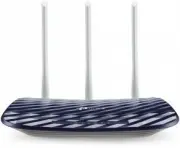 TP-Link Archer C20 v5.0
User Manual
TP-Link Archer C20 v5.0
User Manual
 TP-Link ARCHER GX90 AX6600
User Manual
TP-Link ARCHER GX90 AX6600
User Manual
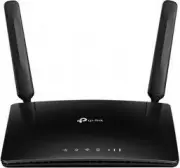 TP-Link Archer MR400
User Manual
TP-Link Archer MR400
User Manual
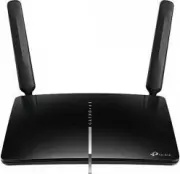 TP-Link Archer MR600
User Manual
TP-Link Archer MR600
User Manual
 TP-Link CPE210 N300, 10/100BASE-TX White
User Manual
TP-Link CPE210 N300, 10/100BASE-TX White
User Manual
 TP-Link CPE510 N300, 10/100BASE-TX White
User Manual
TP-Link CPE510 N300, 10/100BASE-TX White
User Manual
 TP-Link Deco E3
User Manual
TP-Link Deco E3
User Manual
 TP-Link Deco E4
User Manual
TP-Link Deco E4
User Manual
 TP-Link Deco E4 (2-Pack)
User Manual
TP-Link Deco E4 (2-Pack)
User Manual
 TP-Link Deco E4 +
User Manual
TP-Link Deco E4 +
User Manual
 TP-Link Deco M3
User Manual
TP-Link Deco M3
User Manual
 TP-Link Deco M4
User Manual
TP-Link Deco M4
User Manual
 TP-Link Deco M4 AC1200 (3-PK)
User Manual
TP-Link Deco M4 AC1200 (3-PK)
User Manual
 TP-Link Deco M5
User Manual
TP-Link Deco M5
User Manual
 TP-Link DECO M9 1 pcs AC2200
User Manual
TP-Link DECO M9 1 pcs AC2200
User Manual
 TP-Link Deco M9 Plus
User Manual
TP-Link Deco M9 Plus
User Manual