Page 2 - COPYRIGHT & TRADEMARKS; Specifications are subject to change without notice.
COPYRIGHT & TRADEMARKS Specifications are subject to change without notice. is a registered trademark of TP-LINK TECHNOLOGIES CO., LTD. Other brands and product names are trademarks or registered trademarks of their respective holders. No part of the specifications may be reproduced in any form ...
Page 3 - FCC STATEMENT; Reorient or relocate the receiving antenna.; FCC RF Radiation Exposure Statement
FCC STATEMENT This equipment has been tested and found to comply with the limits for a Class B digital device, pursuant to part 15 of the FCC Rules. These limits are designed to provide reasonable protection against harmful interference in a residential installation. This equipment generates, uses a...
Page 4 - Canadian Compliance Statement; (1)cet appareil ne doit pas provoquer d’interférences et; Industry Canada Statement; Complies with the Canadian ICES-003 Class B specifications.; Korea Warning Statements; 당해; NCC Notice
This device has been designed to operate with the antennas listed below, and having a maximum gain of 3 dBi. Antennas not included in this list or having a gain greater than 3 dBi are strictly prohibited for use with this device. The required antenna impedance is 50 ohms. To reduce potential radio i...
Page 5 - Safety Information
Safety Information z When product has power button, the power button is one of the way to shut off the product; when there is no power button, the only way to completely shut off power is to disconnect the product or the power adapter from the power source. z Don’t disassemble the product, or make r...
Page 6 - DECLARATION OF CONFORMITY; For the following equipment:; The product carries the CE Mark:; Person responsible for marking this declaration:; Yang Hongliang
TP-LINK TECHNOLOGIES CO., LTD TP-LINK TECHNOLOGIES CO., LTD Building 24 (floors 1, 3, 4, 5), and 28 (floors 1-4) Central Science and Technology Park, Shennan Rd, Nanshan, Shenzhen, China DECLARATION OF CONFORMITY For the following equipment: Product Description: 300Mbps Wireless N USB ADSL2+ Modem R...
Page 7 - CONTENTS
CONTENTS Package Contents .................................................................................................... 1 Chapter 1. Product Overview................................................................................... 2 1.1 Overview of the Modem Router ............................
Page 10 - 00Mbps Wireless N USB ADSL2+ Modem Router User Guide; Package Contents
TD-W8968 300Mbps Wireless N USB ADSL2+ Modem Router User Guide 1 Package Contents The following contents should be found in your package: ¾ One TD-W8968 300Mbps Wireless N USB ADSL2+ Modem Router ¾ One Power Adapter for TD-W8968 300Mbps Wireless N USB ADSL2+ Modem Router ¾ Quick Installation Guide ¾...
Page 11 - Chapter 1. Product Overview; Thank you for choosing the; Overview of the Modem Router
TD-W8968 300Mbps Wireless N USB ADSL2+ Modem Router User Guide 2 Chapter 1. Product Overview Thank you for choosing the TD-W8968 300Mbps Wireless N USB ADSL2+ Modem Router . 1.1 Overview of the Modem Router The TD-W8968 300Mbps Wireless N USB ADSL2+ Modem Router integrates 4-port Switch, Firewall, N...
Page 14 - you have already made a right connection, please contact your IS; POWER
TD-W8968 300Mbps Wireless N USB ADSL2+ Modem Router User Guide 5 On A storage device or printer has connected to the USB port. Flash The modem router is sending or receiving data over this USB port. (USB) Off No storage device or printer is plugged into the USB port. On There is a device connected t...
Page 15 - Connecting the Router
TD-W8968 300Mbps Wireless N USB ADSL2+ Modem Router User Guide 6 ¾ ON/OFF : The switch for the power. ¾ WPS : The switch for the WPS function. For details, please refer to 4.6.2 WPS Settings . ¾ RESET : There are two ways to reset the Router's factory defaults. Method one : With the Router powered o...
Page 16 - Chapter 2. Connecting the Modem Router; System Requirements; The Router can be placed on a shelf or desktop.
TD-W8968 300Mbps Wireless N USB ADSL2+ Modem Router User Guide 7 Chapter 2. Connecting the Modem Router 2.1 System Requirements ¾ Broadband Internet Access Service (DSL/Cable/Ethernet). ¾ PCs with a working Ethernet Adapter and an Ethernet cable with RJ45 connectors. ¾ TCP/IP protocol on each PC. ¾ ...
Page 17 - Connecting the Modem Router; Method two
TD-W8968 300Mbps Wireless N USB ADSL2+ Modem Router User Guide 8 ) Note: The diameter of the screw, 3.5mm<D<7.8mm, and the distance of two screws is 107.5mm. The screw that project from the wall need around 4mm based, and the length of the screw need to be at least 20mm to withstand the weight...
Page 19 - Chapter 3. Quick Installation Guide; Configuring the PC; Click the; Start; menu on your desktop, right click; My Network Places; Right click; Local Area Connection
TD-W8968 300Mbps Wireless N USB ADSL2+ Modem Router User Guide 10 Chapter 3. Quick Installation Guide 3.1 Configuring the PC After you directly connect your PC to the modem router or connect your adapter to a Hub/Switch which has connected to the modem router, you need to configure your PC’s IP addr...
Page 20 - Select; General; , and then click the; Properties
TD-W8968 300Mbps Wireless N USB ADSL2+ Modem Router User Guide 11 Figure 3-2 Step 3: Select General tab, highlight Internet Protocol (TCP/IP) , and then click the Properties button. Figure 3-3
Page 21 - Configure the IP address as Figure 3-4 shows. After that, click
TD-W8968 300Mbps Wireless N USB ADSL2+ Modem Router User Guide 12 Step 4: Configure the IP address as Figure 3-4 shows. After that, click OK . Figure 3-4 ) Note: You can configure the PC to get an IP address automatically, select “Obtain an IP address automatically” and “Obtain DNS server address au...
Page 22 - You can check it following the steps below:; ) Is the connection between your PC and the modem router correct?; Quick Installation Guide; admin; for the; OK; button or press the; Enter
TD-W8968 300Mbps Wireless N USB ADSL2+ Modem Router User Guide 13 If the result displayed is similar to the screen shown below, it means that your PC has not connected to the modem router. Figure 3-6 You can check it following the steps below: 1) Is the connection between your PC and the modem route...
Page 23 - which are needed for PPP connections.; Tools; menu; Internet Options; , in the screen that; menu to access; Quick Setup
TD-W8968 300Mbps Wireless N USB ADSL2+ Modem Router User Guide 14 Figure 3-8 ) Note: 1) Do not mix up the user name and password with your ADSL account user name and password which are needed for PPP connections. 2) If the above screen does not pop up, it means that your Web-browser has been set to ...
Page 25 - In this mode, the device enables multi-users to share Internet via; Here we use PPPoE as an example. Enter the
TD-W8968 300Mbps Wireless N USB ADSL2+ Modem Router User Guide 16 ¾ Wireless Router Mode: In this mode, the device enables multi-users to share Internet via Ethernet WAN (EWAN) using its interchangeable LAN/WAN port and share it wirelessly at 300Mbps wireless 802.11n speeds. z ADSL Modem Router Mode...
Page 28 - You will see the; Complete; screen below, click; Finish; to complete these settings.
TD-W8968 300Mbps Wireless N USB ADSL2+ Modem Router User Guide 19 Figure 3-19 7. You will see the Complete screen below, click Finish to complete these settings. Figure 3-20
Page 29 - Chapter 4. Configuring the Modem Router; Choose “
TD-W8968 300Mbps Wireless N USB ADSL2+ Modem Router User Guide 20 Chapter 4. Configuring the Modem Router This chapter will show each Web page's key function and the configuration way. 4.1 Login After your successful login, you will see the fifteen main menus on the left of the Web-based utility. On...
Page 30 - Quick Installation Guide; System Mode
TD-W8968 300Mbps Wireless N USB ADSL2+ Modem Router User Guide 21 Figure 4-1 4.3 Quick Setup Please refer to Section 3.2 Quick Installation Guide . 4.4 Operation Mode Choose “ System Mode ”, and you will see the screen as shown in Figure 4-2. The modem router supports three operation mode types: ADS...
Page 32 - Network; ”, and you will see the WAN Port Information Table in the; Add
TD-W8968 300Mbps Wireless N USB ADSL2+ Modem Router User Guide 23 4.5.1 WAN Settings Choose “ Network ” Æ “ WAN Settings ”, and you will see the WAN Port Information Table in the screen similar to Figure 4-3, which describes the WAN port settings and the relevant manipulation to each interface. Ther...
Page 34 - is from 0 to 255. Please input the value provided by your ISP.; Advance; , advanced selections of ATM Configuration can be shown.
TD-W8968 300Mbps Wireless N USB ADSL2+ Modem Router User Guide 25 Figure 4-5 ATM Configuration: ¾ VPI (0~255): Identifies the virtual path between endpoints in an ATM network. The valid range is from 0 to 255. Please input the value provided by your ISP. ¾ VCI (1~65535): Identifies the virtual chann...
Page 36 - Click
TD-W8968 300Mbps Wireless N USB ADSL2+ Modem Router User Guide 27 Figure 4-6 Click Advance , advanced selections for WAN Service Setup can be shown. ¾ MTU (bytes): Maximum Transmission Unit Size. Check this box then you can change the MTU size. The default MTU value is 1500 Bytes. It is not recommen...
Page 40 - If your ISP provides an IPoA connection, select; IPoA; option for the; WAN service type; on the
TD-W8968 300Mbps Wireless N USB ADSL2+ Modem Router User Guide 31 Figure 4-8 4.5.1.5 IPoA If your ISP provides an IPoA connection, select IPoA option for the WAN service type on the screen.
Page 41 - Enter the IP Address and Subnet Mask provided by ISP. If you
TD-W8968 300Mbps Wireless N USB ADSL2+ Modem Router User Guide 32 Figure 4-9 ¾ IP Address/Subnet Mask: Enter the IP Address and Subnet Mask provided by ISP. If you forget, you can ask your ISP. ¾ DNS Server/Secondary DNS Server: Type in your preferred DNS server. ¾ Default Gateway: select a WAN Inte...
Page 42 - After you finish the Internet configuration, please click; Save; to make the settings take effect.
TD-W8968 300Mbps Wireless N USB ADSL2+ Modem Router User Guide 33 Figure 4-10 ) Note: After you finish the Internet configuration, please click Save to make the settings take effect. 4.5.2 3G Settings If your modem router’s operation mode is 3G Router Mode , choose menu “ Network → 3G Settings ”, yo...
Page 43 - or change settings on Operation Mode if you want to use 3G.
TD-W8968 300Mbps Wireless N USB ADSL2+ Modem Router User Guide 34 Figure 4-11 ¾ Location: Please select the location where you're enjoying the 3G card. ¾ Mobile ISP: Please select the ISP (Internet Service Provider) you apply to for 3G service. The modem router will show the default Dial Number and ...
Page 44 - advance; in; Set the Dial Number and APN; Check the box and fill the Dial Number and APN
TD-W8968 300Mbps Wireless N USB ADSL2+ Modem Router User Guide 35 Figure 4-12 Click advance in Figure 4-11, advanced settings can be shown as below. Figure 4-13 ¾ Set the Dial Number and APN manually: Check the box and fill the Dial Number and APN blanks below if your ISP is not listed in the ISP li...
Page 49 - WAN Settings
TD-W8968 300Mbps Wireless N USB ADSL2+ Modem Router User Guide 40 ¾ Site Prefix Configuration Type: Select a type to assign prefix to IPv6 addresses. Delegated and Static are provided. 1) If Delegated is selected, please complete the following parameters. Figure 4-20 • Prefix Delegated WAN Connectio...
Page 50 - be the same with each other.
TD-W8968 300Mbps Wireless N USB ADSL2+ Modem Router User Guide 41 be the same with each other. 4.5.7 ALG Settings Choose menu “ Advanced Setup ” Æ “ ALG Settings ”, and then you can configure the basic security in the screen as shown in Figure 4-23. Figure 4-23 ¾ Virtual Private Network (VPN) - VPN ...
Page 53 - , the DHCP function will not take effect.
TD-W8968 300Mbps Wireless N USB ADSL2+ Modem Router User Guide 44 ) Note: 1) To use the DHCP server function of the modem router, you must configure all computers on the LAN as "Obtain an IP Address automatically". 2) You have to disable NAT of the WAN connections, or the DHCP Relay may not ...
Page 56 - Wireless; ”, you will see the screen of Wireless Basic Settings shown
TD-W8968 300Mbps Wireless N USB ADSL2+ Modem Router User Guide 47 4.7 Wireless Choose “ Wireless ”, there are six submenus to configure Wireless LAN settings. Click any of them, and you will be able to configure the corresponding function. The detailed explanations for each submenu are provided belo...
Page 57 - If; Mode; selecting; Enable SSID Broadcast:
TD-W8968 300Mbps Wireless N USB ADSL2+ Modem Router User Guide 48 11b only: Select if all of your wireless clients are 802.11b. 11g only: Select if all of your wireless clients are 802.11g. 11n only: Select only if all of your wireless clients are 802.11n. 11bg mixed: Select if you are using both 80...
Page 60 - successfully added to the network.; ”, you can configure the security settings of your
TD-W8968 300Mbps Wireless N USB ADSL2+ Modem Router User Guide 51 III. Enter the modem router’s PIN on your client device Use this method if your client device asks for the modem router’s PIN number. Step 1: On the client device, enter the PIN number listed on the modem router’s Wi-Fi Protected Setu...
Page 69 - the changes take effect.
TD-W8968 300Mbps Wireless N USB ADSL2+ Modem Router User Guide 60 Figure 4-43 2. Click the Browse button, and then select the Select Volume from the drop-down list. 3. Enter display name of the share folder in Share Name filed. 4. Click the Apply button to apply the settings. You can click the upper...
Page 77 - page to be any other value except 80 such as 8080.
TD-W8968 300Mbps Wireless N USB ADSL2+ Modem Router User Guide 68 service port or service port range in the Service Port field. 3. Select the service you want to use from the Use Interface list. 4. Enter the IP address of the computer running the service application in the IP Address field. 5. Selec...
Page 79 - hosts on the LAN will be refused.; Open Ports; ranges cannot overlap each other.
TD-W8968 300Mbps Wireless N USB ADSL2+ Modem Router User Guide 70 ¾ Open Protocol : The protocol used for Incoming Port , either TCP , UDP , or ALL (all protocols supported by the modem router). ¾ Status : The status of this entry, Enabled means the Port Triggering entry is enabled. ¾ Modify : To mo...
Page 80 - Parental Control
TD-W8968 300Mbps Wireless N USB ADSL2+ Modem Router User Guide 71 To assign a computer or server to be a DMZ server: 1. Click the Enable button. 2. Enter the IP address of a local PC that is set to be DMZ host in the DMZ Host IP Address field. 3. Click the Save button. 4.10.4 UPnP Choose menu “ Forw...
Page 91 - Choose menu “; IPv6 Tunnel; Select a WAN connection from the drop-down list. Only the connected
TD-W8968 300Mbps Wireless N USB ADSL2+ Modem Router User Guide 82 Choose menu “ IPv6 Tunnel ”, and you will see the screen as shown in Figure 4-79. Figure 4-79 ¾ Enable: Check the box to enable IPv6 Tunnel function. It is disabled by default. ¾ Mechanism: Select a type for IPv6 tunnel from the drop-...
Page 93 - Bandwidth Control
TD-W8968 300Mbps Wireless N USB ADSL2+ Modem Router User Guide 84 4.15 Bandwidth Control Choose menu “ Bandwidth Control ”, and then you can configure the Upstream Bandwidth and Downstream Bandwidth in the next screen. The values you configure should be less than 100000Kbps. For optimal control of t...
Page 100 - This box displays the information about
TD-W8968 300Mbps Wireless N USB ADSL2+ Modem Router User Guide 91 Figure 4-93 ¾ Current User Status: This box displays the information about User Type , User Name , Host IP Address and Host MAC Address . ¾ Account Management: Here you can set the account user information about Old Password , New Use...
Page 103 - All changed settings will be lost when defaults are restored.
TD-W8968 300Mbps Wireless N USB ADSL2+ Modem Router User Guide 94 Figure 4-97 Click the Restore button to reset all configuration settings to their default values. • The default User Name : admin • The default Password : admin • The default Subnet Mask : 255.255.255.0 ) Note: All changed settings wi...
Page 104 - Loss of power during the upgrade could damage the modem router.; System Tools
TD-W8968 300Mbps Wireless N USB ADSL2+ Modem Router User Guide 95 There is no need to upgrade the firmware unless the new firmware has a new feature you want to use. However, when experiencing problems caused by the modem router rather than the configuration, you can try to upgrade the firmware. 2) ...
Page 106 - Appendix A: Specifications
TD-W8968 300Mbps Wireless N USB ADSL2+ Modem Router User Guide 97 Appendix A: Specifications General Standards and Protocols ANSI T1.413, ITU G.992.1, ITU G.992.2, ITU G.992.3, ITU G.992.5, IEEE 802.11b, IEEE 802.11g, IEEE 802.11n, IEEE 802.3, IEEE 802.3u, TCP/IP, PPPoA, PPPoE, SNTP, HTTP, DHCP, ICM...
Page 107 - Appendix B: Troubleshooting; Note; T2. What can I do if I don’t know or forget my password?
TD-W8968 300Mbps Wireless N USB ADSL2+ Modem Router User Guide 98 Appendix B: Troubleshooting T1. How do I restore my modem router’s configuration to its factory default settings? With the modem router powered on, press and hold the RESET button on the rear panel for 8 to 10 seconds before releasing...
Page 108 - Change adapter
TD-W8968 300Mbps Wireless N USB ADSL2+ Modem Router User Guide 99 Click Change adapter settings Click Properties Right-click Local Area Connection
Page 109 - Obtain DNS; Obtain an IP
TD-W8968 300Mbps Wireless N USB ADSL2+ Modem Router User Guide 100 Double-click Internet Protocol Version 4 (TCP/IPv4) Click OK Select Obtain DNS server address automatically Select Obtain an IP address automatically
Page 110 - Go to
TD-W8968 300Mbps Wireless N USB ADSL2+ Modem Router User Guide 101 For Windows Vista OS Go to Start > Settings > Control Panel , and then you will see the following page. Click View network status and tasks Click View status Click Properties
Page 115 - T4. What can I do if I cannot access the Internet?
TD-W8968 300Mbps Wireless N USB ADSL2+ Modem Router User Guide 106 2) Configure your IE browser Open your IE browser, click Tools tab and you will see the following screen. Click Internet Options Click OK Select Never dial a connection Now, try to log on to the Web-based configuration page again aft...
Page 117 - Appendix C: Technical Support; Technical Support
TD-W8968 300Mbps Wireless N USB ADSL2+ Modem Router User Guide 108 Appendix C: Technical Support Technical Support For more troubleshooting help, go to: http://www.tp-link.com/en/support/faq To download the latest Firmware, Driver, Utility and User Guide, go to: http://www.tp-link.com/en/support...


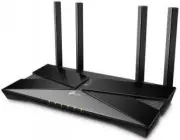 TP-Link Archer AX10
User Manual
TP-Link Archer AX10
User Manual
 TP-Link ARCHER AX11000
User Manual
TP-Link ARCHER AX11000
User Manual
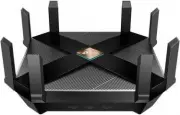 TP-Link Archer AX6000
User Manual
TP-Link Archer AX6000
User Manual
 TP-Link ARCHER AX73 AX5400 (ARCHER-AX73)
User Manual
TP-Link ARCHER AX73 AX5400 (ARCHER-AX73)
User Manual
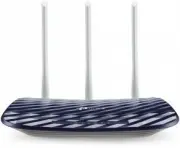 TP-Link Archer C20 v5.0
User Manual
TP-Link Archer C20 v5.0
User Manual
 TP-Link ARCHER GX90 AX6600
User Manual
TP-Link ARCHER GX90 AX6600
User Manual
 TP-Link Archer MR400
User Manual
TP-Link Archer MR400
User Manual
 TP-Link Archer MR600
User Manual
TP-Link Archer MR600
User Manual
 TP-Link CPE210 N300, 10/100BASE-TX White
User Manual
TP-Link CPE210 N300, 10/100BASE-TX White
User Manual
 TP-Link CPE510 N300, 10/100BASE-TX White
User Manual
TP-Link CPE510 N300, 10/100BASE-TX White
User Manual
 TP-Link Deco E3
User Manual
TP-Link Deco E3
User Manual
 TP-Link Deco E4
User Manual
TP-Link Deco E4
User Manual
 TP-Link Deco E4 (2-Pack)
User Manual
TP-Link Deco E4 (2-Pack)
User Manual
 TP-Link Deco E4 +
User Manual
TP-Link Deco E4 +
User Manual
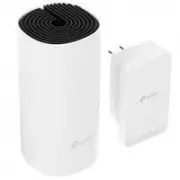 TP-Link Deco M3
User Manual
TP-Link Deco M3
User Manual
 TP-Link Deco M4
User Manual
TP-Link Deco M4
User Manual
 TP-Link Deco M4 AC1200 (3-PK)
User Manual
TP-Link Deco M4 AC1200 (3-PK)
User Manual
 TP-Link Deco M5
User Manual
TP-Link Deco M5
User Manual
 TP-Link DECO M9 1 pcs AC2200
User Manual
TP-Link DECO M9 1 pcs AC2200
User Manual
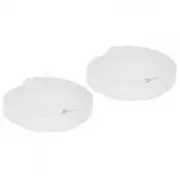 TP-Link Deco M9 Plus
User Manual
TP-Link Deco M9 Plus
User Manual