Page 2 - Contents
Contents About This Guide 1 Chapter 1 Get to Know About Your Router 3 1. 1. Product Overview. . . . . . . . . . . . . . . . . . . . . . . . . . . . . . . . . . . . . . . . . . . . . . . . . . . . . . . . . . . . 41. 2. Appearance . . . . . . . . . . . . . . . . . . . . . . . . . . . . . . . . . . . ...
Page 5 - FAQ
17. 7. 1. Change the Login Password. . . . . . . . . . . . . . . . . . . . . . . . . . . . . . . . . . . . . . . .14417. 7. 2. Local Management . . . . . . . . . . . . . . . . . . . . . . . . . . . . . . . . . . . . . . . . . . . . . . . .14517. 7. 3. Remote Management . . . . . . . . . . . . . . . ...
Page 6 - About This Guide; Conventions; More Info
1 About This Guide This guide is a complement of Quick Installation Guide. The Quick Installation Guide instructs you on quick internet setup, and this guide provides details of each function and shows you the way to configure these functions appropriate to your needs. Note: Features available in th...
Page 8 - Chapter; Get to Know About Your
Chapter 1 Get to Know About Your Router This chapter introduces what the router can do and shows its appearance. It chapter contains the following sections:• Product Overview • Appearance
Page 9 - 1 Product Overview
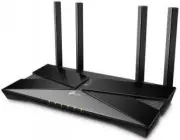
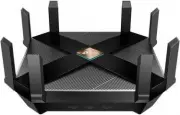
4 Chapter 1 Get to Know About Your Router 1 1 Product Overview TP-Link AX router, with next-generation 802.11ax Wi-Fi Technology, achieves Wi-Fi performance at its ultimate level. The revolutionary combination of OFDMA and 1024QAM improve throughput by 4 times and dramatically increase the whole net...
Page 10 - Some Common LEDs Explanation; 2 2 The Back Panel
5 Chapter 1 Get to Know About Your Router Some Common LEDs Explanation LED Status Indication (Power) On The system has started up successfully. Flashing slowly The system is starting up or the firmware is being upgraded. Do not disconnect or power off your router. Flashing quickly WPS connection is ...
Page 11 - Some Common Buttons and Ports Explanation
6 Chapter 1 Get to Know About Your Router The following parts (view from left to right) are located on the back panel. Some Common Buttons and Ports Explanation Item Description Power Port For connecting the router to a power socket via the provided power adapter. Power On/Off Button Press this butt...
Page 12 - Connect the Hardware
Chapter 2 Connect the Hardware This chapter contains the following sections:• Position Your Router • Connect Your Router
Page 13 - 1 Position Your Router; 2 Connect Your Router
8 Chapter 2 Connect the Hardware 2 1 Position Your Router • The product should not be located in a place where it will be exposed to moisture or excessive heat. • Place the router in a location where it can be connected to multiple devices as well as to a power source. • Make sure the cables and pow...
Page 15 - Smart Device
10 Chapter 2 Connect the Hardware Connections are available Wireless Network Connection TP-Link_XXXXTP-Link_XXXX_5G Connect automatically Connect Wi-Fi Wi-Fi TP-Link_XXXXTP-Link_XXXX_5G CHOOSE A NETWORK... Other... < Settings OR Smart Device Computer • Method 3: Use the WPS button Wireless device...
Page 16 - Log In to Your Router
Page 18 - Set Up Internet Connection
Chapter 4 Set Up Internet Connection This chapter introduces how to connect your router to the internet. The router is equipped with a web-based Quick Setup wizard. It has necessary ISP information built in, automates many of the steps and verifies that those steps have been successfully completed. ...
Page 19 - 1 Use Quick Setup Wizard
14 Chapter 4 Set Up Internet Connection 4 1 Use Quick Setup Wizard The Quick Setup Wizard will guide you to set up your router. Tips: If you need the IPv6 internet connection, please refer to the section of Set Up an IPv6 Internet Connection . Follow the steps below to set up your router.1. Visit ht...
Page 20 - 2 Quick Setup Via TP-Link Aginet App; OR
15 Chapter 4 Set Up Internet Connection Note: • To learn more about the TP-Link Cloud service, please refer to the TP-Link Cloud Service section. • If you do not want to register a TP-Link ID now, you may click Skip to proceed. • If you have changed the preset wireless network name (SSID) and wirele...
Page 21 - 3 Manually Set Up Your Internet Connection
16 Chapter 4 Set Up Internet Connection 4 3 Manually Set Up Your Internet Connection In this part, you can check your current internet connection settings. You can also modify the settings according to the service information provided by your ISP.Follow the steps below to check or modify your intern...
Page 23 - 4 Set Up the Router as an Access Point
18 Chapter 4 Set Up Internet Connection • If you use Dynamic IP and PPPoE and you are provided with any other parameters that are not required on the page, please go to Advanced > Network > Internet to complete the configuration. • If you still cannot access the internet, refer to the FAQ sect...
Page 24 - 5 Set Up an IPv6 Internet Connection
19 Chapter 4 Set Up Internet Connection 4 5 Set Up an IPv6 Internet Connection Your ISP provides information about one of the following IPv6 internet connection types: PPPoE(SLAAC/DHCPv6/AUTO/Passthrough), Dynamic IP(SLAAC/DHCPv6/AUTO/Passthrough), Static IP.1. Visit http://tplinkwifi.net or http://...
Page 31 - Setup Your Network via
Chapter 5 Setup Your Network via TP-Link Aginet App This chapter guides you on how to setup your router and mesh device via TP-Link Aginet app, as well as regulatory information. Features available in Aginet app may vary by model and software version. Aginet app availability may also vary by region ...
Page 32 - 1 Set Up Your Router
27 Chapter 5 Setup Your Network via TP-Link Aginet App 5 1 Set Up Your Router The intuitive Aginet app guides you through an easy setup process that gets each unit up and all your routers connected. Follow the steps below to set up your router. 1 Download and install the Aginet app Scan the QR code ...
Page 35 - 2 Dashboard
30 Chapter 5 Setup Your Network via TP-Link Aginet App 8 Setup complete. Your network is now up. Connect all devices to the network. You can also Add Agent to expand the Wi-Fi coverage. 5 2 Dashboard After you successfully set up your mesh network, you will see the dashboard of the Aginet app. Here ...
Page 37 - 3 Add More Mesh Devices
32 Chapter 5 Setup Your Network via TP-Link Aginet App 5 3 Add More Mesh Devices After creating a mesh network, you can add more mesh devices to the network to expand the Wi-Fi coverage and manage them easily on your Aginet app. 1. In Network , tap + > Add Agent . Then select the Mesh Device . 2....
Page 38 - 4 Check Mesh Device Status
33 Chapter 5 Setup Your Network via TP-Link Aginet App 5 4 Check Mesh Device Status In Network , you can check the working status (online/offline) of all the mesh devices, check the details (speed/mesh device’s IP address & MAC address/connected clients) of each mesh device, change the mesh devi...
Page 41 - 5 Remove/Reboot Mesh Devices
36 Chapter 5 Setup Your Network via TP-Link Aginet App 6. Tap the client’s name. Change or customize client’s information. 5 5 Remove/Reboot Mesh Devices You can reset your mesh device to factory default settings or reboot your mesh device to clear cache and enhance running performance easily in the...
Page 42 - 6 Manage Connected Devices
37 Chapter 5 Setup Your Network via TP-Link Aginet App Note: If the LED light of mesh device does not turn flashing blue after tapping Remove , press and hold the Reset button for at least 5 second to reset it. 5 6 Manage Connected Devices In Network , you can mange your connected devices easily, su...
Page 43 - 7 Create a New Network
38 Chapter 5 Setup Your Network via TP-Link Aginet App 5 7 Create a New Network In the Aginet app, you can create different mesh networks with your TP-Link ID and manage them conveniently from the Aginet app with one account. You can also help family or friends manage their networks with your Aginet...
Page 44 - 8 Parental Controls
39 Chapter 5 Setup Your Network via TP-Link Aginet App 2. Then follow app instructions to complete the setup. 5 8 Parental Controls Parental Controls helps you set time limits and filter content to flexibly control your kids when they’re online. 1. In Family , tap Create a Profile . 2. Then follow a...
Page 45 - 9 Wi-Fi Settings
40 Chapter 5 Setup Your Network via TP-Link Aginet App 5 9 Wi-Fi Settings You can change the network name and password of your main network at any time and share the network easily with family and friends. 1. In More , Tap Wi-Fi Settings . 2. Manage main network (e.g. change your main network’s Wi-F...
Page 46 - 10 Guest Network
41 Chapter 5 Setup Your Network via TP-Link Aginet App 5 10 Guest Network You can create and share a separate network for guests to guarantee the security and privacy of your main network. 1. In More , Tap Guest Network . 2. Set a Wi-Fi name and password for the guest network.
Page 47 - 11 Internet Connection
42 Chapter 5 Setup Your Network via TP-Link Aginet App 5 11 Internet Connection In Internet Connection, You can modify WAN settings (IPv4 & IPv6), enable MAC Clone mode. 1. In More , Tap Internet Connection . 2. View IPv4 details or change the internet connection type.
Page 50 - 13 Upgrade Your Router
45 Chapter 5 Setup Your Network via TP-Link Aginet App 2. Tap + and add clients or other devices to the block list. 5 13 Upgrade Your Router TP-Link is dedicated to improving product features and providing a better customer experience. An up-to-date firmware provides better and more stable network p...
Page 51 - 14 Advanced Features
46 Chapter 5 Setup Your Network via TP-Link Aginet App 2. Download and install the firmware (if any) and follow app instructions to update your router to the latest version. 5 14 Advanced Features Additional features are available under the Advanced menu. You can control mesh device’s LED, enable re...
Page 55 - Customize Your Network
Chapter 6 Customize Your Network Settings This chapter introduces how to change the default settings or adjust the basic configuration of the router using the web management page.It contains the following sections:• Configure LAN Settings • Configure IPv6 LAN Settings • Set Up a Dynamic DNS Service ...
Page 56 - 1 Configure LAN Settings; 1 1 Change the LAN IP Address
51 Chapter 6 Customize Your Network Settings 6 1 Configure LAN Settings 6 1 1 Change the LAN IP Address The router is preset with a default LAN IP 192.168.0.1, which you can use to log in to its web management page. The LAN IP address together with the Subnet Mask also defines the subnet that the co...
Page 57 - 1 2 Use the Router as a DHCP Server
52 Chapter 6 Customize Your Network Settings 6 1 2 Use the Router as a DHCP Server You can configure the router to act as a DHCP server to assign IP addresses to its clients. To use the DHCP server function of the router, you must configure all computers on the LAN to obtain an IP Address automatica...
Page 58 - 1 3 Reserve LAN IP Addresses; 2 Configure IPv6 LAN Settings
53 Chapter 6 Customize Your Network Settings 6 1 3 Reserve LAN IP Addresses You can view and add a reserved address for a client. When you specify an IP address for a device on the LAN, that device will always receive the same IP address each time when it accesses the DHCP server. If there are some ...
Page 59 - 2 1 Configure the RADVD Address Type; 2 2 Configure the DHCPv6 Server Address Type
54 Chapter 6 Customize Your Network Settings 6 2 1 Configure the RADVD Address Type 1 Visit http://tplinkwifi.net or http://192.168.0.1 , and log in with the password you set for the router. 2 Go to Advanced > Network > LAN Settings . 3 Select IPv6 to configure IPv6 LAN parameters. 1 ) Select ...
Page 60 - 3 Set Up a Dynamic DNS Service Account
55 Chapter 6 Customize Your Network Settings 1 ) Select DHCPv6 Server as the address type to make the router assign IPv6 addresses to hosts. 2 ) Specify the Starting/Ending IPv6 Address for the IPv6 suffixes. The router will generate IPv6 addresses within the specified range. 3 ) Keep Address Lease ...
Page 61 - 4 Create Static Routes
56 Chapter 6 Customize Your Network Settings 4 Log in with your DDNS account, select a service provider. Enter the username, password and domain name of the account (such as lisa.ddns.net). 5 Click Log in and Save . Tips: If you want to use a new DDNS account, please log out first, then log in with ...
Page 62 - How can I
57 Chapter 6 Customize Your Network Settings Company’s Server My PC Switch LAN: 192.168.0.1 192.168.0.100 LAN: 192.168.0.2 WAN: 172.30.30.100 172.30.30.1 Router A Router B 1 Make sure the routers use different LAN IP addresses on the same subnet. Disable Router B’s DHCP function. 6 Visit http://tpli...
Page 64 - 5 RIP Settings
59 Chapter 6 Customize Your Network Settings 6 5 RIP Settings To activate RIP for the WAN interface, select the desired RIP version and operation and place a check in the ‘Enabled’ checkbox. To stop RIP on the WAN Interface, uncheck the ‘Enabled’ checkbox. Click the ‘Save’ button to start/stop RIP a...
Page 65 - 6 Specify Wireless Settings; 6 1 Change Basic Wireless Settings
60 Chapter 6 Customize Your Network Settings 6 6 Specify Wireless Settings 6 6 1 Change Basic Wireless Settings The router’s wireless network name (SSID) and password, and security option are preset in the factory. The preset SSID and password can be found on the product label. You can customize the...
Page 67 - 6 2 Advanced Wireless Settings
62 Chapter 6 Customize Your Network Settings 3 Click Save to make the settings effective. ¾ To enable network roaming: Network roaming helps devices choose better AP based on actual conditions to balance network demands. 1 Go to Advanced > Wireless > Wireless Settings . 2 Locate the Band Steer...
Page 70 - 6 3 View Wireless Information
65 Chapter 6 Customize Your Network Settings 3 ) Enter a new Network Name (SSID) or use the default name, this field is case sensitive. Don‘t select Hide SSID unless you want your guests to manually input the SSID for Wi-Fi access. 4 ) Select the Security option for the multi-SSID network, WPA/WPA2 ...
Page 71 - 7 Schedule Your Wireless Function
66 Chapter 6 Customize Your Network Settings Tips: You can also see the wireless details by clicking the router icon on Basic > Network Map . ¾ To view the detailed information of the connected wireless clients: 1 Visit http://tplinkwifi.net or http://192.168.0.1 , and log in with the password yo...
Page 72 - 8 Use WPS for Wireless Connection; Method 1: Use the WPS button
67 Chapter 6 Customize Your Network Settings 4 Click Add to set the Wireless Off Time , and click Save to make the settings effective. Note: 1. Make sure that the time of the router is correct before using this function. For details, refer to Set System Time . 2. The wireless LED will turn off if th...
Page 73 - Method 2: Use the “Connect” button on the web management page
68 Chapter 6 Customize Your Network Settings 4 When the WPS LED is on, the client device has successfully connected to the router. Method 2: Use the “Connect” button on the web management page Use this method if your client device has a WPS button. 1 Visit http://tplinkwifi.net or http://192.168.0.1...
Page 74 - Method 4: Enter the client device’s PIN on the router
69 Chapter 6 Customize Your Network Settings 6 When the WPS LED is on, the client device has successfully connected to the router. Note: 1. The WPS LED on the router will light on for five minutes if the device has been successfully added to the network.2. The WPS function cannot be configured if th...
Page 77 - TP-Link Cloud Service
Chapter 8 TP-Link Cloud Service TP-Link Cloud service provides a better way to manage your cloud devices. Log in to your router with a TP-Link ID, and you can easily monitor and manage your home network when you are out and about via the Aginet app. To ensure that your router stays new and gets bett...
Page 78 - 1 Register a TP-Link ID; 2 Change Your TP-Link ID Information
73 Chapter 8 TP-Link Cloud Service 8 1 Register a TP-Link ID If you have skipped the registration during the Quick Setup process, you can:1. Visit http://tplinkwifi.net or http://192.168.0.1 , and log in with the password you set for the router. 2. Go to Basic > TP-Link Cloud . 3. Click Sign Up a...
Page 79 - 3 Manage the User TP-Link IDs
74 Chapter 8 TP-Link Cloud Service • To change your password: 1. Click behind the Password.2. Enter the current password, then a new password twice. And click Save . 8 3 Manage the User TP-Link IDs The TP-Link ID used to log in to the router for the first time will be automatically bound as the Admi...
Page 80 - 3 1 Add TP-Link ID to Manage the Router
75 Chapter 8 TP-Link Cloud Service from the same router as User s. All accounts can monitor and manage the router locally or remotely, but user accounts cannot:• Reset the router to its factory default settings either on the web management page or in the Aginet app. • Add/remove other TP-Link IDs to...
Page 81 - 4 Manage the Router via the TP-Link Aginet App
76 Chapter 8 TP-Link Cloud Service 8 4 Manage the Router via the TP-Link Aginet App The Aginet app runs on iOS and Android devices, such as smartphones and tablets.1. Launch the Apple App Store or Google Play store and search “ TP-Link Aginet ” or simply scan the QR code to download and install the ...
Page 82 - USB Settings
Chapter 9 USB Settings This chapter describes how to use the USB ports to share files and media from the USB storage devices over your home network locally, or remotely through the internet.The router supports USB external flash drives and hard drives.It contains the following sections:• Access the ...
Page 83 - 1 Access the USB Storage Device; 1 1 Access the USB Device Locally; Windows
78 Chapter 9 USB Settings 9 1 Access the USB Storage Device Insert your USB storage device into the router’s USB port and then access files stored there locally or remotely. Tips: • If you use USB hubs, make sure no more than 4 devices are connected to the router.• If the USB storage device requires...
Page 84 - 1 2 Access the USB Device Remotely
79 Chapter 9 USB Settings Windows computer • Method 2: Open the Windows Explorer (or go to Computer ) and type the server address \\tplinkwifi.net or ftp://tplinkwifi.net in the address bar, then press Enter . Mac 1 ) Select Go > Connect to Server . 2 ) Type the server address smb://tplinkwifi.ne...
Page 86 - Computer; 1 3 Customize the Access Settings
81 Chapter 9 USB Settings Computer 1 ) Open the Windows Explorer (or go to Computer , only for Windows users) or open a web browser. 2 ) Type the server address in the address bar: Type in ftp://<WAN IP address of the router>:<port number> (such as ftp://59.40.2.243:21 ). If you have spe...
Page 88 - 2 Media Sharing
83 Chapter 9 USB Settings Note: 1. For Windows users, do not set the sharing username the same as the Windows username. Otherwise, Windows credential mechanism may cause the following problems:• If the sharing password is also the same as the Windows password, authentication will not work since the ...
Page 91 - EasyMesh with Seamless
Chapter 10 EasyMesh with Seamless Roaming This chapter introduces the TP-Link EasyMesh feature.It contains the following sections:• Set Up a EasyMesh Network • Manage Devices in the EasyMesh Network
Page 92 - Unified Wi-Fi Network; 0 1 Set Up a EasyMesh Network
87 Chapter 10 EasyMesh with Seamless Roaming TP-Link EasyMesh Controller and TP-Link EasyMesh Agent work together to form one unified Wi-Fi network. Walk through your home and stay connected with the fastest possible speeds thanks to EasyMesh’s seamless coverage. Unified Wi-Fi Network Controller and...
Page 94 - 0 2 Manage Devices in the EasyMesh Network
89 Chapter 10 EasyMesh with Seamless Roaming Done! Now your controller and agents successfully form a EasyMesh network! 10 2 Manage Devices in the EasyMesh Network In a EasyMesh network, you can manage all mesh devices and connected clients on your router’s web page. • To view mesh devices and conne...
Page 96 - Guest Network
Chapter 11 Guest Network This function allows you to provide Wi-Fi access for guests without disclosing your main network. When you have guests in your house, apartment, or workplace, you can create a guest network for them. In addition, you can customize guest network options to ensure network secu...
Page 97 - 1 1 Create a Network for Guests; 1 2 Customize Guest Network Options
92 Chapter 11 Guest Network 11 1 Create a Network for Guests 1. Visit http://tplinkwifi.net or http://192.168.0.1 , and log in with your TP-Link ID or the password you set for the router. 2. Go to Advanced > Guest Network . Locate the Wireless section. 3. Create a guest network as needed. 1 ) Tic...
Page 99 - NAT Forwarding
Chapter 12 NAT Forwarding The router’s NAT (Network Address Translation) feature makes devices on the LAN use the same public IP address to communicate with devices on the internet, which protects the local network by hiding IP addresses of the devices. However, it also brings about the problem that...
Page 100 - 2 2 Set Up Public Services on The Local Network by
95 Chapter 12 NAT Forwarding 12 1 ALG ALG allows customized Network Address Translation (NAT) traversal filters to be plugged into the gateway to support address and port translation for certain application layer “control/data” protocols such as FTP, TFTP, H323 etc. It is recommended to keep the def...
Page 102 - 2 3 Open Ports Dynamically by Port Triggering
97 Chapter 12 NAT Forwarding 5. Enter the IP address of the computer running the service application in the Internal IP field. 6. Select a protocol for the service application: TCP, UDP, or All from the Protocol drop- down list. 7. Select Enable This Entry.8. Click OK . Tips: • If you want to disabl...
Page 104 - 2 4 Make Applications Free from Port Restriction
99 Chapter 12 NAT Forwarding Tips: • You can add multiple port triggering rules according to your network need.• The triggering ports can not be overlapped.• If the application you need is not listed in the Existing Applications list, please enter the parameters manually. You should verify the exter...
Page 105 - 2 5 Make Xbox Online Games Run Smoothly by; INTERNET
100 Chapter 12 NAT Forwarding 3 Click SAVE . Done! The configuration is completed. You’ve set your PC to a DMZ host and now you can make a team to game with other players. 12 5 Make Xbox Online Games Run Smoothly by UPnP The UPnP (Universal Plug and Play) protocol allows applications or host devices...
Page 107 - Parental Controls
Chapter 13 Parental Controls This function allows you to block inappropriate, explicit and malicious websites, and control access to specified websites at specified time.
Page 112 - Quality of Service
Chapter 14 Quality of Service This function allows you to specify the priority of traffic and minimizes the impact of network congestion.
Page 113 - To set up QoS for the network:
108 Chapter 14 Quality of Service The router allows you to configure the quality of service (QoS) for optimal throughput and performance when handling differentiated wireless traffic, such as Voiceover-IP (VoIP), other types of audio, video, streaming media, and traditional IP data.To configure QoS ...
Page 114 - To set up QoS for a specific device:
109 Chapter 14 Quality of Service 5 (Optional) Enable IPTV QoS , then set the priority and reserved bandwidth of IPTV traffic. 6 (Optional) Click Advanced and arrange the sliders to set the bandwidth percentage of each priority. 7 Click Save to make the settings effective. To set up QoS for a specif...
Page 117 - Network Security
Chapter 15 Network Security This chapter guides you on how to protect your home network from unauthorized users by implementing network security functions. You can block or allow specific client devices to access your wireless network using MAC Filtering, or using Access Control for wired and wirele...
Page 118 - 5 1 Firewall & DoS Protection
113 Chapter 15 Network Security 15 1 Firewall & DoS Protection The SPI (Stateful Packet Inspection) Firewall and DoS (Denial of Service) Protection protect the router from cyber attacks. The SPI Firewall can prevent cyber attacks and validate the traffic that is passing through the router based ...
Page 119 - 5 2 Service Filtering
114 Chapter 15 Network Security 2. The protection will be triggered immediately when the number of packets exceeds the preset threshold value, and the vicious host will be displayed in the Blocked DoS Host List . 15 2 Service Filtering With Service Filtering, you can prevent certain users from acces...
Page 120 - 5 3 Access Control
115 Chapter 15 Network Security 4 Select a Service Type from the drop-down list and the following four fields will be automatically filled in. Select Custom when your desired service type is not listed, and enter the information manually. 5 Specify the IP address(es) that this filtering rule will ap...
Page 122 - 5 4 IP & MAC Binding
117 Chapter 15 Network Security 3 ) Enter the Device Name and MAC Address . (You can copy and paste the information from Online Devices table if the device is connected to your network.) 4 ) Click Save . Now you can block or allow specific client devices to access your network (via wired or wireless...
Page 127 - 6 1 Use OpenVPN to Access Your Home Network
122 Chapter 16 VPN Server&Client 16 1 Use OpenVPN to Access Your Home Network OpenVPN Server is used to create an OpenVPN connection for remote devices to access your home network. To use the VPN feature, you need to enable OpenVPN Server on your router, and install and run VPN client software o...
Page 128 - 6 2 Use PPTP VPN to Access Your Home Network
123 Chapter 16 VPN Server&Client 7. Click SAVE . 8. Click GENERATE to get a new certificate. Note: If you have already generated one, please skip this step, or click GENERATE to update the certificate. 9. Click EXPORT to save the OpenVPN configuration file which will be used by the remote device...
Page 132 - 6 3 Use IPSec VPN to Access Your Home Network
127 Chapter 16 VPN Server&Client 7. Click Connect Now when the VPN connection is ready to use. 16 3 Use IPSec VPN to Access Your Home Network IPSec VPN Server is used to create a IPSec VPN connection for remote devices to access your home network.
Page 141 - 6 4 VPN Connections
136 Chapter 16 VPN Server&Client 16 4 VPN Connections VPN Connections page displays the clients that are currently connected to the OpenVPN servers, PPTP VPN servers and IPSec VPN hosted on the router.1. Visit http://tplinkwifi.net or http://192.168.0.1 , and log in with your TP-Link ID or the p...
Page 142 - Manage Your Router
Chapter 17 Manage Your Router This chapter introduces how to change the system settings and administrate your router’s network.This chapter contains the following sections:• Set System Time • Control the LED • Test Internet Connectivity • Update the Firmware • Back Up and Restore Configuration Setti...
Page 143 - 7 1 Set System Time
138 Chapter 17 Manage Your Router 17 1 Set System Time System time is the time displayed while the router is running. The system time you configure here will be used for other time-based functions like Parental Controls and Wireless Schedule. You can manually set how to get the system time.Follow th...
Page 144 - 7 2 Control the LED
139 Chapter 17 Manage Your Router 17 2 Control the LED The LED of the router indicates its activities and status. You can enable the Night Mode feature to specify a time period during which the LED is off.1. Visit http://tplinkwifi.net or http://192.168.0.1 , and log in with your TP-Link ID or the p...
Page 146 - 7 4 Update the Firmware
141 Chapter 17 Manage Your Router 4 ) Click Start to begin the diagnostics, and you will find the test results in the gray box. 17 4 Update the Firmware TP-Link is dedicated to improving product features, giving you a better network experience. We will inform you through the web management page if t...
Page 147 - 7 5 Back Up and Restore Configuration Settings
142 Chapter 17 Manage Your Router 6. Wait a few minutes for the upgrading and rebooting. 17 5 Back Up and Restore Configuration Settings The configuration settings are stored as a configuration file in the router. You can back up the configuration file to your computer for future use and restore the...
Page 148 - 7 6 Reboot the Router
143 Chapter 17 Manage Your Router 1 ) Locate the Factory Default Restore section, and click Factory Restore to reset the router. 2 ) Wait a few minutes for the resetting and rebooting. Note: 1. During the resetting process, do not turn off the router. 2. We strongly recommend you back up the current...
Page 149 - 7 7 Administration Management; 7 7 1 Change the Login Password
144 Chapter 17 Manage Your Router 3 ) Click Save to make the settings effective. Some settings of the router may take effect only after rebooting, including:• Change the LAN IP Address (system will reboot automatically).• Change the Operation Mode (system will reboot automatically).• Upgrade the fir...
Page 150 - 7 7 2 Local Management
145 Chapter 17 Manage Your Router 3 Enter the old password and a new password twice (both case-sensitive). 4 Click Save to make the settings effective. 17 7 2 Local Management You can control the local devices’ authority to manage the router via Local Management feature. By default all local connect...
Page 151 - 7 7 3 Remote Management
146 Chapter 17 Manage Your Router Note: If you want all local devices can manage the router, just leave the IP/MAC Address field blank. 17 7 3 Remote Management By default, the remote devices are not allowed to manage the router from the internet. You can enable remote management over HTTP and/or HT...
Page 152 - 7 7 4 HTTP Referer Head Check
147 Chapter 17 Manage Your Router All devices or the specific device on the internet can log in to your router using the address displayed on the Manage This Router via the Address field to manage the router. Tips: 1. If you were warned about the certificate when visiting the web management page rem...
Page 155 - 7 9 CWMP Settings
150 Chapter 17 Manage Your Router 17 9 CWMP Settings The router supports CWMP (CPE WAN Management Protocol), also called TR-069. This collects information, performs diagnostics and configures the devices automatically via ACS (Auto-Configuration Server). 1 Visit http://tplinkwifi.net or http://192.1...
Page 158 - 7 11 Monitor the Internet Traffic Statistics
153 Chapter 17 Manage Your Router 17 11 Monitor the Internet Traffic Statistics The traffic statistics function allows you to monitor the volume of internet traffic statistics. You can view the network traffic of the LAN, WAN and WLAN sent and received packets. 1 Visit http://tplinkwifi.net or http:...
Page 160 - Q1 What should I do if I forget my wireless password?; Q3 What should I do if I can’t log in to the router’s web management
155 FAQ Q1 What should I do if I forget my wireless password? The default wireless password is printed on the label of the router. If the password has been altered:1. Connect your computer to the router using an Ethernet cable. 2. Visit http://tplinkwifi.net , and log in with your TP-Link ID or the ...
Page 162 - Q4 What should I do if I can’t access the internet even though the
157 • Use another web browser or computer to log in again.• Reset the router to factory default settings and try again. If login still fails, please contact the technical support. Note : You’ll need to reconfigure the router to surf the internet once the router is reset. Q4 What should I do if I can...
Page 165 - Q5 What should I do if I can’t find my wireless network or I cannot
160 1 ) Power off your modem and router, and leave them off for 1 minute.2 ) Power on your modem first, and wait about 2 minutes until it get a solid cable or Internet light. 3 ) Power on the router.4 ) Wait another 1 or 2 minutes and check the internet access. • Double check the internet connection...
Page 168 - FCC compliance information statement; BBA Routers; TP-Link USA Corporation
163 FCC compliance information statement Product Name: BBA Routers Model Number: BBA Routers Component Name Model I.T.E. Power T120200-2B1 Responsible party: TP-Link USA Corporation Address: 10 Mauchly, Irvine, CA 92618 Website: http://www.tp-link.com/us/ Tel: +1 626 333 0234 Fax: +1 909 527 6804 E-...
Page 169 - could void the user’s authority to operate the equipment.; FCC RF Radiation Exposure Statement; TP-Link USA Corporatio
164 Note: The manufacturer is not responsible for any radio or TV interference caused by unauthorized modifications to this equipment. Such modifications could void the user’s authority to operate the equipment. FCC RF Radiation Exposure Statement This equipment complies with FCC RF radiation exposu...
Page 171 - Canadian Compliance Statement; cause undesired operation of the device.; Radiation Exposure Statement:; with minimum distance 20cm between the radiator & your body.; Déclaration d’exposition aux radiations:
166 Canadian Compliance Statement This device contains licence-exempt transmitter(s)/receiver(s) that comply with Innovation, Science and Economic Development Canada’s licence-exempt RSS(s). Operation is subject to the following two conditions: 1. This device may not cause interference. 2. This devi...
Page 172 - 覆蓋開口。; 限用物質含有情況標示聲明書
167 Industry Canada Statement CAN ICES-3 (B)/NMB-3(B) NCC Notice & BSMI Notice: 注意! 取得審驗證明之低功率射頻器材,非經核准,公司、商號或使用者均不得擅自變 更頻率、加大功率或變更原設計之特性及功能。低功率射頻器材之使用不得影響飛航安全及干擾合法通信;經發現有干擾現象 時,應立即停用,並改善至無干擾時方得繼續使用。前述合法通信,指依電信管理法規定作業之無線電通信。低功率射頻器材須忍受合法通信或工業、科學及醫療用電波輻射性電機設備之干 擾。應避免影響附近雷達系統之操作。高增益指向性天線只得應用於固定式點對點...
Page 173 - Safety Information; adapter more than 15 cm (6 inches) away from any pacemakers or other; Explanations of the symbols on the product label
168 天線 ○ ○ ○ ○ ○ ○ 備考1.〝超出0.1 wt %〞及〝超出0.01 wt %〞係指限用物質之百分比含量超出百分比含量基準值Note 1:“Exceeding 0.1 wt %” and “exceeding 0.01 wt %” indicate that the percentage content of the restricted substance exceeds the reference percentage value of presence condition.備考2.〝○〞係指該項限用物質之百分比含量未超出百分比含量基準值。Note 2:“○” indic...


 TP-Link Archer AX10
User Manual
TP-Link Archer AX10
User Manual
 TP-Link ARCHER AX11000
User Manual
TP-Link ARCHER AX11000
User Manual
 TP-Link Archer AX6000
User Manual
TP-Link Archer AX6000
User Manual
 TP-Link ARCHER AX73 AX5400 (ARCHER-AX73)
User Manual
TP-Link ARCHER AX73 AX5400 (ARCHER-AX73)
User Manual
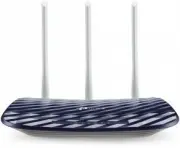 TP-Link Archer C20 v5.0
User Manual
TP-Link Archer C20 v5.0
User Manual
 TP-Link ARCHER GX90 AX6600
User Manual
TP-Link ARCHER GX90 AX6600
User Manual
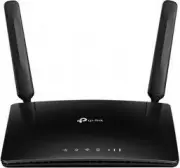 TP-Link Archer MR400
User Manual
TP-Link Archer MR400
User Manual
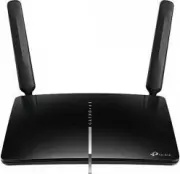 TP-Link Archer MR600
User Manual
TP-Link Archer MR600
User Manual
 TP-Link CPE210 N300, 10/100BASE-TX White
User Manual
TP-Link CPE210 N300, 10/100BASE-TX White
User Manual
 TP-Link CPE510 N300, 10/100BASE-TX White
User Manual
TP-Link CPE510 N300, 10/100BASE-TX White
User Manual
 TP-Link Deco E3
User Manual
TP-Link Deco E3
User Manual
 TP-Link Deco E4
User Manual
TP-Link Deco E4
User Manual
 TP-Link Deco E4 (2-Pack)
User Manual
TP-Link Deco E4 (2-Pack)
User Manual
 TP-Link Deco E4 +
User Manual
TP-Link Deco E4 +
User Manual
 TP-Link Deco M3
User Manual
TP-Link Deco M3
User Manual
 TP-Link Deco M4
User Manual
TP-Link Deco M4
User Manual
 TP-Link Deco M4 AC1200 (3-PK)
User Manual
TP-Link Deco M4 AC1200 (3-PK)
User Manual
 TP-Link Deco M5
User Manual
TP-Link Deco M5
User Manual
 TP-Link DECO M9 1 pcs AC2200
User Manual
TP-Link DECO M9 1 pcs AC2200
User Manual
 TP-Link Deco M9 Plus
User Manual
TP-Link Deco M9 Plus
User Manual