Page 2 - Contents
Contents About This Guide ···················································· 1Appearance ······························································· 2Set Up Your Deco ··················································· 3Dashboard ································································...
Page 3 - About This Guide
1 About This Guide This guide provides a brief introduction to Whole Home Deco Mesh Wi-Fi 6 System and the Deco app, as well as regulatory information. Features available in Deco may vary by model and software version. Deco availability may also vary by region or ISP. All images, steps, and descript...
Page 4 - Appearance
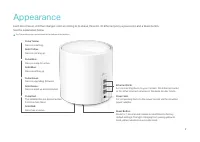
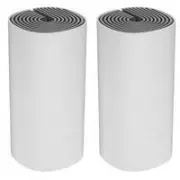
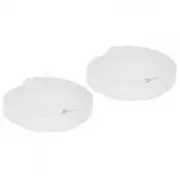
2 Appearance Each Deco has an LED that changes color according to its status, three RJ-45 Ethernet ports, a power slot, and a Reset button. See the explanation below: Tip: The product label can be found at the bottom of the product. Pulse Yellow: Deco is resetting. Solid Yellow: Deco is starting up....
Page 5 - Set Up Your Deco
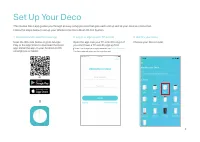
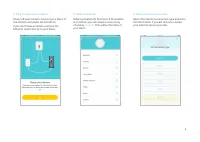
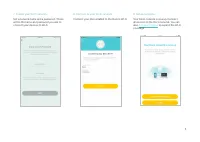
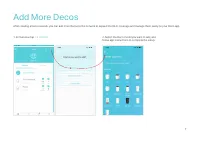
3 Set Up Your Deco The intuitive Deco app guides you through an easy setup process that gets each unit up and all your devices connected. Follow the steps below to set up your Whole Home Deco Mesh Wi-Fi 6 System. 1. Download and install the Deco app Scan the QR code below or go to Google Play or the...
Page 8 - Dashboard
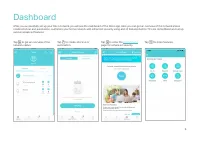
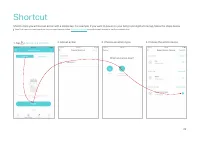
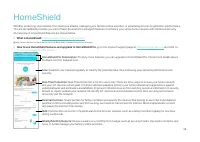
6 Dashboard After you successfully set up your Deco network, you will see the dashboard of the Deco app. Here you can get an overview of the network status, create shortcut and automation, customize your home network with enhanced security using a kit of features built to TP-Link HomeShield and set ...
Page 10 - Check Deco Status
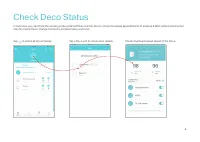
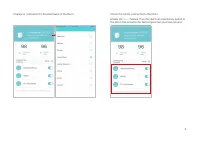
8 Check Deco Status In Overview, you can check the working status (online/offline) of all the Decos, check the details (speed/Deco's IP address & MAC address/connected clients) of each Deco, change the Deco's location/name, and more. Tap to check all Decos' status. Tap a Deco unit to check more ...
Page 12 - Set Main Deco
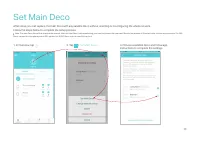
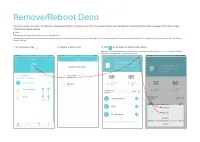
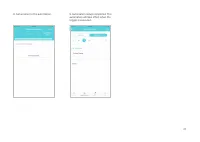
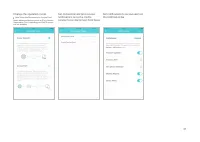
10 Set Main Deco After setup, you can replace the main Deco with any satellite Deco without resetting or reconfiguring the whole network. Follow the steps below to complete the setup process. Note: The main Deco links all the others to the internet. After the main Deco finishes switching, you need t...
Page 14 - Manage Connected Devices
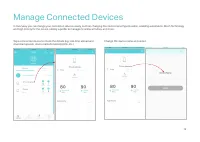
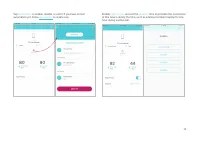
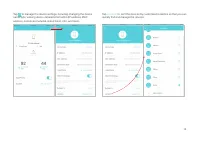
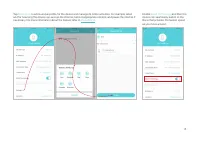
12 Manage Connected Devices In Overview, you can mange your connected devices easily, such as changing the device name/type/location, enabling automation, Mesh Technology and high priority for the device, setting a profile to manage its online activities, and more. Tap a connected device to check th...
Page 18 - Sort Devices By Locations
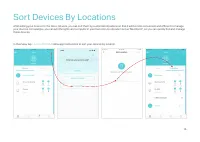
16 Sort Devices By Locations After adding your devices to the Deco network, you can sort them by customized locations so that it will be more convenient and efficient to manage your devices. For example, you can add the lights and computer in your bed room to a location set as "Bed Room", so...
Page 19 - Create a New Network
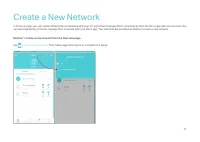
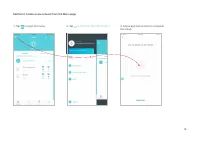
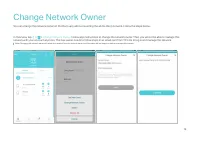
17 Create a New Network In the Deco app, you can create different Deco networks with your TP-Link ID and manage them conveniently from the Deco app with one account. You can also help family or friends manage their networks with your Deco app. Two methods are provided as below to create a new networ...
Page 22 - Delete a Network
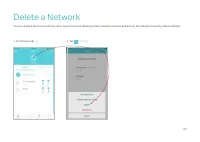
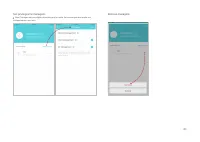
20 Delete a Network You can delete a Deco network if you don't need it anymore. Deleting a Deco network will reset all Decos in this network to factory default settings. 2. Tap > Delete . 1. In Overview, tap .
Page 23 - Add Smart Devices
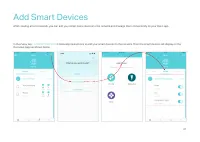
21 Add Smart Devices After creating a Deco network, you can add your smart home devices to the network and manage them conveniently on your Deco app. In Overview, tap + > SMART DEVICES . Follow app instructions to add your smart devices to the network. Then the smart devices will display on the O...
Page 26 - Automation
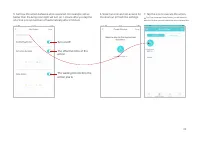
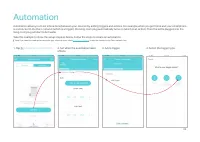
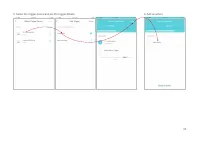
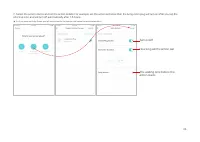
24 Automation Automation allows you to set interactions between your devices by adding triggers and actions. For example, when you get home and your smartphone is connected to the Deco network (which is a trigger), the living room plug automatically turns on (which is an action). Then the kettle plu...
Page 32 - Guest Network
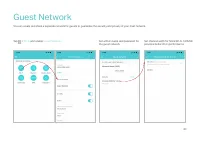
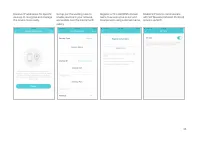
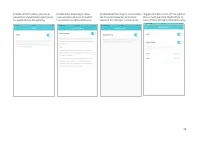
30 Guest Network You can create and share a separate network for guests to guarantee the security and privacy of your main network. Tap > Wi-Fi and enable Guest Network . Set a Wi-Fi name and password for the guest network. Set channel width for 5GHz Wi-Fi. 160MHz provides better Wi-Fi performanc...
Page 34 - Upgrade Your Deco
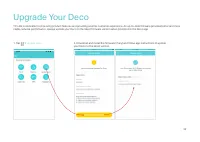
32 Upgrade Your Deco TP-Link is dedicated to improving product features and providing a better customer experience. An up-to-date firmware provides better and more stable network performance. Always update your Deco to the latest firmware version when prompted in the Deco app. 1. Tap > Update Dec...
Page 35 - Advanced Features
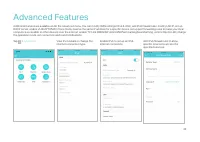
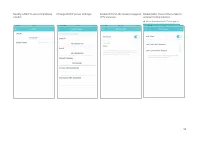
33 Advanced Features Additional features are available under the Advanced menu. You can modify WAN settings (IPv4 & IPv6), add IPv6 firewall rules, modify LAN IP, set up DHCP server, enable VLAN/IPTV/MAC Clone mode, reserve the same IP address for a specific device, set up port forwarding rules ...
Page 40 - WPS
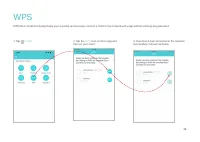
38 1. Tap > WPS . 2. Tap the WPS icon on Deco app and then on your client. 3. Your device has connected to the network successfully if shown as below. WPS WPS (Wi-Fi Protected Setup) helps you to quickly and securely connect a client to the network with a tap without entering any password.
Page 41 - Managers
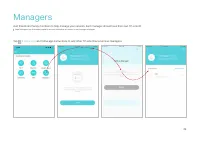
39 Tap > Managers , and follow app instructions to add other TP-Link ID accounts as managers. Managers Add friends and family members to help manage your network. Each manager should have their own TP-Link ID. Note: Managers can not modify owner's account, add other accounts, or set manager privi...
Page 43 - Control Your Deco with Alexa
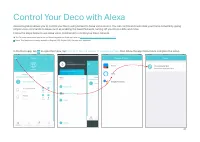
41 Control Your Deco with Alexa Alexa Integration allows you to control your Deco using Amazon’s Alexa voice service. You can control and customize your home network by giving simple voice commands to Alexa, such as enabling the Guest Network, turning off your Deco LEDs, and more. Follow the steps b...
Page 44 - Troubleshooting
42 Troubleshooting Solutions to common problems during setup or use are provided here for reference. Follow the steps and the provided link below to diagnose and solve problems you might experience with your Deco.If problems still exist, contact us: https://www.tp-link.com/support Q1. What should I ...
Page 45 - Authentication
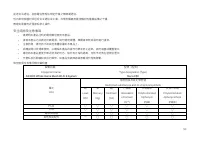
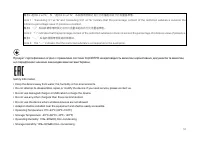
43 Authentication FCC Compliance Information Statement Product Name: AX3000 Whole Home Mesh Wi-Fi 6 System Model Number: Deco X50 Component Name Component Model Product FCC ID I.T.E POWER SUPPLY T120150-2B4 2AXJ4X50 Responsible party: TP-Link USA Corporation Address: 10 Mauchly, Irvine, CA 92618Webs...