Page 2 - Safety Precautions; CAUTION : DVD PLAYERS USE AN INVISIBLE LASER BEAM WHICH CAN CAUSE; CAUTIONS; correspondante de la prise et pousser jusqu au fond.; with liquids, such as vases, should be placed on the apparatus.; CAUTION; Introduction
ENG-2 Safety Precautions TO REDUCE THE RISK OF ELECTRIC SHOCK, DO NOTREMOVE THE COVER(OR BACK).NO USER-SERVICEABLE PARTS ARE INSIDE. REFERSERVICING TO QUALIFIED SERVICE PERSONNEL. This lightning flash with arrowheadsymbol within an equilateral triangle isintended to alert the user to the presenceof ...
Page 3 - Important Safety Instructions; the point where they exit from the apparatus.
ENG-3 Introduction Important Safety Instructions 1) Read these instructions. 2) Keep these instructions. 3) Heed all warnings. 4) Follow all instructions. 5) Do not use this apparatus near water. 6) Clean only with dry cloth. 7) Do not block any ventilation openings, Install in accordance with the m...
Page 4 - It cannot be used elsewhere.; Notes on Regional Codes; Code” appears on the TV screen.; Notes on DVDs and Video CDs
ENG-4 Introduction Note: • This unit can be used only where the power supply is AC 110~240V, 60/50Hz. It cannot be used elsewhere. Notes on Regional Codes • Most DVD discs have a globe with one or more numbers in it clearly visible on the cover. This number must match your DVD player’s regional code...
Page 5 - HANDLING CAUTIONS; internal parts may be damaged.; NOTES ON LOCATING
ENG-5 Intr oduction HANDLING CAUTIONS • Before connecting other components to this player, be sure to turn them all off.• Do not move the player while a disc is being played, or the disc may be scratched or broken, and the player’s internal parts may be damaged. • Do not put a flower vase filled wit...
Page 6 - Angle : Approx. 30o in each direction of the front of the; - Check if there is any fluorescent lighting nearby.; Before you start; Accessories
Install Batteries in the Remote control 1 Open the batterycover on the back ofthe remote control. Operating with the remote control Point the remote control at the remote sensor andpress the buttons. Distance : Approx. 7m (23 feet) from the front of the remote sensor. Angle : Approx. 30º in each dir...
Page 7 - Table of Contents
ENG-7 Table of Contents Introduction Safety Precautions . . . . . . . . . . . . . . . . . . . . . . . . . . . . . . . . . . . . . . . . . . . . . . . . . . . . 2Important Safety Instructions . . . . . . . . . . . . . . . . . . . . . . . . . . . . . . . . . . . . . . . . . . . . 3Before you start . ....
Page 8 - General Features; Note
ENG-8 General Features Excellent Sound Dolby Digital, a technology developed by DolbyLaboratories, provides crystal clear sound reproduction. Screen Both regular and widescreen(16:9) pictures can beviewed. Slow Motion An important scene can be viewed in slow motion. Program Play (CD) You can program...
Page 9 - Symbol Used in this Manual; ” may appear on your TV display during; Notes on Discs; HANDLING DISCS
ENG-9 Intr oduction Introduction To ensure proper use of this product, please read thisowner’s manual carefully and retain for futurereference. This manual provides information on the operationand maintenance of your DVD Home TheaterSystem.Should the unit require service, contact an authorizedservic...
Page 10 - Type of Playable Discs; Disc Markings; NTSC; Recording Types; Super Audio CD; DivX Certification
ENG-10 Type of Playable Discs This DVD player is capable of playing the following types of discs with the corresponding logos: Disc Markings Region Number Both the DVD player and the discs arecoded by region. These regional codesmust match in order for the disc toplay. If the codes do not match, the...
Page 11 - Front Panel; POWER Indicator; This indicator will lights up when the power is on.; DISC TRAY; Operation indicators are displayed here.; Disc type indicators
ENG-11 Intr oduction Front Panel Front Panel Display 1. ON/STANDBY( ) Use to turn your player on and off (standby). 2. POWER Indicator This indicator will lights up when the power is on. 3. DISC TRAY Place the disc here. 4. DISPLAY Operation indicators are displayed here. 5. MULTI- CARD INPUT Insert...
Page 12 - Rear Panel; See pages 64 ~ 66 to get more information on how to use the setup menu.
ENG-12 Rear Panel 1. 5.1CH ANALOG AUDIO OUT JACKS - Connect to an amplifier with 5.1ch analog input jacks. 2. DIGITAL AUDIO OUT JACKS - Use either an optical or coaxial digital cable to connect to a compatible Dolby Digital receiver. - Use either an optical or coaxial digital cable to connect to an ...
Page 13 - Remote Control
ENG-13 Intr oduction Remote Control 1. OPEN/CLOSE ( ) Button To open and close the disc tray. 2. NUMBER Buttons 3. INPUT Button Selects Video input connection in TV mode. 4. DVD Button Press this to operate DVD Player. 5. TV Button Press this to operate TV. (Go to TV mode.) 6. ZOOM Button Enlarges p...
Page 14 - Choosing a Connection; Before Connecting the DVD Player; more information on those particular components.; terminals on the rear of the DVD player to; mode changes in the following sequence: (; Connections
ENG-14 Choosing a Connection The following shows examples of connections commonly used to connect the DVD player with a TVand other components. Before Connecting the DVD Player - Always turn off the DVD player, TV, and other components before you connect or disconnect any cables. - Refer to the user...
Page 15 - Please refer to the user's manual of your TV.; OUT
ENG-15 Connections Connection to a TV (S-Video) - Connecting to your TV using an S-Video cable. - You will enjoy high quality images. S-Video separates the picture element into black and white(Y) and colour(C) signals to present clearer images than regular video input mode.(Audio signals are deliver...
Page 16 - COMPONENT VIDEO OUT
ENG-16 Connection to a TV (Interlace) - Connecting to your TV using Component video cables. - You will enjoy high quality and accurate colour reproduction images. Component video separates the picture element into black and white(Y), blue(P B ), red(P R ) signals to present clear and clean images. (...
Page 17 - To see the progressive video output,
ENG-17 Connections Connection to a TV (Progressive) Note - What is "Progressive Scan"? Progressive scan has twice as many scanning lines as the interlace output method.Progressive scanning method provides better and clearer picture quality. 1 Using component video cables (not supplied), conn...
Page 18 - Connecting to a TV with HDMI Jack; Using the HDMI cable, connect the; HDMI OUT; terminal on the; HDMI IN; HDMI VIDEO Specifications; When you press the; The first press of the; HDMI; button brings up the current resolution.
ENG-18 Connecting to a TV with HDMI Jack 1 Using the HDMI cable, connect the HDMI OUT terminal on the rear of the DVD player to the HDMI IN terminal of your TV. 2 Press the input selector on your TV remote control until theHDMI signal from the DVD player appears on your TV screen. HDMI VIDEO Specifi...
Page 19 - • HDMI (High Definition Multimedia Interface)
ENG-19 Connections • HDMI (High Definition Multimedia Interface) HDMI is an interface to enable the digital transmission of video and audio data with just a single connector.Using HDMI, the DVD player transmits a digital video and audio signal and displays a vivid picture on a TVhaving an HDMI input...
Page 20 - - The position of terminals may vary depending on the Amplifier.; Connection to an Audio System (2 Channel Amplifier)
ENG-20 Note - Please turn the volume down when you turn on the Amplifier. Sudden loud sound may cause damage to the speakers and your ears. - Please set the audio in the menu screen according to the Amplifier. (See pages 60 to 61) - The position of terminals may vary depending on the Amplifier. Plea...
Page 21 - Connection to an Audio System (Dolby Digital, MPEG2 or DTS Amplifer)
ENG-21 Connections Note - Please turn the volume down when you turn on the Amplifier. Sudden loud sound may cause damage to the speakers and your ears. - Please set the audio in the menu screen according to the Amplifier. (See pages 60 to 61) - The position of terminals may vary depending on the Amp...
Page 22 - Connection to a 5.1CH Analog Amplifier
ENG-22 Note - Please turn the volume down when you turn on the Amplifier. Sudden loud sound may cause damage to the speakers and your ears. - Please set the audio in the menu screen according to the Amplifier. (See pages 60 to 63) - The position of terminals may vary depending on the Amplifier. Plea...
Page 23 - Playing a Disc; Before Play; POWER; Playback; When you stop disc play, the player remembers; Basic Functions
ENG-23 Basic Functions Playing a Disc Before Play - Turn on your TV and set it to the correct Video Input on the TV's remote control. - If you connected an external Audio System, turn on your Audio System and set it to the correct Audio Input. After plugging in the player, the first time you press t...
Page 24 - STEP; Stopping Play
ENG-24 6 Pausing Play Press the PLAY/PAUSE ( ) or STEP button on the remote control during play. ▼ Screen pauses, no sound.To resume, press the PLAY/PAUSE ( ) button once again. Note If the player is left for about 5 minutes in pausemode, it will stop. 7 Step Motion Play (ExceptCD) Press the STEP bu...
Page 25 - Using the Search and Skip Functions; Searching through a Chapter or Track; SEARCH; - The speed marked in this function may be; Skipping Tracks; - If a track exceeds 15 minutes when playing a; During play, press the; SKIP
ENG-25 Basic Functions Using the Search and Skip Functions During play, you can search quickly through a chapter or track, and use the skip function to jump tothe next selection. Searching through a Chapter or Track During play, press the SEARCH ( or ) button on the remote control for more than 1 se...
Page 26 - Using the Display Function; DISPLAY; You can select Info in the function menu by
ENG-26 Using the Display Function When Playing a DVD/VCD/CD/MPEG4 1 During play, press the DISPLAY button on the remote control. ▼ You can select Info in the function menu by pressing the MENU button. 2 Press the … / † buttons to select the desired item. DVD VCD CD ▼ When VCD2.0 is in Menu Off mode ...
Page 27 - Press the; ENTER; You may use the number buttons on the remote
ENG-27 Basic Functions 4 To make the screen disappear, press the DISPLAY button again. Note To access the desired title when there is more than one in the disc.For example, if there is more than one movie on a DVD, each movie will be identified. Most DVD discs are recorded in chapters so that you ca...
Page 28 - Using the Disc and Title Menu
ENG-28 Using the Disc and Title Menu Using the Disc Menu (DVD) 1 During the playback of aDVD disc, press the SETUP button on the remote control. 2 Press the … / † buttons to select Disc Menu , then press the √ or ENTER button. Note - Depending on a disc, the Disc Menu may not work. - You can also us...
Page 29 - Using the Function Menu; SETUP; You can also directly select these functions
ENG-29 Basic Functions Using the Function Menu Using the Function Menu (DVD/VCD) 1 Press the SETUP button during playback. 2 Press the … / † buttons to select Function , then press the √ or ENTER button. - Info (See pages 26 to 27)- Zoom (See page 39)- Marker (See pages 37 to 38) - Repeat (See pages...
Page 30 - Repeat Play; DVD repeats play by chapter or title, CD and; Using the A-B Repeat function; Press the REPEAT button on the remote control.; - Depending on a disc, the Repeat function may
ENG-30 Repeat Play Repeat the current track, chapter, title, a chosen section (A-B), or all of the disc. When playing a DVD/VCD/CD 1 Press the REPEAT button on the remote control.Repeat screen appears. 2 Press the œ / √ buttons to select Chapter , Title or A-B , then press the ENTER button. ▼ DVD re...
Page 31 - Slow Repeat Play; When playing a DVD/VCD; REPEAT
ENG-31 Basic Functions Slow Repeat Play This feature allows you slowly to repeat scenes containing sports, dancing, musical instrumentsbeing played etc., so you can study them more closely. When playing a DVD/VCD 1 During play, press the PLAY/PAUSE ( ) button. 2 Press the SEARCH ( ) button to choose...
Page 32 - Program Play & Random Play; Random Play plays a disc's tracks in random order.
ENG-32 Program Play & Random Play Program Play (CD) Program Play allows you to select the order in which you want tracks to play. 1 During play, press the PROGRAM button. Random Play (CD) Random Play plays a disc's tracks in random order. 1 Press the PROGRAM button. 2 Press the œ / √ buttons to ...
Page 33 - Selecting the Audio Language; - This function depends on audio languages that; Advanced Functions
ENG-33 Adv anced Functions Selecting the Audio Language You can select a desired audio language quickly and easily with the AUDIO button. Using the AUDIO button (DVD/VCD/CD) 1 Press the AUDIO button. The Audio changes whenthe button is pressedrepeatedly.- The audio languages are represented byabbrev...
Page 34 - Selecting the Subtitle Language; - Depending on DVDs, you can change desired
ENG-34 Selecting the Subtitle Language You can select a desired subtitle quickly and easily with the SUBTITLE button. Using the SUBTITLE button (DVD/MPEG4) 1 Press the SUBTITLE button.The subtitle changes whenthe button is pressedrepeatedly.The subtitle languages arerepresented byabbreviations. 2 To...
Page 35 - Changing the Camera Angle
ENG-35 Adv anced Functions Changing the Camera Angle When a DVD contains multiple angles of a particular scene, you can use the ANGLEfunction. Using the Angle Function (DVD) If the disc contains multiple angles, the ANGLE appears on the screen. 1 During play or pausemode, press the SETUP button on t...
Page 36 - Using the Instant Replay/Skip Function; If you miss a scene, you can see it again using this function.; REPLAY; - Playback will skip ahead
ENG-36 Using the Instant Replay/Skip Function Using the Instant Replay function (DVD) If you miss a scene, you can see it again using this function. Press the REPLAY button. - The current scene moves backward about10 seconds, and playsback. Using the Instant Skip function (DVD) Use this function to ...
Page 37 - Using the Marker Function; - Depending on a disc, the Bookmark function may
ENG-37 Adv anced Functions Using the Marker Function This feature lets you bookmark sections of a DVD or VCD (Menu Off mode) so you can quickly findthem at a later time. Using the Marker Function (DVD/VCD) 1 During play, press the MARKER button on the remote control. Using the SETUP button. During p...
Page 38 - Recalling a Marked Scene; Clearing a Marker; MARKER
ENG-38 Recalling a Marked Scene 1 During play, press the MARKER button on the remote control. 3 Press the PLAY/PAUSE ( ) button to skip to the marked scene. 2 Press the œ / √ buttons to select a marked scene. Clearing a Marker 1 During play, press the MARKER button on the remote control. 3 Press the...
Page 39 - Using the Zoom Function; During DVD play, press ENTER to zoom in
ENG-39 Adv anced Functions Using the Zoom Function Using the Zoom Function (DVD/VCD) 1 During play, press the ZOOM button on the remote control. Using the SETUP button. During play or pause mode,press the SETUP button on the remote control. Press the … … / † † buttons to select Zoom , then press the...
Page 40 - How to insert a Memory Card; This unit accepts 11 different types of Memory Cards
ENG-40 3 Depending on the file type stored on the Memory card,audio files will be played the same way as MP3 files andpicture files will be played the same way as Picture CD’sfiles. (See pages 48 to 54) 1 Insert a Memory Card. 2 Press the DVD/CARD button on the remote control. How to insert a Memory...
Page 41 - DVD AUDIO Playback
ENG-41 Adv anced Functions 5 To make the screen disappear, press the DISPLAY button again. DVD AUDIO Playback 1 Open the disc tray.Place the DVD AUDIO disc on the tray.- Place the DVD AUDIO disc with the labeled side up.Close the tray.- The tray closes and disc plays. 2 During play, press the DISPLA...
Page 42 - Page / Index Function; Use; Depending on a disc, this function may not work.
ENG-42 Note Most DVD AUDIO discs are recorded in Groups. You can change Groups with this Function.Bonus Group playback.Some DVD AUDIO discs have Bonus groups. If you want to play a Bonus group, you must enter theBonus Group code. The code is usually on the DVD AUDIO disc case. To access the desired ...
Page 43 - REPEAT Play; AUDIO Format Display
ENG-43 Adv anced Functions REPEAT Play 1 Press the REPEAT button on the remote control.Repeat screen appears. 2 Press the œ / √ buttons to select Track or Group , then press the ENTER button. ▼ Track ( ): repeats the title that is playing. Group ( ): repeats the group that is playing. DVD-AUDIO Off ...
Page 44 - Super Audio CD Playback; Super Audio CD Clips Menu On Play Function; If you want to see information about the Disc
ENG-44 Super Audio CD Playback 1 Open the disc tray.Place the Super Audio CD discon the tray.- Place the Super Audio CD disc with the labelled side up. Close the tray.- The tray closes and you should get a screen. Super Audio CD Clips Menu On Play Function 1 Use the … / † buttons to select a music t...
Page 45 - Super Audio CD Clips Menu Off Play Function; DISC MENU
ENG-45 Adv anced Functions 5 To make the screen disappear, press the DISPLAY button again. Super Audio CD Clips Menu Off Play Function 1 In Stop mode, press the DISC MENU button until the Clips menu is off. 2 During play, press the DISPLAY button on the remote control. ▼ You can select Info in the f...
Page 46 - button to playback; - Some Super Audio CD discs do not include a CD
ENG-46 Note (SACD)To access the desired Track when there is more than one in the disc. (SACD)Allows playback from a desired time by using the number buttons. (SACD)If you want to change the 2 channel or multi-channel mode in play or stop mode, press AUDIObutton.- You can use this function when the S...
Page 47 - Folder Selection; The folder can only be selected in the Stop mode.
ENG-47 Adv anced Functions Clips Menu for MP3/JPEG/MPEG4 Discs with MP3/JPEG/MPEG4 contain individual songs and/or pictures that can beorganized into folders as shown below. They are similar to how you use yourcomputer to put files into different folders. Open the disc tray.Place the disc on the tra...
Page 48 - MP3 Playback; Repeat/Random playback; - Only MP3 Format files with the “ .mp3” extensions can be played.
ENG-48 MP3 Playback 1 Open the disc tray.Place the disc on the tray.Close the tray. 2 Press the … … / † † or œ / √ buttons to select a songfile.Press ENTER to begin playback of the song file. R O O T W M A J P E G M P 3 M P E G 4 R O O T Repeat/Random playback 1 Press the REPEAT button to change the...
Page 49 - MP3 file; - Your MP3 files should be ISO 9660 or JOLIET; (registered trade mark of Microsoft; (registered trade mark of The SDMI
ENG-49 Adv anced Functions MP3 file When you record MP3 file on CD-R/Memory Card, please refer to the following. - Your MP3 files should be ISO 9660 or JOLIET format. ISO 9660 format and Joliet MP3 file are compatible withMicrosoft's DOS and Windows, and with Apple's Mac.This format is the most wide...
Page 50 - MPEG4 Playback; MPEG4 Play Function; Repeat Playback
ENG-50 MPEG4 Playback MPEG4 Play Function AVI files are used to contain the audio and video data.Only AVI format files with the “.avi” extensions can be played. 1 Open the disc tray.Place the disc on the tray.Close the tray. 2 Press the … … / † † or œ / √ buttons to select an avi file(DivX/XviD), th...
Page 51 - MPEG4 Function Description; - These functions may not work depending on MPEG4 file.
ENG-51 Adv anced Functions Note - Some MPEG4 files created on a personal computer may not be played properly. That is why Codec Type, Version and Higher resolution over specification is not supported. - This unit supports CD-R/RW written in MPEG4 in accordance with the “ISO9660 format”. - This unit ...
Page 52 - Picture CD Playback; - If no button on the remote control is pressed in
ENG-52 Picture CD Playback 1 Select the desired folder. Note - If no button on the remote control is pressed in about 10 seconds, the menu will disappear. - Press the STOP button to return to the clips menu. - When playing a Kodak Picture CD, the unit displays the Photo directly, not the clips menu....
Page 53 - Picture CD Playback for HD-JPEG; Setup; - Depending on a file size, the amount of time; Slide Show
ENG-53 Adv anced Functions Picture CD Playback for HD-JPEG Must connect to HDMI. Resolution should be 720p or 1080i, and HD-JPEG should bein HD mode. (See page 64 to 66) 2 Select the desired folder. 1 Set the HD-JPEG to HD from Setup menu. (See page 64 to 66) 3 Press the … … / † † buttons to select ...
Page 54 - JPEG Discs; can be played only up to the blank segment.
ENG-54 JPEG Discs When playing a CD-R/Memory Card/Picture CD - Only files with the “.jpg” and “.JPG” extensions can be played.- If the disc is not closed, it will take longer time to start play and not all of the recorded files may be played.- Only CD-R discs with JPEG files in ISO 9660 or Joliet fo...
Page 55 - Using the Setup Menu; Audio Setup : Setup of the Audio Options.; selections may not work.; Changing Setup Menu
ENG-55 Changing Setup Men u Using the Setup Menu The Setup menu lets you customize your DVD player by allowing you to select various languagepreferences, set up a parental level or even adjust the player to the type of television screen youhave. Œ Language Setup : Setup of the Language. ´ Audio Setu...
Page 56 - Setting Up the Language Features; Using the Player Menu Language; - The language is selected and the screen
ENG-56 Setting Up the Language Features If you set the player menu, disc menu, audio and subtitle language in advance, they will come upautomatically every time you watch a movie. Using the Player Menu Language 1 With the unit in Stopmode, press the SETUP button. 3 Press the … … / † † buttons to sel...
Page 57 - Using the Disc Menu Language; - Select “Others” if the language you want is
ENG-57 Changing Setup Men u Using the Disc Menu Language This function changes the text language only on the disc menu screens. 4 Press the … … / † † buttons to select Disc Menu , then press the √ or ENTER button. 5 Press the … … / † † buttons to select the desired language, then press the √ or ENTE...
Page 58 - Using the Audio Language
ENG-58 Using the Audio Language 4 Press the … … / † † buttons to select Audio , then press the √ or ENTER button. 5 Press the … … / † † buttons to select the desired language, then press the √ or ENTER button. ▼ - Select “Original” if you want the default soundtrack language to be the original langu...
Page 59 - Using the Subtitle Language; - Select “Automatic” if you want the subtitle
ENG-59 Changing Setup Men u Using the Subtitle Language 4 Press the … … / † † buttons to select Subtitle , then press the √ or ENTER button. 5 Press the … … / † † buttons to select the desired language, then press the √ or ENTER button. ▼ - Select “Automatic” if you want the subtitle language to be ...
Page 60 - Setting Up the Audio Options
ENG-60 Setting Up the Audio Options Audio Options allows you to setup the audio device and sound status settingsdepending on the audio system in use. 3 Press the … … / † † buttons to select Audio Setup , then press the √ or ENTER button. 4 Press the … … / † † buttons to select the desired item,then ...
Page 61 - • Super Audio CD; you should set Digital Audio to PCM.
ENG-61 Changing Setup Men u Note • To exit the setup menu, press the SETUP button. • DVD-AUDIO - Outputs 2 channel digital audio only.- Some DVD-AUDIO discs do not down-mix, so they will not output 2 channel digital audio.- MULTI channel DVD-AUDIO discs playback through the analog outputs. • Super A...
Page 62 - Surround Sound Speaker Setup
ENG-62 Surround Sound Speaker Setup 3 Press the … … / † † buttons to select Audio Setup , then press the √ or ENTER button. 4 Press the … … / † † buttons to select Speaker Setup , then press the √ or ENTER button. 1 With the unit in Stopmode, press the SETUP button. ▼ To exit the setup menu, press t...
Page 63 - Center; Setting up Test; CENTER
ENG-63 Changing Setup Men u The default settings : FRONT L, R (Small), CENTER (Small), SURROUND SL, SR (Small).Select the size of the speakers to be connected. ΠFront (FL, FR) - Large: Normally select this.- Small: When the sound distorts or the surround sound effects are difficult to hear, select ...
Page 64 - Setting Up the Display Options
ENG-64 Setting Up the Display Options Display options enable you to set various video functions of the player. 3 Press the … … / † † buttons to select Display Setup , then press the √ or ENTER button. 4 Press the … … / † † buttons to select the desired item,then press the √ or ENTER button. 1 With t...
Page 67 - Setting Up the Parental Control
ENG-67 Changing Setup Men u Setting Up the Parental Control The Parental Control function works in conjunction with DVDs that have been assigned a rating,which helps you control the types of DVDs that your family watches.There are up to 8 rating levels on a disc. 3 Press the … … / † † buttons to sel...
Page 68 - Setting Up the Rating Level; To exit the setup menu, press the SETUP
ENG-68 Setting Up the Rating Level 2 Press the … … / † † buttons to select Parental Setup , then press the √ or ENTER button. 3 Enter your password. 4 Press the … … / † † buttons to select Rating Level , then press the √ or ENTER button. ▼ To exit the setup menu, press the SETUP button. For example,...
Page 69 - Changing the Password
ENG-69 Changing Setup Men u Changing the Password 3 Press the … … / † † buttons to select Parental Setup , then press the √ or ENTER button. The Enter Passwordscreen appears.Enter your password. 4 Press the … … / † † button to select Change Password , then press the √ or ENTER button. Enter your new...
Page 70 - Reference; Controlling a TV with the Remote Control
ENG-70 Reference Setting Control Codes 1. Press TV to set the remote control operating your TV. 2. While holding down PROGRAM button, enter the four diglts of your TV’s brand code (listed right) using number buttons. 3. Release PROGRAM . 4. Point the remote control at your TV and use each button lis...
Page 71 - control. In this case, operate your TV with its own remote control.; Table of Brand Codes; Ref
ENG-71 Reference Note • Some TV’s may not respond to all the operations above, or may not be operated at all with this remote control. In this case, operate your TV with its own remote control. • For some brands, several control codes (brand codes) are allocated. Try each of them until the buttons w...
Page 72 - Troubleshooting; Action
ENG-72 Reference Troubleshooting Before requesting service (troubleshooting), please check the following. No operations can beperformed with theremote control. The screen ratio cannot be changed. No audio. Play mode differs fromthe Setup Menu selection. Disc Menu doesn’t appear. The icon appearson s...
Page 73 - • Please refer to the user’s manual of your TV.
ENG-73 Ref erence Reference No HDMI output. HDMI output jitters. No Component videooutputs in JPEGplayback. Abnormal HDMI outputscreen. • Check the Video output is HDMI enabled.• Check the connection between the TV and the HDMI jack of DVD player.• See if the TV supports this 480p/720p/1080i DVD pla...
Page 74 - Specifications
ENG-74 Reference Specifications Power Requirements Power Consumption Weight Dimensions Operating Temperature Range Operating Humidity Range DVD (DIGITAL VERSATILE DISC) CD : 3 1/2 " (COMPACT DISC) CD : 8Cm (COMPACT DISC) VCD : 3 1/2 " Composite Video Component Video S-Video HDMI 2 Channel 5....
Page 75 - Memo
ENG-75 Ref erence Memo 00873A-SD-6980SY-2 8/22/05 4:40 PM Page 75


 Toshiba D-R255SG
User Manual
Toshiba D-R255SG
User Manual
 Toshiba D-R265SR
User Manual
Toshiba D-R265SR
User Manual
 Toshiba D-VR40SE
User Manual
Toshiba D-VR40SE
User Manual
 Toshiba HD-EP30KR
User Manual
Toshiba HD-EP30KR
User Manual
 Toshiba HD-EP35KR
User Manual
Toshiba HD-EP35KR
User Manual
 Toshiba RD-XS64SG
User Manual
Toshiba RD-XS64SG
User Manual
 Toshiba SD 2950
User Manual
Toshiba SD 2950
User Manual
 Toshiba SD K380
User Manual
Toshiba SD K380
User Manual
 Toshiba SD-2960
User Manual
Toshiba SD-2960
User Manual
 Toshiba SD-550SA
User Manual
Toshiba SD-550SA
User Manual
 Toshiba SD-591 K TR
User Manual
Toshiba SD-591 K TR
User Manual
 Toshiba SD-692 K TR
User Manual
Toshiba SD-692 K TR
User Manual
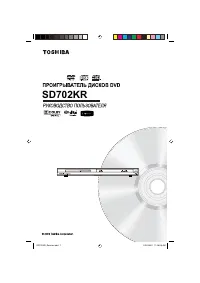 Toshiba SD-702 KR
User Manual
Toshiba SD-702 KR
User Manual
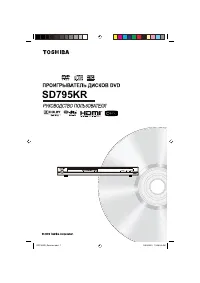 Toshiba SD-795 KR
User Manual
Toshiba SD-795 KR
User Manual
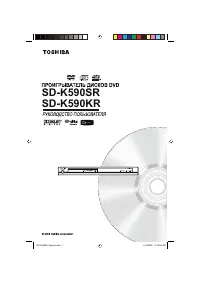 Toshiba SD-K590SR_SD-K590KR
User Manual
Toshiba SD-K590SR_SD-K590KR
User Manual
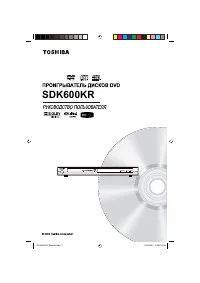 Toshiba SDK-600 KR
User Manual
Toshiba SDK-600 KR
User Manual
 Toshiba SD-K690KR
User Manual
Toshiba SD-K690KR
User Manual
 Toshiba SD-P1400SR
User Manual
Toshiba SD-P1400SR
User Manual
 Toshiba SD-P1707SR
Manual
Toshiba SD-P1707SR
Manual