Page 2 - Making connections; How to make a wireless connection to Bluetooth devices
Available operating time Checking the remaining battery charge System requirements for battery charge using USB Turning on the headset Turning off the headset Making connections How to make a wireless connection to Bluetooth devices Easy setup with app Connecting with the "Sony | Headphones Conn...
Page 3 - Multipoint connection; Listening to music; Listening to music via a Bluetooth connection; Making phone calls
Multipoint connection Connecting the headset to both a music player and a smartphone or mobile phone Connecting the headset to 2 Android smartphones Connecting the headset to an Android smartphone and an iPhone Disconnecting Bluetooth connection (after use) Using the supplied headphone cable Listeni...
Page 4 - Sound
Using Amazon Alexa Using the voice assist function (Google app) Using the voice assist function (Siri) Using the apps What you can do with "Sony | Headphones Connect" app Installing "Sony | Headphones Connect" app Important information Precautions Trademarks Customer support websites...
Page 5 - Resetting or initializing the headset
4-740-049-11(3) Copyright 2018 Sony Corporation The Bluetooth wireless communication range is short, or the sound skips. The headset does not operate properly. Cannot hear a person on a call. Low voice from callers Resetting or initializing the headset Resetting the headset Initializing the headset ...
Page 6 - Help Guide; What you can do with the Bluetooth function
Help Guide Wireless Noise Canceling Stereo Headset WH-1000XM3 What you can do with the Bluetooth function The headset uses BLUETOOTH® wireless technology, allowing you to listen to music or make phone calls wirelessly. Listening to music You can receive audio signals from a smartphone or music playe...
Page 7 - About voice guidance; Note
Help Guide Wireless Noise Canceling Stereo Headset WH-1000XM3 About voice guidance In the factory setting, you will hear the English voice guidance in the following situations via the headset.You can change the language of the voice guidance and turn on/off the voice guidance using “Sony | Headphone...
Page 8 - Checking the package contents
Help Guide Wireless Noise Canceling Stereo Headset WH-1000XM3 Checking the package contents After opening the package, check that all of the items in the list are included. If any items are missing, contact yourdealer.Numbers in ( ) indicate the item amount. Wireless Noise Canceling Stereo HeadsetUS...
Page 9 - Setting the headset in the carrying case; To store the cables and plug adapter for in-flight use
Help Guide Wireless Noise Canceling Stereo Headset WH-1000XM3 Setting the headset in the carrying case When finished using the headset, fold it and put it in the supplied carrying case as shown in the figure below. To store the cables and plug adapter for in-flight use Put the cables and the plug ad...
Page 10 - Location and function of parts; L mark
Help Guide Wireless Noise Canceling Stereo Headset WH-1000XM3 Location and function of parts L mark 1. Tactile dot The left unit has a tactile dot. 2. Built-in antenna A Bluetooth antenna is built into the headset. 3. N-Mark 4. left unit 5. Slider Slide to adjust the length of the headband. 6. Headb...
Page 11 - Related Topic; About the indicator
Related Topic About the indicator Checking the remaining battery charge 4-740-049-11(3) Copyright 2018 Sony Corporation Indicator (red) Lights up in red during charging. 16. USB Type-C port Connect the headset to a computer or a USB AC adapter (sold separately) with the supplied USB Type-C cable toc...
Page 12 - button; Checking the remaining battery charge
Help Guide Wireless Noise Canceling Stereo Headset WH-1000XM3 About the indicator You can check various statuses of the headset by the indicators. : Turns on in blue / : Turns on in red / - : Turns off Indicator (blue/red) next to the button Turning on - (flashes 2 times) Turning off (lights up for ...
Page 13 - Initializing the headset to restore factory settings; Charging
Initialization completed For details, refer to “ Initializing the headset to restore factory settings ”. USB Type-C port indicator (red) Charging While charging Turns off after the charging is complete. Abnormal temperature - - - - (flashes 2 times each) Abnormal charging - - - - 4-740-049-11(3) Cop...
Page 14 - Charging the headset; Hint
Help Guide Wireless Noise Canceling Stereo Headset WH-1000XM3 Charging the headset The headset contains a built-in lithium-ion rechargeable battery. Use the supplied USB Type-C cable to charge theheadset before use. Hint You can also use the supplied USB Type-C cable to connect to a running computer...
Page 16 - Available operating time; Music Playback time
Help Guide Wireless Noise Canceling Stereo Headset WH-1000XM3 Available operating time The available operating times of the headset on a fully-charged battery are as follows: Bluetooth connection Music Playback time Music can be played for about 5 hours after 10 minutes of charging (when charged wit...
Page 17 - Supported codecs
Headphone cable connected (power is turned on) Hint By using the “Sony | Headphones Connect” app, you can check which codec is used for a connection or switch the DSEE HXfunction. Note Usage hours may be different depending on the settings and conditions of use. Related Topic Supported codecs About ...
Page 18 - When the; When the remaining charge is low; Usable devices
Help Guide Wireless Noise Canceling Stereo Headset WH-1000XM3 Checking the remaining battery charge You can check the remaining battery charge of the rechargeable battery. When the button is pressed while the headset power is on, the voice guidance indicating the remaining battery charge can be hear...
Page 19 - : Remaining battery charge of the headset
A : Remaining battery charge of the headset The approximate remaining charge is shown at 10 different levels. B through E are display examples. B : 100% C : 70% D : 50% E : 20% or lower (needs to charge) The remaining battery charge of the headset is also displayed on the widget of an iPhone or iPod...
Page 20 - System requirements for battery charge using USB; USB AC adaptor
Help Guide Wireless Noise Canceling Stereo Headset WH-1000XM3 System requirements for battery charge using USB USB AC adaptor A commercially available USB AC adapter capable of supplying an output current of 1.5 A or more(If the output current is less than 1.5 A, the charging time will increase, and...
Page 21 - Turning on the headset; Turning off the headset; Press and hold the
Help Guide Wireless Noise Canceling Stereo Headset WH-1000XM3 Turning on the headset Related Topic Turning off the headset 4-740-049-11(3) Copyright 2018 Sony Corporation Press and hold the button for about 2 seconds until the indicator (blue) flashes. 1 21
Page 23 - Connecting the headset to a registered (paired) device
Help Guide Wireless Noise Canceling Stereo Headset WH-1000XM3 How to make a wireless connection to Bluetooth devices You can enjoy music and hands-free calling with the headset wirelessly by using your device’s Bluetooth function. Device registration (pairing) To use the Bluetooth function, both of ...
Page 24 - Connecting to a paired Android smartphone
Help Guide Wireless Noise Canceling Stereo Headset WH-1000XM3 Connecting with the "Sony | Headphones Connect" app Launch the "Sony | Headphones Connect" app on your Android™ smartphone/iPhone to connect the headset to asmartphone or iPhone. For more details, refer to the "Sony | ...
Page 25 - Pairing and connecting with an Android smartphone; Enter pairing mode on this headset.; button for about 7 seconds.; Unlock the screen of the Android smartphone if it is locked.
Help Guide Wireless Noise Canceling Stereo Headset WH-1000XM3 Pairing and connecting with an Android smartphone The operation to register the device that you wish to connect to is called pairing. First, pair a device to use it with theheadset for the first time.Before you start the pairing operation...
Page 28 - Display the devices paired with the Android smartphone.
Help Guide Wireless Noise Canceling Stereo Headset WH-1000XM3 Connecting to a paired Android smartphone Unlock the screen of the Android smartphone if it is locked. 1 Turn on the headset. Press and hold the button for about 2 seconds. Check that the indicator continues to flash blue after you releas...
Page 30 - Compatible smartphones; NFC -compatible smartphones installed with Android 4.1 or later.; NFC
Help Guide Wireless Noise Canceling Stereo Headset WH-1000XM3 One-touch connection (NFC) with an Android smartphone (Android 4.1 or later) By touching the headset with a smartphone, the headset turns on automatically and then pairs and makes a Bluetoothconnection. Compatible smartphones NFC -compati...
Page 31 - Listening to music from a device via Bluetooth connection
Hint The above procedure is an example. For more details, refer to the operating instructions supplied with your Android smartphone. If you cannot connect the headset, try the following. Unlock the screen of the smartphone if it is locked, and move the smartphone slowly over the N-Mark.If the smartp...
Page 34 - Pairing and connecting with an iPhone; Unlock the screen of the iPhone if it is locked.
Help Guide Wireless Noise Canceling Stereo Headset WH-1000XM3 Pairing and connecting with an iPhone The operation to register the device that you wish to connect to is called pairing. First, pair a device to use it with theheadset for the first time.Before you start the pairing operation, make sure ...
Page 37 - Connecting to a paired iPhone; Display the devices paired with the iPhone.
Help Guide Wireless Noise Canceling Stereo Headset WH-1000XM3 Connecting to a paired iPhone Unlock the screen of the iPhone if it is locked. 1 Turn on the headset. Press and hold the button for about 2 seconds. Check that the blue indicator continues to flash after you release your finger from the b...
Page 39 - Pairing and connecting with a computer (Windows 10); Wake the computer up from sleep mode.
Help Guide Wireless Noise Canceling Stereo Headset WH-1000XM3 Pairing and connecting with a computer (Windows 10) The operation to register the device that you wish to connect to is called pairing. First, pair a device to use it with theheadset for the first time.Before you start the pairing operati...
Page 46 - Pairing and connecting with a computer (Windows 7)
Help Guide Wireless Noise Canceling Stereo Headset WH-1000XM3 Pairing and connecting with a computer (Windows 7) The operation to register the device that you wish to connect to is called pairing. First, pair a device to use it with theheadset for the first time.Before you start the pairing operatio...
Page 47 - Connecting to a paired computer (Windows 7)
Hint The above procedure is an example. For more details, refer to the operating instructions supplied with your computer. To delete all Bluetooth pairing information, see “ Initializing the headset to restore factory settings ”. Note When registering a device (pairing), either [WH-1000XM3] or [LE_W...
Page 49 - Pairing and connecting with a computer (Mac); Compatible OS; Computer speaker in the ON mode
Help Guide Wireless Noise Canceling Stereo Headset WH-1000XM3 Pairing and connecting with a computer (Mac) The operation to register the device that you wish to connect to is called pairing. First, pair a device to use it with theheadset for the first time. Compatible OS macOS High Sierra (version 1...
Page 50 - Now you are ready to enjoy music playback on your computer.
Hint The above procedure is an example. For more details, refer to the operating instructions supplied with your computer. To delete all pairing information, see “ Initializing the headset to restore factory settings ”. Note If passkey (*) input is required on the display of the computer, input “000...
Page 52 - Connecting to a paired computer (Windows 10); Before starting the operation, make sure of the following:; Select the headset using the computer.
Help Guide Wireless Noise Canceling Stereo Headset WH-1000XM3 Connecting to a paired computer (Windows 10) Before starting the operation, make sure of the following: Depending on the computer you are using, the built-in Bluetooth adapter may need to be turned on. If you do notknow how to turn on the...
Page 53 - The connection is established.
Hint The above procedure is an example. For more details, refer to the operating instructions supplied with your computer. Click [Connect]. The connection is established. 3. 53
Page 64 - Pairing and connecting with other Bluetooth devices; Make the Bluetooth connection from the Bluetooth device.
Help Guide Wireless Noise Canceling Stereo Headset WH-1000XM3 Pairing and connecting with other Bluetooth devices The operation to register the device that you wish to connect to is called pairing. First, pair a device to use it with theheadset for the first time.Before you start the pairing operati...
Page 66 - Connecting to a paired Bluetooth device
Help Guide Wireless Noise Canceling Stereo Headset WH-1000XM3 Connecting to a paired Bluetooth device Hint The above procedure is an example. For more details, refer to the operating instructions supplied with your Bluetooth device. If the Bluetooth device was connected with the headset the last tim...
Page 69 - Connecting the headset to 2 Android smartphones
Help Guide Wireless Noise Canceling Stereo Headset WH-1000XM3 Connecting the headset to 2 Android smartphones Usually when you connect the headset to a smartphone, the music playback function and the phone call function areboth connected simultaneously.To make a multipoint connection using two smart...
Page 71 - Connecting the headset to an Android smartphone and an iPhone; The iPhone is connected with the function unchecked in step 3.
Help Guide Wireless Noise Canceling Stereo Headset WH-1000XM3 Connecting the headset to an Android smartphone and an iPhone Usually when you connect the headset to a smartphone, the music playback function and the phone call function areboth connected simultaneously.To make a multipoint connection u...
Page 73 - Disconnecting Bluetooth connection (after use); Turn off the headset.; You will hear a voice guidance “Power off”.
Help Guide Wireless Noise Canceling Stereo Headset WH-1000XM3 Disconnecting Bluetooth connection (after use) Hint When you finish playing music, the Bluetooth connection may terminate automatically depending on the Bluetooth device. Related Topic Disconnecting the Android smartphone with one-touch (...
Page 74 - Using the supplied headphone cable; Be sure to connect the L-shaped plug into the connecting device.
Help Guide Wireless Noise Canceling Stereo Headset WH-1000XM3 Using the supplied headphone cable If you use the headset at a place where it is restricted to use Bluetooth devices such as on an airplane, you can use theheadset as noise canceling headphones by connecting a device via the supplied head...
Page 75 - Connect the headset to a Bluetooth device.
Help Guide Wireless Noise Canceling Stereo Headset WH-1000XM3 Listening to music from a device via Bluetooth connection If your Bluetooth device supports the following profiles, you can enjoy listening to music and perform basic remotecontrol operation of the Bluetooth device via a Bluetooth connect...
Page 77 - Controlling the audio device (Bluetooth connection)
Help Guide Wireless Noise Canceling Stereo Headset WH-1000XM3 Controlling the audio device (Bluetooth connection) If your Bluetooth device supports the device operating function (compatible protocol: AVRCP), then the followingoperations are available. The available functions may vary depending on th...
Page 80 - What is noise canceling?; Using the noise canceling function
Help Guide Wireless Noise Canceling Stereo Headset WH-1000XM3 What is noise canceling? The noise canceling circuit actually senses outside noise with built-in microphones and sends an equal-but-oppositecanceling signal to the headset. Note The noise canceling effect may not be pronounced in a very q...
Page 81 - To turn off the noise canceling function; The noise canceling function/Ambient Sound Mode: OFF
Help Guide Wireless Noise Canceling Stereo Headset WH-1000XM3 Using the noise canceling function If you use the noise canceling function, you can enjoy music without being disturbed by ambient noise. To turn off the noise canceling function Press the NC/AMBIENT button repeatedly until the noise canc...
Page 85 - To activate the Ambient Sound Mode; Voice focus; To deactivate the Ambient Sound Mode; The Ambient Sound Mode: ON
Help Guide Wireless Noise Canceling Stereo Headset WH-1000XM3 Listening to ambient sound during music playback (Ambient Sound Mode) You can hear ambient sound through the microphones embedded in the left/right units of the headset while enjoyingmusic. To activate the Ambient Sound Mode Press the NC/...
Page 87 - Listening to ambient sound quickly (Quick Attention Mode); To activate the Quick Attention Mode; Touch sensor control panel
Help Guide Wireless Noise Canceling Stereo Headset WH-1000XM3 Listening to ambient sound quickly (Quick Attention Mode) This function turns down music, call sounds, and the ringtone to allow ambient sound to be easily heard. It is usefulwhen you want to listen to train announcements, etc. To activat...
Page 88 - The touch sensor control panel is not touched.; To deactivate the Quick Attention Mode; Release your hand from the touch sensor control panel.
The touch sensor control panel is not touched. To deactivate the Quick Attention Mode Release your hand from the touch sensor control panel. Note Depending on the ambient condition and the type/volume of audio playback, the ambient sounds may not be heard even whenusing Quick Attention Mode. Do not ...
Page 89 - About the sound quality mode
Help Guide Wireless Noise Canceling Stereo Headset WH-1000XM3 About the sound quality mode The following two sound quality modes can be selected during Bluetooth playback. You can switch the settings andcheck the sound quality mode with the "Sony | Headphones Connect" app.Priority on sound q...
Page 91 - About the DSEE HX function; AUTO
Help Guide Wireless Noise Canceling Stereo Headset WH-1000XM3 About the DSEE HX function The DSEE HX function upscales the compressed sound source data such as CD or MP3 to quality almost that of High-Resolution Audio quality and reproduces the clear high-range sound that is often lost.The DSEE HX f...
Page 92 - Receiving a call; Ring tone; Connect the headset to a smartphone or mobile phone beforehand.; If no ring tone is heard via the headset; Adjust the volume by operating the touch sensor control panel.
Help Guide Wireless Noise Canceling Stereo Headset WH-1000XM3 Receiving a call You can enjoy a hands-free call with a smartphone or mobile phone that supports the Bluetooth profile HFP (Hands-freeProfile) or HSP (Headset Profile), via a Bluetooth connection. If your smartphone or mobile phone suppor...
Page 94 - Making a call
Help Guide Wireless Noise Canceling Stereo Headset WH-1000XM3 Making a call You can enjoy a hands-free call with a smartphone or mobile phone that supports the Bluetooth profile HFP (Hands-freeProfile) or HSP (Headset Profile), via a Bluetooth connection. If your smartphone or mobile phone supports ...
Page 96 - Functions for a phone call; During standby/music playback
Help Guide Wireless Noise Canceling Stereo Headset WH-1000XM3 Functions for a phone call The functions available during a call may vary depending on the profile supported by your smartphone or mobile phone.In addition, even if the profile is the same, the functions may vary depending on the smartpho...
Page 97 - Double-tap the touch sensor control panel lightly to answer a call.; During call
Outgoing call Double-tap the touch sensor control panel to cancel an outgoing call. (*) Incoming call Double-tap the touch sensor control panel lightly to answer a call. During call Double-tap the touch sensor control panel lightly to finish a call. (*) Related Topic Receiving a call Making a call 4...
Page 99 - Using the Google Assistant; If your smartphone is an Android smartphone, skip this step.; Press the NC/AMBIENT button to use the Google Assistant.
Help Guide Wireless Noise Canceling Stereo Headset WH-1000XM3 Using the Google Assistant By using the Google Assistant feature that comes with the smartphone, you can speak to the headset to operate thesmartphone or perform the search. Compatible smartphones Smartphones installed with Android 5.0 or...
Page 101 - Using Amazon Alexa; For details of Amazon Alexa, refer to the following website:
Help Guide Wireless Noise Canceling Stereo Headset WH-1000XM3 Using Amazon Alexa By using Amazon Alexa feature that comes with the smartphone, you can speak to the headset to operate thesmartphone or perform the search. Compatible smartphones Smartphones installed with Android 5.0 or later, or iOS 9...
Page 102 - Using the voice assist function (Google app); The Google app is activated.; Make a request to the Google app through the headset.
Help Guide Wireless Noise Canceling Stereo Headset WH-1000XM3 Using the voice assist function (Google app) By using the Google app feature that comes with the Android smartphone, you can speak to the headset to operate theAndroid smartphone. Note If the NC/AMBIENT button is set as the Google Assista...
Page 106 - Precautions; On Bluetooth communications
Help Guide Wireless Noise Canceling Stereo Headset WH-1000XM3 Precautions On Bluetooth communications Bluetooth wireless technology operates within a range of about 10 m (30 feet). The maximum communicationdistance may vary depending on the presence of obstacles (people, metal objects, walls, etc.) ...
Page 108 - Trademarks
Help Guide Wireless Noise Canceling Stereo Headset WH-1000XM3 Trademarks Windows is a registered trademark or trademark of Microsoft Corporation in the United States and/or other countries.iPhone, iPod, iPod touch, macOS and Mac are trademarks of Apple Inc., registered in the U.S. and other countrie...
Page 109 - Customer support websites; For customers in Canada:
Help Guide Wireless Noise Canceling Stereo Headset WH-1000XM3 Customer support websites For customers in the U.S.A: http://esupport.sony.com/ For customers in Canada: http://esupport.sony.com/CA/ For customers in Latin America: http://esupport.sony.com/LA/ For customers in European countries: https:...
Page 110 - What can I do to solve a problem?; Look up information on the issue on the customer support website.
Help Guide Wireless Noise Canceling Stereo Headset WH-1000XM3 What can I do to solve a problem? If the headset does not function as expected, try the following steps to resolve the issue. Find the symptoms of the issue in this Help Guide, and try any corrective actions listed.Charge the headset. You...
Page 111 - The headset is not turned on.
Help Guide Wireless Noise Canceling Stereo Headset WH-1000XM3 The headset is not turned on. Make sure the battery is charged enough to turn the headset on.The headset cannot be turned on while charging the battery. Remove the USB Type-C cable and turn on theheadset. Related Topic Charging the headse...
Page 112 - Charging cannot be done.
Help Guide Wireless Noise Canceling Stereo Headset WH-1000XM3 Charging cannot be done. Be sure to use the supplied USB Type-C cable.Check that the USB Type-C cable is firmly connected to the headset and the USB AC adapter or computer.Make sure that the USB AC adaptor is firmly connected to the AC ou...
Page 113 - Charging time is too long.
Help Guide Wireless Noise Canceling Stereo Headset WH-1000XM3 Charging time is too long. Check that the headset and the computer are directly connected, not via a USB hub.Check that you are using a commercially available USB AC adapter capable of supplying an output current of 1.5 Aor more.Check tha...
Page 114 - The headset cannot be recognized by a computer.
Help Guide Wireless Noise Canceling Stereo Headset WH-1000XM3 The headset cannot be recognized by a computer. Check that the USB Type-C cable is properly connected to the USB port of the computer.Check that the headset and the computer are directly connected, not via a USB hub.There may be a problem...
Page 116 - No sound
Help Guide Wireless Noise Canceling Stereo Headset WH-1000XM3 No sound Check that both the headset and the connected device (i.e., smartphone) are turned on.Check that the headset and the transmitting Bluetooth device are connected via Bluetooth A2DP.Turn up the volume if it is too low.Check that th...
Page 117 - Low sound level
Help Guide Wireless Noise Canceling Stereo Headset WH-1000XM3 Low sound level Turn up the volume of the headset and the connected device.Connect the Bluetooth device to the headset once again. 4-740-049-11(3) Copyright 2018 Sony Corporation 117
Page 118 - Low sound quality
Help Guide Wireless Noise Canceling Stereo Headset WH-1000XM3 Low sound quality Turn down the volume of the connected device if it is too loud.Keep the headset away from microwave ovens, Wi-Fi devices, etc.Bring the headset closer to the Bluetooth device. Remove any obstacles between the headset and...
Page 119 - Sound skips frequently.
Help Guide Wireless Noise Canceling Stereo Headset WH-1000XM3 Sound skips frequently. Set the headset to “Priority on stable connection” mode. For details, see “ About the sound quality mode ”. Remove any obstacles between the antenna of the connecting Bluetooth device and the built-in antenna of th...
Page 120 - The noise canceling effect is not sufficient.
Help Guide Wireless Noise Canceling Stereo Headset WH-1000XM3 The noise canceling effect is not sufficient. Make sure that the noise canceling function is turned on.Adjust the earpad position to fit your ears.The noise canceling function is effective in low frequency ranges such as airplanes, trains...
Page 121 - Pairing cannot be done.; button of the headset for 7 seconds or more
Help Guide Wireless Noise Canceling Stereo Headset WH-1000XM3 Pairing cannot be done. Bring the headset and the Bluetooth device within 1 m (3 feet) from each other.The headset automatically enters pairing mode when pairing the first device after purchasing, initializing, or repairingthe headset. To...
Page 123 - Unable to make a Bluetooth connection.
Help Guide Wireless Noise Canceling Stereo Headset WH-1000XM3 Unable to make a Bluetooth connection. Check that the headset is turned on.Check that the Bluetooth device is turned on and the Bluetooth function is on.If the headset automatically connects to the last connected Bluetooth device, you may...
Page 124 - Distorted sound
Help Guide Wireless Noise Canceling Stereo Headset WH-1000XM3 Distorted sound Keep the headset away from a microwave oven, Wi-Fi device, etc. 4-740-049-11(3) Copyright 2018 Sony Corporation 124
Page 126 - The headset does not operate properly.
Help Guide Wireless Noise Canceling Stereo Headset WH-1000XM3 The headset does not operate properly. Reset the headset. This operation does not delete pairing information.If the headset does not operate properly even after resetting it, initialize the headset. Related Topic Resetting the headset Ini...
Page 127 - Cannot hear a person on a call.
Help Guide Wireless Noise Canceling Stereo Headset WH-1000XM3 Cannot hear a person on a call. Check that both the headset and the connected device (i.e., smartphone) are turned on.Turn up the volume of the connected device and the volume of the headset if they are too low.Check the audio settings of...
Page 128 - Low voice from callers; Turn up the volume of the headset and the connected device.
Help Guide Wireless Noise Canceling Stereo Headset WH-1000XM3 Low voice from callers Turn up the volume of the headset and the connected device. 4-740-049-11(3) Copyright 2018 Sony Corporation 128
Page 129 - button and the
Help Guide Wireless Noise Canceling Stereo Headset WH-1000XM3 Resetting the headset If the headset cannot be turned on or cannot be operated even when it is turned on, press the button and the NC/AMBIENT button simultaneously while charging. The headset will be reset. The device registration (pairin...


 Sony MDR10RNC
User Manual
Sony MDR10RNC
User Manual
 Sony MDR-1AB
User Manual
Sony MDR-1AB
User Manual
 Sony MDR-AS700BT
Manual
Sony MDR-AS700BT
Manual
 Sony MDREX110AP/B
User Manual
Sony MDREX110AP/B
User Manual
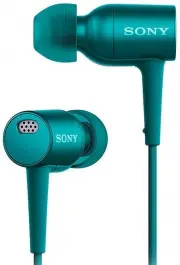 Sony MDR-EX750NA
User Manual
Sony MDR-EX750NA
User Manual
 Sony MDR-IF240RK
User Manual
Sony MDR-IF240RK
User Manual
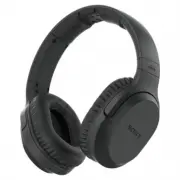 Sony MDRRF995RK
User Manual
Sony MDRRF995RK
User Manual
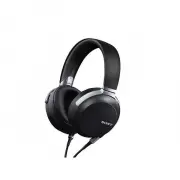 Sony MDR-Z7
User Manual
Sony MDR-Z7
User Manual
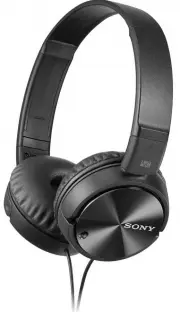 Sony MDRZX110NC
User Manual
Sony MDRZX110NC
User Manual
 Sony MDR-ZX110NC
User Manual
Sony MDR-ZX110NC
User Manual
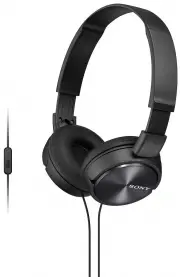 Sony MDRZX310APB
User Manual
Sony MDRZX310APB
User Manual
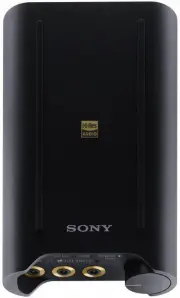 Sony PHA3
User Manual
Sony PHA3
User Manual
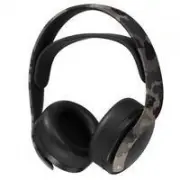 Sony PlayStation PULSE 3D
User Manual
Sony PlayStation PULSE 3D
User Manual
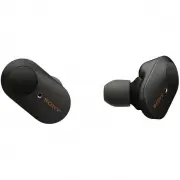 Sony WF-1000XM3B
User Manual
Sony WF-1000XM3B
User Manual
 Sony WF1000XM5/B
User Manual
Sony WF1000XM5/B
User Manual
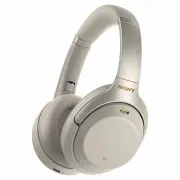 Sony WH1000XM3S
User Manual
Sony WH1000XM3S
User Manual
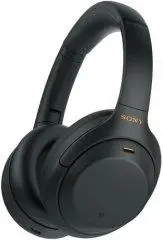 Sony WH-1000XM4 Black
User Manual
Sony WH-1000XM4 Black
User Manual
 Sony WH-1000XM4 Blue
User Manual
Sony WH-1000XM4 Blue
User Manual
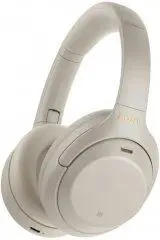 Sony WH-1000XM4 Silver
User Manual
Sony WH-1000XM4 Silver
User Manual
 Sony WH1000XM4S
User Manual
Sony WH1000XM4S
User Manual