Page 2 - Related information; Wearing the headset; : To switch the noise canceling function and Ambient Sound Mode; Getting started; What you can do with the Bluetooth function; Parts and controls
Related information Establishing a Bluetooth connection manuallyCharging the headset Wearing the headset Simply turn the headset units on their sides to take them out of the charging case.Put on the headset units by twisting them as you insert earbud tips deep into your ear canals. Establishing a BL...
Page 3 - Making connections; How to make a wireless connection to Bluetooth devices
Wearing the headset Wearing the headset Using only one headset unit Operating the headset About the touch sensor Using Quick Access Power/Charging Charging Available operating time Checking the remaining battery charge Turning on the headset Turning off the headset Making connections How to make a w...
Page 4 - Switching audio between multiple devices with “audio switch”; Listening to music; Receiving a call
Connecting to a paired computer (Mac) Other Bluetooth devices Pairing and connecting with a Bluetooth device Connecting to a paired Bluetooth device Multipoint connection Connecting the headset to 2 devices simultaneously (multipoint connection) Switching audio between multiple devices with “audio s...
Page 6 - Specifications
5-048-298-11(1) Copyright 2023 Sony Corporation Sound No sound, no sound from one side Low sound level Noise or unusual sound can be heard. Sound skips frequently. Low sound quality The noise canceling effects are not sufficient. Operation The headset cannot be operated. Bluetooth connection Pairing...
Page 7 - Help Guide; Related Topic
Help Guide Wireless Noise Canceling Stereo Headset WF-1000XM5 What you can do with the Bluetooth function The headset uses Bluetooth wireless technology, allowing you to do the following. Listening to music You can enjoy music wirelessly from a smartphone or music player, etc. Talking on the phone Y...
Page 8 - About the voice guidance; Note
Help Guide Wireless Noise Canceling Stereo Headset WF-1000XM5 About the voice guidance In the factory settings, when the headset is worn in your ears, you will hear the English voice guidance via the headset.By using the “Sony | Headphones Connect” app, you can change the language of the voice guida...
Page 9 - Wireless Noise Canceling Stereo Headset (1); red; Earbud tips are damaged or lost.
Help Guide Wireless Noise Canceling Stereo Headset WF-1000XM5 Checking the package contents After opening the package, check that all of the items in the list are included. If any items are missing, contact yourdealer.Numbers in ( ) indicate the item amount. Wireless Noise Canceling Stereo Headset (...
Page 11 - Replacing the earbud tips; Hint; Noise isolation earbud tips; Remove the earbud tip.
Help Guide Wireless Noise Canceling Stereo Headset WF-1000XM5 Replacing the earbud tips M-sized earbud tips come attached to the left and right headset units at the time of purchase.If the size of the earbud tips does not match the size of your ear canals or the headset is not worn properly in your ...
Page 12 - Check that the earbud tip is securely attached.
Note Earbud tips are consumables. Avoid washing with water, wet wipes, and the use of organic solvents such as alcohol, as these can cause prematuredeterioration. The earbud tips deteriorate through long-term use and storage. When there are cracked, peeled, or chipped portions, refrain fromusing the...
Page 14 - Headset
Help Guide Wireless Noise Canceling Stereo Headset WF-1000XM5 Location and function of parts Headset Charging case Touch sensors (left, right) 1. Microphones (left, right)Picks up the sound of your voice (when talking on the phone or in the Speak-to-Chat mode) and noise (when usingthe noise cancelin...
Page 15 - About the indicator
Related Topic About the indicator Checking the remaining battery charge 5-048-298-11(1) Copyright 2023 Sony Corporation Lid 1. Charging ports (left, right) 2. Indicator (green/orange/blue)Indicates the remaining battery life of the headset units and charging case, the charging status, or the status ...
Page 16 - Indication of the remaining battery charge
Help Guide Wireless Noise Canceling Stereo Headset WF-1000XM5 About the indicator You can check various statuses of the headset/charging case by the indicator on the charging case. : Turns on in green / : Turns on in orange / : Turns on in blue / -: Turns off Indication of the remaining battery char...
Page 17 - Resetting the headset; Charging
Charging status While charging the headset units / While charging the charging case (lights up in orange) When the battery is fully charged when charging starts on the headset units/charging case - - - - - (lights up in orange for about 1 minute, and then turns off) When the battery becomes fully ch...
Page 19 - The headset turns on automatically.; Put the headset units into both ears.; Put the headset unit with the; Adjust the fit of the headset to your ears.
Help Guide Wireless Noise Canceling Stereo Headset WF-1000XM5 Wearing the headset Lay the headset units on their sides and remove them from the charging case. The headset turns on automatically. 1 Put the headset units into both ears. Put the headset unit with the (left) mark into your left ear and ...
Page 20 - tip is comfortably situated as deep in the ear canal as possible.; When attaching and removing the headset; When the headset is worn
Hint If you feel earbud tips are difficult to put into your ears, change the size of earbud tips or squeeze earbud tips lightly beforewearing the headset. When you put the headset unit into your ear or adjust the positioning of the headset unit, see the illustration in step for how to hold the heads...
Page 22 - Using only one headset unit; When you put on the other headset unit; Controlling the audio device (Bluetooth connection)
Help Guide Wireless Noise Canceling Stereo Headset WF-1000XM5 Using only one headset unit You can remove one headset unit from the charging case and use the headset unit by itself.In this case, only the headset unit that has been removed from the charging case will turn on. When you put on the other...
Page 23 - About the touch sensor; Some available operations
Help Guide Wireless Noise Canceling Stereo Headset WF-1000XM5 About the touch sensor Tap the touch sensor for various operations, such as music playback, phone calls, or changing the setting of the noisecanceling function. A: Touch sensors (left, right) To operate the touch sensor, tap the center of...
Page 24 - What you can do with the “Sony | Headphones Connect” app
You can change the function assigned to the touch sensors on the left and right headset units using the “Sony | HeadphonesConnect” app. For example, you can change the music playback function which is assigned to the touch sensor on the rightheadset unit at the time of purchase to the touch sensor o...
Page 25 - Using Quick Access; Launch the app of the service assigned to Quick Access.
Help Guide Wireless Noise Canceling Stereo Headset WF-1000XM5 Using Quick Access Quick Access is a feature that allows you to play content in the corresponding app by simply tapping the touch sensor ofthe headset. Hint Quick Access can be used on the headset unit with the touch sensor that has the n...
Page 26 - Set the headset units into the charging case.
Help Guide Wireless Noise Canceling Stereo Headset WF-1000XM5 Charging The headset and the charging case contain built-in lithium-ion rechargeable batteries. Use the supplied USB Type-Ccable to charge the headset before use. Set the headset units into the charging case. Put the left headset unit (th...
Page 27 - Personal computer with a standard USB port; Wireless charging; USB AC adaptor
About the charging time The required time for fully charging the headset and the charging case is about 2 hours * . Charging the headset when you are outside A rechargeable battery is built into the charging case. If you charge the charging case in advance, you can use it tocharge the headset when y...
Page 30 - Available operating time; Bluetooth connection; Music playback time; Codec
Help Guide Wireless Noise Canceling Stereo Headset WF-1000XM5 Available operating time The available operating times of the headset with the battery fully charged are as follows: Bluetooth connection Music playback time About 1 hour of music playback is possible after 3 minutes charging.If you make ...
Page 31 - Supported codecs
Hint By using the “Sony | Headphones Connect” app, you can check which codec is used for a connection. Note Usage hours may be different from the time described above depending on the settings for the headset functions and usageconditions. The left or right headset unit works as the main headset uni...
Page 32 - Checking the remaining battery charge; When you are using an iPhone or iPod touch; Remaining battery charge of the headset; Checking the remaining battery charge of the charging case
Help Guide Wireless Noise Canceling Stereo Headset WF-1000XM5 Checking the remaining battery charge You can check the remaining battery charge of the rechargeable batteries of the headset and the charging case by thefollowing operations. If the remaining battery charge of the headset becomes low whe...
Page 34 - Turning on the headset; When the headset is stored in the charging case
Help Guide Wireless Noise Canceling Stereo Headset WF-1000XM5 Turning on the headset When the headset is stored in the charging case When the headset is not stored in the charging case When the headset is not worn in your ears for about 15 minutes after being removed from the charging case, theheads...
Page 35 - Turning off the headset; When the headset is left removed; The headset turns off.
Help Guide Wireless Noise Canceling Stereo Headset WF-1000XM5 Turning off the headset When the headset is left removed When the headset is not worn in your ears for about 15 minutes after being removed from the charging case, theheadset turns off automatically.To turn off the power before the headse...
Page 37 - Pairing
Help Guide Wireless Noise Canceling Stereo Headset WF-1000XM5 How to make a wireless connection to Bluetooth devices You can enjoy music and hands-free calling with the headset wirelessly by using your Bluetooth device’s Bluetoothfunction. Pairing To use the Bluetooth function, both of the connectin...
Page 38 - Connecting with the “Sony | Headphones Connect” app
Help Guide Wireless Noise Canceling Stereo Headset WF-1000XM5 Connecting with the “Sony | Headphones Connect” app Launch the “Sony | Headphones Connect” app on your Android smartphone/iPhone to connect the headset to asmartphone or iPhone. For more details, refer to the “Sony | Headphones Connect” a...
Page 39 - Pairing and connecting with an Android smartphone; Enter pairing mode on this headset.
Help Guide Wireless Noise Canceling Stereo Headset WF-1000XM5 Pairing and connecting with an Android smartphone The operation to register the device that you wish to connect to is called “pairing”. First, pair a device to use it with theheadset for the first time.Before starting the operation, make ...
Page 40 - Touch the switch to turn on the Bluetooth function.
With the charging case lid open, press and hold the pairing button on the back of the charging case for about 5seconds or more. Note The headset does not enter pairing mode with the charging case lid closed. The indicator (blue) on the charging case repeatedly flashes twice in a row and the headset ...
Page 41 - About the instruction manual video; If Passkey
About the instruction manual video Watch the video to find out how to perform pairing for the first time. https://rd1.sony.net/help/mdr/mov0056/h_zz/ Hint The operation above is an example. For more details, refer to the operating instructions supplied with the Android smartphone. To delete all Blue...
Page 43 - Devices supporting LE Audio (as of June 2023); What you can do; Enter pairing mode on this headset by operating the charging case.
Help Guide Wireless Noise Canceling Stereo Headset WF-1000XM5 Pairing and connecting with an Android smartphone using LE Audio LE Audio is a sound communication standard for Bluetooth technology.Both the Android smartphone and the headset must support LE Audio. Devices supporting LE Audio (as of Jun...
Page 44 - To finish LE Audio
To finish LE Audio Reconnect the headset with the Android smartphone using Classic Audio.Launch the “Sony | Headphones Connect” app and select [LE Audio connection setting for headphones] - [Classic Audioonly (conventional connection method)].If you cannot switch to [Classic Audio only (conventional...
Page 46 - Unlock the screen of the Android smartphone if it is locked.
Help Guide Wireless Noise Canceling Stereo Headset WF-1000XM5 Connecting to a paired Android smartphone Unlock the screen of the Android smartphone if it is locked. 1 Lay the headset units on their sides and remove them from the charging case. The headset turns on automatically. 2 Put the headset un...
Page 48 - Pairing and connecting with an iPhone
Help Guide Wireless Noise Canceling Stereo Headset WF-1000XM5 Pairing and connecting with an iPhone The operation to register the device that you wish to connect to is called “pairing”. First, pair a device to use it with theheadset for the first time.Before starting the operation, make sure of the ...
Page 52 - Connecting to a paired iPhone; Unlock the screen of the iPhone if it is locked.
Help Guide Wireless Noise Canceling Stereo Headset WF-1000XM5 Connecting to a paired iPhone Unlock the screen of the iPhone if it is locked. 1 Lay the headset units on their sides and remove them from the charging case. The headset turns on automatically. 2 Put the headset units into both ears. When...
Page 54 - Pairing and connecting with a computer (Windows® 11)
Help Guide Wireless Noise Canceling Stereo Headset WF-1000XM5 Pairing and connecting with a computer (Windows® 11) The operation to register the device that you wish to connect to is called “pairing”. First, pair a device to use it with theheadset for the first time.Before starting the operation, ma...
Page 56 - Pair the headset using the computer.; To connect using the Swift Pair function
When you are wearing the headset, you will hear a notification sound from both headset units at the same time,and you will hear a voice guidance say “Pairing”. When you are wearing only one headset unit, you will hear thenotification sound and voice guidance from the headset unit you are wearing. Wa...
Page 59 - Pairing and connecting with a computer (Windows 10)
Help Guide Wireless Noise Canceling Stereo Headset WF-1000XM5 Pairing and connecting with a computer (Windows 10) The operation to register the device that you wish to connect to is called “pairing”. First, pair a device to use it with theheadset for the first time.Before starting the operation, mak...
Page 65 - Pairing and connecting with a computer (Mac); Compatible OS; “OFF” mode, no sound can be heard from the headset.
Help Guide Wireless Noise Canceling Stereo Headset WF-1000XM5 Pairing and connecting with a computer (Mac) The operation to register the device that you wish to connect to is called “pairing”. First, pair a device to use it with theheadset for the first time. Compatible OS macOS (version 11 or later...
Page 69 - Connecting to a paired computer (Windows 11); Before starting the operation, make sure of the following:
Help Guide Wireless Noise Canceling Stereo Headset WF-1000XM5 Connecting to a paired computer (Windows 11) Before starting the operation, make sure of the following: Depending on the computer you are using, the built-in Bluetooth adaptor may need to be turned on. If you do notknow how to turn on the...
Page 73 - Connecting to a paired computer (Windows 10)
Help Guide Wireless Noise Canceling Stereo Headset WF-1000XM5 Connecting to a paired computer (Windows 10) Before starting the operation, make sure of the following: Depending on the computer you are using, the built-in Bluetooth adaptor may need to be turned on. If you do notknow how to turn on the...
Page 80 - Pairing and connecting with a Bluetooth device
Help Guide Wireless Noise Canceling Stereo Headset WF-1000XM5 Pairing and connecting with a Bluetooth device The operation to register the device that you wish to connect to is called “pairing”. First, pair a device to use it with theheadset for the first time.Before starting the operation, make sur...
Page 81 - Make the Bluetooth connection from the Bluetooth device.
With the charging case lid open, press and hold the pairing button on the back of the charging case for about 5seconds or more. Note The headset does not enter pairing mode with the charging case lid closed. The indicator (blue) on the charging case repeatedly flashes twice in a row and the headset ...
Page 83 - Connecting to a paired Bluetooth device
Help Guide Wireless Noise Canceling Stereo Headset WF-1000XM5 Connecting to a paired Bluetooth device Note When connecting, [WF-1000XM5], [LE_WF-1000XM5], or both may be displayed on the connecting device. When both or [WF-1000XM5] is displayed, select [WF-1000XM5]; when [LE_WF-1000XM5] is displayed...
Page 85 - Pair the headset with 2 devices, respectively.
Help Guide Wireless Noise Canceling Stereo Headset WF-1000XM5 Connecting the headset to 2 devices simultaneously (multipoint connection) The headset can be simultaneously connected to 2 devices via Bluetooth connections, allowing you to perform thefollowing. Waiting for an incoming call for 2 smartp...
Page 87 - Compatible smartphones; For details on “audio switch”, refer to the following URL.
Help Guide Wireless Noise Canceling Stereo Headset WF-1000XM5 Switching audio between multiple devices with “audio switch” The “audio switch” function is a Google feature that switches audio between Android devices.Headsets that support “audio switch” can connect to multiple devices. When you use yo...
Page 88 - Listening to music from a device via a Bluetooth connection; See “; Connect the headset to a Bluetooth device.
Help Guide Wireless Noise Canceling Stereo Headset WF-1000XM5 Listening to music from a device via a Bluetooth connection If your Bluetooth device supports the following profiles, you can enjoy listening to music and control the device from yourheadset via a Bluetooth connection. A2DP (Advanced Audi...
Page 92 - Disconnecting Bluetooth connection (after use)
Help Guide Wireless Noise Canceling Stereo Headset WF-1000XM5 Disconnecting Bluetooth connection (after use) Hint When you finish playing music, the Bluetooth connection may terminate automatically depending on the Bluetooth device. Related Topic Turning off the headset 5-048-298-11(1) Copyright 202...
Page 93 - About 360 Reality Audio; What is 360 Reality Audio?; For details on 360 Reality Audio, refer to the following website:
Help Guide Wireless Noise Canceling Stereo Headset WF-1000XM5 About 360 Reality Audio What is 360 Reality Audio? 360 Reality Audio is a new music experience using Sony’s 360 three-dimensional audio technology.Positional information is attached to each sound source such as vocals, chorus, and musical...
Page 94 - What is noise canceling?; Using the noise canceling function
Help Guide Wireless Noise Canceling Stereo Headset WF-1000XM5 What is noise canceling? The noise canceling function generates antiphase sound against outside surrounding noises (such as noises in vehiclesor noises from air conditioners indoors) to reduce the surrounding noises by canceling them out....
Page 95 - Each time you tap, the function switches as follows.
Help Guide Wireless Noise Canceling Stereo Headset WF-1000XM5 Using the noise canceling function If you use the noise canceling function, you can enjoy music without being disturbed by ambient noise. About the instruction manual video Lay the headset units on their sides and remove them from the cha...
Page 96 - Watch the video to find out how to use the noise canceling function.
Watch the video to find out how to use the noise canceling function. https://rd1.sony.net/help/mdr/mov0057/h_zz/ Hint You can also turn on/off the noise canceling function and change the settings of the noise canceling function and Ambient SoundMode with the “Sony | Headphones Connect” app. You can ...
Page 97 - To activate the Ambient Sound Mode; to hear them as you listen to music.; To turn off the Ambient Sound Mode; Watch the video to find out how to use the Ambient Sound Mode.
Help Guide Wireless Noise Canceling Stereo Headset WF-1000XM5 Listening to ambient sound during music playback (Ambient Sound Mode) The microphones built into the left and right headset units make it easier to hear ambient sound. You can hear ambientsound while enjoying music. To activate the Ambien...
Page 99 - Listening to ambient sound quickly (Quick Attention Mode); To activate the Quick Attention Mode; Release your finger from the touch sensor.; Watch the video to find out how to use the Quick Attention Mode.
Help Guide Wireless Noise Canceling Stereo Headset WF-1000XM5 Listening to ambient sound quickly (Quick Attention Mode) This function turns down the volume of music, call sounds, and the ringtone, and makes it easier to hear ambient soundsby capturing these sounds. The Quick Attention Mode is useful...
Page 102 - About the sound quality mode; Priority on sound quality:; Prioritizes the sound quality.; Priority on stable connection:
Help Guide Wireless Noise Canceling Stereo Headset WF-1000XM5 About the sound quality mode The following 2 sound quality modes during Bluetooth playback can be selected. You can switch the settings and checkthe sound quality mode with the “Sony | Headphones Connect” app. Priority on sound quality: P...
Page 103 - It allows approximately 3 times more data
Help Guide Wireless Noise Canceling Stereo Headset WF-1000XM5 Supported codecs A codec is an “audio coding algorithm” used when transmitting sound wirelessly via a Bluetooth connection.The headset supports the following codecs.When connected in Classic Audio via an A2DP connection (for music playbac...
Page 104 - About the DSEE Extreme function
Help Guide Wireless Noise Canceling Stereo Headset WF-1000XM5 About the DSEE Extreme function DSEE Extreme uses AI technology to reproduce the frequency responses of the original sound source lost duringcompression with high accuracy.You can switch the settings with the “Sony | Headphones Connect” a...
Page 105 - Ring tone
Help Guide Wireless Noise Canceling Stereo Headset WF-1000XM5 Receiving a call You can enjoy a hands-free call with a smartphone or mobile phone that supports the Bluetooth profile HFP (Hands-freeProfile) or HSP (Headset Profile), via a Bluetooth connection. If your smartphone or mobile phone suppor...
Page 106 - If no ring tone is heard via the headset; Operate the smartphone or mobile phone to adjust the volume.
Hint When receiving a call on a smartphone or mobile phone, some smartphones or mobile phones may receive a call on the phoneinstead of the headset. When using HFP connection, transfer the call to the headset by using your smartphone or mobile phone. The volume can also be adjusted on the “Sony | He...
Page 107 - Making a call; Operate your smartphone or mobile phone to make a call.; If no dial tone is heard via the headset
Help Guide Wireless Noise Canceling Stereo Headset WF-1000XM5 Making a call You can enjoy a hands-free call with a smartphone or mobile phone that supports the Bluetooth profile HFP (Hands-freeProfile) or HSP (Headset Profile), via a Bluetooth connection. If your smartphone or mobile phone supports ...
Page 109 - Functions for a phone call; During standby/music playback
Help Guide Wireless Noise Canceling Stereo Headset WF-1000XM5 Functions for a phone call The functions available during a call may vary depending on the profile supported by your smartphone or mobile phone.In addition, even if the profile is the same, the available functions may vary depending on th...
Page 112 - Making a video call on your computer; Connect the headset to your computer via a Bluetooth connection.; may not be selectable on the
Help Guide Wireless Noise Canceling Stereo Headset WF-1000XM5 Making a video call on your computer When you make a video call on your computer, you can talk wirelessly from your headset. Hint When the settings of the video calling application cannot be checked or calling connections [Headset (WF-100...
Page 115 - Using Google Assistant (with touch sensor); Smartphones installed with AndroidTM 6.0 or later; Operating the headset with Google Assistant
Help Guide Wireless Noise Canceling Stereo Headset WF-1000XM5 Using Google Assistant (with touch sensor) By using Google Assistant feature that comes with the smartphone, you can speak to the headset’s microphones tooperate the smartphone or perform a search. Compatible smartphones Smartphones insta...
Page 117 - Using Amazon Alexa; Open the app store on your mobile device.; Launch the Amazon Alexa app.; to set up your headset to the Amazon Alexa app.; Perform the initial setup for Amazon Alexa.
Help Guide Wireless Noise Canceling Stereo Headset WF-1000XM5 Using Amazon Alexa By using the Amazon Alexa app installed on your smartphone, you can speak to the headset’s microphones to operatethe smartphone or perform a search. Compatible smartphones The OS version which supports the latest versio...
Page 119 - If there is no voice, it will be automatically canceled.
Once the initial setup is complete, the function of the touch sensor on the right headset unit (or the left headset unitif only the left headset unit was worn for the initial setup) is changed to Amazon Alexa. Say the wake word * (“Alexa”) or operate the touch sensor on the headset unit to which Ama...
Page 121 - Using Google Assistant (with voice activation); Set the assist and voice input selection to the Google app.; The Google app is activated.; Talk to Google through the app using the headset’s microphone.
Help Guide Wireless Noise Canceling Stereo Headset WF-1000XM5 Using Google Assistant (with voice activation) By using the Google app that comes with the Android smartphone, you can speak to the headset’s microphones tooperate the Android smartphone. Set the assist and voice input selection to the Go...
Page 125 - Turn the wake word of Amazon Alexa on/off
Help Guide Wireless Noise Canceling Stereo Headset WF-1000XM5 What you can do with the “Sony | Headphones Connect” app When you connect the smartphone with the “Sony | Headphones Connect” app installed and the headset via a Bluetoothconnection, you can do the following. Update the headset softwareTu...
Page 127 - Installing the “Sony | Headphones Connect” app; After installing the app, launch the “Sony | Headphones Connect” app.
Help Guide Wireless Noise Canceling Stereo Headset WF-1000XM5 Installing the “Sony | Headphones Connect” app Related Topic What you can do with the “Sony | Headphones Connect” app 5-048-298-11(1) Copyright 2023 Sony Corporation Download the “Sony | Headphones Connect” app from the Google Play store ...
Page 128 - Select the desired item.
Help Guide Wireless Noise Canceling Stereo Headset WF-1000XM5 Accessing support information from the “Sony | Headphones Connect” app You can access the latest support information from the “Sony | Headphones Connect” app. 5-048-298-11(1) Copyright 2023 Sony Corporation Select [Help] on the “Sony | He...
Page 129 - Remove the headset from the charging case.
Help Guide Wireless Noise Canceling Stereo Headset WF-1000XM5 How to keep the software up-to-date (for comfortable use of the headset) Install the latest headset software using the “Sony | Headphones Connect” app to enjoy new functions or to resolve acertain number of issues with the headset.Always ...
Page 131 - What you can do with partner services; linked with the headset.; Launch the “Sony | Headphones Connect” app.
Help Guide Wireless Noise Canceling Stereo Headset WF-1000XM5 What you can do with partner services After setting up on the “Sony | Headphones Connect” app, you can use the following apps * linked with the headset. For details on the latest services and experiences you can have by linking, refer to ...
Page 132 - Precautions; On Bluetooth communications
Help Guide Wireless Noise Canceling Stereo Headset WF-1000XM5 Precautions On Bluetooth communications Bluetooth wireless technology operates within a range of about 10 m (32.8 ft). The maximum communicationdistance may vary depending on the presence of obstacles (people, metal objects, walls, etc.) ...
Page 133 - Other notes; Cleaning the headset
For long-term use, it is recommended that you remove the headset from your ears on a regular basis. Other notes Do not subject the headset to excessive shock as it is a precision device.The touch sensors may not operate properly if you apply stickers or other adhesive items to the touch sensors.The ...
Page 134 - When you have finished using the headset; Maintenance
Help Guide Wireless Noise Canceling Stereo Headset WF-1000XM5 When you have finished using the headset When you have finished using the headset, be sure to set the headset units into the charging case.Close the charging case lid. Note If perspiration or water is left on the charging port, it may imp...
Page 136 - Perform regular maintenance by following the procedures below.; Cleaning the headset units
Help Guide Wireless Noise Canceling Stereo Headset WF-1000XM5 Maintenance Perform regular maintenance by following the procedures below. Remove the earbud tip. Hold the headset unit and twist the earbud tip while rotating it to pull it out.Do not pinch the end of the earbud tip when removing it. 1 C...
Page 137 - Charging ports that needs maintenance; Cleaning of the sound output holes; Sound output hole
When the headset cannot be charged, it may help to try thoroughly cleaning the charging ports. Charging ports that needs maintenance Headset B: Charging ports of the headset units (left, right) Charging case C: Charging ports of the charging case (left, right) Note Do not use an air duster, etc. to ...
Page 138 - Cleaning the holes of the charging case; Clean the holes where the earbud tips fit with a cotton swab, etc.; Drying the headset; Cleaning the noise isolation earbud tips
Cleaning the holes of the charging case Clean the holes where the earbud tips fit with a cotton swab, etc. E: Holes of the charging case (left, right) Drying the headset After cleaning is complete, leave the headset to dry thoroughly in room temperature. Note When drying the headset, if the IR senso...
Page 139 - Be sure to close the charging case lid.
Rubbing with paper, using sharp metal objects, nails, adhesive tape, etc., may damage or deform the earbud tips. Do not pull on the polyurethane foam portion of the earbud tip. If it is separated from the earbud tip, it will not function. Do not subject the polyurethane foam portion of the earbud ti...
Page 140 - To prevent burning or malfunction due to getting wet
Related Topic To prevent burning or malfunction due to getting wet When the headset units or charging case gets wet 5-048-298-11(1) Copyright 2023 Sony Corporation 140
Page 141 - Be sure to clean after use; When the headset units or charging case gets wet
Help Guide Wireless Noise Canceling Stereo Headset WF-1000XM5 To prevent burning or malfunction due to getting wet Be sure to clean after use Charging with liquid such as water or sweat or foreign objects such as dust attached to the USB Type-C port of thecharging case or charging port of the headse...
Page 142 - To protect the headset units and charging case from being damaged; Use a soft dry cloth to wipe off any water that gets on the headset.
To protect the headset units and charging case from being damaged Carefully note the precautions below to ensure proper use of the headset. Do not splash water forcibly into the sound output parts, air holes, or microphone parts of the headset units.Do not allow the headset to remain wet in a cold e...
Page 144 - When the headset gets wet
Help Guide Wireless Noise Canceling Stereo Headset WF-1000XM5 When the headset units or charging case gets wet When the headset gets wet On water resistant performance of the headset The charging case is not water resistant.The water resistant specifications of this headset are equivalent to IPX4 in...
Page 146 - Licenses
Help Guide Wireless Noise Canceling Stereo Headset WF-1000XM5 Licenses Use of the Made for Apple badge means that an accessory has been designed to connect specifically to the Appleproduct(s) identified in the badge, and has been certified by the developer to meet Apple performance standards.Apple i...
Page 147 - Trademarks
Help Guide Wireless Noise Canceling Stereo Headset WF-1000XM5 Trademarks Microsoft and Windows are registered trademarks or trademarks of Microsoft Corporation in the United States and/orother countries.Apple, iPhone, iPod touch, macOS, Mac and Siri are trademarks of Apple Inc., registered in the U....
Page 148 - Customer support websites; For customers in European countries:
Help Guide Wireless Noise Canceling Stereo Headset WF-1000XM5 Customer support websites For customers in the USA, Canada, and Latin America: https://www.sony.com/am/support For customers in European countries: https://www.sony.eu/support For customers in China: https://service.sony.com.cn For custom...
Page 149 - What can I do to solve a problem?; Before asking for repair, check the following items again.
Help Guide Wireless Noise Canceling Stereo Headset WF-1000XM5 What can I do to solve a problem? Before asking for repair, check the following items again. Find the symptoms of the issue in this Help Guide, and try any corrective actions listed.Set the headset units into the charging case, and close ...
Page 151 - Headset cannot be charged or charging time is too long.; Common; When charging with a USB AC adaptor
Help Guide Wireless Noise Canceling Stereo Headset WF-1000XM5 Headset cannot be charged or charging time is too long. Common Make sure the headset units are stored securely in the supplied charging case. If the headset units are floating in thecharging case, the headset units may not be charged. Be ...
Page 154 - No sound, no sound from one side; When connecting to a computer
Help Guide Wireless Noise Canceling Stereo Headset WF-1000XM5 No sound, no sound from one side Common Pair the headset and the Bluetooth device again.When playing music, check that the headset and the transmitting Bluetooth device are connected via an A2DPBluetooth connection.Charge the charging cas...
Page 156 - Low sound level; ” and clean the earbud tips as described before use.
Help Guide Wireless Noise Canceling Stereo Headset WF-1000XM5 Low sound level If foreign material such as earwax becomes attached to the mesh part of the earbud tip, the sound may becomemuffled or difficult to hear. See “ Maintenance ” and clean the earbud tips as described before use. If the size o...
Page 157 - Noise or unusual sound can be heard.; ” and clean them as described before use.
Help Guide Wireless Noise Canceling Stereo Headset WF-1000XM5 Noise or unusual sound can be heard. When using the headset, you may hear vibrations transmitted through your body while walking or running, and youmay also hear biological sounds such as heartbeats and breathing sounds. This may occur du...
Page 159 - Sound skips frequently.; Set the headset to “Priority on stable connection”. For details, see “
Help Guide Wireless Noise Canceling Stereo Headset WF-1000XM5 Sound skips frequently. The following settings on the playback devices and headset may be affecting the sound quality. Set the headset to “Priority on stable connection”. For details, see “ About the sound quality mode ”. When the headset...
Page 161 - Low sound quality
Help Guide Wireless Noise Canceling Stereo Headset WF-1000XM5 Low sound quality If the size of the earbud tips does not match the size of your ear canals or the headset is not worn properly in yourears, tap operations or Speak-to-Chat speech detection may not work correctly, or you may not obtain th...
Page 162 - The noise canceling effects are not sufficient.
Help Guide Wireless Noise Canceling Stereo Headset WF-1000XM5 The noise canceling effects are not sufficient. Make sure the noise canceling function is turned on.If the size of the earbud tips does not match the size of your ear canals or the headset is not worn properly in yourears, tap operations ...
Page 164 - The headset cannot be operated.
Help Guide Wireless Noise Canceling Stereo Headset WF-1000XM5 The headset cannot be operated. You cannot operate the headset when you are not wearing the headset. Put the headset into your ears to operate.If the IR sensor of the headset cannot detect that the headset is being worn because the headse...
Page 165 - Pairing with a Bluetooth device cannot be done.
Help Guide Wireless Noise Canceling Stereo Headset WF-1000XM5 Pairing with a Bluetooth device cannot be done. Bring the headset and the Bluetooth device within 1 m (3.2 ft) from each other.When pairing for the first time after purchasing, initializing, or repairing the headset, the headset enters pa...
Page 166 - Unable to make a Bluetooth connection.
Help Guide Wireless Noise Canceling Stereo Headset WF-1000XM5 Unable to make a Bluetooth connection. Check that the headset is turned on.Check that the Bluetooth device is turned on and the Bluetooth function is on.If the headset automatically connects to the last connected Bluetooth device, you may...
Page 167 - of the video calling application, and check that the
Help Guide Wireless Noise Canceling Stereo Headset WF-1000XM5 Cannot hear the other person or the call volume is low during calls/The other personcannot hear you or their call volume is low during calls. Check that both the headset and the connected device are turned on.Turn up the volume of the con...
Page 169 - The LE Audio connection cannot be established.; and Xperia 5
Help Guide Wireless Noise Canceling Stereo Headset WF-1000XM5 The LE Audio connection cannot be established. The devices that support LE Audio are Android smartphones Xperia 1 Ⅳ and Xperia 5 Ⅳ (use the latest version of the smartphone software) (as of June 2023).For the latest information on the com...
Page 170 - You cannot switch back to the Classic Audio connection.; Pairing and
Help Guide Wireless Noise Canceling Stereo Headset WF-1000XM5 You cannot switch back to the Classic Audio connection. To switch to the Classic Audio connection, use the “Sony | Headphones Connect” app. For details, see “ Pairing and connecting with an Android smartphone using LE Audio ”. If you cann...
Page 173 - Leave the charging case lid open.
Help Guide Wireless Noise Canceling Stereo Headset WF-1000XM5 Resetting the headset If the headset cannot be turned on or cannot be operated even when it is turned on, reset the headset. Set the headset units into the charging case. Leave the charging case lid open. 1 Press and hold the reset button...
Page 174 - Watch the video to find out how to reset.; Initializing the headset to restore factory settings; Check that the indicator turns off and then release your finger.
The pairing information and other settings are retained.If the headset does not operate correctly even after resetting, initialize the headset to restore factory settings. About the instruction manual video Watch the video to find out how to reset. https://rd1.sony.net/help/mdr/mov0060/h_zz/ Related...
Page 176 - Watch the video to find out how to initialize.
This operation resets volume settings, etc. to the factory settings, and deletes all pairing information. In this case, deletethe pairing information for the headset from the connected device and then pair them again.If the headset does not operate correctly even after initializing, consult your nea...
Page 177 - Operating temperature:; Communication specification; Communication system:; Bluetooth Specification version 5.3; Maximum communication range:
Help Guide Wireless Noise Canceling Stereo Headset WF-1000XM5 Specifications Headset Power source: DC 3.85 V: Built-in lithium-ion rechargeable batteryDC 5 V: When charged using USB Operating temperature: 0 °C to 40 °C (32 °F to 104 °F) Charging time: Approx. 1.5 hours (Headset)Approx. 2 hours (Char...
Page 178 - Design and specifications are subject to change without notice.; Compatible iPhone/iPod models
Transmission range (A2DP): 20 Hz - 20 000 Hz (Sampling frequency 44.1 kHz)20 Hz - 40 000 Hz (Sampling frequency LDAC 96 kHz, 990 kbps) Design and specifications are subject to change without notice. Compatible iPhone/iPod models iPhone SE (3rd generation)iPhone 13 Pro MaxiPhone 13 ProiPhone 13iPhone...


 Sony MDR10RNC
User Manual
Sony MDR10RNC
User Manual
 Sony MDR-1AB
User Manual
Sony MDR-1AB
User Manual
 Sony MDR-AS700BT
Manual
Sony MDR-AS700BT
Manual
 Sony MDREX110AP/B
User Manual
Sony MDREX110AP/B
User Manual
 Sony MDR-EX750NA
User Manual
Sony MDR-EX750NA
User Manual
 Sony MDR-IF240RK
User Manual
Sony MDR-IF240RK
User Manual
 Sony MDRRF995RK
User Manual
Sony MDRRF995RK
User Manual
 Sony MDR-Z7
User Manual
Sony MDR-Z7
User Manual
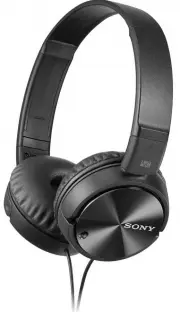 Sony MDRZX110NC
User Manual
Sony MDRZX110NC
User Manual
 Sony MDR-ZX110NC
User Manual
Sony MDR-ZX110NC
User Manual
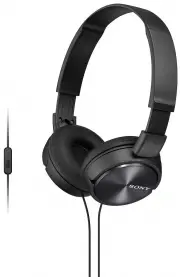 Sony MDRZX310APB
User Manual
Sony MDRZX310APB
User Manual
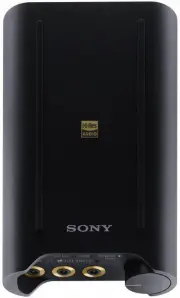 Sony PHA3
User Manual
Sony PHA3
User Manual
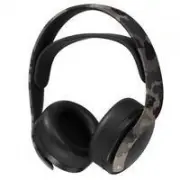 Sony PlayStation PULSE 3D
User Manual
Sony PlayStation PULSE 3D
User Manual
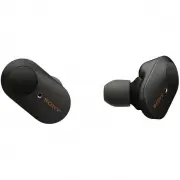 Sony WF-1000XM3B
User Manual
Sony WF-1000XM3B
User Manual
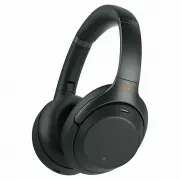 Sony WH1000XM3B
User Manual
Sony WH1000XM3B
User Manual
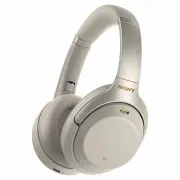 Sony WH1000XM3S
User Manual
Sony WH1000XM3S
User Manual
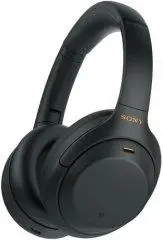 Sony WH-1000XM4 Black
User Manual
Sony WH-1000XM4 Black
User Manual
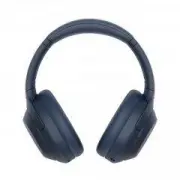 Sony WH-1000XM4 Blue
User Manual
Sony WH-1000XM4 Blue
User Manual
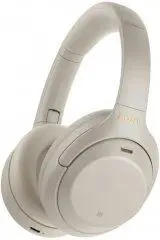 Sony WH-1000XM4 Silver
User Manual
Sony WH-1000XM4 Silver
User Manual
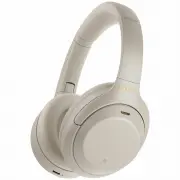 Sony WH1000XM4S
User Manual
Sony WH1000XM4S
User Manual