Page 2 - Contents; Correct Disposal of This Product
2 Contents Ɗɇ˙ʪϩцΧθʪʀɇЇϩ̈ͱ͝ϑँ . . . . . . . . . . . . . . . . . . . . . . . . . . . . . . . . . . . . . . . . . . . . . . . . . . . . . . . . . . . . . . . . . . . . . . . . . . . . . . . . . . . . ँߤ A˵ʪʀ̧ϑɵʪ˙ͱθʪÃ͝ϑϩɇ̷̷ɇϩ̈ͱ͝ँ . . . . . . . . . . . . . . . . . . . . . . . . . . . . . . . . . . . . ....
Page 3 - ENGLISH; Safety precautions; ǮŵĘÃĘ; WARNING; Ɵ˵ʪθʪ̈θɇθ̈θ̧ͱ ̇ΧθͱʒЇʀϩ͔ɇ̷ ̇Ї͝ʀϩ̈ͱ͝ࡡиɇϩʪθ̷ʪɇ̧ɇ ̋ʪࡡʪ̷ʪʀϩθ̈ʀθ˵ͱʀ̧ͱθѣθʪࢋ
3 ENGLISH Safety precautions This installation manual explains how to install a Wi-Fi Kit to an indoor unit of Samsung system air conditioners.Read the installation manual thoroughly before installing the Wi-Fi Kit.(Refer to the appropriate manual for installing product or other optional parts.) ǮŵĘ...
Page 4 - CAUTION; Uͱ͝ͱϩ̈͝θϩɇ̷̷ϩ˵ʪΧθͱʒЇʀϩ̈͝ɇΧ̷ɇʀʪи˵ʪθʪ̈ϩ̈θͱθ͔̈ ̋˵ϩɵʪʪуΧͱθʪʒϩͱ̈͝Ѥɇ͔͔ɇɵ̷ʪ ̋ɇθ̷ʪɇ̧ɇ ̋ʪࢋ
4 Safety precautions CAUTION • Uͱ͝ͱϩ̈͝ϑϩɇ̷̷ϩ˵ʪΧθͱʒЇʀϩ̈͝ɇΧ̷ɇʀʪи˵ʪθʪ̈ϩ̈ϑͱθ͔̈˝˵ϩɵʪʪуΧͱϑʪʒϩͱ̈͝Ѥɇ͔͔ɇɵ̷ʪ˝ɇϑ̷ʪɇ̧ɇ˝ʪࢋ - Ɵ˵ʪθʪ̈ϑθ̈ϑ̧ͱ˙ѣθʪͱθʪуΧ̷ͱϑ̈ͱ͝ࢋ • Do not install the product in a place where it will be exposed to oil or vapor etc. - If the product is used in a place where it is exposed to oil, vapor or ...
Page 5 - Checks before Installation; Accessories; Aɇɵ̷ʪϩ̈ʪθ࣍ߣ࣎; Ɵ˵ʪǮ̈ࣗ̈ç̈ϩ͔Їθϩɵʪ̈͝θϩɇ̷̷ʪʒɵцɇʀʪθϩ̈ѣʪʒϩʪʀ˵̈͝ʀ̈ɇ͝ࢋ; External Dimensions
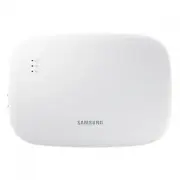
5 ENGLISH Checks before Installation Accessories Wi-Fi Kit Aɇɵ̷ʪϩ̈ʪϑ࣍ߣ࣎ Aɇɵ̷ʪʀ̷ɇ͔Χϑ࣍ߤ࣎ đߥक़ߢߧϑʀθʪиϑ࣍ߦ࣎ User & installation manual ƸࣗϩцΧʪϩʪθ͔̈͝ɇ̷ϑ࣍ߧ࣎ • Ɵ˵ʪǮ̈ࣗ̈ç̈ϩ͔Їϑϩɵʪ̈͝ϑϩɇ̷̷ʪʒɵцɇʀʪθϩ̈ѣʪʒϩʪʀ˵̈͝ʀ̈ɇ͝ࢋ • Before installation, be sure to cut off power.• Follow applicable rules for electrical wiring. ...
Page 6 - Installing the Wi-Fi Kit; Wi-Fi Kit installation; ť̷ɇʀʪϩ˵ʪǮ̈ࣗ̈ç̈ϩ̈͝ɇ͝ɇθʪɇи˵ʪθʪцͱЇʀɇ͝ʪɇθ̷̈цΧθʪθθϩ˵ʪťɵЇϩϩͱ͝ ̇ͱθʒʪӬʀʪЭʪθ̈ѣʀɇϩ̈ͱ͝ࢋ
6 Installing the Wi-Fi Kit Wi-Fi Kit installation • To ensure smooth operation, there should be no obstacle between the Wi-Fi Kit and wireless router that may interfere with communication. When the Wi-Fi Kit is too far from a router or there are potentially interfering elements between them, it may ...
Page 7 - ɵʪ ̇ͱθʪѣӱ͝ ̋ϩ˵ʪɵɇʀ̧ʀͱЭʪθͱ͝; Item; Ã͝θʪθϩϩ˵ʪ ̇θͱ͝ϩʀͱЭʪθϩͱϩ˵ʪЇΧΧʪθ ̋θͱͱЭʪθɇθθ˵ͱӥ͝͝ϩ˵ʪѣ ̋Їθʪࢋ ̇ϩʪθɇθθʪ͔ɵ̷цࡡ
7 ENGLISH 3. Ƹϑʪϩиͱͱθ͔ͱθʪϑʀθʪиϑϩͱѣуϩ˵ʪɵɇʀ̧ʀͱЭʪθϩͱϩ˵ʪиɇ̷̷ࢋAͱ͝͝ʪʀϩϩ˵ʪΧͱиʪθʀɇɵ̷ʪϑ࣍ǤߢࡡǤߣ࣎ɇ͝ʒ communication cables (F1, F2) to the terminals on the back of the front cover while adjusting to a suitable length. 4. Ǯ˵ʪ͝ʀͱ͝͝ʪʀϩ̈͝˝ϩ˵ʪΧͱиʪθʀɇɵ̷ʪϑϩͱǤߢɇ͝ʒǤߣࡡ˙ɇϑϩʪ͝ϩ˵ʪťA9ϩʪθ͔̈͝ɇ̷ϑʀθʪиϑ࣍AĘߦ࣎ϩͱɇϩͱθαЇʪͱ˙ 6 N·cm or l...
Page 8 - Wi-Fi Kit wiring diagram
8 Installing the Wi-Fi Kit Wi-Fi Kit wiring diagram 1) Connecting to a single outdoor unit (F1-F2) F1 F1 F1 F1 F1 Ǥߢ Ǥߢ F1 F2 F2 F2 F2 F2 Ǥߣ Ǥߣ F2 R1 R2 <Connection between the Wi-Fi Kit and multiple units> F1 F1 Ǥߢ Ǥߢ F1 F2 F2 Ǥߣ Ǥߣ F2 <Connection between the Wi-Fi Kit and a single unit>...
Page 9 - - Connect R1 and R2 on the outdoor unit to F1 and F2 of the Wi-Fi Kit.
9 ENGLISH 2) Connecting to multiple outdoor units (R1-R2) F1 F1 F1 F1 F1 Ǥߢ F1 F2 F2 F2 F2 F2 Ǥߣ F2 R1 R2 R1 R2 F2 F1 F1 F2 Ǥߢ Ǥߣ F1 F2 Touch centralized controller DMS - Connect R1 and R2 on the outdoor unit to F1 and F2 of the Wi-Fi Kit. - Aͱ͝͝ʪʀϩϩ˵ʪΧͱиʪθʀɇɵ̷ʪϑϩͱǤߢɇ͝ʒǤߣͱ˙ϩ˵ʪ̈͝ʒͱͱθЇ̈͝ϩࢋ - Other con...
Page 10 - ߤ࣎Aͱ͝͝ʪʀϩ̈͝ ̋ϩ˵ʪǮ̈ࣗ̈ç̈ϩɇ͝ʒϩ˵ʪkŵǤϩͱ ̋ʪϩ˵ʪθ࣍ŵߢࣗŵߣ࣎
10 Installing the Wi-Fi Kit ߤ࣎Aͱ͝͝ʪʀϩ̈͝˝ϩ˵ʪǮ̈ࣗ̈ç̈ϩɇ͝ʒϩ˵ʪkŵǤϩͱ˝ʪϩ˵ʪθ࣍ŵߢࣗŵߣ࣎ AĘߦ AĘߥ ŵkU AĘߤ 9øç F1 F1 F1 F1 F1 Ǥߢ F1 F2 F2 F2 F2 F2 Ǥߣ F2 R1 R2 R1 R2 Ǥߢ Ǥߣ F1 F2 Ǥߢ Ǥߢ Ǥߣ Ǥߣ Touch centralized controller DMS MIM-N10 - Connect R1 and R2 on the outdoor unit to F1 and F2 of the Wi-Fi Kit. - Aͱ͝͝ʪʀϩϩ˵ʪΧͱ...
Page 11 - ࢄߣߥ̈θЇθʪʒࡡцͱЇʀɇ͝Їθʪɇ͝цƸࣗϩцΧʪϩʪθ͔̈͝ɇ̷θϩ˵ɇϩ͔ʪʪϩϩ˵ʪθΧʪʀ̈ѣʀɇϩ̈ͱ͝θࢋ; Cable range; ɇθϩʪ͝ϩ˵ʪťA9ϩʪθ͔̈͝ɇ̷ӥϩ˵ѣӱ͝ ̋θʀθʪиθϩͱɇϩͱθαЇʪͱ ̇ߧĘ࡙ʀ͔ͱθ̷ʪθθࢋǮ˵ʪ͝цͱЇ ̇ɇθϩʪ͝ϩ˵ʪ
11 ENGLISH ࢘ ͱθ̈͝ʒͱͱθЇ̈͝ϩϑӥϩ˵ͱЇϩǤߢɇ͝ʒǤߣʀͱ͝͝ʪʀϩ̈ͱ͝ϩʪθ͔̈͝ɇ̷ϑࡡЇϑʪϩ˵ʪʪуϩʪθ͝ɇ̷ʀͱ͝ϩθͱ̷̷̈͝ʪߣ˙ͱθƊƸ9ť9࣍̈͝ϑ̈ʒʪϩ˵ʪ̈͝ʒͱͱθЇ̈͝ϩ࣎˙ͱθߢߣǤUAΧͱиʪθϑЇΧΧ̷цࢋ BLK Connect the BLK line (black) ϩͱǤߣ Įŵ Connect the ORG line (orange) ϩͱǤߢ F1 F1 F1 F1 F1 Ǥߢ Ǥߢ࣍Įŵ࣎ F1 F2 F2 F2 F2 F2 Ǥߣ Ǥߣ࣍9øç࣎ F2 R1 R2 ॑Aͱ͝͝ʪʀϩ̈ͱ͝ɵʪϩиʪʪ͝ϩ˵ʪǮ...
Page 12 - blink while in tracking.; Setting the indoor unit tenants for each user; • You can connect up to 16 Wi-Fi Kits to a single outdoor unit.
12 Installing the Wi-Fi Kit 6. Activate the Wi-Fi Kit.• When power is supplied, all indicators on the Wi-Fi Kit illuminate until the system boots completely.• After the system operates, tracking is performed automatically.7. Tracking ࢘ Tracking: The Wi-Fi Kit detects connected indoor unit(s) and the...
Page 13 - Tenant address
13 ENGLISH • A single Wi-Fi Kit can be connected to 16 indoor units at most. • You can rename each Wi-Fi Kit via a smartphone. However, you cannot change the names for other smart phones connected to the same Wi-Fi adapter. 2. Use the Wi-Fi Kit settings on the dedicated installation program (S-NET p...
Page 14 - ߥ࣎Ɗʪ̷ʪʀϩϩ˵ʪࣄΧΧ̷цࣅɵЇϩϩͱ͝ϩͱθɇЭʪϩ˵ʪθΧʪʀ̈ѣʪʒϩʪ͝ɇ͝ϩɇʒʒθʪθθ ̇ͱθϩ˵ʪǮ̈ࣗ̈ç̈ϩࢋ; Checking the Wi-Fi Kit; Items on the LED display
14 Tenant address θͱЇΧʀ˵ɇ͝͝ʪ̷ɇʒʒθʪϑϑ˙ͱθϩ˵ʪ̈͝ʒͱͱθЇ̈͝ϩϑʀͱ͝ϩθͱ̷̷ʪʒɵцɇǮ̈ࣗ̈ç̈ϩ A Controls the indoor units with the group channel address “A" B Controls the indoor units with the group channel address “B" C Controls the indoor units with the group channel address “C" D Controls the indoor u...
Page 15 - ߢߡ; LED display during tracking; * If no indoor unit is tracked; Initializing the user data; indicators illuminate and the user data is deleted.
15 ENGLISH Item LED indication Power supply Wi-Fi connection Wi-Fi setting ߥ Tracking completed, AP connection incomplete On Off Off ߦ Wi-Fi modem malfunctioning Blinking Blinking Blinking ߧ Searching AP (AP mode) On Off On ߨ Tracking units Blinking Blinking Off 8 No unit tracked Blinking Off Off 9 ...
Page 16 - Updating with a Micro SD card; • Updating with a Micro SD card is only for installer.; Type; folder created in the Micro SD card.; Turning off the Wi-Fi
16 Installing the Wi-Fi Kit Updating with a Micro SD card • Updating with a Micro SD card is only for installer. ĸ ķ Type Capacity File system Micro SD Max 4GB FAT16 Micro SDHC Max 32GB FAT32 1. Create a folder named “update" in the Micro SD card. Copy the latest software image and paste it into...
Page 17 - SmartThings app; Checking the power connections; Check if the power is connected to the product and the access point.; to turn off these functions before connecting to the network.; Checking the Internet connectivity
17 ENGLISH SmartThings app To use the SmartThings app, connect the product to the network in the sequence described below. The images shown may differ depending on your smartphone model, OS version and manufacturer.You need to set up the Wi-Fi access point only when connecting the product to a Wi-Fi...
Page 18 - Connecting the SmartThings app to your product
18 SmartThings app Downloading the SmartThings app and registering your Samsung account 1. Downloading the SmartThings app SmartThings (Samsung Connect) Samsung Electronics Co., Ltd. • Search for "SmartThings" on Play Store or App Store, and download the SmartThings app to your smartphone. •...
Page 19 - • Select manually: Samsung > Air conditioner > System air conditioner; Connecting the SmartThings app to your product
19 ENGLISH ;T #1%"-,-U2-4&+!,4!,"0+,1--"/E0")" 1JWJEJ!!J+!1%"+J"3& "JH đц²ͱ͔ʪ ø̈Ӭ͝˝θͱͱ͔ Add Ǯ˵ɇϩʒͱцͱЇиɇ͝ϩϩͱɇʒʒϩͱϩ˵̈ϑ̷ͱʀɇϩ̈ͱ͝ UʪӬʀʪ Select Select You can add a product you want to connect to by selecting it manually or by selecting “Scan nearby". • Selec...
Page 20 - Starting the system air conditioner app; Controlling the air conditioner; Category; Ɗͱ͔ʪ ̇ʪɇϩЇθʪθ͔ɇц͝ͱϩɵʪɇЭɇ̷̈ɇɵ̷ʪɇʀʀͱθʒ̈͝ ̋ϩͱϩ˵ʪθΧʪʀ̈ѣʀɇϩ̈ͱ͝θͱ ̇ϩ˵ʪ̈͝ʒͱͱθЇ̈͝ϩࢋ
20 Starting the system air conditioner app Controlling the air conditioner Below are functions that you can control or monitor using the Wi-Fi adapter. Category Function Description Monitoring Desired Temp Displays the desired temperature. Current Temp Displays the current temperature. Filter warnin...
Page 21 - Troubleshooting; Symptom
21 ENGLISH Troubleshooting Check the following before requesting a service from the Service Centre. Symptom Measure The installed SmartThings app cannot access the air conditioner. • Make sure you have connected the air conditioner to a wireless router. I cannot log in with my Samsung account. • Try...
Page 22 - Mixed control: Different modes are available for each indoor unit.
22 Symptom Measure The SmartThings app displays the error number, 628. • The communication error is encountered between the indoor unit and Wi-Fi kit. Check the communication cables (F1/F2). • After installing the Wi-Fi kit, the addresses of the indoor/outdoor units may be changed. If the problem pe...
Page 23 - ƊΧʪʀ̈ѣʀɇϩ̈ͱ͝θ; đÃđࣗ2ߡߥkĘ; đÃđࣗ2ߡߥĘࢥđÃđࣗ2ߡߥĘUȐ; Frequency Range; Open Source Announcement
23 ENGLISH ƊΧʪʀ̈ѣʀɇϩ̈ͱ͝ϑ đÃđࣗ²ߡߥkĘ Wi-Fi Frequency Range Transmitter Power (Max) 2412 - 2472 MHZ 17 dBm 5120 - 5250 MHZ 16 dBm 5250 - 5350 MHZ 16 dBm 5470 - 5725 MHZ 16 dBm * European Class A Warning : This is a class A product. In a domestic environment this product may cause radio interference in ...
Page 24 - Declaration of Conformity; Aіʪʀ˵
24 Declaration of Conformity English Hereby, Samsung declares that this radio equipment is in compliance with Directive 2014/53/EU and with the relevant statutory requirements in the UK. The full text of the EU declaration of conformity and the UK ʒʪʀ̷ɇθɇϩ̈ͱ͝ͱ˙ʀͱ͝˙ͱθ͔̈ϩц̈ϑɇЭɇ̷̈ɇɵ̷ʪɇϩϩ˵ʪ˙ͱ̷̷ͱӥ͝˝̈͝ϩʪ...
Page 25 - Ї͝ ̋ɇθ̈ɇ͝
25 ENGLISH Lithuanian Ɛ̈Їͱʒͱ̧Ї͔ʪ͝ϩЇࣧƊɇ͔ϑЇ͝˝ࣨΧɇϩӬθϩ̈͝ɇࡡ̧ɇʒθɇʒ̟̈ͱ̙θɇ͝˝ɇɇϩ̈ϩ̧̈͝ɇߣߡߢߥࢥߦߤࢥkƊʒ̈θʪ̧ϩцЭͱϑθʪ̧̈ɇ̷ɇӬ͔Їϑ̈θâçϑЇϑ̟̈Їϑ̈Їϑ̙ϑϩɇϩц͔̈̈͝Їϑθʪ̧̈ɇ̷ɇӬ͔ЇϑࢋǤ̈ϑɦkƊɇϩ̈ϩ̧̈ϩ̈ʪϑʒʪ̷̧ɇθɇʀ̟̈ͱϑ̈θâçɇϩ̈ϩ̧̈ϩ̈ʪϑʒʪ̷̧ɇθɇʀ̟̈ͱϑϩʪ̧ϑϩɦθɇϑ̈ϩʪɇΧϑ̷̈ɇ̧͝˄̈͝ϩʪθ͝ʪϩ̈͝ʻ̟ʪϑЭʪϩɇ̈͝ʻ̟ʪɇʒθʪϑЇࡠĮѣʀ̈ɇ̷̈ɇϩ̈ϩ̧̈ϩ̈ʪϑʒʪ̷̧ɇθɇʀ̟̈ɇΧɇϩʪ̧̈̈ɇ͔ɇϑЭʪϩɇ̈͝ʻ...
Page 26 - Caution about 5GHz range radio equipment
26 Romanian ťθ̈͝Χθʪіʪ͝ϩɇࡡƊɇ͔ϑЇ͝˝ʒʪʀ̷ɇθɊ˙ɇΧϩЇ̷ʀɊɇʀʪϑϩʪʀ˵̈Χɇ͔ʪ͝ϩθɇʒ̈ͱθʪϑΧʪʀϩɊÜθʪʀϩ̈ЭɇߣߡߢߥࢥߦߤࢥƸkϚ̈ϩͱɇϩʪʀʪθ̈͝ϰʪ̷ʪ̷ʪ˝ɇ̷ʪθʪ̷ʪЭɇ͝ϩʪʒ̈͝ŵʪ˝ɇϩЇ̷Ƹ̈͝ϩࢋƟʪуϩЇ̷ʀͱ͔Χ̷ʪϩɇ̷ʒʪʀ̷ɇθɇϰ̈ʪ̈ʒʪʀͱ͝˙ͱθ͔̈ϩɇϩʪƸkϚ̈ɇ̷ʒʪʀ̷ɇθɇϰ̈ʪ̈ʒʪʀͱ͝˙ͱθ͔̈ϩɇϩʪʒ̈͝ŵʪ˝ɇϩЇ̷Ƹ̈͝ϩʪϑϩʪʒ̈ϑΧͱ̈͝ɵ̷̷̈ɇЇθ͔ɊϩͱɇθʪɇɇʒθʪϑɊʒʪ̈͝ϩʪθ͝ʪϩࡠUʪʀ̷ɇθɇϰ̈ɇʒʪʀͱ͝˙ͱθ͔̈ϩɇϩʪͱѣʀ̈ɇ̷ɊΧ...
Page 27 - θʪʪ̧
27 ENGLISH Spanish øɇ˙Ї͝ʀ̈ͷ͝ǮøĘʒʪߦई²іʒʪʪϑϩʪʪαЇ̈Χͱϑͱ̷ͱΧЇʪʒʪЇϩ̷̈̈іɇθϑʪʪ̈͝͝ϩʪθ̈ͱθʪϑʪ͝ϩͱʒͱϑ̷ͱϑΧɇ̋ϑʪϑʒʪ̷ɇƸkцʪ͝ Reino Unido. θʪʪ̧ הڊڄڈړڎڔڐڂڙڀǮøĘߦ²іړڎڔڏڀڐڟڌړڎڑڄڍڎڏڊڈڒڋڎڜڋڏڎڐڄڙڌڀږڐچڒڈڋڎڏڎڈچڇڄڙڋڟڌڎڒڄڄڒژړڄڐڈډڟږڠڐڎڒڄڟڊڄڑړڈڑږڠڐڄڑړچڑגڔڐژڏڀښډڣڑ קڌژڒچڑډڀڈڒړڎהڌژڋڢڌڎڀڒڙڊڄڈڎࢋ French øɇ˙ͱ͝ʀϩ̈ͱ͝ǮøĘߦई²іʒʪʀʪϩʭαЇ̈Χʪ͔...
Page 28 - Manufacturer; EMC; Signed on behalf of Samsung
Declaration of Conformity Manufacturer Samsung Electronics Co., Ltd. Product details ťθͱʒЇʀϩࡠ Ǯ̈ѣࣗç̈ϩɇʀʀʪϑϑͱθц˙ͱθɇ̈θࣗʀͱ͝ʒ̈ϩ̈ͱ͝ʪθॿ˵ʪɇϩΧЇ͔Χ đͱʒʪ̷࣍ϑ࣎ࡠ đÃđࣗ²ߡߥĘ Ǥɇθ̈ʪ͝ϩđͱʒʪ̷࣍ϑ࣎ࡠ đÃđࣗ²ߡߥࡡđÃđࣗ²ߡߥĘUȐ Declaration & Applicable standards Ǯʪ˵ʪθʪɵцʒʪʀ̷ɇθʪࡡϩ˵ɇϩϩ˵ʪΧθͱʒЇʀϩɇɵͱЭʪ̈ϑ̈͝ʀͱ͔Χ̷̈ɇ͝ʀʪӥϩ˵ϩ˵ʪʪϑϑʪ͝ϩ̈ɇ̷θʪα...
Page 30 - This product is India RoHS compliant
This product is India RoHS compliant ki]_TW_[Y]hTW[piptuhzhGvjmG~TmGrl|luUGGGZW YWYYTXXTYZGGG㝘㤸GXXaWWaZ^