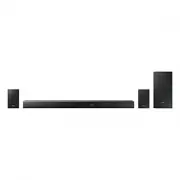
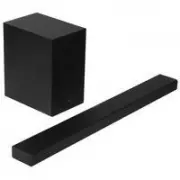
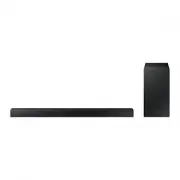
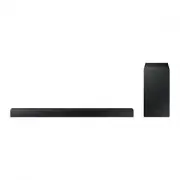
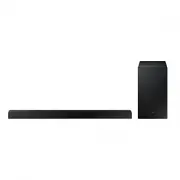
Page 2 - SafeTy InformaTIon; Safety WarningS; CaUtiOn
2 GETTING STARTED SafeTy InformaTIon Safety WarningS To reDUCe THe rISK of eLeCTrIC SHoCK, Do noT remoVe THe CoVer (or BaCK). no USer-SerVICeaBLe ParTS are InSIDe. refer SerVICInG To QUaLIfIeD SerVICe PerSonneL. CaUtiOn riSK Of eLeCtriC SHOCK. DO nOt OPen. This symbol indicates that high voltage is ...
Page 3 - ENG; PreCaUtiOnS
ENG 3 GETTING STARTED PreCaUtiOnS 99.1mm 99.1mm 68.6 mm 99.1mm ensure that the aC power supply in your house complies with the power requirements listed on the identification sticker located on the back of your product. Install your product horizontally, on a suitable base (furniture), with enough s...
Page 4 - DoLBy aTmoS®
4 GETTING STARTED DoLBy aTmoS® this product supports Dolby atmos®. * What is Dolby atmos®? atmos technology enhances existing 5.1 channel surround sound systems by adding an overhead speaker. This envelops the listener in 360 degrees of sound, delivering an immersive, high-definition, rich, detailed...
Page 5 - ConTenTS; getting StarteD
ENG 5 GETTING STARTED ConTenTS 2 getting StarteD 2 Safety information 4 Dolby atmos® 6 What’s included 7 DeSCriPtiOnS 7 front / right Side Panel 8 Bottom Panel 9 remote Control 14 inStaLLatiOn 14 installing the Soundbar 14 Installing the Wall mount17 Detaching the Soundbar from the Wall 18 installin...
Page 6 - WHaT’S InCLUDeD; BefOre reaDing tHe USer’S ManUaL; icons used in this manual
6 GETTING STARTED WHaT’S InCLUDeD BefOre reaDing tHe USer’S ManUaL note the following terms before reading the user manual. + icons used in this manual icon term Definition Caution Indicates a situation where a function does not operate or settings may be cancelled. note Indicates tips or instructio...
Page 7 - fronT / rIGHT SIDe PaneL; right Side
ENG 7 DESCRIPTIONS fronT / rIGHT SIDe PaneL 1 / (Volume) Button Controls the volume level. The numeric value of the volume level appears in the front panel display. 2 (Source) Button Selects the D.In, aUX, HDmI1, HDmI2, or BT input. ● To turn on Bt Pairing mode, press and hold this button in BT mode...
Page 8 - BoTTom PaneL; SPK aDD
8 DESCRIPTIONS BoTTom PaneL Wi-Fi SETUP SPK ADD AUX IN DIGITAL AUDIO IN (OPTICAL) HDMI OUT (TV-ARC) HDMI IN 1 HDMI IN 2 DC 19V SERVICE DC 19V SERVICE Wi-Fi SETUP SPK ADD AUX IN DIGITAL AUDIO IN (OPTICAL) HDMI OUT (TV-ARC) HDMI IN 1 HDMI IN 2 DIGITAL AUDIO IN (OPTICAL) HDMI OUT (TV-ARC) HDMI IN 1 HDM...
Page 9 - remoTe ConTroL
ENG 9 DESCRIPTIONS remoTe ConTroL SOUND SOURCE EFFECT LEVEL VOL WOOFER SOUNDBAR Power Turns the Soundbar on and off. SOUnD Surround Sound adds depth and spaciousness to the sound. Pressing the SOUnD button repeatedly cycles through the Surround Sound settings : On - SUrrOUnD SOUnD , Off - SUrrOUnD S...
Page 12 - USing tHe HiDDen BUttOnS
12 DESCRIPTIONS inSerting BatterieS (aa Battery X2) Slide the battery cover in the direction of the arrow until it is completely removed. Insert 2 aa batteries (1.5V) in the correct +/- polarity. Slide the battery cover back into position. USing tHe HiDDen BUttOnS Hidden Button reference page remote...
Page 13 - OUtPUt SPeCifiCatiOnS fOr tHe Different MODeS Of
ENG 13 DESCRIPTIONS OUtPUt SPeCifiCatiOnS fOr tHe Different MODeS Of SOUnD effeCt input effect Output 2 ch SOUND SOURCE EFFECT LEVEL VOL WOOFER on 5.1.4 ch 5.1 ch 5.1.4 ch 2 ch SOUND SOURCE EFFECT LEVEL VOL WOOFER STanDarD 2.1 ch 5.1 ch 5.1 ch 2 ch SOUND SOURCE EFFECT LEVEL VOL WOOFER mUSIC 2.1 ch 5...
Page 14 - InSTaLLInG THe SoUnDBar; inStaLLing tHe WaLL MOUnt; installation Precautions
14 INSTALLATION InSTaLLInG THe SoUnDBar inStaLLing tHe WaLL MOUnt + installation Precautions ● Install on a vertical wall only. ● for the installation, avoid a location with high temperature or humidity, or a wall that cannot sustain the weight of the set. ● Check the strength of the wall. If the wa...
Page 17 - DetaCHing tHe SOUnDBar frOM tHe WaLL
ENG 17 INSTALLATION 8. Slide the Soundbar down as shown above so that the Bracket-Wall Mounts rest securely on the Holder-Screws . ● Slide the Bracket-Wall Mounts down from the bottom to install it onto the Holder-Screws . DetaCHing tHe SOUnDBar frOM tHe WaLL 1. To separate the Soundbar from the wal...
Page 18 - InSTaLLInG THe SUrroUnD; Considerations for purchasing
18 INSTALLATION InSTaLLInG THe SUrroUnD SPeaKerS on a WaLL you can purchase wall mounts separately to install the surround speakers on a wall. + Considerations for purchasing ● endurable load : above 8.0 Kg ● Hole size : 1/4 - 20 threaded insert ● Since wall mount installation is optional, you must ...
Page 19 - ConneCTInG THe SUBWoofer anD; recommended Speaker Layout
ENG 19 CONNECTIONS ConneCTInG THe SUBWoofer anD SUrroUnD SPeaKerS ● Do not connect the power cord of this product or your TV to a wall outlet until all connections between components are complete. ● Before moving or installing this product, be sure to turn off the power and disconnect the power cord...
Page 20 - aUtOMatiC COnneCtiOn; Before you Begin
20 CONNECTIONS aUtOMatiC COnneCtiOn 1. Connect a power supply to the subwoofer and surround sound speakers. 2. Connect a power supply to the Soundbar, and then press the button on the remote control or on the right side of the Soundbar. 3. The subwoofer and surround sound speakers are automatically ...
Page 21 - LeD inDiCatOr LaMP StatUS On SUBWOOfer anD
ENG 21 CONNECTIONS 2. Turn off the Soundbar. 3. Press and hold the VOL button on the remote control for at least 5 seconds with the Soundbar turned off (off). EFFE CT LEVEL VOL WOOFER SOUNDB AR EFFE CT LEVEL VOL WOOFER SOUNDB AR EFFE CT LEVEL VOL WOOFER SOUNDB AR EFFE CT LEVEL VOL WOOFER SOUNDB AR 4...
Page 22 - ConneCTInG To a TV; COnneCting tO a tV USing an HDMi (DigitaL) CaBLe
22 CONNECTIONS ConneCTInG To a TV ● Important: Before you begin, put the batteries into the remote. See page 12 for instructions. COnneCting tO a tV USing an HDMi (DigitaL) CaBLe Wi-Fi SETUP SPK ADD AUX IN DIGITAL AUDIO IN (OPTICAL) HDMI OUT (TV-ARC) HDMI IN 1 HDMI IN 2 DC 19V SERVICE DIGITAL AUDIO ...
Page 23 - COnneCting tO a tV USing a DigitaL OPtiCaL CaBLe; auto Power Link
ENG 23 CONNECTIONS COnneCting tO a tV USing a DigitaL OPtiCaL CaBLe Wi-Fi SETUP SPK ADD AUX IN DIGITAL AUDIO IN (OPTICAL) HDMI OUT (TV-ARC) HDMI IN 1 HDMI IN 2 DC 19V SERVICE DIGITAL AUDIO IN (OPTICAL) AUX IN DIGITAL AUDIO IN (OPTICAL) OPTICAL OUT Optical Cable (not supplied) SOUND SOURCE SOUND SOUR...
Page 24 - ConneCTInG To eXTernaL DeVICeS; COnneCting DeViCeS in OrDer tO USe DOLBy atMOS®
24 CONNECTIONS ConneCTInG To eXTernaL DeVICeS HDmI is the standard digital interface for connecting to TVs, projectors, DVD players, Blu-ray players, set top boxes, and more. HDmI prevents any degradation to the signal due to conversion to analogue and maintains the video and audio quality of the or...
Page 25 - HDMi CaBLe
ENG 25 CONNECTIONS 4. Configuring Dolby atmos® on your BD player, or other device. • Check the audio output options using the settings menu on your BD player, or other device. • make sure that "no encoding" is selected for bitstream in the audio output options. e.g., on a Samsung Player: Hom...
Page 26 - OPtiCaL Or anaLOgUe aUDiO CaBLe; aUX Cable
26 CONNECTIONS OPtiCaL Or anaLOgUe aUDiO CaBLe This unit comes equipped with one digital optical in jack and one analogue audio (aUX) in jack, giving you two ways to connect it to external devices. Wi-Fi SETUP SPK ADD AUX IN DIGITAL AUDIO IN (OPTICAL) HDMI OUT (TV-ARC) HDMI IN 1 HDMI IN 2 DC 19V SER...
Page 27 - Input Mode; AUTO POwER DOwN FUNCTION
ENG 27 FUNCTIONS Input Mode press the button on the main unit’s right side or the SOURCE button on the remote control to select the mode you want. Right Side of the Soundbar SOUND SOURCE SOUND SOURCE Input mode display optical digital input ARC (HdMI out) input D.IN AuX input AUX HdMI input HDMI1 , ...
Page 28 - BLUeTooTH; tO COnneCt tHe SOUnDBar tO a BLUetOOtH DeViCe
28 FUNCTIONS BLUeTooTH you can connect a Bluetooth device to the Soundbar and enjoy music with stereo sound, all without wires! tO COnneCt tHe SOUnDBar tO a BLUetOOtH DeViCe Check if the Bluetooth device supports the Bluetooth compliant stereo headset function. Bluetooth device Connect 1. Press the ...
Page 29 - tO DiSCOnneCt a BLUetOOtH DeViCe frOM tHe; tO DiSCOnneCt tHe SOUnDBar frOM a BLUetOOtH; More about Bluetooth
ENG 29 FUNCTIONS ● The Soundbar supports SBC data (44.1kHz, 48kHz). ● Connect only to a Bluetooth device that supports the a2DP (aV) function. ● you cannot connect the Soundbar to a Bluetooth device that supports only the Hf (Hands free) function. ● once you have paired the Soundbar to a Bluetooth d...
Page 30 - USInG THe mULTIroom aPP; BefOre yOU Begin; Communication Basics; inStaLLing tHe SaMSUng MULtirOOM aPP; android or iOS
30 FUNCTIONS USInG THe mULTIroom aPP The Samsung multiroom app lets you connect the Soundbar to a smart device, your network, and the Internet. once the Soundbar is connected to a smart device that has the multiroom app installed, you can also connect the Soundbar and multiple Samsung multiroom devi...
Page 31 - Launching the Samsung Multiroom app; COnneCting tHe SOUnDBar tO yOUr netWOrK
ENG 31 FUNCTIONS + Launching the Samsung Multiroom app To launch the Samsung multiroom app, tap the multiroom app icon on your smart device. COnneCting tHe SOUnDBar tO yOUr netWOrK on your smart device, select the Samsung multiroom app. follow the directions on your smart device’s screen.you can use...
Page 32 - USInG THe neTWorK STanDBy on
32 FUNCTIONS USInG THe neTWorK STanDBy on fUnCTIon The network Standby on function becomes available if a wireless connection has been properly established between a smart device and the Soundbar. This function turns on the Soundbar automatically when a smart device attempts to connect to the Soundb...
Page 33 - SofTWare UPDaTe; UPDating WitH USB; Updating Procedure
ENG 33 FUNCTIONS SofTWare UPDaTe Wi-Fi SETUP SPK ADD AUX IN DIGITAL AUDIO IN (OPTICAL) HDMI OUT (TV-ARC) HDMI IN 1 HDMI IN 2 DC 19V SERVICE DC 19V SERVICE Micro USB to USB adapter Cable (not supplied) UPDating WitH USB Samsung may offer updates for the Soundbar's system firmware in the future.If an ...
Page 34 - if UPDate was not displayed; aUtO UPDate; Security updates information
34 FUNCTIONS + if UPDate was not displayed 1. Turn off the Soundbar, connect the USB storage device that contains update files to the Soundbar’s USB port. 2. Disconnect the power cord, reconnect it, and then turn on the Soundbar. ● Insert a USB device containing the firmware update into the USB port...
Page 36 - SPeCIfICaTIonS
36 APPENDIX SPeCIfICaTIonS generaL Weight Main Unit 6.7 kg Subwoofer (PS-KW1-2) 9.6 kg Surround Speaker (PS-KS2-1 (L), PS-KS2-2 (r)) 2.0 kg Dimensions (W x H x D) Main Unit 1210.2 x 81.7 x 131.4 mm Subwoofer (PS-KW1-2) 203.9 x 399.0 x 414.3 mm Surround Speaker (PS-KS2-1 (L), PS-KS2-2 (r)) 120.2 × 21...
Page 37 - LiCenCeS
ENG 37 APPENDIX LiCenCeS manufactured under licence from Dolby Laboratories. Dolby, Dolby atmos, Dolby audio, Dolby Digital Plus, Pro Logic, and the double-D symbol are trademarks of Dolby Laboratories. for DTS patents, see http://patents.dts.com. manufactured under licence from DTS Licencing Limite...