Page 2 - FEATURES; LICENSES
2 FEATURES FEATURES TV SoundConnect TV SoundConnect lets you listen to audio from your TV on your Soundbar via a Bluetooth connection and lets you control the sound. HDMI HDMI transmits video and audio signals simultaneously, and provides a clearer picture.The unit is also equipped with the ARC func...
Page 3 - ENG; SAFETY INFORMATION; SAFETY WARNINGS; CAUTION
3 ENG SAFETY INFORMATION SAFETY INFORMATION SAFETY WARNINGS TO REDUCE THE RISK OF ELECTRIC SHOCK, DO NOT REMOVE THE COVER (OR BACK). NO USER-SERVICEABLE PARTS ARE INSIDE. REFER SERVICING TO QUALIFIED SERVICE PERSONNEL. CAUTION RISK OF ELECTRIC SHOCK DO NOT OPEN This symbol indicates “dangerous volta...
Page 4 - PRECAUTIONS
4 SAFETY INFORMATION PRECAUTIONS Ensure that the AC power supply in your house complies with the power requirements listed on the identification sticker located on the back of your product. Install your product horizontally, on a suitable base (furniture), with enough space around it for ventilation...
Page 5 - CONTENTS
5 ENG CONTENTS CONTENTS 2 FEATURES 2 Licenses 3 SAFETY INFORMATION 3 Safety Warnings 4 Precautions 6 GETTING STARTED 6 Before reading the User’s Manual 6 What’s Included 7 DESCRIPTIONS 7 Top/Front Panel 8 Rear Panel 9 REMOTE CONTROL 9 Remote Control Buttons and Functions 11 CONNECTIONS 11 Installing...
Page 6 - GETTING STARTED; BEFORE READING THE USER’S MANUAL; ▶ Icons used in this manual; WHAT’S INCLUDED
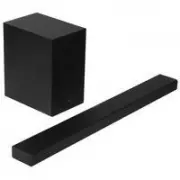
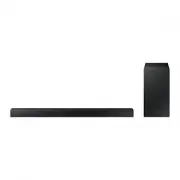
6 GETTING STARTED GETTING STARTED BEFORE READING THE USER’S MANUAL Note the following terms before reading the user manual. ▶ Icons used in this manual Icon Term Definition Caution Indicates a situation where a function does not operate or settings may be canceled. Note Indicates tips or instruction...
Page 7 - DESCRIPTIONS
7 ENG DESCRIPTIONS DESCRIPTIONS TOP/FRONT PANEL (Power) Button Turns the Soundbar on and off. VOL -/+ Controls the volume level. The numeric value of the volume level appears in the front panel display. Display Displays the current mode. (Function) Button Selects the D.IN, AUX, HDMI, BT, TV, USB inp...
Page 8 - REAR PANEL
8 DESCRIPTIONS REAR PANEL HDMI OUT(TV) OPTICAL IN HDMI IN AUX IN DC 24V (Power Supply In) Connect the DC power adaptor to the power supply jack, and then connect the AC power adaptor plug to a wall outlet. (USB Port) Connect USB devices such as MP3 players here to play files on the devices. HDMI OUT...
Page 9 - REMOTE CONTROL; REMOTE CONTROL BUTTONS AND FUNCTIONS
9 ENG REMOTE CONTROL REMOTE CONTROL REMOTE CONTROL BUTTONS AND FUNCTIONS EQUALIZER WOOFER Press to select Treble or Bass. Then, use the # , $ button to adjust the Treble or Bass volume from -3 to +3. You can control the subwoofer volume. Press the # , $ button to increase or decrease the subwoofer v...
Page 10 - ▶ Installing the Batteries in the Remote Control
10 REMOTE CONTROL Bluetooth POWER Press the Bluetooth POWER button on the remote to turn the Bluetooth POWER on function on and off. See pages 19 and 20 for details. 3D SOUND (3D Sound Plus) Press the 3D SOUND button on the remote to add depth and spaciousness to the sound. Press the 3D SOUND on the...
Page 11 - CONNECTIONS; INSTALLING THE WALL MOUNT; ▶ Installation Precautions
11 ENG CONNECTIONS CONNECTIONS INSTALLING THE WALL MOUNT You can use the wall mount bracket to mount this unit on a wall. ▶ Installation Precautions ● Install on a vertical wall only. ● For the installation, avoid a location with high temperature or humidity, or a wall that cannot sustain the weight...
Page 12 - DETACHING THE WALL MOUNT
12 CONNECTIONS DETACHING THE WALL MOUNT 1. Pull the Soundbar upwards as shown in the figure to separate it from the wall mount. ● Do not hang onto the installed unit and avoid striking or dropping the unit. ● Secure the unit firmly to the wall so that it does not fall off. If the unit falls off, it ...
Page 13 - CONNECTING THE WIRELESS SUBWOOFER
13 ENG CONNECTIONS CONNECTING THE WIRELESS SUBWOOFER The Subwoofer's linking ID is preset at the factory and the main unit and subwoofer should link (connect wirelessly) automatically when the main unit and subwoofer are turned on. If the Link indicator ( ) does not light when the main unit and subw...
Page 15 - CONNECTING AN EXTERNAL DEVICE USING AN HDMI CABLE
15 ENG CONNECTIONS CONNECTING AN EXTERNAL DEVICE USING AN HDMI CABLE HDMI is the standard digital interface for connecting to such TVs, projectors, DVD players, Blu-ray players, set top boxes, and more. Because HDMI transmits the highest quality digital signal, you can enjoy superior video and audio...
Page 17 - FUNCTIONS; INPUT MODE
17 ENG FUNCTIONS FUNCTIONS INPUT MODE Press the ( ) button on the main unit’s top panel or the ( SOURCE ) button on the remote control to select the mode you want. Input mode Display Optical Digital input D.IN AUX input AUX HDMI input HDMI BLUETOOTH mode BT TV SoundConnect TV USB mode USB ● Dependin...
Page 18 - BLUETOOTH; ▶ To connect the Soundbar to a Bluetooth device
18 FUNCTIONS BLUETOOTH You can connect a Bluetooth device to the Soundbar and enjoy music with high quality stereo sound, all without wires! ▶ To connect the Soundbar to a Bluetooth device Check if the Bluetooth device supports the Bluetooth compliant stereo headset function. Bluetooth device Connec...
Page 19 - ▶ To disconnect the Bluetooth device from the Soundbar; ▶ To disconnect the Soundbar from the Bluetooth device; More About Bluetooth
19 ENG FUNCTIONS ▶ Bluetooth POWER on (Bluetooth POWER) When the Bluetooth Power On function is on and the Soundbar is turned off, if a previously paired Bluetooth device tries to pair with the Soundbar, the Soundbar turns on automatically. 1. Press the Bluetooth POWER on the remote while the Soundb...
Page 20 - TV SOUNDCONNECT; ▶ Connecting a TV to the Soundbar
20 FUNCTIONS TV SOUNDCONNECT You can enjoy TV sound through your Soundbar when it is connected to a Samsung TV that supports the TV SoundConnect function. ▶ Connecting a TV to the Soundbar Connect 1. Turn on the TV and Soundbar. ● Turn on the menu of the TV. ● Move to Speaker Settings on "Sound&...
Page 21 - USB; ▶ Before you connect a USB device
21 ENG FUNCTIONS USB You can play music files located on USB storage devices through the Soundbar. Display USB port 1. Connect the USB device to the USB port of the product. 2. Press the ( ) button on the main unit’s top panel or the ( SOURCE ) button on the remote control to select the USB mode. 3....
Page 22 - SOFTWARE UPDATE
22 FUNCTIONS SOFTWARE UPDATE Samsung may offer updates for the Soundbar's system firmware in the future. If an update is offered, you can update the firmware by connecting a USB device with the firmware update stored on it to the USB port on your Soundbar. Note that if there are multiple update file...
Page 23 - TROUBLESHOOTING
23 ENG TROUBLESHOOTING TROUBLESHOOTING Before requesting service, please check the following. The unit will not turn on. ● Is the power cord plugged into the outlet? Connect the power plug to the outlet. A function does not work when the button is pressed. ● Is there static electricity in the air?...
Page 24 - APPENDIX; SPECIFICATIONS
24 APPENDIX APPENDIX SPECIFICATIONS Model name HW-H450 GENERAL USB 5V/0.5A Weight Main Unit 2.1 kg Subwoofer (PS-WH450) 5.1 kg Dimensions (W x H x D) Main Unit 957.5 x 59.5 x 66.5 mm Subwoofer (PS-WH450) 179.5 x 363 x 296 mm Operating Temperature Range +5 °C to +35 °C Operating Humidity Range 10 % t...