Page 2 - Precautions; PREP; Safety Warnings
GB 2 Precautions Ensure that the AC power supply in your house complies with the identification sticker located on the back of your player. Install yourplayer horizontally, on a suitable base (furniture), with enough space around it for ventilation (7.5~10cm). Make sure the ventilationslots are not ...
Page 3 - Features
4 3 Multi-Disc Playback & FM Tuner The HT-Q9 combines the convenience of multi-disc playback capability, including DVD-VIDEO, VCD, CD, MP3-CD, WMA-CD, DivX, CD-R/RW, and DVD-R/RW, with asophisticated FM tuner, all in a single player. Dolby Pro Logic II Dolby Pro Logic II is a new form of multi-c...
Page 4 - Disc Recording Format; Do not use the following types of disc!; Copy Protection; Notes on Discs; Playable Discs
GB CD-R Discs • Some CD-R discs may not be playable depending on the disc recording device (CD-Recorder or PC) and the condition of the disc. • Use a 650MB/74 minute CD-R disc. Do not use CD-R discs over 700MB/80 minute as they may not be played back. • Some CD-RW (Rewritable) media, may not be play...
Page 5 - —Rear Panel—; Description; Accessories; SVCDVD
GB 7 PREP ARA TION —Rear Panel— —Display— FM Antenna Connector 5.1 Channel Speaker Output Terminals Video Output Connector Connect the TV's video input jacks (VIDEO IN) to the VIDEO OUT connector. COMPONENT VIDEO OUTPUT jacks Connect a TV with component video inputs tothese jacks. External Audio Inp...
Page 6 - Range of Operation of the Remote Control; —Remote Control—; Insert Remote Batteries
GB 10 The remote control can be used up to approximately 23 feet/7 meters in a straight line. It can alsobe operated at a horizontal angle of up to 30° from the remote control sensor. Range of Operation of the Remote Control 9 PREP ARA TION Description PL II MODE button VOLUME buttons MENU button PO...
Page 7 - CONNECTIONS; Connecting the Speakers; Back of the Main Unit
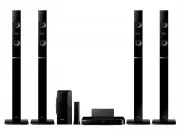
GB 12 Rear Speakers • Place these speakers behind your listening position. • If there isn't enough room, place these speakers so they face each other. • Place them about 60 to 90cm (2 to 3feet) above your ear, facing slightlydownward. * Unlike the front and center speakers, the rear speakers are use...
Page 8 - Function; METHOD 2; Connecting the Video Out to TV
13 Press STOP button. • If playing a disc, press the STOP button twice so that “ STOP ”, appears on the display. Press and hold P.SCAN button on the remote control for over 5 seconds. • Pressing and holding the button for over 5 seconds will select " P.SCAN " and " I.SCAN " alternate...
Page 9 - Connecting the FM Antenna; Connecting External Components; Connecting an External Analog Component
15 • This unit does not receive AM broadcasts. Note Connecting the FM Antenna Connect the FM antenna supplied to the FM 75 Ω COAXIAL terminal. Slowly move the antenna wire around until you find a location where reception is good, then fasten it to a wall or other rigid surface. FM Antenna (supplied)...
Page 10 - STOP; Selecting the Video Format; Disc Playback; Disc terminology; Before Using Your Home Theater
GB 18 OPERA TION To stop playback, press STOP during playback. • If pressed once, “ PRESS PLAY ” is displayed and the stop position will be stored in memory. If PLAY/PAUSE ( ) button or ENTER button is pressed, playback resumes from the stop position. (This function works onlywith DVDs.) • If presse...
Page 11 - INFO; Displaying Disc Information; To play a file icon in the screen,
GB OPERA TION 20 Press INFO button. • Each time the button is pressed, the display changes as follows: DVD The information Display disap- pears from the screen The information Display disap- pears from the screen The information Display disap- pears from the screen CD • appears on the TV screen! If ...
Page 12 - Digest Function; DIGEST; button during; To view the previous or next image with 9 windows, press .; OPERA; JPEG File Playback
GB Rotate/Flip Function button: Flip Vertically button: Flip Horizontally button: Rotate 90°Counterclockwise button: Rotate 90° Clockwise Digest Function 2 Press Cursor , , , buttons to select the desired image andthen press ENTER button. 1 Press DIGEST button during playback. • JPEG files will be s...
Page 13 - SUBTITLE; Subtitle Display; Press the; AUDIO; Fast playback; During playback, press the button.; Zoom Function; ZOOM; DivX Playback; Minute Skip function
GB 24 OPERA TION • " " is displayed when there is one supported language in the disc. Note Press the SUBTITLE button. • Each time you press the button, your selection will toggle between “ SUBTITLE (1/1, 1/2 ...)” and “ SUBTITLE OFF ”. • If the disc has only one subtitle file, it will be pla...
Page 14 - Skipping Scenes/Songs; Fast Playback; SLOW; Slow Playback; Checking the Remaining Time; REMAIN
GB 26 OPERA TION DivX Fast/Slow Playback Skipping Scenes/Songs DVD Press . • Each time the button is pressed during playback, the previous or next chapter, track, ordirectory (file) will be played. • You cannot skip chapters consecutively. T I T L E 0 1 / 0 5 C H A P T E R 0 0 2 / 0 4 0 T I T L E 0 ...
Page 15 - button; button at the beginning; REPEAT; Repeat Playback; To Select a Repeat Playback Mode in the Disc Information Screen
GB 28 • The A-B Repeat function does not operate with MP3, CD or JPEG discs. 2 Press Cursor buttonto move to REPEATPLAYBACK ( ) display. • For a VCD, press INFO button once. 1 Press INFO button twice. A - A -? REPEAT : A— A - B REPEAT : A—B • The specified segment will beplayed repeatedly. 4 Press E...
Page 16 - EZ VIEW Function; Step Function; STEP; Angle Function
GB 30 DVD VCD DVD 2 Press Cursor , , , buttons to move to the areayou want to enlarge. 1 Press ZOOM but- ton. • Each time the button is pressed, the zoom level changes as follows: 3 Press ENTER button. Press EZ VIEW button. • Each time the button is pressed, the zoom function will switch between On ...
Page 17 - Subtitle Language Selection Function; Selecting Subtitle Language; buttons or numeric; Audio Language Selection Function; Selecting Audio Language
GB 32 OPERA TION EN 1/3 EN 01/ 03 OFF SP 02/ 03 FR 03/ 03 OFF / 03 • To operate this function, you can also press the Select AUDIO or Select SUBTITLE buttons on the remote control. • Depending on the disc, the Subtitle and Audio Language functionsmay not be available. Subtitle Language Selection Fun...
Page 18 - Using Disc Menu; Moving to a Title/Track; tons or numeric buttons to; Moving Directly to a Scene/Song
GB 34 OPERA TION 2 Press Cursor ,button to move to‘Title Menu’. DVD 1 In Stop mode,press MENU but- ton. 3 Press ENTER but- ton. • The title menu appears. Press MENU button to exit the setup screen. DVD 2 • When you select Disc Menu and it is not supported by the disc, the " This menu is not sup-...
Page 19 - SETUP; Setting the Language; MENU; Language; ’ and then
GB 36 SETUP OSD (On-Screen Display) language is set to English by default. Setting the Language 35 * If the language you selected isnot recorded on the disc, menulanguage will not change evenif you set it to your desiredlanguage. Selecting the OSD Language Selecting the Audio Language (recorded on t...
Page 20 - RETURN; button to return to the previous level.; button to exit the setup screen.; Setting TV Screen type; WIDE; Adjusting the TV Aspect Ratio (Screen Size)
37 2 1 4 3 In Stop mode,press MENU button. Press Cursor button to move to‘Setup’ and thenpress ENTER button. • Once the setup is complete, you willbe taken to the previous screen. Press Cursor but-ton to move to ‘TVDISPLAY’ and thenpress ENTER button. Press Cursor ,button to select thedesired item a...
Page 21 - If you have forgotten the rating level password, do the following:; Setting the Password
GB • This function works only if a DVD disc contains the rating level information. Press RETURN button to return to the previous level. Press MENU button to exit the setup screen. 4 • The password is set to "7890" by default. • Once the setup is complete, you will betaken to the previous scr...
Page 22 - To select one of the 3 wallpaper settings you've made; During playback, press; LOGO; Setting the Wallpaper
GB 42 SETUP 2 1 3 In Stop mode,press MENU button. Press Cursor button to move to‘Setup’ and thenpress ENTER button. Press Cursor button to move to‘LOGO’ and thenpress ENTER button. To select one of the 3 wallpaper settings you've made 5 4 Press MENU button to exit thesetup screen. Press to selectthe...
Page 23 - Setting the Speaker Mode
GB 44 SETUP 2 1 4 3 In Stop mode,press MENU button. Press Cursor button to move to‘Audio’ and thenpress ENTER button. In the SpeakerSetup, press the ENTER button again. Press Cursor , , , buttons to move to the desiredspeaker and thenpress ENTER button. • For C, SL, and SR, each time the buttonis pr...
Page 24 - Setting up the Speaker Delay Time; Setting the Delay Time
45 Setting up the Speaker Delay Time When 5.1CH Surround Sound is played, you can enjoy the best sound ifthe distance between you and each speaker is the same. Since thesounds arrive at the listening position at different times depending on theplacement of speakers, you can adjust this difference by...
Page 25 - Setting the Test Tone
L: Front Speaker (L) C: Center Speaker SW: Subwoofer R: Front Speaker (R) SL: Rear Speaker (L) SR: Rear Speaker (R) Press RETURN button to return to the previous level. Press MENU button to exit the setup screen. 2 1 In Stop or nodisc mode,press MENU button. Press Cursor but-ton to move to ‘Audio’an...
Page 26 - When manually adjusting with the SOUND EDIT button; Adjusting Front Speaker Balance; When adjusting the audio quality using the setup screen; buttons to select and; Setting the Audio
GB Adjusting Front/Rear Speaker Balance • You can select between 00 and –06 and OFF. • The volume decreases as you move closer to –6. Adjusting Center/Rear/Subwoofer Speaker Level • The volume level can be adjusted in steps from +6dB to –6dB. • The sound gets louder as you move closer to +6dB and qu...
Page 27 - AV SYNC Setup
GB 52 • "DSP" appears on the display panel. • Each time the button is pressed, the selection changes as follows: POP, JAZZ, ROCK: Depending on the genre of music, you can select POP, JAZZ, and ROCK. STUDIO : Provides a sense of presence as if in a studio. CLUB : Simulates the sound of a danc...
Page 28 - Dolby Pro Logic II Effect; Dolby Pro Logic II Mode; PL II MODE
GB 54 SETUP This function works only in Dolby Pro Logic MUSIC mode. Dolby Pro Logic II Effect 53 Press PL II MODE button. PRO LOGIC II • MUSIC: When listening to music, you can experience sound effects as if you are listening to the actual performance. • CINEMA: Adds realism to the movie soundtrack....
Page 29 - TUNING; to select; TUNER; TUNER; RADIO OPERA; Presetting Stations; TUNER; TION; R e m o t e C o n t r o l U n i t; Listening to Radio
GB 56 To tune in to a preset station, press on the remote control to select a channel. • Refer to Step 2 on page 61 toautomatically or manually tune into a station. 2 1 • “PRGM” flashes in the display. 3 Example: Presetting FM 89.1 in the memory Press TUNING ( , ) to select "89.10". Press th...
Page 30 - SLEEP; Sleep Timer Function; Convenient Functions; Mute Function; MUTE; MISCELLANEOUS
57 • "SLEEP" will be displayed. Each time the button is pressed, the presettime changes as follows: 1 0 ➝ 20 ➝ 30 ➝ 60 ➝ 90 ➝ 120 ➝ 150 ➝ OFF . Press SLEEP button. Sleep Timer Function You can set the time that the Home Theater will shut itself off. Convenient Functions • ‘ MUTE ON ’ appears...
Page 31 - Before Calling for Service
59 • Is the TV power on? • Are the video cables connected properly? • Is the disc dirty or damaged? • A poorly manufactured disc may not be playable. • Disc is rotating but no pic- ture is produced. • Picture quality is poor and picture is shaking. • Is the remote control being operated within its o...
Page 32 - Language Code List; Handling discs; Cautions on Handling and Storing Discs
61 Code Language Code Language Code Language Code Language 1027 Afar 1181 Frisian 1334 Latvian, Lettish 1506 Slovenian 1028 Abkhazian 1183 Irish 1345 Malagasy 1507 Samoan 1032 Afrikaans 1186 Scots Gaelic 1347 Maori 1508 Shona 1039 Amharic 1194 Galician 1349 Macedonian 1509 Somali 1044 Arabic 1196 Gu...
Page 33 - Specifications
Speaker system ImpedanceFrequency range Output sound pressure levelRated inputMaximum input Dimensions (W x H x D) Weights SPEAKER Subwoofer speaker 8 Ω 35Hz~140Hz85dB/W/M30W60W 130 x 320 x 314 mm 3.3 kg Front/Rear Center 92 x 102x 96.5 mm 0.5 Kg/0.5 Kg0.5 Kg Front/Rear Center Front/Center/Rear spea...