Page 2 - English; Safety Information; Safety Warnings; WARNING; CLASS 1 LASER PRODUCT; CAUTION; Wiring the Main Power Supply Plug (UK Only); IMPORTANT NOTICE
2 English Safety Information Safety Warnings TO REDUCE THE RISK OF ELECTRIC SHOCK, DO NOT REMOVE THE COVER(OR BACK).NO USER-SERVICEABLE PARTS ARE INSIDE. REFER SERVICING TO QUALIFIED SERVICE PERSONNEL. CAUTION RISK OF ELECTRIC SHOCK DO NOT OPEN This symbol indicates “dangerous voltage” inside the pr...
Page 3 - Accessories; Check for the supplied accessories below.; Precautions
English 3 Accessories Check for the supplied accessories below. 㪈 㪉 㪊 㪋 㪌 㪍 㪎 㪏 㪇 㪐 DISC MENU TITLE FUNCTION TV SOURCE DSP / EQ A B C D MO / ST REPEAT CD RIPPING DIMMER TUNER MEMORY I N F O VOL TV CH V TUNING V DVD RECEIVER SELECT SAMSUNG TV MUTE POWER P L TO OLS Video Cable FM Antenna User's Manual...
Page 4 - Cautions on Handling and Storing Discs; Holding discs; Handling and Storing Discs; NOTE; Licence
4 English Cautions on Handling and Storing Discs Small scratches on the disc may reduce sound and picture quality or cause skipping. Be especially careful not to scratch discs when handling them. Holding discs Do not touch the playback side of the disc. Hold the disc by the edges so that fi ngerprint...
Page 5 - Contents; SAFETY INFORMATION; ENGLISH
English 5 Contents SAFETY INFORMATION 2 2 Safety Warnings 3 Precautions3 Accessories4 Cautions on Handling and Storing Discs 4 Licence4 Copyright4 Copy Protection GETTING STARTED 7 7 Icons that will be used in manual7 Disc Types and Characteristics 11 Description11 Front Panel 12 Rear Panel 13 Remot...
Page 6 - BASIC FUNCTIONS
6 English BASIC FUNCTIONS 26 26 Disc Playback 26 Audio CD(CD-DA)/MP3/WMA Playback 27 JPEG File Playback 27 Using the Playback Function 32 Sound Mode 33 Listening to Radio ADVANCED FUNCTIONS 34 34 USB Function 34 CD Ripping OTHER INFORMATION 35 35 Troubleshooting36 Language code list 37 Specifi cation...
Page 7 - Getting Started; Icons that will be used in manual; Icon; Disc Types and Characteristics; Region Code; Disc Type
English 7 01 Getting Started Getting Started Icons that will be used in manual Make sure to check the following terms before reading the user manual. Icon Term Defi nition d DVD This involves a function available with DVD-Video or DVD±R/±RW discs that have been recorded and fi nalised in Video Mode. B...
Page 8 - Disc types that can be played; Recorded; Do not use the following type of discs!
8 English Getting Started Disc types that can be played Disc Types & Mark (Logo) Recorded Signals Disc Size Max. Playing Time DVD-VIDEO AUDIO + VIDEO 12 cm Approx. 240 min. (single-sided) Approx. 480 min. (double-sided) 8 cm Approx. 80 min. (single-sided) Approx. 160 min. (double-sided) AUDIO-CD...
Page 9 - Format; Supported Audio Formats
English 9 01 Getting Started DVD±R/±RW, CD-R/RW Discs Software updates for incompatible formats are not supported.(Example : QPEL, GMC, resolutions higher than 800 x 600 pixels, etc.) If a DVD-R/-RW disc has not been recorded properly in DVD Video format, it will not be playable. DivX (Digital inter...
Page 10 - Notes on USB connection; FAT16 and FAT32 fi le systems are supported.
10 English Getting Started Notes on USB connection Supported devices: USB storage media, MP3 player, digital camera, USB card reader If a folder or fi le name is longer than 10 characters, it may not properly display or operate. A subtitle fi le bigger than 148KB may not be properly displayed. A certa...
Page 11 - Description; Front Panel
English 11 01 Getting Started Description Front Panel 1 DISC TRAY Insert disc here. 2 DISPLAY Displays the playing status, time, etc. 3 REMOTE CONTROL SENSOR Detects signals from the remote control. 4 OPEN/CLOSE BUTTON ( ) Opens and closes the disc tray. 5 FUNCTION BUTTON ( ) The mode switches as fo...
Page 12 - Use this to connect external equipment capable of digital output.; AUX IN JACKS; Connect a TV with Component video inputs to these jacks.; FM ANTENA; Rear Panel
12 English Getting Started 1 5.1 CHANNEL SPEAKER OUTPUT CONNECTORS Connect the front, centre, rear speakers and subwoofer. 2 EXTERNAL DIGITAL OPTICAL IN JACK (DIGITAL AUDIO IN) Use this to connect external equipment capable of digital output. 3 HDMI OUT JACK Using an HDMI cable, connect this HDMI ou...
Page 13 - Remote control; Tour of the Remote Control; POWER; Installing batteries in the Remote Control
English 13 01 Getting Started Remote control Tour of the Remote Control Turn the product on and off. Allow access to common functions of the product such as the Photo List. Press this to move to the home menu. Press numeric button to operate options.or1. PLII button : Select the desired Dolby Pro Lo...
Page 14 - Setting the Remote Control
14 English Getting Started Setting the Remote Control You can control certain functions of your TV with this remote control. When operating a TV with the remote control Press the TV button to set the remote control to TV mode. Press the POWER button to turn on the TV. While holding down the POWER bu...
Page 15 - Connecting the Speakers; Front Speakers; ei; Centre Speaker; hj; Place these speakers to the side of your listening position.; Position of the product; Connections
English 15 02 Connections This section involves various methods of connecting the product to other external components. Before moving or installing the product, be sure to turn off the power and disconnect the power cord. Connecting the Speakers Front Speakers ei Place these speakers in front of you...
Page 16 - Speaker Components; Press down the terminal tab on the back of the speaker.; Subwoofer
16 English Connections (L) (R) (L) (R) FRONT REAR CENTRE SUBWOOFER SPEAKER CABLE Connecting the Speakers Speaker Components Connecting The Speakers Press down the terminal tab on the back of the speaker. Insert the black wire into the black terminal (–) and the red wire into the red terminal (+), an...
Page 17 - Connecting the Video Out to your TV; HDMI OUT; METHOD 2 : Component Video; COMPONENT OUT; METHOD 4 : Composite Video; VIDEO OUT; METHOD 1
English 17 02 Connections Connecting the Video Out to your TV Choose one of the four methods for connecting to a TV. METHOD 1 : HDMI Connect an HDMI cable (not supplied) from the HDMI OUT jack on the back of the product to the HDMI IN jack on your TV. METHOD 2 : Component Video If your television is...
Page 18 - HDMI FUNCTION
18 English Connections NOTE Resolutions available for the HDMI output are 480p(576p), 720p,1080i/1080p. See page 22 for the resolution setting. This product operates in Interlace scan mode 480i(576i) for component/composite output.After making the video connection, set the Video input source on your...
Page 19 - Connecting the FM Antenna; Connect the FM antenna supplied to the FM Antenna jack.
English 19 02 Connections Connecting the FM Antenna Connect the FM antenna supplied to the FM Antenna jack. Slowly move the antenna wire around until you fi nd a location where reception is good, then fasten it to a wall or other rigid surface. NOTE This product does not receive AM broadcasts. 1. 2. ...
Page 20 - Connecting Audio from External Components; AUX : Connecting an External Analogue Component; Optical Cable; White
20 English Connections Connecting Audio from External Components AUX : Connecting an External Analogue Component Analogue signal components such as a VCR. Connect AUX IN (Audio) on the back of the product to the Audio Out of the external Analogue component. Be sure to match the colours of the connec...
Page 21 - Selecting the Video Format; Setting the Setup menu; Setup
English 21 03 Setup Before Starting (Initial Setting) Press the POWER button when it is plugged in TV for the fi rst time.Initial Setting screen will be displayed. Move Select Return Initial setting > On-Screen Language Select a language for the on-screen displays. English Korean Dutch French Germ...
Page 22 - Display; TV Aspect; Audio; Speaker Setting; Sound Edit
22 English Setup Display You can confi gure various display options such as the TV Aspect, Resolution, etc. TV Aspect Depending on the type of television you have, you may want to adjust the screen setting. 4:3 Pan-Scan • Select when you want to see the 16:9 video supplied by the DVD without the blac...
Page 23 - Setting the Centre Speaker
English 23 03 Setup Adjusting Front/Rear Speaker Balance You can select between 0 and -6.The volume decreases as you move closer to –6. Adjusting Centre/Rear/Subwoofer Speaker Level The volume level can be adjusted in steps from +6dB to –6dB.The sound gets louder as you move closer to +6dB and quiet...
Page 24 - EQ Optimizer; System; Initial Setting
24 English Setup Test Tone Settings Move Select Return Speaker Setting Speaker Size Sound Edit Delay Time Test Tone : On ► Select Return Use the Test Tone feature to check the speaker connections. Press the ◄► buttons to select On . The test tone will be sent to Front Left ➞ Center ➞ Front Right ➞ R...
Page 25 - Language; Parental Rating; If you forgot your password; Support; Product Information
English 25 03 Setup Language You can select the language you prefer for on-screen menu, disc menu, etc. OSD Language Select the language for the on-screen displays. Disc Menu Select the language for the disc menu displays. Audio Select the language for disc audio. Subtitle Select the language for di...
Page 26 - Basic Functions; Disc Playback; TV Screen Saver/Power Saving Function; BA
26 English Basic Functions Disc Playback Press the OPEN/CLOSE ( ) button. Place a disc gently into the tray with the disc's label facing up. Press the OPEN/CLOSE ( ) button to close the disc tray. NOTE Resume function: When you stop disc play, the product remembers where you stopped, so when you...
Page 27 - JPEG File Playback; Rotate Function; Using the Playback Function; Forward/Reverse Search; Skipping Scenes/Songs; Slow Motion Play
English 27 04 Basic Functions JPEG File Playback Images captured with a digital camera or camcorder, or JPEG fi les on a PC can be stored on a CD and then played back with this product. Insert a JPEG disc on the disc tray. Press the ◄► buttons to select Photo , and then press the ENTER button. Press ...
Page 28 - Step Motion Play
28 English Basic Functions Step Motion Play d D Press the PAUSE button repeatedly. The picture moves forward one frame each time the button is pressed during playback. NOTE No sound is heard during step motion playback. 5 Minute Skip function D During playback, press the ◄ , ► button. Playback skips...
Page 29 - Repeat Playback
English 29 04 Basic Functions Repeat Playback dB A D DVD/DivX Repeat You can repeat the title, chapter or the section(A-B Repeat) of the DVD/DivX. Repeat OFF During DVD/DivX playback, press the REPEAT button on the remote control. Press the ▲▼ buttons to select a desired repeat mode, then press the ...
Page 30 - Displaying Disc Information; TOOLS menu; Selecting the Audio Language
30 English Basic Functions Displaying Disc Information d D Change Select 03/04 001/001 0:00:21 KO 1/2 EN 02/02 1/1 During playback, press the TOOLS button on the remote control. Press the ▲▼ buttons to select the desired item. Press the ◄► buttons to make the desired setup change and then press the ...
Page 31 - Selecting the Subtitle Language; Caption Function; Angle Function
English 31 04 Basic Functions Selecting the Subtitle Language d D Press the TOOLS button. Press the ▲▼ buttons to select SUBTITLE ( ) display. Press the ◄► buttons or numeric buttons to select the desired subtitle language. Depending on the number of languages on a DVD disc, a different subtitle lan...
Page 32 - Sound Mode; ROCK; Dolby Pro Logic II Mode; PL II
32 English Basic Functions Sound Mode DSP (Digital Signal Processor)/EQ DSP (Digital Signal Processor) : DSP modes have been designed to simulate different acoustic environments. EQ : You can select ROCK, POP, or CLASSIC etc. to optimize the sound for the genre of music you are playing. Press the DS...
Page 33 - Listening to Radio; Using buttons on the Remote Control; Presetting Stations
English 33 04 Basic Functions Listening to Radio Using buttons on the Remote Control Press the FUNCTION button to select FM . Tune in to the desired station. Automatic Tuning 1 : When the # $ buttons is pressed, a preset broadcast station is selected Automatic Tuning 2 : Press and hold the TUNING ( ...
Page 34 - Advanced Functions; USB Function; Safe USB Removal; CD Ripping
34 English Advanced Functions USB Function Playing Media Files using the USB Host Feature You can enjoy media fi les such as pictures, movies and music saved on an MP3 player, USB memory stick or digital camera in high quality video with 5.1 channel sound by connecting the storage device to the USB p...
Page 35 - Troubleshooting; product; Other Information
English 35 06 Other Information Troubleshooting Refer to the chart below when this product does not function properly. If the problem you are experiencing is not listed below or if the instruction below does not help, turn off the product, disconnect the power cord, and contact the nearest authorize...
Page 36 - Symptom; • Press and hold the; Language code list
36 English Other Information Symptom Check/Remedy • The product is not working. (Example: The power goes out or the front panel key doesn't work or a strange noise is heard.) • The product is not working normally. • Press and hold the STOP ( ) button on the remote control for longer than 5 seconds...
Page 37 - Specifi cations; Centre
English 37 06 Other Information Specifi cations General Weight 2.6 Kg Dimensions 430.0 (W) x 60.0 (H) x 290.0 (D) mm Operating Temperature Range +5°C~+35°C Operating Humidity Range 10 % to 75 % FM Tuner Signal/noise ratio 70 dB Usable sensitivity 10 dB Total harmonic distortion 0.5 % Disc DVD (Digita...
Page 38 - Contact SAMSUNG WORLD WIDE
Contact SAMSUNG WORLD WIDE If you have any questions or comments relating to Samsung products, please contact the SAMSUNG customer care center. Area Contact Center Web Site ` North America Canada 1-800-SAMSUNG (726-7864) www.samsung.com Mexico 01-800-SAMSUNG (726-7864) www.samsung.com U.S.A 1-800-SA...
Page 39 - Correct disposal of batteries in this product
Correct Disposal of This Product (Waste Electrical & Electronic Equipment (Applicable in the European Union and other European countries with separate collection systems) This marking on the product, accessories or literature indicates that the product and its electronic accessories (e.g. charge...


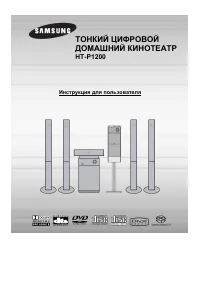 Samsung HT-P1200 Manual
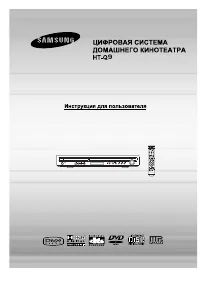 Samsung HT-Q9 Manual
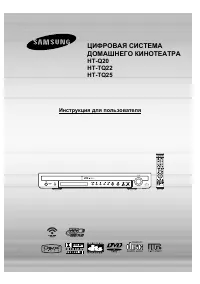 Samsung HT-Q20 Manual
 Samsung HT-A100 User Manual
 Samsung HT-BD1255 User Manual
 Samsung HT-BD8200 Manual
 Samsung HT-C453 User Manual
 Samsung HT-C455 Manual
 Samsung HT-C5200 User Manual
 Samsung HT-C5500 User Manual
 Samsung HT-C5900 User Manual