Page 2 - Safety Information; CAUTION
2 - English Safety Information ● The slots and openings in the cabinet and in the back or bottom are provided for necessary ventilation. To ensure reliable operation of this apparatus, and to protect it from overheating, these slots and openings must never be blocked or covered. - Do not place this ...
Page 3 - CLASS 1 LASER PRODUCT; D Precautions
3 - English Safety Information ● To turn this apparatus off completely, you must disconnect it from the wall outlet. Consequently, the wall outlet and power plug must be readily accessible at all times. ● Do not allow children to hang on the product. ● Store the accessories (battery, etc.) in a loca...
Page 4 - Contents
4 - English Contents GETTING STARTED 5 Accessories 5 Speaker Components 6 Front Panel 7 Rear Panel 8 Remote Control CONNECTIONS 9 Connecting the Speakers 13 Connecting to a TV and External Devices 14 Connecting to a Network Router SETTINGS 15 The Initial Settings Procedure 16 The Home Screen at a Gl...
Page 5 - Accessories; failed to read this user manual); Getting Started
5 - English Getting Started Check the box for the accessories and speaker components listed or shown below. Accessories ● Remote Control ● User Manual ● Batteries (AAA size) Power Cable FM Antenna Speaker Components HT-J5500 Centre Front x 2 Surround x 2 Speaker Cable x 6 Subwoofer ■ Figures and ill...
Page 6 - Front Panel; DISPLAY ICONS; FUNCTION
6 - English Getting Started HT-J5550W Screw (5x15) x 4 Front x 2 Screw (5x20) x 16 Centre Stand Base x 4 Surround x 2 Stand x 4 Subwoofer Speaker Cable x 6 Wireless Receiver Module (SWA-7000) Front Panel DISPLAY ICONS FUNCTION STOP PLAY/PAUSE OPEN/CLOSE VOLUME CONTROL POWER 5V 0.5A USB REMOTE CONTRO...
Page 7 - Rear Panel
7 - English Getting Started Rear Panel SURROUND SURROUND * In case of HT-J5500 COOLING FAN * FM ANTENNA AUX IN HDMI OUT SPEAKER OUTPUT CONNECTORS POWER CORD LAN TERMINAL EXTERNAL DIGITAL AUDIO IN (OPTICAL) * Connecting the FM Antenna 1. Connect the supplied FM antenna to the FM ANT Jack. 2. Slowly m...
Page 8 - Remote Control; Tour of the Remote Control
8 - English Getting Started Remote Control Tour of the Remote Control Installing batteries in the Remote Control ✎ Make sure to match the "+" and "–" ends of the batteries with the diagram inside the compartment. ✎ Assuming typical usage, the batteries last for about one year. ✎ The ...
Page 9 - Connecting the Speakers; Connections
9 - English Connections This section describes various methods of connecting the product to other external components. Before moving or installing the product, be sure to turn off the power and disconnect the power cord. Connecting the Speakers Surround (L) Surround (R) Product Centre Subwoofer Wire...
Page 10 - Installing the Speakers on the Tallboy Stand; Stand Base
10 - English Connections Installing the Speakers on the Tallboy Stand * HT-J5550W only 1. Turn the Stand Base upside-down and connect it to the Stand. 2. Use the driver to fasten the screws (5x20) on the 4 marked holes. 3. Straighten the provided speaker cable and run it through the centre hole of t...
Page 13 - Connecting to a TV and External Devices; Connecting to a TV; Method 1 AUX IN : Connecting an External Analogue Component; Method 2 OPTICAL : Connecting an External Digital Audio Component; Selecting an External Device to Use
13 - English Connections Connecting to a TV and External Devices OPTICAL OUT AUDIO OUT HDMI IN (ARC) Method 1 Method 2 R Red W White External Devices Connecting to a TV Connect an HDMI cable (not supplied) from the HDMI OUT jack on the back of the product to the HDMI IN jack on your TV. If the TV su...
Page 14 - Connecting to a Network Router; Wired Network; Wireless Network
14 - English Connections Connecting to a Network Router You can connect your product to your network router using one of the methods illustrated below. Wired Network Broadband service Broadband service Broadband modem (with integrated router) Broadband modem Router Or ✎ Your router or your Internet ...
Page 15 - The Initial Settings Procedure; Settings
15 - English Settings The Initial Settings Procedure ● The Home menu will not appear if you do not configure the initial settings. ● The OSD (On Screen Display) may change in this product after you upgrade the software version. ● The access steps may differ depending on the menu you selected. 1. Tur...
Page 16 - The Home Screen at a Glance; Accessing the Settings Screen
16 - English Settings The Home Screen at a Glance PLAY DISC App 1 App 2 App 3 App 4 Screen Mirroring Change Device Function No Disc Settings PHOTOS VIDEOS MUSIC 1 3 4 5 6 7 8 9 2 Opera TV Store More 1 PLAY DISC The disc currently in the tray is displayed.Press E to start playing the disc. 2 PHOTOS/V...
Page 17 - HOME; Detailed Function Information; Settings Menu Functions
17 - English Settings Buttons on the Remote Control Used for the Settings Menu TOOLS RETURN EXIT INFO SUBTITLE HOME REPEAT TUNER 2 4 3 1 1 HOME Button : Press to move to the Home screen. 2 RETURN Button : Press to return to the previous menu. 3 E ( ENTER ) / DIRECTION Button : ● Press ▲▼◀▶ to move t...
Page 20 - Radio Setup; Selecting Mono or Stereo
20 - English Settings Security The default PIN is 0000. Enter the default PIN to access the security function if you haven't created your own PIN. BD Parental Rating Prevents playback of Blu-ray Discs with a rating equal to or above a specific age rating unless you enter the PIN. DVD Parental Rating...
Page 21 - DEFAULT PRESET; Recording FM Radio; FM; About RDS Broadcasting; Using the RDS (Radio Data System) to receive
21 - English Settings ● To tune in to a preset station, press the TUNING UP , DOWN button. ✎ To delete all Preset FM stations at once, press the TITLE MENU button for about 5 seconds in FM Manual mode until DEFAULT PRESET appears on the display. Recording FM Radio You can record your favourite radio...
Page 22 - To show the RDS signals; RDS DISPLAY; About characters shown in the display; PTY SEARCH; Network Setup; Configuring Your Network Connection
22 - English Settings To show the RDS signals You can see the RDS signals the station sends on thedisplay.Press the RDS DISPLAY button while listening to an FM station. ● Each time you press the button, the display change to show you the following information : PS NAME RT CT Frequency PS (Prog...
Page 25 - Through the Wi-Fi Device
25 - English Settings ✎ You can get the Network parameter values from your Internet provider. 11. When finished, select Return ( ' ), and then press the E button. The Security Key screen appears. 12. On the Security Key screen, enter your network's Security Code or Pass Phrase. Enter numbers directl...
Page 26 - Through the Product Using PBC; Upgrading Software; By Online; POWER
26 - English Settings 2. When you have completed the procedure, you should see a pop-up on your TV screen saying that a device that supports Wi-Fi Direct has requested to connect. Confirm that the device that is making the request is your device, select Yes in the pop up, and then press the E button...
Page 27 - By USB; Setting Up DLNA
27 - English Settings By USB 1. Visit Samsung's website on a computer and download the update package to a USB device. ✎ Save the update package in the USB device's top-level folder. Otherwise, the product will not be able to locate the update package. 2. Connect the USB device with the update packa...
Page 28 - Playing Content; Switching the Source Device; Method 1; Playing Commercial Discs; Disc Storage & Management
28 - English Playing Content Your home cinema can play content located on Blu-ray/DVD/CD discs, USB devices, PCs, smart phones, tablets, and in Apps.To play content located on your PC or a mobile device, you must connect the PC or mobile device and the product to your network. To play content on you...
Page 29 - Playing Files on a USB Device; Method 1 : If you connect a USB device while; Method 2 : If the product is turned on after
29 - English Playing Content 3. A screen appears listing the contents of the disc. Depending on how the contents are arranged, you will see either folders, individual files, or both. 4. If necessary, use the ▲▼◀▶ buttons to select a folder, and then press the E button. 5. Use the ▲▼◀▶ buttons to sel...
Page 30 - Controlling Video Playback; REPEAT
30 - English Playing Content Controlling Video Playback You can control the playback of video content located on a Blu-ray/DVD disc, USB device, mobile device, or PC. Depending on the disc or contents, some of the functions described in this manual may not be available. Buttons on the Remote Control...
Page 31 - Using the TOOLS Menu; Menu selections that appear only when a
31 - English Playing Content Using the TOOLS Menu During playback, press the TOOLS button. Title If there is more than one title on a disk or device, lets you move to or select a desired title. ✎ When searching DVD title, in stop mode, enter the TOOLS button and title number (01,02,...) you want. Pl...
Page 32 - Creating a Video Playlist; Controlling Music Playback; Repeating Tracks
32 - English Playing Content Creating a Video Playlist You can create a playlist of video files in nearly the same way you create a playlist of music files. See page 33 for instructions. Select video files instead of music files. Playing a Pre-Recorded Commercial Audio Disc 1. Insert an Audio CD (CD...
Page 33 - Creating a Music Playlist; RETURN; Ripping
33 - English Playing Content Creating a Music Playlist 1. If you are playing music from a commercial CD or DVD, press the 5 or RETURN button. The Music List Screen appears. If you are creating a playlist from music on a user created disk or USB device, access the Music list as described on page 28 o...
Page 34 - Playing Photo Content; Using the Tools Menu; Creating a Photo Playlist; Using Bluetooth
34 - English Playing Content Playing Photo Content You can play photo content located on a DVD, USB, mobile device, or PC. Using the Tools Menu During playback, press the TOOLS button. Start / Stop Slide Show Select to play/pause the slide show. Slide Show Speed Select to adjust the slide show speed...
Page 35 - Connect
35 - English Playing Content To Connect the Home Cinema to a Bluetooth Device Connect Bluetooth device Before you begin, confirm that the Bluetooth device supports the Bluetooth compliant stereo headset function. 1. Press the FUNCTION button on the remote control to display the BT message. 2. Select...
Page 36 - Using the Bluetooth Quick start; TV SOUND
36 - English Playing Content Using the Bluetooth Quick start When the home cinema is turned off, connecting your smart device to the product via a Bluetooth connection can turn the home cinema on. ✎ The Quick start function is available when the home cinema's power cord is plugged into an AC wall ou...
Page 37 - Using DLNA; Network Services
37 - English Network Services Using BD-LIVE™ 1. Connect the product to your network.(See page 14) 2. Configure the network settings.(See pages 21~25) Once the product is connected to your network, you can enjoy various movie-related service contents available on BD-LIVE compliant discs. 1. Attach a ...
Page 38 - Viewing Additional Apps; Changing the Apps Displayed on the Home; Using Opera TV Store
38 - English Network Services Using Apps The first time you access any one of the apps, the home cinema displays two agreements. You must accept both agreements to download and use any apps. By default, the home cinema displays four popular apps on the Home screen. You can view more apps and change ...
Page 39 - Deleting Apps from MY APPS; Searching for Apps; Screen Mirroring
39 - English Network Services Deleting Apps from MY APPS 1. Highlight the MENU button on the top of the My Apps screen, and then press the E button on your remote. 2. Select REMOVE APPS in the menu, and then press the E button. A red rectangle appears around one of the apps. 3. Move the rectangle to...
Page 40 - Appendix; Additional Information; Notes
40 - English Appendix Additional Information Notes Connections HDMI OUT ● Certain HDMI output resolutions may not work, depending on your TV. ● You must have an HDMI connection to enjoy videos with 3D technology. ● A long HDMI cable may cause screen noise. If this occurs, set HDMI Deep Colour to Off...
Page 41 - Disk and Format Compatibility
41 - English Appendix Speaker Settings ● When Speaker Selection is set to TV Speaker , audio is produced by the TV speakers. HDMI audio ● When HDMI audio is output to the TV speakers, it is automatically down-mixed to 2 channels. Audio Return Channel ● When Anynet+ (HDMI-CEC) is Off , the Audio Retu...
Page 42 - Disc Types your Product cannot Play
42 - English Appendix ✎ If a DVD-RW/-R disc has not been recorded properly in DVD video format, it will not be playable. ✎ Your product will not play content that has been recorded on a DVD-R at a bit rate that exceeds 10 Mbps. ✎ Your product will not play content that has been recorded on a BD-R or...
Page 43 - Supported Formats; Notes on the USB connection
43 - English Appendix DVD- VIDEO 1 The U.S., U.S. territories and Canada 2 Europe, Japan, the Middle East, Egypt, Africa, Greenland 3 Taiwan, Korea, the Philippines, Indonesia, Hong Kong 4 Mexico, South America, Central America, Australia, New Zealand, Pacific Islands, Caribbean 5 Russia, Eastern Eu...
Page 45 - Digital Output Selections
45 - English Appendix Digital Output Selections Setup PCM Bitstream (Unprocessed) Bitstream (Re-encoded DTS) Bitstream (Re-encoded Dolby D) Connection HDMI supported AV receiver Audio Stream on Blu-ray Disc PCM Up to PCM 7.1ch PCM DTS re-encoded Re-encoded Dolby Digital * Dolby Digital Up to PCM 5.1...
Page 46 - Resolution according to the output mode; Troubleshooting
46 - English Appendix Resolution according to the output mode Blu-ray Disc/E-contents/Digital Contents playback DVD playback Output Setup HDMI Mode HDMI Mode Blu-ray Disc E-contents/ Digital contents BD Wise Resolution of Blu-ray Disc 1080p@60F 576i/480i Auto Max. Resolution of TV input Max. Resolut...
Page 49 - Specifications
49 - English Appendix Hereby, Samsung Electronics, declares that this equipment is in compliance with the essential requirements and other relevant provisions of Directive 1999/5/EC. The original Declaration of Conformity may be found at http://www.samsung.com, go to Support > Search Product Supp...
Page 51 - Licences
51 - English Appendix Licences Manufactured under licence from Dolby Laboratories. Dolby and the double-D symbol are trademarks of Dolby Laboratories. For DTS patents, see http://patents.dts.com. Manufactured under licence from DTS Licencing Limited. DTS, DTS-HD, the Symbol, & DTS and the Symbol...
Page 52 - ■ WARRANTY CONDITIONS
UNITED KINGDOM EIRE This Samsung product is warranted for the period of twelve (12) months from the original date of purchase, against defective materials and workmanship. In the event that warranty service is required, you should return the product to the retailer from whom it was purchased. Howeve...
Page 53 - Contact SAMSUNG WORLD WIDE; Correct disposal of batteries in this product
Contact SAMSUNG WORLD WIDE If you have any questions or comments relating to Samsung products, please contact the SAMSUNG customer care centre. Correct Disposal of This Product (Waste Electrical & Electronic Equipment) (Applicable in countries with separate collection systems) This marking on th...


 Samsung HT-DS400
Manual
Samsung HT-DS400
Manual
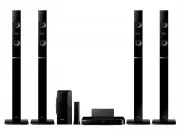 Samsung HT-H6550WM
User Manual
Samsung HT-H6550WM
User Manual
 Samsung HT-Q20
Manual
Samsung HT-Q20
Manual
 Samsung HT-A100
User Manual
Samsung HT-A100
User Manual
 Samsung HT-BD1255
User Manual
Samsung HT-BD1255
User Manual
 Samsung HT-C350
Manual
Samsung HT-C350
Manual
 Samsung HT-C453
Manual
Samsung HT-C453
Manual
 Samsung HT-C5200
User Manual
Samsung HT-C5200
User Manual
 Samsung HT-C5500
User Manual
Samsung HT-C5500
User Manual
 Samsung HT-C5900
User Manual
Samsung HT-C5900
User Manual
 Samsung HT-C6930W
User Manual
Samsung HT-C6930W
User Manual
 Samsung HT-C720
User Manual
Samsung HT-C720
User Manual