Page 2 - Safety Information; CAUTION
2 - English Safety Information Class II product : This symbol indicates that it does not require a safety connection to electrical earth (ground). AC voltage : This symbol indicates that the rated voltage marked with the symbol is AC voltage. DC voltage : This symbol indicates that the rated voltage...
Page 3 - CLASS 1 LASER PRODUCT
3 - English Safety Information ● Be sure to pull the power plug out of the outlet if the product is to remain unused or if you are leaving the house for an extended period of time (especially when children, elderly, or disabled people will be left alone in the house). - Accumulated dust can cause an...
Page 4 - Contents
4 - English Contents GETTING STARTED 5 Accessories 5 Speaker Components 6 Front Panel 6 Rear Panel 7 Remote Control CONNECTIONS 8 Connecting the Speakers 11 Connecting to a TV and External Devices SETTINGS 12 The Initial Settings Procedure 12 The Home Screen at a Glance 13 Accessing the Settings Scr...
Page 5 - Accessories; Getting Started; failed to read this user manual)
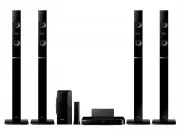
5 - English Getting Started Check the box for the accessories and speaker components listed or shown below. Accessories ● Remote Control ● Batteries (AAA size) ● User Manual Power Cable FM Antenna Speaker Components Screw (5x15) x 16 Centre Front x 2 Surround x 2 Stand x 4 Stand Base x 4 Speaker Cab...
Page 6 - Front Panel; DISPLAY ICONS; FUNCTION; Rear Panel
6 - English Getting Started Front Panel DISPLAY ICONS 5V 0.5A MIC 2 MIC 1 FUNCTION 5V 0.5A MIC 2 MIC 1 STOP 5V 0.5A MIC 2 MIC 1 PLAY/PAUSE 5V 0.5A MIC 2 MIC 1 OPEN/CLOSE 5V 0.5A MIC 2 MIC 1 VOLUME CONTROL 5V 0.5A MIC 2 MIC 1 POWER 5V 0.5A USB REMOTE CONTROL SENSOR DISPLAY DISC TRAY ✎ When the produc...
Page 7 - Remote Control; Tour of the Remote Control; Installing batteries in the Remote Control
7 - English Getting Started Remote Control Tour of the Remote Control Turn the product on and off. Adjust the volume. Press numeric buttons to operate options. Press to skip backwards or forwards. Selects the disc subtitle language. Press to move to the Home screen. Select on-screen menu items and c...
Page 8 - Connections; Connecting the Speakers
8 - English Connections This section describes various methods of connecting the product to other external components. Before moving or installing the product, be sure to turn off the power and disconnect the power cord. Connecting the Speakers Surround (L) Surround (R) Product Centre Subwoofer Fron...
Page 9 - Installing the Speakers on the Tallboy Stand
9 - English Connections Installing the Speakers on the Tallboy Stand 1. Turn the Stand Base upside-down and connect it to the Stand. 2. Use the driver to combine the screws on the 3 marked holes. 3. Straighten a supplied speaker wire and put in the hole on the centre of Stand Base. 4. Connect the up...
Page 11 - Connecting to a TV and External Devices; Connecting to a TV; Method 1 AUX IN : Connecting an External Analogue Component; Method 2 OPTICAL : Connecting an External Digital Audio Component; Selecting an External Device to Use
11 - English Connections Connecting to a TV and External Devices OPTICAL OUT AUDIO OUT HDMI IN (ARC) SURROUND SURROUND Method 1 Method 2 R Red W White External Devices Connecting to a TV Connect an HDMI cable (not supplied) from the HDMI OUT jack on the back of the product to the HDMI IN jack on you...
Page 12 - The Initial Settings Procedure
12 - English Settings The Initial Settings Procedure ● The Home menu will not appear if you do not configure the initial settings. ● The OSD (On Screen Display) may change in this product after you upgrade the software version. ● The access steps may differ depending on the menu you selected. 1. Tur...
Page 13 - Accessing the Settings Screen; HOME; Detailed Function Information; Settings Menu Functions
13 - English Settings 5 Settings Set various functions to suit your personal preferences. Accessing the Settings Screen 1. Select Settings on the Home screen, and then press v . The Settings screen appears. Settings Picture Sound System Language Security Support TV Aspect Ratio : 16:9 Original BD Wi...
Page 16 - Radio Setup; Selecting Mono or Stereo
16 - English Settings Reset Reverts all settings to their defaults. Requires that you enter your security PIN. The default security PIN is 0000. Radio Setup ● To listen to the radio, you must connect the supplied FM antenna. Operating the Radio with the Remote Control 1. Press the FUNCTION button to...
Page 17 - About RDS Broadcasting; Description on RDS function; RDS DISPLAY; About characters shown in the display
17 - English Settings ✎ If you remove the USB device or Power Cable during the recording process, the portion of the file which has already been recorded may not play back. ✎ Recording will not start if the remaining free space in the USB storage device is less than 2MB. ✎ If the USB device is remov...
Page 18 - PTY SEARCH; Upgrading Software; Software Upgrade
18 - English Settings - When pressing the buttons on the primary remote control, make sure that you have selected the FM station using the primary remote control. TOOLS RETURN EXIT INFO SUBTITLE HOME REPEAT 1 2 3 7 8 9 DISC MENU PTY - PTY SEARCH PTY + RDS DISPLAY TA TITLE MENU 0 POPUP 4 5 6 MUTE M O...
Page 19 - Switching the Source Device; Method 1; Playing Commercial Discs; Disc Storage & Management; Playing a Disc with User Recorded; Playing Content
19 - English Playing Content Your home cinema can play content located on Blu-ray/DVD/CD discs and USB devices. Switching the Source Device If two or more external devices are connected to the main unit, you can use any of the three methods described below to change the source device. Method 1 From ...
Page 20 - Playing Files on a USB Device
20 - English Playing Content 3. A screen appears listing the contents of the disc. Depending on how the contents are arranged, you will see either folders, individual files, or both. 4. If necessary, use the ▲▼◀▶ buttons to select a folder, and then press the v button. 5. Use the ▲▼◀▶ buttons to sel...
Page 21 - Controlling Video Playback; REPEAT
21 - English Playing Content Controlling Video Playback You can control the playback of video content located on a Blu-ray/DVD disc or USB device. Depending on the disc or contents, some of the functions described in this manual may not be available. Buttons on the Remote Control used for Video Play...
Page 22 - Using the TOOLS Menu
22 - English Playing Content Using the TOOLS Menu During playback, press the TOOLS button. Title If there is more than one title on a disk or device, lets you move to or select a desired title. ✎ When searching DVD title, in stop mode, enter the TOOLS button and title number (01,02,...) you want. Pl...
Page 23 - Creating a Video Playlist; Playing a Pre-Recorded Commercial; Controlling Music Playback; Repeating Tracks
23 - English Playing Content Creating a Video Playlist You can create a playlist of video files in nearly the same way you create a playlist of music files. See page 24 for instructions. Select video files instead of music files. Playing a Pre-Recorded Commercial Audio Disc 1. Insert an Audio CD (CD...
Page 24 - Creating a Music Playlist; RETURN; Ripping
24 - English Playing Content Creating a Music Playlist 1. If you are playing music from a commercial CD or DVD, press the 5 or RETURN button. The Music List Screen appears. If you are creating a playlist from music on a user created disk or USB device, access the Music list as described on page 19 o...
Page 25 - Playing Photo Content; Using the Tools Menu; Creating a Photo Playlist; Using the Special Effects Remote; TV SOUND
25 - English Playing Content Playing Photo Content You can play photo contents located on a DVD or USB. Using the Tools Menu During playback, press the TOOLS button. Start / Stop Slide Show Select to play/pause the slide show. Slide Show Speed Select to adjust the slide show speed. Background Music ...
Page 27 - Additional Information; Notes; Appendix
27 - English Appendix Additional Information Notes Connections HDMI OUT ● Certain HDMI output resolutions may not work, depending on your TV. ● A long HDMI cable may cause screen noise. If this occurs, set HDMI Deep Colour to Off in the menu. Settings TV Aspect Ratio ● Depending on the disc type, so...
Page 28 - Disk and Format Compatibility
28 - English Appendix Audio Return Channel ● When Anynet+ (HDMI-CEC) is Off , the Audio Return Channel function is not available. ● Using an HDMI cable not certified for ARC (Audio Return Channel) may cause a compatibility problem. ● The ARC function is only available if an ARC-compliant TV is conne...
Page 29 - Disc Types your Product cannot Play
29 - English Appendix ✎ If a DVD-RW/-R disc has not been recorded properly in DVD video format, it will not be playable. ✎ Your product will not play content that has been recorded on a DVD-R at a bit rate that exceeds 10 Mbps. ✎ Your product will not play content that has been recorded on a BD-R or...
Page 30 - Supported Formats; Notes on the USB connection
30 - English Appendix DVD- VIDEO 1 The U.S., U.S. territories and Canada 2 Europe, Japan, the Middle East, Egypt, Africa, Greenland 3 Taiwan, Korea, the Philippines, Indonesia, Hong Kong 4 Mexico, South America, Central America, Australia, New Zealand, Pacific Islands, Caribbean 5 Russia, Eastern Eu...
Page 32 - Digital Output Selections
32 - English Appendix Digital Output Selections Setup PCM Bitstream (Unprocessed) Bitstream (Re-encoded DTS) Bitstream (Re-encoded Dolby D) Connection HDMI supported AV receiver Audio Stream on Blu-ray Disc PCM Up to PCM 7.1ch PCM DTS re-encoded Re-encoded Dolby Digital * Dolby Digital Up to PCM 5.1...
Page 33 - Resolution according to the output mode; Troubleshooting
33 - English Appendix Resolution according to the output mode Blu-ray Disc/E-contents/Digital Contents playback DVD playback Output Setup HDMI Mode HDMI Mode Blu-ray Disc E-contents/ Digital contents BD Wise Resolution of Blu-ray Disc 1080p@60F 576i/480i Auto Max. Resolution of TV input Max. Resolut...
Page 36 - Specifications
36 - English Appendix General Weight 1.90 kg Dimensions 430.0 (W) x 55.0 (H) x 224.0 (D) mm Operating Temperature Range +5°C to +35°C Operating Humidity Range 10 % to 75 % FM Tuner Signal/noise ratio 55 dB Usable sensitivity 12 dB Total harmonic distortion 1.0 % HDMI Video 1080p, 1080i, 720p, 576p/4...
Page 37 - Licences
37 - English Appendix Licences Manufactured under license from Dolby Laboratories. Dolby, Dolby Audio, Pro Logic, and the double-D symbol are trademarks of Dolby Laboratories. For DTS patents, see http://patents.dts.com. Manufactured under licence from DTS Licencing Limited. DTS, DTS-HD, the Symbol,...
Page 39 - Correct disposal of batteries in this product; Contact SAMSUNG WORLD WIDE
AH68-02798S-01 AH68-02798S-01 Correct disposal of batteries in this product (Applicable in countries with separate collection systems)This marking on the battery, manual or packaging indicates that the batteries in this product should not be disposed of with other household waste at the end of their...