Page 2 - Safety Information; CAUTION
2 - English Safety Information ● The slots and openings in the cabinet and in the back or bottom are provided for necessary ventilation. To ensure reliable operation of this apparatus, and to protect it from overheating, these slots and openings must never be blocked or covered. - Do not place this ...
Page 3 - CLASS 1 LASER pROdUCT; D Precautions
3 - English Safety Information ● Store the accessories (battery, etc.) in a location safely out of the reach of children. ● Do not install the product in an unstable location such as a shaky self, a slanted floor, or a location exposed to vibration. ● Do not drop or strike the product. If the produc...
Page 4 - Contents
4 - English Contents Wiring the Main power Supply plug (UK Only) IMpORTANT NOTICE : The mains lead on this equipment is supplied with a moulded plug incorporating a fuse. The value of the fuse is indicated on the pin face of the plug and if it requires replacing, a fuse approved to BS1362 of the sam...
Page 5 - Accessories; Getting Started
5 - English Getting Started ■ Figures and illustrations in this User Manual are provided for reference only and may differ from actual product appearance. ■ An administration fee may be charged if eithera. an engineer is called out at your request and there is no defect in the product (i.e. where yo...
Page 7 - Front Panel; dISpLAY ICONS; FUNCTION; Rear Panel
7 - English Getting Started Front Panel dISpLAY ICONS FUNCTION STOp pLAY/pAUSE OpEN/CLOSE vOLUME CONTROL pOWER 5V 0.5A USB REMOTE CONTROL SENSOR dISpLAY dISC TRAY NFC ✎ When the product is on, do not let children touch the product's surface. It will be hot. ✎ To upgrade the product's software throug...
Page 8 - Remote Control; Tour of the Remote Control
8 - English Getting Started Remote Control Tour of the Remote Control Turn the product on and off. Adjust the volume. Press numeric buttons to operate options. Press to skip backwards or forwards. Selects the disc subtitle language. Press to move to the Home screen. Select on-screen menu items and c...
Page 9 - Connecting the Speakers; Connections
9 - English Connections This section describes various methods of connecting the product to other external components. Before moving or installing the product, be sure to turn off the power and disconnect the power cord. Connecting the Speakers Front (L) Surround (L) Surround (R) Front (R) product C...
Page 10 - Installing the Speakers on the Tallboy Stand; Stand Base; Speaker Cable Connections
10 - English Connections Installing the Speakers on the Tallboy Stand * HT-H5530/HT-H5550/HT-H5550W only 1. Turn the Stand Base upside-down and connect it to the Stand. 2. Use the driver to combine the screws on the 3 marked holes. 3. Straighten a supplied speaker wire to the gravity direction and p...
Page 12 - Id SET
12 - English Connections ✎ The maximum transmission distance from the product to the wireless receiver module is about 10m, but may vary depending on your operating environment. If a steel-concrete wall or metallic wall is between the product and the wireless receiver module, the system may not oper...
Page 13 - Connecting to a TV and External Devices; Connecting to a Tv; Method 1 AUx IN : Connecting an External Analogue Component; Method 2 OpTICAL : Connecting an External digital Audio Component
13 - English Connections Connecting to a TV and External Devices OPTICAL OUT AUDIO OUT HDMI IN Method 1 Method 2 R W Red R W White External devices Connecting to a Tv Connect an HDMI cable (not supplied) from the HDMI OUT jack on the back of the product to the HDMI IN jack on your TV. If the TV supp...
Page 14 - Connecting to a Network Router; Wired Network
14 - English Connections Connecting to a Network Router You can connect your product to your network router using one of the methods illustrated below. Wired Network Broadband service Broadband service Broadband modem (with integrated router) Broadband modem Router Or ✎ Your router or your Internet ...
Page 15 - The Initial Settings Procedure; Settings
15 - English Settings The Initial Settings Procedure ● The Home menu will not appear if you do not configure the initial settings. ● The OSD (On Screen Display) may change in this product after you upgrade the software version. ● The access steps may differ depending on the menu you selected. 1. Tur...
Page 16 - The Home Screen at a Glance; Accessing the Settings Screen
16 - English Settings The Home Screen at a Glance Play Disc App 1 App 2 App 3 App 4 Screen Mirroring Change Device Function Blu-ray Settings Photos Videos Music 1 3 4 5 6 7 8 9 2 Opera TV Store More 1 play disc The disc currently in the tray is displayed.Press v to start playing the disc. 2 photos/v...
Page 17 - HOME; detailed Function Information; Settings Menu Functions
17 - English Settings Buttons on the Remote Control Used for the Settings Menu TOOLS RETURN EXIT INFO SUBTITLE HOME REPEAT 1 2 3 7 8 9 DISC MENU PTY - PTY SEARCH PTY + RDS DISPLAY TA TITLE MENU 0 POPUP 4 5 6 MUTE M O / S T TUNER MEMORY DPS/EQ TV SOUND A B C D T U N I N G DOWN UP V O L U M E - + FUNC...
Page 20 - Network Setup; Configuring Your Network Connection
20 - English Settings Support Software Upgrade For more information about this function see page 23. Contact Samsung Provides contact information for assistance with your product. Terms of Service Agreement View the general disclaimer regarding third party contents and services. Reset Reverts all se...
Page 21 - Wireless Network
21 - English Settings 6. Repeat Steps 4 and 5 until you have filled in all parameters. ✎ You can get the network parameter values from your Internet provider. 7. When finished entering all the parameter values, select Return ( ' ), and then press the v button. The home cinema verifies the network co...
Page 23 - Through the Wi-Fi device; Upgrading Software; pOWER
23 - English Settings 4. Select Wi-Fi direct , and then press the v button. The Wi-Fi direct devices that you can connect to appear. Settings DisplayAudio Network SystemLanguageSecurityGeneralSupport Wi-Fi Direct Device Name : HT-H5500Select your Wi-Fi Direct device to connect to. AndroidXXXXXXX Not...
Page 24 - By Online; By USB; Auto Upgrade Notification
24 - English Settings 4. Select one of the following methods: ● By Online ● By USB ● Auto Upgrade Notification 5. Press the v button. Directions for each method begin below. ✎ If you want to cancel the upgrade while the upgrade software is downloading, press the v button. By Online Your product must...
Page 25 - Setting Up DLNA; To download the dLNA Software
25 - English Settings Setting Up DLNA DLNA enables you to play music, video, and photo files located in your PC using this product. To use DLNA, you must connect the product to your PC via the network (See page 14) and install the SAMSUNG PC Share Manager on the PC. To download the dLNA Software To ...
Page 26 - Playing Content; Switching the Source Device; Method 1; Playing Commercial Discs; disc Storage & Management; Playing a Disc with User Recorded
26 - English Playing Content Your home cinema can play content located on Blu-ray/DVD/CD discs, USB devices, PCs, smart phones, tablets, and in Apps.To play content located on your PC or a mobile device, you must connect the PC or mobile device and the product to your network. To play content on you...
Page 27 - playing Content; Playing Files on a USB Device
27 - English playing Content 3. A screen appears listing the contents of the disc. Depending on how the contents are arranged, you will see either folders, individual files, or both. 4. If necessary, use the ▲▼◀▶ buttons to select a folder, and then press the v button. 5. Use the ▲▼◀▶ buttons to sel...
Page 28 - Controlling Video Playback; REpEAT
28 - English Playing Content Controlling Video Playback You can control the playback of video content located on a Blu-ray/DVD disc, USB device, mobile device, or PC. Depending on the disc or contents, some of the functions described in this manual may not be available. Buttons on the Remote Control...
Page 29 - Using the TOOLS Menu; Creating a video playlist; Playing a Pre-Recorded Commercial
29 - English playing Content Using the TOOLS Menu During playback, press the TOOLS button. Title If there is more than one title on a disk or device, lets you move to or select a desired title. playing Time Lets you go to a specific playback point. Use the numeric buttons to input the playback point...
Page 30 - Controlling Music Playback; Repeating Tracks; Creating a Music playlist; RETURN
30 - English Playing Content 0/16 00:00/00:00 Playlist TRACK 003 04:41 TRACK 004 04:02 TRACK 005 03:43 TRACK 006 03:40 TRACK 001 CD Tools Repeat Mode Track Rip > Move < Adjust ' Return " Pause c Select Tools ' Return 2. To play a particular track, use the ▲▼ buttons on the remote to select...
Page 31 - Ripping; Playing Photo Contents; Using the Tools Menu
31 - English playing Content 4. To remove a file from the playlist , move to the file, and then press the YELLOW (C) button. 5. Press the v button to play the selected files. The playlist screen appears. 6. To go to the Music List, press the 5 or RETURN button. 7. To go back to the playlist , press ...
Page 32 - Creating a photo playlist; Listening to the Radio; presetting Stations; description on RdS function
32 - English Playing Content ✎ Depending on the disc or storage device, the Tools menu may differ. All options may not be displayed. ✎ To enable the background music function, the photo file must be in the same storage media as the music file. However, the sound quality can be affected by the bit ra...
Page 33 - To show the RdS signals; RdS dISpLAY; About characters shown in the display; pTY SEARCH; Using Bluetooth
33 - English playing Content To show the RdS signals You can see the RDS signals the station sends on thedisplay.Press the RdS dISpLAY button while listening to an FM station. ● Each time you press the button, the display change to show you the following information : PS NAME RT CT Frequency p...
Page 35 - BT; Using the Bluetooth power On; Quick start
35 - English playing Content To disconnect the Home Cinema from the Bluetooth device Press the ( ) button on the front panel of the Home Cinema to switch from BT to another mode or turn off the Home Cinema. ● Except when you disconnect the Home Cinema by changing functions, the connected Bluetooth d...
Page 36 - Using the Special Effects Remote; Tv SOUNd
36 - English Playing Content ✎ NFC connection works even when the Home Cinema is turned off, if Quick start is set to On . However, NFC connection will work only after the Home Cinema is turned on if the power cord had been disconnected and reconnected. ✎ The is a trademark or registered trademark o...
Page 37 - Using DLNA; Network Services
37 - English Network Services Using BD-LIVE™ 1. Connect the product to the network. (See page 14) 2. Configure the network settings. (See pages 20~22) Once the product is connected to your network, you can enjoy various movie-related service contents available on BD-LIVE compliant discs. 1. Attach a...
Page 38 - viewing Additional Apps; Using Opera TV Store
38 - English Network Services Using Apps The first time you access any one of the apps, the home cinema displays two agreements. You must accept both agreements to download and use any apps. By default, the home cinema displays four popular apps on the Home screen. You can view more apps and change ...
Page 39 - Searching for Apps; Screen Mirroring
39 - English Network Services 4. Repeat this process to delete additional apps. 5. When finished, select dONE , and then press the v button. 6. Press the RETURN button to go back to the Main screen. Searching for Apps 1. Select SEARCH at the top of the screen, and then press the v button. 2. To sear...
Page 40 - Appendix; Additional Information; Notes
40 - English Appendix Additional Information Notes Connections HdMI OUT ● Certain HDMI output resolutions may not work, depending on your TV. ● You must have an HDMI connection to enjoy videos with 3D technology. ● A long HDMI cable may cause screen noise. If this occurs, set HdMI deep Colour to Off...
Page 41 - Disk and Format Compatibility
41 - English Appendix Speaker Settings ● When Speaker Selection is set to Tv Speaker , audio is produced by the TV speakers. HdMI audio ● When HDMI audio is output to the TV speakers, it is automatically down-mixed to 2 channels. Audio Return Channel ● When Anynet+ (HdMI-CEC) is Off , the Audio Retu...
Page 42 - disc Types your product cannot play
42 - English Appendix ✎ If a DVD-RW/-R disc has not been recorded properly in DVD video format, it will not be playable. ✎ Your product will not play content that has been recorded on a DVD-R at a bit rate that exceeds 10 Mbps. ✎ Your product will not play content that has been recorded on a BD-R or...
Page 43 - Supported Formats; Notes on the USB connection
43 - English Appendix dvd- vIdEO 1 The U.S., U.S. territories and Canada 2 Europe, Japan, the Middle East, Egypt, Africa, Greenland 3 Taiwan, Korea, the Philippines, Indonesia, Hong Kong 4 Mexico, South America, Central America, Australia, New Zealand, Pacific Islands, Caribbean 5 Russia, Eastern Eu...
Page 45 - digital Output Selections
45 - English Appendix digital Output Selections Setup pCM Bitstream (Unprocessed) Bitstream (Re-encoded dTS) Bitstream (Re-encoded dolby d) Connection HdMI supported Av receiver Audio Stream on Blu-ray Disc PCM Up to PCM 7.1ch PCM DTS re-encoded Re-encoded Dolby Digital * Dolby Digital Up to PCM 5.1...
Page 46 - Resolution according to the output mode; Troubleshooting
46 - English Appendix Resolution according to the output mode Blu-ray disc/E-contents/digital Contents playback dvd playback Output Setup HdMI Mode HdMI Mode Blu-ray disc E-contents/ digital contents BD Wise Resolution of Blu-ray Disc 1080p@60F 480i Auto Max. Resolution of TV input Max. Resolution o...
Page 49 - Specifications
49 - English Appendix General Weight 1.90 kg Dimensions 430.0 (W) x 55.0 (H) x 224.0 (D) mm Operating Temperature Range +5°C to +35°C Operating Humidity Range 10 % to 75 % FM Tuner Signal/noise ratio 55 dB Usable sensitivity 12 dB Total harmonic distortion 1.0 % HDMI Video 1080p, 1080i, 720p, 576p/4...
Page 51 - Licences
51 - English Appendix Licences Manufactured under license from Dolby Laboratories. Dolby and the double-D symbol are trademarks of Dolby Laboratories. For DTS patents, see http://patents.dts.com. Manufactured under license from DTS Licensing Limited. DTS, DTSHD, the Symbol, & DTS and the Symbol ...
Page 52 - Contact SAMSUNG WORLd WIdE; Correct disposal of batteries in this product
AH68-02673C-01 Contact SAMSUNG WORLd WIdE If you have any questions or comments relating to Samsung products, please contact the SAMSUNG customer care centre. Correct disposal of This product (Waste Electrical & Electronic Equipment) (Applicable in countries with separate collection systems)This...


 Samsung HT-DS400
Manual
Samsung HT-DS400
Manual
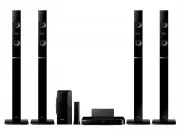 Samsung HT-H6550WM
User Manual
Samsung HT-H6550WM
User Manual
 Samsung HT-Q20
Manual
Samsung HT-Q20
Manual
 Samsung HT-A100
User Manual
Samsung HT-A100
User Manual
 Samsung HT-BD1255
User Manual
Samsung HT-BD1255
User Manual
 Samsung HT-C350
Manual
Samsung HT-C350
Manual
 Samsung HT-C453
Manual
Samsung HT-C453
Manual
 Samsung HT-C5200
User Manual
Samsung HT-C5200
User Manual
 Samsung HT-C5500
User Manual
Samsung HT-C5500
User Manual
 Samsung HT-C5900
User Manual
Samsung HT-C5900
User Manual
 Samsung HT-C6930W
User Manual
Samsung HT-C6930W
User Manual
 Samsung HT-C720
User Manual
Samsung HT-C720
User Manual