Page 2 - English; Safety Information; WARNING; Warning; CAUTION; CLASS 1 LASER PRODUCT; Wiring the Main Power Supply Plug (UK Only); IMPORTANT NOTICE
| 2 English Safety Information WARNING • To reduce the risk of fire or electric shock, do not expose this appliance to rain or moisture. CAUTION • Apparatus shall not be exposed to dripping or splashing and no objects filled with liquids, such as vases, shall be placed on the apparatus. • The Mains ...
Page 3 - Disc Storage & Management
English 3 | 01 Safety Information Disc Storage & Management • Holding Discs - Fingerprints or scratches on a disc may reduce sound and picture quality or cause skipping. - Avoid touching the surface of a disc where data has been recorded. - Hold the disc by the edges so that fingerprints will no...
Page 4 - Using the 3D Function
| 4 English Safety Information The terms HDMI and HDMI High-Definition Multimedia Interface, and the HDMI Logo are trademarks or registered trademarks of HDMI Licencing LLC in the United States and other countries. Oracle and Java are registered trademarks of Oracle and/or its affiliates. Other name...
Page 5 - Copyright; Contents; An administration fee may be charged if either
English 5 | 01 Safety Information Copyright © 2013 Samsung Electronics Co.,Ltd. All rights reserved; No part or whole of this user’s manual may be reproduced or copied without the prior written permission of Samsung Electronics Co.,Ltd. Contents SAFETY INFORMATION 2 Warning 3 Disc Storage & Mana...
Page 6 - Getting Started; Disk and Format Compatibility; Disc Types and content your Product can Play; Media; Disc Types your Product cannot Play
| 6 English Getting Started Disk and Format Compatibility Disc Types and content your Product can Play Media Disc Type Details VIDEO Blu-ray Disc 3D Blu-ray Disc BD-ROM or BD-RE/-R disc recorded in the BD-RE format. DVD-VIDEO, DVD-RW, DVD-R, DVD+RW, DVD+R DVD-VIDEO, recorded DVD+RW/DVD-RW(V)/DVD-R/+...
Page 7 - Region Code; Disc Type
English 7 | 02 Getting Started Region Code Both products and discs are coded by region. These regional codes must match for a disc to play. If the codes do not match, the disc will not play.The Region Number for this product is displayed on the rear panel of the product. Disc Type Region Code Area B...
Page 8 - Supported Formats; Video File Support
| 8 English Getting Started Supported Formats Video File Support File Extension Container Video Codec Resolution Frame rate (fps) Bit Rate (Mbps) Audio Codec *.avi *.mkv *.asf *.wmv *.mp4 *.3gp *.vro *.mpg *.mpeg *.ts *.tp *.trp *.mov *.flv *.vob *.svi *.m2ts *.mts *.divx AVI MKV ASF MP4 3GP MOV FLV...
Page 9 - Music File Support
English 9 | 02 Getting Started Supported DivX subtitle file formats *.ttxt, *.smi, *.srt, *.sub, *.txt | NOTES | Some MKV and MP4 format discs may not play, depending on their video resolution and frame rate. Music File Support File Extension Container Audio Codec Support Range *.mp3 MPEG MPEG1 Audi...
Page 11 - Accessories; Front Panel
English 11 | 02 Getting Started Accessories Check for the supplied accessories below. (For Power cord) FUNCTION DISC MENU TITLE MENU MUTE TV SOUND FULL SCREEN REPEAT TOOLS RETURN EXIT INFO M O / S T 3D SOUND SOUND S/W LEVEL MANUAL 1 2 3 4 5 6 7 8 0 9 POPUP RECEIVER RDS DISPLAY TA PTY- PTY+ PTY SEARC...
Page 12 - Rear Panel; Connect the FM antenna supplied to the FM ANT Jack.
| 12 English Getting Started Rear Panel HDMI OUT HDMI IN 1 2 LAN POWER AUX IN FM ANT OPTICAL DIGITAL AUDIO IN L R SPEAKERS OUT CENTER SUBWOOFER FRONT L SURROUND L FRONT R SURROUND R IMPEDANCE : 3 COOLING FAN SPEAKER OUTPUT CONNECTORS HDMI IN AUX IN * FM ANTENNA POWER CORD HDMI OUT LAN TERMINAL EXT...
Page 13 - Remote Control; Tour of the Remote Control
English 13 | 02 Getting Started FUNCTION DISC MENU TITLE MENU MUTE TV SOUND FULL SCREEN REPEAT TOOLS RETURN EXIT INFO M O / S T 3D SOUND SOUND S/W LEVEL MANUAL 1 2 3 4 5 6 7 8 0 9 POPUP RECEIVER RDS DISPLAY TA PTY- PTY+ PTY SEARCH SLEEP BD TV TUNER M E M O R Y SUBTITLE SMART SEARCH HOME A B C D EFFE...
Page 14 - Installing batteries in the Remote Control; TV Control Codes
| 14 English Getting Started Installing batteries in the Remote Control Battery size: AAA 2 1 | NOTES | Make sure to match the “+” and “–” ends of the batteries with the diagram inside the compartment. Assuming typical TV usage, the batteries last for about one year. The remote control can be used u...
Page 15 - Connecting the Speakers; Product; Connections
English 15 | 03 Connections This section describes various methods of connecting the product to other external components. Before moving or installing the product, be sure to turn off the power and disconnect the power cord. Connecting the Speakers Front (L) Surround (L) Surround (R) Front (R) Produ...
Page 16 - Speaker Components; Stand Base
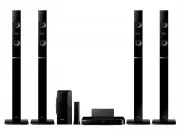
| 16 English Connections Speaker Components Subwoofer Centre Front / Surround x 4 Speaker Cable x 6 SWA-6000 Wireless Receiver Module Centre Subwoofer Surround x 2 Front x 2 Front / Surround x 4 Speaker Cable x 6 HT-F6530W Stand x 2 Speaker Cable x 6 HT-F6550W Screw (5x20) x 20 Screw (5x20) x 10 Sta...
Page 17 - Connecting The Speakers; Connecting the Wireless Receiver Module; Speaker
English 17 | 03 Connections 3. Straighten a supplied speaker wire to the gravity direction and put in the hole on the centre of Stand Base. 4. Connect the upper Speaker to the assembled Stand. 5. Insert a screw clockwise into the hole on the rear of the speaker using a screwdriver. And then connect ...
Page 18 - ID SET
| 18 English Connections 2. Plug the power cord of the wireless receiver module into a wall outlet. 3. Turn on the product. The product and wireless receiver module will now communicate with each other and you will hear sound from the Surround speakers. * In case of HT-F6530W HDMI OUT SPEAKERS OUT C...
Page 19 - Connecting to TV/External Devices; Connecting to a TV; Method 2 AUX IN : Connecting an External Analogue Component
English 19 | 03 Connections Connecting to TV/External Devices HDMI OUT HDMI IN 1 2 LAN POWER AUX IN FM ANT OPTICAL DIGITAL AUDIO IN L R SPEAKERS OUT CENTER SUBWOOFER FRONT L SURROUND L FRONT R SURROUND R IMPEDANCE : 3 HDMI OUT HDMI IN 1 2 LAN AUX IN FM ANT OPTICAL DIGITAL AUDIO IN L R OPTICAL OUT ...
Page 20 - Connecting to a Network Router; Wired Network
| 20 English Connections Connecting to a Network Router You can connect your product to your network router using one of the methods illustrated below. Wired Network HDMI OUT HDMI IN 1 2 LAN POWER AUX IN FM ANT OPTICAL DIGITAL AUDIO IN L R SPEAKERS OUT CENTER SUBWOOFER FRONT L SURROUND L FRONT R SUR...
Page 21 - The Initial Settings Procedure; Accessing the Settings Screen; Settings
English 21 | 04 Settings The Initial Settings Procedure • The Home menu will not appear if you do not configure the initial settings. • The OSD (On Screen Display) may change in this product after you upgrade the software version. • The access steps may differ depending on the menu you selected. The...
Page 22 - Detailed Function Information; Settings Menu Functions
| 22 English Settings Buttons on the Remote Control Used for the Settings Menu FULL SCREEN REPEAT TOOLS RETURN EXIT INFO M O / S T TUNER M E M O R Y HOME 2 4 3 1 1 HOME Button : Press to move to the Home screen. 2 RETURN Button : Return to the previous menu. 3 E ( Enter ) / DIRECTION Button : • Pres...
Page 26 - Networks and the Internet; Configuring Your Network Connection; Network Settings
| 26 English Settings Support Remote Management When activated, lets Samsung Call Centre agents diagnose and fix problems with the product remotely. Requires an active Internet connection. Remote Management service might not be available in some countries. Software Update For more information about ...
Page 27 - Wireless Network
English 27 | 04 Settings 3. Select the IP setting field, and then set it to Enter manually . 4. Select a value to enter (IP Address, for example), and then press E . Use the number keypad on your remote control to enter the numbers for the value. You can also enter numbers using the ▲▼ buttons. Use ...
Page 29 - Through the Wi-Fi Device; Upgrading Software
English 29 | 04 Settings Refresh Close Wi-Fi Direct Device Name : [HTS]F6500 Select your Wi-Fi Direct device to connect to. AndroidXXXXXXX Disconnected 5. You have three ways to complete the Wi-Fi connection: • Through the Wi-Fi device. • Through the product using PBC. • Through the product using a ...
Page 30 - Update now; NOTES
| 30 English Settings Update now You can use Update now to update the software through your network connection or by using a USB flash drive. The network instructions are below. The USB flash drive instructions are on this page. 1. Select Update now , and then press the E button. The Update now pop-...
Page 31 - The All Content Screen; Using the All Content Screen; Playing Commercial Discs; Method 1; Method 2; Media Play
English 31 | 05 Media Play Your home cinema can play content located on Blu-ray/DVD/CD discs, USB devices, PCs, smart phones, tablets, and on the Web. To play content located on your PC or a mobile device, you must connect the PC or mobile device and the product to your network. To play content on y...
Page 32 - To Download the AllShare Software
| 32 English Media Play 4. Select Photos , Videos , Music or All Content , and then press the E button. Depending on how the contents are arranged, you will see either folders, individual files, or both. | NOTES | Even though the product will display folders for all content types, it will only displ...
Page 33 - Controlling Video Playback
English 33 | 05 Media Play Playing Content Located on Your PC or DLNA Device through the Product AllShare Connection PC Product Play back PC's files 1. Connect the product, your PC, and/or your DLNA compatible device to the same wireless network. 2. Follow the directions in the AllShare software Ins...
Page 34 - Using the TOOLS Menu
| 34 English Media Play 2 Playback related buttons The product does not play sound in Search, Slow, or Step mode. • To return to normal speed playback, press the 6 button. 6 Starts playback. 5 Stops playback. 7 Pauses playback. Fast Motion Play During playback, press the 3 or button.Each time you pr...
Page 36 - Using the View & Options Menus; Controlling Music Playback
| 36 English Media Play Angle To view a scene from another angle. The Angle option displays the number of angles available to view (1/1, 1/2, 1/3, etc.). BONUSVIEW Video Select to set the desired bonusview option. BONUSVIEW Audio Full Screen Select to set the size of the video image. Choose Original...
Page 37 - Music Screen Controls
English 37 | 05 Media Play 4 Fast Play (Audio CD (CD-DA) only) During playback, press the 3 or button. Each time you press the 3 or button, the playback speed will change. 5 7 button : Pause a track. 6 6 button : Plays the currently selected track. Music Screen Controls 00:09 00:43 TRACK 001 TRACK 0...
Page 38 - Repeating Tracks on an Audio CD; Shuffling Tracks on an Audio CD
| 38 English Media Play Options Encoding Select to manage the text encoding options. | NOTES | Depending on the disc or storage device, the Options menu may differ. All options may not be displayed. Repeating Tracks on an Audio CD You can set the product to repeat tracks on an audio CD (CD-DA/MP3). ...
Page 39 - Using Bluetooth; To connect the Home Cinema to a Bluetooth
English 39 | 05 Media Play 8. Use the ▲▼ buttons to select the device to store the ripped files on, and then press the E button. | NOTES | Do not disconnect the device while ripping is in progress. 9. If you want to cancel ripping, press the E button and then select Yes . Select No to continue rippi...
Page 40 - To disconnect the Bluetooth device from the; Playing Photo Contents; Using the Tools Menu
| 40 English Media Play | NOTES | The Home Cinema only supports Middle Quality SBC data (up to 237kbps@48kHz), and does not support High Quality SBC data ([email protected]). The AVRCP feature is supported. It's functionality will differ, depending on the specifications of the connected device. Connec...
Page 41 - Listening to Radio; Using Buttons on the Remote Control
English 41 | 05 Media Play Equaliser Settings This function is only available when Equaliser Mode is On . | NOTES | Depending on the disc or storage device, the Options menu may differ. All options may not be displayed. To enable the background music function, the photo file must be in the same stor...
Page 42 - About RDS Broadcasting; receive FM stations
| 42 English Media Play 3. Press the TUNER MEMORY button. • NUMBER flashes on the display. 4. Press the TUNER MEMORY button again. • Press the TUNER MEMORY button before NUMBER disappears from the display on its own. • After you press the TUNER MEMORY button, NUMBER disappears from the display and t...
Page 43 - SOUND
English 43 | 05 Media Play 1 2 3 4 5 6 RDS DISPLAY TA PTY- PTY+ PTY SEARCH 1. Press the PTY SEARCH button while listening to an FM station. 2. Press the PTY- or PTY+ button until the PTY code you want appears on the display. • The display gives you the PTY codes described to the right. 3. Press the ...
Page 44 - TV SOUND
| 44 English Media Play TV Sound TV SOUND You can listen via Home theatre speakers or TV Speaker with TV SOUND button. 1. Connect the HDMI cable to TV and Home cinema. (See page 19) 2. Set the connected Home cinema and TV to Anynet+ (HDMI-CEC) On . 3. Press the TV SOUND button on the remote control....
Page 45 - Network Services
English 45 | 06 Network Services You can enjoy various network services such as streaming video or on-line apps by connecting the product to your network. To use network services, you must first: 1. Connect the product to the network.(See page 20) 2. Configure the network settings.(See pages 26~28) ...
Page 46 - Using Movies & TV Shows; Using Apps; The Apps Screen at a Glance
| 46 English Network Services Using Movies & TV Shows You can download or stream for pay and free-of-charge movies and TV shows and view them on your TV. Movies & TV Shows Featured Recommended Featured Movies TV Shows Purchased Favourites 1. On the Home screen, select Movies & TV Shows ,...
Page 47 - Downloading Applications; Sorting the Apps
English 47 | 06 Network Services Downloading Applications You can download for pay or free-of-charge applications through Samsung Apps. 1. On the Apps screen, select Samsung Apps , and then press the E button. The Samsung Apps screen appears. 2. Across the top of the screen, under What's New? , you'...
Page 48 - Using the Options Menu Functions; Edit My Apps
| 48 English Network Services Using the Options Menu Functions Lock/Unlock Using the Lock/Unlock function and the Security PIN, you can lock applications so they cannot be started on either the Apps screen or the More Apps screen. The default PIN is 0000. 1. On the More Apps screen, use the ▲► butto...
Page 49 - Move to Folder
English 49 | 06 Network Services Move to Folder Move to Folder lets you move apps to the folder of your choice. 1. On the More Apps screen, use the ▲► buttons to go to Options at the top of the screen, and then press the E button. 2. Select Move to Folder , and then press the E button. The Move to F...
Page 50 - Update Apps; Screen Mirroring; Web Browser; Link Browsing and Pointer Browsing
| 50 English Network Services Update Apps When the application require to update to the latest version, select Apps and then select More Apps . On the More Apps screen, select Update Apps , and then select application from the list. The application starts updating to the latest version. However, Upd...
Page 51 - The Control Panel at a Glance; Caps
English 51 | 06 Network Services The Control Panel at a Glance The Control Panel, which runs across the top of the screen, has a series of icons which start a number of useful functions. The icons are described below, starting with the icon on the far left of the screen. 1 http://www.samsung.com 100...
Page 52 - Options on the Keyboard Pop-Up; Using the Setting Menu
| 52 English Network Services Options on the Keyboard Pop-Up To access the keyboard pop-up options, highlight the button on the bottom left of the keyboard, and then press the E button. Language Select the language for the keyboard. You can select English, French, Russian, etc. Recommended Text The ...
Page 54 - Appendix; Additional Information; Notes
| 54 English Appendix Additional Information Notes Connections HDMI OUT • Certain HDMI output resolutions may not work, depending on your TV. • You must have a HDMI connection to enjoy videos with 3D technology. • A long HDMI cable may cause screen noise. If this occurs, set HDMI Deep Colour to Off ...
Page 56 - Digital Output Selection
| 56 English Appendix Digital Output Selection Setup PCM Bitstream (Unprocessed) Bitstream (Re-encoded DTS) Bitstream (Re-encoded Dolby D) Connection HDMI supported AV receiver Audio Stream on Blu-ray Disc PCM Up to PCM 7.1ch PCM DTS re-encoded Re-encoded Dolby Digital * Dolby Digital Up to PCM 5.1c...
Page 57 - Resolution according to the output mode; Troubleshooting
English 57 | 07 Appendix Resolution according to the output mode Blu-ray Disc/E-contents/Digital Contents playback DVD playback Output Setup HDMI Mode HDMI Mode Blu-ray Disc E-contents/ Digital contents BD Wise Resolution of Blu-ray Disc 1080p@60F 480i Auto Max. Resolution of TV input Max. Resolutio...
Page 58 - Symptom
| 58 English Appendix Symptom Check/Remedy The remote control does not work. • Are you operating the remote within its operational range and within the proper angle relative to the sensor? • Are the batteries drained? • Have you selected the mode (TV/BD) functions of the remote control (TV or BD) co...
Page 60 - Specifications
| 60 English Appendix General Weight 2.70 kg Dimensions 430.00 (W) x 55.00 (H) x 312.00 (D) mm Operating Temperature Range +5°C to +35°C Operating Humidity Range 10 % to 75 % FM Tuner Signal/noise ratio 55 dB Usable sensitivity 12 dB Total harmonic distortion 0.5 % HDMI Video 1080p, 1080i, 720p, 576...
Page 62 - Correct disposal of batteries in this product; (Applicable in countries with separate collection systems); Contact SAMSUNG WORLD WIDE
AH68-02576H-04 Correct Disposal of This Product (Waste Electrical & Electronic Equipment) (Applicable in countries with separate collection systems) This marking on the product, accessories or literature indicates that the product and its electronic accessories (e.g. charger, headset, USB cable)...