Page 2 - English; Safety Information; Warning; CAUTION; Wiring the Main Power Supply Plug (UK Only); IMPORTANT NOTICE; WARNING
| 2 English Safety Information Warning TO REDUCE THE RISK OF ELECTRIC SHOCK, DO NOT REMOVE THE COVER(OR BACK).NO USER-SERVICEABLE PARTS ARE INSIDE. REFER SERVICING TO QUALIFIED SERVICE PERSONNEL. CAUTION RISK OF ELECTRIC SHOCK DO NOT OPEN This symbol indicates “dangerous voltage” inside the product ...
Page 3 - Disc Storage & Management
English 3 | 01 Safety Information Disc Storage & Management • Holding Discs - Fingerprints or scratches on a disc may reduce sound and picture quality or cause skipping. - Avoid touching the surface of a disc where data has been recorded. - Hold the disc by the edges so that fingerprints will no...
Page 4 - Copyright
| 4 English Safety Information • Do not use the 3D function or 3D Active Glasses while walking or moving around. Using the 3D function or 3D Active Glasses while moving around may cause you to bump into objects, trip, and/or fall, and cause serious injury. • If you want to enjoy 3D content, connect ...
Page 6 - Contents; Method 1
| 6 English Contents SAFETY INFORMATION 2 Warning 3 Disc Storage & Management 3 Handling Cautions 3 Using the 3D Function 4 Copyright 4 Licence GETTING STARTED 7 Disk and Format Compatibility 8 Logos of Discs the product can play 11 Accessories 12 Front Panel 12 Rear Panel 13 Remote Control CONN...
Page 7 - Getting Started; Disk and Format Compatibility; Disc types and contents your product can play; Media; VIDEO; Disc types your product cannot play; • HD DVD
English 7 | 02 Getting Started Getting Started Disk and Format Compatibility Disc types and contents your product can play Media Disc Type Details VIDEO Blu-ray Disc 3D Blu-ray Disc BD-ROM or BD-RE/-R disc recorded in the BD-RE format. DVD-VIDEO, DVD-RW, DVD-R, DVD+RW, DVD+R DVD-VIDEO, recorded DVD+...
Page 8 - Region Code; NOTE; Logos of Discs the product can play; Supported Formats; Music File Support
| 8 English Getting Started Region Code Both products and discs are coded by region. These regional codes must match for a disc to play. If the codes do not match, the disc will not play.The Region Number for this product is displayed on the rear panel of the product. Disc Type Region Code Area Blu-...
Page 9 - Video File Support; Limitations
English 9 | 02 Getting Started Video File Support File Extension Container Video Codec Resolution Frame rate (fps) Bit rate (Mbps) Audio Codec *.avi AVI DivX 3.11/4.x /5.1/6.0 1920x1080 6 ~ 30 8 MP3 AC3 LPCM DTS Core H.264 BP/MP/HP 1920x1080 6 ~ 30 25 MPEG4 SP/ASP 1920x1080 6 ~ 30 8 *.mkv MKV DivX 3...
Page 10 - Video decoder; Supported DivX subtitle file formats; Notes on the USB connection; Safely Remove USB
| 10 English Getting Started Video decoder - Supports up to H.264 Level 4.1 - Does not support H.264 FMO/ASO/RS, VC1 SP/MP/AP L4 and AVCHD - MPEG4 SP, ASP : Below 1280 x 720 : 60 frames max Above 1280 x 720 : 30 frames max - Does not support GMC 2 or higher Audio decoder - Supports WMA 7, 8, 9 a...
Page 11 - Accessories; Check for the supplied accessories below.; An administration fee may be charged if either
English 11 | 02 Getting Started Accessories Check for the supplied accessories below. FUNCTION DISC MENU TITLE MENU MUTE S/W LEVEL TOOLS RETURN EXIT INFO M O / S T 3D SOUND SOUND ' ĺ ' vTuner AUDIO 1 2 3 4 5 6 7 8 0 9 POPUP RECEIVER SLEEP BD TV TUNER M E M O R Y SUBTITLE SMART SEARCH A B C D EFFECT ...
Page 12 - Front Panel; Rear Panel
| 12 English Getting Started Front Panel 5V 500mA ASC IN DISC TRAY ASC IN USB HOST VOLUME CONTROL POWER DISPLAY STOP VACUUM TUBE AMP PLAY/PAUSE ENTER OPEN/CLOSE FUNCTION REMOTE CONTROL SENSOR | NOTE | If Cellular phone or mobile device is near vacuum tube amp, or put other electronic products on the...
Page 13 - Remote Control; Tour of the Remote Control
English 13 | 02 Getting Started Remote Control Tour of the Remote Control FUNCTION DISC MENU TITLE MENU MUTE S/W LEVEL TOOLS RETURN EXIT INFO M O / S T 3D SOUND SOUND ' ĺ ' vTuner AUDIO 1 2 3 4 5 6 7 8 0 9 POPUP RECEIVER SLEEP BD TV TUNER M E M O R Y SUBTITLE SMART SEARCH A B C D EFFECT HUB VOL TUNI...
Page 14 - Setting the Remote Control; When operating a TV with the remote control; TV Control Codes; Brand
| 14 English Getting Started Installing batteries in the Remote Control Battery size: AAA 2 1 | NOTE | Make sure to match the “+” and “–” ends of the batteries with the diagram inside the compartment. Assuming typical TV usage, the batteries last for about one year. The remote control can be used up...
Page 15 - Connections; Make a loop twice in the main unit power cord.; Connecting the Speakers; Centre Speaker; Place these speakers to the side of your listening position.; Subwoofer; Position of the product; Product
English 15 | 03 Connections Connections This section describes various methods of connecting the product to other external components. Before moving or installing the product, be sure to turn off the power and disconnect the power cord. Attaching the Toroidal Ferrite Core to the Power Cord of the Ma...
Page 16 - Connecting The Speakers; To attach speaker wire to each speaker:; Black; Speaker Components; SUBWOOFER
| 16 English Connections Connecting The Speakers 1. Match each speaker cable bundle to the correct speaker by matching the colour coded plug on each bundle to the coloured sticker on the bottom of each speaker. 2. To attach speaker wire to each speaker: a. Press down the red tab on the back of the s...
Page 17 - Connecting the Optional Wireless Receiver Module; WIRELESS; TX card
English 17 | 03 Connections Connecting the Optional Wireless Receiver Module To connect the surround speakers wirelessly, you have to purchase the wireless receiver module and TX card from your Samsung retailer.• This product should be connected with the SWA-5000 only. 1. Follow the 1 to 3 steps as ...
Page 19 - Connecting the FM Antenna; Connect the FM antenna supplied to the FM ANTENNA Jack.; Connecting to an iPod/iPhone; Using a USB Cable
English 19 | 03 Connections Connecting the FM Antenna DIGITAL AUDIO IN OPTICAL VIDEO OUT AUX IN LAN iPod WIRELESS HDMI IN 2 1 HDMI OUT FRONT SPEAKERS OUT SUBWOOFER CENTER FRONT SURROUND SURROUND SPEAKER IMPEDANCE : 3 DIGITAL AUDIO IN OPTICAL VIDEO OUT AUX IN LAN iPod WIRELESS HDMI IN 2 1 HDMI OUT FR...
Page 20 - Connecting to a TV; Select either Method 1 or Method 2.; Method 2 Connecting to a TV with a Video Cable - Good Quality
| 20 English Connections Connecting to a TV Select either Method 1 or Method 2. • If you have set the product's remote control to operate your TV, press the TV SOURCE button on the remote control, and then select the correct external source from the TV's source list (HDMI, Video In, etc.) to view vi...
Page 21 - Connecting to External Devices; Red; External Devices; Method 2 OPTICAL : Connecting an External Digital Audio Component; AUX
English 21 | 03 Connections Connecting to External Devices To select the correct mode for an external device, press the FUNCTION button. Each time you press the button, the mode changes in this order : BD/DVD D. IN AUX R. IPOD HDMI1 HDMI2 FM BT OPTICAL VIDEO OUT AUX IN DIGITAL AUDIO IN HDMI IN 2 1 A...
Page 22 - Connecting to a Network Router; Wired Network; Or; Wireless Network
| 22 English Connections Connecting to a Network Router You can connect your product to your network router using one of the methods illustrated below. Wired Network DIGITAL AUDIO IN OPTICAL FM ANT VIDEO OUT AUX IN LAN iPod WIRELESS HDMI IN 2 1 HDMI OUT FRONT SPEAKERS OUT SUBWOOFER CENTER FRONT SURR...
Page 23 - The Initial Settings Procedure; Skip; Settings
English 23 | 04 Settings The Initial Settings Procedure • The Home menu will not appear if you do not configure the initial settings. • The OSD (On Screen Display) may change in this product after you upgrade the software version. • The access steps may differ depending on the menu you selected. 1 ....
Page 25 - Next; The Home Screen; AllShare Play
English 25 | 04 Settings Initial Settings > Auto sound calibration Connect the calibration microphoneto the ASC IN jack and set up allspeakers correctly, as shown, beforestarting.Note: Please be aware that thisprocess outputs a loud test soundthat is needed for proper calibration. Press Next to s...
Page 26 - Accessing the Settings Screen; Select; HOME; Detailed Function Information; buttons to select the
| 26 English Settings Accessing the Settings Screen 1 . Select Settings on the Home screen, and then press E . The Settings screen appears. Display Audio Network System Support 3D Settings TV Aspect Ratio 16:9 Original Smart Hub Screen Size Size 3 BD Wise On Resolution Auto Movie Frame (24Fs) Auto H...
Page 27 - Settings Menu Functions
English 27 | 04 Settings Settings Menu Functions Display 3D Settings Set up the 3D related functions. 3D Blu-ray Playback Mode : Select whether to play a Blu- ray Disc with 3D contents in 3D Mode. If you move to the Home or Smart Hub Home menu while in 3D mode, the product will switch to 2D automa...
Page 28 - Audio
| 28 English Settings Audio Speaker Settings You can set the speaker options. Auto Sound Calibration The product automatically recognize the sound field optimized for your environment. Equaliser Let you configure the Equaliser settings manually. Smart Volume Lets you set the product so that the volu...
Page 29 - Network
English 29 | 04 Settings Network Network Settings For more information about Network Settings and network functions, see "Networks and the Internet" starting on page 32. Network Status Let you check whether a connection to the network and the Internet have been established. Wi-Fi Direct Lets...
Page 30 - System
| 30 English Settings System Initial Settings Lets you re-run the Initial Settings procedure. See page 23 for details. Device Manager You can connect a wireless USB keyboard or mouse to the USB port on the front of the product. Keyboard Settings : Lets you configure a wireless USB keyboard connect...
Page 31 - Support
English 31 | 04 Settings Security The default PIN is 0000. Enter the default PIN to access the security function if you haven't created your own password. BD Parental Rating : Prevents playback of Blu-ray Discs with a rating equal to or above a specific age rating you enter unless the PIN is enter...
Page 32 - Auto Sound Calibration; Auto Sound Calibration Mode; Networks and the Internet; Configuring Your Network Connection; Wired – Automatic
| 32 English Settings Auto Sound Calibration By setting the Auto Sound Calibration (ASC) function just once when you relocate or install the product, you can have the product automatically recognize the distance between speakers, levels between channels, and frequency characteristics to create a 5.1...
Page 33 - IP Settings
English 33 | 04 Settings Wired - Manual If you have a static IP address or the Automatic procedure does not work, you'll need to set the Network Settings values manually. After following Steps 1 to 3 above: 1 . Select Start in the Network Settings screen, and then press the E button. The Network Sta...
Page 35 - Through the Wi-Fi Device
English 35 | 04 Settings WPS(PBC) One of the easiest ways to set up the wireless network connection is using the WPS(PBC) function. If your wireless router has a WPS(PBC) button, follow these steps: 1 . Open the Home screen. 2 . Press the BLUE (D) button on the remote control. 3 . Press the WPS(PBC)...
Page 36 - Soft AP
| 36 English Settings 4 . The Connecting pop-up appears, followed by the Connected pop-up. When it closes, you should see the device listed on the Wi-Fi Direct screen as connected. | NOTE | The wired or wireless network connection will be disconnected when you use the Wi-Fi Direct function. Soft AP ...
Page 37 - Upgrading Software; Online
English 37 | 04 Settings Upgrading Software The Software Update menu allows you to upgrade the product’s software for performance improvements or additional services. • Never turn the product off or back on manually during the update process. 1 . In the Home menu, select the Settings , and then pres...
Page 38 - By Disc; By downloaded; Standby Mode Upgrade
| 38 English Settings By Disc 1 . Visit www.samsung.com. 2 . Click SUPPORT on the top right of the page. 3 . Enter the product's model number into the search field, and then click Find Product . 4 . Click Get downloads in the centre of the page below the Downloads header. 5 . Click Firmware in the c...
Page 39 - The AllShare Play Screen; Using the AllShare Play Screen; Playing My List Items; Media Play
English 39 | 05 Media Play Your Blu-ray product can play Disc and USB contents and the contents located on your PC, DLNA compatible mobile phone, or NAS using the AllShare Play function. For more information about AllShare Play, refer to page 42. The AllShare Play Screen To access the AllShare Play ...
Page 41 - The Function Screen; Options on the Function Screen; Select to listen to the FM radio.; Playing Commercial Video Discs; button on your remote or select the; Playing Commercial Audio Discs; Music Screen Controls; Repeat one track or all tracks.
English 41 | 05 Media Play The Function Screen On the Function Screen, you can select the audio and/or video input source to view or listen to. | NOTE | You can also change sources by pressing the Function button in the upper right of the remote. To access the Function Screen, select the Function ic...
Page 42 - To Download the AllShare Software
| 42 English Media Play Playing a Disc with User Recorded Content You can play mulitmedia files you have recorded on DVD or CD discs. 1 . Place a user recorded disc into the disc tray with the disc’s label facing up, and then close the tray. The Device Connected pop-up appears. 2 . Use the ▲▼ button...
Page 44 - Repeat Playback; Playback related buttons; Controlling Video Playback; Buttons on the Remote Control used for Video Playback
| 44 English Media Play Repeat Playback Repeat a Title or Chapter 1 . During playback, press the REPEAT button on the remote control. 2 . Press the ▲▼ buttons to select a Chapter , All or Title , then press the E button. | NOTE | The screen may not display Chapter or Title immediately. Continue to...
Page 45 - Using the TOOLS Menu; During playback, press the; Menu that appears only when BD/DVD disc
English 45 | 05 Media Play Using the TOOLS Menu During playback, press the TOOLS button. Title SearchTime Search Select to move to a desired title if the disc has more than one title, to a desired scene, or, using Time Search, to a specific point in a movie or video. With Time Search, you designate ...
Page 46 - Controlling Music Playback; Repeating Tracks on an Audio CD
| 46 English Media Play Controlling Music Playback You can control the playback of music content located on a DVD, CD, or a USB storage device. Buttons on the Remote Control used for Music Playback DISC MENU TITLE MENU MUTE 1 2 3 4 5 6 7 8 0 9 POPUP RDS DISPLAY PTY- PTY SEARCH PTY+ TA 6 1 3 2 4 5 1 ...
Page 47 - Ripping; Using Bluetooth
English 47 | 05 Media Play • Use Select All to select all tracks. This cancells your individual track selections. When you press the RETURN ( ' ) button on your remote or select PLAY and then press the E button, all tracks will appear on the Music Playback screen, and the product will begin to play ...
Page 49 - Playing Photo Contents; Using the Tools Menu
English 49 | 05 Media Play Playing Photo Contents You can play photo contents located on a DVD, USB, mobile device or PC. Using the Tools Menu During playback, press the TOOLS button. Go to Photos List Select to go to the list of photos on the current media. Start Slide Show Select to start the slid...
Page 51 - Listening to Radio; Using Buttons on the Remote Control
English 51 | 05 Media Play Add to Playlist(Continued) • Select Create new , and then press the E button. On the keyboard pop-up that appears, create a name for the new playlist. Enter numbers using the numbers on the remote. Enter letters by using the ▲▼◄► buttons to move the cursor, and then pressi...
Page 52 - Presetting Stations; receive FM stations; To show the RDS signals; Frequency; About characters shown in the display
| 52 English Media Play Presetting Stations Example : Presetting FM 89.10 into memory. 1 . Press the FUNCTION button to select FM . 2 . Press the TUNING/CH ( ,. ) button to select <89.10>. 3 . Press the TUNER MEMORY button. • NUMBER flashes on the display. 4 . Press the TUNER MEMORY button aga...
Page 53 - To search for a program using the PTY; Usin; PTY SEARCH
English 53 | 05 Media Play PTY (Program Type) indication and PTY-SEARCH function One of the advantages of the RDS service is that you can locate a particular kind of program from the preset channels by specifying the PTY codes. To search for a program using the PTY codes Before you start! • The PTY ...
Page 54 - SOUND; Lets you select a mode that optimizes the sound.; DSP; : Applies the 7.1 CH sound effect using the; Dolby Pro Logic II
| 54 English Media Play SOUND EFFECT Function SOUND EFFECT Lets you select a mode that optimizes the sound. 1. Press the SOUND EFFECT button. 2. Press the ▲▼ button to select the desired mode: DSP , Dolby Pro Logic II or SFE Mode. 3. Press the ◄► buttons to select the desired sound effect. DSP MP3 E...
Page 55 - Using Smart Hub; Click Support at the top of the page.; Smart Hub at a Glance; Network Services
English 55 | 07 Network Services You can enjoy various network services such as Smart Hub or BD-LIVE by connecting the product to your network. To use network services, you must first: 1 . Connect the product to the network.(See page 22) 2 . Configure the network settings.(See pages 32~36) Using Sma...
Page 56 - My Applications; Using the Web Browser; Web Browser at a Glance; Control Panel
| 56 English Network Services 9 My Applications : Displays your personal gallery of applications which you can add to, modify, and delete. 0 Samsung Apps : Open Samsung Apps to download various for pay or free-of-charge application services. Using the Web Browser You can access the internet using th...
Page 58 - Appendix; Additional Information; Note; HDMI OUT; D Settings
| 58 English Appendix Additional Information Note Connections HDMI OUT • Certain HDMI output resolutions may not work, depending on your TV. • You must have an HDMI connection to enjoy videos with 3D technology. • A long HDMI cable may cause screen noise. If this occurs, set HDMI Deep Colour to Off ...
Page 59 - Speaker Selection
English 59 | 07 Appendix Settings Anynet+ (HDMI-CEC) • Depending on your TV, certain HDMI output resolutions may not work. Please refer to the user manual of your TV. • This function is not available if the HDMI cable does not support CEC. • If your Samsung TV has an Anynet+ logo, then it supports t...
Page 60 - Playback; You must remove the USB storage device safely (by performing the “
| 60 English Appendix Playback Playing a Video files • Video files with high bit rates of 20Mbps or more strain the product’s capabilities and may stop playing during playback. Selecting the Audio Language • The ◄► indicator will not appear on the screen if the BONUSVIEW section does not contain any...
Page 61 - Playing Music; iPod; iPod/iPhone Models You Can Use with This Product
English 61 | 07 Appendix AllShare Play Playing Music • Adjust the volume to a moderate level before you connect your iPod to the product. • When the product is on and you connect an iPod, the product will charge the iPod's battery. Watching a Movie • You must have the VIDEO output (Composite) connec...
Page 62 - Resolution according to the output mode; DVD playback
| 62 English Appendix Resolution according to the output mode Blu-ray Disc/E-contents/Digital Contents playback Output Setup HDMI/connected HDMI/not connected HDMI Mode VIDEO Mode VIDEO Mode Blu-ray Disc E-contents/ Digital contents BD Wise Resolution of Blu- ray Disc 1080p@60F 576i/480i - Auto Max....
Page 63 - Digital Output Selection; Blu-ray Discs may include three audio streams :
English 63 | 07 Appendix Digital Output Selection Setup PCM Bitstream (Unprocessed) Bitstream (Re-encoded DTS) Bitstream (Re-encoded Dolby D) Connection HDMI supported AV receiver Optical HDMI supported AV receiver Optical HDMI supported AV receiver or Optical HDMI supported AV receiver or Optical A...
Page 64 - Troubleshooting
| 64 English Appendix Troubleshooting Refer to the table below when this product does not function properly. If the problem you are experiencing is not listed below or if the instructions below do not help, turn off the product, disconnect the power cord and contact the nearest authorized dealer or ...
Page 66 - Symptom
| 66 English Appendix Symptom Check/Remedy AllShare Play function I can see folders shared through AllShare Play, but I cannot see the files. • AllShare Play shows only files corresponding to the Photo, Music, and Movie categories. Files that do not correspond to these categories may not be displaye...
Page 67 - Specifications
English 67 | 07 Appendix Specifications General Weight 3.9 kg Dimensions 430 (W) x 65 (H) x 323.5 (D) mm Operating Temperature Range +5°C to +35°C Operating Humidity Range 10 % to 75 % FM Tuner Signal/noise ratio 55 dB Usable sensitivity 12 dB Total harmonic distortion 0.5 % Disc BD (Blu-ray Disc) R...
Page 68 - • Network speeds equal to or below 10Mbps are not supported.
| 68 English Appendix Speaker Speaker system 5.1ch speaker system Front Surround Centre Subwoofer Impedance 3 Ω 3 Ω 3 Ω 3 Ω Frequency range 140Hz~20kHz 140Hz~20kHz 140Hz~20kHz 40Hz ~ 160Hz Output sound pressure level 87dB/W/M 87dB/W/M 87dB/W/M 88dB/W/M Rated input 165W 165W 170W 170W Maximum input 3...
Page 69 - Correct disposal of batteries in this product; Contact SAMSUNG WORLD WIDE
AH68-02463C-00 Correct Disposal of This Product (Waste Electrical & Electronic Equipment) (Applicable in the European Union and other European countries with separate collection systems) This marking on the product, accessories or literature indicates that the product and its electronic accessor...


 Samsung HT-DS400
Manual
Samsung HT-DS400
Manual
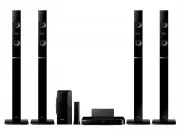 Samsung HT-H6550WM
User Manual
Samsung HT-H6550WM
User Manual
 Samsung HT-Q20
Manual
Samsung HT-Q20
Manual
 Samsung HT-A100
User Manual
Samsung HT-A100
User Manual
 Samsung HT-BD1255
User Manual
Samsung HT-BD1255
User Manual
 Samsung HT-C350
Manual
Samsung HT-C350
Manual
 Samsung HT-C453
Manual
Samsung HT-C453
Manual
 Samsung HT-C5200
User Manual
Samsung HT-C5200
User Manual
 Samsung HT-C5500
User Manual
Samsung HT-C5500
User Manual
 Samsung HT-C5900
User Manual
Samsung HT-C5900
User Manual
 Samsung HT-C6930W
User Manual
Samsung HT-C6930W
User Manual
 Samsung HT-C720
User Manual
Samsung HT-C720
User Manual