Page 2 - English; Safety Information; Safety Warnings; CAUTION; WARNING
2 English Safety Information Safety Warnings TO REDUCE THE RISK OF ELECTRIC SHOCK, DO NOT REMOVE THE COVER (OR BACK).NO USER-SERVICEABLE PARTS ARE INSIDE. REFER SERVICING TO QUALIFIED SERVICE PERSONNEL. CAUTION RISK OF ELECTRIC SHOCK DO NOT OPEN The lighting fl ash and Arrowhead within Triangle Is aw...
Page 3 - ment may void the user’s authority to operate it.
English 3 This product satisfi es FCC regulations when shielded cables and connectors are used to connect the unit to other equipment. To prevent electromagnetic interference with electric appliances, such as radios and televisions, use shielded cables and connectors for connections. FCC NOTE (for U....
Page 4 - Important Safety Instructions
4 English Important Safety Instructions Read these operating instructions carefully before using the unit. Follow all the safety instructions listed below. Keep these operating instructions handy for future reference. 1) Read these instructions. 2) Keep these Instructions. 3) Heed all warnings. 4) F...
Page 5 - Precautions; Viewing TV using the 3D function
English 5 Precautions Ensure that the AC power supply in your house complies with the identifi cation sticker located on the back of your product. Install your product horizontally, on a suitable base (furniture), with enough space around it for ventilation (3~4 inches). Do not place the product on a...
Page 6 - Cautions on Handling and Storing Discs; Holding discs; Do not touch the playback side of the disc.; Disc Storage; Do not keep in direct sunlight; Do not load cracked or scratched discs.; Handling and Storing Discs; NOTE; License
6 English Cautions on Handling and Storing Discs Small scratches on the disc may reduce sound and picture quality or cause skipping. Be especially careful not to scratch discs when handling them. Holding discs Do not touch the playback side of the disc. Hold the disc by the edges so that fi ngerprint...
Page 7 - Contents; ENGLISH; SAFETY INFORMATION
English 7 Contents ENGLISH SAFETY INFORMATION 2 2 Safety Warnings 4 Important Safety Instructions 5 Precautions6 Cautions on Handling and Storing Discs 6 License6 Copyright GETTING STARTED 9 9 Key features of your new Blu-ray Home Theater10 Icons that will be used in manual11 Disc Types and Characte...
Page 8 - SETUP
8 English SETUP 46 46 General46 Background46 Front Display 46 Power On/Off Sound 46 Light Effect 47 Support47 Software Upgrade 47 Contact Samsung BASIC FUNCTIONS 48 48 Playing a Disc 48 Using the Disc menu / Title menu / Popup menu 49 Using the Search and Skip Functions 50 Slow Motion Play/Step Moti...
Page 9 - Key features of your new Blu-ray Home Theater; Product Features; Getting Started
English 9 01 Getting Started Key features of your new Blu-ray Home Theater Product Features Playback of many disc types, plus an FM tuner This product allows you to play various discs, including BD-ROM/RE/R, DVD-VIDEO, DVD-RW/-R(V mode), DVD+RW/+R, MP3/WMA, JPEG, DivX/MKV/MP4, and CD-R/RW, and has a...
Page 10 - Icons that will be used in manual; Term; This product is compatible with the NTSC color system only.
10 English Getting Started Icons that will be used in manual Make sure to check the following terms before reading the user manual. Term Logo Icon Definition BD-ROM h This indicates a function available on a BD-ROM. BD-RE/-R z This indicates a function available on a BD-RE/-R disc recorded in the BD...
Page 11 - Disc Types and Characteristics; Blu-ray Disc Compatibility; Discs that cannot be played; Logos of Discs that can be played
English 11 01 Getting Started Disc Types and Characteristics Blu-ray Disc Compatibility Blu-ray is a new and evolving format. Accordingly, disc compatibility issues are possible. Not all discs are compatible and not every disc will play back. For additional information, refer to the Disc Types and C...
Page 12 - Region code; Disc Type; Disc Types
12 English Getting Started Region code Both this product and the discs are coded by region. These regional codes must match in order to play the disc. If the codes do not match, the disc will not play. Disc Type Region Code Area Blu-ray A North America, Central America, South America, Korea, Japan, ...
Page 13 - Audio CD; Disc Format; Using MP3 discs; Supported Video Formats
English 13 01 Getting Started Audio CD An audio disc on which 44.1kHz PCM Audio is recorded. This product can play back CD-DA format audio CD-R and CD-RW discs. The product may not be able to play some CD-R or CD-RW discs due to the condition of the recording. CD-R/-RW Use a 700MB (80 minute) CD-R/-...
Page 14 - Supported File Formats; Video File Support
14 English Getting Started Supported File Formats Video File Support File Extension Container Video Codec Audio Codec Resolution *.avi AVI Divx 3.11/4.x/5.1/6.0 MP3 AC3DTS WMA PCM 1920x1080 XviD 1920x1080 MP4v3 1920x1080 H.264 BP/MP/HP 1920x1080 *.mkv MKV VC-1 AP MP3 AC3DTS 1920x1080 DivX 5.1/6.0 19...
Page 15 - Notes on USB connection; Accessories; TOOLS
English 15 01 Getting Started Notes on USB connection Supported devices: USB storage media, MP3 player, digital camera, USB card reader Does not support if a folder or fi le name is longer than 125 characters. A subtitle fi le bigger than 300 KB may not be properly displayed. A certain USB/digital cam...
Page 16 - Description; Front Panel; Detects signals from the remote control.
16 English Getting Started Description Front Panel 1 DISC TRAY Insert disc here. 2 DISPLAY Displays the playing status, time, etc. 3 REMOTE CONTROL SENSOR Detects signals from the remote control. 4 OPEN/CLOSE BUTTON Opens and closes the disc tray. 5 FUNCTION BUTTON Switches the mode as follows : BD/...
Page 17 - Connect the iPod dock connector here.; Rear Panel
English 17 01 Getting Started LAN iPod FM ANT WIRELESS OPTICAL HDMI IN HDMI OUT DIGITAL AUDIO IN VIDEO OUT COMPONENT OUT SPEAKER IMPEDANCE : 3 1 SPEAKER OUTPUT CONNECTORS Connect the front, center, surround back, subwoofer speakers. 2 COOLING FAN The cooling fan supplies cool air to the product to p...
Page 18 - Remote control; Tour of the Remote Control
18 English Getting Started FUNCTION TV SOURCE POWER BD RECEIVER/TV SLEEP DISC MENU MENU TITLE MENU MUTE SFE MODE DSP VOL TUNING /CH TOOLS RETURN EXIT INFO A B C D TUNER MEMORY INTERNET MO/ST REPEAT FULL SCREEN 1 2 3 4 5 6 7 8 0 9 POPUP @ Remote control Tour of the Remote Control To open and close th...
Page 19 - Installing batteries in the Remote Control
English 19 01 Getting Started Installing batteries in the Remote Control NOTE Make sure to match the “+” and “–” ends of the batteries with the diagram inside the compartment.Assuming typical TV usage, the batteries last for about one year.The remote control can be used up to approximately 23 feet (...
Page 20 - Connections; Front Speakers; ei; Center Speaker; hj; Place these speakers to the sides of your listening position.; Surround Back Speakers; Subwoofer; Position of the product; Place it on a stand or cabinet shelf, or under the TV stand.; Selecting the Listening Position; Connecting the Speakers; Installing the DPL IIx
20 English Connections Front Speakers ei Place these speakers in front of your listening position, facing inwards (about 45°) toward you. Place the speakers so that their tweeters will be at the same height as your ear. Align the front face of the front speakers with the front face of the center spe...
Page 21 - Speaker Components; Refer to page 22 to install the Speakers on the Tallboy Stand.
English 21 02 Connections Speaker Components FRONT (L) (R) STAND STAND BASE SPEAKER CABLE SURROUND (L) (R) Assembled Speakers NOTE Refer to page 22 to install the Speakers on the Tallboy Stand. ✎ FRONT SPEAKER CENTER SPEAKER SUBWOOFER CENTER SUBWOOFER SCREW (5x15): 2EA SCREW (4x20): 8EA SURROUND...
Page 22 - Installing the Speakers on the Tallboy Stand; Turn the Stand Base upside-down and connect it to the Stand.
22 English Connections Installing the Speakers on the Tallboy Stand Turn the Stand Base upside-down and connect it to the Stand. Insert small screws (4x20, For connecting Stand & Stand Base) clockwise into the four holes marked using a screwdriver as shown in the illustration. CAUTION When you u...
Page 23 - Connecting The Speakers; Black
English 23 02 Connections Connecting The Speakers Press down the terminal tab on the back of the speaker. Insert the black wire into the black terminal (–) and the red wire into the red (+) terminal, and then release the tab. Connect the connecting plugs to the back of the product by matching the co...
Page 25 - Connecting External Devices/your TV via HDMI; HDMI OUT : Connecting to a TV with an HDMI Cable (BEST QUALITY); DVD or Blu-ray Player
English 25 02 Connections Connecting External Devices/your TV via HDMI HDMI is the standard digital interface for connecting to devices such as a TV, projector, DVD player, Blu-ray player, set top box, and more. Because HDMI is all digital, you'll enjoy digital quality video and sound as it was orig...
Page 26 - HDMI IN : Connecting to an External Component with an HDMI Cable; FUNCTION; HDMI Auto Detection Function; Connecting the FM Antenna
26 English Connections Connecting External Devices/your TV via HDMI HDMI IN : Connecting to an External Component with an HDMI Cable Connect an HDMI cable (not supplied) from the HDMI IN jack on the back of the product to the HDMI OUT jack on your digital device. Press the FUNCTION button to select ...
Page 27 - METHOD 1; Connecting the Video Out to your TV; METHOD 2
English 27 02 Connections METHOD 1 : Component Video (BETTER QUALITY) If your television is equipped with Component Video inputs, connect a Component video cable (not supplied) from the Component Video Output (Pr, Pb and Y) jacks on the back of the product to the Component Video Input Jacks on your ...
Page 28 - Connecting Audio from External Components; OPTICAL : Connecting an External Digital Component
28 English Connections Connecting Audio from External Components OPTICAL : Connecting an External Digital Component Digital signal components such as a Cable Box/Satellite receiver (Set-Top Box). Connect the Digital Input (OPTICAL) on the product to the Digital Output of the external digital compone...
Page 29 - Connecting to the Network; manufacturer for technical assistance.; Cable Network
English 29 02 Connections Connecting to the Network This product enables you to view network based services (See pages 60~65) such as Internet@TV and BD-LIVE, as well as receive software upgrades when a network connection is made. We recommend using an AP (Access Point) or IP router for the connecti...
Page 30 - Wireless Network; Wireless IP sharer
30 English Connections Connecting to the Network Wireless Network You can connect to your network with a Wireless IP sharer. A wireless AP/IP router is required to make a wireless network connection. To set the network confi guration options. see page 42. NOTE To use a wireless network, your product ...
Page 31 - Home Menu; Setup
English 31 03 Setup Before Starting (Initial Settings) Turn on your TV after connecting the product.(When the product is connected to TV for the fi rst time, the product will turn on automatically and display the Initial Settings screen.) > Move s Select Initial Settings I On-Screen Language Selec...
Page 32 - STOP; Setting the Menu; Selects the Settings.; Samsung AppS
32 English Setup If you want to display the Initial Settings screen again to make changes, press the STOP ( ) button on the front panel of the product for more than 5 seconds with no disc inserted.Use the HDMI cable to connect the product to an Anynet+ (HDMI-CEC) -compliant Samsung TV. If the TV u...
Page 33 - Auto; TV Screen Size
English 33 03 Setup Display You can confi gure various display options such as the TV Aspect, Resolution, 3D, etc. 3D Select whether to play a Blu-ray Disc with 3D contents in 3D Mode. Display Audio System Network Language Security General Support Settings 3D Still Mode : Auto 3D Mode : Auto TV Scree...
Page 34 - TV Aspect Ratio; FULL; Resolution
34 English Setup TV Aspect Ratio Depending on the type of television you have, you may want to adjust the screen aspect ratio. 16:9 Normal • Certain movies (4:3 source) are displayed in 4:3 Pillarbox ( b l a c k b a r s o n s i d e s o f picture) if 16:9 normal is selected. 16:9 Wide • You can view ...
Page 35 - Resolution according to the output mode; Blu-ray Disc playback
English 35 03 Setup Resolution according to the output mode Blu-ray Disc playback Output Setup HDMI / connected HDMI / not connected HDMI Mode Component/VIDEO Mode Component Mode VIDEO Mode Auto Optimal Resolution 480i - - 1080p, Movie Frame (24Fs) off 1080p@60F 480i - - 1080p/1080i, Movie Frame (24...
Page 36 - HDMI Format; Progressive Mode; Still Mode; Frame; HDMI Deep Color; Off
36 English Setup HDMI Format You can optimize the color setting from the HDMI output by selecting a connected device Type: TV : Select if connected to a TV via HDMI. Monitor : Select if connected to a Monitor via HDMI. NOTE A TV or monitor has to be connected to the product before you select this op...
Page 37 - Distance; Test Tone; Speaker Setting; DPL llz; Level
English 37 03 Setup Audio Distance If the speakers cannot be placed at equal distances from the listening position, you can adjust the delay time of the audio signals from the front, center, surround, surround back and subwoofer speakers. You can set the Speaker Distance between 1ft (0.3m) and 30ft ...
Page 38 - Musical Room Calibration; EQ Optimizer
38 English Setup Musical Room Calibration By setting the Musical Room Calibration (MRC) function just once when you relocate or install the product, you can have the product automatically recognize the distance between speakers, levels between channels, and frequency characteristics to create a 7.1-...
Page 39 - Digital Output; PCM; Digital Output Selection
English 39 03 Setup Digital Output Lets you set the audio output format according to the capabilities of your amplifi er. (For more details, please refer to the digital output selection). PCM Bistream (Re-encode) Bistream (Audiophile) Blu-ray Discs may include three audio streams. - Primary Audio : T...
Page 40 - Dynamic Range Control; Initial Settings
40 English Setup Dynamic Range Control You can listen at low volumes but still hear dialog clearly. This is only active when a Dolby Digital signal is detected. Off : Turn Dynamic Range Control off. On : Choose to listen to a movie at a lower volume without losing clarity of dialog. Auto : The Dynam...
Page 41 - Clock
English 41 03 Setup Description of Device (Storage) Information on the Product Total Size : Total size of the Device (Storage). Available Size : Available size of the Device (Storage). NOTE In the external memory mode, disc playback will be stopped if you disconnect the USB device in the middle of t...
Page 42 - Network; Network Settings; Wired Network; Setting Up a Wired Connecton - Manual
42 English Setup Network To begin setting up the network connection for your product, follow these steps: In the Home menu, press the ◄► buttons to select the Settings , and then press the ENTER button. Press the ▲▼ buttons to select Network , and then press the ENTER button. Press the ▲▼ buttons to...
Page 43 - Setting Up the Network Connection
English 43 03 Setup Use the number buttons on your remote to enter numbers. When done with each fi eld, use the ► button to move successively to the next fi eld.You can also use the other arrow buttons to move up, down, and back. Enter the IP Address , Subnet Mask , and Gateway values. Press the ▼ but...
Page 45 - Network Test; Network Status; Language
English 45 03 Setup When done with each fi eld, use the ► button to move successively to the next fi eld.You can also use the other arrow buttons to move up, down, and back. Enter the IP Address , Subnet Mask , and Gateway values. Press the ▼ to go to DNS . Press the ▼ button to go to the fi rst DNS en...
Page 46 - Parental Rating; Change Password; If you forgot your password; General; Background; Front Display; Change the brightness of the front panel.; Light Effect; Select this for retail display.
46 English Setup Security When you operate this menu for the fi rst time, the password setup screen appears. Enter the desired 4-digit password using the number buttons. (Default password is set to 0000.) Parental Rating The Parental Rating works in conjunction with Blu-ray Disc/DVDs that have been a...
Page 47 - Software Upgrade; Contact Samsung
English 47 03 Setup Support Software Upgrade This menu allows you to upgrade software for performance improvements or additional services. You can check the current software version, upgrade on the Internet and set the Auto upgrade notifi cation. If the product is properly connected to the network by...
Page 48 - Basic Functions; Playing a Disc; Playback; PLAY; Disc Structure; chapter 1; Using the Disc menu / Title menu / Popup menu; Using the Disc Menu; hZ; DISC
48 English Basic Functions Playing a Disc Playback Press the OPEN/CLOSE ( ) button to open the disc tray. Place a disc gently into the tray with the disc’s label facing up. Press the PLAY ( ► ) button or OPEN/ CLOSE ( ) button to close the disc tray. Playback related buttons PLAY ( ► ) Starts playba...
Page 49 - Using the Title Menu; Using the Search and Skip Functions; Searching for a Desired Scene; Skipping Chapters; hzZyx
English 49 04 Basic Functions Using the Title Menu Z During playback, press the TITLE MENU button on the remote control. Press the ▲▼◄ ► buttons to make the desired selection, then press the ENTER button. NOTE Depending on the disc, the menu items may differ and this menu may not be available.The Ti...
Page 50 - Slow Motion Play/Step Motion Play; Slow Motion Play; Step Motion Play; hzZy; Repeat Playback; Repeat the Title or Chapter; hzZy; Repeat the disc title or chapter.; hzZy
50 English Basic Functions Slow Motion Play/Step Motion Play Slow Motion Play hzZy In pause mode, press the SEARCH ( ) button.If you press the SEARCH ( ) button, the playback speed is reduced to * 1/8 * 1/4 * 1/2 To return to normal speed playback, press the PLAY ( ► ) button. NOTE No sound is p...
Page 51 - Using the TOOLS button; Moving to a Desired Scene Directly; Selecting the Audio Language; hzZx; Selecting the Subtitle Language; hZx
English 51 04 Basic Functions Using the TOOLS button During playback, you can operate the disc menu by pressing the TOOLS button. TOOLS Menu Screen Title : 1/1 Chapter 4/21 Playing Time : 00:12:06 Audio : 1/7 ENG Multi CH Subtitle : 1/6 ENG Angle : 1/1 BONUSVIEW Video : Off BONUSVIEW Audio : 0/1 Off...
Page 52 - Caption Function; Changing the Camera Angle; Selecting the Picture Setting; Setting the BONUSVIEW
52 English Basic Functions Caption Function x You must have some experience with video extraction and editing in order to use this feature properly. To use the caption function, save the caption fi le (*.smi) with the same fi le name as that of the DivX media fi le (*.avi) within the same folder.Exampl...
Page 53 - Listening to Music; ow; buttons : Selects the play mode in the; Music
English 53 04 Basic Functions Listening to Music ow Buttons on the Remote Control used for Music Playback DSP TOOLS RETURN EXIT INFO A B C D TUNER MEMORY INTERNET MO/ST @ DSP TOOLS RETURN EXIT INFO A B D TUNER MEMORY INTERNET MO/ST @ REPEAT FULL SCREEN 1 2 3 4 5 6 7 8 0 9 FULL SCREEN 4 6 2 3 7 1 5 0...
Page 54 - Playlist
54 English Basic Functions Audio CD (CD-DA)/MP3 Screen Elements s Pause Tools r Return + 00:08 / 05:57 1/12 05:57 04:27 04:07 03:41 03:17 03:35 Playlist 3 1 2 6 7 4 5 TRACK 001 TRACK 001 TRACK 002 TRACK 003 TRACK 004 TRACK 005 TRACK 006 1 Displays the music information. 2 Displays the playlist. 3 Sh...
Page 55 - Sound Mode; Dolby Pro Logic; Mode; depending on the input signal.; Setting the speakers with DPL IIx; Adds realism to the movie soundtrack.
English 55 04 Basic Functions Sound Mode DSP (Digital Signal Processor) Function DSP regulates the volume level and decreases drastic volume changes when you change channels or during a scene transitions. When you press the DSP button, it cycles through the following functions: SMART SOUND MP3 ENHAN...
Page 56 - Playing back a Picture; Playing a JPEG Disc
56 English Basic Functions Using the TOOLS button During the slide show playback, you can use various function by pressing the TOOLS button. Stop Slide Show Slide Show Speed : Normal Slide Show Effect : Fade1 Background Music Zoom Rotate Information Tools > Move " Enter ' Return Stop Slide Sh...
Page 57 - Playing Back a USB Storage Device; Press the; ENTER; Listening to Radio; Using buttons on the Remote Control
English 57 04 Basic Functions Playing Back a USB Storage Device F You can use the USB connection to play multimedia fi les (MP3, JPEG, DivX, etc.) downloaded from a USB storage device. Move to the Home menu.In Stop mode, connect the USB storage device to the USB port on the front panel of the product...
Page 58 - Using an iPod; MEMU; Presetting Stations
58 English Basic Functions Using an iPod You can enjoy music and video fi les from an iPod through the product. iPod iPod Listening to Music You can play music fi les stored in the iPod player by connecting it to the product. internet radio You Tube internet radio You Tube iPod No disc iPod MEMU No Di...
Page 59 - iPod Music categories; Watching a Movie; iPod/iPhone models you can use with
English 59 04 Basic Functions NOTE Adjust the volume to a moderate level before you connect your iPod and product.When the product is powered on and you connect an iPod, the product charges your iPod's battery.Make sure to connect the dock connector so that the label “SAMSUNG” faces upward.“Made for...
Page 60 - Network Services; button; Getting Started with Internet@TV; Move to the home menu.; Press the ◄► buttons to select; Internet@TV at a Glance
60 English Network Services You can enjoy various network services such as Internet@TV or BD-LIVE by connecting the product to the network system. Check the following instructions before using any network service. Connect the product to the network.(see pages 29~30) Confi gure the network settings. (...
Page 61 - Using the On-Screen Keypad
English 61 05 Network Services Using the On-Screen Keypad Through your remote, you can use the On-Screen Keypad in several Internet@TV applications to enter text. Pressing the FULL SCREEN button on the remote while you are using the Screen Keypad lets you change the text fi elds to lower case, upper ...
Page 62 - Account Login; System Setup
62 English Network Services Account Login For a more enjoyable application experience, register and log in to your account. To do this, you must create an account fi rst. (For instructions on creating an account, refer to Internet@TV ID on this page) Press the ▲▼◄► buttons to select the desired appli...
Page 63 - Service Manager; Lock; Properties; Internet@TV Services Available
English 63 05 Network Services Service Manager Delete and lock applications installed in Internet@TV. Lock Lock the application. Accessing a locked application requires a password. Delete Delete the application. Properties Display information about Internet@TV. Use the "Check the speed of your i...
Page 64 - Software Upgrade Notifi cation; To upgrade the fi rmware, select; Using the AllShare Function; AllShare Program at a Glance
64 English Network Services BD-LIVE™ Once the product is connected to the network, you can enjoy various movie-related service contents using a BD-LIVE compliant disc. Check the size of the remaining memory.The memory device must have at least 1GB of free space to accommodate the BD-LIVE services. I...
Page 65 - To use Share Manager, follow these steps:; - The Background Music and Background
English 65 05 Network Services To use Share Manager, follow these steps: Select a folder to share from the My computer pane, and click the Share Folder Enabled icon ( ). (To remove a shared folder : Select a folder to remove from the shared folders, and click the Share Folder Disabled icon ( ).) To ...
Page 66 - Other information; Troubleshooting
66 English Other information Troubleshooting Refer to the chart below when this product does not function properly. If the problem you are experiencing is not listed below or if the instructions below do not help, turn off the product, disconnect the power cord, and contact Samsung Electronics at 1-...
Page 67 - Symptom
English 67 06 Other information Symptom Check/Remedy Aspect ratio cannot be changed. • You can play 16:9 BD/DVDs in 16:9 Wide mode, 4:3 Letter Box mode, or 4:3 Pan - Scan mode, but 4:3 BD/DVDs can be seen in 4:3 ratio only. Refer to the Blu-ray Disc jacket and then select the appropriate function. •...
Page 68 - Video is played intermittently.
68 English Other information Symptom Check/Remedy PC Share Manager function I can see folders shared through the PC Share Manager, but I cannot see the fi les. • Since it shows only fi les corresponding to the Image, Music, and Movie categories, fi les that do not correspond to these categories may not...
Page 69 - Index
English 69 06 Other information A Accessories 15AllShare 64Angle 52Anynet+ (HDMI-CEC) 40 Audio 37Audio Language 51 AV Sync 40 B Background 46BD-Live 64BD-LIVE Internet Connection 45BD Data Management 40 BD Wise 34 Before Starting (Initial settings) 31BONUSVIEW 52 C Change Password 46 Clock 41Connect...
Page 70 - Specifi cations; Usable sensitivity; Disc
70 English Other information Specifi cations General Power Requirements AC 120V, 60Hz Power Consumption 75 W Weight 8.3 Ibs Dimensions 16.9 (W) x 2.4 (H) x 13.0 (D) inches Operating Temperature Range +41°F to +95°F Operating Humidity Range 10 % to 75 % FM Tuner Signal/noise ratio 70 dB Usable sensiti...
Page 71 - Speaker
English 71 06 Other information Power Requirements AC 120V ~60Hz Power Consumption 50 W Weight 2.52 lbs Dimensions (W x H x D) 3 x 9 x 6 inches Operating Temperature Range +41°F to +95°F Operating Humidity Range 10% ~ 75% Output 165W x 2 CH Frequency range 20Hz~20KHz S/N Ratio 65dB SWA-5000 Speaker ...
Page 72 - LIMITED WARRANTY TO ORIGINAL PURCHASER
LIMITED WARRANTY TO ORIGINAL PURCHASER This SAMSUNG brand product, as supplied and distributed by Samsung Electronics America, Inc. (SAMSUNG) and delivered new, in the originalcarton to the original consumer purchaser, is warranted by SAMSUNG against manufacturing defects in materials and workmanshi...
Page 73 - Contact SAMSUNG WORLD WIDE
Area Contact Centre Web Site ` North America Canada 1-800-SAMSUNG (726-7864) www.samsung.com Mexico 01-800-SAMSUNG (726-7864) www.samsung.com U.S.A 1-800-SAMSUNG (726-7864) www.samsung.com ` Latin America Argentine 0800-333-3733 www.samsung.com Brazil 0800-124-4214004-0000 www.samsung.com Chile 80...
Page 74 - QUESTIONS OR COMMENTS?; COUNTRY
QUESTIONS OR COMMENTS? COUNTRY CALL OR VISIT US ONLINE AT WRITE IN THE US 1-800-SAMSUNG (7267864) www.samsung.com/us Samsung Electronics America, Inc. 85 Challenger Road Ridgefi eld Park, NJ 07660-2112 Code No. AH68-02279Y HT-C6930W_XAA_0914.indd 74 HT-C6930W_XAA_0914.indd 74 2010-09-14 2:52:48 2010-...


 Samsung HT-DS400
Manual
Samsung HT-DS400
Manual
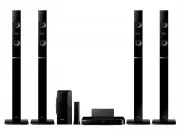 Samsung HT-H6550WM
User Manual
Samsung HT-H6550WM
User Manual
 Samsung HT-Q20
Manual
Samsung HT-Q20
Manual
 Samsung HT-A100
User Manual
Samsung HT-A100
User Manual
 Samsung HT-BD1255
User Manual
Samsung HT-BD1255
User Manual
 Samsung HT-C350
Manual
Samsung HT-C350
Manual
 Samsung HT-C453
Manual
Samsung HT-C453
Manual
 Samsung HT-C5200
User Manual
Samsung HT-C5200
User Manual
 Samsung HT-C5500
User Manual
Samsung HT-C5500
User Manual
 Samsung HT-C5900
User Manual
Samsung HT-C5900
User Manual
 Samsung HT-C720
User Manual
Samsung HT-C720
User Manual
 Samsung HT-D350
User Manual
Samsung HT-D350
User Manual
 Samsung HT-D4500
User Manual
Samsung HT-D4500
User Manual