Page 2 - Contents
2 English Contents Safety Information 4 Safety Information 4 At a Glance 15 Indoor Unit Overview 15 Display 16 Remote Control Overview 17 Replacing the remote control batteries 17 Remote Control Operation 18 Selecting an operation mode 18 To set the temperature • To adjust the fan speed • To adjust ...
Page 4 - WARNING: Read This Manual; Notices and notes; WARNING
4 Safety Information English Safety Information Safety Information Safety Information WARNING: Read This Manual Read and follow all safety information and instructions before installation, use, or maintenance of this appliance. Incorrect installation, use, or maintenance of this appliance can result...
Page 5 - FOR GENERAL; IMPORTANT
5 English Safety Information Safety Information WARNING: Low burning velocity material (This appliance is filled with R-32.) The user and installer guides should be read carefully. The user and installer guides should be read carefully. The service guide should be read carefully. FOR GENERAL This ap...
Page 6 - FOR INSTALLATION
6 Safety Information English Safety Information Safety Information FOR INSTALLATION WARNING Use a power cord with this product's power specifications or higher and use the power cord for this appliance only. In addition, do not use an extension cord. • Extending the power cord may result in electric...
Page 7 - CAUTION
7 English Safety Information Safety Information Never install the outdoor unit in a location such as on a high external wall where it could fall. • If the outdoor unit falls, it may result in injury, death or property damage. This appliance must be properly grounded. Do not ground the appliance to a...
Page 8 - Those places do not provide guaranteed operation condition; FOR POWER SUPPLY; This may result in electric shock or fire.; Failing to do so may result in electric shock or fire.
8 Safety Information English Safety Information Safety Information Do not install the product in a place where thermo-hygrostat is needed (such as server room, machinery room, computer room, etc.) • Those places do not provide guaranteed operation condition of the product therefore performance can b...
Page 9 - FOR USING
9 English Safety Information Safety Information FOR USING WARNING If the appliance is flooded, please contact your nearest service centre. • Failing to do so may result in electric shock or fire. If the appliance generates a strange noise, a burning smell or smoke, cut off the power supply immediate...
Page 11 - Water dripping from the indoor unit may result in fire or
11 English Safety Information Safety Information Do not use means to accelerate the defrost operation or to clean, other than those recommended by Samsung.Do not pierce or burn.Be aware that refrigerants may not contain an odour.If any foreign substance such as water has entered the appliance, cut o...
Page 14 - FOR CLEANING
14 Safety Information English Safety Information Safety Information FOR CLEANING WARNING Do not clean the appliance by spraying water directly onto it. Do not use benzene, thinner or alcohol to clean the appliance. • This may result in discolouration, deformation, damage, electric shock or fire. Bef...
Page 15 - Indoor Unit Overview
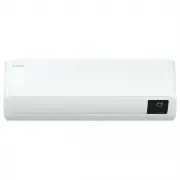
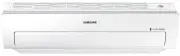
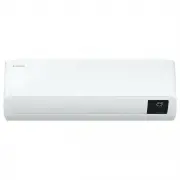
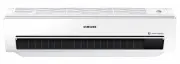
15 English At a Glanc e At a Glanc e Indoor Unit Overview The appearance of the actual product may differ slightly from the image below. 01 02 03 04 09 05 06 08 07 01 Air intake 02 Air filter 03 Tri-care filter (For AR**TXEA*** models) 04 Wind-Free panel 05 Airflow blade (up and down) 06 Airflow bla...
Page 16 - Display
16 Indoor Unit Overview English At a Glanc e At a Glanc e Display 01 02 03 04 01 Temperature indicator (numeric) Filter reset indicator ( ) Electricity consumption indicator (numeric / For the multi system, usage time indicator) Auto clean indicator ( ) Defrost indicator ( ) 02 AI Auto indicator 03 ...
Page 17 - Remote Control Overview; Replacing the remote control batteries
17 English At a Glanc e At a Glanc e Remote Control Overview 08 0910 07 01 05 06 16 17 18 20 21 02 03 04 11 12 13 19 14 15 01 Set temperature indicator 02 Timer option indicator 03 Operation mode indicator 04 Options indicator 05 Low battery indicator 06 Transmit indicator 07 Fan speed indicator 08 ...
Page 18 - Selecting an operation mode; Remote Control Operation
18 Remote Control Operation English At a Glanc e At a Glanc e Selecting an operation mode To change the current mode between Auto, Cool, Dry, Fan, and Heat, press the (Mode) button. You can use AI Auto mode after Wi-Fi is connected. NOTE You can use the Cool, Dry, and Heat modes in the following ope...
Page 19 - To set the temperature
19 English At a Glanc e At a Glanc e To set the temperature To control the temperature in each mode, press the (Temperature) button: Mode Temperature control AI Auto/Auto/ Cool/Heat Adjust by 1 ℃ from 16 ℃ to 30 ℃. Dry Adjust by 1 ℃ from 18 ℃ to 30 ℃. Fan No temperature control. To adjust the fan sp...
Page 20 - Power Smart Features; Wind-Free Cooling function
20 English Smar t F eatur es Smar t F eatur es Power Smart Features Wind-Free Cooling function Use the Wind-Free Cooling function to enjoy a mild breeze coming through fine holes in the Wind-Free panel instead of air coming directly through the airflow blades. In Cool/Dry/Fan mode ▶ NOTE • To cancel...
Page 21 - AI Auto mode
21 English Smar t F eatur es Smar t F eatur es AI Auto mode Use AI Auto mode to automatically operate any of Cool, Dry, Heat, and Wind-Free Cooling modes depending on the learned user patterns gathered from an external server via Wi-Fi module. The favourite temperature and operation mode are also se...
Page 22 - Auto mode; Cool mode
22 Power Smart Features English Smar t F eatur es Smar t F eatur es Auto mode Use Auto mode to perform the powerful cooling or heating function to automatically reach the desired temperature. When the difference between the room temperature and the set temperature decreases, the air conditioner cont...
Page 23 - Dry mode; Fan mode
23 English Smar t F eatur es Smar t F eatur es Dry mode Use Dry mode in rainy or humid weather. ▶ ▶ Select Dry. NOTE • The proper set temperature range for dehumidifying operation is 24 to 26 ℃. If you feel that the current humidity seems high, use a lower set temperature. • You cannot use Dry mode ...
Page 24 - Heat mode; Automatic defrost
24 Power Smart Features English Smar t F eatur es Smar t F eatur es Heat mode Use Heat mode to stay warm. ▶ ▶ Select Heat. NOTE • While the air conditioner warms up, the fan may not operate for about 3 to 5 minutes at the beginning to prevent cold blasts. • If the air conditioner heats insufficientl...
Page 25 - Variety Smart Features; Fast function
25 English Smar t F eatur es Smar t F eatur es Variety Smart Features Fast function Use the Fast function to quickly cool or heat your room. This function is the most powerful cooling and heating function provided by the air conditioner. You can select this function in Cool or Heat mode. In Cool or ...
Page 26 - Quiet function; Beep function
26 Variety Smart Features English Smar t F eatur es Smar t F eatur es Quiet function Use the Quiet function to reduce the unit’s operating noise. You can select this function in Cool or Heat mode. In Cool or Heat mode ▶ ▶ ▶ Select Quiet. ▶ NOTE • You can change the set temperature and the airflow di...
Page 27 - Display lighting function
27 English Smar t F eatur es Smar t F eatur es Display lighting function Use the Display lighting function to turn on or off the lighting of the indoor unit display. ▶ ▶ Select Display. ▶ NOTE • If you change the current mode or function when the Display lighting function is on, the display lighting...
Page 28 - Energy-Saving Features; Electricity consumption check
28 English Smar t F eatur es Smar t F eatur es Energy-Saving Features Electricity consumption check For the multi system, this function is not supported. Use the Usage function to check the amount of electricity consumed by using the air conditioner. The amount consumed is displayed on the indoor un...
Page 29 - Usage time check
29 English Smar t F eatur es Smar t F eatur es Usage time check For the single system, this function is not supported. Use the Usage time function to check the operation duration from the moment when the air conditioner is turned on to the moment when the Usage time function is selected. The usage t...
Page 30 - Eco function
30 Energy-Saving Features English Smar t F eatur es Smar t F eatur es Eco function For the multi system, this function is not supported. Use the Eco function to reduce electricity consumption while staying cool or warm. You can select this function in Cool or Heat mode. In Cool or Heat mode ▶ ▶ ▶ Se...
Page 31 - Timed on/ Timed off function
31 English Smar t F eatur es Smar t F eatur es Timed on/ Timed off function Use the Timed on/off function to turn the air conditioner on or off after a duration. Scheduling durations before the air conditioner turns on or off helps use the air conditioner economically. ▶ Select On or Off ▶ (Set the ...
Page 33 - Schedule
33 English Cl eaning and Maint enanc e Cl eaning and Maint enanc e Schedule Task How often By whom Instruction Run the Auto clean function. As needed Owner "Auto clean function" on page 34. Clean the filter. Once every two weeks Owner "Cleaning the filter" on page 37. Replace the Tri...
Page 34 - Auto clean function; Activating Auto clean; Cleaning
34 Cleaning English Cl eaning and Maint enanc e Cl eaning and Maint enanc e Auto clean function Use the Auto clean function if the indoor unit produces odors. Activating Auto clean To activate Auto clean, press the (Options) button for at least 3 seconds. The indoor unit display shows: If the air co...
Page 35 - Canceling Auto clean; Deactivating Auto clean
35 English Cl eaning and Maint enanc e Cl eaning and Maint enanc e Canceling Auto clean To cancel Auto clean while it is running, follow the procedure below: ▶ Press and hold for 3 or more seconds. or ▶ ▶ Select Clean. ▶ NOTE • Canceling Auto clean does not deactivate it. Deactivating Auto clean To ...
Page 36 - Cleaning the outside of the indoor unit; Cleaning the heat exchanger on the
36 Cleaning English Cl eaning and Maint enanc e Cl eaning and Maint enanc e Tepid damp cloth Soft brush Cleaning the outside of the indoor unit 1 Turn off the air conditioner and wait until the fan stops. 2 Disconnect the power supply. 3 Use a soft brush or tepid damp cloth to clean the exterior. WA...
Page 37 - Cleaning the filter
37 English Cl eaning and Maint enanc e Cl eaning and Maint enanc e Cleaning the filter Clean the air filter every two weeks or when the (filter-cleaning reminder) appears on the indoor unit display. The time between cleanings may vary, depending on the usage and environmental conditions. Vacuum clea...
Page 38 - Replacing the Tri-care filter
38 Cleaning English Cl eaning and Maint enanc e Cl eaning and Maint enanc e Replacing the Tri-care filter (For AR**TXEA*** models) Slide a new Tri-care filter in the direction of arrow 2.Replace Tri-care filters once every three years. Replacement cycle may differ depending on the environment and us...
Page 39 - Cleaning the Wind-Free panel
39 English Cl eaning and Maint enanc e Cl eaning and Maint enanc e Cleaning the Wind-Free panel Clean the Wind-Free panel at least once a month. 1 Pull the airflow blade open. 2 Hold and pull both sides of the Wind-Free panel until it comes free from the air conditioner. 3 Use a soft brush or vacuum...
Page 40 - Troubleshooting
40 Troubleshooting English Appendix Appendix Problem Solution The air conditioner stops working. • Make sure the unit is receiving power. • Check the circuit breaker. If it is flipped off, flip it on again and restart the unit. If the problem persists, contact your service provider. • The Timed off ...
Page 42 - Information about Refrigerant
42 Information about Refrigerant English Appendix Appendix Information about Refrigerant Important information: regulation regarding the refrigerant used.This product contains fluorinated greenhouse gases. Do not vent gases into the atmosphere. CAUTION If the system contains 5 tCO₂e or more of fluor...
Page 43 - SmartThings app
43 English Appendix Appendix Step 1. Checking the requirements for connection Before connecting your smartphone with the air conditioner, make sure that the following requirements are met: • Wi-Fi access point: 2.4 GHz Wi-Fi access point only • The air conditioner and you smartphone must be within t...
Page 44 - Step 5. Connecting your; Specifications
44 Information about Refrigerant English Appendix Appendix Step 5. Connecting your smartphone to the air conditioner 1 Plug in the power cord of the air conditioner, and then turn on the power. 2 Launch the SmartThings app. 3 Tap Add device on the home screen of the SmartThings app. 4 Tap ADD DEVICE...
Page 46 - Reference
46 Reference English Appendix Appendix English Hereby, Samsung Electronics, declares that the radio equipment type appliance is in compliance with Directive 2014/53/EU. The full text of the EU declaration of conformity is available at the following internet address: The official Declaration of confo...
Page 49 - Memo