Page 2 - Contents; Safety Information; Power Smart Features; Energy-Saving Features; Cleaning and Maintenance
2 English Contents Safety Information 4 Safety Information 4 At a Glance 13 Indoor Unit Overview 13 Display Remote Control Overview 14 Inserting batteries Remote Control Operation 15 Operation modes • Controlling temperature • Controlling fan speed • Controlling air flow direction Power Smart Featur...
Page 4 - ormation; WARNING; Use a power cord with this product's power specifications; Do not use an electric transformer. This may result in electric
4 English Safety Inf ormation Safety Inf ormation Safety Information Before using your new air conditioner, please read this manual thoroughly to ensure that you know how to safely and efficiently operate the extensive features and functions of your new appliance. Because the following operating ins...
Page 5 - on the installed product.
5 English Safety Inf ormation Safety Inf ormation • If the voltage/frequency/rated current condition is different, it may cause fire. The installation of this appliance must be performed by a qualified technician or service company. • Failing to do so may result in electric shock, fire, explosion, p...
Page 6 - CAUTION; Note that the refrigerant has no odour.; FOR POWER SUPPLY
6 English Safety Inf ormation Safety Inf ormation CAUTION Please cover the air conditioner with PE BAG after installation, and remove it when you start to run air conditioner. Install your appliance on a level and hard floor that can support its weight. • Failing to do so may result in abnormal vibr...
Page 7 - This may result in electric shock or fire.; FOR USING; • Failing to do so may result in electric shock or fire.
7 English Safety Inf ormation Safety Inf ormation Do not pull or excessively bend the power line. Do not twist or tie the power line. Do not hook the power line over a metal object, place a heavy object on the power line, insert the power line between objects, or push the power line into the space b...
Page 9 - • This may result in fire, injury, or problems with the product.; Water dripping from the indoor unit may result in fire or
9 English Safety Inf ormation Safety Inf ormation Do not strike or pull the air conditioner with excessive force. • This may result in fire, injury, or problems with the product. Do not place an object near the outdoor unit that allows children to climb onto the machine. • This may result in childre...
Page 10 - • Failing to do so may result in injury, death or property damage.
10 English Safety Inf ormation Safety Inf ormation Check that the installation frame of the outdoor unit is not broken at least once a year. • Failing to do so may result in injury, death or property damage. Max current is measured according to IEC standard for safety and current is measured accordi...
Page 11 - • This may result in burns or injury.
11 English Safety Inf ormation Safety Inf ormation Do not apply a strong impact to the remote control and do not disassemble the remote control. Do not touch the pipes connected with the product. • This may result in burns or injury. Do not cut or burn the refrigerant container or pipings. Do not po...
Page 12 - FOR CLEANING; This may result in discolouration, deformation, damage, electric; When cleaning the filter, refer to the descriptions in the
12 English Safety Inf ormation Safety Inf ormation FOR CLEANING WARNING Do not clean the appliance by spraying water directly onto it. Do not use benzene, thinner or alcohol to clean the appliance. • This may result in discolouration, deformation, damage, electric shock or fire. Before cleaning or p...
Page 13 - At a Glanc; Indoor Unit Overview
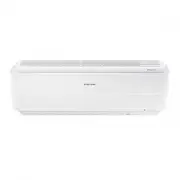
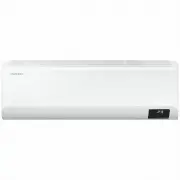
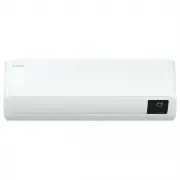
13 English At a Glanc e At a Glance The actual product may differ slightly from the image depicted below. Indoor Unit Overview 09 01 0203 04 05 10 08 11 06 07 01 Air intake 02 Air filter 03 Air filter PM 2.5 04 Air flow blade (up and down) 05 Air flow blade (left and right) 06 Room temperature senso...
Page 14 - Remote Control Overview; Inserting batteries
14 English At a Glanc e Remote Control Overview 01 05 06 07 17 18 19 21 22 02 03 04 12 13 14 20 15 16 08 09 11 10 01 Set temperature indicator 02 Timer option indicator 03 Operation mode indicator 04 Options indicator 05 Low battery indicator 06 Transmit indicator 07 Fan speed indicator 08 PM 2.5 in...
Page 15 - Remote Control Operation
15 English At a Glanc e Operation modes You can change the current mode between Auto, Cool, Dry, Fan, and Heat by pressing the button. Controlling temperature You can control the temperature in each mode as follows: Mode Temperature control Auto/Cool/ Heat Adjust by 1 °C between 16 °C and 30 °C. Dry...
Page 16 - Controlling air flow direction
16 English At a Glanc e Controlling fan speed You can select the following fan speeds in each mode: Mode Available fan speeds Auto/Dry (Auto) Cool/Heat (Auto), (Low), (Med), (High), (Turbo) Fan (Low), (Med), (High), (Turbo) Controlling air flow direction Keep the air flow in a constant direction by ...
Page 17 - Po; Cool mode; -Step cooling function; Cooling Operation
17 English Po w er Smar t F eatur es Cool mode Use the Cool mode to stay cool in hot weather. ► ► Select Cool. NOTE • For comfort, keep the temperature difference between the indoor and outdoor air within 5 °C in the Cool mode. • After selecting the Cool mode, select a function, temperature, and fan...
Page 18 - Wind-Free Cooling function
18 English Po w er Smar t F eatur es Wind-Free Cooling function Use the Wind-Free Cooling function to enjoy mild cool breeze exuding from fine holes on the Wind-Free panel with the air flow blade closed, instead of getting cool wind directly. The automated control of the temperature and fan speed ac...
Page 19 - Dehumidifying Operation; PM 2.5 Filter function; Air Purifying Operation
19 English Po w er Smar t F eatur es Dry mode Use the Dry mode in rainy or humid weather. ► ► Select Dry. NOTE • The lower the set temperature is, the greater the dehumidifying capacity is. When the current humidity seems to be high, adjust the set temperature to a low temperature. • You cannot use ...
Page 20 - Heating Operation
20 English Po w er Smar t F eatur es A B Heat mode Use the Heat mode to stay warm. ► ► Select Heat. NOTE • While the air conditioner warms up, the fan may not operate for about 3 to 5 minutes at the beginning to prevent cold blasts. • If the air conditioner heats insufficiently, use an additional he...
Page 21 - Fan mode; Fast function; Quick Smart Features
21 English Po w er Smar t F eatur es Auto mode Use the Auto mode when you want the air conditioner to automatically control the operation. The air conditioner will provide the most comfortable atmosphere that it can. ► ► Select Auto. NOTE • When the indoor temperature seems to be higher or lower tha...
Page 22 - Comfort function; Beep sound function
22 English Po w er Smar t F eatur es NOTE • You can change the air flow direction.• You cannot change the set temperature and the fan speed. • When you select the Fast function in the Heat mode, you may not be able to increase the fan speed in order to prevent cool air from blowing. • If you select ...
Page 23 - Display lighting function
23 English Po w er Smar t F eatur es Quiet function Use the Quiet function to reduce operating noise. You can select this function both in the Cool and Heat modes. In the Cool or Heat mode ► ► ► Select Quiet. ► NOTE • You can change the set temperature and the air flow direction.• You cannot change ...
Page 25 - eatur; Electricity consumption check; Energy-Saving Operation
25 English Energy -Saving F eatur es Energy-Saving Features Electricity consumption check For the multi system, this function is not supported. Use the Usage function to check the amount of electricity consumed by using the air conditioner. The amount consumed is displayed on the indoor unit display...
Page 28 - good’sleep function
28 English Energy -Saving F eatur es good’sleep function Use the good'sleep function to get a good sleep at night and to save energy. You can select this function both in the Cool and Heat modes. In the Cool or Heat mode ► (Select among On, Off, and .) ► (Set the operation time.) ► • Press the (Time...
Page 29 - Cl; Cleaning the indoor unit exterior and outdoor unit heat exterior; Cleaning at a Glance
29 English Cl eaning and Maint enanc e Running Auto clean ● The indoor unit display shows : ● When the air conditioner is off, the Auto clean function starts immediately; when the air conditioner is in operation, the Auto clean function starts as soon as the air conditioner stops running. ● If you s...
Page 30 - Cleaning the filter; Air filter Cleaning; PM2.5 filter Cleaning
30 English Cl eaning and Maint enanc e CAUTION • Do not clean the display by using alkaline detergent. • Do not use sulphuric acid, hydrochloric acid, or organic solvents (such as thinner, kerosene, and acetone) to clean the surfaces. Do not put any stickers on it as this can damage the surface of t...
Page 31 - Resetting the filter-cleaning reminder
31 English Cl eaning and Maint enanc e CAUTION • Unplug the power plug for safety when cleaning PM 2.5 filter. NOTE • Clean the PM 2.5 filter every 3 months. Cleaning period may be different depending on the surrounding environment or hours of usage. • If the filter is very dirty, immerse the filter...
Page 33 - Troubleshooting
33 English Cl eaning and Maint enanc e Problem Solution The air conditioner does not work at all. • Check the power status, then operate the air conditioner again.• Switch on the circuit breaker, plug in the power cord, then operate the air conditioner again. • Make sure that the isolator is turned ...
Page 35 - Information about refrigerant
35 English Cl eaning and Maint enanc e Information about refrigerant CAUTION If the system contains 5 tCO 2 e or more of fluorinated greenhouse gases, it must be checked for leakage at least once every 12 months, according to regulation No. 517/2014. This activity must be covered by qualified person...
Page 36 - SmartThings app; Checking the power connections; To connect the product to a Wi-Fi network,; Downloading the SmartThings; Downloading the SmartThings app
36 English Cl eaning and Maint enanc e SmartThings app 1 Checking the power connections Check if the power is connected to the product and the access point. 2 Setting up and connecting to a Wi-Fi access point using your smartphone 1 To connect the product to a Wi-Fi network, turn on Wi-Fi at "Se...
Page 37 - Registering your Samsung account; Connecting the SmartThings app; Selecting the product to connect to; Connecting the SmartThings app to your
37 English Cl eaning and Maint enanc e • The SmartThings app is not compatible with some Apple devices including iPad and some smartphones. – iPhone 6 or later with iOS 10.0 or later is supported. – Supported screen resolutions: 1334x750, 1920x1080 • The SmartThings app may change without prior noti...