Page 2 - Contents; Installation and Configuration
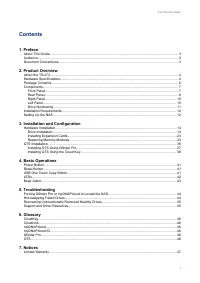
Contents 1. Preface About This Guide.......................................................................................................................................... 3Audience.......................................................................................................................
Page 4 - Symbol
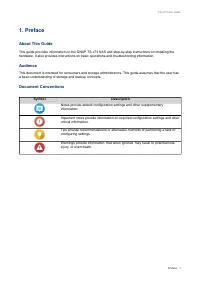
1. Preface About This Guide This guide provides information on the QNAP TS-x73 NAS and step-by-step instructions on installing thehardware. It also provides instructions on basic operations and troubleshooting information. Audience This document is intended for consumers and storage administrators. ...
Page 5 - Hardware Specifications; Important
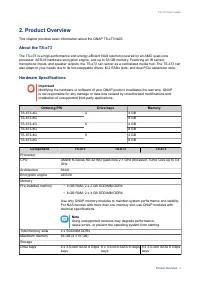
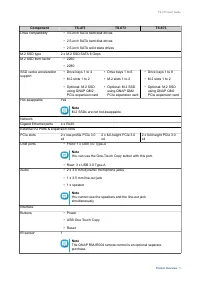
2. Product Overview This chapter provides basic information about the QNAP TS-x73 NAS. About the TS-x73 The TS-x73 is a high-performance and energy-efficient NAS solution powered by an AMD quad-coreprocessor, AES-NI hardware encryption engine, and up to 64 GB memory. Featuring an IR sensor,microphon...
Page 7 - Package Contents
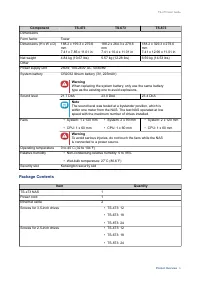
Component TS-473 TS-673 TS-873 DimensionsForm factor Tower Dimensions (H x W x D) 188.2 x 199.3 x 279.6mm7.41 x 7.85 x 11.01 in 188.2 x 264.3 x 279.6mm7.41 x 10.4 x 11.01 in 188.2 x 329.3 x 279.6mm7.41 x 12.96 x 11.01 in Net weight 4.84 kg (10.67 lbs) 5.57 kg (12.28 lbs) 6.59 kg (14.53 lbs) OtherPow...
Page 8 - Screws for M.2 solid state drives; Components
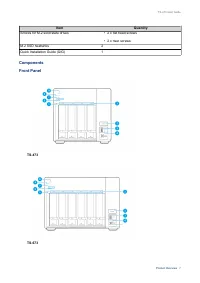
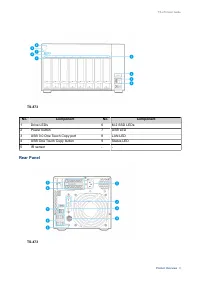
Item Quantity Screws for M.2 solid state drives • 2 x flat head screws • 2 x riser screws M.2 SSD heatsinks 2 Quick Installation Guide (QIG) 1 Components Front Panel TS-473 TS-673 TS-x73 User Guide Product Overview 7
Page 9 - Rear Panel
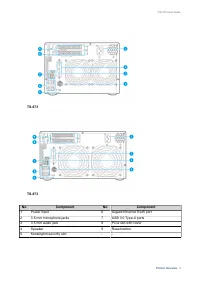
TS-873 No. Component No. Component 1 Drive LEDs 6 M.2 SSD LEDs 2 Power button 7 USB LED 3 USB 3.0 One Touch Copy port 8 LAN LED 4 USB One Touch Copy button 9 Status LED 5 IR sensor - - Rear Panel TS-473 TS-x73 User Guide Product Overview 8
Page 11 - Right Panel; Memory slot 1; Left Panel; Component
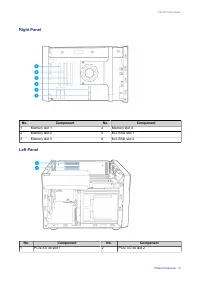
Right Panel No. Component No. Component 1 Memory slot 1 4 Memory slot 4 2 Memory slot 2 5 M.2 SSD slot 1 3 Memory slot 3 6 M.2 SSD slot 2 Left Panel No. Component No. Component 1 PCIe 3.0 x4 slot 1 2 PCIe 3.0 x4 slot 2 TS-x73 User Guide Product Overview 10
Page 12 - Drive Numbering
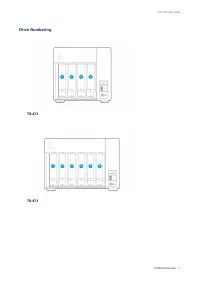
Drive Numbering TS-473 TS-673 TS-x73 User Guide Product Overview 11
Page 13 - Category; Setting Up the NAS; Installation Requirements
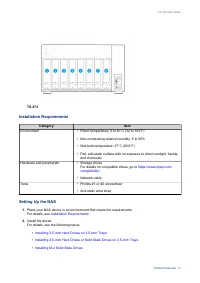
TS-873 Installation Requirements Category Item Environment • Room temperature: 0 to 40˚C (32 to 104˚F) • Non-condensing relative humidity: 5 to 95% • Wet-bulb temperature: 27˚C (80.6˚F) • Flat, anti-static surface with no exposure to direct sunlight, liquids, and chemicals Hardware and peripherals •...
Page 15 - Hardware Installation; Warning; • Installing a drive deletes all data on the drive.
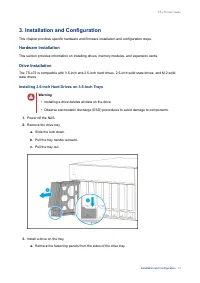
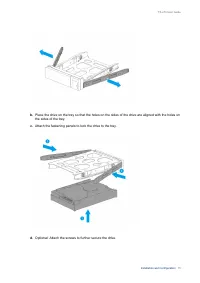
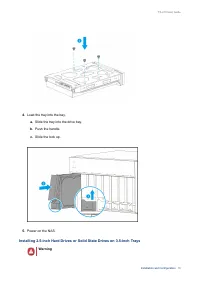
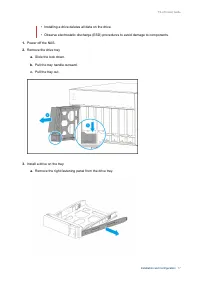
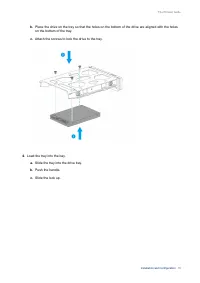
3. Installation and Configuration This chapter provides specific hardware and firmware installation and configuration steps. Hardware Installation This section provides information on installing drives, memory modules, and expansion cards. Drive Installation The TS-x73 is compatible with 3.5-inch an...
Page 20 - Installing M.2 Solid State Drives
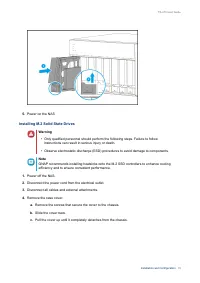
5. Power on the NAS. Installing M.2 Solid State Drives Warning • Only qualified personnel should perform the following steps. Failure to follow instructions can result in serious injury or death. • Observe electrostatic discharge (ESD) procedures to avoid damage to components. Note QNAP recommends i...
Page 21 - Note; Remove the protective film from the bottom of the heatsink.
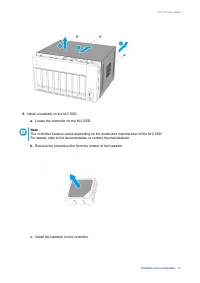
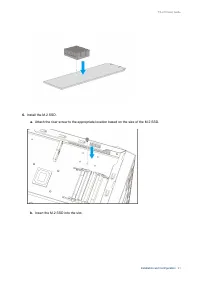
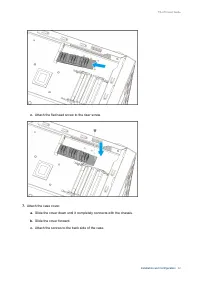
5. Install a heatsink on the M.2 SSD. a. Locate the controller on the M.2 SSD. Note The controller location varies depending on the model and manufacturer of the M.2 SSD.For details, refer to the documentation or contact the manufacturer. b. Remove the protective film from the bottom of the heatsink...
Page 24 - Installing Expansion Cards; Installing Expansion Cards on TS-473; Installing Expansion Cards on TS-673 or TS-873
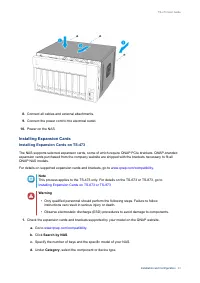
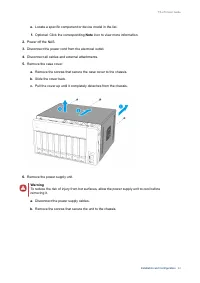
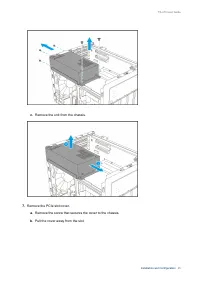
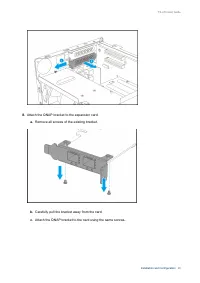
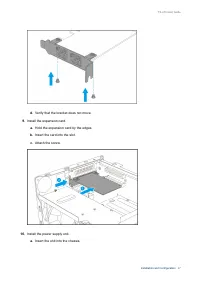
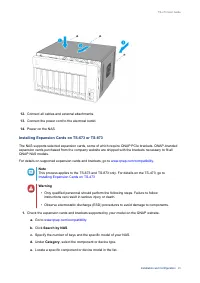
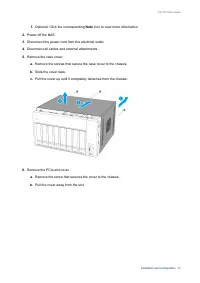
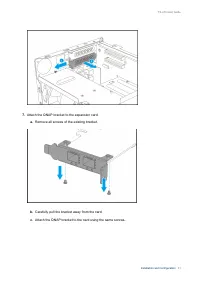
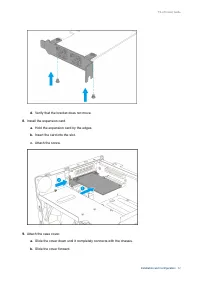
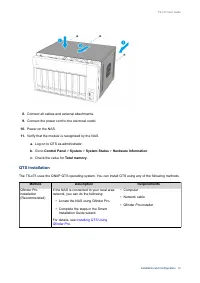
8. Connect all cables and external attachments. 9. Connect the power cord to the electrical outlet. 10. Power on the NAS. Installing Expansion Cards Installing Expansion Cards on TS-473 The NAS supports selected expansion cards, some of which require QNAP PCIe brackets. QNAP-brandedexpansion cards p...
Page 34 - Replacing Memory Modules
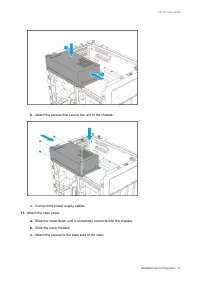
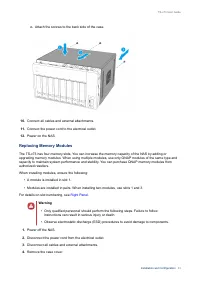
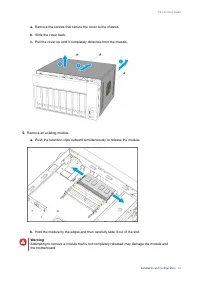
c. Attach the screws to the back side of the case. 10. Connect all cables and external attachments. 11. Connect the power cord to the electrical outlet. 12. Power on the NAS. Replacing Memory Modules The TS-x73 has four memory slots. You can increase the memory capacity of the NAS by adding orupgrad...
Page 37 - QTS Installation; Installing QTS Using
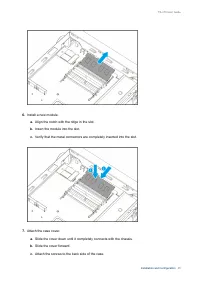
8. Connect all cables and external attachments. 9. Connect the power cord to the electrical outlet. 10. Power on the NAS. 11. Verify that the module is recognized by the NAS. a. Log on to QTS as administrator. b. Go to Control Panel > System > System Status > Hardware Information . c. Check...
Page 38 - Installing QTS Using Qfinder Pro
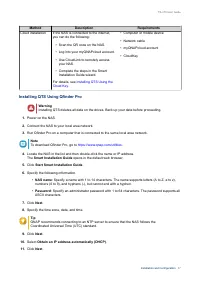
Method Description Requirements Cloud installation If the NAS is connected to the internet,you can do the following: • Scan the QR code on the NAS. • Log into your myQNAPcloud account. • Use CloudLink to remotely access your NAS. • Complete the steps in the Smart Installation Guide wizard. For detai...
Page 39 - Installing QTS Using the Cloud Key
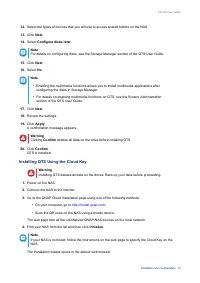
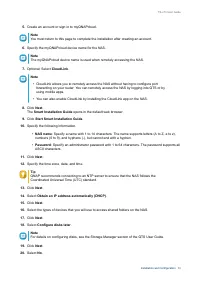
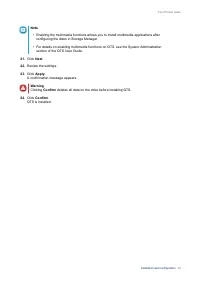
12. Select the types of devices that you will use to access shared folders on the NAS. 13. Click Next . 14. Select Configure disks later . Note For details on configuring disks, see the Storage Manager section of the QTS User Guide. 15. Click Next . 16. Select No . Note • Enabling the multimedia fun...
Page 43 - LEDs; LED
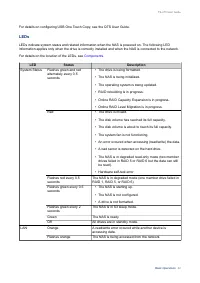
For details on configuring USB One Touch Copy, see the QTS User Guide. LEDs LEDs indicate system status and related information when the NAS is powered on. The following LEDinformation applies only when the drive is correctly installed and when the NAS is connected to the network. For details on the...
Page 44 - Beep Alarm
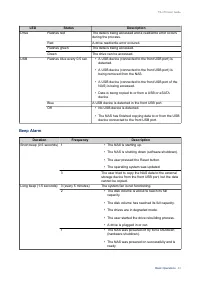
LED Status Description Drive Flashes red The data is being accessed and a read/write error occursduring the process. Red A drive read/write error occured. Flashes green The data is being accessed. Green The drive can be accessed. USB Flashes blue every 0.5 sec • A USB device (connected to the front ...
Page 45 - Rebuilding
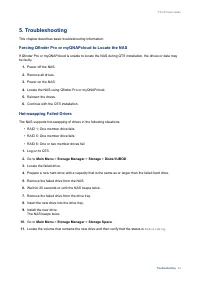
5. Troubleshooting This chapter describes basic troubleshooting information. Forcing Qfinder Pro or myQNAPcloud to Locate the NAS If Qfinder Pro or myQNAPcloud is unable to locate the NAS during QTS installation, the drives or data maybe faulty. 1. Power off the NAS. 2. Remove all drives. 3. Power o...
Page 46 - Recovering Unintentionally Removed Healthy Drives; Disk Volume; Support and Other Resources; Resource
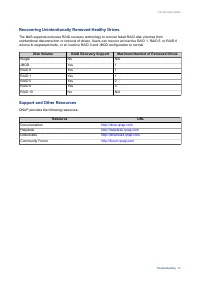
Recovering Unintentionally Removed Healthy Drives The NAS supports exclusive RAID recovery technology to recover failed RAID disk volumes fromunintentional disconnection or removal of drives. Users can recover an inactive RAID 1, RAID 5, or RAID 6volume to degraded mode, or an inactive RAID 0 and JB...
Page 48 - Limited Warranty; be amended from time to time by QNAP in its discretion.; Disclaimer; Further, the ® or TM symbols are not used in the text.; GNU Public License; Preamble
7. Notices This chapter provides information about warranty, disclaimers, licensing, and federal regulations. Limited Warranty QNAP offers limited warranty service on our products. Your QNAP-branded hardware product is warrantedagainst defects in materials and workmanship for a period of one (1) yea...
Page 49 - Terms and Conditions
Free Software Foundation, use the GNU General Public License for most of our software; it applies also toany other work released this way by its authors. You can apply it to your programs, too. When we speak of free software, we are referring to freedom, not price. Our General Public Licenses aredes...
Page 50 - Conveying Verbatim Copies.
tells the user that there is no warranty for the work (except to the extent that warranties are provided),that licensees may convey the work under this License, and how to view a copy of this License. If theinterface presents a list of user commands or options, such as a menu, a prominent item in th...
Page 56 - FCC Notice; FCC Class B Notice; CE Notice
END OF TERMS AND CONDITIONS FCC Notice FCC Class B Notice This device complies with Part 15 of the FCC Rules. Operation is subject to the following two conditions: 1. This device may not cause harmful interference. 2. This device must accept any interference received, including interference that may...