Page 2 - Contents; Installation and Configuration
Contents 1. Preface About This Guide.......................................................................................................................................... 3Audience.......................................................................................................................
Page 4 - Symbol
1. Preface About This Guide This guide provides information on the QNAP TS-351 NAS and step-by-step instructions on installing thehardware. It also provides instructions on basic operations and troubleshooting information. Audience This document is intended for consumers and storage administrators. ...
Page 5 - Hardware Specifications; Important
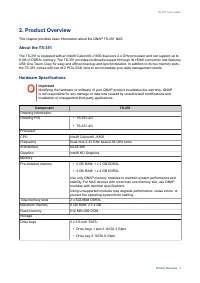
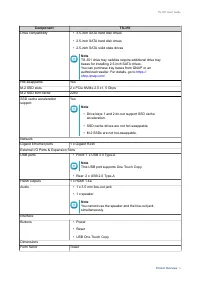
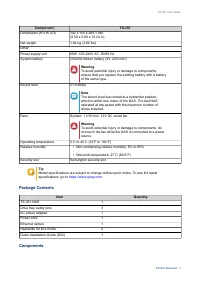
2. Product Overview This chapter provides basic information about the QNAP TS-351 NAS. About the TS-351 The TS-351 is equipped with an Intel® Celeron® J1800 dual-core 2.4 GHz processor and can support up to8 GB of DDR3L memory. The TS-351 provides multimedia support through its HDMI connection and f...
Page 8 - Front Panel; Component; Rear Panel
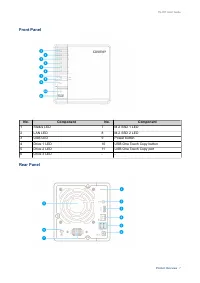
Front Panel No. Component No. Component 1 Status LED 7 M.2 SSD 1 LED 2 LAN LED 8 M.2 SSD 2 LED 3 USB LED 9 Power button 4 Drive 1 LED 10 USB One Touch Copy button 5 Drive 2 LED 11 USB One Touch Copy port 6 Drive 3 LED - - Rear Panel TS-351 User Guide Product Overview 7
Page 9 - System Board; Note
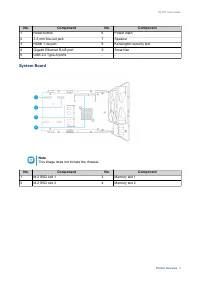
No. Component No. Component 1 Reset button 6 Power input 2 3.5 mm line-out jack 7 Speaker 3 HDMI 1.4a port 8 Kensington security slot 4 Gigabit Ethernet RJ45 port 9 Smart fan 5 USB 2.0 Type-A ports - - System Board Note This image does not include the chassis. No. Component No. Component 1 M.2 SSD s...
Page 10 - Front Drive Numbering; Category; Setting Up the NAS; Installation Requirements
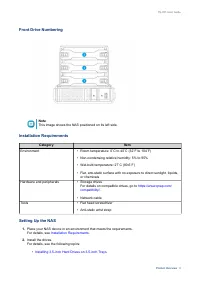
Front Drive Numbering Note This image shows the NAS positioned on its left side. Installation Requirements Category Item Environment • Room temperature: 0˚C to 40˚C (32˚F to 104˚F) • Non-condensing relative humidity: 5% to 95% • Wet-bulb temperature: 27˚C (80.6˚F) • Flat, anti-static surface with no...
Page 12 - Hardware Installation; Warning
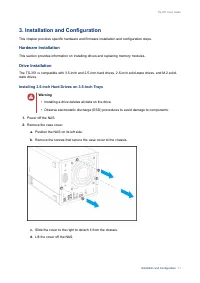
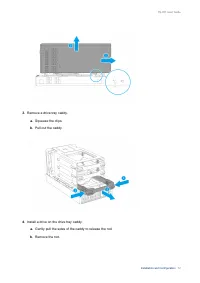
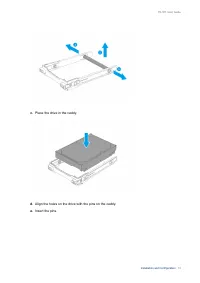
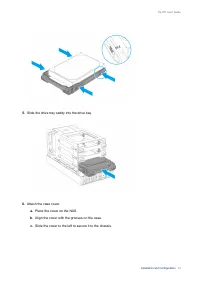
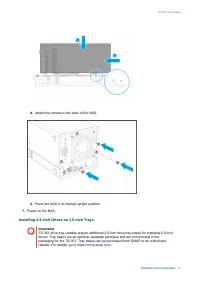
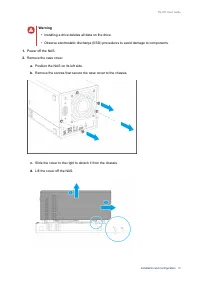
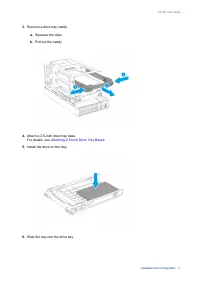
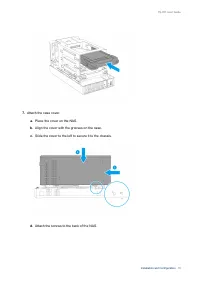
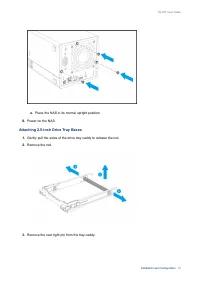
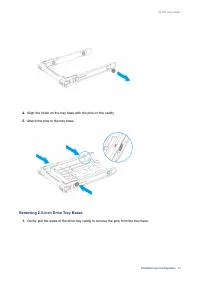
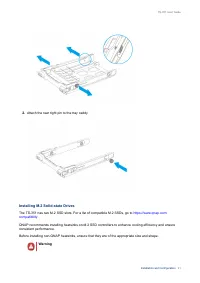
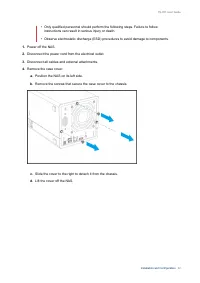
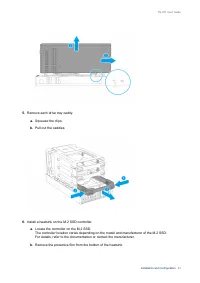
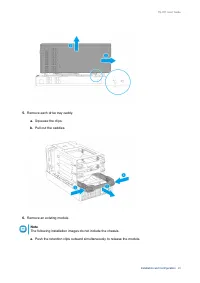
3. Installation and Configuration This chapter provides specific hardware and firmware installation and configuration steps. Hardware Installation This section provides information on installing drives and replacing memory modules. Drive Installation The TS-351 is compatible with 3.5-inch and 2.5-in...
Page 25 - Install the heatsink on the controller.; The following installation images do not include the chassis.
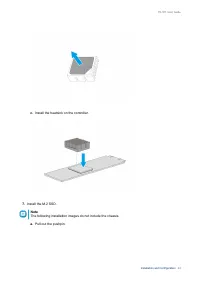
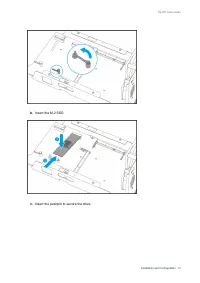
c. Install the heatsink on the controller. 7. Install the M.2 SSD. Note The following installation images do not include the chassis. a. Pull out the pushpin. TS-351 User Guide Installation and Configuration 24
Page 26 - Insert the pushpin to secure the drive.
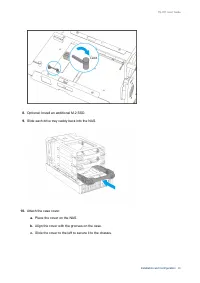
b. Insert the M.2 SSD. c. Insert the pushpin to secure the drive. TS-351 User Guide Installation and Configuration 25
Page 28 - Replacing Memory Modules
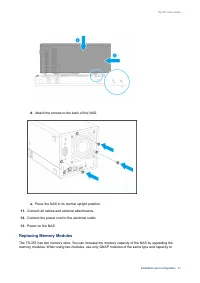
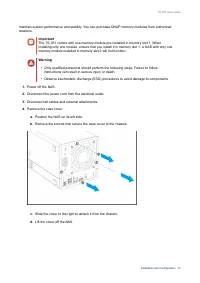
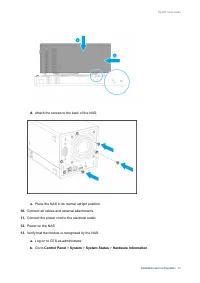
d. Attach the screws to the back of the NAS. e. Place the NAS in its normal upright position. 11. Connect all cables and external attachments. 12. Connect the power cord to the electrical outlet. 13. Power on the NAS. Replacing Memory Modules The TS-351 has two memory slots. You can increase the mem...
Page 31 - Hold the edges of the module and carefully pull it out of the slot.; • Do not touch the components, particularly the metal connectors.
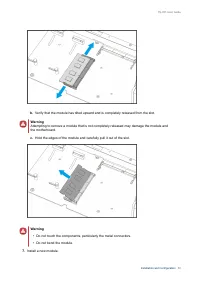
b. Verify that the module has tilted upward and is completely released from the slot. Warning Attempting to remove a module that is not completely released may damage the module andthe motherboard. c. Hold the edges of the module and carefully pull it out of the slot. Warning • Do not touch the comp...
Page 34 - Total memory; QTS Installation; Method; Installing QTS Using Qfinder Pro
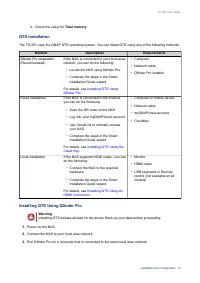
c. Check the value for Total memory . QTS Installation The TS-351 uses the QNAP QTS operating system. You can install QTS using any of the following methods. Method Description Requirements Qfinder Pro installation(Recommended) If the NAS is connected to your local areanetwork, you can do the follow...
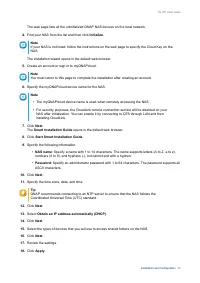
Page 35 - Installing QTS Using the Cloud Key
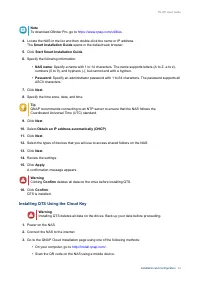
Note To download Qfinder Pro, go to https://www.qnap.com/utilities . 4. Locate the NAS in the list and then double-click the name or IP address. The Smart Installation Guide opens in the default web browser. 5. Click Start Smart Installation Guide . 6. Specify the following information. • NAS name :...
Page 37 - Installing QTS Using an HDMI Connection
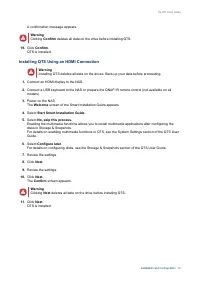
A confirmation message appears. Warning Clicking Confirm deletes all data on the drive before installing QTS. 19. Click Confirm . QTS is installed. Installing QTS Using an HDMI Connection Warning Installing QTS deletes all data on the drives. Back up your data before proceeding. 1. Connect an HDMI d...
Page 39 - LEDs; Components; LED
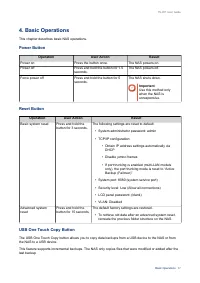
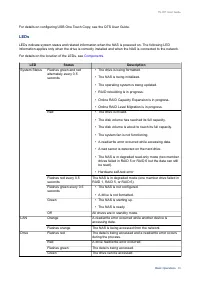
For details on configuring USB One Touch Copy, see the QTS User Guide. LEDs LEDs indicate system status and related information when the NAS is powered on. The following LEDinformation applies only when the drive is correctly installed and when the NAS is connected to the network. For details on the...
Page 40 - Beep Alarm
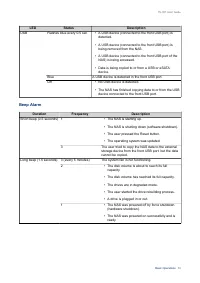
LED Status Description USB Flashes blue every 0.5 sec • A USB device (connected to the front USB port) is detected. • A USB device (connected to the front USB port) is being removed from the NAS. • A USB device (connected to the front USB port of the NAS) is being accessed. • Data is being copied to...
Page 41 - Main Menu; Rebuilding
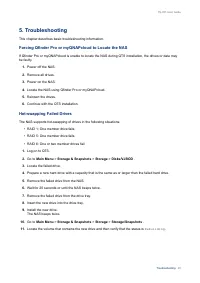
5. Troubleshooting This chapter describes basic troubleshooting information. Forcing Qfinder Pro or myQNAPcloud to Locate the NAS If Qfinder Pro or myQNAPcloud is unable to locate the NAS during QTS installation, the drives or data maybe faulty. 1. Power off the NAS. 2. Remove all drives. 3. Power o...
Page 42 - Recovering Unintentionally Removed Healthy Drives; Disk Volume; Support and Other Resources; Resource
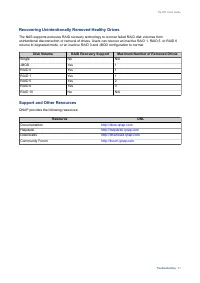
Recovering Unintentionally Removed Healthy Drives The NAS supports exclusive RAID recovery technology to recover failed RAID disk volumes fromunintentional disconnection or removal of drives. Users can recover an inactive RAID 1, RAID 5, or RAID 6volume to degraded mode, or an inactive RAID 0 and JB...
Page 44 - Limited Warranty; be amended from time to time by QNAP in its discretion.; Disclaimer; Further, the ® or TM symbols are not used in the text.; GNU Public License; Preamble
7. Notices This chapter provides information about warranty, disclaimers, licensing, and federal regulations. Limited Warranty QNAP offers limited warranty service on our products. Your QNAP-branded hardware product is warrantedagainst defects in materials and workmanship for a period of one (1) yea...
Page 45 - Terms and Conditions
Free Software Foundation, use the GNU General Public License for most of our software; it applies also toany other work released this way by its authors. You can apply it to your programs, too. When we speak of free software, we are referring to freedom, not price. Our General Public Licenses aredes...
Page 46 - Conveying Verbatim Copies.
tells the user that there is no warranty for the work (except to the extent that warranties are provided),that licensees may convey the work under this License, and how to view a copy of this License. If theinterface presents a list of user commands or options, such as a menu, a prominent item in th...
Page 52 - FCC Notice; FCC Class B Notice; CE Notice
END OF TERMS AND CONDITIONS FCC Notice FCC Class B Notice This device complies with Part 15 of the FCC Rules. Operation is subject to the following two conditions: 1. This device may not cause harmful interference. 2. This device must accept any interference received, including interference that may...