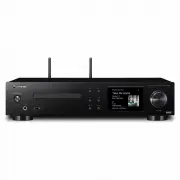
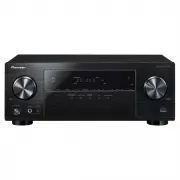
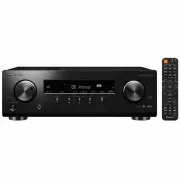
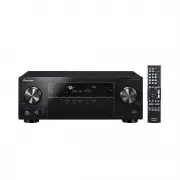
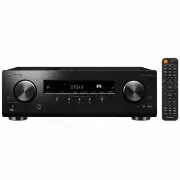
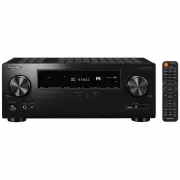
Page 3 - Front Panel
> Before Start > Part Names > Install > Initial Setup > Playback Advanced Setup | Firmware Update | Others 3 E N Front Panel Part Names 1. Í STANDBY/ON button: Turns the unit on or to standby mode. 2. Power indicator: This lights blue when the unit is on.3. Disc tray: Place discs here...
Page 4 - Rear Panel
4 > Before Start > Part Names > Install > Initial Setup > Playback Advanced Setup | Firmware Update | Others E N Rear Panel 1. AC IN: Connect the supplied power cord.2. Speaker terminals: Connect speakers with speaker cables.3. Wireless antenna: Used for Wi-Fi connection or when using...
Page 5 - Remote Controller
> Before Start > Part Names > Install > Initial Setup > Playback Advanced Setup | Firmware Update | Others 5 E N Remote Controller 1. Í STANDBY/ON button: Turns the unit on or into standby mode. 2. INPUT SELECTOR buttons: Switches the input to be played.3. Play buttons: : : Return to ...
Page 6 - Display; USB Front; Song
6 > Before Start > Part Names > Install > Initial Setup > Playback Advanced Setup | Firmware Update | Others E N Display 1. The input mode is displayed. (USB Front / USB Rear / CD / Bluetooth / Network / Digital In 1 / Digital In 2 / Line / Phono / Tuner DAB / Tuner FM) 2. The name of...
Page 7 - Connect the Speakers
7 > Before Start > Part Names > Install > Initial Setup > Playback Advanced Setup | Firmware Update | Others E N Connect the Speakers Install 1 2 3 a a Use the illustration as a reference to connect your own speakers.After inserting the speaker cables, tighten the terminals firmly by ...
Page 8 - Connecting the antennas and power cord, etc.; Antenna Hookup
8 > Before Start > Part Names > Install > Initial Setup > Playback Advanced Setup | Firmware Update | Others E N Connecting the antennas and power cord, etc. a a b b 1 2 Antenna Hookup Move the antenna around while playing the radio to find the position with the best reception. Power ...
Page 9 - Power On & Initial Setup; BLUE BLINKING; Wi-Fi connection settings
9 > Before Start > Part Names > Install > Initial Setup > Playback Advanced Setup | Firmware Update | Others E N Power On & Initial Setup Initial Setup 1 3 2 BLUE BLINKING Starting up: When you press Í STANDBY/ON, the power indicator on the main unit slowly blinks blue, then "...
Page 12 - Playing CDs; Playing music CDs
12 > Before Start > Part Names > Install > Initial Setup > Playback Advanced Setup | Firmware Update | Others E N Playing CDs Playback a 1 2 b c This unit can also play CD-R recorded with MP3 or WMA format files, along with commercially available music CDs. 0 The supported sampling ra...
Page 13 - Playing MP3/WMA discs; Repeat play/Shuffle play
13 > Before Start > Part Names > Install > Initial Setup > Playback Advanced Setup | Firmware Update | Others E N Playing MP3/WMA discs 1. Turn the unit on.2. Press CD to change input to CD.3. Press < on the main unit to open the disc tray. 4. Put the disc on the tray, then press &...
Page 14 - USB Storage Device/HDD; Basic operations
14 > Before Start > Part Names > Install > Initial Setup > Playback Advanced Setup | Firmware Update | Others E N USB Storage Device/HDD a c d 2 1 b e Basic operations You can play music files by connecting a USB storage device or HDD (hard disk drive) to the USB port on the front or ...
Page 15 - USB Storage / HDD Device Requirements
15 > Before Start > Part Names > Install > Initial Setup > Playback Advanced Setup | Firmware Update | Others E N DSD (DSF only) format music files. The formats for embedded images are JPEG and PNG. 0 Characters that cannot be displayed by this unit appear as " ¢ ". 0 The USB ...
Page 16 - Internet Radio
16 > Before Start > Part Names > Install > Initial Setup > Playback Advanced Setup | Firmware Update | Others E N Internet Radio Basic operations When this unit is connected to a network, you can listen to TuneIn or other preregistered Internet radio services.Depending on the internet...
Page 17 - Spotify; Pioneer NC-50DAB xxxxxx; Basic Operation
17 > Before Start > Part Names > Install > Initial Setup > Playback Advanced Setup | Firmware Update | Others E N Spotify Wi-Fi Pioneer NC-50DAB xxxxxx b a c d 1 4 3 2 Basic Operation Spotify Connect play is possible by connecting this unit to the same network as a smart phone or tabl...
Page 18 - Listening to the FM Radio; Tuning Automatically; Tuning Manually
18 > Before Start > Part Names > Install > Initial Setup > Playback Advanced Setup | Firmware Update | Others E N Listening to the FM Radio Tuning Automatically 1. Turn the unit on.2. Repeatedly press TUNER to switch input to Tuner FM. 3. When you press TUNE i / j (b) on the remote co...
Page 19 - Using RDS
19 > Before Start > Part Names > Install > Initial Setup > Playback Advanced Setup | Firmware Update | Others E N Selecting registered stations 1. Repeatedly press TUNER to switch input to Tuner FM.2. Press PRESET i / j (a) on the remote controller to select a preset number. To delete...
Page 20 - Listening to DAB Digital Radio; Tuning; Changing the order stations are displayed; Displaying DAB Radio Information
20 > Before Start > Part Names > Install > Initial Setup > Playback Advanced Setup | Firmware Update | Others E N Listening to DAB Digital Radio Tuning 1. Turn the unit on.2. Repeatedly press TUNER to switch input to Tuner DAB. 0 The very first time you select Tuner DAB, the Auto Tuni...
Page 21 - BLUETOOTH; Pairing; Playing Back
21 > Before Start > Part Names > Install > Initial Setup > Playback Advanced Setup | Firmware Update | Others E N BLUETOOTH ® 1 2 Pioneer NC-50DAB xxxxxx 1 2 Pioneer NC-50DAB xxxxxx Playing Back Pairing Pairing 1. Turn the unit on.2. When you press the button on the remote controller,...
Page 23 - AirPlay; iPhone
23 > Before Start > Part Names > Install > Initial Setup > Playback Advanced Setup | Firmware Update | Others E N AirPlay ® 1 Wi-Fi 3 Pioneer NC-50DAB iPhone 2 4 Basic Operation You can wirelessly enjoy the music files on an iPhone ® , iPod touch ® , or iPad ® connected to the same a...
Page 24 - Playing audio from a turntable; Connections
24 > Before Start > Part Names > Install > Initial Setup > Playback Advanced Setup | Firmware Update | Others E N Playing audio from a turntable Connections You can play the audio from turntables with MM cartridges through this unit. Connect a turntable to the PHONO (MM) IN jacks on t...
Page 25 - Playing audio from other external device
25 > Before Start > Part Names > Install > Initial Setup > Playback Advanced Setup | Firmware Update | Others E N Playing audio from other external device a b c 1 2 Connections You can play the audio from external devices such as TVs and game consoles through this unit. Connect as fol...
Page 27 - Music Server; Configuring Windows Media; Windows Media; Playing
27 > Before Start > Part Names > Install > Initial Setup > Playback Advanced Setup | Firmware Update | Others E N Music Server It is possible to stream music files stored on PCs or NAS devices connected to the same network as this unit. The network servers this unit is compatible with...
Page 28 - Supported Audio Formats
28 > Before Start > Part Names > Install > Initial Setup > Playback Advanced Setup | Firmware Update | Others E N You can use this unit to play music files stored on your PC by operating the PC inside your home network. The unit supports remote playback with Windows Media ® Player 12....
Page 29 - Entering text
29 > Before Start > Part Names > Install > Initial Setup > Playback Advanced Setup | Firmware Update | Others E N Entering text, adjusting sound quality, etc. Entering text Text entry, for passwords, etc., uses the following remote controller buttons. SHUFFLE/REPEAT button (a): Each p...
Page 30 - Advanced Settings; Connection
30 > Before Start > Part Names > Install > Initial Setup > Playback Advanced Setup | Firmware Update | Others E N Advanced Settings Advanced Setup The unit allows you to configure advanced settings to provide you with an even better experience.1. Press SETUP on the remote controller. ...
Page 31 - Option Setting
> Before Start > Part Names > Install > Initial Setup > Playback Advanced Setup | Firmware Update | Others 31 E N Make Wi-Fi connection settings. ( Ä P9) This can be set only when "Wi-Fi" is selected in "Connection". 0 You can make Wi-Fi connection settings using a web...
Page 32 - Tuner Setting; System Info
32 > Before Start > Part Names > Install > Initial Setup > Playback Advanced Setup | Firmware Update | Others E N Select the language displayed on the display.English (Default Value), German, French, Spanish, Italian, Dutch, Swedish, Russian, Chinese ■ Tuner Setting ■ Bluetooth Settin...
Page 33 - Factory Reset; via Network; Web Setup
> Before Start > Part Names > Install > Initial Setup > Playback Advanced Setup | Firmware Update | Others 33 E N Factory Reset Reset the settings of this unit to the status at the time of shipment. We recommend that you take a note of the settings you have changed before going ahead ...
Page 34 - The updating function on this unit; Update
34 > Before Start > Part Names > Install > Initial Setup > Playback Advanced Setup | Firmware Update | Others E N Firmware Update Firmware Update The updating function on this unit This unit has functionality to update the firmware (the system software) over a network or by the USB po...
Page 35 - Updating via USB
35 > Before Start > Part Names > Install > Initial Setup > Playback Advanced Setup | Firmware Update | Others E N 0 * -01, * -10: Ethernet cable not found. Connect the Ethernet cable properly. 0 * -02, * -03, * -04, * -05, * -06, * -11, * -13, * -14, * - 16, * -17, * -18, * -20, * -21...
Page 36 - Troubleshooting; Before starting the procedure; There is no audio from external devices
36 > Before Start > Part Names > Install > Initial Setup > Playback Advanced Setup | Firmware Update | Others E N Troubleshooting Others Before starting the procedure When operation is unstable, problems may be solved by simply turning the power on or to standby or disconnecting/conne...
Page 37 - Cannot play discs
37 > Before Start > Part Names > Install > Initial Setup > Playback Advanced Setup | Firmware Update | Others E N Cannot play discs 0 Place the disc in the disc tray so the label is facing up. 0 Play may not be possible if the disc is scratched or dirty. Cannot Play USB storage de...
Page 39 - General Specifications
39 > Before Start > Part Names > Install > Initial Setup > Playback Advanced Setup | Firmware Update | Others E N General Specifications Analog Audio Output Section RMS Output Power 0 50 W + 50 W (4 ohms, 1 kHz THD 10%) THD+N 0 0.02% (1 kHz, half power, 4 ohms) Input Sensitivity and...
Page 41 - License and Trademark Information; BLACKFIRE
41 > Before Start > Part Names > Install > Initial Setup > Playback Advanced Setup | Firmware Update | Others E N License and Trademark Information The Wi-Fi CERTIFIED Logo is a certification mark of Wi-Fi Alliance ® . AirPlay, iPad, iPhone, and iPod touch are trademarks of Apple Inc....