Page 3 - For Using Your Camera Safely; Warning; About the Camera
1 To users of this camera • Do not use or store this camera in the vicinity of equipment that generates strong electromagnetic radiation or magnetic fields. Strong static charges or the magnetic fields produced by equipment such as radio transmitters could interfere with the monitor, damage the stor...
Page 4 - Caution; About the Battery Charger and AC Adapter
2 • If any irregularities occur during use, such as smoke or a strange odor, stop use immediately, remove the battery or the AC adapter, and contact your nearest PENTAX Service Center. Continued use can cause a fire or electrical shock. Caution • Do not place your finger over the flash when discharg...
Page 5 - About the Rechargeable Lithium-ion Battery
3 • Do not touch or short-circuit the terminal area of the AC plug cord while the cord is plugged in. • Do not handle the power plug with wet hands. This can cause an electric shock.• Do not drop the product, or subject it to violent impact. This can cause the product breakdown. • Do not use the bat...
Page 6 - Care to be Taken During Handling; Before Using Your Camera
4 • The batteries should be inserted correctly, observing (+) and (-) marks on the batteries. Inserting the batteries incorrectly may cause an explosion or fire. • When replacing the batteries, do not combine different brands, types or capacities. Also, do not combine old batteries with new ones. In...
Page 7 - About the Battery and Charger
5 • To keep the battery in optimum condition, avoid storing it in a fully charged state or in high temperatures. • If the battery is left inserted and the camera is not used for a long time, the battery will over-discharge and shorten the battery’s life. • Charging the battery a day before use or on...
Page 8 - About SD Memory Cards
6 • Avoid using or storing the camera where it may be exposed to static electricity or electrical interference. • Avoid using or storing the camera in direct sunlight or in locations where it may be exposed to rapid changes in temperature or to condensation. • The SD Memory Card is equipped with a w...
Page 10 - Memo
Page 13 - Shooting Settings
11 Using the Shake Reduction Function to Prevent Camera Shake ...........................................................................................116 Taking Pictures Using the Shake Reduction Function ..................... 116Shooting with the Self-timer .........................................
Page 14 - Playback Functions and Image Editing
12 Saving Frequently Used Settings .............................................170 Saving the Settings .......................................................................... 170Checking the Saved USER Settings ................................................ 173Using Saved USER Settings...........
Page 17 - This Operating Manual contains the following chapters.; Composition of the Operating Manual
15 This Operating Manual contains the following chapters. Composition of the Operating Manual 1 Before Using Your Camera Explains the provided accessories and the names and functions of the working parts. 2 Getting Started Explains your first steps from purchasing the camera to taking pictures. Be s...
Page 18 - The symbols used in this Operating Manual are explained below.
16 The symbols used in this Operating Manual are explained below. In this manual, the arrow keys of the four-way controller are referred to in the following way. 1 Indicates reference page numbers explaining a related operation. Indicates useful information. Indicates precautions to take when operat...
Page 20 - Checking the Contents of the
18 Before Using Your Camera 1 Checking the Contents of the Package The following accessories are packaged with the camera. Check that all accessories are included. Hot shoe cover F K (installed on camera) Eyecup F R (installed on camera) Body mount cover (installed on camera) Strap O-ST132 Rechargea...
Page 21 - Names and Functions of the Working
19 Before Using Your Camera 1 Names and Functions of the Working Parts * In the second illustration, the camera is shown with the Hot shoe cover F K and the Eyecup F R removed. If the terminal covers and the connection cable cover are not closed correctly, the dust-proof and water-resistant qualitie...
Page 22 - Capture Mode; button; Shutter release button
20 Before Using Your Camera 1 Here, you can learn which parts are used and how they function when in capture mode. Capture Mode The factory default setting of each part is explained here, but some parts have multiple functions and work differently depending on the selected setting. 1 m (EV Compensat...
Page 24 - Playback Mode
22 Before Using Your Camera 1 Here, you can learn which parts are used and how they function when in playback mode. g Four-way controller ( 2345 ) Displays the Sensitivity/White Balance/Flash Mode/Drive Mode setup menu. (p.76)When the control panel or a menu screen is displayed, use this to move the...
Page 26 - Monitor Display
24 Before Using Your Camera 1 Various information appears on the monitor depending on the status of the camera. With this camera, you can take pictures while looking through the viewfinder or while viewing the image on the monitor. When using the viewfinder, check the status screen displayed on the ...
Page 27 - Status screen
Before Using Your Camera 1 25 Status screen The settings for shooting with the viewfinder are displayed. (All items are displayed here for explanatory purposes. The actual display may differ.) * Indicator 3 appears only when the optional GPS unit is attached to the camera and is operating. (p.269)...
Page 28 - Live View
26 Before Using Your Camera 1 Live View Live View is displayed when the U / i button is pressed. You can capture images while checking the composition on the monitor. (All items are displayed here for explanatory purposes. The actual display may differ.) * Indicator 11 appears only when the option...
Page 30 - Control panel; Still picture capture mode; mode
28 Before Using Your Camera 1 Control panel Press the M button in standby mode to display the control panel and change settings. (p.39) Still picture capture mode 1 Function name 14 JPEG Recorded Pixels (p.143)/Movie Recorded Pixels (p.131) 2 Setting 3 Custom Image (p.157)/ H mode (p.84) 15 JPEG Q...
Page 31 - Shooting Info Display
Before Using Your Camera 1 29 Shooting Info Display If you press the M button while the control panel is displayed, you can select the type of information displayed in standby mode for when shooting with the viewfinder. Use the four-way controller ( 2345 ) to select a display type and press the 4 ...
Page 33 - Detailed Information Display; Still picture
Before Using Your Camera 1 31 Detailed Information Display Use the four-way controller ( 23 ) to switch between pages. (All items are displayed here for explanatory purposes. The actual display may differ.) Page 1 1 Rotation information (p.185) 7 Folder number-File number 2 Captured image 8 Drive ...
Page 35 - Histogram Display/RGB Histogram Display; Using the Histogram
Before Using Your Camera 1 33 Histogram Display/RGB Histogram Display Use the four-way controller ( 23 ) to switch between the Histogram Display and RGB Histogram Display. * Indicator 4 appears only when the file format of the last captured image is JPEG, and the image can also be saved in RAW for...
Page 36 - Guide Indicators
34 Before Using Your Camera 1 When the image is underexposed, the part to the left is cut off (underexposed portions with no detail) and when the image is overexposed, the part to the right is cut off (overexposed portions with no detail). You can set whether to display the bright/dark area warning ...
Page 37 - Viewfinder
Before Using Your Camera 1 35 When shooting with the viewfinder, the following information appears in the viewfinder. Viewfinder 1 AF frame 2 Spot metering frame (p.97) 3 AF point (p.104) The AF point in use for autofocus appears in red (Superimpose AF Area) when the shutter release button is presse...
Page 39 - Electronic Level Display
Before Using Your Camera 1 37 Electronic Level Display When the camera is not level, a bar scale indicating the horizontal camera angle is displayed in the EV bar scale, if [Electronic Level] of the [ A Rec. Mode 3] menu is activated. This is not active by default. (p.212) When level (at 0°) When ...
Page 40 - How to Change Function Settings; to select a flash mode.; Using the Direct Keys
38 Before Using Your Camera 1 How to Change Function Settings Function settings can be changed using the direct keys, control panel or menus. This section explains the basic ways to change function settings. In standby mode, you can set Sensitivity, White Balance, Flash Mode and Drive Mode by pressi...
Page 41 - ) to select the item you; Using the Control Panel
Before Using Your Camera 1 39 In standby mode, you can switch to the control panel and change settings. Below, how to set [JPEG Quality] is explained as an example. 1 Press the M button in standby mode. The control panel appears. 2 Use the four-way controller ( 2345 ) to select the item you want to ...
Page 42 - This section explains how to use the following menus: [; Using the Menus
40 Before Using Your Camera 1 5 Press the 4 button. The camera returns to the control panel. Next, set other items. 6 Press the 3 button or the shutter release button halfway. The camera is ready to take a picture. This section explains how to use the following menus: [ A Rec. Mode], [ C Movie], [ Q...
Page 43 - to select a setting.
Before Using Your Camera 1 41 2 Press the four-way controller ( 5 ) twice. Each time the four-way controller ( 5 ) is pressed, the menu will change in the following sequence: [ A Rec. Mode 2], [ A Rec. Mode 3], [ A Rec. Mode 4], [ C Movie 1] ... [ A Rec. Mode 1]. You can also change the menu by turn...
Page 45 - Getting Started
2 Getting Started This chapter explains your first steps from purchasing the camera to taking pictures. Be sure to read this and follow the instructions. Attaching the Strap .............................................. 44Inserting the Battery ............................................ 45Insertin...
Page 46 - Attaching the Strap
44 Getting Started 2 Attaching the Strap 1 Pass the end of the strap through the strap lug, then secure it on the inside of the clasp. 2 Attach the other end of the strap in the same manner as described above.
Page 47 - Inserting the Battery; The following power supplies can be used with the camera.; Connect the AC plug cord to the battery charger.; Using the Lithium-ion Battery; Charging the Battery
45 Getting Started 2 Inserting the Battery The following power supplies can be used with the camera. • Rechargeable Lithium-ion Battery D-LI109 (provided)• AA Battery Holder D-BH109 with four AA batteries (optional)• AC Adapter Kit K-AC128 (optional) Use the battery charger D-BC109 and the rechargea...
Page 48 - Face the
46 Getting Started 2 3 Face the 2 mark on the battery up, and insert the battery into the battery charger. First, insert the battery at an angle, as shown in the illustration, and then push down on the battery until it clicks. The indicator lamp lights up when charging and turns off when the battery...
Page 49 - With the
47 Getting Started 2 1 Slide the battery cover unlock switch in the direction of the arrow ( 1 ), and open the battery cover ( 2 ). 2 With the 2 mark facing towards outside of the camera, push the battery in until it locks into place. To remove the battery, push the battery lock switch in the direct...
Page 50 - Close the battery cover.; Using the AA Batteries
48 Getting Started 2 3 Close the battery cover. The battery cover is locked. When using AA batteries, be sure to use the optional AA Battery Holder D-BH109.Use four AA lithium batteries, AA Ni-MH rechargeable batteries, or AA alkaline batteries. 1 Insert the AA batteries according to the +/- indicat...
Page 51 - Open the battery cover.; You can confirm remaining battery level by checking the; Battery Level Indicator
49 Getting Started 2 2 Open the battery cover. Refer to Step 1 on p.47. Remove the battery if it is inserted in the camera. 3 Insert the battery holder into the battery chamber until it locks into place, and close the battery cover. You can confirm remaining battery level by checking the w displayed...
Page 52 - Make sure that the camera is turned off.; Using the AC Adapter
50 Getting Started 2 We recommend the use of the optional AC adapter kit K-AC128 when using the monitor for a long time or when connecting the camera to a computer or AV device. 1 Make sure that the camera is turned off. 2 Open the battery cover. Refer to Step 1 on p.47. Remove the battery if it is ...
Page 53 - Connect the DC coupler and the AC adapter.
51 Getting Started 2 5 Connect the DC coupler and the AC adapter. 6 Connect the AC adapter to the AC plug cord. 7 Plug the AC plug cord into the power outlet. • Make sure the camera is turned off before connecting or disconnecting the AC adapter. • Make sure connections are secure between the termin...
Page 54 - Inserting/Removing an SD Memory
52 Getting Started 2 Inserting/Removing an SD Memory Card This camera uses a commercially available SD Memory Card, SDHC Memory Card, or SDXC Memory Card. Make sure the camera is turned off before inserting or removing the SD Memory Card. 1 Make sure that the camera is turned off. 2 Slide the card c...
Page 55 - Close the card cover (
53 Getting Started 2 Push the SD Memory Card in once to remove. 4 Close the card cover ( 3 ), and then slide it in the direction of the arrow ( 4 ). Be sure to fully close the card cover. The camera will not turn on if the card cover is open. For details on the approximate number of still pictures a...
Page 56 - Attaching a Lens; position
54 Getting Started 2 Attaching a Lens Attach a proper lens to the camera body. When you use one of the following lenses with this camera, all the camera’s capture modes are available. (a) DA, DA L, D FA, FA J lenses(b) Lenses with an s (Auto) position; when used in the s position 1 Make sure that th...
Page 57 - ) on the camera and the; To remove the lens
55 Getting Started 2 3 Align the lens mount index (red dots: 3 ) on the camera and the lens, and secure by turning the lens clockwise until it clicks. After attaching, turn the lens counterclockwise to make sure that the lens is locked in place. 4 Remove the front lens cap by pushing the indicated p...
Page 58 - Adjusting the Viewfinder Diopter; is attached to the viewfinder portion when the camera
56 Getting Started 2 Adjusting the Viewfinder Diopter You can adjust the viewfinder diopter to suit your eyesight. The Eyecup F R is attached to the viewfinder portion when the camera leaves the factory. The diopter can be adjusted with the eyecup attached. However, adjustment is easier with the eye...
Page 59 - Turning the Camera On and Off
57 Getting Started 2 Turning the Camera On and Off 1 Turn the main switch to [ON]. The camera turns on.Set the main switch to the position [OFF] to turn off the camera. • Always turn the camera off when not in use. • The power will automatically turn off when you do not perform any operations within...
Page 60 - Initial Settings; The first time the camera is turned on, the [; ) to select the desired; ) to move the frame to; Setting the Display Language
58 Getting Started 2 Initial Settings The first time the camera is turned on, the [ Language/ u ] screen appears on the monitor. Follow the procedure below to set the language displayed on the monitor and the current date and time. If the [Date Adjustment] screen appears, proceed to “Setting the Dat...
Page 62 - ) to select the date; Setting the Date and Time
60 Getting Started 2 Set the current date and time and the display style. 1 Press the four-way controller ( 5 ), and use the four-way controller ( 23 ) to select the date format. Choose [mm/dd/yy], [dd/mm/yy] or [yy/mm/dd]. 2 Press the four-way controller ( 5 ), and use the four-way controller ( 23 ...
Page 65 - Basic Operations
3 Basic Operations This chapter explains basic operations for shooting by setting the mode dial to n (Auto Picture) to have the camera select the optimum settings based on the subject. For information about advanced functions and settings for taking pictures, refer to chapter 4 and onward. Basic Sho...
Page 66 - Basic Shooting Operation; Set the mode dial to; Letting the Camera Choose the Optimal; Taking Pictures Using the Viewfinder
64 Basic Operations 3 Basic Shooting Operation This camera features various capture modes, focus modes, and drive modes. This section explains how to take pictures by simply pressing the shutter release button. You can take pictures while looking through the viewfinder or while viewing the image on ...
Page 67 - Set the focus mode switch to
65 Basic Operations 3 2 Set the focus mode switch to l . In n mode, the focus mode changes to f (Autofocus/Auto) mode. 1 Setting the Focus Mode (p.101) 3 Look through the viewfinder to view the subject. When using a zoom lens, turn the zoom ring to the right or left to change the angle of view. 4 Po...
Page 68 - Press the shutter release button fully.; Available operations
66 Basic Operations 3 5 Press the shutter release button fully. The picture is taken. This action is referred to as “releasing the shutter” or “release”. 6 Review the captured image on the monitor. The image appears for 1 second on the monitor shortly after it is captured (Instant Review). The follo...
Page 69 - Taking Pictures Using Live View
67 Basic Operations 3 1 Press the U / i button in Step 3 on p.65. The Live View image is displayed on the monitor. 2 Position the subject inside the AF frame on the monitor, and press the shutter release button halfway. The autofocus system operates. The AF frame turns green when focused. Subsequent...
Page 70 - Using the Built-in Flash; Setting the Flash Mode
68 Basic Operations 3 Using the Built-in Flash Use a flash to take pictures in low light or backlit conditions. The built-in flash is optimum for a subject at a distance from approx. 0.7 m to 5 m. Vignetting (darkening of the corners of the image due to a lack of light) may occur when used at a dist...
Page 72 - Compensating Flash Output
70 Basic Operations 3 You can adjust the flash output in a range of -2.0 to +1.0. The following flash compensation values can be set according to the step interval set in [1. EV Steps] of the [ A Custom Setting 1] menu. 1 Press the four-way controller ( 3 ) in Step 2 on p.69. 2 Turn the rear e-dial ...
Page 74 - Reviewing Images; You can play back captured images with the camera.; Playing Back Images
72 Basic Operations 3 Reviewing Images You can play back captured images with the camera. 1 Press the Q button. The camera switches to the single image display of playback mode and the most recently captured image (for movies, only the first frame) is displayed on the monitor. 2 Review the captured ...
Page 75 - Deleting a Single Image
73 Basic Operations 3 You can delete images one by one. 1 Press the Q button, and display an image to delete. 2 Press the U / i button. The delete confirmation screen appears. 3 Press the four-way controller ( 2 ) to select [Delete], and press the 4 button. The image is deleted. Deleting a Single Im...
Page 77 - Shooting Functions
4 Shooting Functions This chapter describes the various basic and advanced shooting functions available with this camera. How to Operate the Shooting Functions ........... 76Selecting the Appropriate Capture Mode .......... 82Setting the Exposure ........................................... 87Focusin...
Page 78 - How to Operate the Shooting; standby mode to set the following items.; Direct Keys Setting Items
76 Shooting Functions 4 How to Operate the Shooting Functions You can change capture-related settings using the direct keys, control panel, [ A Rec. Mode] menu, [ C Movie] menu or [ A Custom Setting] menu. Press the four-way controller ( 2345 ) in standby mode to set the following items. For details...
Page 81 - Movie Menu Items
79 Shooting Functions 4 The following items are available in the [ C Movie 1] menu. Press the 3 button when the mode dial is set to C to display the [ C Movie 1] menu. *1 Can also be set through the control panel. Movie Menu Items Menu Item Function Page C 1 Exposure Setting *1 Selects the movie exp...
Page 82 - Custom Setting Menu Items
80 Shooting Functions 4 The following items of the [ A Custom Setting 1-4] menus enable you to make the best use of the camera. Custom Setting Menu Items Menu Item Function Page A 1 1. EV Steps Sets the adjustment steps for exposure. p.92 2. Sensitivity Steps Sets the adjustment steps for ISO sensit...
Page 84 - Selecting the Appropriate Capture
82 Shooting Functions 4 Selecting the Appropriate Capture Mode This camera features various capture modes, enabling you to take pictures with settings suited for your photographic vision. In this manual, the capture modes are referred to as follows. 1 Turn the mode dial to set the desired capture mo...
Page 85 - Auto Picture Modes
83 Shooting Functions 4 The selected capture mode is displayed for 3 seconds on the monitor (guide display). When set to n (Auto Picture) mode, the camera automatically selects the optimal mode from the following capture modes for the subject. You can set the camera to not display the guides in [LCD...
Page 86 - Scene Modes
84 Shooting Functions 4 When set to H (Scene) mode, you can choose from the following shooting scenes. Scene Modes Mode Characteristics c Portrait For capturing portraits. Reproduces a healthy and bright skin tone. s Landscape For capturing landscape views. Increases color saturation and produces a ...
Page 87 - Selecting a Scene Mode
85 Shooting Functions 4 1 Set the mode dial to H . The camera switches to the H mode status screen. 2 Press the M button. The icon for the currently selected capture mode appears in the control panel. 3 Use the four-way controller ( 2345 ) to select [Scene Mode], and press the 4 button. The Scene Mo...
Page 88 - Exposure Modes
86 Shooting Functions 4 4 Use the four-way controller ( 2345 ) or rear e-dial ( S ) to choose a scene mode, and press the 4 button. The camera returns to the control panel and is ready to take a picture. Use the following exposure modes to change the shutter speed and aperture value. When the 3 butt...
Page 89 - Setting the Exposure; Setting the Sensitivity
87 Shooting Functions 4 Setting the Exposure You can set the sensitivity to suit the brightness of the surroundings. The sensitivity can be set to [ISO AUTO] or within a sensitivity range equivalent to ISO 100 to 51200. The default setting is [ISO AUTO]. 1 Press the four-way controller ( 2 ) in stan...
Page 91 - Changing the Exposure Mode
89 Shooting Functions 4 This camera features the following exposure modes. The settings available for each exposure mode are as follows. z : Available #: Restricted ×: Not available *1 In [E-Dial Programming] of the [ A Rec. Mode 4] menu, you can make the setting so that the shutter speed and/or ape...
Page 94 - Adjusting the Exposure
92 Shooting Functions 4 This allows you to deliberately overexpose (brighten) or underexpose (darken) your picture.The compensation value can be set between -5 and +5 EV (-2 and +2 EV in C mode). The value that can be set varies according to the step interval set in [1. EV Steps] of the [ A Custom S...
Page 98 - Set the exposure, and press the; Locking the Exposure Before Shooting (AE
96 Shooting Functions 4 AE Lock is a function that locks the exposure (brightness) prior to taking a picture. Use this when the subject is too small to obtain a proper exposure or is backlit. 1 Assign [AE Lock] to the = / L button. Refer to “Setting the = / L Button Operation” (p.169) for details. 2...
Page 99 - Selecting the Metering Method
97 Shooting Functions 4 Choose the part of the sensor to use for measuring brightness and determining exposure. 1 Press the M button in standby mode. The control panel appears. 2 Use the four-way controller ( 2345 ) to select [AE Metering], and press the 4 button. The [AE Metering] screen appears. 3...
Page 100 - Reducing the Image Noise (Noise Reduction)
98 Shooting Functions 4 When shooting with a digital camera, image noise (image roughness or unevenness) becomes noticeable in the following situations. • when shooting with a high sensitivity setting• when shooting with long exposures• when the temperature of the CMOS sensor is high You can reduce ...
Page 102 - to select a setting, and press the
100 Shooting Functions 4 Reduces noise during long exposures. 1 Select [Slow Shutter Speed NR] in the [ A Rec. Mode 3] menu, and press the four-way controller ( 5 ). 2 Use the four-way controller ( 23 ) to select a setting, and press the 4 button. 3 Press the 3 button. The camera is ready to take a ...
Page 103 - Focusing; Setting the Focus Mode
101 Shooting Functions 4 Focusing Set the focus mode switch to l , A , or \ . The autofocus methods for shooting with the viewfinder differ from those for shooting with Live View. Refer to “Adjusting the Focus Manually (Manual Focus)” (p.110) for details on \ mode. Setting the Focus Mode Shooting wi...
Page 104 - Autofocus Modes when Shooting with the Viewfinder
102 Shooting Functions 4 The following autofocus modes can be selected when shooting with the viewfinder. Autofocus Modes when Shooting with the Viewfinder l Single mode When the shutter release button is pressed halfway and the subject comes into focus, the focus is locked (focus lock) at that posi...
Page 107 - Select; Selecting the Desired Focusing Point
105 Shooting Functions 4 1 Select S in Step 3 on p.104, and press the 4 button. 2 Press the 3 button or the shutter release button halfway. The camera returns to the status screen and is ready to take a picture. 3 Select the desired AF point. Available operations Selecting the Desired Focusing Point...
Page 108 - Setting the Contrast AF during Live View
106 Shooting Functions 4 You can select from the following autofocus methods when shooting with Live View. 1 Press the M button in standby mode. The control panel appears. 2 Use the four-way controller ( 2345 ) to select [Contrast AF], and press the 4 button. The [Contrast AF] screen appears. 3 Use ...
Page 111 - Checking the Focus
109 Shooting Functions 4 When shooting with Live View, you can check the focus lock position by magnifying the image on the monitor, centering around the area in focus. 1 View the subject on the monitor, and press the shutter release button halfway. The autofocus system operates. 2 Press the 4 butto...
Page 112 - Adjusting the Focus Manually; Focusing Using the Viewfinder
110 Shooting Functions 4 While looking through the viewfinder or viewing the Live View screen, turn the focusing ring until the subject is clearly visible. In \ mode, the shutter can be released by pressing the shutter release button fully even if the subject is not in focus. You can manually adjust...
Page 113 - Focusing Using Live View
111 Shooting Functions 4 1 Set the focus mode switch to \ . 2 While viewing the monitor, turn the focusing ring. 3 When it is difficult to check the focus, press the 4 button. The image on the monitor is magnified. Available operations 4 Press the 4 button or the shutter release button halfway. The ...
Page 114 - Custom Setting; AF Fine Adjustment
112 Shooting Functions 4 You can precisely fine tune your lenses with the camera’s autofocus system. 1 Select [21. AF Fine Adjustment] in the [ A Custom Setting 3] menu, and press the four-way controller ( 5 ). 2 Use the four-way controller ( 23 ) to select [On], and press the four-way controller ( ...
Page 115 - Shooting in Catch-in Focus Mode; How to Take Pictures
113 Shooting Functions 4 Available operations 5 Press the 4 button. The adjustment value is saved. 6 Press the 3 button three times. The camera is ready to take a picture. 7 Take a test picture. You can easily check focus accuracy by magnifying the image during Live View (p.109) or Digital Preview (...
Page 116 - Look through the viewfinder to focus on the subject.; Displaying the Optical Preview
114 Shooting Functions 4 Checking the Depth of Field (Preview) You can use the preview function to check depth of field, composition, exposure and focus before taking a picture. There are two preview methods. 1 Assign [Optical Preview] to the V / Y button. Refer to “Setting the V / Y Button Operatio...
Page 117 - Focus on the subject, and press the; Press the shutter release button halfway.; Displaying the Digital Preview
115 Shooting Functions 4 1 Assign [Digital Preview] to the V / Y button. Refer to “Setting the V / Y Button Operation” (p.167) for details. 2 Focus on the subject, and press the V / Y button. | appears on the monitor during preview and you can check the composition, exposure and focus. Available ope...
Page 118 - Using the Shake Reduction Function; on cloudy days and in the shade; Taking Pictures Using the Shake Reduction; Reducing Vertical and Horizontal Camera Shake
116 Shooting Functions 4 Using the Shake Reduction Function to Prevent Camera Shake The Shake Reduction function reduces camera shake that occurs when the shutter release button is pressed.The Shake Reduction function works effectively when taking pictures in the following situations. • when taking ...
Page 119 - to select
117 Shooting Functions 4 3 Use the four-way controller ( 45 ) to select Q or R , and press the 4 button. The camera returns to the control panel. 4 Press the shutter release button halfway. The Shake Reduction function is activated, and k appears in the status screen, viewfinder, and Live View scree...
Page 121 - Mount the camera onto a tripod.; Shooting with the Self-timer
119 Shooting Functions 4 1 Mount the camera onto a tripod. 2 Press the four-way controller ( 5 ) in standby mode. The Drive Mode setting screen appears. 3 Use the four-way controller ( 45 ) to select g . 4 Press the four-way controller ( 3 ), use the four-way controller ( 45 ) to select g or Z , and...
Page 123 - Shooting with a Remote Control Unit
121 Shooting Functions 4 The shutter can be released from a distance by using an optional remote control unit. 1 Mount the camera onto a tripod. 2 Press the four-way controller ( 5 ) in standby mode. The Drive Mode setting screen appears. 3 Use the four-way controller ( 45 ) to select h . 4 Press th...
Page 125 - Taking Pictures Continuously; Continuous Shooting
123 Shooting Functions 4 Taking Pictures Continuously Pictures can be taken continuously while the shutter release button is fully pressed. 1 Press the four-way controller ( 5 ) in standby mode. The Drive Mode setting screen appears. 2 Use the four-way controller ( 45 ) to select g . 3 Press the fou...
Page 127 - ) to select the number of shots to be taken.
125 Shooting Functions 4 Takes pictures at a set interval from a set time. The following items can be set. 1 Select [Interval Shooting] in the [ A Rec. Mode 2] menu, and press the four-way controller ( 5 ). The [Interval Shooting] screen appears. 2 Use the four-way controller ( 23 ) to select [Inter...
Page 128 - ) to select hours or
126 Shooting Functions 4 6 Use the four-way controller ( 23 ) to select [Start Interval], and press the four-way controller ( 5 ). 7 Use the four-way controller ( 23 ) to select [Now] or [Set Time], and press the 4 button. If you selected [Now], proceed to Step 10. 8 Use the four-way controller ( 23...
Page 130 - select
128 Shooting Functions 4 You can create a picture by taking multiple exposures and merging them into a single image. 1 Select [Multi-exposure] in the [ A Rec. Mode 2] menu, and press the four-way controller ( 5 ). The [Multi-exposure] screen appears. 2 Use the four-way controller ( 23 ) to select [N...
Page 132 - Recording Movies; • Sound; Changing the Settings for Movie Recording
130 Shooting Functions 4 Recording Movies This camera enables you to record movies with the following format. • Sound Monaural • File format MPEG-4 AVC/H.264 (File extension: .MOV) Settings for recording movies can be changed using the [ C Movie] menu or the control panel.Below, how to change the se...
Page 138 - Playing Back Movies
136 Shooting Functions 4 Recorded movies can be played back in playback mode in the same manner as saved still pictures. 1 Select the movie to play back in the single image display of playback mode. The first frame of the movie is displayed on the monitor. 2 Press the four-way controller ( 2 ). Movi...
Page 139 - press the; Capturing a Still Picture from a Movie
137 Shooting Functions 4 You can capture a single frame from a movie and save it as a JPEG still picture. 1 Press the four-way controller ( 2 ) in Step 2 on p.136 to pause the movie. 2 Use the four-way controller ( 45 ) to display the frame to save as a still picture. 3 Press the m button. The save ...
Page 140 - Editing Movies
138 Shooting Functions 4 Movies can be divided and unwanted segments can be deleted. 1 Select the movie to play back in the single image display of playback mode. The first frame of the movie is displayed on the monitor. 2 Press the four-way controller ( 3 ). The playback mode palette appears. 3 Use...
Page 144 - Setting a File Format; and press the
142 Shooting Settings 5 Setting a File Format Set the file format, number of recorded pixels, quality level, and color space of still pictures. 1 Select [Image Capture Settings] in the [ A Rec. Mode 1] menu, and press the four-way controller ( 5 ). The [Image Capture Settings] screen appears. 2 Use ...
Page 145 - File Format; JPEG Recorded Pixels
143 Shooting Settings 5 You can set the format of image files. Sets the recording size of images when the file format is set to [JPEG]. File Format JPEG Captures images in JPEG format. (default setting)You can change the [JPEG Recorded Pixels] and [JPEG Quality] settings. RAW Captures images in CMOS...
Page 146 - JPEG Quality
144 Shooting Settings 5 You can set the image quality level (compression ratio). The default setting is C (Best). You can select a color space to use. JPEG Quality C Best Quality: clearer File size: larger D Better E Good Quality: grainier File size: smaller Color Space sRGB Mainly used for devices ...
Page 147 - Setting the White Balance
145 Shooting Settings 5 Setting the White Balance Adjusts the color of an image based on ambient light conditions so that white objects appear white. *1 The color temperatures (K) shown above are all estimates. These do not indicate precise colors. *2 CTE = Color Temperature Enhancement Item Setting...
Page 148 - to select the white balance.
146 Shooting Settings 5 1 Press the four-way controller ( 3 ) in standby mode. The White Balance setting screen appears. The last image taken is displayed in the background. 2 Use the four-way controller ( 45 ) to select the white balance. When J is selected, press the four-way controller ( 3 ) and ...
Page 149 - Adjusting the White Balance Manually
147 Shooting Settings 5 5 Press the 4 button. The screen that was displayed in Step 2 appears again. 6 Press the 4 button. The camera is ready to take a picture. You can adjust the white balance depending on the light source when taking pictures. 1 Select K in Step 2 on p.146, and press the four-way...
Page 151 - to select a number, and press the; Use to set the color temperature value.; Select K in Step 2 on p.146, and press the; Adjusting the White Balance with Color
149 Shooting Settings 5 4 Use the four-way controller ( 23 ) to select a number, and press the 4 button. The white balance settings of the selected image are saved as Manual White Balance and the camera is ready to take a picture. The white balance setting is K . Use to set the color temperature val...
Page 152 - Correcting Images; to change the settings.; Brightness Adjustment
150 Shooting Settings 5 Correcting Images The camera and lens properties can be automatically modified for when taking pictures. Expands the dynamic range and enables a wider range of tones expression by the CMOS sensor and reduces the occurrence of overexposed and underexposed areas. 1 Press the M ...
Page 153 - High Dynamic Range Image Capture
151 Shooting Settings 5 High dynamic range photography is a way of expressing the entire range from dark to bright areas by capturing multiple images with different exposures (underexposed, properly exposed (standard), and overexposed), and combining them into a single image. This section explains h...
Page 155 - Distortion; Lens Correction
153 Shooting Settings 5 Reduces distortions and lateral chromatic aberrations occurring due to lens properties. Distortion Distortion is a phenomenon in which the center of the image appears inflated (barrel distortion) or the center of the image appears pinched (pincushion distortion). Distortion...
Page 157 - Adjust the composition.; Composition Adjustment
155 Shooting Settings 5 It allows you to adjust the composition of your image using the Shake Reduction mechanism. Use this when you want to adjust the composition, such as when using a tripod. 1 Select [Composition Adjust.] in the [ A Rec. Mode 3] menu, and press the four-way controller ( 5 ). The ...
Page 159 - Setting the Image Finishing Tone
157 Shooting Settings 5 Setting the Image Finishing Tone Take pictures with settings to suit for your creative photographic vision. Select the desired picture style from the following modes and enjoy taking pictures with a creative finishing tone. 1 Press the M button in standby mode. The control pa...
Page 160 - ) to select an image
158 Shooting Settings 5 2 Use the four-way controller ( 2345 ) to select [Custom Image], and press the 4 button. The Custom Image setting screen appears. The last image taken is displayed in the background. 3 Use the four-way controller ( 2345 ) to select an image finishing tone. You can check the s...
Page 162 - ) in the single image; select a cross processed image.
160 Shooting Settings 5 The outcome of cross processing varies each time a picture is taken. If a cross processed image that you like comes out, you can save the Cross Processing settings used in that image. A total of three Cross Processing settings can be saved. 1 Press the four-way controller ( 3...
Page 163 - Digital Filter
161 Shooting Settings 5 You can apply a filter effect when taking pictures. The following filters can be selected. *1 Cannot be selected in C mode. Digital Filter Filter Name Effect Parameter Extract Color For extracting one or two specific colors and making the rest of the image black and white. Ex...
Page 166 - Functions; ) to select an exposure; Setting the E-dials Operation
164 Shooting Settings 5 Customizing the Button/E-dial Functions Functions can be assigned to the front/rear e-dial, V / Y button, and = / L button. The current functions assigned to the buttons/dials can be checked with guide display. For each exposure mode, you can select the parameters for when th...
Page 172 - Saving Frequently Used Settings; Select a capture mode, and make the necessary settings.; Saving the Settings
170 Shooting Settings 5 Saving Frequently Used Settings You can save the current camera settings in A mode and easily retrieve them. The following settings can be saved. You can save the settings as USER1 or USER2 mode and use them by setting the mode dial to B or C . 1 Select a capture mode, and ma...
Page 173 - Editing a Setting Name
171 Shooting Settings 5 3 Press the four-way controller ( 5 ). 4 Use the four-way controller ( 23 ) to select [USER1] or [USER2], and press the four-way controller ( 5 ). 5 Press the four-way controller ( 2 ) to select [Save], and press the 4 button. The settings are saved and the screen that was di...
Page 175 - You can easily retrieve saved settings.; Checking the Saved USER Settings
173 Shooting Settings 5 1 Select [Check Saved Settings] in Step 3 of p.171, and press the four-way controller ( 5 ). The [Check Saved Settings] screen appears. 2 Use the four-way controller ( 23 ) to select [USER1] or [USER2], and press the four-way controller ( 5 ). The current settings saved as A ...
Page 176 - Change the settings as necessary.; Resets the settings saved as; Resetting to Default Settings
174 Shooting Settings 5 2 Change the settings as necessary. The capture mode can be changed in [Exposure Mode] of the [ A Rec. Mode 1] menu. This screen appears only when the mode dial is set to B or C . 3 Take a picture. Resets the settings saved as A mode to the default settings. 1 Select [Reset U...
Page 178 - How to Operate the Playback/Edit; Playback Mode Palette Items
176 Playback Functions and Image Editing 6 How to Operate the Playback/Edit Functions Make settings related to playing back and editing images in the playback mode palette or [ Q Playback] menu. Press the four-way controller ( 3 ) in the single image display to call up the playback mode palette. You...
Page 179 - Playback Menu Items
177 Playback Functions and Image Editing 6 *1 This cannot be performed when a movie is displayed.*2 This cannot be performed when a RAW image is displayed.*3 This can be performed only when a movie is displayed.*4 This can be performed only when [Eye-Fi Communication] is set to [SELECT] in [Eye-Fi] ...
Page 180 - Setting the Playback Display Method
178 Playback Functions and Image Editing 6 Setting the Playback Display Method You can set the initial magnification when magnifying images in the single image display (p.179), whether to display the bright/dark area warning, and whether to automatically rotate images that are captured with the came...
Page 181 - Selecting the Playback Functions; Images can be magnified up to 16 times in playback mode.; Select an image in the single image display.; Magnifying Images
179 Playback Functions and Image Editing 6 Selecting the Playback Functions You can display images in a list or play back saved images successively. Images can be magnified up to 16 times in playback mode. 1 Select an image in the single image display. 2 Turn the rear e-dial ( S ) to the right (towa...
Page 182 - single image display.; Displaying Multiple Images
180 Playback Functions and Image Editing 6 1 Turn the rear e-dial ( S ) to the left (toward f ) in the single image display. The 9 thumbnail display screen appears (default setting). 2 Turn the rear e-dial ( S ) to the left (toward f ) again to switch to the folder display. Images are grouped and di...
Page 183 - ) to select the display; Calendar Filmstrip Display; Changing the Multiple Image Display Style
181 Playback Functions and Image Editing 6 You can change the number of images displayed at the same time, or display the images by shooting date. 1 Press the M button in Step 1 on p.180. The display style selection screen appears. 2 Use the four-way controller ( 2345 ) to select the display style. ...
Page 185 - Playing Back Images Continuously; Setting the Slideshow Display
183 Playback Functions and Image Editing 6 You can play back all images saved on your SD Memory Card successively in a slideshow. Sets how images will be displayed during Slideshow. 1 Select [Slideshow] in the [ Q Playback 1] menu, and press the four-way controller ( 5 ). The Slideshow setting scree...
Page 186 - Starting the Slideshow
184 Playback Functions and Image Editing 6 1 Select [Start] in Step 2 on p.183, and press the 4 button. Or, select u (Slideshow) in the playback mode palette, and press the 4 button. The start screen is displayed and the slideshow starts. Available operations 2 Press the four-way controller ( 3 ). S...
Page 187 - Rotating Images
185 Playback Functions and Image Editing 6 You can rotate captured images during playback. If you set the camera so that it saves images with rotation information at the time of shooting, even when you take pictures with the camera held vertically, the images can be played back with the correct imag...
Page 188 - Deleting Multiple Images; You can delete multiple images at once.; Select images to delete.; Deleting Selected Images
186 Playback Functions and Image Editing 6 Deleting Multiple Images You can delete multiple images at once. Be aware that deleted images cannot be restored. 1 Protecting Images from Deletion (Protect) (p.222) You can delete multiple images at once. 1 Turn the rear e-dial ( S ) to the left (toward f ...
Page 189 - in the single image display.; Deleting a Folder
187 Playback Functions and Image Editing 6 4 Press the U / i button. The delete confirmation screen appears. 5 Use the four-way controller ( 23 ) to select [Select & Delete], and press the 4 button. The selected images are deleted. 1 Turn the rear e-dial ( S ) two clicks to the left (toward f ) ...
Page 190 - Deleting All Images
188 Playback Functions and Image Editing 6 You can delete all images saved on the SD Memory Card at once. 1 Select [Delete All Images] in the [ Q Playback 1] menu, and press the four-way controller ( 5 ). The confirmation screen for deleting all images is displayed. 2 Press the four-way controller (...
Page 191 - Processing Images; Changing the Number of Recorded Pixels
189 Playback Functions and Image Editing 6 Processing Images Changes the number of recorded pixels of a selected image, and saves it as a new image. 1 Select the image to resize in the single image display, and press the four-way controller ( 3 ). The playback mode palette appears. 2 Use the four-wa...
Page 193 - Processing Images with Digital Filters
191 Playback Functions and Image Editing 6 You can edit captured images using digital filters. The following filters are available. Processing Images with Digital Filters Filter Name Effect Parameter Monochrome Creates a monochrome image. Filter Effect: OFF/Red/Green/Blue/Infrared FilterToning (B-A)...
Page 199 - background color, and press the
197 Playback Functions and Image Editing 6 7 Use the four-way controller ( 23 ) to select the background color, and press the 4 button. You can select a white or black background. 8 Use the four-way controller ( 23 ) to select [Selection], and press the four-way controller ( 5 ). 9 Use the four-way ...
Page 200 - Developing RAW Images; Developing One RAW Image
198 Playback Functions and Image Editing 6 Developing RAW Images You can convert captured RAW images into JPEG images, and save them as new files. 1 Select a RAW image in the single image display, and press the four-way controller ( 3 ). The playback mode palette appears. 2 Use the four-way controll...
Page 202 - Select the RAW images to be developed.; Developing Multiple RAW Images
200 Playback Functions and Image Editing 6 You can develop multiple RAW images with the same settings. 1 Select [Developing multiple images] in Step 3 on p.198, and press the 4 button. Images are displayed in [4 Thumbnail Display], [9 Thumbnail Display], [16 Thumbnail Display] or [36 Thumbnail Displ...
Page 204 - Connecting the Camera to an AV; Turn the AV device and camera off.; Connecting the Camera to a Video Input
202 Playback Functions and Image Editing 6 Connecting the Camera to an AV Device You can connect the camera to a TV or other device and play back captured images. You can connect the camera to a device with a video input terminal. Use the optional AV cable I-AVC7. 1 Turn the AV device and camera off...
Page 205 - Turn the AV device and camera on.; Setting the Video Output Format
203 Playback Functions and Image Editing 6 4 Turn the AV device and camera on. The camera turns on in video mode, and the camera information is displayed on the screen of the connected AV device. When the hometown is set at the time of initial setting (p.58), the video output format is set in accord...
Page 207 - This chapter describes how to change additional settings.
7 Changing Additional Settings This chapter describes how to change additional settings. How to Operate the Set-up Menu ...................... 206Camera Settings ................................................. 208File Management Settings ................................. 221
Page 208 - Changing Additional Settings; How to Operate the Set-up Menu; Set-up] menu offers you general settings related to the camera.
206 Changing Additional Settings 7 How to Operate the Set-up Menu The [ R Set-up] menu offers you general settings related to the camera. The following items are available in the [ R Set-up 1-4] menus. Press the 3 button in capture/playback mode, and use the four-way controller ( 45 ) or rear e-dial...
Page 210 - Camera Settings; is assigned to the; Setting the Sound Effects, Date and Time, and; Setting the Sound Effects
208 Changing Additional Settings 7 Camera Settings You can turn the camera operation sound on or off, or change its volume. The sound for the following items can be set. • In-focus• AE-L (AE Lock operation sound)• Self-timer• Remote Control• One Push File Format (operation sound when [One Push File ...
Page 213 - List of World Time Cities
211 Changing Additional Settings 7 List of World Time Cities Region City Video Output Format Region City Video Output Format North America Honolulu NTSC Africa/West Asia Istanbul PAL Anchorage NTSC Cairo PAL Vancouver NTSC Jerusalem PAL San Francisco NTSC Nairobi PAL Los Angeles NTSC Jeddah PAL Ca...
Page 214 - Setting the Monitor and the Menu Displays
212 Changing Additional Settings 7 The bar scale of the electronic level can be displayed in the viewfinder or Live View screen. Set in [Electronic Level] of the [ A Rec. Mode 3] menu. You can set the display color of the guide display, status screen, control panel and menu selection cursor. 1 Selec...
Page 217 - Correcting Defective Pixels in the CMOS Sensor (Pixel Mapping)
215 Changing Additional Settings 7 Set the initial menu tab displayed on the monitor when the 3 button is pressed. 1 Select [19. Save Menu Location] in the [ A Custom Setting 3] menu, and press the four-way controller ( 5 ). The [19. Save Menu Location] screen appears. 2 Use the four-way controller ...
Page 218 - Battery Settings; Minimizing Battery Consumption; Setting the Battery Type
216 Changing Additional Settings 7 You can set the camera to turn off automatically if unused after a certain length of time.Set in [Auto Power Off] of the [ R Set-up 3] menu. Select from [1min.] (default setting), [3min.], [5min.], [10min.], [30min.], or [Off]. Sets the type of AA batteries used in...
Page 219 - Selecting Settings to Save in the Camera
217 Changing Additional Settings 7 3 Press the 3 button. The screen that was displayed before selecting the menu item appears again. You can select which function settings to save when the camera is turned off. The following function settings can be saved. 1 Select [Memory] in the [ A Rec. Mode 4] m...
Page 221 - Settings for the items of the [; Resetting the Camera Settings; Resetting the Custom Menu
219 Changing Additional Settings 7 Resets the settings you selected in the menu screen to the default values. Settings of the direct keys and for the items of the [ A Rec. Mode] menu, [ C Movie] menu, [ Q Playback] menu, [ R Set-up] menu, and playback mode palette can be reset to default values. 1 S...
Page 222 - Checking the Camera Version Information
220 Changing Additional Settings 7 2 Press the four-way controller ( 2 ) to select [Reset], and press the 4 button. The settings are reset, and the screen that was displayed before selecting the menu item appears again. You can check the version information for software (firmware) in the camera. If ...
Page 223 - File Management Settings; Formatting an SD Memory Card
221 Changing Additional Settings 7 File Management Settings Use this camera to format (initialize) an SD Memory Card that is unused or has been used on other devices. Formatting deletes all the data saved on the SD Memory Card. 1 Select [Format] in the [ R Set-up 4] menu, and press the four-way cont...
Page 224 - Protecting Images from Deletion (Protect)
222 Changing Additional Settings 7 You can protect images from being accidentally deleted. 1 Press the four-way controller ( 3 ) in the single image display of playback mode. The playback mode palette appears. 2 Use the four-way controller ( 2345 ) to select Z (Protect), and press the 4 button. The ...
Page 225 - Setting the Naming System of the Folder
223 Changing Additional Settings 7 When images are captured with this camera, a folder is automatically created and the captured images are stored in the new folder. Each folder name consists of a sequential number from 100 to 999 and a string of 5 characters. The string of characters can be changed...
Page 226 - Creating New Folders
224 Changing Additional Settings 7 Available operations 5 After entering the text, move the text selection cursor to [Finish], and press the 4 button. The folder name is changed. 6 Press the 3 button twice. The screen that was displayed before selecting the menu item appears again. You can create a ...
Page 227 - Setting the File Name
225 Changing Additional Settings 7 2 Press the four-way controller ( 2 ) to select [Create folder], and press the 4 button. A folder with a new number is created. You can change the file names of images.The default naming conventions are as follows depending on the [Color Space] (p.144) setting in [...
Page 228 - Setting the Photographer Information
226 Changing Additional Settings 7 3 Change the text. Enter the text in the same way as [Folder Name]. Refer to Steps 4 to 6 on p.223. You can select a method for assigning the file number of an image when saved to a new folder. Set in [File No.] of [Memory] (p.217) in the [ A Rec. Mode 4] menu. The...
Page 230 - to select the action, and press the
228 Changing Additional Settings 7 You can transfer images to your computer via wireless LAN by using an SD Memory Card with a built-in wireless LAN (Eye-Fi card). 1 Select [Eye-Fi] in the [ R Set-up 2] menu, and press the four-way controller ( 5 ). The [Eye-Fi] screen appears. 2 Use the four-way co...
Page 231 - ) to select the unit of; Transferring Selected Images
229 Changing Additional Settings 7 When [SELECT] is set in Step 3 on p.228, only the selected images are transferred. 1 Press the four-way controller ( 3 ) in the single image display of playback mode. The playback mode palette appears. 2 Use the four-way controller ( 2345 ) to select N (Eye-Fi Imag...
Page 232 - ) to select the folder
230 Changing Additional Settings 7 4 Use the four-way controller ( 2345 ) to select the folder to transfer, and press the 4 button. When [Select image(s)] is selected, the screen to select the image(s) appears.When [Select a folder] is selected, the transfer confirmation screen appears. Proceed to S...
Page 233 - Setting the DPOF Settings
231 Changing Additional Settings 7 By adding DPOF (Digital Print Order Format) settings to stored images on the SD Memory Card, you can specify the number of copies and whether to imprint the date on the images in advance and order conventional photograph prints by taking this SD Memory Card to a st...
Page 236 - Connecting to a Computer; Manipulating Captured Images on a; Windows
234 Connecting to a Computer 8 Manipulating Captured Images on a Computer The captured still pictures and movies can be transferred to a computer by connecting the camera using a USB cable, and RAW images can be developed using the provided software “SILKYPIX Developer Studio 3.0 LE”. When connectin...
Page 237 - Saving Images on a Computer; Setting the USB Connection Mode
235 Connecting to a Computer 8 Saving Images on a Computer Set the USB connection mode when connecting the camera to a computer. 1 Select [Interface Options] in the [ R Set-up 2] menu, and press the four-way controller ( 5 ). The [Interface Options] screen appears. 2 Use the four-way controller ( 23...
Page 238 - Turn the computer on.; Connecting the Camera and a Computer
236 Connecting to a Computer 8 Connect the camera to a computer using the provided USB cable I-USB7. 1 Turn the computer on. 2 Turn the camera off, and use the USB cable to connect the VIDEO/PC terminal of the camera and the computer. 3 Turn the camera on. The camera is recognized as a removable dis...
Page 239 - Using the Provided Software; Installing the Software; If the [Software Installer] screen does not appear
237 Connecting to a Computer 8 Using the Provided Software “SILKYPIX Developer Studio 3.0 LE” is included on the CD-ROM (S-SW138). With the SILKYPIX Developer Studio 3.0 LE, you can develop RAW files, adjust the color of the images and other settings, and save the new images in JPEG or TIFF format. ...
Page 241 - Regarding User Registration; To better serve you, please take a moment to register your software.
239 Connecting to a Computer 8 Regarding User Registration To better serve you, please take a moment to register your software. Click [User Registration] on the screen in Step 3 on p.238. A world map for Internet User Registration is displayed.If the computer is connected to the Internet, click the ...
Page 243 - Using the Flash
9 Using the Flash This chapter provides details on the built-in flash and describes how to take pictures with an external flash. Using the Built-in Flash ..................................... 242Using an External Flash (Optional) .................. 245
Page 244 - Flash Characteristics in Each Exposure Mode; Using the Flash in; Using the Slow-speed Sync Flash
242 Using the Flash 9 Using the Built-in Flash Any desired shutter speed of 1/180 sec. or slower can be set. The shutter speed automatically changes over a range from 1/180 sec. to a slow shutter speed that reduces camera shake (the slowest shutter speed depends on the focal length of the lens in us...
Page 246 - Distance and Aperture when Using the Built-in Flash; Calculating Shooting Distance from Aperture Value
244 Using the Flash 9 Relationships among the guide number, aperture and distance must be considered when shooting with the flash to obtain a correct exposure. Calculate the shooting distance or aperture value in the following way, and adjust the shooting conditions if the flash output is not suffic...
Page 248 - Turn on the camera and the external flash.; Using the P-TTL Auto Flash
246 Using the Flash 9 You can use the P-TTL auto flash with an AF540FGZ, AF360FGZ, AF200FG or AF160FC flash unit. 1 Remove the cover of the hot shoe, and attach the external flash. 2 Turn on the camera and the external flash. 3 Set the external flash mode to [P-TTL]. 4 Make sure that the external fl...
Page 249 - Using the High-speed Sync Flash
247 Using the Flash 9 With an AF540FGZ or AF360FGZ flash unit, you can discharge a flash to take a picture at a shutter speed faster than 1/180 seconds. 1 Remove the cover of the hot shoe, and attach the external flash. 2 Set the mode dial to b or a . 3 Turn on the camera and the external flash. 4 S...
Page 250 - Set the channel for the external flash unit.; Using Flash in Wireless Mode; Setting the Channel for the External Flash
248 Using the Flash 9 By using two external flashes (AF540FGZ or AF360FGZ) or using the built-in flash with one or more external flashes, you can shoot in P-TTL flash mode without connecting the flash units with a cord. First, set the channel for the external flash unit. 1 Set the channel for the ex...
Page 251 - Set the camera’s flash mode to
249 Using the Flash 9 Set the camera to wireless flash mode when using an external flash in combination with the built-in flash. 1 Remove the external flash unit after the channel is set on the camera, and place it at the desired location. 2 Set the camera’s flash mode to r . The camera is ready to ...
Page 252 - Connecting an External Flash with an
250 Using the Flash 9 1 Set the wireless mode of the external flash directly connected to the camera to [MASTER] or [CONTROL]. 2 On the wireless remote flash unit, set the wireless flash mode to [SLAVE] and set the channel to the same channel as the flash directly connected to the camera. Then, plac...
Page 253 - When combining with the built-in flash; ) with external flash using the Extension Cord F5P (; When combining two external flashes; Multiple Flash Shooting Using Extension Cords
251 Using the Flash 9 When combining with the built-in flash You can combine two or more external flashes (AF540FGZ, AF360FGZ or AF200FG). For connecting an AF540FGZ flash unit, you can use the extension cord connection terminal on the flash. For connecting an AF360FGZ or AF200FG flash unit, as show...
Page 254 - Connect the external flash to the camera indirectly.; Using the Contrast Control Sync Flash
252 Using the Flash 9 Combining two or more external flashes (AF540FGZ, AF360FGZ or AF200FG) or using an external flash in combination with the built-in flash allows multiple flash photography (contrast control sync flash photography). This is based on the difference between the amounts of light dis...
Page 255 - Appendix
10 Appendix Default Settings .................................................. 254Functions Available with Various Lens Combinations ..................................................... 261Cleaning the CMOS Sensor ............................... 266Using the GPS Unit .................................
Page 256 - Default Settings; Reset Setting; Direct Keys
254 Appendix 10 Default Settings The table below shows the factory default settings. The functions set in Memory (p.217) are saved even when the camera is turned off. Reset Setting Yes: The setting returns to the default setting with the reset function (p.219). No: The setting is saved even after re...
Page 259 - Playback Mode Palette
257 Appendix 10 [ C Movie] Menu Playback Mode Palette Item Default Setting Reset Setting Page Exposure Setting e Yes p.130 Movie Capture Settings Recorded Pixels a Yes Framerate 30 fps Yes Quality Level C Yes Recording Sound Level 3 Yes Movie SR On Yes Interval Movie Interval 3sec. Yes p.134 Recordi...
Page 261 - Custom Setting] Menu
259 Appendix 10 [ A Custom Setting] Menu Copyright Information Embed Copyright Data Off No p.226 Photographer — No Copyright Holder — No Eye-Fi Eye-Fi Communication Off Yes p.228 Communication Info — — Auto Power Off 1min. Yes p.216 AA Battery Type Auto-detect Yes p.216 Reset — — p.219 Pixel Mapping...
Page 263 - Functions Available with Various
261 Appendix 10 Functions Available with Various Lens Combinations All camera capture modes are available when DA, DA L, or FA J lens is used, or when a lens with an s position is used with the aperture ring set to the s position. When they are used in a position other than s , or other lenses are u...
Page 264 - Lens names and mount names
262 Appendix 10 *5 Distortion Correction is disabled when a DA FISH-EYE 10-17mm lens is used.*6 To use an FA SOFT 28mm F2.8 lens, FA SOFT 85mm F2.8 lens, or F SOFT 85mm F2.8 lens, set [22. Using Aperture Ring] to [Enable] in the [ A Custom Setting 4] menu. Pictures can be taken with the aperture you...
Page 265 - Unavailable due to vignetting; Lens and Built-in Flash
263 Appendix 10 Depending on the lens used with this camera, the use of the built-in flash may not be available or may be limited due to vignetting. The built-in flash cannot be regulated and fully discharges when A lenses not set to the s position, lenses manufactured prior to the A lenses or soft ...
Page 266 - Setting the Focal Length
264 Appendix 10 The Shake Reduction function operates by obtaining the lens information such as focal length. Set the focal length when using a lens for which the focal length information cannot be automatically obtained. 1 Make sure that [Shake Reduction] is activated, and turn the camera off. Refe...
Page 267 - Using the Aperture Ring
265 Appendix 10 The shutter can be released even if the aperture ring of the D FA, FA, F or A lens is not set to the s position or a lens without an s position is attached. Select [Enable] in [22. Using Aperture Ring] of the [ A Custom Setting 4] menu. The following restrictions apply depending on t...
Page 268 - Cleaning the CMOS Sensor; Shaking the CMOS sensor removes dust from the sensor unit.; Removing Dust by Shaking the CMOS Sensor
266 Appendix 10 Cleaning the CMOS Sensor If the CMOS sensor becomes dirty or dusty, shadows may appear in the image in certain situations such as when shooting against a white background. This indicates that the CMOS sensor must be cleaned. Shaking the CMOS sensor removes dust from the sensor unit. ...
Page 269 - Turn the camera off, and remove the lens.; Removing Dust with a Blower
267 Appendix 10 Raise the mirror up and open the shutter when cleaning the CMOS sensor with a blower.Please contact a PENTAX Service Center for professional cleaning as the CMOS sensor is a precision part. Cleaning services involve a fee. 1 Turn the camera off, and remove the lens. 2 Turn the camera...
Page 270 - Clean the CMOS sensor.; Attach the lens or body mount cover.
268 Appendix 10 4 Press the four-way controller ( 2 ) to select [Mirror Up], and press the 4 button. The mirror is locked in the up position. 5 Clean the CMOS sensor. Use a brush-less blower to remove dirt and dust from the CMOS sensor. 6 Turn the camera off. The mirror automatically returns to its ...
Page 271 - Using the GPS Unit
269 Appendix 10 Using the GPS Unit The following functions are available when the optional GPS unit O-GPS1 is attached to this camera. Electronic Compass Displays the latitude, longitude, altitude of the current location, lens direction and Coordinated Universal Time (UTC) in standby mode. ASTROTRAC...
Page 273 - Press the shutter release button fully again.
271 Appendix 10 7 Press the shutter release button fully again. Exposure ends.When [Timed Exposure] is enabled, shooting ends automatically after the set [Exposure Time] has elapsed. • When you do not want the indicators on the GPS unit to turn on while shooting with the ASTROTRACER function, you ca...
Page 274 - Error Messages
272 Appendix 10 Error Messages Error Messages Description Memory card full The SD Memory Card is full and no more images can be saved. Insert a new SD Memory Card or delete unwanted files. (p.52, p.186)You may be able to save more images if you change the image capture settings. (p.142) No image The...
Page 277 - Troubleshooting
275 Appendix 10 Troubleshooting In rare cases, the camera may not operate correctly due to static electricity. This can be remedied by taking the battery out and putting it back in again. After these procedures are done, if the camera operates correctly, it does not require any repairs. We recommend...
Page 280 - Main Specifications
278 Appendix 10 Main Specifications Model Description Type TTL autofocus, auto-exposure SLR digital camera with a built-in retractable P-TTL flash Lens Mount PENTAX K AF2 bayonet mount (AF coupler, lens information contacts, K-mount with power contacts) Compatible Lens K AF3 , K AF2 (power zoom not ...
Page 286 - Approximate Image Storage Capacity and Playback Time; When using the fully charged battery or new AA batteries; Approximate Image Storage Capacity by Size; When using a 2 GB SD Memory Card
284 Appendix 10 Approximate Image Storage Capacity and Playback Time When using the fully charged battery or new AA batteries The image storage capacity (normal recording and flash use 50%) is based on measuring conditions in accordance with CIPA standards, while other data is based on our measuri...
Page 287 - Index; Symbols; Custom Setting] menu
285 Appendix 10 Index Symbols [ A Rec. Mode] menu .... 77, 254 [ C Movie] menu .... 79, 130, 257 [ Q Playback] menu .... 177, 258 [ R Set-up] menu ......... 206, 258 [ A Custom Setting] menu ....................................... 80, 259 Q (Playback) button ................................... 21, 2...
Page 294 - WARRANTY POLICY
292 Appendix 10 WARRANTY POLICY All PENTAX cameras purchased through authorized bona fide photographic distribution channels are guaranteed against defects of material or workmanship for a period of twelve months from date of purchase. Service will be rendered, and defective parts will be replaced w...
Page 295 - • This warranty policy does not affect the customer’s statutory
293 Appendix 10 required, please keep the receipt or bills covering the purchase of your equipment for at least a year. Before sending your equipment for servicing, please make sure that you are sending it to the manufacturer’s authorized representatives or their approved repair shops, unless you ar...
Page 296 - For customers in Canada; This Class B digital apparatus complies with Canadian ICES-003.; Pour les utilisateurs au Canada
294 Appendix 10 For customers in USASTATEMENT OF FCC COMPLIANCE This device complies with Part 15 of the FCC Rules. Operation is subject to the following two conditions: (1) This device may not cause harmful interference, and (2) this device must accept any interference received, including interfere...
Page 297 - Declaration of Conformity; According to 47CFR, Parts 2 and 15 for; Class B Personal Computers and Peripherals; Product Name: Digital Camera
295 Appendix 10 Declaration of Conformity According to 47CFR, Parts 2 and 15 for Class B Personal Computers and Peripherals We: PENTAX RICOH IMAGING AMERICAS CORPORATION Located at: 633 17 Street, Suite 2600Denver, Colorado 80202 U.S.A.Phone: 800-877-0155 FAX: 303-790-1131 Declare under sole respons...
Page 300 - SLR Digital Camera; Operating Manual
Operating Manual K-50 • Specifications and external dimensions are subject to change without notice. 53676 Copyright © PENTAX RICOH IMAGING CO., LTD. 2013 R01DTD13 Printed in Philippines PENTAX RICOH IMAGING CO., LTD. 2-35-7, Maeno-cho, Itabashi-ku, Tokyo 174-8639, JAPAN(http://www.pentax.jp) PENTAX...


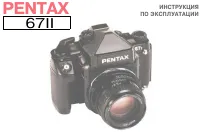 Pentax 67II
Manual
Pentax 67II
Manual
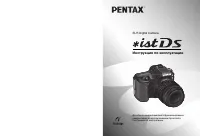 Pentax ist Ds
Manual
Pentax ist Ds
Manual
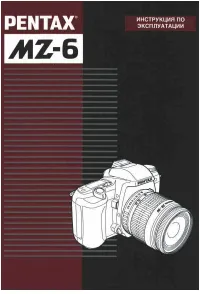 Pentax MZ-6
Manual
Pentax MZ-6
Manual
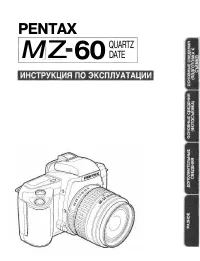 Pentax MZ-60
Manual
Pentax MZ-60
Manual
 Pentax Optio A20
Manual
Pentax Optio A20
Manual
 Pentax Optio I-10
User Manual
Pentax Optio I-10
User Manual
 Pentax Optio SV
Manual
Pentax Optio SV
Manual
 Pentax Optio WS80
Manual
Pentax Optio WS80
Manual
 Pentax Optio S6
Manual
Pentax Optio S6
Manual
 Pentax Optio M20
Manual
Pentax Optio M20
Manual
 Pentax Optio A10
Manual
Pentax Optio A10
Manual
 Pentax Optio S5z
Manual
Pentax Optio S5z
Manual
 Pentax Optio S5n
Manual
Pentax Optio S5n
Manual
 Pentax Optio S4
Manual
Pentax Optio S4
Manual
 Pentax Optio S
Manual
Pentax Optio S
Manual
 Pentax Optio MX4
Manual
Pentax Optio MX4
Manual
 Pentax Optio 555
Manual
Pentax Optio 555
Manual
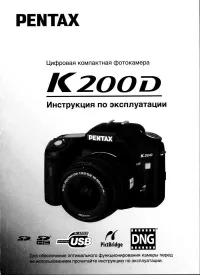 Pentax K200D
Manual
Pentax K200D
Manual
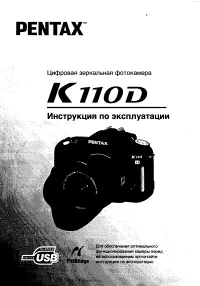 Pentax K110D
Manual
Pentax K110D
Manual
 Pentax K10D
Manual
Pentax K10D
Manual