Page 3 - FOR SAFE USE OF YOUR CAMERA; Warning; ABOUT THE CAMERA
1 We have paid close attention to the safety of this product. When using this product, we request your special attention regarding items marked with the following symbols. Warning • Do not disassemble or modify the camera. High voltage areas are present inside the camera, with the risk of electric s...
Page 4 - Caution; PRECAUTIONS FOR BATTERY USAGE
2 Caution • Do not short the battery or dispose of the battery in fire. Do not disassemble the battery. The battery could explode or catch fire. • Do not charge any batteries other than rechargeable Ni-MH batteries. The battery could explode or catch fire. The batteries that can be used in this came...
Page 7 - Basic Operations
5 Basic Operations 41 Basic Shooting Operation ........................................................... 42 Holding the Camera ............................................................................42Letting the Camera Choose the Optimal Settings ..............................43 Selecting the...
Page 9 - Appendix
7 Distance and Aperture when Using the Built-in Flash ......................149DA, D FA , FA J, FA and F Lens Compatibility with the Built-in Flash ...............................................................................151Using an External Flash (Optional) ......................................
Page 11 - Composition of the Operating Manual
9 This operating manual contains the following chapters. The symbols used in this operating manual are explained below. Composition of the Operating Manual 1 Before Using Your Camera Explains camera characteristics, accessories and the names of various parts. 2 Getting Started Explains your first st...
Page 12 - Memo
Page 14 - ra; Camera Characteristics; • Features a 23.5×15.7 mm CCD with 6.1 million effective pixels for high
12 1 Before Using Your Came ra J Camera Characteristics • Features a 23.5×15.7 mm CCD with 6.1 million effective pixels for high precision and a wide dynamic range. • Features an AF sensor with 11 focusing points. The central 9 are wide cross area sensors. • Improved manual focusing using a viewfind...
Page 15 - Checking the Contents of the Package
13 1 Before Using Your Came ra Checking the Contents of the Package The following accessories are packaged with your camera.Check that all accessories are included. Hot shoe cover F K (Installed on camera) Eyecup F L (Installed on camera) ME Viewfinder cap Body mount cover (Installed on camera) USB ...
Page 16 - Names of Working Parts; Camera
14 1 Before Using Your Came ra Names of Working Parts Camera
Page 18 - LCD Monitor Indications; While Power is On or Operating Mode Dial
16 1 Before Using Your Came ra The following indicators appear on the LCD monitor depending on the status of the camera. Guides appear on the LCD monitor for three seconds when powered on or setting dial mode. LCD Monitor Indications While Power is On or Operating Mode Dial Select [Off] for [Guide d...
Page 19 - Detailed Information; Capture Mode
17 1 Before Using Your Came ra Press the M button in capture mode to display the capture function settings on the LCD monitor for 15 seconds. Detailed Information Press the four-way controller ( 5 ) to view explanation of set mode dial. Explanation of Set Mode Dial Capture Mode 1 Focus mode (p.118) ...
Page 20 - Playback
18 1 Before Using Your Came ra The camera switches screen displays every time you press M button during playback. Detailed Information Playback You can change the information initially displayed by pressing the Q button. (p.160) 1 Captured images 13 Flash mode (p.49) 2 Rotate icon (p.64) 14 Drive mo...
Page 21 - Histogram Display
19 1 Before Using Your Came ra Histogram Display 1 Capture quality 2 Image folder number and file number (p.169) 3 Protect icon (p.77) 4 Histogram • Areas where blooming occurred blink if Hot spot warning is on. (p.160)• Press the four-way controller ( 23 ) in the histogram display to move the Histo...
Page 22 - Viewfinder Indications
20 1 Before Using Your Came ra Viewfinder Indications 1 Autofocus frame (p.39) 2 Spot metering frame (p.130) 3 Focus point (p.123) 4 Flash status (p.49)Appears when flash is available and blinks when flash is recommended but not set. 5 Picture mode icon (p.47)Icon for Picture mode in use appears. . ...
Page 24 - LCD Panel Indications
22 1 Before Using Your Came ra The following information appears in the LCD panel on top of the camera. LCD Panel Indications 1 Shutter speed (p.134) 6 AE metering (p.130) 2 Aperture (p.136) No indicator: Multi-segment metering 3 Flash mode (p.49) b : Built-in flash is ready (when blinking, flash sh...
Page 25 - Getting Started
2 Getting Started This chapter explains your first steps from purchasing the camera to taking pictures. Be sure to read it and follow the instructions. Attaching the Strap ..............................................24Inserting the Batteries .........................................25Inserting/Rem...
Page 26 - Attaching the Strap
24 2 Getting Started Attaching the Strap 1 Pass the end of the strap through the strap lug, then secure on the inside of the clasp. 2 Pass the other end of the strap through the other strap lug on the camera, then secure on the inside of the clasp.
Page 27 - Inserting the Batteries
25 2 Getting Started Inserting the Batteries Insert batteries into the camera. Use two CR-V3 or four AA Ni-MH batteries, AA lithium batteries, or AA alkaline batteries. 1 Push and hold the battery cover unlock lever as shown in the illustration ( ), and slide the battery cover toward the lens ( ), a...
Page 28 - Batteries
26 2 Getting Started 3 Press down on the batteries with the battery cover ( ) and slide it as shown in the illustration ( ) to close. You can use four kinds of batteries with your camera. Battery performance differs by type. Please choose the type that best suits your purpose. • Use the AC adapter (...
Page 29 - Battery Level Indicator
27 2 Getting Started You can confirm remaining battery level by checking the { displayed on the LCD panel. The still picture storage capacity is based on measuring conditions in accordance with CIPA standards and the playback time is based on PENTAX measuring conditions. Some deviation from the abov...
Page 30 - Connect the AC plug cord to the AC adapter.
28 2 Getting Started We recommend using the AC adapter D-AC10 (optional) when using the LCD monitor for a long time or when connecting to your PC. 1 Make sure the camera is turned off before opening the terminal cover. 2 Connect the DC terminal on the AC adapter to the DC input terminal on the camer...
Page 31 - Inserting/Removing the SD Memory; Close the card cover.
29 2 Getting Started Inserting/Removing the SD Memory Card Captured images are recorded on the SD Memory Card. Make sure the camera is turned off before inserting or removing the SD Memory Card (market product). 1 Press the card cover unlock lever in the indicated direction. Card cover opens. 2 Inse...
Page 32 - Precautions When Using the SD Memory Card
30 2 Getting Started Precautions When Using the SD Memory Card • The SD Memory Card is equipped with a write-protect switch. Setting the switch to LOCK protects the existing data by prohibiting recording of new data, deletion of existing data or formatting of the card. • Care should be taken when re...
Page 33 - Recorded Pixels and Quality Level
31 2 Getting Started Choose the number of pixels (size) and quality level (data compression rate) of pictures according to how you intend to use the pictures you have taken.Pictures with larger recorded size or the more E are clearer when printed. The number of pictures that can be taken (the number...
Page 34 - Turning the Camera On and Off
32 2 Getting Started Turning the Camera On and Off 1 Move the main switch to [ON] position. The camera will turn on.Move the main switch to [OFF] position to turn off the camera. • Always turn the camera OFF when not in use.• The power will automatically turn off when you do not perform any operatio...
Page 35 - Initial Settings; Press the; Setting the Display Language
33 2 Getting Started Initial Settings The first time the camera is turned on after purchasing, the “Initial Settings” screen appears on the LCD monitor. Follow the procedure below to set the language displayed on the LCD monitor and the current date and time. Once setting is done, these will not nee...
Page 36 - ) to display the screen
34 2 Getting Started 4 Press the four-way controller ( 3 ). The cursor moves to [ W ]. 5 Press the four-way controller ( 45 ) to display the screen for setting the city. 6 Repeat steps 4 and 5 and set daylight saving time (DST). 7 Press the 4 button. The screen for setting the date and time will be ...
Page 37 - Setting the Date and Time
35 2 Getting Started Set the current date and time and the display style. 1 Press the four-way controller ( 5 ). The frame moves to [mm/dd/yy]. 2 Use the four-way controller ( 23 ) to choose the date style. 3 Press the four-way controller ( 5 ). The frame moves to [24h]. 4 Use the four-way controlle...
Page 39 - Attaching the Lens; restricted when not set to Aperture; Check that the camera is off.
37 2 Getting Started Attaching the Lens All camera exposure modes are available when using DA, D FA, FA J or other lenses with Aperture s (Auto) position. Some functions are restricted when not set to Aperture s (Auto). Also see “Notes on [Using Aperture Ring]” (p.179). Other lenses and accessories ...
Page 41 - Adjusting the Viewfinder Diopter
39 2 Getting Started Adjusting the Viewfinder Diopter Adjust the viewfinder to suit your eyesight.If it is difficult to see the viewfinder image clearly, slide the diopter adjustment lever sideways.You can slide the diopter from –2.5m -1 to +1.5m -1 . 1 Look through the viewfinder and point the came...
Page 44 - Basic Shooting Operation; How you hold the camera is important when taking pictures.; Holding the Camera
42 3 B asi c Op er at io ns Basic Shooting Operation How you hold the camera is important when taking pictures. • Hold the camera firmly with both hands.• Press the shutter release button gently when taking a picture. Holding the Camera • To reduce camera shake, support your body or the camera on a ...
Page 45 - Set the mode dial to; Set the focus mode lever to; Letting the Camera Choose the Optimal
43 3 B asi c Op er at io ns Capturing method where the camera automatically selects optimal settings by scene when shutter release button is pressed is explained. 1 Set the mode dial to I . The camera will select the optimal capturing mode for the subject. 1 Selecting the Appropriate Capturing Mode ...
Page 47 - OPERATING THE SHUTTER RELEASE BUTTON; The shutter release button has two positions.
45 3 B asi c Op er at io ns 6 Review captured images on the LCD monitor. Image displays for one second on the LCD monitor after capturing (Instant Review.)You can delete the image during Instant Review by pressing the i button. 1 Setting the Display Time (p.170) 1 Deleting Images (p.73) 1 Displaying...
Page 49 - The camera selects and set the optimum mode when; Dial indicator
47 3 B asi c Op er at io ns Selecting the Appropriate Capturing Mode for Scenes The camera selects and set the optimum mode when I (Auto Picture) on the mode dial is set to the dial indicator. Select U (Normal), = (Portrait), s (Landscape), q (Macro), \ (Moving Object), . (Night Scene Portrait), a (...
Page 50 - Using the Zoom Lens
48 3 B asi c Op er at io ns Using the Zoom Lens Enlarge (telephoto) or capture a wider area (wide angle) with a zoom lens. Adjust it to the desired size and take the picture. 1 Turn the zoom ring to the right or left. Turn the zoom ring clockwise for telephoto and counterclockwise for wide angle. • ...
Page 51 - Using the Built-in Flash; Compatibility of built-in flash and lens
49 3 B asi c Op er at io ns Using the Built-in Flash Use the following procedures to take a picture in low light or backlit conditions or when you want to manually use the built-in flash.The built-in flash is optimum at about 0.7 m to 4 m. Exposure will not be properly controlled and vignetting may ...
Page 52 - Selecting Flash Mode
50 3 B asi c Op er at io ns 1 Press the { button. The Fn menu appears. 2 Press the four-way controller ( 3 ). The flash options screen appears. 3 Use the four-way controller ( 45 ) to choose a flash mode. 4 Press the 4 button twice. The camera is ready to take a picture. 1 Set the mode dial to I , U...
Page 53 - Press the shutter release button fully.; Push the flash down retract.
51 3 B asi c Op er at io ns 3 Press the shutter release button fully. The picture is taken. 4 Push down on the portion indicated in the illustration to retract the flash. 1 Press the K button. The built-in flash pops up and begins charging. Manual discharge mode (Flash ON) is used regardless of flas...
Page 54 - Using Red-eye Reduction Flash
52 3 B asi c Op er at io ns Red-eye is the phenomenon where eyes look reddish in photographs taken in dark environments with a flash. This is caused by the reflection of the electronic flash in the retina of the eye. Red-eye occurs because pupils are dilated in dark environments. This phenomenon can...
Page 55 - Other Shooting Modes; Continuous Shooting
53 3 B asi c Op er at io ns Other Shooting Modes Pictures can be taken continuously while the shutter release button is held down. 1 Press the { button. The Fn menu appears. Continuous Shooting 200 200 200 Fn O K Exit Exit Exit
Page 56 - Press the shutter release button halfway.
54 3 B asi c Op er at io ns 2 Press the four-way controller ( 2 ). The Drive Mode options screen appears. 3 Use the four-way controller ( 45 ) to select j . 4 Press the 4 button twice. The camera is ready to take pictures. 5 Press the shutter release button halfway. The autofocus system operates. Th...
Page 57 - This camera has two types of self-timers:; Mount the camera to a tripod.
55 3 B asi c Op er at io ns 6 Press the shutter release button fully. Pictures are taken continuously while the shutter release button is fully pressed. Take your finger off of the shutter release button to stop.Continuous shooting settings are retained when the power is turned off. Display the Fn m...
Page 61 - Remote Control Shooting
59 3 B asi c Op er at io ns The shutter can be released with the optional remote control unit. You can select from h (remote control) and i (three-second delay) for remote control shooting. 1 Mount the camera to a tripod. 2 Press the { button. The Fn menu appears. Remote Control Shooting (Remote Con...
Page 65 - Playing Back Still Pictures; You can play back captured still pictures with the camera.; Playing Back Images
63 3 B asi c Op er at io ns Playing Back Still Pictures You can play back captured still pictures with the camera. 1 Press the Q button after taking a picture. The most recently captured image (image with the largest file number) is displayed on the LCD monitor. Playing Back Images Use the included ...
Page 66 - Rotating Images
64 3 B asi c Op er at io ns 2 Press the four-way controller ( 45 ). 4 : The previous image appears. 5 : The next image appears. You can rotate images 90° counterclockwise at a time. Make images shot vertically easier to view. 1 Press the Q button after taking a picture. The most recently captured im...
Page 67 - You can magnify images up to 12 times when displaying.; Enlarging Playback Images
65 3 B asi c Op er at io ns 3 Press the 4 button. Image rotation information is saved. You can magnify images up to 12 times when displaying. 1 Press the Q button and use the four-way controller ( 45 ) to select an image. The most recently captured image (image with the largest file number) is displ...
Page 68 - You can display nine images on the LCD monitor at the same time.
66 3 B asi c Op er at io ns 2 Turn the e-dial to the right (toward y ). Image enlarges at each calibration and can be enlarged to 12 times the original. Turn to the left (toward f ) to return.Press the 4 button to return to the original size.Press four-way controller ( 2345 ) in zoom display to chan...
Page 70 - Slideshow
68 3 B asi c Op er at io ns You can play back all images recorded on your SD Memory Card successively. To start continuous playback, use the menu screen displayed on the LCD monitor. 1 Press the Q button and use the four-way controller ( 45 ) to select an image to be displayed first. The most recent...
Page 72 - Turn the TV and camera on.
70 3 B asi c Op er at io ns Connecting the Camera to AV Equipment By using the video cable, you can play back images using a TV or other device with a video IN jack as your monitor. Make sure that both the TV and the camera are turned off before connecting the cable. 1 Connect the video cable to the...
Page 73 - Processing Images with Filters; Digital Filter
71 3 B asi c Op er at io ns Processing Images with Filters You can edit shot images using digital filters. Processed images are saved under a different name. Digital Filter 1 Press the { button in Playback mode. The Fn menu appears. • RAW images cannot be processed using the digital filter.• Additio...
Page 75 - Deleting Images; You can delete one image at a time.; Deleting a Single Image
73 3 B asi c Op er at io ns Deleting Images You can delete one image at a time. 1 Press the Q button and use the four-way controller ( 45 ) to select an image to delete. 2 Press the i button. The Delete screen appears. 3 Use the four-way controller ( 2 ) to select [Delete]. 4 Press the 4 button. The...
Page 76 - You can delete all saved images at once.; press the; Deleting All Images
74 3 B asi c Op er at io ns You can delete all saved images at once. 1 Press the Q button. 2 Press the i button twice. The Delete All screen appears. 3 Press the four-way controller ( 2 ) to select [Delete All] and press the 4 button. All images are deleted. Deleting All Images • Deleted images cann...
Page 77 - You can delete multiple images from the nine-image display at once.; Deleting Selected Images
75 3 B asi c Op er at io ns You can delete multiple images from the nine-image display at once. 1 Press the Q button. The most recently captured image (image with the largest file number) is displayed first on the LCD monitor. 2 Turn the e-dial to the left (toward f ). Nine thumbnail images appear. ...
Page 79 - You can protect images from being accidentally erased.; Protecting Images from Deletion (Protect)
77 3 B asi c Op er at io ns You can protect images from being accidentally erased. 1 Press the Q button and use the four-way controller ( 45 ) to select an image. The most recently captured images (image with the largest file number) are displayed first on the LCD monitor. 2 Press the Z button. The ...
Page 81 - Set the following items for each image.; Printing Single Images
79 3 B asi c Op er at io ns Setting the Printing Service (DPOF) You can order conventional photograph prints by taking the SD Memory Card with recorded images to a store for a printing service.DPOF (Digital Print Order Format) settings allow you to specify the number of copies or to imprint the date...
Page 83 - Settings for All Images
81 3 B asi c Op er at io ns 1 Press the { button in Playback mode. The Fn menu appears. 2 Press the four-way controller ( 2 ). The DPOF screen appears. 3 Press the { button. The screen for making DPOF settings for all images appears. 4 Use the four-way controller ( 45 ) to choose the number of copie...
Page 85 - Printing Using PictBridge
83 3 B asi c Op er at io ns Printing Using PictBridge This function lets you print images directly from the camera without using a PC (direct printing).Connect the camera and PictBridge compatible printer with the included USB cable (I-USB17) to print directly.Select the images you want to print, th...
Page 86 - Setting Transfer Modes
84 3 B asi c Op er at io ns 1 Press the 3 button. The [ A Rec. Mode] menu appears. 2 Use the four-way controller ( 45 ) to select the [ H Set-up] menu. 3 Use the four-way controller ( 23 ) to select [Transfer Mode]. 4 Press the four-way controller ( 5 ). A pop-up menu appears. Setting Transfer Modes
Page 87 - Connecting the Camera to the Printer
85 3 B asi c Op er at io ns 5 Use the four-way controller ( 23 ) to select [PictBridge]. 6 Press the 4 button. The setting is changed. 7 Press the 3 button. 1 Turn the camera off. 2 Connect the camera and PictBridge compatible printer using the USB cable supplied with the camera. The PictBridge logo...
Page 88 - ) to choose an image to
86 3 B asi c Op er at io ns 3 Turn the printer on. 4 After printer start-up is complete, turn the camera on. The PictBridge menu appears. 1 Use the four-way controller ( 23 ) to select [Print One] on the PictBridge menu. 2 Press the 4 button. The Print one screen appears. 3 Use the four-way controll...
Page 90 - Printing All Images
88 3 B asi c Op er at io ns 10 Press the 4 button. 11 Repeat Steps 8 to 10 to set [Paper Type], [Quality] and [Border Status]. The print settings change screen appears after each item has been set.When the Paper Size is set to [Standard], images are printed according to the printer settings.Paper Ty...
Page 92 - Printing Images Using the DPOF Settings
90 3 B asi c Op er at io ns 1 Use the four-way controller ( 23 ) to select [DPOF AUTOPRINT] on the PictBridge menu. 2 Press the 4 button. The Print w/DPOF settings screen appears. Use the four-way controller ( 45 ) to check the image and print settings. Print settings are set with Print Service. (p....
Page 93 - Menu Reference; Explains the functions of
4 Menu Reference Explains the functions of J by buttons and menus. Using the Button Functions ................................92Using the Menu .....................................................96Using the Fn Menu .............................................102Using the Mode Dial ...................
Page 94 - Using the Button Functions; Functions of buttons used during shooting are noted.; Shutter release button
92 4 Menu Reference Using the Button Functions Functions of buttons used during shooting are noted. Shutter release button Press to capture images. (p.45) Main switch Move to turn the power on/off (p.32) or confirm the depth of field (Preview) (p.129). Lens unlock button Press to detach lens. (p.37)...
Page 96 - Main switch; button
94 4 Menu Reference Functions of buttons used during playback are noted. Shutter release button Press to switch to capture mode. Main switch Move to turn the camera on and off (p.32) 3 button Press to display the [ Q Playback] menu (p.98). Next, press the four- way controller ( 45 ) to display [ H S...
Page 98 - Using the Menu; This section explains operation methods for [; Displaying the Menu screen; How to Operate the Menu
96 4 Menu Reference Using the Menu This section explains operation methods for [ A Rec. Mode] menu, [ Q Playback] menu, [ H Set-up] menu and [ A Custom] menu. Displaying the Menu screen 1 Press the 3 button in Capture mode. The [ A Rec. Mode] menu appears on the LCD monitor. 2 Press the four-way con...
Page 99 - Select a menu item and set.; Procedures to set the Quality Level on the [
97 4 Menu Reference Select a menu item and set. Procedures to set the Quality Level on the [ A Rec. Mode] menu is explained as an example. 3 Use the four-way controller ( 23 ) to choose an item. 4 Press the four-way controller ( 5 ). Available Quality Level options appear.Press the four-way controll...
Page 100 - Playback] Menu Setting Items
98 4 Menu Reference Perform settings related to capturing in the [ A Rec. Mode] menu. Perform settings related to playback and editing images in the [ Q Playback] menu. [ A Rec. Mode] Menu Setting Items Item Function Page Image Tone Set the color tone of pictures. p.108 Recorded Pixels Set the recor...
Page 102 - Custom] Menu Setting Items
100 4 Menu Reference Set custom functions to fully use the functions of a SLR camera with the Custom Function Menu. The default setting does not use Custom Function.[ A Custom] menu settings are activated when [Settings], the first item, is O (on). [ A Custom] Menu Setting Items Item Function Page S...
Page 104 - Using the Fn Menu
102 4 Menu Reference Using the Fn Menu Press the { button while taking a picture. The Fn menu appears. Press the four-way controller ( 2345 ) to set the operation. Capture Mode Four-way controller Item Function Page 2 Drive Mode Select Continuous shooting, Self-Timer, Remote control or Auto bracket....
Page 106 - Using the Mode Dial
104 4 Menu Reference Using the Mode Dial You can switch the Shooting mode by setting the icons on the mode dial to the dial indicator. Item Function Page I (Auto Picture) Selects automatically from Normal, Portrait, Landscape, Macro, and Moving Object Modes. p.47 U (Normal) The basic picture-taking ...
Page 109 - Function Reference; Introduces functions to further enhance your; Setting the Recorded Pixels and Quality Level
5 Function Reference Introduces functions to further enhance your J experience. Setting the Recorded Pixels and Quality Level ..............................................................................108 Focusing .............................................................118Setting the Exposur...
Page 110 - Setting the Recorded Pixels and; Set the basic color tone of pictures. The default setting is [; Setting the Image Tone
108 5 F unc ti on Refere nce Setting the Recorded Pixels and Quality Level Set the basic color tone of pictures. The default setting is [ F (Bright)]. Set in [Image Tone] in the [ A Rec. Mode] menu. (p.98) Setting the Image Tone F Bright Images are finished brightly, contrasting and sharp. G Natural...
Page 111 - Setting the Recorded Pixels
109 5 F unc ti on Refere nce You can select the number of recorded pixels from P (3008×2008/ 3008×2000), Q (2400×1600) and R (1536×1024). The more pixels there are, the larger the picture and the bigger the file size. The file size will also differ according to quality level settings. The default se...
Page 112 - Setting the Quality Level
110 5 F unc ti on Refere nce You can set the image quality level. The file size will also differ according to the Recorded Pixels settings. The default setting is [ C (Best)]. Set in [Quality Level] in the [ A Rec. Mode] menu. (p.98) Setting the Quality Level | RAW RAW data is CCD output data saved ...
Page 113 - Setting the Saturation/Sharpness/Contrast
111 5 F unc ti on Refere nce Select from five levels of Saturation, Sharpness and Contrast. The default setting is [0 (Standard)] for all. Set [Saturation], [Sharpness] and [Contrast] in the [ A Rec. Mode] menu. (p.98) Towards + : Higher saturationTowards – : Lower saturation Towards + : SharperTowa...
Page 114 - Setting the White Balance
112 5 F unc ti on Refere nce The color of the subject changes with the light source. For example, the same white object will be a different shade of white in daylight than under a light bulb. In cameras using film, this is adjusted by changing the film or using filters. In digital cameras, the white...
Page 115 - Adjusting the White Balance Manually; Color Temperature
113 5 F unc ti on Refere nce You can adjust the white balance depending on the light source when taking pictures. With Manual White Balance, the camera can store delicate shades that cannot be precisely adjusted with the white balance provided in the camera (p.112). This provides the optimum white b...
Page 117 - Setting the Sensitivity; Correcting the Sensitivity Automatically
115 5 F unc ti on Refere nce You can set the sensitivity to suit the brightness of the surroundings.The sensitivity can be set within a sensitivity range equivalent to ISO 200 to 3200. The default setting is [200].Set [Sensitivity] in the Fn menu. (p.102) You can increase or lower the sensitivity if...
Page 118 - ISO Sensitivity Warning Display
116 5 F unc ti on Refere nce ISO Sensitivity Warning appears in the viewfinder when the set sensitivity is exceeded. Set a sensitivity that is not regularly used to avoid forgetting to reset when sensitivity is raised. ISO Sensitivity Warning is not displayed by default. Set in [ISO Snstvty Wrn Dspl...
Page 119 - Setting the Color Space; Color Space
117 5 F unc ti on Refere nce You can set the color space to use. The default setting is [1 (sRGB)]. Set in [Color Space] in the [ A Custom] menu. (p.101) Setting the Color Space 1 sRGB Set to sRGB color space. 2 AdobeRGB Sets to AdobeRGB color space. Color Space Sets to sRGB color space sRGBAdobeRGB...
Page 120 - Focusing; You can focus with the following methods.; Using the Autofocus
118 5 F unc ti on Refere nce Focusing You can focus with the following methods. Select the area in the viewfinder to focus (focus point) from [Auto], [Select] and [Center]. (p.123) 1 Set the focus mode lever to = . 2 Look through the viewfinder and press the shutter release button halfway. = Autofoc...
Page 122 - Use the
120 5 F unc ti on Refere nce You can set so that the focusing performed when the shutter release button is pressed halfway is canceled and is performed when the 4 button is pressed.Set [2 (Enable AF)] in [OK btn when shooting] in the [ A Custom] menu. (p.100) Use the 4 Button to Focus on the Subject...
Page 123 - Adjusting the Focus Manually (Manual Focus); Using the Focus Indicator
121 5 F unc ti on Refere nce When you adjust the focus manually, you can either check with the focus indicator in the viewfinder or use the viewfinder matte field to adjust focus. You can manually adjust the focus using the focus indicator ] . 1 Set the focus mode lever to \ . 2 Look through the vie...
Page 126 - ) to select the desired
124 5 F unc ti on Refere nce 1 Select [ S (Select)] in [Swtch dst msr pt] in the [ A Rec. Mode] menu. 2 Look through the viewfinder and check the position of the subject. 3 Use the four-way controller ( 2345 ) to select the desired focus point. The focus point lights red in the viewfinder (Superimpo...
Page 128 - Fixing Exposure when Focus is Locked
126 5 F unc ti on Refere nce 4 Re-compose the picture while keeping the shutter release button pressed halfway. Set [AE-L with AF locked] in the [ A Custom] menu (p.100) to fix the exposure value while focus is locked. Exposure is not fixed by default during focus lock. • The focus is locked while t...
Page 129 - Setting the Exposure; Using slower shutter speed; Effect of Aperture and Shutter Speed; Effect of Shutter Speed
127 5 F unc ti on Refere nce Setting the Exposure Correct exposure of the subject is determined by the combination of shutter speed and aperture setting. There are many correct combinations of shutter speed and aperture for a particular subject. Different combinations produce different effects. The ...
Page 130 - Opening the aperture (reduce the aperture value); Effect of Aperture; Depth of Field; differs depending on the lens
128 5 F unc ti on Refere nce Adjust the amount of light hitting the CCD by changing the aperture. Opening the aperture (reduce the aperture value) Objects closer and farther than the focused subject will be more out of focus. For instance, if you take a picture of flower against a landscape with the...
Page 131 - Focus on the subject.
129 5 F unc ti on Refere nce When you focus on a portion of the subject, there is a range in which object closer and farther will also be in focus. This focused range is called the depth of field. If you use Depth of Field confirmation, you can check the depth of field in the viewfinder before takin...
Page 132 - Selecting the Metering Method; Using the Multi-Segment Metering
130 5 F unc ti on Refere nce Choose the part of the screen to use for measuring brightness and determining exposure. [Multi-segment metering], [Center-weighted metering] or [Spot metering] mode can be selected. The default setting is [Multi-segment]. Set in [AE Metering] in the [ A Rec. Mode] menu. ...
Page 133 - Using the Center-Weighted Metering
131 5 F unc ti on Refere nce Metering is weighted at the center of the screen. Use this metering when you want to compensate the exposure by experience, instead of leaving it to the camera. The illustration shows that sensitivity increases as the pattern height increases (center). This mode does not...
Page 134 - Changing the Exposure Mode; Setting the Meter Operating Time
132 5 F unc ti on Refere nce This camera features five exposure modes along with the picture modes.Use the mode dial (p.104) to change the exposure mode. Changing the Exposure Mode Exposure Mode Description Exposure Compen- sation Change Shutter Speed Change Aperture e (Program) Shutter speed and ap...
Page 137 - Exposure Warning
135 5 F unc ti on Refere nce • Turn the e-dial while pressing the m c button and change the EV Compensation value. (p.141) • Set the shutter speed in increments of 1/2EV or 1/3EV. Set in [Expsr Setting Steps] in the [ A Custom] menu. (p.142) • You can automatically correct the sensitivity if appropr...
Page 141 - button is pressed
139 5 F unc ti on Refere nce The shutter speed and aperture value are displayed on the viewfinder and the LCD panel. Of the shutter speed and aperture, the value being adjusted is underlined in the viewfinder. While adjusting the shutter speed or aperture value, the difference with the appropriate e...
Page 143 - button is
141 5 F unc ti on Refere nce This allows you to deliberately over-expose (brighten) or under-expose (darken) your picture. You can adjust the EV Compensation from –2 to +2 (EV) in increments of 1/2EV or 1/3EV.Set in [Expsr Setting Steps] in the [ A Custom] menu. (p.142) 1 Set the compensation with t...
Page 145 - Changing the Exposure and Shooting
143 5 F unc ti on Refere nce You can take continuous pictures with different exposure when the shutter release button is pressed. The first frame is exposed with no compensation, the second frame is under-exposed (negative compensation) and the third is over-exposed (positive compensation). 1 Press ...
Page 147 - Setting Auto Bracket; Taking Only Over-exposed or Under-exposed Pictures
145 5 F unc ti on Refere nce Change the shooting order and steps of Auto Bracket. * Set interval of steps in [Expsr Setting Steps] in the [ A Custom] menu. (p.142) Set in [Auto Bracket] in the [ A Rec. Mode] menu. (p.98) You can use the auto bracketing mode for only under-exposure or over-exposure s...
Page 148 - Compensating Flash Output
146 5 F unc ti on Refere nce Using the Built-in Flash You can change the flash output in a range of –2.0 to +1.0. The Flash Compensation values are as follows for 1/3EV and 1/2EV. * Set interval of steps in [Expsr Setting Steps] in the [ A Custom] menu. (p.142) Set in [Flash Exp. Comp.] in the [ A R...
Page 149 - Allowing Shooting while Charging Flash; Using the Flash in
147 5 F unc ti on Refere nce You can set to enable shooting while flash is being charged.Set [2 (On)] for [Release when Chrging] in the [ A Custom] menu (p.101). Pictures cannot be taken while the flash is charging by default. • When taking a moving subject, you can use the flash to change the blur ...
Page 150 - Set the mode dial to; Set the mode dial to
148 5 F unc ti on Refere nce You can use slow-speed-sync when shooting portraits with the sunset in the background. Both the portrait and the background are captured beautifully. Using b (Shutter Priority) Mode 1 Set the mode dial to b . b (Shutter Priority) mode is set. 2 Use the e-dial to set the ...
Page 151 - Example; Distance and Aperture when Using the Built-in; Calculating Shooting Distance from Aperture Value
149 5 F unc ti on Refere nce A set criteria is necessary between the guide number, aperture and distance when shooting with the flash.Calculate and adjust the shooting conditions if flash is not sufficient. Flash guide number for built-in flash The following equation calculates the distance of the f...
Page 152 - Calculating Aperture Value from Shooting Distance
150 5 F unc ti on Refere nce The following equation calculates the aperture value for shooting distances. Aperture Value Used F = Guide number ÷ shooting distance When sensitivity is [ISO200] and shooting distance is 5.2 m, aperture value is:F = 15.6 ÷ 5.2 = 3If the resulting number (3, in the above...
Page 153 - with the Built-in Flash
151 5 F unc ti on Refere nce When using DA, D FA, FA J, FA and F lenses with the J without the hood, built-in flash compatibility is shown below.Yes : Available# : Available depending on other factors No : Unavailable due to vignetting Following are evaluated without a hood. DA, D FA , FA J, FA and ...
Page 157 - Attaching and Using the AF360FGZ on the Camera; Using in Wireless Mode
155 5 F unc ti on Refere nce With the AF360FGZ, you can discharge the flash to take a picture at a shutter speed faster than 1/180 second. High-speed flash sync can be used with the flash attached to the camera, or wireless. Attaching and Using the AF360FGZ on the Camera 1 Remove the hot shoe cover ...
Page 159 - Rear Curtain Sync Flash
157 5 F unc ti on Refere nce As with the built-in flash, red-eye reduction is available with an external flash. This may not be available on some flashes or may have restrictions for usage conditions. See the chart on p.153. When using the built-in flash with AF360FGZ that is set to the rear curtain...
Page 160 - Discharging Multiple Flashes
158 5 F unc ti on Refere nce To use two or more external flashes simultaneously, either use the same type of flashes as shown in the flash function chart on p.153 or use the combination of AF360FGZ/AF500FTZ/AF330FTZ and AF400FTZ/AF240FT. The built-in flash can be combined with any type. Connect them...
Page 162 - Settings During Playback; Changing Playback Display Method; Displaying Hot Spot Warning
160 5 F unc ti on Refere nce Settings During Playback Set information to show during playback.The camera switches display information when you press M button. Set in [Plybk dsply mthd] in the [ Q Playback] menu. (p.98) If [Hot Spot wrnng] is selected on the Instant Review and playback screens, brigh...
Page 163 - Setting the Slideshow Display Interval
161 5 F unc ti on Refere nce Set in [Hot spot wrnng] in the [ Q Playback] menu. (p.98) You can play back all images recorded on your SD Memory Card successively. (p.68)Set image display interval to [3 sec], [5 sec], [10 sec] or [30 sec]. The default setting is [3 sec].Set in [Slideshow] in the [ Q P...
Page 164 - Camera Settings; ) to display the Format; Formatting the SD Memory Card
162 5 F unc ti on Refere nce Camera Settings Be sure to format new SD Memory Card with the camera before using the card.Formatting will delete all the data on the SD Memory Card. 1 Select [Format] on the [ H Set-up] menu (p.99). 2 Press the four-way controller ( 5 ) to display the Format screen. 3 U...
Page 166 - Setting the World Time
164 5 F unc ti on Refere nce The date and time selected in [Initial Settings] (p.33) serve as the date and time of your present location.Setting [World Time] enables you to display the local date and time on the LCD monitor when traveling overseas. 1 Select [World Time] on the [ H Set-up] menu. (p.9...
Page 167 - ) to select the Destination
165 5 F unc ti on Refere nce 7 Use the four-way controller ( 45 ) to select the Destination city. The current time, location and time difference of the selected city appears. 8 Use the four-way controller ( 3 ) to select [DST]. 9 Use the four-way controller ( 45 ) to select O (On) or P (Off). Select...
Page 168 - List of World Time Cities
166 5 F unc ti on Refere nce List of World Time Cities Region City Region City North America Honolulu Africa/West Asia Nairobi Anchorage Jeddah Vancouver Tehran San Francisco Dubai Los Angeles Karachi Calgary Kabul Denver Male Chicago Delhi Miami Colombo Toronto Kathmandu New York Dacca Halifax East...
Page 170 - Adjusting the Brightness of the LCD Monitor
168 5 F unc ti on Refere nce You can adjust the brightness of the LCD monitor. Adjust settings when the LCD monitor is hard to see.Set in [Brightness Level] in the [ H Set-up] menu. (p.99) When you connect the camera to AV equipment such as a TV, choose the appropriate video output format (NTSC or P...
Page 171 - Setting Auto Power Off
169 5 F unc ti on Refere nce You can set the camera to turn off automatically if unused after a certain length of time. Select from [1 min], [3 min], [5 min], [10 min], [30 min] or [Off]. The default setting is [1 min].Set in [Auto Power Off] in the [ H Set-up] menu. (p.99) You can set the File Numb...
Page 172 - Setting the Instant Review; Setting the Display Time
170 5 F unc ti on Refere nce Select from [1 sec], [3 sec], [5 sec] or [Off]. The default setting is [1 sec].Set in [Instant Review] in the [ A Rec. Mode] menu. (p.98) Set to display histogram during Instant Review.Select [2 (Plybck with Hstgram) in [Instant Review Dsply] in the [ A Custom] menu. (p....
Page 173 - Resetting to Default Settings; , Video Out and World Time are not
171 5 F unc ti on Refere nce Resetting to Default Settings Settings in [ A Rec. Mode] menu, [ Q Playback] menu and [ H Set-up] menu are reset to default settings.However, Date Adjust, Language/ , Video Out and World Time are not reset. 1 Select [Reset] on the [ H Set-up] menu. 2 Press the four-way c...
Page 174 - ) and display the Reset; Resetting the Custom Function Menu
172 5 F unc ti on Refere nce Reset settings in [ A Custom] menu to default settings. Settings in [ A Rec. Mode] menu, [ Q Playback] menu and [ H Set-up] menu are not reset. 1 Select [Reset] on the [ A Custom] menu. 2 Press the four-way controller ( 5 ) and display the Reset Custom Fnction screen. 3 ...
Page 176 - Default Settings; Last Memory Setting; Yes : The current setting (last memory) is saved when the camera is; Reset Setting; No : The setting is saved even after reset.
174 6 Appendix Default Settings The table below lists the factory default settings.Table notations are as follows. Last Memory Setting Yes : The current setting (last memory) is saved when the camera is turned off. No : The setting returns to the default setting when the camera is turned off. Reset ...
Page 179 - Functions Available with Various; Lenses that can be used with this camera; position
177 6 Appendix Functions Available with Various Lens Combinations Lenses that can be used with this camera Only DA and FA J lenses and D FA/FA/F/A lenses having an s position on the aperture ring can be used with this camera. Refer to “Notes on [Using Aperture Ring]” (p.179) for other lenses and D F...
Page 180 - Lens names and mount names; When aperture ring is set at other than; Lens and Built-in Flash
178 6 Appendix Lens names and mount names FA prime lenses (non-zoom lenses) and DA, D FA, FA J and F lenses use the KAF mount. Of the FA zoom lenses, power zoom enabled lenses use the KAF2 mount. Lenses without power zoom use the KAF mount. See the lens manual for details. This camera does not have ...
Page 181 - Aperture Ring Use; position or a lens without a
179 6 Appendix Notes on [Using Aperture Ring] Aperture Ring Use When [Using aperture ring] is set to [2 (Permitted)] in [ A Custom] menu (p.101), the shutter can be released even if the aperture ring of the D FA, FA, F or A lens is not set to the s position or a lens without a s position is attached...
Page 182 - Cleaning the CCD; Turn the camera off and remove the lens.
180 6 Appendix Cleaning the CCD Shadows may appear in the image for white backgrounds and other shooting conditions if the CCD becomes dirty or dusty. This indicates that the CCD must be cleaned. Please contact PENTAX service center for professional cleaning because the CCD is a precision part. 1 Tu...
Page 183 - Turn the camera off.
181 6 Appendix 5 Press the four-way controller ( 2 ) to select [Mirror Up]. 6 Press the 4 button. The mirror is locked in the up position. 7 Clean the CCD. Use a brush-less blower to remove dirt and dust from the CCD. Using a blower with a brush may scratch the CCD. Do not wipe the CCD with a cloth....
Page 184 - Optional Accessories; This AC adapter supplies power from the outlet into your camera.; Remote Control F
182 6 Appendix Optional Accessories A number of dedicated accessories are available for this camera. Please contact a service center for details regarding accessories. This AC adapter supplies power from the outlet into your camera. This is a remote shutter release cord. The cord length is 0.5 m. Sh...
Page 185 - For Viewfinder
183 6 Appendix Off-camera Shoe Clip CL-10 This is a setting clip for using the AF360FGZ as a wireless slave flash. Hot Shoe Adapter F G Extension Cord F5P Off-camera Shoe Adapter F Use the adapters and cords to use the external flash away from the camera. Magnifier FB This viewfinder accessory is fo...
Page 186 - Eyecup F; Camera Case
184 6 Appendix Camera Case O-CC28 The accessories below are the same as the accessories that are packaged with the camera. Eyecup F L Strap O-ST10 Camera Case Others
Page 187 - Error Messages
185 6 Appendix Error Messages Error Message Description Memory card full The SD Memory Card is full and no more images can be saved. Insert a new SD Memory Card or delete unwanted images. (p.29, p.73)You may be able to save new images by changing the quality level or recorded pixels. (p.109, p.110) ...
Page 189 - Troubleshooting
187 6 Appendix Troubleshooting We recommend checking the following items before contacting a service center. Problem Cause Remedy Camera does not turn on Battery is not installed Check if battery is installed. If not, install battery. Battery is not installed properly Check orientation of battery.Re...
Page 191 - Main Specifications
189 6 Appendix Main Specifications Number of Shots Compression: C (Best) = 1/3, D (Better) = 1/6, E (Good) = 1/12 Type TTL autofocus, auto-exposure SLR digital-still camera with built-in retractable P-TTL flash Effective Pixels 6.10 megapixels Sensor Total pixels 6.31 megapixels, interline/interlace...
Page 193 - Specification for Remote Control (Optional)
191 6 Appendix EV Compensation ±2.0EV (Selectable between 1/2EV and 1/3EV for Exposure setting steps) AE lock Button type (timer type 20 sec.) possible to continue with shutter button halfway pressed Built-in flash P-TTL built-in flash with serial control , GN 15.6 (ISO 200/m), Angles of coverage: 2...
Page 194 - Glossary; AdobeRGB
192 6 Appendix Glossary AdobeRGB Color space recommended by Adobe Systems, Inc. for commercial printing. Wider range of color reproduction than sRGB. Covers most of the color range so colors only available when printed are not lost when editing images from a computer. When image is opened by non-com...
Page 197 - Recorded Pixels
195 6 Appendix Recorded Pixels Indicates the size of the image by the number of pixels. The more pixels that compose a picture, the larger the image size. Sensitivity The degree of light. With a high sensitivity, images can be shot with a high shutter speed even in dark places, reducing camera shake...
Page 198 - Index; Symbols
196 6 Appendix Index Symbols [ A Rec. Mode] Menu ..... 98, 174 [ Q Playback] Menu ...... 98, 175 [ H Set-up] Menu ............ 99, 175 [ A Custom] Menu ......... 100, 176 I Auto Picture ............ 43, 47 U Normal .............................. 47 = Portrait ............................... 47 s Lan...
Page 202 - WARRANTY POLICY
200 6 Appendix WARRANTY POLICY All PENTAX cameras purchased through authorized bona fide photographic distribution channels are guaranteed against defects of material or workmanship for a period of twelve months from date of purchase. Service will be rendered, and defective parts will be replaced wi...
Page 203 - • This warranty policy does not affect the customer’s statutory
201 6 Appendix required, please keep the receipt or bills covering the purchase of your equipment for at least a year. Before sending your equipment for servicing, please make sure that you are sending it to the manufacturer’s authorized representatives or their approved repair shops, unless you are...
Page 204 - For customers in Canada
202 6 Appendix For customers in USASTATEMENT OF FCC COMPLIANCE This device complies with Part 15 of the FCC Rules. Operation is subject to the following two conditions: (1) This device may not cause harmful interference, and (2) this device must accept any interference received, including interferen...
Page 205 - Declaration of Conformity; According to 47CFR, Parts 2 and 15 for; Class B Personal Computers and Peripherals; Product Name: PENTAX Digital Still Camera
Declaration of Conformity According to 47CFR, Parts 2 and 15 for Class B Personal Computers and Peripherals We: PENTAX Imaging CompanyA Division of PENTAX of America, Inc. Located at: 600 12 Street, Suite 300Golden, Colorado 80401 U.S.A.Phone: 303-799-8000 FAX: 303-790-1131 Declare under sole respon...


 Pentax 67II
Manual
Pentax 67II
Manual
 Pentax MZ-6
Manual
Pentax MZ-6
Manual
 Pentax MZ-60
Manual
Pentax MZ-60
Manual
 Pentax Optio A20
Manual
Pentax Optio A20
Manual
 Pentax Optio I-10
User Manual
Pentax Optio I-10
User Manual
 Pentax Optio SV
Manual
Pentax Optio SV
Manual
 Pentax Optio WS80
Manual
Pentax Optio WS80
Manual
 Pentax Optio S6
Manual
Pentax Optio S6
Manual
 Pentax Optio M20
Manual
Pentax Optio M20
Manual
 Pentax Optio A10
Manual
Pentax Optio A10
Manual
 Pentax Optio S5z
Manual
Pentax Optio S5z
Manual
 Pentax Optio S5n
Manual
Pentax Optio S5n
Manual
 Pentax Optio S4
Manual
Pentax Optio S4
Manual
 Pentax Optio S
Manual
Pentax Optio S
Manual
 Pentax Optio MX4
Manual
Pentax Optio MX4
Manual
 Pentax Optio 555
Manual
Pentax Optio 555
Manual
 Pentax K200D
Manual
Pentax K200D
Manual
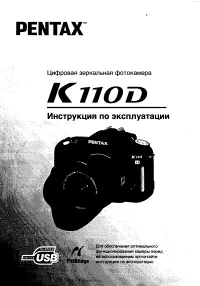 Pentax K110D
Manual
Pentax K110D
Manual
 Pentax K10D
Manual
Pentax K10D
Manual
 Pentax K100D
Manual
Pentax K100D
Manual