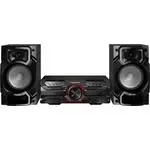
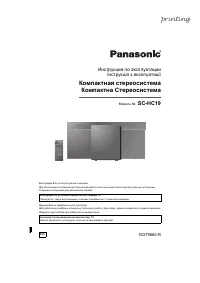
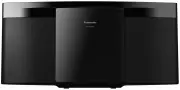
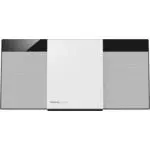
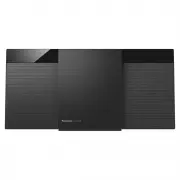
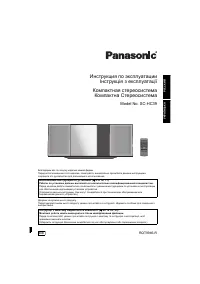
Page 2 - Before use; Dear customer; System; Main unit; DATE OF PURCHASE; dangerous voltage within the product s
Before use 2 RQT7364 Dear customer Thank you for purchasing this product.For optimum performance and safety, please read theseinstructions carefully. These operating instructions are applicable to the followingsystem. System SC-PM19 SC-PM193 Main unit SA-PM19 SA-PM193 Speakers SB-PM19 SB-PM193 User ...
Page 3 - Supplied accessories
3 RQT7364 Before use Please check and identify the suppliedaccessories.Use numbers indicated in parentheseswhen asking for replacement parts. In U.S.A. to order accessories,refer to “Accessory Purchases” onpage 27. CAUTION! THIS PRODUCT UTILIZES A LASER.U S E O F C O N T R O L S O R A D J U S T M E ...
Page 4 - IMPORTANT SAFETY INSTRUCTIONS; Damage requiring service; Product information
Before use 4 RQT7364 IMPORTANT SAFETY INSTRUCTIONS Read these operating instructions carefully before using theunit. Follow the safety instructions on the unit and theapplicable safety instructions listed below. Keep theseoperating instructions handy for future reference. 1) Read these instructions....
Page 5 - The remote control; Batteries; Placement of speakers; Notes; Connections; Connect the FM indoor antenna.; Note; AM ANT
5 RQT7364 Before use A The remote control ■ Batteries • Insert so the poles (+ and –) match those in the remote control.• Do not use rechargeable type batteries. Do not: • mix old and new batteries.• use different types at the same time.• heat or expose to flame.• take apart or short circuit.• attem...
Page 6 - Confirm the colors of the tags on the ends of the cords.; Incorrect connection can damage the unit.; Optional antenna connections; External unit connections; • Make sure that the power supply for all components has been
6 RQT7364 Before use Connections 2 Connect the AM loop antenna. Stand the antenna up on its base. Keep loose antenna cordaway from other wires and cords. 3 Connect the speaker cords. a Confirm the colors of the tags on the ends of the cords. b For White tags:Connect cords to gray terminals.For Blue,...
Page 7 - Front panel controls; Buttons such as
7 RQT7364 Before use Front panel controls Main unit 1 Cassette lid 2 Cassette open button (OPEN 0 ) ............................... 20 3 Standby/on switch ( y ¥ I POWER) ................................. 8 Press to switch the unit from on to standby mode or viceversa. In standby mode, the unit is st...
Page 8 - Demo function; Press and hold [STOP; The display changes each time the button is held down.; DEMO OFF; Setting the time; Every time you press the button:; CLOCK; PLAY; Displaying the clock:; Convenient functions; To dim the display panel; DEMO; DIMMER
8 RQT7364 Before use A Demo function When the unit is first plugged in, a demonstration of its functionsmay be shown on the display.If the demo setting is off, you can show a demonstration byselecting “DEMO ON”. Press and hold [STOP 7 , –DEMO]. The display changes each time the button is held down. ...
Page 9 - Listening operations; The radio: manual tuning; FM; frequency of the required station.; Auto tuning; • Excessive interference may interrupt auto tuning.; To improve FM sound quality; By main unit only; • After changing the setting, previously preset frequency will
Listening operations 9 RQT7364 The radio: manual tuning 1 Press [TUNER/BAND] to select: FM AM 2 Press [PLAY MODE] to select “MANUAL”. PRESET MANUAL 3 Press [ 4 4 4 4 4 /REW/ 4 ] or [ 3 3 3 3 3 /FF/ ¢ ] to select the frequency of the required station. “ST” is displayed when a stereo FM broadcast is b...
Page 10 - The radio: preset tuning; There are two methods of pre-setting stations:; Automatic presetting:; A Automatic presetting; Preset the stations one at a time.; Press numeric buttons to select a channel.; For channels 10 to 15 press [; OR; or
Listening operations 10 RQT7364 The radio: preset tuning There are two methods of pre-setting stations: Automatic presetting: Stations the tuner can receive arepreset automatically. Manual presetting: You can select the stations to presetand the order they are preset in. Up to 15 stations can be pre...
Page 11 - CDs; Listening to CD on a single tray; To
Listening operations 11 RQT7364 CDs This unit can play CD-DA (digital audio) format audio CD-Rand CD-RW that have been finalized (a process performed afterrecording that enables this unit to play audio CD-R and CD-RW).It may not be able to play some CD-R or CD-RW due to thecondition of the recording...
Page 12 - Listening to a CD placed in a specific tray; Repeat steps 1 and 2 to insert up to 5 CDs.; Listening to the CD placed in a specific tray; The player stops after playing the last track.; To remove the CD; Marking a track; Disc tray; CD CHECK
Listening operations 12 RQT7364 CDs Listening to a CD placed in a specific tray Preparation: Press [CD 3 / 8 ] and then [STOP 7 , –DEMO]. Placing a CD in your desired tray 1 Press [ 0 CD CHANGE]. 2 (Within about 10 seconds)Press [CD 1] ~ [CD 5] and insert the CD on thetray.Press [ 0 CD CHANGE] again...
Page 13 - • When 1-TRACK is selected in step 2; When playback ends
Listening operations 13 RQT7364 4 1 4 1 2 3 1 CD 6 ➞ CLEAR 2 PLAY MODE 3 DISC 1 2 3 4 5 ABC DEF GHI JKL 4 1 2 3 4 5 6 7 8 9 0 10 ABC DEF GHI JKL MNO TUV WXYZ PQRS SPACE or CD 6 CDs Listening to specific CDs and tracks(CD Play Mode function) 1 Press [CD 3 / 8 ] and then [ 7 CLEAR]. 2 Press [PLAY MODE...
Page 14 - A Direct access play; To select a two-digit track; B Repeat play; “REPEAT ON” and “ ” are displayed.; To cancel repeat play; C CD display; Remaining play time; REPEAT
Listening operations 14 RQT7364 CDs A Direct access play Direct access allows you to start normal play from a specifictrack to the last track on the CD. 1 Press [DISC]. 2 (Within 10 seconds or so)Press [1] ~ [5] to select the disc you want. 3 Press the numeric button(s) to select and playyour desire...
Page 15 - DEL; Program play
Listening operations 15 RQT7364 5 4 7 1 32 DEL 4 /REW/ 4 , 3 /FF/ ¢ 1 CD 6 ➞ CLEAR 2 PROGRAM 3 DISC 4 1 2 3 4 5 ABC DEF GHI JKL 5 1 2 3 4 5 6 7 8 9 0 10 ABC DEF GHI JKL MNO TUV WXYZ PQRS SPACE 6 Repeat steps 3, 4, 5. 7 CD 6 CDs Program play This function allows you to program up to 24 tracks. 1 Pres...
Page 16 - Enjoying MP3; When making MP3 files to play on this unit
16 RQT7364 Listening operations ALBUM ( , ) ALBUM/ TRACK 4 /REW/ 4 , 3 /FF/ ¢ CD 6 A ALBUM/ TRACK B 4 /REW 3 /FF ALBUM/ TRACK C 1 2 CD 6 7 CLEAR 1 ALBUM/ TRACK 2 1 2 3 4 5 6 7 8 9 0 10 ABC DEF GHI JKL MNO TUV WXYZ PQRS SPACE Enjoying MP3 This unit allows you to play MP3 files and access up to 999tra...
Page 17 - CLEAR; B CD Play Mode function for MP3
17 RQT7364 Listening operations A 1 2 7 CLEAR 1 2 CD 6 B 1 2 3 1 PLAY MODE 2 DISC 1 2 3 4 5 ABC DEF GHI JKL 3 1 2 3 4 5 6 7 8 9 0 10 ABC DEF GHI JKL MNO TUV WXYZ PQRS SPACE Enjoying MP3 A INTRO function (Album scan) Listen to the first track of all albums in the current disc for 10seconds each to fi...
Page 18 - A Program play for MP3; B Album/Track title search
18 RQT7364 Listening operations Enjoying MP3 A Program play for MP3 You can program up to 24 tracks. Preparation: 1. Press [DISC] and (within 10 seconds) [1]–[5] to select the disc. 2. Press [ 7 CLEAR]. 1 Press [PROGRAM]. “PGM” appears. 2 Press [ALBUM ( or )] to select the album. Toselect an album d...
Page 19 - A Entering characters; Press the numeric buttons to select the required character.; B Marking a track; C Display for MP3; s p a c e
19 RQT7364 Listening operations Enjoying MP3 A Entering characters You can enter up to 9 characters for album/track title search. 1 Press the numeric buttons to select the required character. 2 Press [ 3 /FF/ ¢ ] to enter character. Editing keywords Press [ 4 4 4 4 4 /REW/ 4 ] or [ 3 3 3 3 3 /FF/ ¢ ...
Page 20 - Cassette tapes; Cassette tape selection and care; Forward side
20 RQT7364 Listening operations Cassette tapes 1 Press [OPEN 0 ] to insert a cassette. Close the lid by hand. 2 Press [TAPE 3 ] to start playback. Repeat step 1 and 2 to play the other side of the tape. 3 Adjust the volume. Cassette tape selection and care Types of cassettes which can be played corr...
Page 21 - Recording operations; Before recording; To erase a recorded sound; Recording the radio; Tune to the required station.
Recording operations 21 RQT7364 Before recording • Only normal position tapes are recommended.• Remove tabs to prevent recording. To record, cover tabs as shown.• Volume and sound quality during playback have no effect on recording. To erase a recorded sound 1 Press [TAPE 3 ] and then [STOP 7 , –DEM...
Page 22 - Recording CDs; To record programmed tracks; This function allows you to record up to 24 programmed tracks.; AUTO OFF
Recording operations 22 RQT7364 A Recording CDs 1 Press [CD 3 / 8 ] and then [STOP 7 , –DEMO]. 2 Press [PLAY MODE] to select your desired mode. For 1-TRACK mode Press [ 4 4 4 4 4 /REW/ 4 ] or [ 3 3 3 3 3 /FF/ ¢ ] to select the track. For 1-ALBUM mode (MP3) Press [ALBUM ( or )] to select the album. F...
Page 23 - imers and others; Using the timers; Using the play/record timer; Setting the start and finish times; ] to turn off the unit and timer will start.
T imers and others 23 RQT7364 Using the timers Using the play/record timer The timer can be set as an alarm or radio recorder. Play timerand record timer cannot be used together. Preparations: Turn the unit on and set the clock ( \ page 8). Timer Action Play timer Prepare the music source you want t...
Page 24 - A Using the play/record timer; B Using the sleep timer
T imers and others 24 RQT7364 Using the timers To cancel the timer Press [SHIFT] + [ ˚ ˚ ˚ ˚ ˚ PLAY/REC] . To change the settings when the unit is on To change Action play/record times Repeat steps 1, 2, 3, and 5 on previouspage. source/volume 1 Press [SHIFT] + [ ˚ ˚ ˚ ˚ ˚ PLAY/REC]. 2 Make changes ...
Page 25 - Using the sound quality settings; Preset EQ; Setting; Manual EQ; MANUAL EQ; Enhancing the sound quality; Press the button again to cancel.; To cancel; Using an external unit; Listening with headphones; PRESET EQ
T imers and others 25 RQT7364 A Using the sound quality settings You can select sound quality with Preset EQ and improve bassand treble effect with Manual EQ. Preset EQ 1 Press and hold [SOUND] to select “PRESET EQ”. Each time you press and hold the button: MANUAL EQ PRESET EQ 2 Press [SOUND] to sel...
Page 26 - Reference; Troubleshooting guide
Reference 26 RQT7364 Troubleshooting guide Before requesting service, make the following checks. If you are in doubt about some of the check points, or if theremedies indicated in the chart do not solve the problem, refer to the “Customer Services Directory” on page 27 if youreside in the U.S.A., or...
Page 27 - Panasonic Audio Products; Accessory Purchases
Reference 27 RQT7364 Warranty (ONLY FOR U.S.A) Panasonic Audio Products Limited Warranty Panasonic Consumer Electronics Company,Division of Matsushita Electric Corporation of America One Panasonic Way Secaucus, New Jersey 07094 Panasonic Sales Company, Division of Matsushita Electricof Puerto Rico, ...
Page 28 - Specifications
Reference Specifications AMPLIFIER SECTION Power output 10% Total harmonic distortion60 Hz–3 kHz, both channels driven (Low channel) SC-PM19 26 W per channel (6 Ω ) SC-PM193 25 W per channel (6 Ω ) 3 kHz–16 kHz, both channels driven (High channel) SC-PM19 29 W per channel (6 Ω ) SC-PM193 25 W per ch...