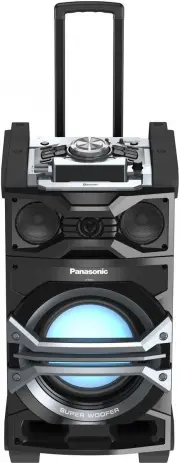
Page 2 - Table of contents; About Bluetooth
2 VQT4U56 Table of contents Safety precautions............................................ 3Caution for AC Mains Lead .............................. 3Supplied items .................................................. 4Unit and media care.......................................... 4Playable media ........
Page 3 - For your safety, please read the following text carefully.; Before use; Remove the connector cover.; How to replace the fuse; WARNING; Fuse cover
3 VQT4U56 Safety precautions Unit ≥ To reduce the risk of fire, electric shock or product damage,– Do not expose this unit to rain, moisture, dripping or splashing. – Do not place objects filled with liquids, such as vases, on this unit. – Use only the recommended accessories. – Do not remove covers...
Page 4 - Supplied items; Check the supplied accessories before using this system.; Unit and media care; 5, “To return all settings to the factory; Wall mounting accessories; DO; Lens
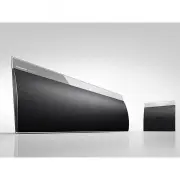
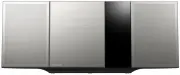
4 VQT4U56 Supplied items ∏ 1 CD unit (SL-NE5DB) ∏ 1 Speaker unit (SB-NE5DB) Check the supplied accessories before using this system. Unit and media care Pull out the AC mains lead from the outlet before maintenance. ∫ Clean this system with a soft, dry cloth ≥ When dirt is heavy, wring a cloth moist...
Page 5 - Playable media; Compatible CD
5 VQT4U56 Playable media Compatible with “IPOD_DOCK” connection(Using Lightning connector) Compatible with “IPOD_PORT” connection[Using dedicated USB cable (not supplied)] (as of January 2013) ≥ Compatibility depends on the software version. Update your iPod/iPhone/iPad to the latest software before...
Page 6 - Control reference guide; CD unit; iPod port for; Top view
6 VQT4U56 Control reference guide This system consists of the CD unit and the speaker unit. The both units are wirelessly connected when turned on. ∫ CD unit ∫ Speaker unit 1 Standby/on switch ( Í /I ) Press to switch the unit from on to standby mode or vice versa.In standby mode, the unit is still ...
Page 7 - Remote control; “FM”; Before using for the first time
7 VQT4U56 ≥ The CD unit’s display turns off if the CD unit is left unused for more than 3 minutes and the audio selector is set to an option other than “CD” , “IPOD_DOCK” , or “ IPOD_PORT ”. To turn the display on, press any button on the CD unit, or select “CD” , “IPOD_DOCK” , or “ IPOD_PORT ” as a...
Page 8 - Connections; , AUX] to select “AUX” and start playback; Basic connection; DAB indoor antenna
8 VQT4U56 Connections 1 Connect the DAB indoor antenna (supplied) to the speaker unit. 2 Connect the AC mains lead after all other connections are completed. ≥ After connecting the AC mains lead to the mains socket, wait for more than 15 seconds to turn on the Standby/on switch. ≥ When this system i...
Page 9 - Inserting media; ] to open the lid on the back of the CD unit.; Note: Remove the CD only after it stops rotating.; or USB device; Charging starts when an iPod*; Inserting a disc; Select “CD” as the source.
9 VQT4U56 Inserting media ≥ Make sure that the unit does not fall when inserting or removing media. ≥ When moving this unit, be sure to remove all media and turn this unit to standby mode. *1: Refer to “Playable media” for compatible models. ( l 5) *2: When using the “IPOD_PORT” connection, do not c...
Page 10 - Network settings; Preparation; SUCCESS; Does your wireless network router; Method 1; The WPS identifier mark
10 VQT4U56 Network settings You can wirelessly stream music from an iOS device (iPhone, iPod, iPad), an Android device or a Mac/PC to this system’s speakers by using the AirPlay or DLNA feature.To use these features, this system must join the same 2.4 GHz wireless network as the AirPlay compatible d...
Page 11 - Method 2
11 VQT4U56 With this method you will share the wireless network settings of your iPod touch/iPhone/iPad with this system. ≥ The following explanations are based on an iPhone. 1 Disconnect any devices connected to the CD unit. 2 Connect the iPhone to your home wireless network . 3 Connect the iPhone ...
Page 12 - Examples of Internet browsers; Method 3
12 VQT4U56 You can make the wireless network settings with the app, “Panasonic Stereo System Network Setup” (for free).If you’re using an Android device, download the app at the Google Play Store. If you’re using an iPod touch/ iPhone/iPad , download it at the App Store. Preparation ≥ Connect your s...
Page 13 - Select and input the details.; Alternative settings; Select “; Advanced network settings; elect; Exit; Continue to
13 VQT4U56 5 Select and input the details. ≥ Check your home wireless network name (Network name (SSID)) and password for this network. This can often be found on the wireless network router itself. 6 Select “ JOIN ” to apply the settings. ≥ In the pop-up screen, select “OK” to continue.– Select “Ca...
Page 14 - lights in; home wireless network
14 VQT4U56 Using AirPlay with this system’s speakers 1 Turn this system on. ≥ Check that the Wi-Fi status indicator lights in blue . ≥ If it doesn’t light in blue, check the wireless network settings. ( l 10) 2 iOS device: Start the “ Music ” (or iPod) app. Mac/PC: Start “ iTunes ”. ≥ If the Music a...
Page 15 - Note about changing the password; Playing back music files on the; Support format of DLNA client; Display the password; Audio codec; WAV
15 VQT4U56 The first time “D.CONNECT” is set to “ON”, a password for this system’s wireless network is randomly created and memorised in this system. ≥ This password is memorised until it is changed. 1 While “D.CONNECT” is set to “ON”:Press [SETUP] repeatedly to select “D.CONNECT”. 2 Press [ 3 , 4 ]...
Page 16 - By using the Bluetooth
16 VQT4U56 Bluetooth ® operations By using the Bluetooth ® connection, you can listen to the sound from the Bluetooth ® audio device from this system wirelessly. ≥ Refer to the operating instructions of the Bluetooth ® device for details. Preparation ≥ Turn on the Bluetooth ® feature of the device a...
Page 17 - ) or connect the Bluetooth
17 VQT4U56 About Bluetooth ® ∫ Frequency band used ≥ This system uses the 2.4 GHz frequency band. ∫ Certification of this device ≥ This system conforms to frequency restrictions and has received certification based on frequency laws. Thus, a wireless permit is not necessary. ≥ The actions below are ...
Page 20 - Press; III; Display; Time display; Automatic clock adjustment
20 VQT4U56 Press [DISPLAY, iPod MENU] to change the display. The information will scroll through the display.Each time you press the button: If the DAB broadcast includes time information, this system’s clock will be automatically updated. 1 Press [PLAY MENU] repeatedly to select “AUTO CLOCK ADJ” an...
Page 21 - Listening to FM radio
21 VQT4U56 Listening to FM radio You can preset up to 30 channels. Preparation ≥ Make sure that the antenna is connected. ( l 8) ≥ Turn this system on. ≥ Press [CD/RADIO] repeatedly to select “FM”. A station previously stored is overwritten when another station is stored in the same channel preset. ...
Page 22 - Sound adjustment; ] to select the setting and then press; Clock and Timer; ] to set the starting time
22 VQT4U56 Sound adjustment The following sound effects can be added to the audio output. 1 Press [SOUND] repeatedly to select the effect. 2 Press [ 3 , 4 ] to select the setting and then press [OK]. ≥ You may experience a reduction in sound quality when these effects are used with some sources. If ...
Page 23 - Others; To cancel this function; Connect this system to the wireless network. (; Checking the software version
23 VQT4U56 Others As a factory preset, this system will always turn off automatically if there is no sound output and no operation for approx. 30 minutes. To cancel this function 1 Press [SETUP] repeatedly to select “AUTO OFF”. 2 Press [ 3 , 4 ] to select “OFF” and then press [OK]. ≥ To turn automat...
Page 24 - Changing the communication mode
24 VQT4U56 To change the wireless communication quality between the CD unit and the speaker unit. If the units are not wirelessly connected, or output sound is interrupted, select “C.MODE1” in step 2. 1 Press [SETUP] repeatedly to select “COM.MODE” and then press [OK]. 2 Press [ 3 , 4 ] to select “C...
Page 25 - Troubleshooting; While pressing and holding down [; Common problems
25 VQT4U56 Troubleshooting Before requesting service, make the following checks. If you are in doubt about some of the check points, or if the solutions indicated in the following guide do not solve the problem, consult your dealer for instructions. Do you have the latest software installed? ≥ Occas...
Page 27 - “LINKING”
27 VQT4U56 “CANNOT ACCEPT” ≥ The remote control cannot be operated due to a wireless communication problem between the CD unit and the speaker unit. ( l 25) “CANNOT SET” ≥ Select an audio source other than “AIRPLAY” or “BLUETOOTH”. “CHECKING CONNECTION” ≥ This system is checking the connected iPod/i...
Page 28 - Attaching the speaker unit to a wall (optional); Supplied accessories; The position to attach the wall mount brackets; Installation accessories
28 VQT4U56 Attaching the speaker unit to a wall (optional) The speaker unit can be wall mounted using the supplied wall mount brackets, etc. Make sure that the screw used and the wall are strong enough to support the weight of at least 33 k g . The screws and other items are not supplied as the type...
Page 30 - Specifications
30 VQT4U56 Specifications ∫ GENERAL ∫ AMPLIFIER SECTION ∫ TUNER SECTION ∫ DAB SECTION ∫ TERMINALS SECTION ∫ DISC SECTION ∫ SPEAKER SECTION ∫ Wi-Fi/ AirPlay SECTION ∫ BLUETOOTH SECTION *1: When the iPod/iPhone/iPad is not charging.*2: Prospective communication distance Measurement environment: Temper...
Page 31 - Panasonic Warranty; Panasonic Australia; SHOULD BE RETAINED BY THE CUSTOMER AT ALL TIMES; Panasonic Australia Pty. Limited
31 VQT4U56 Limited Warranty (ONLY FOR AUSTRALIA) Panasonic Warranty 1. The product is warranted for 12 months from the date of purchase. Subject to the conditions of this warranty Panasonic or its Authorised Service Centre will perform necessary service on the product without charge for parts or lab...
Page 32 - For business users in the European Union; Cd; Pursuant to the applicable EU legislation; EU
Information for Users on Collection and Disposal of Old Equipment and used Batteries These symbols on the products, packaging, and/or accompanying documents mean that used electrical and electronic products and batteries should not be mixed with general household waste.For proper treatment, recovery...