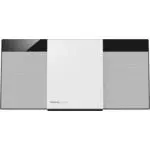
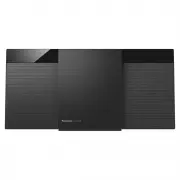
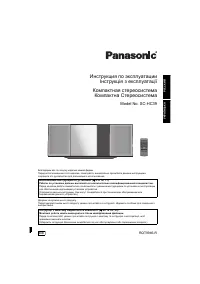
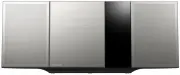
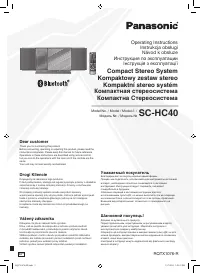
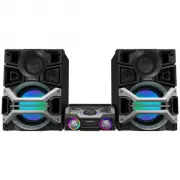
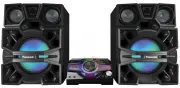
Page 2 - Safety precautions; • Titles to be referred to are indicated as “
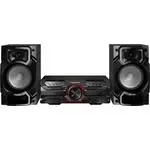
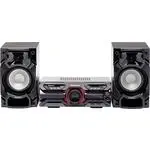
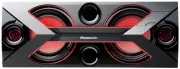
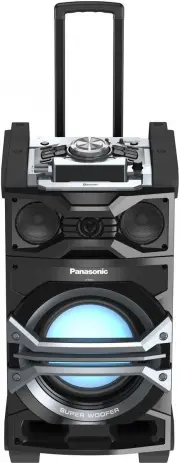
VQ T5 K 75 2 Do the procedures with the remote control. You can also use the buttons on the main unit if they are the same. Your system and the illustrations can look differently.These operating instructions are applicable to the following system. Safety precautions Unit • To reduce the risk of fire...
Page 3 - Customer Service Directory
3 VQT 5K 75 Customer Service Reference Occasionally, Panasonic may release updated software for this unit that may add or improve the way a feature operates. These updates are available free of charge.For more details, refer to the following website. http://panasonic.jp/support/global/cs/ (This site...
Page 4 - Supplied accessories; Preparation; Placement of speakers; Use only the supplied speakers.; Maintenance
VQ T5 K 75 4 Supplied accessories Check and identify the supplied accessories. Attaching the speaker feet For stability and to prevent damage to the floor, attach the speaker feet to the bottom of the speakers. Preparation Put a protection layer below the speakers to prevent scratches. Placement of ...
Page 5 - Making the connections; Connect the speakers.; Connect the speaker cables to the terminals of the same color.; Connect the FM indoor antenna.; Put the antenna where reception is best.; Connect the AM loop antenna.; Stand the antenna up on its base until it clicks.; Connect the AC power supply cord.; Conserving power
5 VQT 5K 75 Making the connections Connect the AC power supply cord only after all the other connections have been made. 1 Connect the speakers. Connect the speaker cables to the terminals of the same color. 2 Connect the FM indoor antenna. Put the antenna where reception is best. 1a 1b Tape (not su...
Page 6 - Overview of controls; Remote control; USB; DISPLAY; REC; AUTO OFF; TIT; Top view
6 VQ T5 K 75 Overview of controls Remote control SOUND PRESET EQ EDIT MODE USB CD HI-SPEED MEMORY MODE DISPLAY DIMMER SLEEP PLAY/ REC AUTO OFF ABC TUV JKL P QRS GHI W XYZ MNO DEF TIT LE SEA RCH PLA Y LI ST Top view Front view LATIN PRESET EQ MEMORY PLAYLIST / DJ ...
Page 7 - Disc; Playing disc
7 VQT 5K 75 1 Standby/on switch [ Í ], [ Í /I] Press to switch the unit from on to standby mode or vice versa. In standby mode, the unit is still consuming a small amount of power. 2 Alphanumeric buttonsTo select a 2-digit numberExample: 16: [ S 10] > [1] > [6] To set a characterExample: B: [2...
Page 8 - Press the alphanumeric buttons to select the desired track.; ] and then press the alphanumeric; USB and internal memory; Play menu
VQ T5 K 75 8 1 Press [PLAY MENU] to select “PLAYMODE” or “REPEAT”. 2 Press [ 2 , 1 ] and then press [OK] to select the desired mode. Note: The setting returns to the default “OFF PLAYMODE” when you open the disc tray. This function allows you to program up to 24 tracks. 1 Press [PROGRAM] in the stop...
Page 9 - USB at a glance
9 VQT 5K 75 Note: USB status indicator lights up when selected. Note: • All recordings are in “.mp3” format.• You cannot do recording when you are using random playback mode. • Repeat playback mode is off during recording.• A new album is added each time you do a recording.• The sequence of album ca...
Page 10 - “NOT FOUND” is shown if there is no match.; Basic playback; Information that is related to recording.; Title search
VQ T5 K 75 10 1 Press [ , MEMORY] (main unit: [ /MEMORY]) to select “MEMORY”. 2 Press [ 1 / ; ] to start playback. 1 Press [USB] to select “USB B” or “USB A”. 2 Press [ 1 / ; ] to start playback. For other operations, refer to “Disc”. You can view the available information on the display panel. Pres...
Page 11 - Radio; Using the main unit; Advanced recording functions
11 VQT 5K 75 Recording speed: CD, CD-R: Up to three times (3x) of the normal speed.CD-RW: Up to two times (2x) of the normal speed. 1 Put in the disc you want to record. 2 Press [CD]. 3 Press [CD HI-SPEED REC] and [USB REC ¥ / ; ] or [MEMORY REC ¥ / ; ] together to start recording. Note: • If you ca...
Page 12 - Bluetooth; Memory presetting
VQ T5 K 75 12 30 FM and 15 AM stations can be preset. 1 Press [OK] to select “LOWEST” or “CURRENT” frequency. 2 Press [PLAY MENU] to select “A.PRESET” and then press [OK]. “START?” is shown. 3 Press [OK] to start presetting. To cancel, press [ ∫ ]. 1 Press [ 6 ] or [ 5 ] to tune in to the station. 2...
Page 13 - device by the unit, you can complete all preparations, from
13 VQT 5K 75 For NFC-compatible Android TM devices only Simply by touching an NFC (Near Field Communication)-compatible Bluetooth ® device by the unit, you can complete all preparations, from registering a Bluetooth ® device to establishing a connection. Preparation • Turn on the NFC feature of the ...
Page 14 - Clock and timers; To start the timer; Sound and illumination; Preset EQ; Setting the clock
VQ T5 K 75 14 Clock and timers This is a 24-hour clock. 1 Press [CLOCK/TIMER] to select “CLOCK”. 2 Within 20 seconds, press [ 3 , 4 ] to set the time. 3 Press [OK]. Press [CLOCK/TIMER] to show the clock for a few seconds. Note: • Reset the clock regularly to maintain accuracy.• The clock is reset wh...
Page 15 - DJ functions; To cancel the DJ jukebox; By main unit only; Illumination effects; This effect is sounding a sample; DJ sampler
15 VQT 5K 75 Using the main unit You can adjust certain sound effect using the controls on the main unit. 1 Press the button to select the sound effect. 2 Turn [MULTI CONTROL] to select the desired setting. By main unit only You can change the illumination pattern or color on this system. Turn [ILLU...
Page 16 - Using a microphone; Using the auxiliary input; DJ effects
VQ T5 K 75 16 By main unit only You can use the DJ effect function to add the sound effects. 1 Press [DJ EFFECT]. 2 Press [1] to [6] to select the desired DJ effect. To cancel, press the button again. 3 Turn [MULTI CONTROL] to select the desired setting. To cancel the DJ effect Press [DJ EFFECT]. Us...
Page 17 - Troubleshooting
17 VQT 5K 75 Troubleshooting Before requesting service, make the following checks.If you are in doubt about some of the check points, or if the solutions indicated do not solve the problem, consult your dealer for instructions. The unit does not work. • One of the unit’s safety devices may have been...
Page 18 - Remote control code
VQ T5 K 75 18 “USB A NO DEVICE”“USB B NO DEVICE” • The USB device is not connected. Examine the connection. “DEVICE FULL” • You cannot do recording because the remaining recording time of the USB device is less than the total time of the music source.Change to a USB device which has enough recording...
Page 19 - Specifications
19 VQT 5K 75 Specifications RMS output power (each channel driven) High 400+400 W (3 ™ , 1 kHz, 30% THD) Mid-Low 400+400 W (3 ™ , 1 kHz, 30% THD) Low 850+850 W (5 ™ , 100 Hz, 30% THD) Total RMS output power 3300 W (30% THD) Disc played 8 cm CD, CD-R/RW 12 cm CD, CD-R/RW Pick up Wavelength 790 nm (CD...
Page 20 - Panasonic Corporation
Web Site: http://panasonic.net Panasonic Corporation 2014 Panasonic Corporation VQT5K75 F0314MD0 - If you see this symbol - Information on Disposal in other Countries outside the European Union This symbol is only valid in the European Union.If you wish to discard this product, please contact your l...