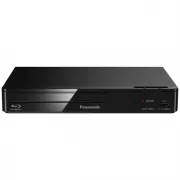
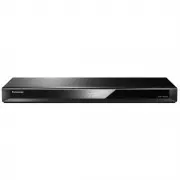
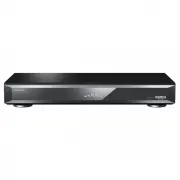
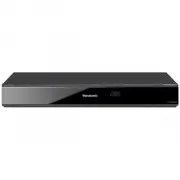
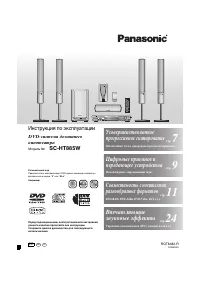
Page 2 - Dear customer; Getting started; Specifications; Table of contents/Accessories
RQTC0074 2 Accessories Table of contents Dear customer Thank you for purchasing this product. Before connecting, operating or adjusting this product, please read the instructions completely. Please keep this manual for future reference. Getting started Accessories ......................................
Page 3 - CAUTION; RISK OF ELECTRIC SHOCK
RQTC0074 3 CAUTION! THIS PRODUCT UTILIZES A LASER.USE OF CONTROLS OR ADJUSTMENTS OR PERFORMANCE OF PROCEDURES OTHER THAN THOSE SPECIFIED HEREIN MAY RESULT IN HAZARDOUS RADIATION EXPOSURE.DO NOT OPEN COVERS AND DO NOT REPAIR YOURSELF. REFER SERVICING TO QUALIFIED PERSONNEL. WARNING: TO REDUCE THE RIS...
Page 4 - IMPORTANT SAFETY INSTRUCTIONS; Product Service; NATIONAL ELECTRICAL CODE; Damage requiring service; IMPORTANT SAFETY INSTRUCTIONS/Product Service
RQTC0074 4 IMPORTANT SAFETY INSTRUCTIONS Product Service 1) Read these instructions. 2) Keep these instructions. 3) Heed all warnings. 4) Follow all instructions. 5) Do not use this apparatus near water. 6) Clean only with dry cloth. 7) Do not block any ventilation openings. Install in accordance wi...
Page 5 - Discs that can be played; Discs that cannot be played; finalize; Necessary; Handling precautions
RQTC0074 5 Discs that can be played Discs that can be played Commercial discs Disc Indicated in these instructions by Remarks LogoDVD-Video DVD-V High quality movie and music discs Video CD VCD Including SVCD (Conforming to IEC62107) CD CD Music discs Discs that cannot be played DVD-Audio, DVD-RAM, ...
Page 6 - STEP 1 Connection to a television; Do not connect through the video cassette recorder.; Television; To enjoy progressive video; Connection to a television; With COMPONENT VIDEO IN; Video cable; Back of the unit; S video cable
RQTC0074 N I O I D U A L R T N E N O P M O C N I O E D I V N I O I D U A L R O E D I V N I O E D I V S N I STEP 1 Connection to a television Do not place the unit on amplifiers or equipment that may become hot. The heat can damage the unit. Do not connect through the video cassette recorder. Due to ...
Page 7 - COAXIAL IN; Amplifier with a built-in; Enjoying multi-channel surround sound; Conserving power; Batteries; To household AC outlet; Connection to a television/The remote control
RQTC0074 COAXIAL IN STEP 1 Connection to a television STEP 2 The remote control Amplifier with a built-in decoder or a decoder-amplifier combination Coaxial cable Enjoying multi-channel surround sound n Change “DOWN SAMPLING”, “DOLBY DIGITAL” and “DTS” ( è page 14, “AUDIO” tab). Connect the AC power...
Page 8 - Basic play
RQTC0074 8 Basic play Power ON. Open the disc tray. Load the disc. Load double-sided discs so the label for the side you want to play is facing up. • Start play. Remote control sensor Skip Press [ u i ] to skip chapters or tracks. • Stop The position is memorized when “RESUME STOP” is displayed on y...
Page 9 - Disc menu; TOP MENU; Select the picture in thumbnails menu; To select a picture in other groups; RETURN; Number select
RQTC0074 9 Basic play Playing MP3/JPEG discs MP3 JPEG Frame-by-frame (during pause) DVD-V VCD On-screen item select VCD forward direction only • Disc menu DVD-V Shows a disc top menu. DVD-V Shows a disc menu. VCD with playback control Shows a disc menu. Basic play Playing MP3/JPEG discs ENTER TOP ME...
Page 10 - Convenient functions
RQTC0074 10 T 1 TIME 0 : 05 Convenient functions Convenient functions Skipping about one minute forward DVD-V (Except 4 R/ 4 RW) Convenient when you want to skip commercials etc. During play, press [CM SKIP]. This may not work depending on the play position. • Quick replay (Only when the elapsed pla...
Page 11 - Changing the play sequences; ] to select an item and press; Clearing the program; Random play; times to select “; To exit the random screen
RQTC0074 11 Changing the play sequences Changing the play sequences Program play (up to 20 items) 1. While stopped, press [PLAY MODE] several times to select “ PROGRAM”. When playing a disc with both MP3 and JPEG recorded, select “MUSIC PROGRAM” for MP3 or “PICTURE PROGRAM” for JPEG pictures. Yo...
Page 12 - Using On-Screen Menus; FUNCTIONS
RQTC0074 12 Using On-Screen Menus On-Screen Menu 1 On-Screen Menu 2 1 2 3 4 Press. Select the item. Make the settings. Press to exit. Select Select Using On-Screen Menus Items shown differ depending on the type of software. Audio Motion picture Press [ e r ] to select the soundtrack. VCD CD Press [ ...
Page 13 - “VIDEO” tab; Changing the player settings
RQTC0074 13 “VIDEO” tab SETTING STATE Display the current setting of the items below TV ASPECT Choose the setting to suit your television and preference. To select how to show images made for 16:9 aspect screens on a 4:3 aspect television. 4:3PAN&SCAN 4:3LETTERBOX 4:3ZOOM To select how to show i...
Page 14 - “AUDIO” tab; DYNAMIC RANGE; “DISPLAY” tab
RQTC0074 14 Changing the player settings “AUDIO” tab SETTING STATE Display the current setting of the items below DOWN SAMPLING Check the digital input limitations of the equipment you connect using COAXIAL terminal and select the maximum sampling frequency of PCM digital output. ON: When connected ...
Page 15 - Power; Troubleshooting guide; Picture incorrect; Picture size doesn’t; Progressive video
RQTC0074 15 Troubleshooting guide Power No power. Insert the AC power supply cord securely into the household AC outlet. (7) • The unit is automatically switched to the standby mode. When “AUTO POWER OFF” is set to “ON”, the unit automatically switches to standby after approximately 30 minutes in th...
Page 16 - Troubleshooting guide/Tips for making data discs; Sound incorrect; Tips for making data discs; Naming folders and files
RQTC0074 16 Troubleshooting guide Troubleshooting guide/Tips for making data discs Sound incorrect Sound distorted. Set Advanced Surround to “OFF”. (10) • Piercing noise comes from the speakers. If you have connected a digital amplifier which does not include decoder, be sure to set “DOLBY DIGITAL” ...
Page 17 - Limited Warranty; Panasonic Consumer Electronics Company,; Panasonic Products Limited Warranty; Limited Warranty Limits And Exclusions
RQTC0074 17 Limited Warranty Limited Warranty Panasonic Consumer Electronics Company, Division of Panasonic Corporation of North America One Panasonic Way Secaucus, New Jersey 07094 Panasonic Puerto Rico, Inc. Ave. 65 de Infantería, Km. 9.5 San Gabriel Industrial Park, Carolina, Puerto Rico 00985 Pa...
Page 18 - Maintenance; Maintenance/Specifications; Operating temperature range:; Clean this unit with a soft, dry cloth
RQTC0074 18 Maintenance Maintenance/Specifications Signal system: NTSC Operating temperature range: 4 5 to 4 35 o C Operating humidity range: 5 to 90 % RH (no condensation) Discs played [8 cm (3 ") or 12 cm (5 ")]: (1) DVD (DVD-Video) (2) DVD-R (DVD-Video, MP3 ] 2, 4 , JPEG ] 3, 4 ) (3) DVD-...
Page 19 - Referencia rápida en español; A una toma de CA; Televisor; Cable de audio/vídeo; Conexión; Cuadro a cuadro; Menú del disco
RQTC0074 19 Referencia rápida en español Referencia rápida en español N I O I D U A L R O E D I V N I A una toma de CAConecte el cable de alimentación de CA el último n Cable de alimentación de CA (incluido) A una toma de CA AC IN Televisor n Cable de audio/vídeo (incluido) Conexión Reproducción bás...
Page 20 - Main feature index; Enjoys advanced surround
© 2006 Matsushita Electric Industrial Co., Ltd. Printed in China RQTC0074-P H0206HM0 Main feature index (Reference pages are shown in parentheses.) ENTER MENU TOP MENU FUNCTIONS RETURN ZOOM REPLAY QUICK SETUP SLOW/SEARCH PLAY STOP SKIP PAUSE QUICK OSD SURROUND ADVANCED CM SKIP MODE PLAY As an ENERGY...