Page 2 - CAUTION
- 2 - IMPORTANT SAFETY INSTRUCTIONS Read these operating instructions carefully before using the unit. Follow the safety instructions on the unit and the applicable safety instructions listed below. Keep these operating instructions handy for future reference. 1 Read these instructions.2 Keep these ...
Page 3 - Precautions
- 3 - Precautions Unit To reduce the risk of fire, electric shock or product damage, ≥ Do not expose this unit to rain, moisture, dripping or splashing. ≥ Do not place objects filled with liquids, such as vases, on this unit. ≥ Use the recommended accessories. ≥ Do not remove covers. ≥ Do not repair...
Page 4 - Table of contents; IMPORTANT SAFETY; Referencia rápida en español; ) When you use a Panasonic TV that is; Voice Control; For details, refer to
- 4 - Table of contents IMPORTANT SAFETY INSTRUCTIONS . . . . . . . . . . . . 2 Precautions . . . . . . . . . . . . . . . . . 3 Getting started Accessories . . . . . . . . . . . . . . . . . 5Unit and media care . . . . . . . . . . . 5Playable media. . . . . . . . . . . . . . . 6Control reference gui...
Page 5 - Accessories; Insert the batteries to the terminal so that it (; Unit and media care; Do not attach labels or stickers to discs.; Remote control; DO
Getting started - 5 - Getting sta rted Accessories Check the supplied accessories before using this unit. ≥ Product numbers are provided in this Owner’s Manual correct as of August 2018. These may be subject to change. ≥ Do not use AC power supply cord with other equipment. ∫ Using the remote contro...
Page 6 - Playable media; Device; Video; BD
Getting started - 6 - Playable media Device Media markings Device types Contents format Ultra HD Blu-ray* 1 * 2 Video BD-Video Video BD-RE BD-RE DL Video,JPEG, MPO BD-R BD-R DL Video, MKV,JPEG, MPO DVD-Video Video DVD-R Video, AVCHD, MKV,JPEG, MPO,AAC, AIFF, ALAC, DSD (DFF, DSF), FLAC, MP3, WAV, WMA...
Page 7 - ALL
Getting started - 7 - ∫ Types of discs that cannot be played by this unit Any other disc that is not specifically supported or previously described. ∫ Region management information The unit can play back BD-Video/DVD-Video discs of the following regions codes, including “ ALL ”: Example: BD-Video DV...
Page 8 - Control reference guide
Getting started - 8 - Control reference guide ∫ Remote control When other Panasonic devices respond to the remote control of the unit, change the remote control code. ( > 36) 1 2 3 5 8 7 6 4 22 25 23 28 24 20 21 19 2627 17 18 16 13 15 12 1011 14 9 1 Turn the unit on and off 2 Open or close the di...
Page 9 - Front
Getting started - 9 - ∫ Front 1 Standby/on switch ( Í /I) ( > 18) Press to switch the unit from on to standby mode or vice versa. In standby mode, the unit is still consuming a small amount of power. 2 Disc tray 3 Remote control signal sensorDistance: Within approx. 7 m (23 feet)Angle: Approx. 20...
Page 10 - Connecting to a TV; This unit consumes a small amount of AC power (; Enjoying 4K output; Enjoying video and audio with a 4K-compatible TV; Insert the AC power supply cord up to; Setting; Set the following items in the Setup menu (; HDMI cable; To an AC outlet
Getting started - 10 - Connecting to a TV 4K images can be played back when this unit is connected to 4K compatible TV. ≥ Before making any connections, please disconnect all the units from AC power.(Connect the AC power supply cord after making all connections.) ≥ Use the High Speed HDMI cables. No...
Page 11 - Connecting to an amplifier/receiver; Enjoying video with a 4K-compatible TV and audio with an amplifier
Getting started - 11 - Connecting to an amplifier/receiver Enjoying video with a 4K-compatible TV and audio with an amplifier You can enjoy richer sound by using the HDMI AUDIO OUT terminal.(Audio is output in high resolution.) Setting Set the following items in the Setup menu ( > 30): ≥ Set “HDM...
Page 12 - BALANCED terminals; Optical digital cable; OR; Coaxial cable; Balanced cable; Audio cable
Getting started - 12 - (Audio is not output from HDMI OUT terminal.) BALANCED terminals (Audio is not output from HDMI OUT terminal.) AUDIO OUT terminals Connect terminals of the same color.(Audio is not output from HDMI OUT terminal.) Enjoying audio with an amplifier connected to the DIGITAL AUDIO ...
Page 13 - Cable connections
Getting started - 13 - Set the speaker presence and size according to your environment. ( > 33) (Audio is not output from HDMI OUT terminal.) 3D or 4K images can be played back when this unit is connected to a 3D or 4K compatible TV. ≥ This connection only supports up to 5.1ch. ≥ To connect a TV ...
Page 17 - Connecting to the network; Wireless LAN connection
Getting started - 17 - Connecting to the network The following services can be used when this unit is connected to broadband. For details about connection method, refer to the instructions supplied with the connected equipment. ≥ For additional information about this unit refer tohttp://shop.panason...
Page 18 - Setup screen appears.; About the wireless connection; If your SSID is not displayed; select “Player Settings” and press [OK]; Settings; Easy Setting; When connected to a
Getting started - 18 - After connecting your new player for the first time and pressing [ Í ], the basic settings screen will appear. PreparationTurn on the TV and select the appropriate video input. 1 Press [ Í ]. Setup screen appears. 2 Follow the on-screen instructions to continue with the settin...
Page 19 - If your wireless network is encrypted; ] of TV operation button on the; Firmware updates; Reprogramming the remote
Getting started - 19 - If the wireless router supports the PUSH button method* 2 ; You can connect to and configure the security settings of your wireless LAN device with ease by pressing the Link button on the router. If your wireless network is encrypted; Enter your encryption key (password). ≥ Yo...
Page 20 - HOME menu; Operations during playback; Stop
- 20 - Playback Playba ck HOME menu Major functions of this unit can be operated from the HOME menu. Preparation Turn on the TV and select the appropriate video input. 1 Press [ Í ] to turn on the unit. It may take some time until the HOME menu is displayed. 2 Press [OK] or [ 2 , 1 ] to select the i...
Page 21 - Press; Skip
- 21 - Playback Slow motionWhile paused, press [ 6 ] or [ 5 ]. ≥ BD-Video and AVCHD: [ 5 ] only. ≥ MKV, MP4 and MPEG2: Not effective. The speed increases up to 5 steps. ≥ Music, MP3, etc.: The speed is fixed to a single step. ≥ Press [ 1 ] to revert to normal playback speed. While playing or paused,...
Page 22 - Preparation; Connect this unit to a 3D compatible TV. (; Deleting data on the USB device; Enjoying Ultra HD Blu-ray
- 22 - Playback ≥ During music playback, the elapsed time, file name and other relevant information are displayed on the unit’s display. You can enjoy the playback of Ultra HD Blu-ray discs with this unit. Preparation ≥ For 4K/HDR viewing, connect to a device (TV, etc.) and HDMI terminals that suppo...
Page 23 - The following items can be set.; Home Network feature; -compatible smartphone or similar; Slideshow; Change the display interval.; Using Mirroring
- 23 - Playback Play a slideshow of photos and adjust various settings during the playback. 1 Insert the media. 2 Select “View Photos”. 3 Select an item and press the green button. The following items can be set. ≥ Still pictures displayed as “ ” cannot be displayed as thumbnail with this unit. ≥ Yo...
Page 24 - by pressing the yellow; To exit from Network Media Playback screen; on the Renderer; Possible applications:; Playing back contents on the
- 24 - Playback You can share photos, videos and music stored in the Network Contents server* 1 [PC, smartphone, etc.] connected to your home network. ≥ About support format of Network Contents ( > 45) 1 Press [HOME]. 2 Select “Home Network” and press [OK]. 3 Select “Network Media Playback” and p...
Page 25 - Network Service
- 25 - Playback Network Service (Enjoying NETFLIX, etc.) Network Service allows you to access some specific websites supported by Panasonic, and enjoy Internet contents such as photos, videos, etc. from Network Service home screen. ≥ Some services, such as NETFLIX require a registered account.For de...
Page 26 - VIERA Link; menu or Setup menu; Only when TV supports “VIERA Link”
- 26 - Playback VIERA Link * Only when connecting via an HDMI VIDEO OUT terminal on this unit. When the following operations are performed, the input channel of the TV will be automatically switched and the screen of this unit will be displayed.If this unit is on and the TV is off, the TV automatica...
Page 27 - Option menu
- 27 - Playback Option menu A variety of playback operations and settings can be performed from this menu.Available options differ depending on the playing contents and the condition of the unit. 1 Press [OPTION]. e.g., Ultra HD Blu-ray ≥ When playing music, select “Playback Settings” and press [OK]...
Page 29 - Audio Settings
- 29 - Playback ∫ Sound Effects *1*2 Select the sound effect.(Upsampling up to 192 kHz/32 bit is possible.)When “Voice Guidance Setting” is set to “On”, the maximum upsampling frequency will be fixed at 48 kHz. ( > 33) This setting is also able to switch by pressing [SOUND EFFECT]. ≥ Night Surrou...
Page 30 - Setup menu; Select “Player Settings”.; HDMI
- 30 - Reference Reference Setup menu Change the unit’s settings if necessary. The settings remain intact even if you switch the unit to standby. 1 Press [HOME]. 2 Select “Setup”. 3 Select “Player Settings”. 4 Select an item and change the settings. To exit the screen Press [HOME]. ∫ Resolution The ...
Page 31 - – A disc that supports HDR10+ is played back.
- 31 - Reference ∫ HDR10+ Setting You can set enable/disable of the HDR10+ function.By changing this setting to “On”, you can use the HDR10+ function under the following conditions:– A device (TV, etc.) that supports HDR10+ is connected ( > 10). – A disc that supports HDR10+ is played back. ≥ The...
Page 32 - Select the audio signal to output.; “On”
- 32 - Reference ∫ Still Mode ( paused video ) Select the type of picture shown when you pause playback. ∫ Seamless Play This enables smooth playback of the gaps between pieces of content such as programs. ≥ The expected effect may not be achieved depending on the content. ≥ If you select “Off”, pla...
Page 33 - Language
- 33 - Reference ∫ HDMI Output Settings of Music Playback Minimize the audio noise during music playback by automatically switching the video output to 1080i. ∫ Settings for High Clarity Sound Set a terminal that will stop processing audio signals or whether or not to turn on/off the unit’s display ...
Page 34 - Network
- 34 - Reference ∫ Subtitle Text Select a desired item according to the language used for MKV subtitles text. ≥ This item is displayed only after playing back a file. ∫ On-screen Language Choose the language for menus and on-screen messages. ∫ Closed Caption Closed captioning services are dependent ...
Page 35 - Select “Off” when the audio is distorted.
- 35 - Reference h Network Service Settings ( > 25) Press [OK] to show the following settings: Audio Auto Gain Control Volume that is different depending on the contents is adjusted automatically to the standard volume while using the Network Service. ≥ Depending on contents, this function effect...
Page 36 - Displays the terms of service for the cloud services.; Ratings
- 36 - Reference Send Identify Sends identifying message to Control4 controller. ≥ This function is available when “Control4 Discovery” is set to “On”. ≥ For details of the settings and operations, consult your local Control4 dealer. ∫ Legal Notices Displays the terms of service for the cloud servic...
Page 37 - Troubleshooting guide; Unit does not respond to remote; Reset the unit as follows:; General operation
- 37 - Reference Troubleshooting guide Before requesting service, please perform the following checks. The following do not indicate a problem with this unit: – Regular disc rotating sounds.– Image disturbance during search.– Image disturbance when replacing 3D discs. ∫ Unit does not respond to remo...
Page 38 - The TV screen turns black.; – When you quit the 4K playback by; Picture
- 38 - Reference You have forgotten your ratings password.You want to cancel the ratings level. h The ratings level returns to the factory defaults. 1 While the unit is onPress and hold [OK], the yellow button and the blue button on the remote control at the same time for more than 5 seconds.– “00 R...
Page 39 - – Set “HDCP Output Setting” to “HDCP1.4; Confirm that the source content supports CC.
- 39 - Reference Video is not output in 4K or high-definition. h Confirm that “Resolution” in the Setup menu is set properly. ( > 30) h Confirm the HDMI cable, related connections and the compatibility of TV video input.To output images in 4K, connect the HDMI cable to a 4K compatible terminal of...
Page 40 - Audio
- 40 - Reference Cannot hear the desired audio. h Check the connections and the “Digital Audio Output” settings. ( > 11, 32) h When the unit is connected to an amplifier/receiver with the 7.1ch AUDIO OUT terminals, set “Analog Multi Channel”. ( > 33) h To output audio from a device connected w...
Page 42 - The unit fails to operate properly. Press [; Messages on the unit’s
- 42 - Reference F99 h The unit fails to operate properly. Press [ Í /I] on the main unit for 3 seconds to switch the unit to standby, then switch back on. NET h While connecting to a network. NO PLAY h There is a viewing restriction on a BD-Video or DVD-Video. ( > 36) h A DVD-Video disc with an ...
Page 43 - Specifications; General; File format; MKV
- 43 - Reference Specifications ≥ Specifications are subject to change without notice. General Signal system NTSC Operating temperature range i 5 o C to i 35 o C ( i 41 o F to i 95 o F) Operating humidity range 10 % to 80 % RH (no condensation) AUDIO OUT (Pin jack) Analog Audio output (L/R, 7.1ch): ...
Page 44 - Analog AUDIO OUT; Audio information
- 44 - Reference *1 TS only *2 PS only ≥ With certain recording states and folder structures, the play order may differ or playback may not be possible. ≥ A combined total of up to 10,000 files and folders can be displayed as playable data in each folder regardless of their format. (Even when the pi...
Page 45 - Supported format for
- 45 - Reference When this unit works as a Network Contents client, following contents are playable. ≥ File formats that are not supported by your Network Contents server* cannot be played. * DLNA compatible server, etc. Video Photo Audio ≥ Depending on the server, the contents other than stated abo...
Page 46 - Licenses; Display languages list
- 46 - Reference Licenses Display languages list TV code list ENGFRADEUITAESPNLDSVENORDANPORRUS English French German Italian Spanish Dutch Swedish Norwegian Danish Portuguese Russian JPNCHIKORMALVIETHAPOLCESSLKHUNFIN Japanese Chinese Korean Malay Vietnamese Thai Polish Czech Slovak Hungarian Finnis...
Page 48 - Limited Warranty; Panasonic Products Limited Warranty; Go to; Get everything you need to get the most out of; Customer Services Directory; go to
- 48 - Reference Limited Warranty Panasonic Products Limited Warranty Limited Warranty Coverage (For USA Only) If your product does not work properly because of a defect in materials or workmanship, Panasonic Corporation of North America (referred to as “the warrantor”) will, for the length of the p...
Page 49 - Ahorro de energía; Conexiones básicas
- 49 - Reference Referencia rápida en español (Spanish Quick Reference) ≥ Conéctelo cuando haya realizado el resto de conexiones. Ahorro de energía Esta unidad consume una pequeña cantidad de energía aunque esté ajustada en el modo de espera (Accionamiento rápido : Desactivado, aprox. 0,3 W). Para a...
Page 50 - Preparación; La posición de detención se memoriza.; Función de reanudación de la reproducción; ] para reiniciar la reproducción desde; La velocidad aumenta hasta 5 pasos.; Inicia la reproducción
- 50 - Reference Preparación Encienda el televisor y seleccione la entrada de vídeo adecuada en el televisor. 1 Pulse [ Í ] para encender la unidad. Después de conectar su nuevo reprodutor y pulsar el botón de encendido, aparecerá la pantalla de la configuración básica. 2 Inserte el medio. Pulse [ 1...
Page 51 - Index; Panasonic Corporation of North America; pr; © Panasonic Corporation 2018
Index A Audio Changing audio . . . . . . 21 Language . . . . . . . . . . . 33 B BD-Live . . . . . . . . . . . . . . 22 C Closed Caption . . . . . 27, 34 D DMC . . . . . . . . . . . . . . . . . 24 F File format . . . . . . . . . . . . 43Firmware update . . . . . . .19 H HDR . . . . . . . . . . . . . ...


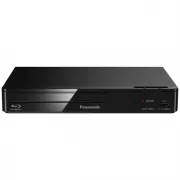 Panasonic DMP-BD84GN-K
User Manual
Panasonic DMP-BD84GN-K
User Manual
 Panasonic DMP-BDT280GN
User Manual
Panasonic DMP-BDT280GN
User Manual
 Panasonic DMP-BDT380GN
User Manual
Panasonic DMP-BDT380GN
User Manual
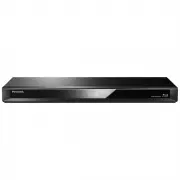 Panasonic DMR-BWT460GN
User Manual
Panasonic DMR-BWT460GN
User Manual
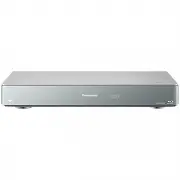 Panasonic DMR-BWT955GL
User Manual
Panasonic DMR-BWT955GL
User Manual
 Panasonic DMR-E65EE-S
User Manual
Panasonic DMR-E65EE-S
User Manual
 Panasonic DMR-EH57
Manual
Panasonic DMR-EH57
Manual
 Panasonic DMR-EH67
Manual
Panasonic DMR-EH67
Manual
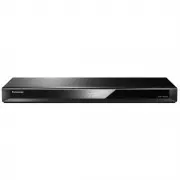 Panasonic DMR-HWT260GN
User Manual
Panasonic DMR-HWT260GN
User Manual
 Panasonic DMR-PWT560GL
User Manual
Panasonic DMR-PWT560GL
User Manual
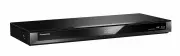 Panasonic DMR-PWT560GN
User Manual
Panasonic DMR-PWT560GN
User Manual
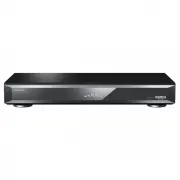 Panasonic DMR-UBT1GL-K
User Manual
Panasonic DMR-UBT1GL-K
User Manual
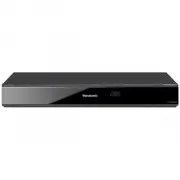 Panasonic DMR-XW440GLK
User Manual
Panasonic DMR-XW440GLK
User Manual
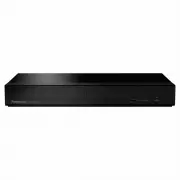 Panasonic DP-UB150GNK
User Manual
Panasonic DP-UB150GNK
User Manual
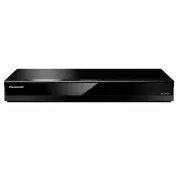 Panasonic DP-UB420GNK
User Manual
Panasonic DP-UB420GNK
User Manual
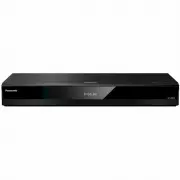 Panasonic DP-UB820GN-K
User Manual
Panasonic DP-UB820GN-K
User Manual
 Panasonic DP-UB820-K
User Manual
Panasonic DP-UB820-K
User Manual
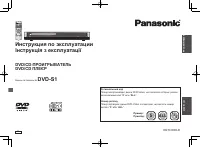 Panasonic DVD-S1
Manual
Panasonic DVD-S1
Manual
 Panasonic SC-HT885EE-S
User Manual
Panasonic SC-HT885EE-S
User Manual