Page 2 - Precautions; WARNING
- 2 - Precautions WARNING Unit To reduce the risk of fire, electric shock or product damage, y Do not expose this unit to rain, moisture, dripping or splashing. y Do not place objects filled with liquids, such as vases, on this unit. y Use the recommended accessories. y Do not remove covers. y Do no...
Page 4 - Table of contents; If you see a message about High Dynamic; Reference
- 4 - Table of contents To enjoy Ultra HD Blu-ray Disc featured with High Dynamic Range (HDR) If you see a message about High Dynamic Range (HDR) compatible issue while an Ultra HD Blu-ray Disc is played back, please check your TV settings as follows.An example of the message: “This player is not co...
Page 5 - Accessories; Remote control; Point it at the remote control signal sensor on this; Unit and media care; Before using chemically treated cloth, carefully
- 5 - Getting Started Accessories Check the supplied accessories before using this unit. 1 Remote control (N2QAYA000205) 2 Batteries for remote control1 AC adaptor (TXH0009DA) y Product numbers are provided in these operating instructions correct as of February 2019. These may be subject to change...
Page 6 - Playable media; Device; Video
- 6 - Getting Started Playable media Device Media markings Device types Contents format BD DVD CD USB Ultra HD Blu-ray *1*2 Video BD-Video Video BD-RE BD-RE DL Video,MKV, MP4, MPEG2,JPEG, MPO,AAC, AIFF, ALAC,DSD (DFF, DSF),FLAC, MP3, WAV,WMA BD-R BD-R DL BD DVD CD USB DVD-Video Video DVD-R Video, AV...
Page 7 - Any other disc that is not specifically
- 7 - Getting Started Types of discs that cannot be played by this unit Any other disc that is not specifically supported or previously described. y DVD-RAM y Super Audio CD y Photo CD y DVD-Audio y Video CD and Super Video CD y HD DVD Region management information The unit can play back BD-Vide...
Page 8 - Control reference guide; Remote control; Cancel; Available keys for HDMI CEC
- 8 - Getting Started Control reference guide Remote control 1 2 3 7 5 6 9 8 4 13 11 12 10 1 Turn the unit on and off 2 Select title numbers, etc./Enter numbers 3 Cancel 4 Show Top menu/Pop-up menu ( 17) 5 [ , , , ] : Move the highlight for selection [OK] : Confirm the selection ( ) : Frame-by-f...
Page 9 - Front; CAUTION; Rear
- 9 - Getting Started Front 1 3 4 2 5 6 5 6 1 Disc tray 2 USB port ( = DC 5 V 500 mA) This port supports USB 2.0 High Speed. 3 Remote control signal sensor Distance: Within approx. 7 m Angle: Approx. 20° up and down, 30° left and right 4 POWER LED The LED lights up when the unit is turned on, and ...
Page 10 - Connecting to a TV; This unit consumes a small amount of AC power (; Enjoying 4K output; It is recommended that you use Panasonic’s HDMI cable.; Enjoying video and audio with a 4K-compatible TV; HDMI Cable; To a household mains socket; Set the following item in the setup menu (
- 10 - Getting Started Connecting to a TV 4K images can be played back when this unit is connected to 4K compatible TV. y Before making any connections, please disconnect all the units from AC power. (Connect the AC adaptor after making all connections.) y Use the High Speed HDMI cables. Non-HDMI-co...
Page 11 - Connecting to an amplifier/receiver; Enjoying video with a 4K-compatible TV and audio with an amplifier; Setting; Setting
- 11 - Getting Started Connecting to an amplifier/receiver UB450 UB159 Enjoying video with a 4K-compatible TV and audio with an amplifier You can enjoy richer sound by using the HDMI AUDIO OUT terminal. (Audio is output in high resolution.) HDMI IN HDMI IN HDMI Cable (18 Gbps) HDMI Cable Amplifier/r...
Page 12 - Connecting an amplifier to a 4K-compatible TV
- 12 - Getting Started Connecting an amplifier to a 4K-compatible TV 3D or 4K images can be played back when this unit is connected to a 3D or 4K compatible TV. y This connection only supports up to 5.1ch. y To connect a TV and amplifier with an HDMI cable, connecting terminals on both the TV and am...
Page 13 - Connecting to the network; Firmware can be updated (; LAN cable connection; LAN Cable
- 13 - Getting Started Connecting to the network The following services can be used when this unit is connected to broadband. y Firmware can be updated ( 15) y You can enjoy BD-Live ( 18) y UB450 You can access other devices (Home Network) ( 19) For details about connection method, refer to th...
Page 14 - Settings; Easy Settings; When connected to a 4K (50p or; Easy Network Setting; In your use of internet functions; Your use of internet-enabled functions and
- 14 - Getting Started Settings The following settings can be performed anytime in the Setup menu. ( 26, 27) Easy Settings After connecting your new player for the first time and pressing [ v ], the basic settings screen will appear. PreparationTurn on the TV and select the appropriate video input...
Page 15 - Firmware updates; a broadband connection.; update is in progress may damage the unit.
- 15 - Getting Started Firmware updates This unit is capable of checking the firmware automatically when connected to the Internet via a broadband connection. When a new firmware version is available, the following message is displayed. Firmware Update Current Version: X.XX New Version: X.XX Do you ...
Page 16 - HOME menu; Major functions of this unit can be operated from; Playback; Repeat this step if necessary.; Operations during playback; Stop
- 16 - Playback HOME menu Major functions of this unit can be operated from the HOME menu. Preparation Turn on the TV and select the appropriate video input. 1 Press [ v ] to turn on the unit. 2 Press [OK] or [ , ] to select the item. y Press [OK] or [ , ] to select the item if necessary. UB450 Ultr...
Page 17 - Skip; Press and hold to change in succession; Show the status messages; change or disappear from the screen.; Current position
- 17 - Playback Search/Slow motion SearchWhile playing, press [ ] or [ ]. y Ultra HD Blu-ray, MKV, MP4 and MPEG2: Audio is not heard. Slow motionWhile paused, press [ ]. y MKV, MP4 and MPEG2: Not effective. The speed increases up to 5 steps. y Music, MP3, etc.: The speed is fixed to a single step. y...
Page 18 - Enjoying Ultra HD Blu-ray; Enjoying 3D video and photos; Preparation; Deleting data on the USB device
- 18 - Playback Enjoying Ultra HD Blu-ray You can enjoy the playback of Ultra HD Blu-ray discs with this unit. Preparation y For 4K/HDR viewing, connect to a device and terminals that support HDCP2.2 * 1 , 4K (50p/60p) 4:4:4 and HDR signals that meet Ultra HD Blu- ray standards. ( 10) Due to copyr...
Page 19 - Slideshow; Select “View Photos”.; Change the display interval.; Repeat Play; Home Network feature; Playing back contents on the; You can share photos, videos and music stored in; When this unit is connected to a Panasonic
- 19 - Playback Slideshow Play a slideshow of photos and adjust various settings during the playback. 1 Insert the media. 2 Select “View Photos”. 3 Select an item and press the green button. The following items can be set. Start Slideshow Start the slideshow. You can display still pictures in the se...
Page 20 - You can use a smartphone or tablet as the Digital; Possible applications:; “HDMI CEC”; and select this unit’s input channel on the
- 20 - Playback Using the Digital Media Controller You can use a smartphone or tablet as the Digital Media Controller (DMC) to playback contents from Network Contents server * 1 on the Renderer (this unit). Possible applications: *2 *2 *2 Renderer Server Controller Server + Controller Renderer 1 Pre...
Page 21 - Option menu; Operation Menu; Change the subtitle settings.; Shuffle; Rotate the still picture.
- 21 - Playback Option menu A variety of playback operations and settings can be performed from this menu.Available options differ depending on the playing contents and the condition of the unit. 1 Press [OPTION]. e.g., Ultra HD Blu-ray Operation Menu ZoomTop MenuPop-up Menu Secondary Video StatusPr...
Page 22 - Picture Settings; Dynamic Range) video signal. If you set a smaller; D Settings; left and right screens.
- 22 - Playback Picture Settings Dynamic Range Conversion Adjustment When this unit is connected to a TV that does not support HDR (High Dynamic Range) input, HDR video is output converting to a SDR (Standard Dynamic Range) video signal. If you set a smaller value, their contrast will be reproduce...
Page 23 - Setup menu; Select “Player Settings”.; Select an item and change the settings.; Picture; Video Format; are indicated on the screen as “; Dolby Vision Setting
- 23 - Reference Setup menu Change the unit’s settings if necessary. The settings remain intact even if you switch the unit to standby. 1 Press [HOME]. 2 Select “Setup”. 3 Select “Player Settings”. UB450 OK RETURN Player Settings System Ratings Network Language 3D Sound Picture Video Format Automati...
Page 24 - conversion of the image signal.; Sound; cannot decode the respective audio format.
- 24 - Reference HDR10+ Setting You can set enable/disable of the HDR10+ function. By changing this setting to “On”, you can use the HDR10+ function under the following conditions: – A device (TV, etc.) that supports HDR10+ is connected ( 10). – A disc that supports HDR10+ is played back. y The ...
Page 25 - COAXIAL Down Sampling; Language
- 25 - Reference UB450 UB159 COAXIAL Down Sampling Set the maximum sampling frequency to be used when outputting down-sampled audio from the COAXIAL terminal. y Set a frequency supported by the connected device. y When playing back BD-Video, signals are converted to 48 kHz despite the settings in ...
Page 26 - Network; connection and setting the IP address and
- 26 - Reference Network Easy Network Setting ( 14) Network Settings Perform network-related settings individually. Press [OK] to show the following settings: IP Address / DNS Settings This is for checking the state of the network connection and setting the IP address and DNS-related. Press ...
Page 27 - Ratings; there is no operation for 5 minutes or more, the
- 27 - Reference Ratings The following items use the same password. Don’t forget your password. DVD-Video Ratings Set a ratings level to limit DVD-Video play. BD-Video Ratings Set an age limit of BD-Video (including Ultra HD Blu-ray) play. System Easy Settings You can execute basic settings. ...
Page 28 - Troubleshooting guide; Do you have the latest firmware installed?; Unit does not respond to remote; General operation; To return to the factory default.
- 28 - Reference Troubleshooting guide Before requesting service, please perform the following checks.If the problem remains unresolved, consult your dealer for instructions. Do you have the latest firmware installed? Panasonic is constantly improving the unit’s firmware to ensure that our customers...
Page 29 - The TV screen turns black.; this unit off and on again.; ] on the main unit and the
- 29 - Reference You have forgotten your ratings password.You want to cancel the ratings level. The ratings level returns to the factory defaults. ① While the unit is onPress and hold [ ] on the main unit and the [0] on the remote control at the same time for more than 5 seconds. – POWER LED start...
Page 30 - Video is not output in 4K or high-definition.
- 30 - Reference Video is not output in 4K or high-definition. Confirm that “Video Format” in the Setup menu is set properly. ( 23) Confirm the HDMI cable, related connections and the compatibility of TV video input. To output images in 4K, connect the HDMI cable to a 4K compatible terminal ...
Page 31 - Audio; When connecting this unit; unit is connected to the Internet.; device and connect accordingly.
- 31 - Reference Audio Cannot switch audio. The audio cannot switch, if “Digital Audio Output” is set to “Bitstream” or “On”*. Set “Digital Audio Output” to “PCM” or “Off”*. ( 24) * For “DSD Output Mode” Cannot hear the desired audio. Check the connections and the “Digital Audio Output” settin...
Page 32 - Messages on the screen; No compatible content on the disc.; POWER LED
- 32 - Reference Messages on the screen No compatible content on the disc. You inserted an incompatible disc. Cannot play this file. You tried to play a non-compatible video. This disc is incompatible. You inserted an incompatible disc. The disc may be upside down. 8 This operation cannot be...
Page 33 - Specifications; General; File format
- 33 - Reference Specifications General Signal system PAL/NTSC Operating temperature range +5 ºC to +35 ºC Operating humidity range 10 % to 80 % RH (no condensation) UB450 UB159 DIGITAL AUDIO OUT (COAXIAL) 1 pc.Output format : PCM, Dolby Digital, DTS ® HDMI OUT(19 pin type A) UB450 UB159 2 pcs. UB15...
Page 34 - Audio information; The audio output differs depending on the settings
- 34 - Reference File format Extension Reference WMA “.WMA”, “.wma” This unit supports tags, but only titles, artist names and album names can be displayed. Maximum sampling rate: 48 kHz/385 kbps DSD (DFF, DSF) “.DSF”, “.dsf”, “.DFF”, “.dff” 2.8 MHz (2 ch/5.1 ch), 5.6 MHz (2 ch/5.1 ch), 11.2 MHz (2 ...
Page 35 - Supported format for Network; When this unit works as a Network Contents; Photo; Language code list
- 35 - Reference UB450 Supported format for Network Contents Playback When this unit works as a Network Contents client, following contents are playable. y File formats that are not supported by your Network Contents server* cannot be played. * DLNA compatible server, etc. Video Container Video code...
Page 36 - Licenses
- 36 - Reference Licenses “AVCHD”, “AVCHD 3D”, “AVCHD Progressive” and “AVCHD 3D/ Progressive” are trademarks of Panasonic Corporation and Sony Corporation. Java is a registered trademark of Oracle and/or its affiliates. Dolby, Dolby Audio, Dolby Vision, and the double-D symbol are trademarks of Dol...
Page 38 - Sales and Support Information; Panasonic Corporation; © Panasonic Corporation 2019
Sales and Support Information Customer Communications Centre ≥ For customers within the UK: 0344 844 3899 ≥ For customers within Ireland: 01 289 8333 ≥ Monday–Friday 9:00 am – 5:00 pm (Excluding public holidays). ≥ For further support on your product, please visit our website: www.panasonic.co.uk Di...


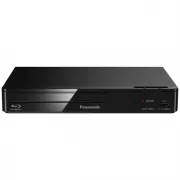 Panasonic DMP-BD84GN-K
User Manual
Panasonic DMP-BD84GN-K
User Manual
 Panasonic DMP-BDT280GN
User Manual
Panasonic DMP-BDT280GN
User Manual
 Panasonic DMP-BDT380GN
User Manual
Panasonic DMP-BDT380GN
User Manual
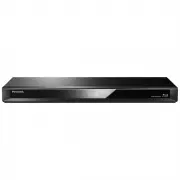 Panasonic DMR-BWT460GN
User Manual
Panasonic DMR-BWT460GN
User Manual
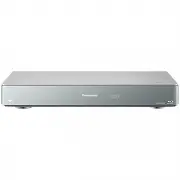 Panasonic DMR-BWT955GL
User Manual
Panasonic DMR-BWT955GL
User Manual
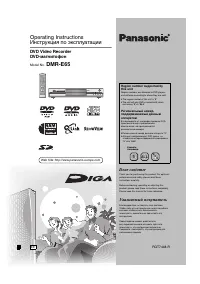 Panasonic DMR-E65EE-S
User Manual
Panasonic DMR-E65EE-S
User Manual
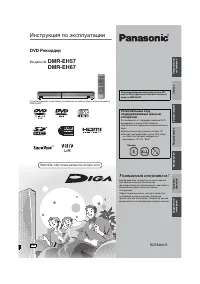 Panasonic DMR-EH57
Manual
Panasonic DMR-EH57
Manual
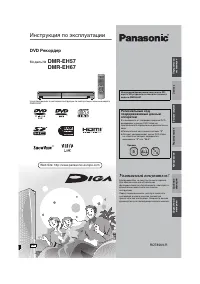 Panasonic DMR-EH67
Manual
Panasonic DMR-EH67
Manual
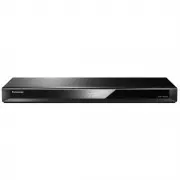 Panasonic DMR-HWT260GN
User Manual
Panasonic DMR-HWT260GN
User Manual
 Panasonic DMR-PWT560GL
User Manual
Panasonic DMR-PWT560GL
User Manual
 Panasonic DMR-PWT560GN
User Manual
Panasonic DMR-PWT560GN
User Manual
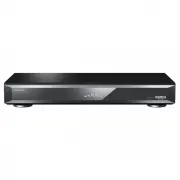 Panasonic DMR-UBT1GL-K
User Manual
Panasonic DMR-UBT1GL-K
User Manual
 Panasonic DMR-XW440GLK
User Manual
Panasonic DMR-XW440GLK
User Manual
 Panasonic DP-UB420GNK
User Manual
Panasonic DP-UB420GNK
User Manual
 Panasonic DP-UB820GN-K
User Manual
Panasonic DP-UB820GN-K
User Manual
 Panasonic DP-UB820-K
User Manual
Panasonic DP-UB820-K
User Manual
 Panasonic DP-UB9000P1K
User Manual
Panasonic DP-UB9000P1K
User Manual
 Panasonic DVD-S1
Manual
Panasonic DVD-S1
Manual
 Panasonic SC-HT885EE-S
User Manual
Panasonic SC-HT885EE-S
User Manual