Page 2 - Safety precautions
SQT0134 2 Unit • To reduce the risk of fire, electric shock or product damage,- Do not expose this unit to rain, moisture, dripping or splashing. - Do not place objects filled with liquids, such as vases, on this unit. - Use only the recommended accessories.- Do not remove covers.- Do not repair thi...
Page 3 - Batteries; CLASS 1; Supplied accessories; Remote control
SQT0134 3 Batteries • Danger of explosion if battery is incorrectly replaced. Replace only with the type recommended by the manufacturer. • Mishandling of batteries can cause electrolyte leakage and may cause a fire.- Do not mix old and new batteries or different types at the same time. - Do not hea...
Page 4 - Table of contents
SQT0134 4 Table of contents Safety precautions . . . . . . . . . . . . . . . . . . . . . .2Supplied accessories . . . . . . . . . . . . . . . . . . . .3 Getting started HDD and media information . . . . . . . . . . . . . . .6 - Recordable/playable contents . . . . . . . . . . . . . . . . .6 - Record...
Page 6 - HDD and media information; Recordable/playable contents; • Video
Getting started SQT0134 6 HDD and media information Getting started For more details, refer also to the specifications. ( > 94) (–: Impossible) Recordable/playable contents Media type Standard symbol Recordable contents Playable contents Built-in hard disk drive (HDD) § 1 [HDD] • Video• AVCHD/AVC...
Page 9 - Notes
Getting started SQT0134 9 You can use an external HDD in the following two ways. (A single HDD cannot handle those two ways simultaneously.) • For recorded titles Moving titles in the built-in HDD to a USB HDD to save the capacity of the built-in HDD.• The USB HDD must first be registered on this un...
Page 10 - DO
Getting started SQT0134 10 HDD and media information • Compatible SD card - SD Memory Card (from 8 MB to 2 GB, FAT12 and FAT16 formats) - SDHC Memory Card (from 4 GB to 32 GB, FAT32 format) - SDXC Memory Card (48 GB, 64 GB, exFAT format) • Using miniSD card or microSD card Mini-type and micro-type c...
Page 11 - Unit care
Getting started SQT0134 11 Unit care • The HDD is a high precision device The HDD is a high precision recording instrument and is easily susceptible to damage. Therefore, be careful of the following points while the unit is turned on, especially during operation, otherwise the HDD and the recorded c...
Page 12 - Control reference guide; Insert batteries
Getting started SQT0134 12 Control reference guide Instructions for operations are generally described using the remote control. 1 Transmit the remote control signal• Point it at remote control signal sensor on this unit. ( > 13) 2 Switch the unit from on to standby mode or vice versa 3 Select dr...
Page 13 - Main unit; PLAY; HDDSDVD
Getting started SQT0134 13 • While writing to/reading from the media, do not switch the unit to standby mode or remove the media. Such action may result in loss of the media contents. • When inserting the media, ensure that it is facing the right way up. 1 SD card slot indicator2 Copying indicator3 ...
Page 14 - Connection; To connect and register the USB HDD (optional); Basic connections; • Connect only after all other
Getting started SQT0134 14 Connection 3D programmes can be played back when this unit is connected to a 3D compatible TV. • Before connection, turn off all equipment and read the appropriate operating instructions. To connect and register the USB HDD (optional) Refer to “Registering the external HDD...
Page 15 - AUDIO/VIDEO OUT terminals; Amplifier/receiver connections; HDMI terminal
Getting started SQT0134 15 • Connect to terminals of the same colour. • 3D video playback is not possible with this connection.• Do not connect video signals through a video recorder. Due to copy guard protection the picture may not be displayed properly. • Connect to terminals of the same colour. •...
Page 16 - Amplifier/receiver not compatible with 3D; DIGITAL AUDIO OUT terminal
Getting started SQT0134 16 Connection ∫ Amplifier/receiver not compatible with 3D • VIERA Link function is possible by connecting to a TV or amplifier/receiver compatible with VIERA Link. • When using a TV or an amplifier/receiver that does not display “ARC compatible” on the HDMI terminal, it is ne...
Page 17 - Network connection; Internet
Getting started SQT0134 17 When this unit is connected to the network, you can enjoy network functions (DLNA function, Network Service, Remote Recording, etc.). For details about connection method, refer to the instructions supplied with the connected equipment. After you make the LAN cable connecti...
Page 18 - Settings; • Perform the setting if you cannot operate the TV; Manufacturer and Code No.; Select and enter buttons; TV operation buttons
Getting started SQT0134 18 Settings The TV can be operated from the TV operation buttons of the remote control. • Perform the setting if you cannot operate the TV with the TV operation buttons. While pressing [TV Í ], enter the code with the number buttons. Manufacturer and Code No. • If your TV bra...
Page 19 - To stop partway; To restart Easy Network Setting; Easy Setting
Getting started SQT0134 19 1 Turn on the TV, then select the appropriate AV input to suit the connections to this unit. 2 Press [ Í ] on the remote control or [ Í /I] on this unit. • The Easy Setting will start at the initial power on. 3 Follow the on-screen instructions and perform the settings. • ...
Page 20 - FUNCTION MENU screen; • You can change the unit’s settings of Digital
Getting started SQT0134 20 FUNCTION MENU screen You can easily access the desired functions, such as playback, timer recording, the unit’s settings etc. via the FUNCTION MENU. 1 Press [FUNCTION MENU]. 2 Select the item, then press [OK]. • Media - Disc- SD Card- USB device- USB HDD • TV Guide ( > ...
Page 21 - Watching broadcasts; • Make a note of the PIN you have decided on; W X; If this unit request a PIN; Using Channel List
Watching broadcasts SQT0134 21 Watching broadcasts Watching broadcasts To switch to the channel you have previously watched Press [LAST VIEW ]. • This function will work only for the channels you have watched for more than 10 seconds. To switch to the radio channels or to the all channels Press [RAD...
Page 22 - Using TV Guide system
Watching broadcasts SQT0134 22 Watching broadcasts 1 Press [GUIDE].TV Guide screen appears. 2 Select the programme, then press [OK]. 3 Select “View”, then press [OK]. Page up/down Press [CH W X ]. To view a programme list for another day Press the green button (Previous) or the yellow button (Next)....
Page 23 - Operations while watching broadcast
Watching broadcasts SQT0134 23 When “ ” appears in channel information ( > 22) Press [STTL ]. • Press again to hide subtitle. Press [AUDIO].• Audio will switch according to the contents of the programme every time it is pressed. When “ ” appears in channel information ( > 22) 1 Press [TEXT ]. ...
Page 24 - The time of the current playback position.; To stop REWIND LIVE TV or PAUSE LIVE TV; Display information
Watching broadcasts SQT0134 24 Watching broadcasts While pausing or rewinding a broadcast:Press [STATUS ]. • Press [STATUS ] again. While pausing a programme via external input:Press [STATUS ] twice. 1 The time that you can rewind the live programme. 2 The amount of time temporarily saved on HDD. 3 ...
Page 25 - Recording TV programmes; To set the recording time
Recording SQT0134 25 Recording TV programmes Recording To set the recording time 1 Select “Recording Time” or “Continuous recording” in step 4 ( > left). Recording Time: You can set the length of recording time from 30 minutes to 4 hours.• You can select the recording time with [ 2 , 1 ]. Continu...
Page 26 - Operation during Recording
Recording SQT0134 26 Recording TV programmes Press [STATUS ]. e.g., While recording two programmes simultaneously Press [STOP ∫ ]. When recording one programme: If the following screen appears Select “Yes”, then press [OK]. When recording two programmes: If the following screen appears 1 Select the ...
Page 27 - Timer recording; To use TV Guide system
Recording SQT0134 27 Timer recording To use TV Guide system Refer to “Using TV Guide system”. ( > 22) To edit the timer recording on the TV Guide screen 1 Select the programme to edit, then press the red button. 2 Select “Timer Rec Edit”, then press [OK].3 Go to step 3 on page 28, “Manually progr...
Page 28 - • You can select Category/AV with the red button.; Timer recording options
Recording SQT0134 28 Timer recording 1 Press [PROG/CHECK]. 2 Select “New Timer Programme”, then press [OK]. 3 Select the items and change the items.( > right, Timer recording options) 4 Press [OK].The timer programme is stored. To confirm and edit the timer programme Refer to “To confirm and edit...
Page 29 - Preparation; Remote recording from outside; Notes on timer recording
Recording SQT0134 29 You can make timer recording of the current or next programme. 1 While watching a programmePress [STATUS ]. 2 Display the channel information of a programme to record.• Switch the programme with [ 2 , 1 ]. 3 Press the yellow button. 4 Go to step 3 on page 28, “Manually programmi...
Page 31 - Playing titles on the HDD; Resume play function; Screen icons
Playing back video SQT0134 31 Playing titles on the HDD Playing back video Resume play function If the following screen appears, select the point to start playback. Titles will be categorised automatically.You can quickly find the recorded titles by selecting the tab. To select the tab Press [ 2 , 1...
Page 32 - • Press the yellow button again to cancel.
Playing back video SQT0134 32 Playing titles on the HDD Select the title, then press [STATUS ]. 1 Press [OPTION]. 2 Select “Grouped Titles” or “All Titles”, then press [OK]. Grouped Titles: Two or more titles recorded in the daily/weekly timer recording mode are bundled and displayed as one item. Al...
Page 33 - Playing titles on the media; Menu screen
Playing back video SQT0134 33 Playing titles on the media To play back the playlist created on other equipment 1 Press [FUNCTION MENU].2 Select “Disc” in “Media”, then press [OK].3 Select “Playlists”, then press [OK].4 Select the playlist, then press [OK]. • Some files may not be played back, depend...
Page 34 - • Regarding chapters; Showing Information
Playing back video SQT0134 34 Playing titles on the media e.g., Showing Information Select the title, then press [STATUS ]. Playback from Chapter View 1 Select the title, then press [OPTION].2 Select “Chapter View”, then press [OK].3 Select the chapter, then press [OK]. • Regarding chapters Refer to...
Page 35 - Operation during play; ] to restart from the stopped; General operations
Playing back video SQT0134 35 Operation during play • Depending on the media and the type of file, some operations may not be possible. • Depending on the media, it may take time for the menu screen, pictures, sound, etc. to start. • Discs continue to rotate while menus are displayed. Press [STOP ∫ ...
Page 37 - D video playback
Playing back video SQT0134 37 Preparation Connect 3D compatible TV to this unit. ( > 14) • Perform the necessary preparations for the TV. Play back following the instructions displayed on the screen. Perform the following settings as necessary. 3D Type If 3D video cannot be played back in 3D, you...
Page 38 - Deleting/Editing recorded titles; “For recorded titles (; Multiple deleting; • “Edit” has several functions.; Multiple editing; Deleting; Deleting during play; Editing
Editing video SQT0134 38 Deleting/Editing recorded titles Editing video Once deleted, divided or partially deleted, recorded content cannot be restored to its original state. Make certain before proceeding. § § “For recorded titles ( > 9)” only • If the disc is protected, release the protection. ...
Page 39 - appears when setting the protection.
Editing video SQT0134 39 1 Select “Delete Title”, then press [OK]. 2 Select “Delete”, then press [OK]. 1 Select “Enter Title Name” in “Edit”, then press [OK]. 2 Refer to “Entering text”. ( > 84) [HDD] [USB_HDD] [RAM] [+R] [+RW] Protection setting prevents the title from accidental deletion. 1 Sel...
Page 40 - • Off; Subtitle will not be recorded.; • During standby; The original title remains after conversion.; “During standby” conversion:; switched to standby mode.
Editing video SQT0134 40 Deleting/Editing recorded titles [HDD] [USB_HDD] File Conversion is a function to convert the recording mode of the title in DR mode and AVCHD contents. The size of the converted title will be small regularly. It will take about the same time as the recorded duration. 1 Sele...
Page 42 - Copying titles; Release the disc protection; Insert or connect the media.; Press the blue button.; • If you select “No”, you can change the
Copying video SQT0134 42 Copying titles Copying video To register the external HDD (USB HDD) Refer to “Registering the USB HDD”. ( > 66) To copy HD Video (AVCHD) to the DVD-R in High Definition Refer to “Copying HD Video (AVCHD) to the DVD-R in High Definition”. ( > 49) Release the disc protec...
Page 44 - Copying titles with copying list; Except “
Copying video SQT0134 44 Copying titles [RAM] [+RW] > [HDD] 1 Insert a disc.The menu screen appears. ( > 33) 2 Select “Play Video”, then press [OK]. 3 Select the title, then press the yellow button.A check mark is displayed. Repeat this step. 4 Press the blue button. • To change the detailed s...
Page 45 - • To change the appearance of the list; • This screen does not appear depending; Data size of each registered title
Copying video SQT0134 45 4 Register titles for copy.1 Select “Create List”, then press [ 1 ] (right). 2 Select “New item”, then press [OK].3 Select the title, then press the yellow button.Repeat this step to select titles. e.g., [HDD] • To change the appearance of the list or show information of the...
Page 46 - About other screen icons; Titles that cannot be copied
Copying video SQT0134 46 Copying titles 1 Select the title after step 4-4 ( > 45). 2 Press [OPTION]. 3 Select the item, then press [OK]. Delete All: All titles that you registered to copy are deleted.Select “Yes”, then press [OK]. Add: Add new items to the copying list.1 Select the titles with th...
Page 47 - Notes for copying
Copying video SQT0134 47 High Speed Copying is the process of copying a title to disc in high speed while maintaining the original record mode and recording length. If any conversion is required during the copy process, the copying will be done at normal speed.• The following recording mode and medi...
Page 48 - Copying all the content on the disc.; To stop copying; • You can also press and hold [RETURN; Copying a finalised disc
Copying video SQT0134 48 Copying titles [DVD-V] > [HDD] While playing a disc, the content being played is copied to the HDD according to the set time. 1 Press [FUNCTION MENU]. 2 Select “Copy Menu” in “Copy Video”, then press [OK]. 3 Set “Copy Mode”.1 Select “Copy Mode”, then press [ 1 ] (right). ...
Page 49 - - Select the subtitles with “Subtitles” in the; Press and hold [RETURN; • Speed and recording mode when copying; Copying Title Playing
Copying video SQT0134 49 1 Play back the title to copy.• Multiple audio and subtitle displayed during playback will be copied.- Select the multiple audio with “Audio Selection” in the Basic Operation menu ( > 68) - Select the subtitles with “Subtitles” in the Basic Operation menu. ( > 68) 2 Pr...
Page 50 - Playing photos; • Photos imported to the HDD (; Tab; Photo Menu screen; Photo protected
Photo and Music SQT0134 50 Playing photos Photo and Music To exit the Calendar screen Press [PAUSE ; ]. • When there are many files and/or folders, some files may not be displayed or not be playable. ( > 96) Folder • Photos imported to the HDD ( > 53) are managed using folders.Folders and phot...
Page 51 - Photo play option
Photo and Music SQT0134 51 1 While displaying a photo:Press [OPTION]. 2 Select the item, then press [OK]. 1 On the Photo Menu screen:Press the green button. 2 Select the item, then press [OK]. To pause the Slideshow Press [PAUSE ; ]. • Press [PAUSE ; ] again to restart. To stop the Slideshow Press [...
Page 52 - Editing photos
Photo and Music SQT0134 52 Editing photos § § [RAM] only 2 Press [OPTION].• Selectable items will change depending on the media and the type of file. 3 Select the item, then press [OK]. 1 On the Photo Menu screen: To edit the folder: Select the folder. To edit the photo: 1 Select the folder, then pr...
Page 53 - Copying photos; only; Selecting and copying the photos; On the Photo Menu screen:; • To select multiple folders or photos; Copying automatically
Photo and Music SQT0134 53 Copying photos § 1 § 2 § 1 “For data files ( > 9)” only (JPEG, MPO) § 2 [RAM] [DVD-R] only 2 Select the copying destination, then press [OK]. To stop copying Press and hold [RETURN ] for 3 seconds. • The name of the copied photos will be changed.• If the number of files...
Page 54 - Playing music
Photo and Music SQT0134 54 Playing music To play other music (track) Select the item, then press [OK]. • The track/artist name will be displayed if the information is contained in ID3 tag of the MP3 file. • If there is a large amount of photo data etc. within a MP3 file, play may not be possible. [U...
Page 55 - Playing music recorded on HDD
Photo and Music SQT0134 55 [HDD] 1 Press [FUNCTION MENU]. 2 Select “Music” in “Contents on HDD”, then press [OK]. 3 Select the item, then press [OK]. On the track list screen: 1 Select the track, then press [OPTION]. 2 Select “Information”, then press [OK]. Playing music recorded on HDD Artists 1 Pr...
Page 56 - Photos can be displayed during music playback.; Operations during music play; • To select the photos to display
Photo and Music SQT0134 56 Playing music [HDD] [USB_HDD] [DVD-R] [CD] [USB] Press [STOP ∫ ]. Press [PAUSE ; ]. • Press [PLAY/ a 1.3 1 ] to restart play. Press [SLOW/SEARCH 6 ] or [SLOW/SEARCH 5 ]. • Press [PLAY/ a 1.3 1 ] to restart play. Press [SKIP : ] or [SKIP 9 ]. Refer to “Repeat Play” or “Rand...
Page 57 - Editing music/playlist; • Editing operations will change depending; Add to Playlist
Photo and Music SQT0134 57 Editing music/playlist 2 Select the item, then press [OK]. e.g., while selecting an Album • Editing operations will change depending on the screen. 1 If the confirmation screen appears:Select “Yes”, then press [OK]. 2 Select “Delete”, then press [OK]. Select “Delete”, then...
Page 58 - • Network connection (; Using this unit as Server
Network SQT0134 58 Smart Home Networking (DLNA) Network Smart Home Networking (DLNA) allows you to watch the contents and broadcasts on Server equipment connected on the same network from Client equipment.This unit can be used both as Server and Client. Additionally, if used as Client, this unit can...
Page 59 - • Convenient functions can be used by; • Control Panel; • Press [OK] if the Control Panel is not; Using this unit as Client
Network SQT0134 59 You can share videos, photos and music stored in the DLNA Certified media server (such as a PC with Windows 7 installed etc.). 1 Press [FUNCTION MENU]. 2 Select “DLNA Client” in “Home Network”, then press [OK].A list of equipment connected via the network is displayed.• This list ...
Page 60 - • Depending on the server, the contents other; Playable contents
Network SQT0134 60 Smart Home Networking (DLNA) When this unit works as a DLNA client, following contents are playable. Video § 1 Only when the server is another Panasonic Blu-ray Disc Recorder, etc. Photo § 2 2D playback only. Audio • Depending on the server, the contents other than stated above ca...
Page 61 - Possible applications:; Using this unit as Media Renderer
Network SQT0134 61 This unit will work as Media Renderer, which allows you to play back the contents on DLNA Server by operating a Digital Media Controller (a smartphone, etc.). Possible applications: § Digital Media Controller compatible software should be installed. Following steps are necessary t...
Page 62 - Enjoying Network Service; may change without notice.; To exit
Network SQT0134 62 Enjoying Network Service Network Service allows you to access some specific websites supported by Panasonic, and enjoy Internet contents such as photos, videos, etc. from Network Service home screen. e.g., Network Service home screen• Images are for illustration purpose, contents ...
Page 63 - Recording from external equipment
With Other Equipment SQT0134 63 Recording from external equipment With Other Equipment Recording mode: XP, SP, LP, EP Preparation Connect the Set Top Box or video equipment ( > 15) 1 Press [INPUT SELECT] and select “AV”, then press [OK]. 2 Press [REC MODE] to select the recording mode. 3 Select t...
Page 64 - To copy to the DVD-R in High Definition; USB connection cable
With Other Equipment SQT0134 64 Copying the HD Video (AVCHD) § “For data files ( > 9)” only e.g., Connecting to the Panasonic video camera 1 Connect the video camera or insert the media.• Make the video camera ready for data transfer. The menu screen appears. ( > 33) 2 Select “Copy Video ( AVC...
Page 65 - Limitation information; Connecting the USB HDD
With Other Equipment SQT0134 65 Registering the external HDD (USB HDD) § § “For recorded titles ( > 9)” only If you intend to move recorded titles to a USB HDD, the USB HDD must be registered to this unit first. Limitation information • A USB HDD with a capacity of less than 160 GB cannot be used...
Page 66 - • If the registering screen appears when; To cancel all USB HDD registrations; Registering the USB HDD
With Other Equipment SQT0134 66 Registering the external HDD (USB HDD) • If the registering screen appears when connecting the USB HDD, go to step 5. 1 Press [FUNCTION MENU]. 2 Select “Basic Settings” in “Setup”, then press [OK]. 3 Select “Settings for USB HDD” in “HDD / Disc / USB HDD”, then press ...
Page 67 - VIERA Link functions; What is VIERA Link “HDAVI Control”?
Convenient functions SQT0134 67 VIERA Link functions Convenient functions What is VIERA Link “HDAVI Control”? VIERA Link “HDAVI Control” is a convenient function which will link the operations of this unit and a Panasonic TV (VIERA) or an amplifier/receiver. You can use this function by connecting t...
Page 68 - Playback menu
Convenient functions SQT0134 68 Playback menu A variety of operations and settings such as changing the subtitles and audio languages can be performed during playback of video or music. Also, picture and sound quality can be set to your personal taste. 1 Press [OPTION]. 2 Select “Playback Settings” ...
Page 69 - Select the picture quality mode.
Convenient functions SQT0134 69 Language • The menu is not displayed when playing photos. Picture Settings Picture Type Select the picture quality mode. Sharpness Adjustment Adjusts the sharpness of images. The greater the value is, the sharper images will be. Noise Reduction Reduces unnecessary noi...
Page 70 - To return to the previous screen; Common procedures; • Follow the instructions on the screen if; Menu list; Digital TV Tuning; Update Channel List (
Convenient functions SQT0134 70 Basic Settings You can change the unit’s settings of Digital TV Tuning, Sound, Display, Connection, Network etc. in the menu. 1 Press [FUNCTION MENU]. 2 Select “Basic Settings” in “Setup”, then press [OK]. 3 Select the menu, then press [OK]. To return to the previous ...
Page 71 - Dynamic Range Compression (
Convenient functions SQT0134 71 Picture Still Mode ( > 74) NTSC Video Output ( > 74) Sound Dynamic Range Compression ( > 75) Downmix ( > 75) Bilingual Audio Selection ( > 75) Digital Audio Output ( > 75) PCM Down Conversion ( > 75) Dolby Digital ( > 75) DTS ( > 75) MPEG ( ...
Page 74 - Picture; Select how to output the NTSC image.
Convenient functions SQT0134 74 Basic Settings Chapter Creation Set the Chapter Creation method.• Even if “Automatic” is selected, depending on the programme to be recorded, the chapter may not be created correctly. Disc Speed for High Speed Copy Select the speed of high-speed copying.If “Normal ( S...
Page 75 - Sound
Convenient functions SQT0134 75 Sound Dynamic Range Compression To lower the dynamic range for playback (e.g., at night).• This does not work depending on broadcasts and recorded titles. Downmix Select the downmix system of multi-channel to 2-channels sound.• Select “Surround encoded”, when the conn...
Page 76 - Changes the brightness of the unit’s display.; when “Side by side” is selected.
Convenient functions SQT0134 76 Basic Settings Display On-Screen Information Select the time until the channel information screen ( > 22) disappears automatically. Unit’s Display Changes the brightness of the unit’s display. Screen Saver This is to prevent burn-in on the screen. Teletext Select t...
Page 77 - • To set the IP address and DNS
Convenient functions SQT0134 77 Network Easy Network Setting Press [OK] to start Easy Network Setting. ( > 19) Network Settings IP Address / DNS Settings Check the connection of the network or set the IP address and DNS. • To set the IP address and DNS 1 Set “IP Address Auto-assignment” and “DNS-...
Page 79 - Others; • Timer Setting for Quick Start:; normal circumstances.
Convenient functions SQT0134 79 Others Standby Settings Quick Start • On: It is possible to start quickly from standby mode. • Off: Power consumption in standby mode is minimized. ( > 94) However, startup time from standby mode will be longer. • Timer Setting for Quick Start: “Quick Start” is act...
Page 81 - use the following function:; The unit’s display during the update
Convenient functions SQT0134 81 Software (Firmware) Update Software of this unit can be updated automatically by the following methods at the specified time. (Default setting is 3 a.m. > 80, Software Update in Standby) - From Internet § • To update the software (Firmware) immediately, use the fol...
Page 82 - Other operations; Media management; Disc Name
Convenient functions SQT0134 82 Other operations [RAM] [DVD-R] [DVD-RW] [+R] [+RW] [SD] 1 Press [FUNCTION MENU]. 2 Select “Media”, then press [OK]. [RAM] [DVD-R] [DVD-RW] [+R] [+RW] This function is to name a disc.Refer to “Entering text”. ( > 84) • The disc name is displayed in the DVD Managemen...
Page 83 - To stop formatting; Do not disconnect the AC mains lead while formatting.; After finalising; Do not disconnect the AC mains lead while finalising.; Format Disc/Format Card
Convenient functions SQT0134 83 [RAM] [DVD-RW] [+RW] [SD] [+R] (New disc only) Formatting deletes all contents (including computer data), and they cannot be restored. Check carefully before proceeding. 1 Select “Yes”, then press [OK]. 2 Select “Start”, then press [OK]. 3 Press [OK]. [RAM] To stop fo...
Page 84 - • Show the “Enter Title Name” screen, etc.; To end partway; Create Top Menu; Entering text; P Q R
Convenient functions SQT0134 84 Other operations [+RW] You can create Top Menu for displaying on other equipment. Make selections from “Top Menu” and “Auto-Play Select” before creating Top Menu. 1 Select “Yes”, then press [OK]. 2 Select “Start”, then press [OK]. 3 Press [OK]. • You cannot use the To...
Page 85 - Normal output; To cancel the HOLD function; simultaneously until “X HOLD” disappears.; HOLD function; Unit’s display
Convenient functions SQT0134 85 When the image does not match the screen size of the TV, you can enlarge the image to fill the screen. 1 Press [OPTION]. 2 Select “Playback Settings” in “Playback Menu”, then press [OK]. 3 Select “Aspect” in “Basic Operation”, then press [OK]. 4 Select the item, then ...
Page 86 - Troubleshooting guide; The unit does not work.; • One of the unit’s safety devices may have been; General operation
Troubleshooting SQT0134 86 Troubleshooting guide Troubleshooting Before requesting service, make the following checks. If the problem still persists, consult your dealer for instructions.Updating to the latest software (firmware) may solve the problem. ( > 81) The unit does not work. • Check the ...
Page 87 - Displays
Troubleshooting SQT0134 87 The remote control does not work. • The remote control and main unit are using different codes. Change the code on the remote control. • Software (firmware) is updating when “UPD / ” is displaying on the unit’s display. Wait until the update is completed. ( > 81) • ...
Page 88 - D video is not output correctly.
Troubleshooting SQT0134 88 Troubleshooting guide The images do not appear on the TV.The picture is distorted during play, or video will not play correctly. • Check the connections. ( > 14) • Check the settings of the connected TV, etc.• An incorrect resolution is selected in “HDMI Video Format”. ...
Page 89 - Cannot change audio channel.
Troubleshooting SQT0134 89 No sound.Distorted sound. • Check the connections. ( > 14) • Check the settings of the connected TV, etc.• Press [AUDIO] to select the audio. ( > 23, 36) • To output audio from a device connected with an HDMI cable, set “HDMI Audio Output” to “On”. ( > 70, 76) Can...
Page 90 - Audio and video momentarily pause.
Troubleshooting SQT0134 90 Troubleshooting guide The time recorded on the disc and the available time shown do not add up. • [DVD-R] [+R] If you record or edit many times, the remaining capacity is reduced and then recording or editing may be disabled. • Available disc space display may be different...
Page 91 - The contents of the SD card cannot be read.
Troubleshooting SQT0134 91 The contents of the SD card cannot be read. • Remove the card from the slot and then insert again. If this does not solve the problem, switch the unit to standby mode and turn it on again. Copying, deleting and setting protection takes a long time. • When there are a lot o...
Page 92 - VIERA Link does not work.; VIERA Link
Troubleshooting SQT0134 92 Troubleshooting guide VIERA Link does not work. • Some functions may not work depending on the version of “HDAVI Control” of the connected TV, etc. This unit supports “HDAVI Control 5” functions. • Check the settings of the connected TV, etc.• If the connection for the equ...
Page 93 - Messages on the unit’s display
Troubleshooting SQT0134 93 The following messages or service numbers appear on the unit’s display when something unusual is detected. The remote control and main unit are using different codes. Change the code on the remote control. ( > 87) Selected titles in the USB HDD are being converted.Do no...
Page 94 - Specifications
Reference SQT0134 94 Specifications Reference Specifications are subject to change without notice. ∫ General Dimensions: 430 mm (W) 59 mm (H) (excluding the projecting parts) 238 mm (D) (including the projecting parts) 249 mm (D) Mass: Approx. 2.9 k g Power supply: AC 220 V to 240 V, 50 Hz Power con...
Page 95 - Recordable discs
Reference SQT0134 95 ∫ Recordable discs DVD-RAM: 2X SPEED (Ver. 2.0), 2-3X SPEED (Ver. 2.1), 2-5X SPEED (Ver. 2.2) DVD-R (SL): 1X SPEED (Ver. 2.0), 1-4X SPEED (Ver. 2.0),1-8X SPEED (Ver. 2.0), 1-16X SPEED (Ver. 2.1) DVD-R (DL): 2-4X SPEED (Ver. 3.0), 2-8X SPEED (Ver. 3.0) DVD-RW: 1X SPEED (Ver. 1.1)...
Page 98 - • Regarding recording time remaining:; Language code list
Reference SQT0134 98 Specifications ∫ XP, SP, LP, EP modes • Regarding recording time remaining: This unit records using a VBR (Variable bit rate) data compression system to vary recorded data segments to match video data segments which may cause differences in the displayed amount of time and space...
Page 99 - Licenses
Reference SQT0134 99 Licenses “AVCHD”, “AVCHD 3D”, “AVCHD Progressive” and “AVCHD 3D/Progressive” are trademarks of Panasonic Corporation and Sony Corporation. DLNA, the DLNA Logo and DLNA CERTIFIED are trademarks, service marks, or certification marks of the Digital Living Network Alliance. DVB and...
Page 101 - Limited Warranty; Panasonic Australia; SHOULD BE RETAINED BY THE CUSTOMER AT ALL TIMES; Panasonic Australia Pty. Limited
Reference SQT0134 101 Limited Warranty Panasonic Warranty 1. The product is warranted for 12 months from the date of purchase. Subject to the conditions of this warranty Panasonic or its Authorised Service Centre will perform necessary service on the product without charge for parts or labour, if in...
Page 102 - Index
Reference 102 SQT0134 Index A Aspect . . . . . . . . . . . . . . . . . . . . . . . . . . . . 76, 85 Audio . . . . . . . . . . . . . . . . . . . . . . . . . . 23, 36, 96 Auto Setup . . . . . . . . . . . . . . . . . . . . . . . . 19, 72 AVCHD . . . . . . . . . . . . . . . . . . . . . 31, 33, 49, 64 B ...
Page 104 - Personal information handling; Panasonic Corporation; © Panasonic Corporation 2014
Information on Disposal in other Countries outside the European Union This symbol is only valid in the European Union.If you wish to discard this product, please contact your local authorities or dealer and ask for the correct method of disposal. The recording and playback of content on this or any ...


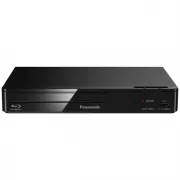 Panasonic DMP-BD84GN-K
User Manual
Panasonic DMP-BD84GN-K
User Manual
 Panasonic DMP-BDT280GN
User Manual
Panasonic DMP-BDT280GN
User Manual
 Panasonic DMP-BDT380GN
User Manual
Panasonic DMP-BDT380GN
User Manual
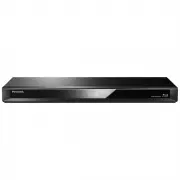 Panasonic DMR-BWT460GN
User Manual
Panasonic DMR-BWT460GN
User Manual
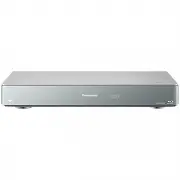 Panasonic DMR-BWT955GL
User Manual
Panasonic DMR-BWT955GL
User Manual
 Panasonic DMR-E65EE-S
User Manual
Panasonic DMR-E65EE-S
User Manual
 Panasonic DMR-EH57
Manual
Panasonic DMR-EH57
Manual
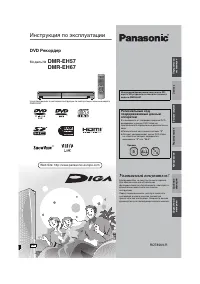 Panasonic DMR-EH67
Manual
Panasonic DMR-EH67
Manual
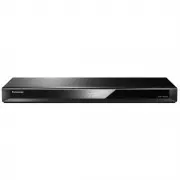 Panasonic DMR-HWT260GN
User Manual
Panasonic DMR-HWT260GN
User Manual
 Panasonic DMR-PWT560GL
User Manual
Panasonic DMR-PWT560GL
User Manual
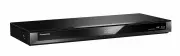 Panasonic DMR-PWT560GN
User Manual
Panasonic DMR-PWT560GN
User Manual
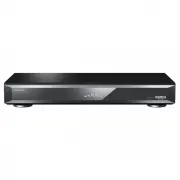 Panasonic DMR-UBT1GL-K
User Manual
Panasonic DMR-UBT1GL-K
User Manual
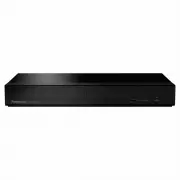 Panasonic DP-UB150GNK
User Manual
Panasonic DP-UB150GNK
User Manual
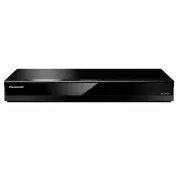 Panasonic DP-UB420GNK
User Manual
Panasonic DP-UB420GNK
User Manual
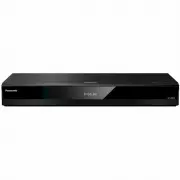 Panasonic DP-UB820GN-K
User Manual
Panasonic DP-UB820GN-K
User Manual
 Panasonic DP-UB820-K
User Manual
Panasonic DP-UB820-K
User Manual
 Panasonic DP-UB9000P1K
User Manual
Panasonic DP-UB9000P1K
User Manual
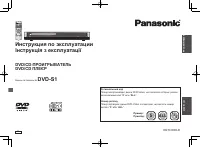 Panasonic DVD-S1
Manual
Panasonic DVD-S1
Manual
 Panasonic SC-HT885EE-S
User Manual
Panasonic SC-HT885EE-S
User Manual