Page 2 - Safety precautions
SQT1111 2 Unit • To reduce the risk of fire, electric shock or product damage,- Do not expose this unit to rain, moisture, dripping or splashing. - Do not place objects filled with liquids, such as vases, on this unit. - Use only the recommended accessories.- Do not remove covers.- Do not repair thi...
Page 3 - Supplied accessories; Remote control
SQT1111 3 Batteries • Danger of explosion if battery is incorrectly replaced. Replace only with the type recommended by the manufacturer. • Mishandling of batteries can cause electrolyte leakage and may cause a fire.- Do not mix old and new batteries or different types at the same time. - Do not hea...
Page 4 - Table of contents
SQT1111 4 Table of contents Safety precautions . . . . . . . . . . . . . . . . . . . . 2 Supplied accessories . . . . . . . . . . . . . . . . . . 3 Getting started Unit care . . . . . . . . . . . . . . . . . . . . . . . . . . . . . 5 Main unit . . . . . . . . . . . . . . . . . . . . . . . . . . . . ...
Page 5 - Unit care
Gettin g started SQT1111 5 Unit care • The HDD is a high precision recording instrument and is easily susceptible to damage. Therefore, be careful of the following points while the unit is turned on, especially during operation, otherwise the HDD and the recorded content may be damaged:- Do not subj...
Page 6 - Main unit; Front; Disc tray; Inserting or removing media; Disc
Gettin g started SQT1111 6 Main unit • While writing to/reading from the media, do not switch the unit to standby mode or remove the media. Such action may result in loss of the media contents. • When inserting the media, ensure that it is facing the right way up. • The USB port on the front side do...
Page 7 - Display
Gettin g started SQT1111 7 Class II equipment (The construction of the product is double-insulated.) Display 1 Drive (HDD or BD) indicator 2 Main display section indicator• Messages and other information are displayed. ( > 71) 3 Timer recording indicatorThis indicator lights up ...
Page 8 - Remote Control
Gettin g started SQT1111 8 Remote Control Instructions for operations are generally described using the remote control. GUIDE CH CH PAGE AV INPUT TV OK VOL RETURN OPTION DELETE AUDIO REC TEXT STTL -10s +60s REWIND LIVE TV 0 2 abc 5 jkl 8 tuv 1 4 ghi 7 qrs p 3 def 6 mno 9 xyz w FU NCT ION M EN U STAT...
Page 9 - Connection; Basic connections; • Connect only after all other
Gettin g started SQT1111 9 Connection • Keep the RF coaxial cables as far away as possible from other cables. 3D programmes can be played back when this unit is connected to a 3D compatible TV. • Before connection, turn off all equipment and read the appropriate operating instructions.• Use the High...
Page 10 - Connect the Set Top Box or video equipment; Amplifier/receiver connections; HDMI terminal; DIGITAL AUDIO OUT terminal
Gettin g started SQT1111 10 • When using a TV or an amplifier/receiver that does not display “ARC” on the HDMI terminal, it is necessary to connect the TV and the amplifier/receiver with a digital audio cable to enjoy the TV audio on the amplifier/receiver. • When you do not want the audio to be out...
Page 11 - Settings; • Perform the setting if you cannot operate the TV; Manufacturer and Code No.; Network connection; LAN cable connection; Broadband; TV operation buttons
Gettin g started SQT1111 11 We recommend that you connect this unit to a network. By doing so, you can:- Enjoy BD-Live- Keep this unit up to date at all times through software (firmware) updates ( > 56, Software (Firmware) Update) For details about connection method, refer to the instructions sup...
Page 12 - To stop partway; Easy Setting; Easy Network Setting
Gettin g started SQT1111 12 1 Turn on the TV, then select the appropriate AV input to suit the connections to this unit. 2 Press [ Í ] on the remote control or [ Í /I] on this unit. • The Easy Setting will start at the initial power on. 3 Select the country you live in, and press [OK]. • [For_Austra...
Page 13 - HDD and media information; Recordable/playable contents
Gettin g started SQT1111 13 HDD and media information For more details, refer also to the specifications. ( > 72) ( – : Impossible) Recordable/playable contents Media type Standard symbol Recordable contents Playable contents Built-in hard disk drive (HDD) [HDD] • Video• AVCHD/AVCHD 3D• MKV• MP4•...
Page 16 - Notes
Gettin g started SQT1111 16 § 1 FR (Flexible Recording Mode):The unit automatically selects the best possible recording rate between XP mode and EP mode. § 2 The SD quality programme cannot be converted to HD quality. § 3 [For_New_Zealand] § 4 You cannot select during play whether it activates or de...
Page 17 - DO
Gettin g started SQT1111 17 Notes for the disc • Region management information The unit can play back BD-Video/DVD-Video discs of the following regions codes, including “ALL”: e.g., BD-Video DVD-Video • Disc recorded on another device • It may be necessary to finalise the disc, create Top Menu or cl...
Page 18 - FUNCTION MENU list; • You can change the unit’s settings of Digital; • Media
Gettin g started SQT1111 18 FUNCTION MENU screen You can easily access the desired functions, such as playback, timer recording, the unit’s settings etc. via the FUNCTION MENU. 1 Press [FUNCTION MENU]. 2 Select the item, then press [OK]. Media TV Guide Copy Video Setup Timer Recording Contents on HD...
Page 19 - Watching broadcasts; W X
Watching broa dcasts SQT1111 19 Watching broadcasts To switch to the channel you have previously watched Press [LAST VIEW ]. • This function will work only for the channels you have watched for more than 10 seconds. If you have set a ratings level ( > 61, Child Lock ( Parental Rating )), you may ...
Page 20 - the programme every time it is pressed.; Using TV Guide system
Watching broa dcasts SQT1111 20 Press [AUDIO].• Audio will switch according to the contents of the programme every time it is pressed. You can switch the aspect ratio of the screen mode. ( > 59) 1 Press [GUIDE].TV Guide screen appears. 2 Select the programme, then press [OK]. 3 Select “View”, the...
Page 21 - Using Channel List; XXXXXXX; XXXXXXX
Watching broa dcasts SQT1111 21 You can select from the list of channel names. 1 Press [OK]. 2 Select the channel, then press [OK]. To edit the channel list Refer to “Channel List”. ( > 60) This unit temporarily saves a live TV programme you are watching with this unit’s tuner on HDD. REWIND LIVE...
Page 22 - Recording; To cancel a conversion (; To change the recording (conversion) mode
Recording SQT1111 22 Recording TV programmes • If a timer recording reaches its start time when all tuners are being used for recording, the recording (OTR) of one of the programmes terminates. • Teletext will not be recorded.• Following contents or media cannot be played back while recording.- 3D v...
Page 23 - If the following screen appears; While recording, perform steps 1–3 on page 22.; Operation during Recording; Following screen appears; Recording programme not displayed on the TV
Recording SQT1111 23 Press [STATUS ]. e.g., While recording two programmes simultaneously Press [ ∫ ]. When recording one programme: If the following screen appears Select “Yes”, then press [OK]. After displaying the recording programme, press [ ; ]. • Press again to restart recording. (A title is n...
Page 24 - Timer recording; To use TV Guide system (
Recording SQT1111 24 Timer recording To use TV Guide system ( > 20) Operation during Recording ( > 23) To edit the timer programme ( > 27) Select “Single Timer Rec.” or “Series Timer Rec.” ( > 25), then press [OK]. • The overlapped programmes are displayed with if their repeat programmes...
Page 26 - Channel; Timer recording options; Notes on timer recording
Recording SQT1111 26 Select the items and change the settings. Channel You can select Category/AV with the red button. Day/Date You can select “Date” or “Weekly” by pressing the green button. Auto Renewal Recording (Only daily/weekly/series timer recording)The unit will record the new programme over...
Page 27 - To edit a timer programme; Screen icons
Recording SQT1111 27 2 Select the programme, then perform the operations. To edit a timer programme 1 Press [OK].2 Change the timer recording options. • Refer to “Timer recording options”. ( > 26) 3 Press [OK]. To exit the timer recording list Press [EXIT ]. To confirm and edit a timer programme ...
Page 28 - Playing titles; “For recorded titles (; Video Menu screen; Programme type
Playing back video SQT1111 28 Playing titles on the HDD AVCHD tab [USB_HDD] When connecting registered USB HDD, “USB HDD” tab and registration number appears.Select “USB HDD” tab. § § “For recorded titles ( > 16)” only 1 Press [FUNCTION MENU]. 2 Select “Contents on HDD”, then press [OK]. e.g., 3 ...
Page 30 - To edit the chapter in Chapter View; Playback from Chapter View; Video list screen; Menu screen
Playing back video SQT1111 30 1 Select the title, then press [OPTION]. 2 Select “Chapter View”, then press [OK]. e.g., [HDD] 3 Select the chapter, then press [OK]. To edit the chapter in Chapter View Refer to “Editing chapters”. ( > 39) e.g., Playing titles on the media To play back the playlist ...
Page 31 - While stopped; Notes for BD-Live discs
Playing back video SQT1111 31 If the menu screen is not displayed, display it by performing the following operation. 1 While stopped Press [FUNCTION MENU]. 2 Select “Media”, then press [OK].3 Select the media, then press [OK]. e.g., About screen icons Refer to “Screen icons”. ( > 30) Showing Info...
Page 32 - Operation during play; • Press again to return to normal speed.; General operations
Playing back video SQT1111 32 Operation during play • Discs continue to rotate while menus are displayed. Press [ ∫ ] when you have finished playback to protect the unit’s motor, your TV screen, etc. Press [STATUS ] twice. Press [ ∫ ]. Resume play function Press [ 1 a 1.3] to restart from the stoppe...
Page 33 - recorded every time it is pressed.; D video playback
Playing back video SQT1111 33 Skip forward 1 minute: Press [+60s]. Skip backward 10 seconds: Press [-10s]. • Depending on the content that you play back, this function is not available. • [For_New_Zealand] This function does not work for titles containing recorded broadcasts. [BD-V] [DVD-V] 1 Press ...
Page 34 - Graphic Display Level; Playback menu; To clear the Playback menu; Keep original picture format.; Menu
Playing back video SQT1111 34 Change this setting when the screen is not correctly displayed for 3D compatible programmes. Graphic Display Level Adjust the 3D position for the playback menu or message screen etc. • Please refrain from viewing 3D images if you do not feel well or are experiencing vis...
Page 36 - Deleting/Editing titles; Multiple selection; • Press the yellow button again to cancel.; appears when setting the protection.; Deleting recorded titles; Deleting during play; Editing recorded titles; Entering title name
Edit ing video SQT1111 36 Deleting/Editing titles Once deleted, divided or partially deleted, content cannot be restored to its original state. Make certain before proceeding. § § “For recorded titles ( > 16)” only 1 On the Video Menu screen:Select the title. 2 Press [DELETE]. 3 Select “Delete”, ...
Page 37 - Subtitle will not be recorded.
Edit ing video SQT1111 37 [HDD] [USB_HDD] [BD-RE] [BD-R] [RAM] 1 Select “Partial Delete” in “Edit”, then press [OK]. 2 Press [OK] at the start point and end point to delete.• You can find the desired point by using play, search, etc. ( > 32) 3 Select “Continue”, then press [OK].• Select “Next”, t...
Page 38 - To cancel a “Now” conversion
Edit ing video SQT1111 38 3 Select the item, then press [OK]. Convert & Delete: The original title will be deleted to save HDD capacity after conversion. Convert Only: The original title remains after conversion. To cancel a “Now” conversion Press and hold [RETURN ] for more than 3 seconds. To c...
Page 39 - Perform the editing operations.; To delete the chapter:; • Multiple selection (; Editing chapters; Deleting video files on the HDD
Edit ing video SQT1111 39 [HDD] [USB_HDD] [BD-RE] [BD-R] [RAM] 1 Select “Chapter View”, then press [OK]. 2 Perform the editing operations. Edit Chapter Mark: Select the point where you want to start a new chapter while viewing the title.1 Press the green button.2 Press [OK] at the point you want to ...
Page 40 - Copying titles
Copying vide o SQT1111 40 Copying titles • Simultaneous operation is not possible while copying with finalising or creating Top Menu. • You cannot copy the following titles. - [USB_HDD] Protected titles - [USB_HDD] HD Video (AVCHD) • [For_New_Zealand] If you wish to choose the audio language, select...
Page 41 - Press the blue button.; The discs become
Copying vide o SQT1111 41 • You can perform “Finalise” ( > 58) or “Create Top Menu” ( > 58) later. [BD-RE] [BD-R] [RAM] [+RW] > [HDD] 1 Insert a disc.The menu screen appears. ( > 30) 2 Select “Play Video”, then press [OK]. 3 Select the title.• Multiple selection ( > 40) 4 Press the bl...
Page 42 - Set the recording mode (; • To change the appearance of the list; Copying titles with copying list; Except “; Data size of each registered title
Copying vide o SQT1111 42 2 Set the copy direction.1 Select “Copy Direction”, then press [ 1 ] (right). 2 Set “Source” and “Destination”.3 Press [ 2 ]. 3 Set the recording mode ( > 16). 1 Select “Copy Mode”, then press [ 1 ] (right). 2 Set “Recording Mode”.3 Press [ 2 ]. 4 Register titles for cop...
Page 43 - • This screen does not appear depending; About other screen icons; Editing the copying list; Titles that cannot be copied
Copying vide o SQT1111 43 5 Make other settings.1 Select “Other Settings”, then press [ 1 ] (right). e.g., [For_Australia] • This screen does not appear depending on the copying mode. ( > go to step 6) 2 Select the copying option, then press [OK].( > 41, Setting the copying options) 3 Select t...
Page 44 - Notes for copying
Copying vide o SQT1111 44 High Speed Copying is the process of copying a title to disc in high speed while maintaining the original record mode and recording length.• Converting the recording mode will result in a normal speed copy. • The following recording mode and media combinations support high ...
Page 45 - Copying all the content on the disc.; • If stopped partway, copying will be up to that point.; the Basic Operation menu (; To stop copying; Press and hold [RETURN; • Speed and recording mode when copying; Copying a finalised disc; Copying Title Playing
Copying vide o SQT1111 45 [DVD-V] > [HDD] While playing a disc, the content being played is copied to the HDD according to the set time. 1 Press [FUNCTION MENU]. 2 Select “Copy Menu” in “Copy Video”, then press [OK]. 3 Set “Copy Mode”.1 Select “Copy Mode”, then press [ 1 ] (right). 2 Press [OK], ...
Page 46 - About the screen icons; Copying video files
Copying vide o SQT1111 46 You can copy HD Video (AVCHD) recorded on HDD to a DVD-R in High Definition quality. [HDD] > [DVD-R] 1 Insert an unformatted DVD-R or DVD-R DL.The menu screen appears. ( > 30) 2 Select “Copy Video ( AVCHD ) to Disc”, then press [OK]. 3 Go to step 4 on page 42, “Copyin...
Page 47 - Playing photos; Photo play option
Photo and Music SQT1111 47 Photo § 1 § 2 § 3 § 1 “For data files ( > 16)” only (JPEG, MPO) § 2 [BD-RE] only § 3 [RAM] [DVD-R] [+R] only 2 Select the folder, then press [OK].• Photo menu screen appears. ( > 48) 3 Select the photo, then press [OK].• Press [ 2 , 1 ] to display the previous or nex...
Page 48 - Photos imported to the HDD (; Photo Menu screen; Photo protected; Tab; Slideshow settings
Photo and Music SQT1111 48 e.g., [HDD] Photos imported to the HDD ( > 49) are managed using folders.Folders and photos can be edited by pressing [OPTION]. ( > 49) To select the tab Press [ 2 , 1 ]. To start Slideshow Refer to “Slideshow settings”. ( > right) [HDD] To display or exit the Cal...
Page 49 - Editing photos
Photo and Music SQT1111 49 [HDD] [BD-RE] [RAM] 2 Press [OPTION].• Selectable items will change depending on the media and the type of file. 3 Select the item, then press [OK]. To stop copying Press and hold [RETURN ] for 3 seconds. • The name of the copied photos will be changed. Editing photos 1 On...
Page 50 - Music; only; Copying automatically; Playing music file on the media
Photo and Music SQT1111 50 Newly added photos will automatically be copied to the HDD. 4 Once the copy is completed, select “Yes” or “No”, then press [OK]. To stop copying Press and hold [RETURN ] for 3 seconds. • Photos without shooting date will be categorised using the creation date. • The name o...
Page 51 - Playing music file on the HDD
Photo and Music SQT1111 51 [HDD] 1 Press [FUNCTION MENU]. 2 Select “Music” in “Contents on HDD”, then press [OK].The music list screen appears. 3 Go to step 3 ( > 50, Playing music file on the media). Press [ ∫ ]. Press [ ; ]. • Press [ 1 a 1.3] to restart play. Press [ 6 ] or [ 5 ]. • Press [ 1 ...
Page 52 - Recording from; Preparation; • Connect the Set Top Box or video equipment; To stop recording; Copying the HD Video; is displayed. Repeat this; USB connection cable
With Other Equipment SQT1111 52 Recording from external equipment Recording mode: XP, SP, LP, EP Preparation • Connect the Set Top Box or video equipment ( > 10) • If you want to change the recording mode ( > 22, To change the recording (conversion) mode) 1 Press [INPUT SELECT] and select “AV”...
Page 53 - Registering; Limitation information; • Titles displaying these marks cannot be; Please use a recommended USB HDD.
With Other Equipment SQT1111 53 5 Press [OK]. 6 Select “Start”, then press [OK]. To stop copying Press and hold [RETURN ] for 3 seconds. About other screen icons Refer to “Screen icons”. ( > 29) Registering the external HDD (USB HDD) § § “For recorded titles ( > 16)” only If you intend to move...
Page 54 - Connect this unit with optional USB HDD.; Connecting the USB HDD
With Other Equipment SQT1111 54 Connect this unit with optional USB HDD. • Only one USB HDD (For recorded titles, > 16) can be connected at the same time. • Do not connect additional HDDs using a USB hub. • For details about connection method, refer to the instructions supplied with the USB HDD. ...
Page 55 - VIERA Link functions; performed; Power off link; • Sound may be discontinued for several seconds
C onvenient functions SQT1111 55 VIERA Link functions What is VIERA Link? VIERA Link is a convenient function which will link the operations of this unit and a Panasonic TV (VIERA) or an amplifier/receiver. You can use this function by connecting the equipment with the HDMI cable. See the operating ...
Page 56 - Update; • From Internet; • It is displayed on the Channel Information
C onvenient functions SQT1111 56 Software (Firmware) Update Software of this unit can be updated automatically by the following methods at the specified time.(Default setting is 3 a.m. > 66, Software Update in Standby) • From broadcasts ( [For_New_Zealand] ) Software of this unit will be updated ...
Page 57 - Other operations; Media management; Do not disconnect the AC mains lead while formatting.
C onvenient functions SQT1111 57 Other operations [BD-RE] [BD-R] [RAM] [DVD-R] [DVD-RW] [+R] [+RW] 1 Press [FUNCTION MENU]. 2 Select “Media”, then press [OK]. [BD-RE] [BD-R] [RAM] [DVD-R] [DVD-RW] [+R] [+RW] This function is to name a disc.Refer to “Entering text”. ( > 58) • The disc name is disp...
Page 58 - After finalising; Do not disconnect the AC mains lead while finalising.; Entering text
C onvenient functions SQT1111 58 [DVD-R] [DVD-RW] [+R] [+RW] You can select whether to show the Top Menu after finalising or creating Top Menu.Select “Top Menu” or “Title 1”, then press [OK]. Top Menu: The Top Menu appears first. Title 1: The disc content is played without displaying the Top Menu. [...
Page 59 - Normal output; To cancel the HOLD function; simultaneously until “X HOLD” disappears.; HOLD function
C onvenient functions SQT1111 59 When the image does not match the screen size of the TV, you can enlarge the image to fill the screen. 2 Select “Aspect” in “Basic Operation”, then press [OK]. 3 Select the item, then press [OK]. Normal: Normal output Side cut: The black bars on the right and left si...
Page 60 - Basic Settings; Digital TV Tuning
Setup SQT1111 60 Basic Settings You can change the unit’s settings of Digital TV Tuning, Sound, Display, Connection, Network etc. in the menu. 1 Press [FUNCTION MENU]. 2 Select “Basic Settings” in “Setup”, then press [OK]. 3 Select the menu, then press [OK]. 4 Select the item, then make the setting....
Page 61 - you select “Other
Setup SQT1111 61 Child Lock ( Parental Rating ) You can restrict the viewing of channels unsuitable to children.Set a ratings level to limit broadcast viewing and playback.• PIN is required to change. ( > 19) Signal Condition You can check the quality and strength of signals.Press [CH W X ] to se...
Page 62 - • “EP” or “FR (recordings 5 hours or longer)”
Setup SQT1111 62 Settings for Recording Timer Record Start Buffer This function sets the timer recording to start earlier than the TV Guide time. Timer Record Stop Buffer This function sets the timer recording to stop later than the TV Guide time. REWIND LIVE TV Turn on/off the REWIND LIVE TV functi...
Page 63 - Picture; • There is no effect on “Bitstream” via HDMI AV
Setup SQT1111 63 Cancellation of all USB HDD Registrations This function cancels the registrations of all the USB HDDs registered on this unit.Only do this if you are going to dispose of this unit. • Before operation, perform “USB HDD Disconnection” ( > 62) and remove the USB HDD. Picture Still M...
Page 65 - Network
Setup SQT1111 65 Deep Colour Output Deep Colour output when a TV that supports Deep Colour is connected. HDMI Audio Output Select “Off” when connected to an amplifier/receiver with a DIGITAL AUDIO OUT terminal. • To enjoy BD-Video that supports Dolby Atmos R or DTS:X TM Connect this unit to an AV am...
Page 66 - Region Selection
Setup SQT1111 66 RF OUT ( Aerial Signal ) Set whether to output the broadcasting signal from RF OUT or not while in standby mode (When “Quick Start” is not activated).• If “On” is selected, the aerial signal is output from this unit. Remote Control Change the remote control code on the main unit and...
Page 67 - Troubleshooting guide; The unit does not work.; General operation; Displays
Reference SQT1111 67 Troubleshooting guide Before requesting service, make the following checks. If the problem still persists, consult your dealer for instructions.Updating to the latest software (firmware) may solve the problem. ( > 56) The unit does not work. • Check the connections. ( > 9)...
Page 68 - Screen size is wrong.; TV screen and video
Reference SQT1111 68 Screen size is wrong. • Check the “TV Aspect” or “Aspect for 4:3 Video”. ( > 64) • Adjust the aspect ratio setting on TV.• Adjust the aspect ratio setting on this unit. ( > 59) • Check “Aspect for Recording” before recording or file conversion. ( > 62) The black screen ...
Page 69 - D video is not output correctly.; Sound
Reference SQT1111 69 3D video is not output correctly. • 3D video may be output correctly by changing the following settings:- “3D Type” of “3D Settings” ( > 64) - “Signal Format” ( > 34, 3D settings during playback) • Check the settings of the connected TV.• When a non-3D compatible amplifier...
Page 71 - Messages on the front panel display
Reference SQT1111 71 The following messages or service numbers appear on the front panel display when something unusual is detected. The remote control and main unit are using different codes. Change the code on the remote control. ( > 67) Selected titles in the USB HDD are being converted.Do not...
Page 72 - Specifications
Reference SQT1111 72 Specifications Specifications are subject to change without notice. Depending on the content being recorded, the recording time may become shorter than indicated. ∫ DR mode Recording time of DR mode may vary depending on the bit rate of broadcasting. [For_Australia] • High Defin...
Page 74 - Language code list
Reference SQT1111 74 The audio output differs depending on the setting on this unit. ( > 63, Digital Audio Output) • The number of channels listed is the maximum possible number of output channels when connected to amplifier/receiver compatible with the respective audio format. § 1 The maximum po...
Page 75 - Licenses
Reference SQT1111 75 Licenses “AVCHD”, “AVCHD 3D”, “AVCHD Progressive” and “AVCHD 3D/Progressive” are trademarks of Panasonic Corporation and Sony Corporation. Copyright 2004-2014 Verance Corporation. Cinavia TM is a Verance Corporation trademark. Protected by U.S. Patent 7,369,677 and worldwide pat...
Page 76 - Restriction on use of unauthorized copied content
Reference SQT1111 76 Java is a registered trademark of Oracle and/or its affiliates. This product incorporates the following software: (1) the software developed independently by or for Panasonic Corporation, (2) the software owned by third party and licensed to Panasonic Corporation, (3) the softwa...
Page 77 - Panasonic Warranty; Panasonic Australia; SHOULD BE RETAINED BY THE CUSTOMER AT ALL TIMES; Panasonic Australia Pty. Limited
Reference SQT1111 77 Limited Warranty (ONLY FOR AUSTRALIA) Panasonic Warranty 1. The product is warranted for 12 months from the date of purchase. Subject to the conditions of this warranty Panasonic or its Authorised Service Centre will perform necessary service on the product without charge for pa...
Page 78 - Index
Reference SQT1111 78 Index A Aspect . . . . . . . . . . . . . . . . . . . . . . . . . . . . 20, 59 Audio . . . . . . . . . . . . . . . . . . . . . . . . . . 20, 33, 74 Audio Description (AD) . . . . . . . . . . . . . . 20, 35 Auto Setup . . . . . . . . . . . . . . . . . . . . . . . . 12, 60 AVCHD . ...
Page 80 - Panasonic Corporation; © Panasonic Corporation 2016
Disposal of Old Equipment and BatteriesOnly for European Union and countries with recycle systems These symbols are only valid in the European Union and countries with recycle systems.If you wish to discard this product, please contact your local authorities or dealer and ask for the correct method ...


 Panasonic DMP-BD84GN-K
User Manual
Panasonic DMP-BD84GN-K
User Manual
 Panasonic DMP-BDT280GN
User Manual
Panasonic DMP-BDT280GN
User Manual
 Panasonic DMP-BDT380GN
User Manual
Panasonic DMP-BDT380GN
User Manual
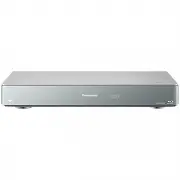 Panasonic DMR-BWT955GL
User Manual
Panasonic DMR-BWT955GL
User Manual
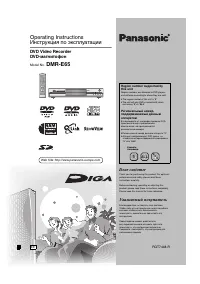 Panasonic DMR-E65EE-S
User Manual
Panasonic DMR-E65EE-S
User Manual
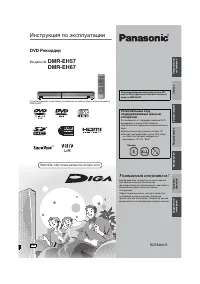 Panasonic DMR-EH57
Manual
Panasonic DMR-EH57
Manual
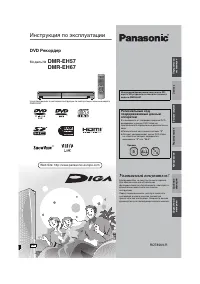 Panasonic DMR-EH67
Manual
Panasonic DMR-EH67
Manual
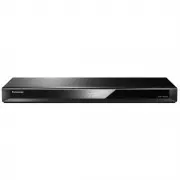 Panasonic DMR-HWT260GN
User Manual
Panasonic DMR-HWT260GN
User Manual
 Panasonic DMR-PWT560GL
User Manual
Panasonic DMR-PWT560GL
User Manual
 Panasonic DMR-PWT560GN
User Manual
Panasonic DMR-PWT560GN
User Manual
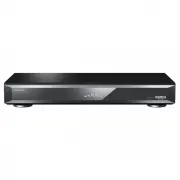 Panasonic DMR-UBT1GL-K
User Manual
Panasonic DMR-UBT1GL-K
User Manual
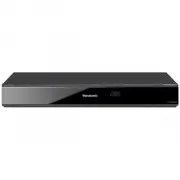 Panasonic DMR-XW440GLK
User Manual
Panasonic DMR-XW440GLK
User Manual
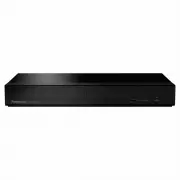 Panasonic DP-UB150GNK
User Manual
Panasonic DP-UB150GNK
User Manual
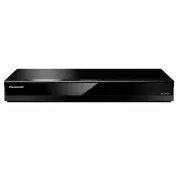 Panasonic DP-UB420GNK
User Manual
Panasonic DP-UB420GNK
User Manual
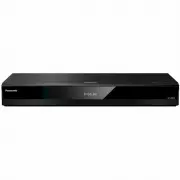 Panasonic DP-UB820GN-K
User Manual
Panasonic DP-UB820GN-K
User Manual
 Panasonic DP-UB820-K
User Manual
Panasonic DP-UB820-K
User Manual
 Panasonic DP-UB9000P1K
User Manual
Panasonic DP-UB9000P1K
User Manual
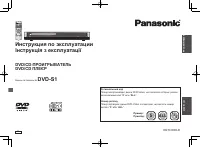 Panasonic DVD-S1
Manual
Panasonic DVD-S1
Manual
 Panasonic SC-HT885EE-S
User Manual
Panasonic SC-HT885EE-S
User Manual