Page 2 - Checking the contents of the box; Step; Preparing the Camera; Step; Shooting and Playing Back Images; Step; How to Use the Camera; Step; Printing; Contents
2 EN Step 1 Other accessories not shown: Warranty cardContents may vary depending on purchase location. Checking the contents of the box Step 2 Preparing the Camera “Preparing the Camera” (p. 13) Step 3 Shooting and Playing Back Images “Shooting, Playback, and Erasing” (p. 19) Step 4 How to Use the ...
Page 3 - button (switching between
3 EN Camera Settings Using the Direct Buttons Using the Direct Buttons Frequently used functions can be accessed using the direct buttons. Shutter button (p. 20, 59) Zoom buttons (p. 21, 24) Movie record button (p. 20) q button (switching between shooting and playback) (p. 20, 22, 48) m button (p. 6...
Page 4 - The symbols; button, or zoom buttons; Arrow pad; INFO
4 EN Operation guide The symbols FGHI displayed for image selections and settings indicate that the arrow pad shown on the right is to be used. N ORM OK Single Print Print 4/30 4/30 More ’11/02/26 ’11/02/26 00:00 00:00 N ORM 14 M FILE 100 0004 100 0004 02 26 00 00 : . . 2011 MENU OK Set Cancel X Y M...
Page 5 - Function menu; Program Auto; To select the shooting mode; FG; Shooting; Setup menu
5 EN Using the Menu Using the Menu Use the menu to change camera settings such as the shooting mode. There may be menus that are unavailable depending on other related settings or the s mode (p. 28). Function menu Function menu Press H during shooting to display the function menu. The function menu ...
Page 6 - The setup menu is displayed.; Press the
6 EN 1 Press the m button. The setup menu is displayed. Compression Normal Shadow Adjust Auto AF ModeESP/ Face/iESP ESP Digital Zoom Off Image Size 14M MENU OK Set Exit 1 2 3 1 2 Reset Reset 2 Press H to select the page tabs. Use FG to select the desired page tab and press I . OK Set 1 2 2 3 Compres...
Page 7 - Menu Index; Menus for Shooting Functions; Shooting mode
7 EN Menu Index Menus for Shooting Functions 1 Shooting mode P (Program Auto) .............p. 19 M (iAUTO) ...................p. 28 s (Scene Mode) .........p. 28 P (Magic Filter) ..........p. 29 p (Panorama)..................p. 30 W (3D Photo) ..................p. 32 2 Flash ...........................
Page 8 - Menus for Playback, Editing, and Printing Functions; Keep; Menus for Other Camera Settings
8 EN USB Connection Pw On Setup Storage q Power On Keep z Settings Yes Yes MENU OK Backup Set Exit Memory Format Eye-Fi Off Off 1 2 2 3 1 MENU OK Set Exit Slideshow Erase Edit Photo Surfing Print Order y R 1 2 3 1 2 Menus for Playback, Editing, and Printing Functions 1 r (Settings 1) Memory Format/ ...
Page 9 - Camera unit; HDMI micro connector
9 EN Names of Parts Names of Parts Camera unit 1 2 3 7 45 6 10 8 9 11 1 Battery/card/connector cover lock....................p. 13 2 Strap eyelet ..................p. 10 3 HDMI micro connector ....................................p. 51 4 Battery lock knob ..........p. 13 5 Multi-connector ..............
Page 10 - button; Attaching the camera strap; Pull the strap tight so that it does not come loose.
10 EN 4 1 5 6 11 12 10 9 2 3 8 7 1 Indicator lamp .........p. 13, 16 2 n button ........p. 17, 19 3 Monitor ....... p. 11, 19, 50, 59 4 Speaker 5 m button ..............p. 4, 6 6 Shutter button .........p. 20, 59 7 Zoom buttons .........p. 21, 24 8 Movie record button ......p. 20 9 q button (switchi...
Page 11 - Monitor; Shooting mode display; fl
11 EN Monitor Shooting mode display Shooting mode display 1/100 F3.5 F3.5 1/100 P P 14 M 44 N ORM P P 0.0 0.0 AUTO WB AUTO WB AUTO ISO AUTO ISO 00:34 00:34 DATE 1 2 3 4 5 6 7 8 9 15 16 17 18 14 13 12 10 11 19 26 27 20 23 21 22 24 25 1 Battery check ..........p. 17, 60 2 Shooting mode .......p. 19, 2...
Page 12 - Standard display; AUTO
12 EN Playback mode display Playback mode display Standard display ● 1 Battery check ..........p. 17, 60 2 3D images ....................p. 26 3 Print reservation/number of prints ..................p. 57/p. 56 4 Protect ..........................p. 46 5 Adding sound .........p. 42, 44 6 Current memo...
Page 13 - Inserting the battery; Charging the battery and setting up
13 EN Preparing the Camera Preparing the Camera Inserting the battery 1 2 Insert the battery by putting in the ▼ marked side fi rst, with the C marks toward the battery lock knob. Damage to the battery exterior (scratches, etc.) may produce heat or an explosion. Insert the battery while sliding the ...
Page 14 - We recommend that you use a computer equipped; Windows; Insert the supplied CD in a CD-ROM drive.; Windows XP; A “Setup” dialog will be displayed.; Windows Vista/Windows 7; If the “Setup” dialog is not displayed, select “My; Follow the on-screen instructions on your; If nothing is displayed on the camera screen even; Connecting the camera; Register your Olympus product.
14 EN We recommend that you use a computer equipped with Windows XP (Service Pack 2 or later), Windows Vista, or Windows 7. See “Charging the battery with the included USB-AC adapter” (p. 16) if you are using a different computer or wish to charge the battery without using a computer. Windows Window...
Page 15 - Install OLYMPUS Viewer 2 and ib computer; OLYMPUS Viewer 2; Install the camera manual.; Macintosh
15 EN 4 Install OLYMPUS Viewer 2 and ib computer software. Check the system requirements before beginning installation.Click the “OLYMPUS Viewer 2” or “OLYMPUS ib” button and follow the on-screen instructions to install the software. OLYMPUS Viewer 2 Operating System Windows XP (Service Pack 2 or la...
Page 16 - Copy the camera manual.; Charging the battery with the
16 EN OLYMPUS Viewer 2 Operating System Mac OS X v10.4.11–v10.6 Processor Intel Core Solo/Duo 1.5 GHz or better RAM 1 GB or more (2 GB or more recommended) Free Hard Drive Space 1 GB or more Monitor Settings 1024 × 768 pixels or moreMinimum 32,000 colors (16,770,000 colors recommended) * Other langu...
Page 17 - FGHI
17 EN For details on the battery and the USB-AC adapter, see “Battery and USB-AC adapter” (p. 64). The battery can be charged while the camera is connected to the computer. Charging time varies depending on the performance of a computer. (There may be cases in which it takes approx. 10 hours.) When ...
Page 18 - Use; to select your language and
18 EN 5 Use HI to select the [ x ] time zone and then press the A button. Use FG to turn daylight saving time ([Summer]) on or off. Summer OK Set SeoulTokyo SeoulTokyo ’11.02.26 00:00 The menus can be used to change the selected time zone. [World Time] (p. 53) 6 Use FGHI to select your language and ...
Page 19 - Hold the camera and compose the shot.; Shooting with the optimum aperture
19 EN Shooting, Playback, and Erasing Shooting, Playback, and Erasing Current shooting mode display 14 M 44 P P 3D 3D 0.0 0.0 AUTO WB AUTO WB AUTO ISO AUTO ISO MENU MENU Program Auto Program Auto N ORM Press the n button again to turn off the camera. 2 Hold the camera and compose the shot. Horizonta...
Page 20 - Shooting movies; Press the movie record button to start; Press the movie record button again to stop; To take the picture, gently press the shutter; To view images during shooting
20 EN Shooting movies 1 Press the movie record button to start recording. 00:12 00:34 00:12 00:12 REC REC 00:34 00:34 Lights up red when recording Recording time Continuous recording length (p. 68) Effects for the selected shooting mode can be used when shooting movies (when set to p mode, W mode, [...
Page 21 - Using the zoom; Image size; Changing the shooting information
21 EN Using the zoom Pressing the zoom buttons adjusts the shooting range. Pressing the wide (W) button Pressing the telephoto (T) button 14 M 44 44 P P 0.0 0.0 AUTO WB AUTO WB AUTO ISO AUTO ISO 14 M P P 0.0 0.0 AUTO WB AUTO WB AUTO ISO AUTO ISO 00:34 00:34 00:34 00:34 Zoom bar Optical zoom: 3.6× Di...
Page 22 - Viewing images; Hold; Press; Reading a histogram
22 EN Viewing images 1 Press the q button. Number of frames/ Total number of images ’11/02/26 ’11/02/26 00:00 00:00 4/30 4/30 Playback image 2 Use HI to select an image. Displays previous image Displays next image Hold I to fast forward and hold H to reverse. The display size of the images can be ch...
Page 24 - Press the zoom buttons.; When the movie is selected in the index view, the; Erasing images during playback; Display the image you want to erase and; For erasing multiple images at the same time, see; Index view and close-up view; cation) allows checking
24 EN 1 Press the zoom buttons. ’11/02/26 ’11/02/26 00:00 00:00 4/30 4/30 ’11/02/26 ’11/02/26 00:00 00:00 W T W T 4/30 4/30 ’11/02/26 ’11/02/26 4 2 W T 2 4 44 22 W ALL ALL 35ºN 139ºE 35ºN 139ºE 2011/ 02/26 2011/ 02/26 Index view Single-image view Close-up view Photo Sur fi ng When the movie is selec...
Page 25 - Changing the image information; Playing back panorama images; Select a panorama image during playback.; Replay
25 EN To select an image in index view To select an image in index view Use FGHI to select an image, and press the A button to display the selected image in single-image view. To scroll an image in close-up view To scroll an image in close-up view Use FGHI to move the viewing area. To stop photo sur...
Page 26 - Playing back; Using the menu guide
26 EN Playback direction: Press the A button to pause playback. Then press FGHI to scroll the image in the direction of the pressed button. Pause: Press the A button. Restart scrolling: Press the A button. Stop playback: Press the m button. Playing back W images 3D images shot with this camera can b...
Page 27 - Search from the camera keyword.; to select the desired item, and
27 EN Submenu 2 Application Search by purpose Functions or operating methods can be searched. Search for a solution A solution can be searched when having problems during operation. Search by situation Search from shooting/playback scene. Learn about the camera Information is shown about recommended...
Page 28 - Using Shooting Modes; Using the best mode for the shooting; Scene Mode; Portrait
28 EN To change the shooting mode To change the shooting mode The shooting mode ( P , M , s , P , p , W ) can be changed using the function menu.“Using the Menu” (p. 5) The default settings of the function are highlighted in . Shooting with automatic settings ( M mode) The camera will automatically ...
Page 29 - Shooting with special effects; Set the shooting mode to; Magic Filter; Pop Art
29 EN In s modes, the optimum shooting settings are pre-programmed for speci fi c shooting scenes. For this reason, settings may not be changed in some modes. Option Application B Portrait/ V Beauty/ F Landscape/ G Night Scene *1 / M Night+Portrait/ C Sport/ N Indoor/ W Candle/ R Self Portrait/ S Su...
Page 30 - Creating panoramic images (; Panorama
30 EN 3 Use HI to select the desired effect and then press the A button to set. 0.0 0.0 AUTO WB AUTO WB 14 M 44 00:34 00:34 Icon indicating P mode that is set Shooting mode Option Magic Filter [ Pop Art \ Pin Hole ] Fish Eye @ Drawing *1 ; Soft Focus : Punk X Sparkle Y Watercolor *1 Two images are s...
Page 32 - Before; D Photo
32 EN 4 Press the shutter button to take the next shot. To combine only two pictures, press the A button before taking the third frame. 5 Repeat steps 3 and 4 to take a third frame. After the third frame is taken, the camera automatically processes the frames and the combined panorama image is displ...
Page 34 - Flash Auto; Using Shooting Functions; Off; Option
34 EN “Using the Menu” (p. 5) Using the fl ash The fl ash functions can be selected to best match the shooting conditions. 1 Select the fl ash option in the shooting function menu. 14 M 44 P P 0.0 0.0 AUTO WB AUTO WB AUTO ISO AUTO ISO Flash Auto Flash Auto MENU MENU N ORM 2 Use HI to select the sett...
Page 35 - To cancel the self-timer after it starts
35 EN Using the self-timer After the shutter button is pressed all the way down, the picture is taken after a short delay. 1 Select the self-timer option in the shooting function menu. 14 M 44 P P 0.0 0.0 AUTO WB AUTO WB AUTO ISO AUTO ISO 12 12 22 MENU MENU Y Off Y Off N ORM 2 Use HI to select the s...
Page 36 - Adjusting to a natural color scheme; WB Auto; Selecting the ISO sensitivity
36 EN Adjusting to a natural color scheme (White balance) For more natural coloring, choose a white balance option suited to the scene. 1 Select the white balance option in the shooting function menu. 0.0 0.0 AUTO WB AUTO WB AUTO ISO AUTO ISO P P WB Auto WB MENU MENU 14 M 44 N ORM 2 Use HI to select...
Page 37 - Select the drive option in the shooting; Sequential; Option Description
37 EN Sequential shooting (Drive) Pictures are taken sequentially while the shutter button is held down. 1 Select the drive option in the shooting function menu. 0.0 0.0 AUTO WB AUTO WB AUTO ISO AUTO ISO P P Sequential Sequential MENU MENU 14 M 44 N ORM Option Description o One frame is shot each ti...
Page 38 - The default settings of the function are highlighted in; Restoring the shooting functions to the default settings [Reset]; Yes
38 EN For information on using the menus, see “Setup menu” (p. 6). Menus for Shooting Functions Menus for Shooting Functions The default settings of the function are highlighted in . Restoring the shooting functions to the default settings [Reset] Restoring the shooting functions to the default sett...
Page 39 - Image Size/Compression; Selecting the image quality for movies [Image Size/Image Quality]; Image Size/Image Quality
39 EN For information on using the menus, see “Setup menu” (p. 6). Selecting the image quality for still images [Image Size/Compression] Selecting the image quality for still images [Image Size/Compression] I (Shooting menu 1) X Image Size/Compression Submenu 1 Submenu 2 Application Image Size 14M (...
Page 40 - Brightening the subject against; Shadow Adjust; To focus on a moving subject; Selecting the method for measuring the
40 EN For information on using the menus, see “Setup menu” (p. 6). Brightening the subject against Brightening the subject against backlight [Shadow Adjust] backlight [Shadow Adjust] I (Shooting menu 1) X Shadow Adjust Submenu 2 Application Auto Automatically On when a compatible shooting mode is se...
Page 41 - Digital Zoom; Reducing the blur caused by the; Rec View
41 EN For information on using the menus, see “Setup menu” (p. 6). Shooting at higher magni fi cations than Shooting at higher magni fi cations than optical zoom [Digital Zoom] optical zoom [Digital Zoom] I (Shooting menu 1) X Digital Zoom Submenu 2 Application Off Disable digital zoom. On Enable di...
Page 42 - Icon Guide; Imprinting the date of recording; Date Stamp; Recording sound when shooting
42 EN For information on using the menus, see “Setup menu” (p. 6). Displaying icon guides [Icon Guide] Displaying icon guides [Icon Guide] J (Shooting menu 2) X Icon Guide Submenu 2 Application Off No icon guide is displayed. On The explanation of the selected icon will be displayed when a shooting ...
Page 43 - Playing back pictures automatically; Slideshow; Searching for images and playing back; Photo Sur
43 EN For information on using the menus, see “Setup menu” (p. 6). Menus for Playback, Editing, and Printing Functions Menus for Playback, Editing, and Printing Functions The default settings of the function are highlighted in . Data must be created with the ib (PC software) before using some functi...
Page 44 - Submenu 3; Edit; Adding sound to still images [; Edit
44 EN For information on using the menus, see “Setup menu” (p. 6). Using the ib (PC software) and Using the ib (PC software) and importing data back to the camera importing data back to the camera Refer to the ib (PC software) help guide for details on how to use the ib (PC software). The ib (PC sof...
Page 45 - Retouching the skin and eyes; Brightening areas that are dark
45 EN For information on using the menus, see “Setup menu” (p. 6). Retouching the skin and eyes Retouching the skin and eyes [Beauty Fix] [Beauty Fix] q (Playback menu) X Edit X Beauty Fix Depending on the picture, the editing may not be effective. Submenu 3 Submenu 4 Application All ― [Clear Skin],...
Page 46 - To individually select and erase images; Saving print settings to the image data; Print Order
46 EN For information on using the menus, see “Setup menu” (p. 6). When erasing pictures in the internal memory, do not insert the card into the camera. Before erasing pictures from a memory card, insert the card into the camera. Protected images cannot be erased. To individually select and erase im...
Page 47 - Erasing data completely; Memory Format/Format; Copying images in the internal memory; Backup
47 EN For information on using the menus, see “Setup menu” (p. 6). Menus for Other Camera Settings Menus for Other Camera Settings The default settings of the function are highlighted in . Using an Eye-Fi card (commercially Using an Eye-Fi card (commercially available) [Eye-Fi] available) [Eye-Fi] r...
Page 48 - Selecting a method for connecting; USB Connection; System requirements; Turning on the camera with the; Power On; Saving the mode when the camera is; Choosing the opening screen display; Pw On Setup
48 EN For information on using the menus, see “Setup menu” (p. 6). Selecting a method for connecting Selecting a method for connecting the camera to other devices the camera to other devices [USB Connection] [USB Connection] r (Settings 1) X USB Connection Submenu 2 Application Auto When the camera ...
Page 49 - Sound Settings; Resetting the; File Name
49 EN For information on using the menus, see “Setup menu” (p. 6). Selecting the camera sound and its volume [Sound Settings] Selecting the camera sound and its volume [Sound Settings] s (Settings 2) X Sound Settings Submenu 2 Submenu 3 Application Sound Type 1/2/3 Selects the camera sounds (operati...
Page 50 - Adjusting the CCD and the image; Pixel Mapping; To adjust the CCD and the image; Adjusting the brightness of the monitor; To adjust the monitor brightness; TV Out
50 EN For information on using the menus, see “Setup menu” (p. 6). Adjusting the CCD and the image Adjusting the CCD and the image processing function [Pixel Mapping] processing function [Pixel Mapping] s (Settings 2) X Pixel Mapping This function has already been adjusted at factory shipping, and n...
Page 52 - To operate images with the TV remote control; Saving battery power between shots; Power Save; To resume standby mode; Changing the display language [
52 EN For information on using the menus, see “Setup menu” (p. 6). Type D (CB-HD1) Type C 3 Turn on the TV, and change “INPUT” to “VIDEO (an input jack connected to the camera).” For details on changing the input source of the TV, refer to the TV’s instruction manual. 4 Turn on the camera, and use H...
Page 53 - To select the date display order; To check the date and time; Choosing home and alternate time zones [World Time]; World Time; Restoring data in the camera [Data Repair]; Data Repair
53 EN For information on using the menus, see “Setup menu” (p. 6). Setting the date and time [ Setting the date and time [ X X ]] t (Settings 3) X X “Date, time, time zone, and language” (p. 17). To select the date display order To select the date display order 1 Press I after setting Minute, and us...
Page 54 - Direct printing (PictBridge; nd out if your printer supports PictBridge, refer to the; Printing images at the printer’s
54 EN Printing Printing Direct printing (PictBridge *1 ) By connecting the camera to a PictBridge-compatible printer, you can print images directly without using a computer.To fi nd out if your printer supports PictBridge, refer to the printer’s instruction manual. *1 PictBridge is a standard for co...
Page 56 - Submenu 5 Submenu 6; If necessary, repeat Steps 6 and 7 to select; To cancel printing; Press the
56 EN To make the detailed printer settings To make the detailed printer settings 1 Use FGHI to select the setting, and press the A button. Submenu 5 Submenu 6 Application < × 0 to 10 This selects the number of prints. Date With/Without Selecting [With] prints the images with the date.Selecting [...
Page 57 - Print Reservations (DPOF; Reserving one print each of all images
57 EN Print Reservations (DPOF *1 ) In print reservations, the number of prints and date imprint option are saved in the image on the card. This enables easy printing at a printer or print shop supporting DPOF by using only the print reservations on the card without a computer or a camera. *1 DPOF i...
Page 59 - Troubleshooting
59 EN Usage Tips Usage Tips If the camera does not work as intended, or if an error message is displayed on the screen, and you are unsure of what to do, refer to the information below to fi x the problem(s). Troubleshooting Battery Battery “The camera does not work even when batteries are installed...
Page 60 - Error message
60 EN Error message When one of the messages below is displayed on the monitor, check the corrective action. Error message Corrective action Card Error Card problem Insert a new card. Write Protect Card problem The card write-protect switch is set to the “LOCK” side. Release the switch. Memory Full ...
Page 61 - Shooting tips; Focusing; “Focusing on the subject”; It is also effective to compose the shot by holding the; Camera shake; “Taking pictures without camera shake”; shifts to correct for camera shake even
61 EN Shooting tips When you are unsure of how to take a picture that you envision, refer to the information below. Focusing “Focusing on the subject” Taking a picture of a subject not in the center of the screen After focusing on an object at the same distance as the subject, compose the shot, and ...
Page 62 - A subject against backlight is brightened.; Color hue
62 EN Shooting movies using [IS Movie Mode] (p. 41)Select [ C Sport] in the scene mode (p. 29) The [ C Sport] mode uses a fast shutter speed and can reduce the blur incurred by a moving subject. Taking pictures at a high ISO sensitivity If a high ISO sensitivity is selected, pictures can be taken at...
Page 63 - Batteries; “Making batteries last longer”; Playback/Editing tips; Playback; “Playing images in the internal memory and card”; Editing; “Erasing the sound recorded to a still image”; “Adding sound to still images
63 EN Batteries “Making batteries last longer” Avoid any of the following operations when not actually taking pictures because they deplete the battery power Repeatedly pressing the shutter button halfway.Repeatedly using the zoom. Set [Power Save] (p. 52) to [On] Playback/Editing tips Playback “Pla...
Page 64 - Camera care; Exterior; Wipe gently with a soft cloth.; Lens; Do not use strong solvents such as benzene or; Storage; Avoid leaving the camera in places where chemical; Battery and USB-AC adapter
64 EN Appendix Appendix Camera care Exterior Wipe gently with a soft cloth. If the camera is very dirty, soak the cloth in mild soapy water and wring well. Wipe the camera with the damp cloth and then dry it with a dry cloth. If you have used the camera at the beach, use a cloth soaked in clean wate...
Page 65 - protect switch; Cards compatible with this camera
65 EN For plug-in type USB-AC adapter:The included USB-AC adapter (F-2AC) is intended to be correctly orientated in a vertical or fl oor mount position. Charging the battery by connecting the camera to a computer The battery can be charged by connecting the camera to a computer. Using a separately s...
Page 66 - Current memory indicator; : Internal memory is being used
66 EN Using a new card Using a new card Cards must be formatted with this camera before fi rst use or after being used with other cameras or computers. [Memory Format]/[Format] (p. 47)When using the Eye-Fi card, read the instruction manual of the Eye-Fi card carefully, and comply with the instructio...
Page 67 - internal memory and SD/SDHC/SDXC memory cards; The; Still pictures; Image Size
67 EN Number of storable pictures (still images)/Continuous recording length (movies) in the Number of storable pictures (still images)/Continuous recording length (movies) in the internal memory and SD/SDHC/SDXC memory cards internal memory and SD/SDHC/SDXC memory cards The fi gures in the followin...
Page 68 - The maximum; Increasing the number of pictures that can be taken
68 EN Movies Movies Image Size Image Quality Continuous recording length Internal memory SD/SDHC/SDXC memory card (4GB) With sound Without sound With sound Without sound L 1280×720 L 12 sec. 12 sec. 29 min. 29 min. M 18 sec. 18 sec. 29 min. 29 min. 8 640×480 L 18 sec. 18 sec. 87 min. 42 sec. 88 min....
Page 69 - rmly so that lock makes the; Storage and Maintenance; not offer shock or water resistance.
69 EN After Use: After Use: Be sure to wipe off any excess water or debris after using the camera under water. After the camera is used under seawater, immerse the camera in a bucket containing fresh water for about 10 minutes (with the battery/card/connector cover fi rmly closed). After that, dry t...
Page 70 - SAFETY PRECAUTIONS; General Precautions; WARNING; CAUTION
70 EN SAFETY PRECAUTIONS CAUTION RISK OF ELECTRIC SHOCK DO NOT OPEN CAUTION: TO REDUCE THE RISK OF ELECTRICAL SHOCK, DO NOT REMOVE COVER (OR BACK). NO USER-SERVICEABLE PARTS INSIDE. REFER SERVICING TO QUALIFIED OLYMPUS SERVICE PERSONNEL. An exclamation mark enclosed in a triangle alerts you to impor...
Page 71 - Be careful with the strap.; Battery Handling Precautions; DANGER; Caution for Usage Environment
71 EN Do not leave the camera in places where it may be subject to extremely high temperatures. Doing so may cause parts to deteriorate and, in some circumstances, cause the camera to catch fi re. Do not use the charger or USB-AC adapter if it is covered (such as a blanket). This could cause overhea...
Page 73 - For customers in USA
73 EN Warning Warning Unauthorized photographing or use of copyrighted material may violate applicable copyright laws. Olympus assumes no responsibility for unauthorized photographing, use or other acts that infringe upon the rights of copyright owners. Copyright Notice Copyright Notice All rights r...
Page 75 - WHAT TO DO WHEN SERVICE IS NEEDED; bearing the Product serial; WHERE TO SEND PRODUCT FOR SERVICE; For customers in Europe
75 EN CONSEQUENTIAL OR SPECIAL DAMAGES OF ANY KIND (INCLUDING WITHOUT LIMITATION LOSS OF PROFITS OR LOSS OF USE), WHETHER OR NOT OLYMPUS SHALL BE OR SHOULD BE AWARE OF THE POSSIBILITY OF SUCH POTENTIAL LOSS OR DAMAGE.Representations and warranties made by any person, including but not limited to dea...
Page 77 - Notes regarding Guarantee maintenance; For customers in Asia; Provisions of warranty
77 EN Notes regarding Guarantee maintenance 1 This Guarantee will only be valid if the Guarantee Certi fi cate is duly completed by Olympus or an authorized dealer or other documents contain suf fi cient proof. Therefore, please make sure that your name, the name of the dealer, the serial number and...
Page 78 - Trademarks
78 EN Notes; 1 This Warranty is in addition to and does not affect the customer’s statutory right. 2 lf you have any queries regarding this Warranty, call any of the Olympus authorized service stations listed in the instructions. Notes regarding warranty maintenance 1 This Warranty will only be vali...
Page 80 - Using in low temperatures; Olympus lithium ion battery; nition Multimedia
80 EN Lithium ion battery (LI-42B) Lithium ion battery (LI-42B) Product type : Lithium ion rechargeable battery Standard voltage : DC 3.7 V Standard capacity : 740 mAh Battery life : Approx. 300 full charges (varies on usage) Operating environment Temperature : 0 °C to 40 °C (32 °F to 104 °F) (charg...


 Olympus C-120
Manual
Olympus C-120
Manual
 Olympus C-2 Zoom
Manual
Olympus C-2 Zoom
Manual
 Olympus C-220 Zoom
Manual
Olympus C-220 Zoom
Manual
 Olympus C-4040 Zoom
User Manual
Olympus C-4040 Zoom
User Manual
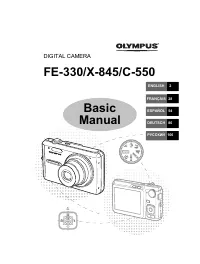 Olympus C-550
User Manual
Olympus C-550
User Manual
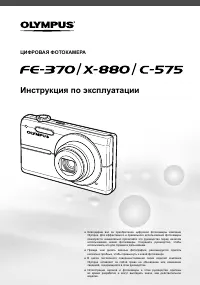 Olympus C-575
Manual
Olympus C-575
Manual
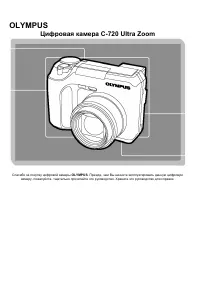 Olympus C-720 Ultra Zoom
User Manual
Olympus C-720 Ultra Zoom
User Manual
 Olympus D-380
Manual
Olympus D-380
Manual
 Olympus D-520 Zoom
Manual
Olympus D-520 Zoom
Manual
 Olympus E-3
User Manual
Olympus E-3
User Manual
 Olympus E-30
User Manual
Olympus E-30
User Manual
 Olympus E-330
User Manual
Olympus E-330
User Manual
 Olympus E-400
User Manual
Olympus E-400
User Manual
 Olympus E-410
User Manual
Olympus E-410
User Manual
 Olympus E-5
User Manual
Olympus E-5
User Manual
 Olympus E-500
User Manual
Olympus E-500
User Manual