Page 2 - Contents; In the interest of continually improving products,
2 EN ● Thank you for purchasing an Olympus digital camera. Before you start to use your new camera, please read these instructions carefully to enjoy optimum performance and a longer service life. Keep this manual in a safe place for future reference. ● We recommend that you take test shots to get a...
Page 3 - Preparing the Camera; Charging the battery; Battery comes partially charged. Before; “Battery and charger”; When to charge the batteries; Checking the contents of the; Pull the strap tight so that it does not come
3 EN Preparing the Camera Charging the battery 1 2 3 AC outlet AC cable Lithium ion battery Battery charger Charging indicatorOn: ChargingOff: Charged ▼ Battery comes partially charged. Before use, be sure to charge the battery until the charging indicator goes off (for approx. 5 hours). For details...
Page 4 - “Using an xD-Picture Card”; Removing the xD-Picture Card; Loading the battery and
4 EN 3 Notch Contact area Insert the card straight until it clicks into place. Do not touch the contact area directly. 4 1 2 This camera allows the user to take pictures using the internal memory even when no xD-Picture Card (sold separately) is inserted. “Using an xD-Picture Card” (p. 46) “Number o...
Page 5 - To remove the microSD card; Setting the date and time; kl; klmn
5 EN Using the microSD card/ microSDHC card (sold separately) A microSD card or microSDHC card (hereafter both will be referred to as microSD card) is also compatible with this camera using the microSD Attachment. “Using the microSD Attachment” (p. 48) 1 Insert the microSD card into the microSD Atta...
Page 6 - Changing the display language
6 EN Changing the display language The language for the menu and error messages displayed on the monitor is selectable. 1 Press the m button, and press klmn to select [ x SETUP]. RESET RESET CAMERA MENU CAMERA MENU SILENT MODE SILENT MODE MENU EXIT SET OK IMAGE QUALITY IMAGE QUALITY SETUP SETUP SCEN...
Page 7 - Hold the camera and compose the; Press the shutter button halfway; AUTO; Shooting with automatic
7 EN Shooting, Playback, and Erasing 2 Hold the camera and compose the shot. 1/400 1/400 F3.5 F3.5 AUTO Horizontal grip Vertical grip Monitor 3 Press the shutter button halfway down to focus on the subject. When the camera focuses on the subject, the exposure is locked (shutter speed and aperture va...
Page 8 - To take the picture, gently press; To view images during shooting; Viewing images; Use; The display size of the images can be; “Index view and closeup view”; To play back movies; The sound when recorded in movie can not
8 EN 4 To take the picture, gently press the shutter button all the way down while being careful not to shake the camera. 1/400 1/400 F3.1 F3.1 AUTO Image review screen Press fully To view images during shooting Pressing the q button enables playback of images. To return to shooting, either press th...
Page 9 - Operations during movie playback; To stop movie playback; Erasing images during
9 EN Operations during movie playback Fast-forward: Press and hold down n . Rewind: Press and hold down m . Pause: Press the B button. 2008.10.26 2008.10.26 12:30 12:30 100-0004 100-0004 00:12 /00:34 00:12 /00:34 IN During playback Elapsed time/ Total recording time First (last) frame/frame advance:...
Page 10 - press; again to clear the; Shooting with optimum; Using the best mode for the; Be sure to use an underwater case.; Using Shooting Modes
10 EN To lock the focus distance for underwater shoots (AF lock) (Available in the FE-360/X-875/C-570 only) When [ k UNDERWATER WIDE1], or, [ H UNDERWATER MACRO] is selected, press l . AFL ^ mark To cancel, press l again to clear the ^ mark. Shooting with optimum aperture value and shutter speed ( P...
Page 11 - Using the digital image
11 EN 3 Press the B button. 8 M 8 M P 4 4 IN N ORM N ORM P mode indicator Using the digital image stabilization mode ( h mode) This mode enables the user to reduce blurring that is caused by a camera shake and subject movement. 1 Press the B button. Current shooting mode display 8 M 8 M AUTO AUTO IS...
Page 12 - mn; Option; Adjusting the brightness; Using the zoom; Using the fl ash; Using Shooting Functions
12 EN 2 Use mn to select the setting option, and press the B button to set. Option Description FLASH AUTO The fl ash fi res automatically in low-light or backlight conditions. REDEYE Pre-fl ashes are emitted to reduce the occurrence of red eye in your photos. FILL IN The fl ash fi res regardless of ...
Page 13 - Shooting closeups; The; Using the self-timer; Self-timer shooting is automatically canceled; To cancel the self-timer after it starts; Press the; Increasing the brightness of; Press
13 EN Shooting closeups ( Macro shooting) This function enables the camera to focus and shoot subjects at close distances. 1 Press the & button. P OK OK SET SET OFF OFF OFF % & OFF 2 Use mn to select the setting option, and press the B button to set. Option Description OFF Macro mode is deac...
Page 14 - Printing; Direct printing ( PictBridge; The printing modes, paper sizes, and other; Printing images at the; Printing can also be started when the
14 EN Printing 2 Turn on the printer, and then connect the printer and camera. USB cable (supplied) Multi-connector OK PC / CUSTOM PRINT EASY PRINT START < button 3 Press the < button to start printing. 4 To print another image, use mn to select an image, and press the < button. To exit pri...
Page 15 - Using OLYMPUS Master 2; Double-click the OLYMPUS Master 2; Windows; Macintosh; Make sure the camera is turned off.; Connect the camera to a computer.; press the
15 EN Using OLYMPUS Master 2 Windows After the computer detects the camera, a message indicating the completion of the setting appears. Confi rm the message and click “OK”. The camera is recognized as a removable disk. Macintosh When iPhoto has started, exit iPhoto and start OLYMPUS Master 2. While ...
Page 16 - Operating OLYMPUS Master 2; in the tool bar to show; Transferring and saving; System requirements; XP; On a computer running Windows Vista, if; “Connecting the camera to a; , Windows Photo Gallery
16 EN Operating OLYMPUS Master 2 When OLYMPUS Master 2 is started, Quick Start Guide appears on the screen that helps you to handle the camera without any question. When the Quick Start Guide is not displayed, click in the tool bar to show the Guide. For details on the operation, refer to the help g...
Page 17 - Appendix; SAFETY PRECAUTIONS; CAUTION; General Precautions; Read All Instructions; Using the microSD Attachment; Cards compatible with this camera; microSD card/microSDHC card; Sending images
17 EN Appendix SAFETY PRECAUTIONS CAUTION RISK OF ELECTRIC SHOCK DO NOT OPEN CAUTION: TO REDUCE THE RISK OF ELECTRICAL SHOCK, DO NOT REMOVE COVER (OR BACK). NO USER-SERVICEABLE PARTS INSIDE. REFER SERVICING TO QUALIFIED OLYMPUS SERVICE PERSONNEL. An exclamation mark enclosed in a triangle alerts you...
Page 18 - Handling the Camera; Be careful with the strap.
18 EN Location — To avoid damage to the product, mount the product securely on a stable tripod, stand, or bracket. Power Source — Connect this product only to the power source described on the product label. Foreign Objects — To avoid personal injury, never insert a metal object into the product. He...
Page 19 - Battery Handling Precautions; DANGER; Caution for Usage Environment
19 EN Battery Handling Precautions Follow these important guidelines to prevent batteries from leaking, overheating, burning, exploding, or causing electrical shocks or burns. DANGER The camera uses a lithium ion battery specifi ed by Olympus. Charge the battery with the specifi ed charger. Do not u...
Page 21 - Use Only Dedicated Rechargeable Battery
21 EN Disclaimer of Warranty Olympus makes no representations or warranties, either expressed or implied, by or concerning any content of these written materials or software, and in no event shall be liable for any implied warranty of merchantability or fi tness for any particular purpose or for any...
Page 22 - Trademarks
22 EN 2 The customer shall transport the product to the dealer or Olympus authorized service station at his own risk and shall be responsible for any costs incurred in transporting the product. 3 This warranty does not cover the following and the customer will be required to pay repair charge, even ...
Page 23 - SPECIFICATIONS; Camera
23 EN SPECIFICATIONS Camera Product type : Digital camera (for shooting and displaying) Recording system Still pictures : Digital recording, JPEG (in accordance with Design rule for Camera File system (DCF)) Applicable standards : Exif 2.2, Digital Print Order Format (DPOF), PRINT Image Matching III...
Page 24 - microSD Attachment
24 EN Lithium ion battery (LI-42B) Product type : Lithium ion rechargeable battery Standard voltage : DC 3.7 V Standard capacity : 740 mAh Battery life : Approx. 300 full charges (varies on usage) Operating environment Temperature : 0°C to 40°C (32°F to 104°F) (charging) /-10°C to 60°C (14°F to 140°...
Page 25 - MEMO
25 EN MEMO Book_Basic_FE360.indb 25 Book_Basic_FE360.indb 25 6/20/2008 9:10:04 PM 6/20/2008 9:10:04 PM
Page 26 - Prise de vue, affi chage et; Nous vous remercions d’avoir acheté un appareil
26 FR Contenu Contenu Préparer l’appareil photo ....................27 Vérifi er le contenu de la boîte ................27 Fixer la courroie .....................................27 Charger la batterie .................................27 Insérer la batterie et la carte xD-Picture Card™ (vendue séparé...
Page 27 - Préparer l’appareil photo; Charger la batterie; La batterie est livrée en partie chargée.; “Batterie et chargeur”; Vérifi er le contenu de la boîte; Tendez la courroie afi n qu’elle ne soit pas
27 FR Préparer l’appareil photo Charger la batterie Batterie au lithium-ion 1 2 3 Prise de courant Câble d’alimentation Chargeur de batterie Indicateur de chargeActivé : chargement en coursÉteint : chargement terminé ▼ La batterie est livrée en partie chargée. Avant l’utilisation, vous devez charger...
Page 28 - “Utiliser une carte xD-Picture; Retirer la carte xD-Picture Card; Insérer la batterie et la carte
28 FR 3 Encoche Zone de contact Insérez la carte bien droit jusqu’à ce qu’elle se mette en place avec un léger bruit sec. Ne touchez pas la zone de contact avec les mains. 4 1 2 Cet appareil photo permet à l’utilisateur de prendre des photos à l’aide de la mémoire interne même lorsque aucune carte x...
Page 29 - Pour retirer la carte microSD; Régler la date et l’heure
29 FR Utiliser une carte microSD/ carte microSDHC (vendue séparément) Lorsqu’un Connecteur microSD est utilisé, cet appareil photo prend aussi en charge les cartes microSD et cartes microSDHC (ci-après toutes deux dénommées carte microSD). “Utiliser un Connecteur microSD” (p.48) 1 Insérez la carte m...
Page 30 - Changer la langue d’affi chage
30 FR Changer la langue d’affi chage Vous pouvez sélectionner la langue pour le menu et les messages d’erreur qui s’affi chent sur l’écran. 1 Appuyez sur la touche m , puis appuyez sur klmn pour sélectionner [ x REGLAGE]. SCENE SCENE RE- INITIALI. RE- INITIALI. MENU APPAREIL MENU APPAREIL MENU QUITT...
Page 31 - Prise de vue, affi chage et effacement; Tenez l’appareil photo et cadrez la; Enfoncez le déclencheur à mi-; Prendre des photos avec les; Lorsque le mode n’est pas; Appuyez sur la touche; Utilisez
31 FR Prise de vue, affi chage et effacement 2 Tenez l’appareil photo et cadrez la photo à prendre. 1/400 1/400 F3.5 F3.5 AUTO Tenue horizontale Tenue verticale Écran 3 Enfoncez le déclencheur à mi- course pour faire la mise au point sur le sujet. Une fois la mise au point effectuée sur le sujet, l’...
Page 32 - Pour prendre la photo, enfoncez; La pression sur la touche; Pour enregistrer des vidéos; “Enregistrer des vidéos (mode; Affi cher les photos; pour; Vous pouvez modifi er la taille d’affi chage; “Vue d’index et vue en gros; Pour faire la lecture des vidéos; Cet appareil photo ne peut pas lire le son
32 FR 4 Pour prendre la photo, enfoncez doucement le déclencheur jusqu’au fond, en prenant soin de ne pas secouer l’appareil photo. 1/400 1/400 F3.1 F3.1 AUTO Écran d’aperçu de photo Enfoncez complètement Pour affi cher les photos pendant la prise de vue La pression sur la touche q permet d’affi che...
Page 33 - Opérations lors de la lecture de vidéo; Pour arrêter la lecture de vidéos; Effacer des photos pendant la
33 FR Opérations lors de la lecture de vidéo Avance rapide : Appuyez de manière continue sur n . Recul rapide : Appuyez de manière continue sur m . Pause : Appuyez sur la touche B . 2008.10.26 2008.10.26 12:30 12:30 100-0004 100-0004 00:12 /00:34 00:12 /00:34 IN Pendant la lecture Durée écoulée/ Dur...
Page 34 - appuyez sur; Pour annuler, appuyez de nouveau sur; Prendre des photos avec une; Utiliser le mode le plus; Vous devez utiliser un caisson étanche.; Utiliser les modes prise de vue
34 FR Pour verrouiller la distance de mise au point pour les prises de vue sous l’eau (verrou AF) (Uniquement disponible sur le modèle FE-360/X-875/C-570) Lorsque [ k SOUS-MARIN LARGE 1], ou, [ H SOUS-MARIN MACRO] est sélectionné, appuyez sur l . AFL Repère ^ Pour annuler, appuyez de nouveau sur l p...
Page 35 - Utiliser le mode de; Enregistrer des vidéos
35 FR 3 Appuyez sur la touche B . 8 M 8 M P 4 4 IN N ORM N ORM Indicateur de mode P Utiliser le mode de stabilisation d’image numérique (mode h ) Ce mode permet à l’utilisateur de réduire le fl ou dû à un bougé de l’appareil photo et à un mouvement du sujet. 1 Appuyez sur la touche B . Affi chage du...
Page 36 - Ajuster la luminosité; COMPENS D’EXPO; Utiliser le zoom; Il est recommandé d’utiliser le mode; Utiliser le fl ash; Utiliser les fonctions de prise de vue
36 FR 2 Utilisez mn pour sélectionner l’option de réglage, puis appuyez sur la touche B pour valider. Option Description FLASH AUTO Le fl ash est émis automatiquement à faible éclairage ou à contre-jour. YEUX ROUGE Des pré-fl ashes sont émis pour limiter l’apparition du phénomène des yeux rouges sur...
Page 37 - Prise de vue en gros plan; Il n’est possible de régler ni le; Utiliser le retardateur; La prise de vue avec retardateur est; Appuyez de nouveau sur la touche; Augmenter la luminosité; Appuyez sur
37 FR Prise de vue en gros plan Cette fonction permet à l’appareil photo de faire la mise au point et de prendre en photo des sujets de très près. 1 Appuyez sur la touche & . OK OK CONF CONF P OFF OFF OFF % & OFF OFF 2 Utilisez mn pour sélectionner l’option de réglage, puis appuyez sur la to...
Page 38 - Imprimer; Impression directe; Imprimer des photos avec
38 FR Imprimer 2 Allumez l’imprimante puis connectez-la à l’appareil photo. Câble USB (fourni) Connecteur multiple OK PC / IMPRESSION SPÉCIALE IMPRESSION FACILE DEMARRER Touche < 3 Appuyez sur la touche < pour lancer l’impression. 4 Pour imprimer une autre photo, utilisez mn pour sélectionner ...
Page 39 - Utiliser OLYMPUS Master 2; Double-cliquez sur l’icône; Assurez-vous que l’appareil photo; Connectez l’appareil photo à un; pour sélectionner
39 FR Utiliser OLYMPUS Master 2 Windows Une fois l’appareil photo détecté par l’ordinateur, un message indiquant la fi n du réglage apparaît. Confi rmez le message et cliquez sur “OK”. L’appareil photo est reconnu en tant que disque amovible. Macintosh Si iPhoto est en cours d’exécution, quittez iPh...
Page 40 - dans la; Transférer et sauvegarder; Confi guration système requise; Sur un ordinateur tournant sous Windows; “Connecter l’appareil photo à un
40 FR Utiliser OLYMPUS Master 2 Au démarrage d’OLYMPUS Master 2, le Guide de mise en route apparaît sur l’écran pour vous aider à utiliser l’appareil sans la moindre question. Si le Guide de mise en route n’apparaît pas, cliquez sur dans la boîte d’outils pour l’affi cher. Pour plus de détails sur l...
Page 41 - Appendice; PRÉCAUTIONS DE SÉCURITÉ; ATTENTION; Précautions générales; Lire toutes les instructions; Utiliser un Connecteur; Cartes compatibles avec cet appareil; Carte microSD/carte microSDHC; Envoyer des photos
41 FR Appendice PRÉCAUTIONS DE SÉCURITÉ ATTENTION RISQUE DE DÉCHARGE NE PAS OUVRIR ATTENTION : POUR RÉDUIRE LE RISQUE DE DÉCHARGE ÉLECTRIQUE, NE RETIRER NI LA PARTIE ANTÉRIEURE NI POSTÉRIEURE DU BOÎTIER. AUCUNE PIÈCE À L’INTÉRIEUR NE PEUT ÊTRE RÉPARÉE PAR L’UTILISATEUR. SE RÉFÉRER À DU PERSONNEL DE ...
Page 42 - Emplacement; — Pour éviter d’endommager; Alimentation; — Ne raccorder ce produit qu’à la; Entrée d’objets; — Pour éviter des blessures,; Chaleur; — Ne jamais utiliser ni ranger ce produit; Maniement de l’appareil; AVERTISSEMENT; Faire attention avec la courroie.
42 FR Emplacement — Pour éviter d’endommager l’appareil, monter le produit solidement sur un trépied ou un sabot stable. Alimentation — Ne raccorder ce produit qu’à la source d’alimentation décrite sur l’étiquette du produit. Entrée d’objets — Pour éviter des blessures, ne jamais introduire d’objet ...
Page 45 - Précaution sur l’utilisation de la batterie
45 FR Restrictions relatives à la garantie Olympus décline toute responsabilité ou garantie, expresse ou implicite, pour ou relative au contenu de la présente documentation écrite ou du logiciel, et ne pourra en aucun cas être tenu pour responsable de toute autre garantie implicite de commercialisat...
Page 46 - Marques déposées
46 FR Olympus agréé pendant une période d’un an à partir de la date d’achat, en cas de réparations, conformément à la garantie internationale. Veuillez noter que de tels centres de service après-vente Olympus n’existent pas dans certains pays. 2 Le client est responsable des risques du transport du ...
Page 47 - CARACTÉRISTIQUES; Appareil photo
47 FR CARACTÉRISTIQUES Appareil photo Type de produit : Appareil photo numérique (prise de vue et affi chage) Système d’enregistrement Images fi xes : Enregistrement numérique, JPEG (conforme à la norme DCF (Design rule for Camera File system - règle de conception du système de fi chiers de l’appare...
Page 48 - Connecteur microSD
48 FR Batterie au lithium-ion (LI-42B) Type de produit : Batterie au lithium-ion rechargeable Tension standard : 3,7 V CC Capacité standard : 740 mAh Durée de vie de la batterie : Environ 300 rechargements complets (varie selon l’utilisation) Conditions de fonctionnement Température : 0 °C à 40 °C (...
Page 50 - Toma de vídeos (modo
50 ES ● Le agradecemos la adquisición de esta cámara digital Olympus. Antes de empezar a usar su nueva cámara, lea atentamente estas instrucciones para obtener un máximo rendimiento y una mayor duración. Guarde este manual en un lugar seguro para futuras consultas. ● Antes de tomar fotografías impor...
Page 51 - Preparación de la cámara; Carga de la batería; La batería viene parcialmente cargada.; “Batería y; Cuándo cargar las baterías; Comprobación de los; Tire de la correa para que quede apretada y
51 ES Preparación de la cámara Carga de la batería 1 2 3 Tomacorriente de CA Cable de CA Batería de ion de litio Cargador de batería Indicador de cargaIluminado: CargándoseApagado: Carga completada ▼ La batería viene parcialmente cargada. Antes de usarla, asegúrese de cargar la batería hasta que el ...
Page 52 - “Uso de una tarjeta; Extracción de la tarjeta xD-Picture Card; Inserción de la batería y de
52 ES 3 Muesca Área de contacto Insértela derecha hasta que encaje en su posición con un chasquido. No toque el área de contacto con las manos. 4 1 2 Esta cámara permite al usuario tomar fotos usando la memoria interna aunque no haya ninguna tarjeta xD-Picture Card (vendida aparte) insertada. “Uso d...
Page 53 - Para extraer la tarjeta microSD; Ajuste de la fecha y la hora
53 ES Uso de la tarjeta microSD/ tarjeta microSDHC (vendida aparte) Una tarjeta microSD o tarjeta microSDHC (en adelante designadas ambas como tarjeta microSD) también es compatible con esta cámara si se usa un Adaptador microSD. “Uso de un Adaptador microSD” (p.48) 1 Inserte la tarjeta microSD en e...
Page 55 - Toma, reproducción y borrado; Apunte la cámara y encuadre la; Presione el botón disparador; Toma con ajustes automáticos; Si el modo no está ajustado en; Presione el botón
55 ES Toma, reproducción y borrado 2 Apunte la cámara y encuadre la toma. 1/400 1/400 F3.5 F3.5 AUTO Empuñadura horizontal Empuñadura vertical Monitor 3 Presione el botón disparador hasta la mitad de su recorrido para enfocar el objeto. Cuando la cámara enfoca el objeto, se fi ja la exposición (se m...
Page 56 - Para tomar la fotografía, presione el; Para ver las imágenes durante la toma; “Toma de vídeos (modo; Una vez fi nalizada la toma; Visualización de imágenes; para seleccionar; El tamaño de las imágenes en pantalla; “Vista de índice y vista; Para reproducir vídeos; En esta cámara no se puede reproducir el
56 ES 4 Para tomar la fotografía, presione el botón disparador suavemente hasta el fi nal de su recorrido con cuidado de no mover la cámara. 1/400 1/400 F3.1 F3.1 AUTO Pantalla de revisión de imágenes Presione completamente Para ver las imágenes durante la toma Al presionar el botón q se habilita la...
Page 57 - Para detener la reproducción del vídeo; Borrado de imágenes durante; Presione
57 ES Operaciones durante la reproducción de vídeos Avance rápido: Presione y mantenga apretado n . Rebobinado: Presione y mantenga apretado m . Pausa: Presione el button B . 2008.10.26 2008.10.26 12:30 12:30 100-0004 100-0004 00:12 /00:34 00:12 /00:34 IN Durante la reproducción Tiempo transcurrido/...
Page 58 - Para cancelarlo, presione; Toma con valor de apertura; Uso del mejor modo para la; Asegúrese de usar una carcasa estanca.; Uso de los modos de toma
58 ES Para bloquear la distancia focal en las tomas subacuáticas (bloqueo AF) (Disponible únicamente en el modelo FE-360/X-875/C-570) Cuando esté seleccionado [ k SUBACUÁTICO AMPLIO.1], o, [ H SUBACUÁTICO MACRO], presione l . AFL Marca ^ Para cancelarlo, presione l de nuevo para quitar la marca ^ . ...
Page 59 - Uso del modo de estabilización
59 ES 3 Presione el botón B . 8 M 8 M P 4 4 IN N ORM N ORM Indicador de modo P Uso del modo de estabilización de imagen digital (modo h ) Este modo permite al usuario reducir la borrosidad causada por el movimiento de la cámara y del objeto. 1 Presione el botón B . Visualización vigente del modo de ...
Page 60 - Opción; Ajuste del brillo; Uso del zoom; Se recomienda el uso del modo; Uso del fl ash; Uso de las funciones de toma
60 ES 2 Use mn para seleccionar la opción de ajuste, y presione el botón B para establecerlo. Opción Descripción FLASH AUTO El fl ash se dispara automáticamente en circunstancias de poca luz y de contraluz. OJOS ROJOS Se emiten fl ashes previos para reducir el efecto de ojos rojos en las fotos. DE R...
Page 61 - Toma de primeros planos; Uso del disparador automático; Aumento del brillo del monitor
61 ES Toma de primeros planos ( Macrofi lmación) Esta función permite a la cámara enfocar y fi lmar objetos a corta distancia. 1 Presione el botón & . P OFF OFF OFF % & OK OK ACEPT. ACEPT. OFF OFF 2 Use mn para seleccionar la opción de ajuste, y presione el botón B para establecerlo. Opción ...
Page 62 - Impresión; Impresión directa; Impresión de imágenes
62 ES Impresión 2 Encienda la impresora y luego conéctela a la cámara. OK PC / IMPR.PERSONAL IMPR.SIMPLE INICIO Cable USB (suministrado) Multiconector Botón < 3 Presione el botón < para empezar a imprimir. 4 Para imprimir otra imagen, use mn para seleccionar una imagen, y presione el botón <...
Page 63 - Uso del programa OLYMPUS Master 2; Haga doble clic en el icono de; Asegúrese de que la cámara esté; y presione el botón
63 ES Uso del programa OLYMPUS Master 2 Windows Una vez que el ordenador detecta la cámara, aparece un mensaje indicando que la confi guración ha fi nalizado. Confi rme el mensaje y haga clic en “OK”. La cámara es detectada como un disco extraíble. Macintosh Cuando se inicie iPhoto, salga de iPhoto ...
Page 64 - Manejo de OLYMPUS Master 2; en la barra de; Transferencia y; Requisitos del sistema; En un ordenador con Windows Vista, si se; de “Conexión de la cámara a un; , se podrá acceder a
64 ES Manejo de OLYMPUS Master 2 Cuando se inicia OLYMPUS Master 2, aparecerá en pantalla la Guía de inicio rápido que le ayudará a manejar la cámara sin ninguna duda. Si la Guía de inicio rápido no aparece, haga clic en en la barra de herramientas para mostrar la Guía. Para obtener más detalles sob...
Page 65 - Apéndice; PRECAUCIONES DE SEGURIDAD; PRECAUCIÓN; Precauciones Generales; Lea todas las instrucciones; Uso de un Adaptador microSD; Tarjetas compatibles con esta cámara; Tarjeta microSD/tarjeta microSDHC; Envío de imágenes
65 ES Apéndice PRECAUCIONES DE SEGURIDAD PRECAUCIÓN RIESGO DE DESCARGAS ELÉCTRICAS NO ABRIR PRECAUCIÓN: PARA REDUCIR EL RIESGO DE DESCARGAS ELÉCTRICAS, NO RETIRE LA CUBIERTA (O PARTE TRASERA). EN EL INTERIOR NO HAY PIEZAS QUE EL USUARIO PUEDA REPARAR. REMITA LA REPARACIÓN A PERSONAL DE SERVICIO ESPE...
Page 66 - Manejo de la cámara; ADVERTENCIA
66 ES Ubicación — Para evitarle daños al producto, monte el producto sobre un trípode, caballete o soporte estable. Fuentes de alimentación — Conecte este producto únicamente con la fuente de alimentación descrita en la etiqueta del producto. Objetos extraños — Para evitar daños personales, nunca in...
Page 67 - Precaución sobre el ambiente de uso
67 ES Precauciones acerca del uso de la batería Siga estas importantes indicaciones para evitar que se produzcan fugas, recalentamientos, incendios o explosión de la batería, o que cause descargas eléctricas o quemaduras. PELIGRO La cámara utiliza una batería de iones de litio especifi cada por Olym...
Page 69 - Condiciones de la garantía
69 ES Descargo de responsabilidad de garantías Olympus no asume la responsabilidad ni ofrece garantías, escritas o implícitas, con respecto al contenido de este material escrito o del software, ni tampoco en ningún caso asumirá la responsabilidad por ninguna garantía implicada en la comercialización...
Page 70 - * Para obtener información sobre la red; Marcas comerciales
70 ES 2 El coste del transporte del producto al establecimiento vendedor o servicio técnico autorizado correrá a cuenta del comprador. 3 Por otra parte, incluso dentro del período de garantía, el comprador deberá pagar los gastos de reparación en los siguientes casos: Cualquier defecto que se produz...
Page 71 - ESPECIFICACIONES; Cámara
71 ES ESPECIFICACIONES Cámara Tipo de producto : Cámara digital (para fotografía y reproducción) Sistema de grabación Fotografías : Grabación digital, JPEG (según las Normas de diseño para sistema de archivos de cámara (DCF)) Estándares aplicables : Exif 2.2, Formato de reserva de impresión digital ...
Page 72 - Adaptador microSD
72 ES Batería de iones de litio (LI-42B) Tipo de producto : Batería recargable de iones de litio Voltaje estándar : CC 3,7 V Capacidad estándar : 740 mAh Duración de la batería : Aprox. 300 recargas completas (varía según el uso) Entorno de funcionamiento Temperatura : 0°C a 40°C (durante la carga) ...
Page 74 - Inhaltsverzeichnis; Aufnahme, Wiedergabe und Löschen; Olympus behält sich im Sinne einer ständigen
74 DE ● Wir bedanken uns für den Kauf einer Olympus Digitalkamera. Bitte lesen Sie diese Anleitung vor Gebrauch Ihrer neuen Kamera sorgfältig durch, um eine einwandfreie Handhabung und lange Nutzungsdauer zu gewährleisten. Bewahren Sie diese Anleitung bitte an einem sicheren Ort auf. ● Wir empfehlen...
Page 75 - Vorbereiten der Kamera; Laden des Akkus; Beim Kauf der Kamera ist der Akku nur; „Akku und Ladegerät“; Zeitpunkt zum Laden des Akkus; Überprüfen des; Ziehen Sie den Trageriemen fest, damit er
75 DE Vorbereiten der Kamera Laden des Akkus 1 2 3 Netzsteckdose Netzkabel Lithium-Ionen-Akku Ladegerät LadezustandsanzeigeEin: Ladevorgang fi ndet stattAus: Ladevorgang ist abgeschlossen ▼ Beim Kauf der Kamera ist der Akku nur teilweise geladen. Bitte laden Sie den Akku vor derersten Benutzung (ca....
Page 76 - „Verwendung; Entfernen der xD-Picture Card; Einsetzen des Akkus und einer
76 DE 3 Kerbe Kontaktbereich Halten Sie die Karte senkrecht, und schieben Sie sie gerade in den Steckplatz, bis sie hörbar einrastet. Vermeiden Sie eine Berührung des Kontaktbereichs mit der Hand. 4 1 2 Wenn keine xD-Picture Card (separat erhältlich) eingesetzt ist, werden die mit der Kamera aufgeno...
Page 77 - Verwendung einer microSD-; Entfernen der microSD-Karte; Vermeiden Sie eine Berührung des; Einstellen von Datum und Uhrzeit
77 DE Verwendung einer microSD- Karte/microSDHC-Karte (separat erhältlich) Unter Verwendung des mitgelieferten microSD-Adapters können microSD-Karten und microSDHC-Karten (im Weiteren werden beide Ausführungen als „microSD-Karte“ bezeichnet) ebenfalls mit dieser Kamera verwendet werden. „Verwendung ...
Page 78 - Ändern der Anzeigesprache
78 DE Zur genauen Einstellung der Uhrzeit drücken Sie die B -Taste, wenn das Zeitsignal 00 Sekunden anzeigt. Datum und Uhrzeit können Sie in folgendem Menü einstellen: [ X ] (Datum/Zeit) (S. 37) Ändern der Anzeigesprache Sie können die Sprache wählen, in der die Menüs und Fehlermeldungen auf dem LCD...
Page 79 - Visieren Sie das Motiv mit der; Drücken Sie den Auslöser halb, um; Aufnehmen mit automatischen; Wenn momentan ein anderer Modus als; Drücken Sie die; Betätigen Sie
79 DE Aufnahme, Wiedergabe und Löschen von Bildern 2 Visieren Sie das Motiv mit der Kamera an, und wählen Sie den gewünschten Bildausschnitt. 1/400 1/400 F3.5 F3.5 AUTO Querformat Hochformat LCD-Monitor 3 Drücken Sie den Auslöser halb, um das Motiv scharfzustellen. Sobald das Motiv scharfgestellt is...
Page 80 - Um die Aufnahme zu machen,; Anzeigen des letzten Bildes; Sie drücken den Auslöser halb nach unten.; Aufnehmen von Filmen; Anzeigen von Bildern; Betätigen Sie; zur Wahl; Bilder können während der Wiedergabe; Wiedergabe von Filmen; Der bei Filmaufnahmen aufgenommene
80 DE 4 Um die Aufnahme zu machen, drücken Sie den Auslöser sacht vollständig durch, während Sie die Kamera möglichst ruhig halten. 1/400 1/400 F3.1 F3.1 AUTO Bildkontrolle-Bildschirm Vollständig durchdrücken Anzeigen des letzten Bildes Sie können das soeben aufgenommene Bild anzeigen, indem Sie die...
Page 81 - Beenden der Filmwiedergabe; Löschen von Bildern während
81 DE Bedienungsvorgänge während der Filmwiedergabe Suchlauf vorwärts: Halten Sie n gedrückt. Suchlauf rückwärts: Halten Sie m gedrückt. Pause: Drücken Sie die B -Taste. 2008.10.26 2008.10.26 12:30 12:30 100-0004 100-0004 00:12 /00:34 00:12 /00:34 IN Während der Wiedergabe Verstrichene Zeit/ Gesamta...
Page 82 - Um die gespeicherte Einstellung; Aufnehmen mit den; Wahl des für die Aufnahmesituation; Bitte achten Sie unbedingt darauf, die; Verwenden der verschiedenen
82 DE Speichern der Schärfeeinstellung für Unterwasseraufnahmen (AF-Speicher) (Nur verfügbar bei FE-360/X-875/C-570) Bei Wahl von [ k UNTERWASSER- WEITW.1] oder [ H UNTERWASSER- MAKRO] drücken Sie l . AFL ^ -Markierung Um die gespeicherte Einstellung aufzuheben, drücken Sie l erneut, so dass die ^ -...
Page 83 - Verwendung des digitalen
83 DE 3 Drücken Sie die B -Taste. 8 M 8 M P 4 4 IN N ORM N ORM P -Modusanzeige Verwendung des digitalen Bildstabilisator-Modus ( h -Modus) Dieser Modus ermöglicht es Ihnen, Unschärfe zu reduzieren, die durch Verwackeln oder eine Bewegung des Motivs verursacht werden kann. 1 Drücken Sie die B -Taste....
Page 84 - Ändern der Bildhelligkeit; Verwendung des Zooms; Bei Aufnahmen im Tele-Bereich empfi ehlt sich; Verwendung des Blitzes; Verwenden der Aufnahmefunktionen
84 DE 2 Betätigen Sie mn zur Wahl der gewünschten Option, und drücken Sie dann die B -Taste zur Einstellung. Option Beschreibung BLITZ AUTO Bei niedriger Umgebungshelligkeit oder starkem Gegenlicht wird der Blitz automatisch ausgelöst. ROTE AUGEN Vor Auslösen des Hauptblitzes werden mehrere Vorblitz...
Page 85 - Nahaufnahmen; Bei Super-Nahaufnahmen können; Blitz; und; Verwendung des; Das Aufnehmen mit Selbstauslöser; Erhöhen der; Drücken Sie
85 DE Nahaufnahmen ( Makrofunktion) Diese Funktion gestattet es Ihnen, Motive in einem kleinen Abstand von der Kamera scharfzustellen und aufzunehmen. 1 Drücken Sie die & -Taste. OK OK EINST. EINST. AUS AUS P OFF % & OFF OFF 2 Betätigen Sie mn zur Wahl der gewünschten Option, und drücken Sie...
Page 86 - Drucken; Direktes Ausdrucken; Ausdrucken eines einzigen Bildes
86 DE Drucken 2 Schalten Sie den Drucker ein, und schließen Sie die Kamera wie nachstehend gezeigt an den Drucker an. USB-Kabel (mitgeliefert) Multi-Connector < -Taste OK PC / INDIVID. DRUCK EINF. DRUCK STARTEN 3 Drücken Sie die < -Taste, um den Druckvorgang zu starten. 4 Um ein weiteres Bild ...
Page 88 - Kurzanleitung anzuzeigen.; Übertragen und Abspeichern; Systemanforderungen; Bei einem Personalcomputer, der unter; „Anschließen der Kamera; dann
88 DE Bedienung von OLYMPUS Master 2 Beim Starten von OLYMPUS Master 2 erscheint die Quick Start-Anleitung auf dem Bildschirm, die Ihnen eine fehlerfreie Bedienung der Kamera erleichtert. Wenn die Kurzanleitung nicht angezeigt wird, klicken Sie auf in der Tool-Leiste, um die Kurzanleitung anzuzeigen...
Page 89 - Anhang; SICHERHEITSHINWEISE; VORSICHT; Allgemeine Vorsichtsmaßregeln; Die Benutzerdokumentation sorgfältig lesen; Verwendung des microSD-; Mit dieser Kamera kompatible Karten
89 DE Anhang SICHERHEITSHINWEISE VORSICHT STROMSCHLAGGEFAHR NICHT ÖFFNEN VORSICHT: ZUR VERMEIDUNG VON STROMSCHLÄGEN NIEMALS DAS GEHÄUSE (ODER DIE GEHÄUSERÜCKSEITE) ENTFERNEN. DIESES PRODUKT ENTHÄLT KEINERLEI BENUTZERSEITIG ZU WARTENDEN TEILE. ÜBERLASSEN SIE WARTUNGSARBEITEN QUALIFIZIERTEM FACHPERSON...
Page 90 - Den Trageriemen vorsichtig handhaben.; — Um Schäden an der Kamera zu; Stromversorgung; — Es dürfen ausschließlich; Fremdkörper; — Darauf achten, dass keine; Hitze; — Dieses Produkt niemals in der Nähe; ACHTUNG
90 DE Setzen Sie ausschließlich xD-Picture Card oder den microSD-Adapter in die Kamera ein. Wenn Sie eine Karte (z. B. die microSD-Karte) versehentlich ohne microSD-Adapter einsetzen, wenden Sie zum Entfernen keine Gewalt an. Wenden Sie sich an einen autorisierten Händler bzw. eine Kundendienststell...
Page 93 - Sicherheitshinweise zum Gebrauch des
93 DE Zu Ihrer Beachtung Das unbefugte Fotografi eren sowie der unbefugte Gebrauch von urheberrechtlich geschütztem Material kann gegen geltendes Urheberrecht verstoßen. Olympus übernimmt keinerlei Haftung für Urheberrechtsverletzungen, die aus dem unbefugten Fotografi eren oder Gebrauch oder aus je...
Page 94 - * Weitere Einzelheiten zum autorisierten,; Warenzeichen
94 DE Für Schäden, die auf unsachgemäßen Transport, auf Fall oder Erschütterungen usw. nach dem Kaufdatum zurückzuführen sind.Für Schäden, die auf Feuer, Erdbeben, Überschwemmung, Unwetter und andere Naturkatastrophen, Umwelteinfl üsse oder nicht vorschriftsgemäße Spannungsversorgung zurückzuführen ...
Page 95 - TECHNISCHE DATEN; Kamera
95 DE TECHNISCHE DATEN Kamera Produkttyp : Digitalkamera (zur Bildaufzeichnung und -anzeige) Aufnahmesystem Einzelbild : Digital-Aufzeichnung, JPEG (in Übereinstimmung mit „Design rule for Camera File system“ (DCF)) Gültige Standards : Exif 2.2, Digital Print Order Format (DPOF), PRINT Image Matchin...
Page 98 - microSDHC; Olympus
98 RU ● Благодарим вас за приобретение цифровой фотокамеры компании Olympus. Для эффективного и правильного использования фотокамеры пожалуйста , внимательно прочитайте это руководство перед началом использования новой фотокамеры . Сохраните руководство , чтобы использовать его для справки в дальней...
Page 99 - Аккумулятор; Когда
99 RU Подготовка фотокамеры Зарядка аккумулятора 1 2 3 Розетка сети переменного тока Сетевой кабель Ионно - литиевый аккумулятор Зарядное устройство Индикатор зарядки Вкл .: Зарядка Не горит : Зарядка выполнена ▼ Аккумулятор поставляется частично заряженным . Перед использованием обязательно зарядит...
Page 100 - microSD
100 RU 3 Паз Область контактов Ровно вставьте карту памяти , пока она не защелкнется на месте . Не прикасайтесь руками к области контактов . 4 1 2 Данная фотокамера позволяет пользователю выполнять съемку с использованием внутренней памяти , даже когда карта xD-Picture Card ( приобретается отдельно ...
Page 101 - Для
101 RU Использование карты microSD/ карты microSDHC ( приобретается отдельно ) Карты microSD или карты microSDHC ( именуемые в дальнейшем “ карты microSD”) также совместимы с этой фотокамерой при использовании Адаптера microSD. “ Использование Адаптера microSD” ( стр . 48) 1 Вставьте карту microSD в...
Page 103 - Фокусировка; Съемка; стр
103 RU Съемка , воспроизведение и удаление 2 Держите фотокамеру в руках и скомпонуйте снимок . 1/400 1/400 F3.5 F3.5 AUTO Горизонтальный захват Вертикальный захват Монитор 3 Нажмите кнопку спуска затвора наполовину вниз для фокусировки на объекте . Когда фотокамера сфокусируется на объекте , экспози...
Page 104 - Видеосъемка; Просмотр
104 RU 4 Для выполнения съемки плавно нажмите кнопку спуска затвора полностью вниз , стараясь при этом не трясти фотокамеру . 1/400 1/400 F3.1 F3.1 AUTO Экран обзора изображений Нажмите полностью Для просмотра снимков во время съемки Нажатие кнопки q позволяет воспроизводить изображения . Чтобы верн...
Page 105 - УДАЛЕНИЕ
105 RU Операции во время воспроизведения видеозаписи Быстрая перемотка вперед : Нажмите и удерживайте n . Быстрая перемотка назад : Нажмите и удерживайте m . Пауза : Нажмите кнопку B . 2008.10.26 2008.10.26 12:30 12:30 100-0004 100-0004 00:12 /00:34 00:12 /00:34 IN Во время воспроизведения Истекшее ...
Page 106 - Использование
106 RU Для блокировки фокусного расстояния для подводной съемки ( Блокировка АФ ) ( Доступно только в модели FE-360/X-875/C-570) Когда выбраны опции [ k ШИР . УГОЛ ПОД ВОДОЙ 1] или [ H МАКРО ПОД ВОДОЙ ], нажмите l . AFL Метка ^ Для отмены нажмите l еще раз , чтобы очистить метку ^ . Съемка с оптимал...
Page 107 - видеозаписи
107 RU 3 Нажмите кнопку B . 8 M 8 M P 4 4 IN N ORM N ORM Индикатор режима P Использование режима цифровой стабилизации изображения ( Режим h ) Этот режим дает пользователю возможность уменьшать размытость , обусловленную дрожанием фотокамеры и перемещением объекта . 1 Нажмите кнопку B . Дисплей теку...
Page 108 - Вариант
108 RU 2 Используйте mn для выбора варианта настройки и нажмите кнопку B , чтобы установить . Вариант Описание ВСПЫШКА АВТ Вспышка срабатывает автоматически при слабом освещении или съемке против света . КР . ГЛАЗА Срабатывает предварительная вспышка для уменьшения эффекта красных глаз на Ваших фото...
Page 110 - Печать
110 RU Печать 2 Включите принтер , а затем соедините принтер и фотокамеру . OK PC / CUSTOM PRINT EASY PRINT START Кабель USB ( прилагается ) Универсальный разъем Кнопка < 3 Нажмите кнопку < для начала печати . 4 Чтобы напечатать другое изображение , используйте mn для выбора изображения и нажм...
Page 111 - OLYMPUS Master; OLYMPUS Master 2
111 RU Использование OLYMPUS Master 2 Windows После того , как компьютер обнаружит фотокамеру , появится сообщение , указывающее завершение настройки . Подтвердите сообщение и щелкните “OK”. Фотокамера распознается как съемный диск . Macintosh Когда запустится iPhoto, выйдите из iPhoto и запустите O...
Page 112 - USB Mass Storage Class.; Требования; Windows Photo Gallery.
112 RU Функционирование OLYMPUS Master 2 Когда запускается OLYMPUS Master 2, на экране появится Краткое руководство , которое поможет Вам без вопроса обращаться с фотокамерой . Если Краткое руководство не отображается , щелкните на панели задач , чтобы отобразить Руководство . Относительно подробнос...
Page 113 - Приложение; МЕРЫ; ПРЕДУПРЕЖДЕНИЕ; Общие; Прочитайте
113 RU Приложение МЕРЫ ПРЕДОСТОРОЖНОСТИ ПРЕДУПРЕЖДЕНИЕ ОПАСНОСТЬ ПОРАЖЕНИЯ ЭЛЕКТРИЧЕСКИМ ТОКОМ НЕ ОТКРЫВАТЬ ПРЕДУПРЕЖДЕНИЕ : ВО ИЗБЕЖАНИЕ ПОРАЖЕНИЯ ЭЛЕКТРИЧЕСКИМ ТОКОМ НЕ СНИМАЙТЕ КРЫШКУ ( ИЛИ ЗАДНЮЮ ПАНЕЛЬ ). ВНУТРИ ФОТОКАМЕРЫ НЕТ ДЕТАЛЕЙ , НУЖДАЮЩИХСЯ В ВАШЕМ ОБСЛУЖИВАНИИ . ДОВЕРЬТЕ ТЕХНИЧЕСКОЕ ОБ...
Page 114 - Обращение; ОСТОРОЖНО; LED
114 RU Не устанавливайте ничего , кроме карты xD-Picture Card или адаптер microSD в камеру . Если вы ошибочно установите карту памяти , например microSD, не прилагайте усилий . Обратитесь к официальному дистрибьютеру или в сервисный центр . Повреждения , например царапины , могут привести к перегрев...
Page 119 - Фотокамера
119 RU ТЕХНИЧЕСКИЕ ХАРАКТЕРИСТИКИ Фотокамера Тип изделия : Цифровая фотокамера ( для съемки и просмотра ) Система записи Формат записи : Цифровая запись , JPEG ( в соответствии с Design rule for Camera File system (DCF) ( Проектные нормы для файловой системы фотокамеры ) Поддерживаемые стандарты : E...
Page 124 - Printed in China
Printed in China VS865701 Book_Basic_FE360.indb 124 Book_Basic_FE360.indb 124 6/20/2008 9:13:32 PM 6/20/2008 9:13:32 PM


 Olympus C-120
Manual
Olympus C-120
Manual
 Olympus C-2 Zoom
Manual
Olympus C-2 Zoom
Manual
 Olympus C-220 Zoom
Manual
Olympus C-220 Zoom
Manual
 Olympus C-4040 Zoom
User Manual
Olympus C-4040 Zoom
User Manual
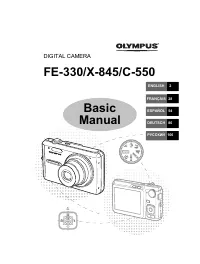 Olympus C-550
User Manual
Olympus C-550
User Manual
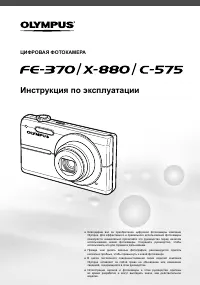 Olympus C-575
Manual
Olympus C-575
Manual
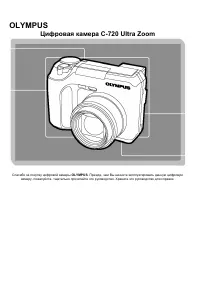 Olympus C-720 Ultra Zoom
User Manual
Olympus C-720 Ultra Zoom
User Manual
 Olympus D-380
Manual
Olympus D-380
Manual
 Olympus D-520 Zoom
Manual
Olympus D-520 Zoom
Manual
 Olympus E-3
User Manual
Olympus E-3
User Manual
 Olympus E-30
User Manual
Olympus E-30
User Manual
 Olympus E-330
User Manual
Olympus E-330
User Manual
 Olympus E-400
User Manual
Olympus E-400
User Manual
 Olympus E-410
User Manual
Olympus E-410
User Manual
 Olympus E-5
User Manual
Olympus E-5
User Manual
 Olympus E-500
User Manual
Olympus E-500
User Manual