Page 2 - Safety Information; CAUTION
1 Getting Started Getting Started 2 Getting Star ted 1 Safety Information CAUTION RISK OF ELECTRIC SHOCK DO NOT OPEN CAUTION: TO REDUCE THE RISK OF ELECTRIC SHOCK DO NOT REMOVE COVER (OR BACK) NO USER-SERVICEABLE PARTS INSIDE REFER SERVICING TO QUALIFIED SERVICE PERSONNEL. This lightning flash with ...
Page 4 - Symbols
Getting Started 4 Getting Star ted 1 Symbols ~ Refers to alternating current (AC). 0 Refers to direct current (DC). Refers to class II equipment. 1 Refers to stand-by. ! Refers to “ON” (power). Refers to dangerous voltage.
Page 5 - Getting Started; Troubleshooting; Table of Contents
Table of Contents 5 1 2 3 4 5 1 Getting Started 2 Safety Information 6 Unique features 6 Introduction 7 Front 8 Rear 2 Connecting 9 Network connection 9 Setting up the Speaker 9 – Connecting the AC Adapter 10 – Installing “Google Home” App10 – Launch the app to connect Wi-Fi12 – Reference site for G...
Page 6 - Unique features; BLUETOOTH; Voice recognition; Introduction; Symbol used in this manual; Caution
Getting Started 6 Getting Star ted 1 Unique features BLUETOOTH ® Listen to music stored on your Bluetooth device. "Google Home" application You can enjoy various functions of this speaker by connecting to network and your smart device with "Google Home" app.The speaker and your smart...
Page 7 - Front; Note
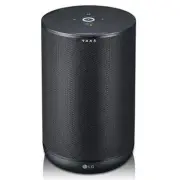
Getting Started 7 Getting Star ted 1 Front e g a d b c f a Plays, pauses or skip playback. b Function LED Changes LED status in according function. Bluetooth : Blue / Wi-Fi: White (Page 13) c (Function) Changes Wi-Fi or Bluetooth . (Page 14) d - Use in instead of saying "Hey Google" by long ...
Page 8 - Rear
Getting Started 8 Getting Star ted 1 Rear a b c a (Microphone off) button Enables or disables the Google Assistant Microphone (voice recognition) (Page 22) b DC IN (AC adapter input) c RESET Initialize information of existing connection. (Page 23)
Page 9 - Network connection; Connecting the AC Adapter
2 Connecting Connecting 9 Connecting 2 Network connection You can enjoy various functions of this speaker by connecting to network and your smart device with "Google Home" app.Choose the connection method considering your network environment. The "Google Home" app is required to conn...
Page 10 - Installing “Google Home” App; Requirements before setup; Google Home; Launch the app to connect Wi-Fi
Connecting 10 Connecting 2 Installing “Google Home” App The "Google Home" app allows you to use various functions of this speaker through your smart device: There are a ways to install “Google Home” app onto your Smart device. Requirements before setup y A wireless router must be connected t...
Page 12 - Reference site for Google Assistant Help
Connecting 12 Connecting 2 Reference site for Google Assistant Help Set up the Google Assistant on your speakers https://support.google.com/assistant/answer/7538816 Listen to music https://support.google.com/assistant/answer/7539710 Play music on your TV or speakers https://support.google.com/assist...
Page 13 - Basic Operations; Function LED status
3 Operating Operating 13 Oper ating 3 Basic Operations Function LED status LED Status Description LED blinks in white. Ready for Wi-Fi connection. LED turns on white. Wi-Fi connection is success. LED blinks in Blue. Searching for Bluetooth device. LED turns on Blue with the sound. Bluetooth device i...
Page 14 - Simple Operation Guide; Function
Operating 14 Oper ating 3 Simple Operation Guide Function How to Status Bluetooth pairing When Function LED blinks in blue, select speaker name that is set on “Google Home” app from phone’s smart device list Function LED turns on blue with the sound. Play / Pause Tap or Plays or pause a song. Forwar...
Page 15 - How to use the Google; Google Assistant LED status; Talk to the Google Assistant
Operating 15 Oper ating 3 How to use the Google Assistant Google Assistant LED status LED Status Description All four LEDs are on. Ready to listen to your voice command. All four LEDs blink. Responds to your voice command. Microphone is off and the solid amber LED will be on. Voice recognition is di...
Page 16 - Comfortable Function; Voice command
Operating 16 Oper ating 3 Comfortable Function With the Google Assistant built in, you can control compatible smart home devices such as TV’s, lights, switches, plugs, thermostats and more by simply using your voice. For more information, visit the below web site. y Set up, Usage and more: http://su...
Page 18 - Requirements before using; App
Operating 18 Oper ating 3 LG Wi-Fi Speaker The "LG Wi-Fi Speaker"app is provided by LG Electronics. This app allows you to use various functions of this speaker through your smart device: Requirements before using You should connect to Wi-Fi by using "Google Home" app prior to use th...
Page 19 - BLUETOOTH connection lock; Sound effect
Operating 19 Oper ating 3 BLUETOOTH connection lock You can limit Bluetooth connection to only Bluetooth function to prevent unintended Bluetooth connection.1. Install the "LG Wi-Fi speaker" app. Follow the "LG Wi-Fi Speaker" (page 18) 2. Follow these instructions in order. [ ] [ [My...
Page 20 - Using BLUETOOTH®; About BLUETOOTH; Listening to music stored on the; Pairing your unit and BLUETOOTH
Operating 20 Oper ating 3 Using BLUETOOTH® technology About BLUETOOTH Bluetooth is wireless communication technology for short range connection. The sound may be interrupted if the connection has interference by some other electronic waves or you connect the Bluetooth in some other room. Connecting ...
Page 22 - Other Operations; Turn off the microphone
Operating 22 Oper ating 3 y Bluetooth connection will be disconnected when you change the Bluetooth function to another function. When you switch to Bluetooth function again, the speaker will automatically reconnect the Bluetooth device. Some Bluetooth devices may not be connected in automatic. y So...
Page 23 - Edit speaker name
Operating 23 Oper ating 3 Edit speaker name You can check and edit the speaker name on the "Google Home" app, follow these instructions. [ ] [ [Name] [ [enter a new name] [ [Save] Resetting To initialize information of existing connection, follow these instructions.1. Press and hold the RESE...
Page 24 - Troubleshooting; General; Problem
4 Troubleshooting Troubleshooting 24 Troubleshoo ting 4 Troubleshooting General Problem Cause & Correction No Power y The power cord is unplugged. Plug in the power cord. y Check whether electricity failed. Check the condition by operating other electronic devices. No sound or sound distortion. ...
Page 25 - Network; Application; Symptoms
Troubleshooting 25 Troubleshoo ting 4 Network Symptoms Cause & Solution Cannot connect the speaker to your home network. The wireless communication may be interrupted from household devices that are using radio frequencies. Move the speaker away from them. Media servers are not displayed on the ...
Page 26 - Trademarks and; When shipping the unit
5 Appendix Appendix 26 Appendix 5 Trademarks and Licenses The Bluetooth® word mark and logos are registered trademarks owned by the Bluetooth SIG, Inc. and any use of such marks by LG Electronics is under license. Other trademarks and trade names are those of their respective owners. Handling the Un...
Page 27 - OPEN SOURCE
Appendix 27 Appendix 5 OPEN SOURCE You can find “Open Source Software Notice” at the"LG Wi-Fi Speaker" app or "Google Home" app LGE OPEN SOURCE 1. Launch "LG Wi-Fi Speaker" app on your smart device. 2. Follow these instructions in order. [ ] [ [ Settings] 3. Tap [Open source ...
Page 28 - Specifications
Appendix 28 Appendix 5 Specifications Speaker Power consumption Refer to main label. AC adapter y Model: LCAP16B-A y Manufacturer: Lien Chang Electronic Enterprise Co., Ltd. y Input: 100-240 V~ 50-60 Hz y Output: 19 V 0 2.1 A Dimensions (W x H x D) Approx. 135 mm X 210.7 mm X 135 mm (5.31 inch x 8.2...
Page 30 - OWNER’S MANUAL
www.lg.com OWNER’S MANUAL LG Wi-Fi Speaker 2105_Rev.03
Page 32 - Installing “LG Wi-Fi Speaker”
1 Getting Started Getting Started 3 Getting Star ted 1 LG Wi-Fi Speaker The “LG Wi-Fi Speaker”app is provided by LG Electronics. This app allows you to use various functions of this speaker through your smart device: Requirements before using You should connect Wi-fi by using “Google Home” app prior...
Page 33 - Enjoying the Music with; Overview of the side menu
2 Operating Operating 4 Oper ating 2 Enjoying the Music with “LG Wi-Fi Speaker” app With “LG Wi-Fi Speaker” app, you can play music in your smart device. Some of the content in this part may differ from “LG Wi-Fi Speaker” app depending on the application’s version. , Note Overview of the side menu 1...
Page 34 - Playing a song
Operating 5 Oper ating 2 Overview of [My Speakers] a [ ] – Connect additional speakers. b [ ] – Selects a function of the connected speaker. c [ ] – Set up the connected speaker settings. (Page 9) d [ ] – Adjust volume level of the connected speaker. e [Status] – Shows state of the connected speaker...
Page 35 - Managing a song
Operating 6 Oper ating 2 Managing a song On the song list of [My Phone] or [Music Server], tap [ ] of the desired song. The pull down menu appears. a [Play next] – Selects music to play next. b [Add to queue] – Adds to queue list. c [Add to playlist] – Adds to a desired playlist. Depending on your w...
Page 36 - Overview of Playback
Operating 7 Oper ating 2 Overview of Playback You can confirm and adjust various information on the playback screen. a [ / ] - Cast music to the connected speaker by Chromecast and stop casting the music. b [ ] - Edits the current playlist. c [ ] - Adjusts the volume of smart device or the volume of...
Page 37 - Sound effect mode
Operating 8 Oper ating 2 Sound effect mode This system has a number of pre-set surround sound fields. You can select a desired sound effect by using “LG Wi-Fi Speaker” app. Status Description Function Enhanced Bass + Clear Vocal You can enjoy Clear Vocal and Enhanced Bass at the same time. Enhanced ...
Page 38 - Settings; Settings of the connected
Operating 9 Oper ating 2 Settings With “LG Wi-Fi Speaker” app, you can set the connected speaker in your smart device. Some of the content in this part may differ from “LG Wi-Fi Speaker” app depending on the application’s version. , Note Settings of the connected speaker You can set up setting of th...
Page 40 - Settings of “LG Wi-Fi Speaker”; Menu
Operating 11 Oper ating 2 Settings of “LG Wi-Fi Speaker” app Select [Settings] on the side menu. Settings of “LG Wi-Fi Speaker” app appear. a [Participate in user enhancement] – Allows to send user logs for service quality enhancement. b [Chromecast] – Displays the Chromecast menu. c [App version in...