Page 2 - CAUTION; : The laser used in the Writer can damage your eyes.; WARNING; to rain or moisture; Cautions
i CAUTION : The laser used in the Writer can damage your eyes. Do not attempt to open the cover.To reduce the risk of electric shock, do not remove the cover (or back).There are no user-serviceable parts inside.Refer servicing to qualified service personnel. Use of controls or performance of procedu...
Page 3 - ii; Follow these precautions when handling the drive or discs.; Important Precautions
ii Follow these precautions when handling the drive or discs. • Please take notice that the manufacturer of this equipment does not offer any warranty against data loss due to inappropriate installation or handling, or director indirect damages. • Please take notice that the manufacturer will bear n...
Page 4 - Contents; BD FAQ
1 Contents ■ Microsoft® and Windows® are trademarks registered in the United States and othercountries by the Microsoft Corporation. ■ DVD Logo is a trademark of DVD Format/Logo Licensing Corp., registered in U.S.,Japan and other countries. ■ BD Logo is a trademark registered in U.S., Japan and othe...
Page 5 - Location and Function of Controls; Front Panel
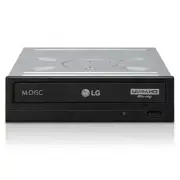
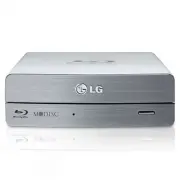
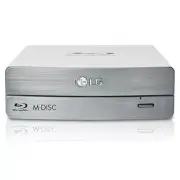
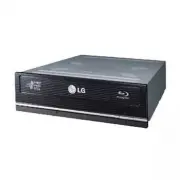
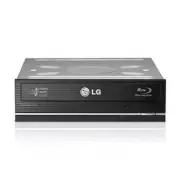
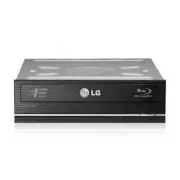
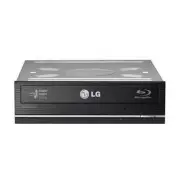
2 Location and Function of Controls Front Panel 1. SATA Power Connector (15 pin) 2. SATA Data Connector (7 pin) Rear Panel 1. Disc Tray 2. Emergency Eject Hole3. Drive activity indicator The LED is used to indicate the operation of Writer. 4. Eject Button 1 2 1 2 4 3 This following is the general fi...
Page 6 - Before installing the drive, please note the following points.; Removing the Computer Cover; Mounting the Drive; drive bay panel from the computer. Refer to the manual for the; NOTE; consult your hardware manual for installing peripheral devices.; Installing the Drive
3 Before installing the drive, please note the following points. ■ You will need the following:• A screw driver of a suitable size to fit the securing screws for the drive unit.• The manual for the computer, so you can find the mounting positions for the SATA cable. ■ Turn off all peripheral applian...
Page 7 - the power connector can only fit one way.; Connecting the SATA Data Cable; Connect the data cable. Be careful not to connect upside down.; Data cable
4 PC Connection The Writer connects to the motherboard of the host computer using a SATA interfacecable. Connecting the SATA Power Cable Connect the power cable so the projection of the cable connector side to come to the leftside. Be careful not to connect upside down. NOTE : Improper connection ma...
Page 8 - Device Drivers
5 Device Drivers Device Drivers When using Windows Operating System, no special device driver is required. Yoursystem, upon Power On and bootup after installing and connecting the new Writerwill recognize and load native software drivers automatically. Included Software Retail versions of this drive...
Page 9 - How to Use the Discs; Don’t use this feature; except; Turn the power to OFF.
6 How to Use the Discs How to Use the Discs Don’t attach any stickers or labels to discs, It could cause read/write errors and data loss. DO NOT use non-standard discs. NON-standard discs may not play or store data properly. The Discs in this unit operate at a very highspeed! DO NOT use damaged, cra...
Page 10 - Before Requesting Service; Before calling for service, check this list.; Troubleshooting
7 Before Requesting Service Before calling for service, check this list. • The drive doesn’t have power.• Is the power supply cable from the host computer plugged in?• Is the Power Connector to the drive securely attached? • The system doesn’t start.• Are the power and SATA cables to the PC correctl...
Page 11 - Note; Laser Safety Statement; Regulatory
8 FCC COMPLIANCE STATEMENT (U.S. only) Note : This equipment has been tested and found to comply with the limits for a ClassB digital device, pursuant to Part 15 of the FCC Rules.These limits are designed to provide reasonable protection against harmfulinterference in a residential installation. Thi...