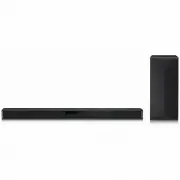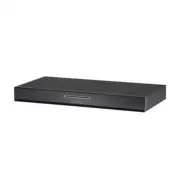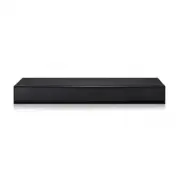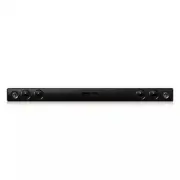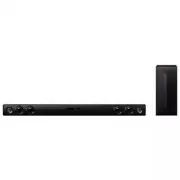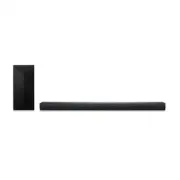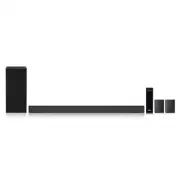
Page 2 - Sound Bar Quick Guide; Installing and using the Product; Connect the sound bar to your TV via an optical cable or an HDMI; Soundbar Quick Guide
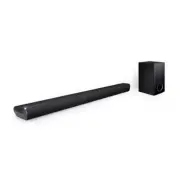
2 Sound Bar Quick Guide Installing and using the Product a Connect the sound bar to your TV via an optical cable or an HDMI cable. HDMI OUT OPTICAL IN HDMI OUT (TV ARC) HDMI IN b D E C C c c c B A a a HDMI IN (ARC) HDMI IN OPTICAL OUT A Sound bar B Remote Control Receiver / Status Display C Rear Spe...
Page 4 - See “Connecting the wireless subwoofer manually”, “Manual
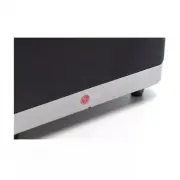
4 Manually connecting the sound bar to the wireless subwoofer or wireless receiver ( [ See “Connecting the wireless subwoofer manually”, “Manual connection” on page 8, 10.) If you see a red LED on the back of the wireless subwoofer or on the front of the wireless receiver, it means that the sound ba...
Page 5 - Table of Contents
5 Table of Contents Sound Bar Quick Guide 2 Installing and using the Product Installation 6 Connecting the Product Exploring the Product 16 Front 17 Back 18 Exploring Remote Control Connecting to the TV 26 Connecting with an Optical Cable 28 Connecting with LG Sound Sync (Wireless) 29 Connecting wit...
Page 6 - Connecting the Product; Connecting the wireless subwoofer automatically; Installation
6 Installation Connecting the Product You can enjoy a richer sound by connecting the sound bar to the wireless subwoofer. Connecting the wireless subwoofer automatically After completing installation, the wireless subwoofer will automatically be connected to the sound bar. Connect the sound bar to t...
Page 8 - Connecting the wireless subwoofer manually
8 Connecting the wireless subwoofer manually If you see a red LED on the back of the wireless subwoofer, it means that the sound bar is not connected to the subwoofer. If this is the case, connect them in the following order. a Press the Power button on the sound bar to turn it off. b Press the Pair...
Page 9 - Connecting the rear speakers to the wireless receiver; Automatic connection
9 Connecting the rear speakers to the wireless receiver Automatic connection After completing installation, the wireless receiver will automatically be connected to the sound bar. Connect the sound bar to the wireless receiver in the following order. a Connect the speaker cables to the corresponding...
Page 11 - Attaching the ferrite core to the speaker cables
11 Attaching the ferrite core (optional) A ferrite core may not be provided depending on national standards. Attaching the ferrite core to the speaker cables Attach the ferrite core to the cables to reduce radio noise. a Pull Part [a] to open the ferrite core. b Wind the wireless receiver's speaker ...
Page 12 - Setting up surround sound
12 Setting up surround sound The surround sound function allows you to hear immersive 3D sound produced by multiple audio channels from the speakers, regardless of the channels in the originally recorded content.For example, if you listen to music recorded in 2.0 channels with standard sound effects...
Page 13 - Turning surround sound on/off
13 Turning surround sound on/off a Press Settings button. The product enters the setting mode and you can see “ OFF-AUTO POWER ” or “ ON-AUTO POWER ”. OFF-AUTO POWER b While the “ OFF-AUTO POWER ” or “ ON-AUTO POWER ” is scrolling in the status display, press Left/ Right button to select the surroun...
Page 16 - Front; Exploring the Product
16 Exploring the Product Front a c b a Power This turns the product on/off. Function Press the button repeatedly to select the desired function or input mode. Status Display Description OPT/HDMI ARC Connects the product to a TV that supports an optical cable, ARC or LG Sound Sync. BT Connects the pr...
Page 17 - Back
17 Back HDMI OUT (TV ARC) HDMI IN OPTICAL IN a b c d e a HDMI OUT (TV ARC) Plug in an HDMI cable to connect the TV to the product. b HDMI IN Plug in an HDMI cable to connect an external device to the product. c USB port Plug in a USB storage device to play music with the product. d DC IN Plug in the...
Page 18 - Exploring Remote Control
18 Exploring Remote Control You can use the remote to control all functions of the product, from turning the power on/off to enabling cinematic sound. a b c j i d e h k g f Replacement of Battery Use AA 1.5V batteries. Replace the two batteries by inserting them into the remote control in accordance...
Page 22 - Controlling the product with your TV’s remote control; Functions controllable with a TV remote control
22 Controlling the product with your TV’s remote control The product volume can be adjusted with LG TV Remote control as well as other brands. Functions controllable with a TV remote control Volume, mute on/off TV brands supported LG, Panasonic, Philips, Samsung, Sharp Electronics, Sony, Toshiba, Vi...
Page 23 - Using Auto Power; Activating/Deactivating the Auto Power function
23 Note • Press the Settings button on the TV remote control to check if the TV's audio output is set to [External Speaker]. • You cannot control the product with the LG TV's Magic Remote Control. • When the SIMPLINK or Sound Sync functions of the TV are turned on, this function may not work properl...
Page 24 - Using Night Time; Activating/Deactivating the Night Time function
24 Using Night Time This reduces the general sound volume, but raises the volume of soft and delicate sounds. This is useful when enjoying music or a movie late at night. Activating/Deactivating the Night Time function a Press Settings button. The product enters the setting mode and you can see “ OF...
Page 25 - Using Quick start; Activating/Deactivating the Quick start function
25 Using Quick start This reduces booting time by staying standby mode using low power consumption. Activating/Deactivating the Quick start function Press and hold button on the product for 3 seconds when the product is turn on. Then you can see “ ON- QUICK START ”. To turn off this function, Press ...
Page 26 - Connecting with an Optical Cable; Watching TV after connecting with an optical cable; Connecting to the TV
26 Connecting to the TV Enjoy a rich, high-quality sound by connecting the product to a TV or a beam projector. It has been designed to enhance the realism of your favorite programming, such as dramas and sports broadcasts. Connecting with an Optical Cable Transmit your TV’s audio to the product by ...
Page 27 - When you use an LG TV; Functions controllable with an LG TV remote control
27 c Press the Function button repeatedly until “ OPT/HDMI ARC ” appears on the status display. d Press the Settings button on the TV remote control to enter the [Speaker] menu and set the output speaker to [Optical] or [External Speaker]. Settings and menu items may vary depending on the TV manufac...
Page 28 - Watching TV after connecting it wirelessly
28 Connecting with LG Sound Sync (Wireless) You can adjust the volume with the LG TV remote control if the TV is connected to the product with LG Sound Sync (Wireless). Check out the TV user manual to see if your TV is supported. Watching TV after connecting it wirelessly a Press the Function button...
Page 29 - Connecting with an HDMI Cable; Watching TV after connecting with an HDMI cable
29 Connecting with an HDMI Cable You can transmit TV audio to the product by connecting the TV to the product with an HDMI cable. Add a variety of 3D effects to the original audio to fill the room with a deep, rich sound. Watching TV after connecting with an HDMI cable a Using the HDMI cable, connec...
Page 30 - SIMPLINK
30 SIMPLINK • SIMPLINK refers to the HDMI-CEC function that allows you to use a single TV remote control to easily operate an audio device or player connected to an LG TV via HDMI. - Functions controllable with a SIMPLINK-compatible LG TV remote control: Power on/off, volume control, mute on/off, et...
Page 31 - Connecting an external device via HDMI; Connecting to an External Device
31 Connecting to an External Device Experience movies and games in more realism by connecting the product to a device such as a game console or a Blu-ray player. Connecting with an HDMI Cable You can connect your TV or external device to the product with an HDMI cable for a deep, magnificent sound. ...
Page 33 - Connecting an external device via optical cable
33 Connecting with an Optical Cable You can connect a TV or external device to the product with an optical cable for a deep, magnificent sound. Connecting an external device via optical cable a Use the optical cable to connect the OPTICAL IN terminal on the back of the product to the OPTICAL OUT ter...
Page 34 - Connecting via Bluetooth; Please check the following first.; Using the Product as an Audio System
34 Using the Product as an Audio System Connecting via Bluetooth You can play music files stored on a Bluetooth device, or run music apps to enjoy the music with this product. Please check the following first. • Bluetooth devices to be connected to the product should meet the following specification...
Page 37 - Connecting with a Smartphone via LG Sound Bar app; Installing the app; Downloading with a QR code
37 Connecting with a Smartphone via LG Sound Bar app Please use the LG Sound Bar app to run various functions of the product conveniently. Please check the following first. • The LG Sound Bar app is available in the versions listed below. - Android™ OS: Version 5.0 or higher - iOS OS: Version 10 or ...
Page 38 - Downloading from the Google Play or App Store
38 Downloading from the Google Play or App Store Go to the Google play or the App Store on your smartphone and search for the LG Sound Bar app to install it. Android Phone iPhone Note • Settings menu items may vary depending on the smartphone manufacturer and OS. • Google, Android and Google Play ar...
Page 39 - Connecting to a USB Storage Device; Connecting the product to a USB storage device
39 Connecting to a USB Storage Device Enjoy high-quality sound by connecting a USB storage device containing music files to the product. Connecting the product to a USB storage device a Plug the USB storage device into the USB port on the back of the product. • The product cannot play any devices co...
Page 40 - USB storage devices supported; Playable file specifications
40 USB storage devices supported MP3 player Flash MP3 player USB flash device USB 2.0 or higher This product may not recognize some USB storage devices. Playable file specifications File extension Sampling frequency Bitrate MP3 32 kHz - 48 kHz 8 kbps - 320 kbps WMA 32 kHz - 48 kHz 56 kbps - 128 kbps...
Page 41 - Mounting the Product to a Wall
41 Mounting the Product to a Wall You can mount this product onto a wall. When affixing the product to the wall, follow the instructions below. Please check the following first. • It may be difficult to connect external devices and cables after wall-mounting. First, connect an external device with t...
Page 45 - Safety and Regulatory; CAUTION; Safety Precautions
45 Safety Precautions Safety and Regulatory CAUTION RISK OF ELECTRIC SHOCK DO NOT OPEN CAUTION: TO REDUCE THE RISK OF ELECTRIC SHOCK DO NOT REMOVE COVER (OR BACK) NO USER- SERVICEABLE PARTS INSIDE REFER SERVICING TO QUALIFIED SERVICE PERSONNEL. This lightning flash with arrowhead symbol within an eq...
Page 48 - Troubleshooting; General Errors; Before Reporting Product Malfunction
48 Before Reporting Product Malfunction Troubleshooting If you experience the following issues while using the product, please perform several checks, as they may not be malfunctions. General Errors Issue Solution The product does not work properly • Unplug the power cables and any external devices ...
Page 51 - Appendix
51 Appendix Specifications General Power Consumption Refer to the main label. AC adapter • Model: DA-50F25 • Manufacturer: Asian Power Devices Inc. • Input: 100 - 240 V ~ 50 - 60 Hz • Output: 25 V 0 2 A • Model: MS-Z2000R250-050D0-P • Manufacturer: MOSO POWER SUPPLY TECHNOLOGY CO., LTD. • Input: 100...
Page 53 - Registered Trademarks and Licenses
53 Registered Trademarks and Licenses All trademarks and trade names are the property of their respective owners. Dolby, Dolby Audio and the double-D symbol are trademarks of Dolby Laboratories Licensing Corporation. Manufactured under license from Dolby Laboratories. Confidential unpublished works....
Page 54 - When shipping the Product; Cleaning the product
54 Open Source Software Notice Information To obtain the source code that is contained in this product, under GPL, LGPL, MPL, and other open source licenses that have the obligation to disclose source code, and to access all referred license terms, copyright notices and other relevant documents, ple...