Page 2 - Sound Bar Quick Guide; Installing and using the Product; Soundbar Quick Guide
2 Sound Bar Quick Guide Installing and using the Product a Connect the sound bar to your TV via an optical cable or an HDMI cable. HDMI OUT HDMI IN (ARC) HDMI IN OPTICAL OUT OPTICAL IN 5 V 0 500 mA HDMI IN TM HDMI d TV (eARC / ARC) TM a b D a A B 123 C b A Sound bar B Remote Control Receiver C Statu...
Page 4 - Table of Contents
4 Table of Contents Sound Bar Quick Guide 2 Installing and using the Product Installation 5 Connecting the Product 6 Connecting with a Smartphone via Wi-Fi 10 Resetting the Product Exploring the Product 11 Front 16 Back 17 Exploring Remote Control Various settings for convenience 20 Convenient funct...
Page 5 - Connecting the Product; Installation
5 Installation Connecting the Product After completing installation, plug the sound bar power cable into an outlet in the following order. a Plug the power cable into the AC adapter. b Connect the AC adapter cable to the DC IN (AC adapter input) terminal on the back of the product. c Plug the power ...
Page 6 - Connecting with a Smartphone via Wi-Fi; Please check the following first.
6 Connecting with a Smartphone via Wi-Fi LG Sound Bar app allows you to connect the product to the network and to control the product. Please check the following first. • Do you have a wireless router? - To connect your smartphone and the product via Wi-Fi, you must have a wireless router that is co...
Page 7 - Installing the app; Downloading with a QR code; Downloading on Google Play or App Store
7 Installing the app Install the LG Sound Bar app on your smartphone. To install the LG Sound Bar app , you can scan the QR code with a QR code scan app or download on Google Play or the App Store. Downloading with a QR code a Scan the QR code below with a QR code scan app. b You will be directed to...
Page 8 - Connecting with a Smartphone via LG Sound Bar app
8 Note • Settings menu items may vary depending on the smartphone manufacturer and OS. • Google, Android, Google Play, Google Home and Chromecast built-in are trademarks of Google LLC. Connecting with a Smartphone via LG Sound Bar app You must connect the product to the smartphone via Wi-Fi on the L...
Page 10 - Resetting the Product; How to reset
10 Resetting the Product If the network connection is unstable, you will need to reset it. If the Wi-Fi network has been changed, you will need to reset the product and connect it to your smartphone again. How to reset a Press and hold the Wi-Fi button on the top of the product until you hear a soun...
Page 11 - Front; Exploring the Product
11 Exploring the Product Front 1 2 3 a Power This turns the product on/off. • If you press and hold the Power button for longer than 3 seconds, Wi-Fi will disconnect and the product will no longer emit sound. Press the Power button quickly to maintain the Wi-Fi connection for future use. Function Pr...
Page 13 - Status LED
13 Status LED On (White, Orange, Blue, Purple, Green, Red) Off Blink Power on / Power off 1 2 3 LED1 blinks red. Volume control 1 1 1 2 2 2 3 3 3 • Volume up: The LEDs get brighter and light up one by one. • Volume down: The LEDs get darker and turn off one by one. • The volume reaches maximum, all ...
Page 16 - Back
16 Back a DC IN Plug in the AC adapter with the product. b OPTICAL IN Plug in an optical cable to connect the TV to the product. c USB port Plug in a USB storage device to play music with the product. d HDMI™ d TV (eARC / ARC) Plug in an HDMI cable to connect the TV to the product. e HDMI™ IN Plug i...
Page 17 - Exploring Remote Control
17 Exploring Remote Control You can use the remote to control all functions of the product, from turning the power on/off to enabling cinematic sound. a b c j i d e h k g f Replacement of Battery Use AA 1.5V batteries. Replace the two batteries by inserting them into the remote control in accordance...
Page 20 - Convenient functions; Auto Power; Functions controllable with a TV remote control; Various settings for convenience
20 Various settings for convenience Convenient functions Auto Power This function automatically turns the product on or off when the TV or external device is turned on or off. When the connected device is turned on, the product turns on automatically and selects a function according to the input sig...
Page 21 - Display; How to change the settings
21 Display The status LED can be controlled as auto, off, and on. Option LED Status Auto Dimmed after 20 seconds of button input. Off Turned off after 20 seconds of button input. On Always on How to change the settings a Press Settings button. The product enters the setting mode and LED2 blinks whit...
Page 23 - Sound tuning
23 Sound tuning You can adjust the sound level of each speaker and sound tone. a Press Sound Tuning button. The product enters the setting mode and displays the current level of the product. b Press Left/Right button to choose the speaker you want to adjust. c Press Up/Down button to adjust the soun...
Page 24 - Voice feedback function
24 Voice feedback function When you select a function or sound, the current status of the product is guided by voice. (English voice only)Press Information button on the remote control for longer than 5 seconds to turn this function on or off. Note • Voice feedback and sound bar volume level work to...
Page 25 - Connecting with an Optical Cable; Watching TV after connecting with an optical cable; Connecting to the TV
25 Connecting to the TV Connecting with an Optical Cable Transmit your TV’s audio to the product by connecting it to the TV with an optical cable. You can add a variety of 3D effects to the original audio to fill the room with a deep, rich sound. Watching TV after connecting with an optical cable a ...
Page 26 - When you use an LG TV; Functions controllable with an LG TV remote control
26 c Press the Function button repeatedly until LED1 and LED2 light up white. 1 2 3 d Press the Settings button on the TV remote control to enter the [Speaker] menu and set the output speaker to [Optical] or [External Speaker]. Settings and menu items may vary depending on the TV manufacturer. Note ...
Page 27 - Connecting with an HDMI Cable; Watching TV after connecting with an HDMI cable
27 Connecting with an HDMI Cable You can transmit TV audio to the product by connecting the TV to the product with an HDMI cable. Add a variety of 3D effects to the original audio to fill the room with a deep, rich sound. Watching TV after connecting with an HDMI cable a Using the HDMI cable, connec...
Page 28 - SIMPLINK; Using WOW Orchestra with LG TV
28 SIMPLINK • SIMPLINK refers to the HDMI-CEC function that allows you to use a single TV remote control to easily operate an audio device or player connected to an LG TV via HDMI. - Functions controllable with a SIMPLINK-compatible LG TV remote control: Power on/off, volume control, mute on/off, et...
Page 29 - Connecting via Bluetooth; Watching TV after connecting it wirelessly
29 Connecting via Bluetooth Bluetooth is a technology that wirelessly connects electronic products around you. Connect the product to a TV via Bluetooth and enjoy your TV audio in high quality. Watching TV after connecting it wirelessly a Press the Bluetooth pair button. After a moment, LED2 blinks ...
Page 30 - Connecting an external device via HDMI; Connecting to an External Device
30 Connecting to an External Device Connecting with an HDMI Cable Connect the TV and external device (game console, DVD player, etc.) with an HDMI cable and enjoy a deep and rich sound. Connecting an external device via HDMI A a Connect an external device such as a Set-top box, DVD or Blu-ray player...
Page 33 - Connecting an external device via optical cable
33 Connecting with an Optical Cable Connect the TV and external device (game console, DVD player, etc.) with an optical cable and enjoy a deep and rich sound. Connecting an external device via optical cable a Use the optical cable to connect the OPTICAL IN terminal on the back of the product to the ...
Page 34 - Using the Product as an Audio System
34 Using the Product as an Audio System Connecting via Bluetooth You can play music files stored on a Bluetooth device, or run music apps to enjoy the music with this product. Please check the following first. • Bluetooth devices to be connected to the product should meet the following specification...
Page 37 - Connecting to a USB Storage Device; Connecting the product to a USB storage device
37 Connecting to a USB Storage Device Enjoy high-quality sound by connecting a USB storage device containing music files to the product. Connecting the product to a USB storage device a Plug the USB storage device into the USB port on the back of the product. • The product cannot play any devices co...
Page 38 - USB storage devices supported
38 Note • It is recommended that you purchase a separate USB gender changer to make it easier to plug in and out USB storage devices. • Purchase a USB gender changer with a USB 2.0 extension cable. • USB devices with a large storage volume may take several minutes to browse through files. • LG Elect...
Page 39 - Using the LG Sound Bar app; Controlling device functions; Using AI Room Calibration
39 Using the LG Sound Bar app Controlling device functions Run the LG Sound Bar app . You can easily set [Sound Effect] and [Night Time] and adjust the level of each speaker without a remote control.Tap the Settings button on the first screen to change the settings of the sound bar. Using AI Room Ca...
Page 40 - Using Chromecast built-inTM; Compatible with Google Assistant
40 Using Chromecast built-in™ You can listen to your favorite music on this product using hundreds of Chromecast-enabled apps on your phone, tablet or laptop. Simply tap the Cast button from apps you already know and love. No new logins or downloads required. Use your phone to search, play, pause an...
Page 41 - Works with Apple AirPlay; Wi-Fi network setting with iOS device
41 Works with Apple AirPlay This product allow you to listen to the music from your iOS device through AirPlay. Note • Make sure that this product and your iOS device are connected to the same Wi-Fi network. • Make sure that your iOS device is running iOS 11.4 or later. • The AirPlay 2–Enabled Speak...
Page 42 - Stream music through AirPlay; Spotify Connect
42 Stream music through AirPlay From the Control Center: a Open the Control Center on your iOS device. b Tap AirPlay ( ). c Choose your product to listen to music. You can choose one or more AirPlay 2 -enabled speakers. From a music player app: a Open a music player app. b Tap AirPlay ( ). c Choose ...
Page 43 - Works with Alexa; Alexa setup flow
43 Works with Alexa Alexa lets you use your voice to control this product by speaking commands through an Alexa Built-in device. Alexa Built-in device is sold Separately. Alexa setup flow a Run the LG Sound Bar app and tap amazon alexa button on the first screen and then follow the instructions. b S...
Page 44 - How to use Alexa
44 How to use Alexa • Explicating targeting: Through Alexa Built-in devices (e.g. Amazon Echo), you can ask Alexa to play music on your [SE6S]. For example, “Alexa, play jazz on [LG SE6S Soundbar]”. • Preferred Speaker: You can set one or more speakers so specific devices within a Smart Home Group p...
Page 45 - Checking before mounting to a wall; Mounting the Product to a Wall
45 Mounting the Product to a Wall Checking before mounting to a wall You can mount this product onto a wall. When mounting the product to the wall, follow the instructions below. Please check the following first. • It may be difficult to connect external devices and cables after wall-mounting. First...
Page 49 - Safety and Regulatory; CAUTION; Safety Precautions
49 Safety Precautions Safety and Regulatory CAUTION RISK OF ELECTRIC SHOCK DO NOT OPEN CAUTION: TO REDUCE THE RISK OF ELECTRIC SHOCK DO NOT REMOVE COVER (OR BACK) NO USER- SERVICEABLE PARTS INSIDE REFER SERVICING TO QUALIFIED SERVICE PERSONNEL. This lightning flash with arrowhead symbol within an eq...
Page 52 - Prevention of product misuse; Precautions for installing the product
52 Prevention of product misuse To prevent misuse of the product, please be sure to check the contents below. Precautions for installing the product • Do not install the product in an unstable or vibrating place, such as on a shaking shelf or inclined surface. Install the product on a firm and level...
Page 53 - Precautions for using the product
53 Precautions for using the product • Do not lift or move the product while it is operating. - Otherwise, it may cause a breakdown. • When moving the product, pull out the power cord and all cables connected to the product. - Otherwise, it may cause a fire or electric shock. • Stop using the produc...
Page 55 - Precautions for cleaning the product
55 The following only applies to models with a remote control • Do not let children use the remote control. Keep the remote control out of reach of toddlers. • Do not let children put the remote control in their mouth. Make sure that children don’t swallow the remote control cover or a battery. If a...
Page 56 - Troubleshooting; General Errors; Before Reporting Product Malfunction
56 Before Reporting Product Malfunction Troubleshooting If you experience the following issues while using the product, please perform several checks, as they may not be malfunctions. General Errors Issue Solution The product does not work properly • Unplug the power cables and any external devices ...
Page 58 - Network Connection Errors
58 Network Connection Errors Issue Solution The product cannot be connected to the LG Sound Bar app • The connection may not be smooth when disturbed by other electric appliances that use radio waves, such as microwave ovens and medical equipment. Install the product 1 m (3.3 ft) away from other hom...
Page 61 - Turning off the Demo Mode
61 Turning off the Demo Mode Issue Solution The remote control does not work • Does the functions unchanged, even if you press the Function button several times? • Do you only see white, red, and green LEDs repeatedly? - The demo mode may be activated on the product. Unplug the product's power cable...
Page 62 - Specifications; Appendix
62 Appendix Specifications General Power Consumption Refer to the main label. AC adapter • Model: MS-Z2610R230-065E0-P • Manufacturer: MOSO POWER SUPPLY TECHNOLOGY CO., LTD. • Input: 100 - 240 V ~ 50/60 Hz • Output: 23 V 0 2.61 A Dimensions (W x H x D) Approx. 800.0 mm x 63.0 mm x 131.0 mm (includin...
Page 63 - Registered Trademarks and Licenses
63 Registered Trademarks and Licenses All trademarks and trade names are the property of their respective owners. Dolby, Dolby Vision, Dolby Atmos, and the double-D symbol are registered trademarks of Dolby Laboratories Licensing Corporation. Manufactured under license from Dolby Laboratories. Confi...
Page 66 - Handling the Product; When shipping the Product; Cleaning the product
66 Handling the Product When shipping the Product Please save the original shipping carton and packing materials. If you need to ship the product, for maximum protection, re-pack the product as it was originally packed at the factory. Keeping the exterior surfaces clean • Do not use volatile liquids...


 LG SN4
User Manual
LG SN4
User Manual
 LG SP60Y
User Manual
LG SP60Y
User Manual
 LG SP70Y
User Manual
LG SP70Y
User Manual
 LG SPM2L
User Manual
LG SPM2L
User Manual
 LG GX
User Manual
LG GX
User Manual
 LG LAB540W
User Manual
LG LAB540W
User Manual
 LG LAB550H
User Manual
LG LAB550H
User Manual
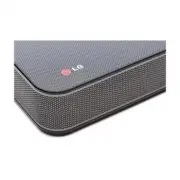 LG LAP240
User Manual
LG LAP240
User Manual
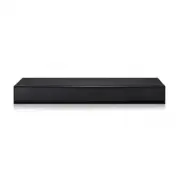 LG LAP250H
User Manual
LG LAP250H
User Manual
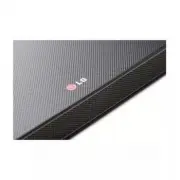 LG LAP340
User Manual
LG LAP340
User Manual
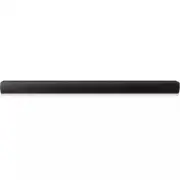 LG LAS160B
User Manual
LG LAS160B
User Manual
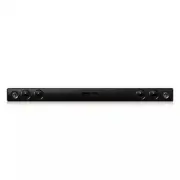 LG LAS260B
User Manual
LG LAS260B
User Manual
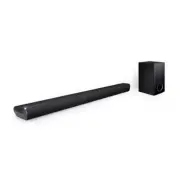 LG LAS350B
User Manual
LG LAS350B
User Manual
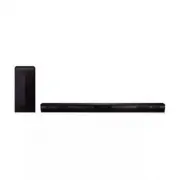 LG LAS450H
User Manual
LG LAS450H
User Manual
 LG LAS454B
User Manual
LG LAS454B
User Manual
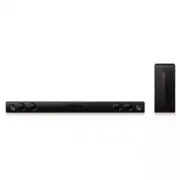 LG LAS465B
User Manual
LG LAS465B
User Manual
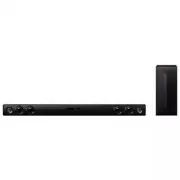 LG LAS475B
User Manual
LG LAS475B
User Manual
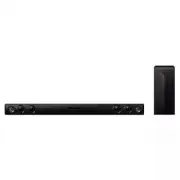 LG LAS485B
User Manual
LG LAS485B
User Manual
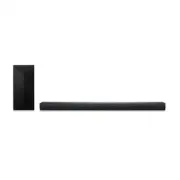 LG LAS551H
User Manual
LG LAS551H
User Manual