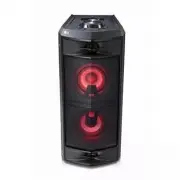
Page 2 - Safety Information; CAUTION
1 Getting Started Getting Started 2 Getting Star ted 1 Safety Information CAUTION RISK OF ELECTRIC SHOCK DO NOT OPEN CAUTION: TO REDUCE THE RISK OF ELECTRIC SHOCK DO NOT REMOVE COVER (OR BACK) NO USER-SERVICEABLE PARTS INSIDE REFER SERVICING TO QUALIFIED SERVICE PERSONNEL. This lightning flash with ...
Page 3 - Symbols
Getting Started 3 Getting Star ted 1 CAUTION concerning the Power Cord The Power Plug is the disconnecting device. In case of an emergency, the Power Plug must remain readily accessible.Check the specification page of this owner’s manual to be certain of the current requirements. Do not overload wal...
Page 4 - Connecting; Getting Started; Table of Contents
Table of Contents 4 2 Connecting 12 AC Power Cord Connection 12 Optional Equipment Connection 12 – AUX IN Connection13 – AUX OUT Connection14 – USB Connection 3 Operating 15 Basic Operations 15 – USB Operations 16 – AUTO DJ 17 Using BLUETOOTH® wireless technology 17 – Listening to music stored on th...
Page 5 - Appendix
Table of Contents 5 1 2 3 4 5 4 Troubleshooting 31 Troubleshooting 31 – General 31 – NOTES to release Demo mode 5 Appendix 32 General specifications 33 Trademarks and Licenses 33 Maintenance 33 – Handling the Unit
Page 6 - Unique Features; BLUETOOTH®; AUTO DJ
Getting Started 6 Getting Star ted 1 Unique Features BLUETOOTH® Listens to music stored on your Bluetooth device. AUTO DJ Blends the end of one song into the beginning of another for seamless playback. LG XBOOM LG XBOOM is an app designed to let you take control of some of LG’s latest audio devices....
Page 7 - Playable file; Music file requirement; Compatible USB Devices; USB device requirement
Getting Started 7 Getting Star ted 1 Playable file Requirement Music file requirement MP3/WMA file compatibility with this unit is limited as follows. y Sampling frequency : within 32 to 48 kHz (MP3), within 32 to 48 kHz (WMA) y Bit rate : within 32 to 320 kbps (MP3), 40 to 192 kbps (WMA) y Maximum ...
Page 8 - Top panel
Getting Started 8 Getting Star ted 1 Top panel a Display window b 1 (Standby) Turns the power on or off. LIGHTING Selects the lighting mode. 3 TWIN Connects two speakers for TWIN mode in WIRELESS PARTY LINK. SOUND EFFECT / BASS BLAST (or BASS BLAST+ ) - Chooses sound impressions. - Press and hold to...
Page 9 - Rear panel
Getting Started 9 Getting Star ted 1 Rear panel a MIC (Microphone) jack b AUX IN / OUT (L/R) c USB port d AC IN socket a b c d
Page 10 - How to place the unit; Automatically optimize the sound; Horizontal; Caution
Getting Started 10 Getting Star ted 1 How to place the unit Automatically optimize the sound It helps to automatically optimize the sound to suit the installation conditions (Horizontal or Vertical). If the installation method is changed (‘Horizontal Vertical’ or ‘Vertical Horizontal’), it is indica...
Page 11 - Useful functions for using the unit
Getting Started 11 Getting Star ted 1 Useful functions for using the unit Function Description To do Do this BT Lock On/Off (Page 19) It allows you to connect a Bluetooth device only on BT ( Bluetooth ) and LG TV functions.Initial setting of this function was set to off. ON Press and hold N for 5 se...
Page 12 - AC Power Cord; Note; Optional Equipment; AUX IN Connection
2 Connecting Connecting 12 Connecting 2 AC Power Cord Connection 1. Connect one end of the AC power cord (included) to the AC IN socket. 2 Plug the other end into the wall outlet. Unplug the AC power cord from the wall outlet if you do not to use for an extended period of time. , Note Optional Equip...
Page 13 - AUX OUT Connection; PARTY LINK with AUX
Connecting 13 Connecting 2 AUX OUT Connection Connect an input of auxiliary device to the AUX OUT (L/R) connector.If your device has only one input for audio (mono), connect it to the left (white) audio jack on the unit. Audio cable Auxiliary device PARTY LINK with AUX You can connect two units to p...
Page 14 - Listening to music from your external; USB Connection
Connecting 14 Connecting 2 Listening to music from your external device The unit can be used to play music from many types of external device. 1. Connect the external device to the AUX IN connector of the unit. 2. Turn the power on by pressing 1 . 3. Press F to select AUX function. 4. Turn on the ex...
Page 15 - Basic Operations; USB Operations
3 Operating Operating 15 Oper ating 3 Basic Operations USB Operations 1. Connect the USB device to the USB port.2. Select USB function by pressing F . To Do this Playback Press N . Pause Press N during playback. Searching for a section within a file Press and hold C / V during playback and release i...
Page 17 - Using BLUETOOTH®; About Bluetooth; Listening to music stored on the; Pairing your unit and Bluetooth device
Operating 17 Oper ating 3 Using BLUETOOTH® wireless technology About Bluetooth Bluetooth is wireless communication technology for short range connection.The sound may be interrupted when the connection interfered by the other electronic wave or you connect the Bluetooth in the other rooms. Connectin...
Page 19 - Controls connected Bluetooth device
Operating 19 Oper ating 3 Controls connected Bluetooth device You can control connected Bluetooth device by the unit; play, pause, skip. y Only Android OS and iOS is available to use this function. y This function may not be supported depending on the Bluetooth device, or operated differently. , Not...
Page 20 - Using the LG XBOOM; About “LG XBOOM” App; Install “LG XBOOM” App onto; Install “LG XBOOM” App through QR
Operating 20 Oper ating 3 Using the LG XBOOM App y Only Android OS is available to use “LG XBOOM” app with this unit. y It is recommended to use the latest version of app. , Note About “LG XBOOM” App “LG XBOOM” app brings a suite of new features to this unit.To enjoy more features, you are recommend...
Page 21 - Install “LG XBOOM” App through; Activate Bluetooth with “LG
Operating 21 Oper ating 3 Install “LG XBOOM” App through “Google Android Market (Google Play Store)” 1. Tap the “Google Android Market (Google Play Store)” icon. 2. In the search bar, type in the “LG XBOOM” and search it. 3. In the search result list, find and tap “LG XBOOM” to start downloading Blu...
Page 22 - Sound adjustment; Setting the sound mode
Operating 22 Oper ating 3 Sound adjustment Setting the sound mode This system has a number of pre-set surround sound fields. The displayed items for the equalizer may be different depending on sound sources and effects.You can select a desired sound mode by using SOUND EFFECT / BASS BLAST (or BASS B...
Page 23 - Other Operations; Using Microphone
Operating 23 Oper ating 3 Other Operations DEMO In the power off state, press MIC ECHO / DEMO on the unit once. The unit will power on and display the each of functions with demo sound in the display window. To cancel the DEMO function, press MIC ECHO / DEMO on the unit once more. Using Microphone 1...
Page 24 - VOICE CANCELLER
Operating 24 Oper ating 3 VOICE CANCELLER You can reduce the vocal tones during music playback from various input sources. Press VOICE CANCELLER on the unit and “ON - VOICE CANCELLER” will appear in display window.To cancel it, press VOICE CANCELLER on the unit again. The quality of the VOICE CANCEL...
Page 25 - VOCAL EFFECTS
Operating 25 Oper ating 3 VOCAL EFFECTS When you connect your microphone to the MIC jack, you can enjoy karaoke function by changing voice in the various source. To select various vocal mode effects, pressing VOCAL EFFECTS repeatedly on the unit when vocal effects mode appears in the display window....
Page 26 - Auto power down; How to disconnect the wireless
Operating 26 Oper ating 3 LIGHTING This function offers a party atmosphere by operating the lighting on the unit.To select mode, pressing LIGHTING repeatedly. PARTY WATER FOREST (MY STYLE) OFF y Lighting function is available in all functions. y Lighting mode retains in its previous mode when you fi...
Page 27 - AUTO POWER On; Auto function change; When you try to connect Bluetooth
Operating 27 Oper ating 3 AUTO POWER On This unit automatically turns on by an input source : LG TV, Bluetooth . When you turn on your TV connected to this unit, this unit recognizes the input signal and selects the suitable function. You can hear the sound from the unit.If you try to connect your B...
Page 28 - LG Sound Sync
Operating 28 Oper ating 3 LG Sound Sync You can control some functions of this unit by your TV’s remote control with LG Sound Sync. It is compatible with LG TV that supports LG Sound Sync. Make sure your TV has the LG Sound Sync logo. Controllable function by LG TV’s remote control : Volume up/downR...
Page 29 - WIRELESS PARTY LINK; Setting the TWIN mode
Operating 29 Oper ating 3 WIRELESS PARTY LINK Connection Setting the TWIN mode You can enjoy the sound by using two speakers. For enjoying WIRELESS PARTY LINK, you need to purchase another speaker.It is compatible with unit that supports WIRELESS PARTY LINK. 1. Press 3 TWIN on the unit. “ROLE SELECT...
Page 31 - General; NOTES to release Demo mode; Problem
4 Troubleshooting Troubleshooting General Problem Cause & Solution The unit does not work properly y Turn off the power of this unit and the connected external device (TV, Woofer, DVD-player, Amplifier, etc.) and turn them on again. y Disconnect the power cord of this unit and the connected exte...
Page 33 - Trademarks and; Maintenance; Handling the Unit; When shipping the unit
Appendix 33 Appendix 5 Trademarks and Licenses The Bluetooth® word mark and logos are registered trademarks owned by the Bluetooth SIG, Inc. and any use of such marks by LG Electronics is under license. Other trademarks and trade names are those of their respective owners. Maintenance Handling the U...