Page 2 - CAUTION
2 This lightning flash with arrowhead symbol withinan equilateral triangle is intended to alert the userto the presence of uninsulated dangerous voltagewithin the product’s enclosure that may be of suffi-cient magnitude to constitute a risk of electricshock to persons. The exclamation point within a...
Page 4 - able of contents
Symbol Used in this Manual . . . . . . . . . . . . . . . .5Notes on Discs . . . . . . . . . . . . . . . . . . . . . . . . . . .5Moisture Condensation . . . . . . . . . . . . . . . . . . . .5Recordable and Playable Discs . . . . . . . . . . . .6-7Recommended recordable DVD discs . . . . . . . .6Regio...
Page 5 - INTRODUCTION; Symbol Used in this Manual; Handling Discs; Introduction; Moisture Condensation
5 INTRODUCTION To ensure proper use of this product, please read thisowner’s manual carefully and retain for future reference. Symbol Used in this Manual Indicates special notes and operating features. Indicates tips and hints for making the taskeasier. Indicates hazards likely to cause harm to the ...
Page 6 - Recommended recordable DVD discs; Regional Code
Recordable and Playable Discs Recordable and Playable Discs 6 Recommended recordable DVD discs Recommended recordable DVD discs *1 Erasing titles only frees up disc space if you erase the last title.*2 Erasing titles or chapters frees up disc space.*3 Erasing titles or chapters does not free up disc...
Page 7 - Playable Discs
7 INTRODUCTION Playable Discs Playable Discs Depending on the conditions of the recording equipment or the CD-R/RW (or DVD±R/RW) disc itself, someCD-R/RW (or DVD±R/RW) discs cannot be played on the unit.Do not attach any seal or label to either side (the labeled side or the recorded side) of a disc....
Page 8 - Connection and Setting
8 Depending on your TV and other equipment there are various ways you can connect the recorder. Please refer to the manuals of your TV, VCR, Stereo System or other devices as necessary for additionalconnection information. Make sure the Recorder is connected directly to the TV and tune the TV to the...
Page 9 - RF coaxial connection; Audio connection
9 CONNECTION AND SETTING Connections to your TV (Composite) Connections to your TV (Composite) Make one of the following connections, depending on the capabilities of your TV. RF coaxial connection Connect the ANTENNA OUT jack on the Recorder to the antenna in jack on the TV using the supplied 75-oh...
Page 10 - Additional Information for HDMI
10 If you have a HDMI TV or monitor, you can connect itto this recorder using a HDMI cable. 1. Connect the HDMI OUTPUT jack on the recorder tothe HDMI INPUT jack on a HDMI compatible TV or monitor (H). 2. Set the TV’s source to HDMI (refer to TV’s Owner’smanual). If your TV is NOT capable of handlin...
Page 13 - Controlling; Code numbers of controllable TVs
13 CONNECTION AND SETTING Controlling Controlling Y Y our TV with the our TV with the Supplied Multi-brand Remote Supplied Multi-brand Remote Control Control You can control the sound level, input source, andpower switch of your LG TV with the supplied Multi-brand Remote Control.You can control your...
Page 15 - Accessory
15 CONNECTION AND SETTING Accessory Accessory A u d i o / V A u d i o / V ideo (A/V) Connections to ideo (A/V) Connections to Recorder Recorder Connect the INPUT 1 or AV IN 2 jacks on the Recorder to the audio/video out jacks on your accessory component,using the optional audio/video cables. (Refer ...
Page 16 - Recommended Set-Top Box devices; Connecting the IR control cable
16 The Recorder sends commands to your connected Set-Top Box to change the channels of it through the IRcontrol cable when AV1 timer recording starts. 1. Connect the plug of the IR control cable to the IRTRANSMITTER jack on the Recorder. 2. Find the Set-Top Box IR Sensor. Refer to “How tofind the IR...
Page 17 - Initial Setup W
17 CONNECTION AND SETTING Initial Setup W Initial Setup W izard izard After the POWER ( 1 1 ) is pressed for the first time to turn on the unit, the Initial Setup Wizard function setsthe Language, Channels and Clock step-by-step untilthe setup is complete. 1. Use v / V to select a language for the S...
Page 19 - TV VIEWING; T V V; Channel Selection; Switching Channel List
19 TV VIEWING T V V T V V i e w i n g i e w i n g Channel Selection Channel Selection You can select a channel as shown below. Number and – (dash) buttons Use Number (0-9) and – (dash) buttons to select achannel directly. - For example, to select digital channel number 27-1, press “2”, “7”, “-”, “1”...
Page 20 - Channel Information Icon
20 General Explanation of General Explanation of On-Screen Display On-Screen Display Some DVDs require specific operation or allow onlylimited operation during playback. When this occurs, is displayed, action prohibited or not available. Displaying Information While WatchingTV During viewing the TV,...
Page 21 - Playing a DVD; DVD Playback
21 DVD PLA YBACK Playing a DVD Playing a DVD 1. Press DVD to control the DVD deck. 2. Press EJECT, OPEN/CLOSE ( Z Z ) to open the disc tray. Load your chosen disc in the tray, with the playback side down. 3. Press EJECT, OPEN/CLOSE ( Z Z ) to close the tray. Playback starts automatically. If playbac...
Page 22 - Buttons
22 DVD Playback Options DVD Playback Options Buttons Operations OPEN / CLOSE ( Z ) Opens or closes the disc tray. PAUSE ( X ) Pause playback. Press repeatedly to play Frame-by-Frame. You can also use b / B to step backward and forward while in Pause mode. BACKWARD ( m ) / FORWARD ( M ) During playba...
Page 23 - Discs
23 DVD PLA YBACK DVD Playback Options (Continued) DVD Playback Options (Continued) Buttons Operations ZOOM Enlarge the video image.(x1 size → x2 size → x4 size → x1 size (normal size)) You can move through the zoomed picture using b / B /v / V buttons. TITLE If the current DVD title has a menu, the ...
Page 24 - Special Playback Options
24 If a menu screen is displayed In some cases, the disc menu might appear instead. Use the b / B / v / V buttons to select the title/chapter you want to view, then press ENTER ( ) to start. Press TITLE or DISC MENU/LIST to return to the menu screen. Moving to another TITLE When a disc has more than...
Page 25 - Music List menu options; MP3/WMA audio file requirement; Playing an
25 DVD PLA YBACK The Recorder can play Audio CDs and MP3/WMA files.Before playing MP3/WMA files, read [MP3/WMA audiofile requirement] on right. 1. Press HOME ( ) and the Home menu appears. 2. Select [Music] > [DISC] or [USB] and press ENTER ( ) . The [Music List] menu appears on the TV screen. Ex...
Page 26 - Photo playback options; Still picture; Rotate Images; iewing a JPEG files
26 This unit can play JPEG files. Before playing JPEGrecordings, read “Photo file requirement” on page 27. 1. Press HOME ( ) and the Home menu appears. 2. Select [Photo] > [DISC] or [USB] and press ENTER ( ) . 3. Use v / V / b / B to select a file or folder and press ENTER ( ) . 4. Use v / V to s...
Page 27 - Photo file requirement
27 DVD PLA YBACK View Slide Shows 1. Select [Slide Show] option on the [Photo List]menu. 2. Press ENTER ( ) . 3. Use b / B / v / V to set the options. [Object] option: [Selected] Views slide show only selectedfiles. [All] Views slide show all files. [Speed] option: Sets the Slide Show speed to [Norm...
Page 28 - Movie List menu options; MPEG4 file requirement; Playing a MPEG4 Movie File
28 The recorder can play MPEG4 files. Before playingMPEG4 files, read “MPEG4 file requirement” on right. 1. Press HOME ( ) . 2. Select [Movie] option. 3. Select a media that contains MPEG4 file(s) thenpress ENTER ( ) . The [Movie List] menu appears on the TV screen. 4. Press v / V to select a folder...
Page 29 - DVD Recording; Notes for DVD recording; Restrictions on video recording
29 DVD RECORDING DVD Recording DVD Recording Notes for DVD recording This Recorder cannot record CD-R or CD-RW discs. Fingerprints and small scratches on a disc can affectplayback and/or recording performance. Please takeproper care of your discs. The company does not hold any responsibility tocompe...
Page 30 - Checking the Recording Time
30 Basic Recording from a TV Basic Recording from a TV Follow the instructions below to record a TV program.Recording starts immediately and continues until thedisc is full or you stop the recording. 1. Switch on the Recorder, select the device (DVD) forrecording and load a recordable disc. Also mak...
Page 31 - imer Recording; Checking Timer Recording Details
31 DVD RECORDING T T imer Recording imer Recording 1. Press HOME ( ) and the Home menu appears. 2. Select [TV] > [Timer Record] and press ENTER ( ) . 3. Select [NEW] and press ENTER ( ) . The Timer Record menu will appear. [Media] – Choose a media (DVD). [Ch.] – Choose a channel that memorized in...
Page 32 - If you fail the AV1 Timer Recording
32 A A V1 T V1 T imer Recording using imer Recording using Set-T Set-T op Channel option op Channel option 1. Connect a Set-Top Box as shown on page 16. 2. Make the necessary settings for the connection asshown on page 56-57. 3. Important, for the Recorder to record programsreceived through the Set-...
Page 33 - Playing while you are; Recording from External
33 DVD RECORDING Playing while you are Playing while you are recording recording You can start play from the beginning of the title whilecontinuing to record it. While recording (in DVD mode) 1. Press PLAY ( N ). Start play of the title you are recording. 2. Press STOP ( x ) to return to the current...
Page 34 - itle List and Chapter List
34 DVD Editing DVD Editing T T itle List and Chapter List itle List and Chapter List Menu Overview Menu Overview Using the Title List menu you can edit video content.The editing features available in the Title List menudepend on whether you are editing video on DVD, andwhether you’re editing Origina...
Page 35 - DVD EDITING; VR Mode: Original and; Titles, Chapters and Parts; About word ‘Original’ and ‘Playlist’; Adding Chapter Markers; Changing the T
35 DVD EDITING VR Mode: Original and VR Mode: Original and Playlist Editing Playlist Editing Titles, Chapters and Parts Titles in the disc’s original content contain one or morechapters. When you add a disc’s title into the Playlist,all the chapters within that title also added. In otherwords, chapt...
Page 36 - A d d i n g
36 Making a New Playlist Making a New Playlist Use this function to add an Original title or chapter tothe Playlist. When you do this, the whole title or chap-ter are put into the Playlist (you can delete bits youdon’t need later - see [Deleting an Original or Playlisttitle/chapter] on page 37). The...
Page 37 - Deleting an Original or
37 DVD EDITING Deleting an Original or Deleting an Original or Playlist T Playlist T itle/Chapter itle/Chapter When you erase a title or chapter from the Playlistmenu, you only remove it from the Playlist; thetitle/chapter remains in the Original menu. If you choose to delete a title or chapter from...
Page 38 - Remote Control buttons for entering a name; ime Search
38 Naming a T Naming a T itle itle You can name the titles. 1. Choose the title you want to name on the Title Listmenu, then press ENTER ( ) . The menu options appears on the left side of themenu. 2. Use v / V to select [Edit] > [Title Name] option then press ENTER ( ) . Keyboard menu appears. 3....
Page 39 - Moving a Playlist Chapter
39 DVD EDITING Moving a Playlist Chapter Moving a Playlist Chapter Use this function to re-arrange the playing order ofPlaylist chapters on the Chapter List-Playlist menu. This function is not available if there is only one chapter. 1. Select a chapter on the Chapter List-Playlist menu. 2. Press ENT...
Page 42 - VCR Playback
42 Playing a T Playing a T ape ape 1. Press VCR to control the VCR deck. 2. Insert a pre-recorded video cassette. If the unit is powered off, it will power on automatically when the tape is loaded.If the Timer indicator lights on the front panel display window, press POWER ( 1 1 ) once. 3. Press PLA...
Page 43 - VCR Playback Options
43 VCR PLA YBACK * PAUSE X BACKWARD m FORWARD M I.SKIP CLEAR RETURN DISC MENU/LIST EJECTOPEN/CLOSE Z CH/TRK (+/-) AUDIO VCR VCR VCR VCR VCR VCR VCR VCR VCR Playback Options VCR Playback Options Buttons Operations EJECT ( Z ) Ejects the tape in the VCR deck. PAUSE ( X ) Pause playback. Press repeated...
Page 44 - Basic Recording from a TV
44 VCR Recording VCR Recording Basic Recording from a TV Basic Recording from a TV Follow the instructions below to record a TV program.Recording starts immediately and continues until thetape is full or you stop the recording. 1. Switch on the Recorder, select the device (VCR) forrecording and load...
Page 48 - D u b b i n g
Dubbing from VCR to DVD Dubbing from VCR to DVD You can copy the contents of a Video tape to a DVDusing the DUBBING button. This allows you to archive your old Video tapes to DVD. 1. Insert a blank DVD disc in the DVD deck and closethe disc tray. 2. Insert the video tape you wish to copy into the VC...
Page 49 - DUBBING; Recording from DV Input; Before DV dubbing
49 DUBBING Recording from DV Input Recording from DV Input Before DV dubbing You can connect a DV-equipped camcorder to thisrecorder using a single DV cable for input and outputof audio, video, data and control signals. This recorder is only compatible with DV-format(DVC-SD, DV25) camcorders. Digita...
Page 50 - Auto Channel Set; Channel Edit; Settings and
50 Initial Settings Initial Settings In this menu system, there are several ways to cus-tomize the settings provided. Most menus consist ofthree levels to set up the options, but some requiregreater depth for the variety of settings. 1. Press HOME ( ) and the Home menu appears. 2. Select [Setup] >...
Page 52 - Display Menu; DTV Caption; DTV Caption Style
52 Language Settings Language Settings You can set [DTV Caption], [DTV Caption Style], [DTV Caption Option] and [DTV Audio] options only whileviewing digital TV. Display Menu Select a language for the Setup menu and information display. Disc Menu / Audio / Subtitle [Original]: Refers to the original...
Page 53 - Audio Settings; Lock System
53 SETTINGS AND ADJUSTMENTS Audio Settings Audio Settings Each DVD disc has a variety of audio output options.Set the Recorder’s Audio Output according to the typeof audio system you use. Dolby Digital / DTS / MPEG [Bitstream]: Select [Bitstream] if you connect the DVD+VCR’s DIGITAL AUDIO OUTPUT jac...
Page 54 - Set Password; If you forget your password; Area Code
54 Set Password You can enter or change password. 1. Select [Set Password] option then press B . 2. Follow step 2 as shown in [Lock System] above. [Change]: Enter the new password twice after entering the current password. [Delete]: Delete the current password after entering the current password. If...
Page 56 - Disc Record Mode
56 Recording Settings Recording Settings Disc Record Mode You can set the picture quality for recording; XP (High Quality), SP (Standard Quality), LP (Low Quality), EP (Extend Quality) MLP (MaximumLong Play). (see page 71). 1. Select the [Disc Record Mode] option then press B . 2. Use v / V to selec...
Page 57 - Test Procedure; If you fail to test
57 SETTINGS AND ADJUSTMENTS Test Procedure 1) Check the IR control cable connection then press ENTER ( ) . (Refer to page 16.) 2) Turn on the Set-Top Box then press ENTER ( ) . 3) Use b / B a Remote Control Code of the device then press ENTER ( ) . The list of codes displayed onscreen are based on t...
Page 58 - Initialize; Finalize; Disc Label
58 Disc Settings Disc Settings Initialize If you load a completely blank disc, the recorder will ini-tialize the disc. DVD-R: The recording mode will always be Video mode. DVD-RW/ DVD+RW/DVD+R(DL)/DVD-RAM: The Initializemenu will appears. Select [OK] then press ENTER ( ) . DVD-RW disc is initialized...
Page 59 - REFERENCE; Remote Control; Reference
59 REFERENCE a POWER ( 1 1 ): Switches the unit ON or OFF. b DVD: Selects the unit’s mode to DVD. VCR: Selects the unit’s mode to VCR. EJECT, OPEN/CLOSE: Opens and closes the disc tray, and ejects the tape in the VCR deck. c 0-9 numerical buttons: Selects numbered options in a menu. DASH (-): Enters...
Page 60 - Front Panel
60 DV IN 2 CH CH / I a 1 1 / / I (POWER) Switches the Recorder ON and OFF. b Disc Tray (DVD deck) Insert a disc here. c Z DVD Opens or closes the disc tray. d Display window Shows the current status of the Recorder. Lights when a disc is in the DVD deck. The DVD deck is selected. Lights when the Rec...
Page 61 - HDMI OUTPUT; i j; Rear Panel; About the Remote Control
61 REFERENCE Do not touch the inner pins of the jacks on the rear panel. Electrostatic discharge may cause permanent damage to the unit. Caution Caution a ANTENNA IN (FROM ANT.) Connect the antenna to this terminal. b OPTICAL (DIGITAL AUDIO OUTPUT) Connect to digital (optical) audio equipment. c COM...
Page 62 - Using an USB Flash Drive; Inserting/Removing the USB Flash Drive; Using the USB Flash Drive
62 Using an USB Flash Drive This unit can play the MP3 / WMA / JPEG / MOVIEfiles contained in the USB Flash Drive. Inserting/Removing the USB Flash Drive Inserting the USB Flash Drive Insert straight-in until it fits into place. Removing the USB Flash Drive Withdraw the USB Flash Drive carefully whe...
Page 63 - Area Code List; Language Code List
63 REFERENCE Area Code Afghanistan AF Argentina AR Australia AU Austria AT Belgium BE Bhutan BT Bolivia BO Brazil BR Cambodia KH Canada CA Chile CL China CN Colombia CO Congo CG Costa Rica CR Croatia HR Czech Republic CZ Denmark DK Ecuador EC Egypt EG El Salvador SV Area Code Ethiopia ET Fiji FJ Fin...
Page 65 - roubleshooting; General
65 REFERENCE T T roubleshooting roubleshooting General The power does b Plug the power cord into the wall outlet securely. not turned on. There is no picture. b Select the appropriate video input mode on the TV so the picture from the unit appears on the TV screen. b Connect the video connection sec...
Page 66 - Recording
66 Recording Cannot record or does b Check the remaining space on the disc. not record successfully. b If your source is copy-protected, you cannot record it using this unit. b Use a VR mode formatted disc for copy-once material.Video that is ‘copy-once only’ can only be recorded using a DVD-RW disc...
Page 68 - Error Message
68 Cause You are trying to play the MPEG4 content that was purchasedwith a different registration code. You cannot play the content onthis unit. (MPEG4) You cannot make too short title which doesn't have enough play-time. Each separated title should be longer than 3 seconds. There are already 16 tim...
Page 71 - Specifications
71 REFERENCE General Power requirements AC 120V, 60 Hz Power consumption 23W Dimensions (approx.) 430 X 78.5 X 260 mm (w x h x d) without foot Net weight (approx.) 4.2 kg Operating temperature 5 ˚ C to 35 ˚ C (41 ˚ F to 95 ˚ F) Operating humidity 5 % to 90 % Signal system NTSC, DTV standard ATSC orC...
Page 73 - Index; Numerics
73 REFERENCE Index Index Numerics 16:9 51 4:3 Letter Box 51 4:3 Pan Scan 51 3D Surround 24 A Angle 24 Antenna 8 AUDIO 23, 43, 59 Audio Settings 53 Auto Channel Set 50 Auto Chapter 56 AV IN 2 60 B BACKWARD 22, 43 C Cable TV 8 Channel Edit 50 Chapter 69 Chapter List 34 CHP. ADD 59 Cleaning Discs 5 CLE...
Page 75 - Limited Warranty - USA
This LG Electronics product, will be repaired or replaced, at LG’s option, if it proves to be defective in material orworkmanship, under normal use, during the warranty period (“Warranty Period”) listed below, effective from the date(“Date of Purchase”) of original consumer purchase of the product. ...


 LG BP250
User Manual
LG BP250
User Manual
 LG BP740
User Manual
LG BP740
User Manual
 LG DP132
User Manual
LG DP132
User Manual
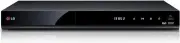 LG RH735T
User Manual
LG RH735T
User Manual
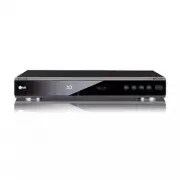 LG BD300
User Manual
LG BD300
User Manual
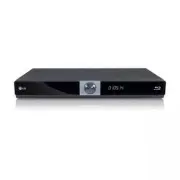 LG BD370
User Manual
LG BD370
User Manual
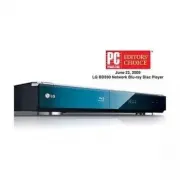 LG BD390
User Manual
LG BD390
User Manual
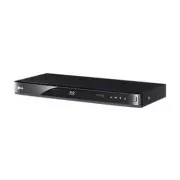 LG BD530
User Manual
LG BD530
User Manual
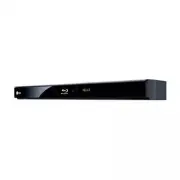 LG BD550
User Manual
LG BD550
User Manual
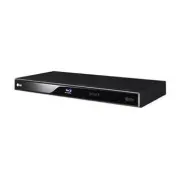 LG BD570
User Manual
LG BD570
User Manual
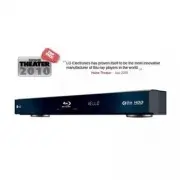 LG BD590
User Manual
LG BD590
User Manual
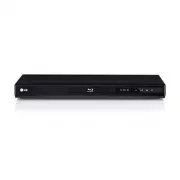 LG BD630
User Manual
LG BD630
User Manual