Page 2 - CAUTION
2 This lightning flash with arrowhead symbol with-in an equilateral triangle is intended to alert theuser to the presence of uninsulated dangerousvoltage within the product’s enclosure that maybe of sufficient magnitude to constitute a risk ofelectric shock to persons. The exclamation point within a...
Page 3 - Introduction; Contents
3 Introduction Important SafetyInstructions 1. Read these instructions. 2. Keep these instructions. 3. Heed all warnings. 4. Follow all instructions. 5. Do not use this apparatus near water. 6. Clean only with dry cloth. 7. Do not block any ventilation openings. Install in accor- dance with the manu...
Page 4 - Notes on Copyrights; Software Update
4 Notes on Copyrights Because AACS (Advanced Access ContentSystem) is approved as content protection sys-tem for BD format, similar to use of CSS (ContentScramble System) for DVD format, certain restric-tions are imposed on playback, analog signal out-put, etc., of AACS protected contents. The opera...
Page 6 - Playable Discs; Regional Code
6 Playable Discs Blu-ray Disc - Discs such as movies that can be pur- chased or rented - BD-R/RE discs that contain audio titles, MP3, WMA, or Photo files. DVD-VIDEO (8 cm / 12 cm disc) Discs such as movies that can be pur-chased or rented DVD-R (8 cm / 12 cm disc) - Video mode and finalized only- S...
Page 7 - BD-ROM Disc Compatibility
7 BD-ROM Disc Features BD-ROM Discs can store 25 GB (single layer) or 50 GB (dual layer) on a single sided disc - about 5 to 10 times the capacity of a DVD.BD-ROM Discs also support the highest quality HDvideo available in the industry (up to 1920 x 1080) -Large capacity means no compromise on video...
Page 9 - Using an USB Devices; Inserting/Removing the USB Device; Using the Home Menu
9 Using an USB Devices This unit can play the music and photo files con-tained in the USB device. Inserting/Removing the USB Device Inserting the USB device Insert straight-in until it fits into place. Removing the USB device Withdraw the USB device or cable carefully. Notes: This unit supports only...
Page 10 - TITLE; RPT
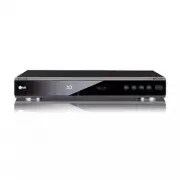
10 a 1 1 (POWER) Button Switches the unit ON or OFF. b Disc Tray Insert a disc here. c Display Window Shows the current status of the player. d Remote Sensor Point the Remote Control here. e Z (OPEN/CLOSE) Opens or closes the disc tray. f N / X (PLAY / PAUSE) Starts playback.Pause playback temporari...
Page 11 - Remote Control; Remote Control Battery Installation
11 Introduction a POWER: Switches the player ON or OFF. TV POWER: Switches the TV ON or OFF. OPEN/CLOSE ( Z ): Opens and closes the disc tray. PIP*: Switches on/off Secondary Video (Picture-in-picture) (BD-ROM only). REPEAT: Repeat a desired sec- tion. PIP AUDIO*: Switch on/off Secondary Audio (BD-R...
Page 12 - Installation and Setup; Rear Panel
12 a AC IN connector Connect the supplied power cord. b COMPONENT VIDEO OUT (Y Pb Pr) Connect to a TV with Y Pb Pr inputs. c DIGITAL AUDIO OUT (COAXIAL) Connect to digital (coaxial) audio equipment. d HDMI OUT (Type A) Connect to TV with HDMI inputs. (Interface fordigital audio and video) e LAN port...
Page 13 - HDMI connection
13 Installation and Setup HDMI connection If you have a HDMI TV or monitor, you can connectit to this player using a HDMI cable. 1. Connect the HDMI jack on the player to the HDMI jack on a HDMI compatible TV or monitor (H) . 2. Set the TV’s source to HDMI (refer to TV’s Owner’s manual). Notes: You ...
Page 14 - Connections to Your TV; Component Video Connection
14 Connections to Your TV Make one of the following connections, dependingon the capabilities of your existing equipment. Tips Depending on your TV and other equipment youwish to connect, there are various ways youcould connect the player. Use only one of theconnections described below. Please refer...
Page 15 - Connecting to an Amplifier; Connecting to an Amplifier via HDMI Output
15 Installation and Setup Connecting to an Amplifier Make one of the following connections, dependingon the capabilities of your existing equipment. Note: Since many factors affect the type of audio output,see “The unit’s Audio Output Specifications” on page40 for details. Connecting to an Amplifier...
Page 16 - Internet connection
16 Internet connection This player can be connected to a local area net-work (LAN) via the LAN port on the rear panel.After making the physical connection the playerneeds to be set up for network communication. Thisis done from the [Setup] menu — see “[NETWORK]Menu” on page 22 for detailed instructi...
Page 17 - Resolution Setting
17 Installation and Setup Resolution Setting The player provides several output resolutions forHDMI OUT and COMPONENT VIDEO OUT jacks. You can change the resolution using [Setup] menuor pressing the RESOLUTION button in stop mode. Note: Since several factors affect the resolution of videooutput, see...
Page 18 - Video output according to the Resolution setting; • When the copy unprotected media is playing back
18 Video output according to the Resolution setting • When the copy unprotected media is playing back Video Output HDMI OUT COMPONENT VIDEO OUT VIDEO OUT Resolution Setting HDMI connected HDMI disconnected 480i 480p 480i 480i 480p 480p 480p 480i 720p 720p 720p 480i 1080i 1080i 1080i 480i 1080p / 24H...
Page 19 - Initial Settings; General Operation
19 Installation and Setup Initial Settings By using the Setup menu, you can make variousadjustments to items such as picture and sound.You can also set a language for the subtitles and theSetup menu, among other things. For details oneach Setup menu item, see pages 19 to 23. To display and exit the ...
Page 23 - Installation and
23 [OTHERS] Menu Skin Changes the background of the initial screen. Java Font Size You can adjust the default text size displayed for theBD-J contents during BD-ROM playback.This setting is only valid when BD-J contents do notset the size of text.Please select a font size bigger than 24 when theplay...
Page 24 - Operations; General disc playback features; Buttons; Discs
24 Operations General disc playback features 1. Load your chosen disc in the tray, with the playback side down. 2. Start playback using the HOME menu (see page 9). Buttons Operations OPEN / CLOSE ( Z ) Opens or closes the disc tray. x (STOP) Stops the playback. The unit records the stopped point, de...
Page 25 - Operation; General disc playback features (Continued)
25 Operation General disc playback features (Continued) Buttons Operations TITLE/POP UP If the current DVD or BD-ROM disc has a menu, the Titlemenu or Popup menu appears on the screen. Dependingon the disc, the menu may not be available. DISC MENU The menu appears on the screen. Depending on thedisc...
Page 27 - Displaying Disc Information On-Screen
27 Operation Displaying Disc Information On-Screen You can display various information about the discloaded on-screen. 1. Press DISPLAY to show various playback infor- mation.The items displayed differ depending on the disctype or playing status. 2. During BD-ROM or DVD playback, you can select an i...
Page 28 - Enjoying BD-Live discs with Internet
28 Enjoying BD-LIVE™ or BONUSVIEW™ in BD-Video This unit allows you to enjoy functions such as pic-ture-in-picture, secondary audio and Virtual pack-ages, etc., with BD-Video supporting BONUSVIEW(BD-ROM version 2 Profile 1 version 1.1/ FinalStandard Profile). In addition to the BONUSVIEWfunction, BD...
Page 29 - Playing a DVD VR Format Disc; MOVIE menu options
29 Operation Playing a DVD VR Format Disc This unit will play DVD-RW disc that is recordedusing the Video Recording (VR) format. 1. Insert a disc and close the tray. The [MOVIE] menu appears on the TV screen 2. Press v / V to select a title then press N (PLAY) and playback starts. You can use variab...
Page 30 - MUSIC menu options; MP3/WMA audio file requirement
30 Playing an Audio CD orMP3/WMA files The player can play Audio CDs and MP3/WMA files.Before playing MP3/WMA files, read “MP3/WMAaudio file requirement” on right. 1. Insert Audio CD or a disc containing MP3/WMA files, or connect the USB Device containingMP3/WMA files 2. Press HOME and Home Menu app...
Page 31 - Viewing a Photo file; Photo file requirement
31 Operation Viewing a Photo file This unit can play a photo files. Before playing photorecordings, read “Photo file requirement” on below. 1. Insert a disc containing photo files, or connect the USB Device containing photo files. 2. Press HOME and Home Menu appears. 3. Select [Photo] then press ENT...
Page 32 - Netflix Operation; Getting Help
32 Netflix Operation You can instantly watch movies (very few newreleases) & TV episodes from Netflix streamed overthe internet to your TV via your LG BD300.To become a Netflix member visit: www.netflix.com/LG Preparations: Step 1: Check the Network Connection See page 16. Step 2: Configuring Ne...
Page 33 - Using your player for Netflix; Filling your instant Queue
33 Netflix Operation Using your player for Netflix After you activate your player, you’re ready to addmovies & TV episodes to your instant Queue. Youcan then use your player’s remote to browse yourinstant Queue and to select and watch titles on yourTV. You will be amazed at how quick and easy it...
Page 34 - Playing a movie
34 Playing a movie While watching a movie or TV episode from Netflixvia your player, you have full control over your view-ing experience. You can use the buttons on theremote to pause and resume viewing and to scanforward and backward, just like when you watch aDVD. While playing a movie, the button...
Page 35 - Reference
35 Reference Reference Controlling a TV with theSupplied Universal RemoteControl You can control the volume, input source, and powerstate of your TV with the supplied Universal RemoteControl. If your TV is listed in the table on page 36, set theappropriate manufacturer code. Follow steps 1-2 asshown...
Page 36 - Code numbers of controllable TVs
36 Manufacturer Code Number A MARK 112 143 ADMIRAL 072 081 161 AKAI 006 146 AMPRO 073 167 AMSTRAD 052 ANAM 026 043 054 056 080 104 108 112 115 118 121 131 AOC 004 006 058 112 BLAUPUNKT 088 CANDLE 002 003 004 006 CAPEHART 058 CETRONIC 043 CITIZEN 002 003 004 006 043 101 103 143 CLASSIC 043 CONCERTO 0...
Page 37 - Area Codes; Language Codes
37 Reference Area Code Afghanistan AF Argentina AR Australia AU Austria AT Belgium BE Bhutan BT Bolivia BO Brazil BR Cambodia KH Canada CA Chile CL China CN Colombia CO Congo CG Costa Rica CR Croatia HR Czech Republic CZ Denmark DK Ecuador EC Egypt EG El Salvador SV Area Code Ethiopia ET Fiji FJ Fin...
Page 38 - Troubleshooting; Resetting the Player
38 Symptom No power. The power is on, butthe player does notwork. No picture. No sound. The player does notstart playback. BD-Live feature doesnot work. The Remote Controldoes not work properly. Possible Cause • The power cord is disconnected. • No disc is inserted. • The TV is not set to receive DV...
Page 39 - Specifications; General; Outputs; System
39 Reference Specifications General Power requirements: AC 120 V~, 60 Hz Power consumption: 26W Dimensions (W x H x D): Approx. 16.9 x 2.3 x 10.9 inches (430 x 58 x 277 mm) without foot Net Weight (Approx.): 6.6 lbs (3 kg) Operating temperature: 41 °F to 95 °F (5 °C to 35 °C) Operating humidity: 5 %...
Page 40 - The unit’s Audio Output Specifications
40 The unit’s Audio Output Specifications HDMI OUT PCM PCM DTS Primary Source Format Stereo Multi-Ch * 3 Re-encode * 6 Pass-Thru * 1, * 2 Dolby Digital PCM 2ch PCM 5.1ch DTS Dolby Digital Dolby Digital Plus PCM 2ch PCM 7.1ch DTS Dolby Digital Plus Dolby TrueHD PCM 2ch PCM 7.1ch DTS Dolby TrueHD DTS ...
Page 42 - Open source software notice
42 Open source software notice The following GPL executables and LGPL libraries used in this product are subject to the GPL2.0/LGPL2.1License Agreements: GPL EXECUTABLES: Linux kernel 2.6, bash, busybox, dhcpcd, mtd-utils, net-tools, procps, sysutils, tinylogin LGPL LIBRARIES: uClibc, DirectFB, icon...
Page 43 - Notes
Page 44 - Limited Warranty - USA
This LG Electronics product, will be repaired or replaced, at LG’s option, if it proves to be defective in material orworkmanship, under normal use, during the warranty period (“Warranty Period”) listed below, effective from the date(“Date of Purchase”) of original consumer purchase of the product. ...