Page 2 - LICENSES; NOTE
2 LICENSES This device meets the EMC requirements for home appliances (Class B) and is intended for home usage. This device can be used in all regions. LICENSES Supported licenses may differ by model. For more information about licenses, visit www.lg.com. Manufactured under license from Dolby Labora...
Page 3 - Indoor Installation; WARNING; SAFETY INSTRUCTIONS; or misuse of the projector.
3 SAFETY INSTRUCTIONS Read these instructions.Keep these instructions.Heed all warnings.Follow all instructions. Indoor Installation WARNING y y Do not place the projector in direct sunlight or near heat sources such as radiators, fires, stoves, etc. - This may cause a fire. y y Do not place flammab...
Page 4 - CAUTION
4 SAFETY INSTRUCTIONS y y Do not use the projector in a damp place such as a bathroom where it is likely to get wet. - This may cause a fire or an electric shock. y y Do not allow a tablecloth or curtain to block the vents. - This may cause the internal tem- perature of the projector to rise and cau...
Page 5 - Power
5 SAFETY INSTRUCTIONS Power WARNING y y The earth wire should be connected. - Inappropriate earth grounding may cause damage to the projector or an electric shock when there is an electrical surge. If the projector must be installed at a place where earth grounding is not possible, purchase a circui...
Page 6 - When in Use
6 SAFETY INSTRUCTIONS When in Use WARNING y y Do not place anything containing liquid, such as a vase, flowerpot, cup, cosmetics, chemicals, decorations or candles, etc., on top of the projector. - Possible fire, electric shock, or fall- ing may cause physical injury. y y In the event that there is ...
Page 7 - Cleaning
7 SAFETY INSTRUCTIONS CAUTION y y Do not place a heavy object on the projector. - It may fall down and cause physical injury. y y Be careful to prevent the lens from heavy impact during transportation. y y Do not touch the lens. The lens may be damaged. y y Do not use any sharp tools on the projecto...
Page 8 - OTHERS
8 SAFETY INSTRUCTIONS CAUTION y y Contact your seller or the Service Center once a year to clean the inter-nal parts of the projector. - If you do not clean the contaminat- ed interior of the projector for a long time, there may be a fire or damage to the projector. y y When cleaning plastic parts s...
Page 9 - ANTENNA; Outdoor Antenna Grounding
9 SAFETY INSTRUCTIONS y y Keep the battery out of reach of chil-dren. - This may result in personal injury or damage to the product. y y Make sure that the battery is installed correctly. y y Incorrect battery replacement may cause fire. CAUTION y y Unplug the power cord if the projec-tor is not use...
Page 10 - USA; NOTE TO CABLE/TV INSTALLER
10 SAFETY INSTRUCTIONS USA Federal Communications Commission (FCC) Statement You are cautioned that changes or modifications not expressly approved by the part responsible for compliance could void the user’s authority to operate the equipment.This equipment has been tested and found to comply with ...
Page 11 - CONTENTS
11 CONTENTS ENTERTAINMENT 28 MY MEDIA 28 - Connecting USB Storage Devices 28 - MOVIE LIST 30 - PHOTO LIST 36 - MUSIC LIST 38 - FILE LIST 40 3D FUNCTION 42 Before Watching 3D 42 - While Watching 3D 42 Requirements for Watching 3D Images 44 - To Use DLP-LINK (DLP-Ready) Type Glasses 46 Watching 3D Ima...
Page 12 - MAINTENANCE 63; Cleaning the Projector; SPECIFICATIONS 64
12 CONTENTS MAINTENANCE 63 Cleaning the Projector 63 - Cleaning the Lens 63 - Cleaning the Projector Case 63 SPECIFICATIONS 64
Page 13 - PREPARATION; Accessories
13 PREPARATION PREPARATION Accessories Check enclosed accessories.The picture may be different from an actual product. 219'4 /76' +0276 81. %* +0(1 $.#0- /#4- ꕣ 5'66+0)5 3/'07 1 & .4 1- (#8 (.#5*$- .+56 2 3 4 5 6 7 8 9 0 Remote Control Coin battery (CR2032/3 V) Owner's Manual CD Owner's manual C...
Page 14 - Optional Extras
14 PREPARATION Optional Extras To purchase optional extras, visit an electronics store or online shopping site or contact the retail store where you purchased the product.Without prior notice, optional extras are subject to change in order to improve the per-formance of the product, and new accessor...
Page 15 - Parts and Components
15 PREPARATION Parts and Components * The projector is manufactured using high-precision technology. You may, however, see tiny black dots and/or bright colored dots (red, blue or green) that continuously appear on the projector screen. This is a normal result of the manufacturing process and does n...
Page 16 - Installation; Installation Precautions
16 PREPARATION Installation Installation Precautions y y Place the projector in a well-ventilated environment. - To prevent internal heat from build- ing up, install the projector in a well-ventilated place. Do not place anything near the pro-jector as this may block its air vents. If the air vents ...
Page 17 - Projection Distance per Screen Size
17 PREPARATION Projection Distance per Screen Size 1 Place the projector on a sturdy, level surface, together with the PC or audio/video source. 2 Place the projector at an appropriate distance from the screen. The distance be-tween the projector and the screen determines the actual size of the imag...
Page 18 - Kensington Security System; How to Install the Projector Using a Tripod
18 PREPARATION Kensington Security System y y This projector has a Kensington Security System Connector on the panel. Connect a Kensington Security System cable as below. y y For detailed installation and use of the Kensington Security System, refer to the user’s guide included with the Kensington S...
Page 19 - REMOTE CONTROL
19 REMOTE CONTROL REMOTE CONTROL Open the battery cover on the back of the remote control and insert the specified batteries as per instructions . The same type of batteries must be used. 219'4 /76' +0276 81. %* +0(1 $.#0- /#4- ꕣ 5'66+0)5 3/'07 1 & .4 1- (#8 (.#5*$- .+56 2 3 4 5 6 7 8 9 0 POWER ...
Page 21 - USING THE PROJECTOR; Connecting to an; Connecting an Antenna or; Connecting a Cable Box; Copper wire
21 USING THE PROJECTOR USING THE PROJECTOR Connecting to an Antenna or Cable Connect an antenna, cable, or cable box to watch TV while referring to the following. The illustrations may differ from the actual items and a RF cable is optional. Connecting an Antenna or Basic Cable Connect the projector...
Page 22 - Watching Projector; Turning on the Projector
22 USING THE PROJECTOR Watching Projector Turning on the Projector 1 Connect the power cord correctly. 2 After waiting for a moment, press the POWER button on the remote control or the control panel. (The light on the control panel will be turned on.) 3 In the Language Selection screen, select a lan...
Page 23 - Managing Channels; Setting Up Channels; Storing Channels
23 USING THE PROJECTOR Managing Channels Setting Up Channels Storing Channels To store channels automatically, 1 Press MENU to access the menu. 2 Press the Navigation buttons to scroll to CHANNEL and press OK . 3 Press the Navigation buttons to scroll to Auto Tuning and press OK . 4 Select Start to ...
Page 24 - Editing Your Channel List; Favorite Channel Setup
24 USING THE PROJECTOR Editing Your Channel List 1 Press MENU to access the menu. 2 Press the Navigation buttons to scroll to CHANNEL and press OK . 3 Press the Navigation buttons to scroll to Channel Edit and press OK . 4 Edit channels using the following buttons. Channel Edit Favorite Group : A Pa...
Page 25 - Using Additional Options; Adjusting Aspect Ratio; SETTINGS; FULL; Set
25 USING THE PROJECTOR Using Additional Options Adjusting Aspect Ratio You can also change the image size by pressing Q.MENU or SETTINGS . NOTE y y Some options may not be available depending on input signals. - FULL : Changes to the full screen regardless of the aspect ratio. - 16:9 : Resizes image...
Page 26 - Using the Keystone; Using the Input List; Adding an Input Label
26 USING THE PROJECTOR Using the Keystone Function To prevent the screen image from becoming trapezoidal, Keystone adjusts the top and bottom width of the image if the projector is not set at a right angle to the screen.Because the Keystone function may cause inferior screen image quality, use this ...
Page 27 - Blank Function; Using the Blank Function; Using the Quick Menu
27 USING THE PROJECTOR Blank Function Using the Blank Function This function may be effective when you need to draw attention during a meeting or training. 1 Press the BLANK button, and the screen is covered by the background color. You can change the background color by referring to "Selecting ...
Page 28 - ENTERTAINMENT; MY MEDIA; Connecting USB Storage; USB flash drive
28 ENTERTAINMENT ENTERTAINMENT MY MEDIA Connecting USB Storage Devices Connect a USB flash drive as shown below.When a USB storage device is connect-ed, the USB adjustment screen appears. You cannot write or delete data on the USB storage device. USB flash drive To disconnect the USB storage device,...
Page 29 - Tips for Using USB Devices
29 ENTERTAINMENT Tips for Using USB Devices y y Only a USB storage device is recog-nizable. y y USB hubs are not supported. y y A USB storage device which uses its own driver may not be recognized. y y The recognition speed of a USB storage device will depend on each device. y y If a normal USB devi...
Page 30 - MOVIE LIST; Tips for Playing Video Files
30 ENTERTAINMENT MOVIE LIST In the Movie List, you can watch movies stored on the connected USB device. Tips for Playing Video Files y y Some subtitles created by a user may not work. y y Some special characters are not sup-ported in subtitles. y y HTML tags are not supported in sub-titles. y y Time...
Page 31 - Supported Video Formats
31 ENTERTAINMENT Supported Video Formats File Extensions Audio/ Video Codec Profile/Level Support .asf .wmv Video VC-1 Advanced Profile Advanced Profile @ Level 3 (e.g.720p60, 1080i60, 1080p30) Only streams compliant to SMPTE 421M VC-1 standard are supported. VC-1 Simple and Main Profiles Simple Pro...
Page 32 - Supported Audio Files
32 ENTERTAINMENT Supported Audio Files No Audio Codec Bit rate Sampling rate Remark 1 MP3 32 kbps - 320 kbps 32 kHz - 48 kHz DTS Audio codec is Korea only. 2 AC3 32 kbps - 640 kbps 32 kHz, 44.1 kHz, 48 kHz 3 MPEG 32 kbps - 448 kbps 32 kHz - 48 kHz 4 AAC,HEAAC 24 kbps - 3844 kbps 8 kHz - 96 kHz 5 CDD...
Page 33 - Browsing Movie List
33 ENTERTAINMENT Browsing Movie List Play a video file stored in the connected device. 1 Connect a USB storage device. 2 Press the SETTINGS button. 3 Accesses the MY MEDIA . 4 Use the ︿, ﹀, ︿ or ﹀ button to select Movie List and press the OK button. 5 Use the ︿, ﹀, ︿ or ﹀ button to select the file y...
Page 34 - Options for Movie List
34 ENTERTAINMENT Options for Movie List 1 Press the Q.MENU button. 2 Use the ︿ or ﹀ button to move to a desired option and press the OK button. 3 Use ︿, ﹀, ︿ or ﹀ button to set up each item. Set Video Play Setting Description Picture Size Selects the size of a playback screen. y y Full : Files are p...
Page 35 - Registering the DivX code
35 ENTERTAINMENT Registering the DivX code Please check your DivX code. For more information on the registration process, visit www.divx.com/vod. After registra- tion, your can enjoy DivX VOD content protected by the DivX DRM code. 1 Press SETTINGS button to enter Setup menu. 2 Move to OPTION and pr...
Page 36 - PHOTO LIST; Supported Photo Files
36 ENTERTAINMENT PHOTO LIST You can see the photos stored on a con-nected device. Supported Photo Files PHOTO (*.JPEG)Baseline: 64-pixel (width) x 64-pixel (height) - 15360-pixel (width) x 8640-pixel (height)Progressive: 64-pixel (width) x 64-pixel (height) - 1920-pixel (width) x 1440-pix-el (height...
Page 38 - Options for Photo List; MUSIC LIST; Supported Music Files
38 ENTERTAINMENT Options for Photo List 1 Press the Q.MENU button. 2 Use the ︿ or ﹀ button to move to a desired option and press the OK but- ton. 3 Use ︿, ﹀, ︿ or ﹀ button to set up each item. Set Photo View Setting Description Slide speed Selects a slideshow speed. BGM (Back-ground Music) Selects a...
Page 39 - Options for Music List
39 ENTERTAINMENT Setting Description Hide Hides the playback bar. y y Press the OK button to make the playback bar appear. Exit Returns to the Music List screen. Options for Music List 1 Press the Q.MENU button. 2 Use the ︿ or ﹀ button to move to a desired option and press the OK but- ton. 3 Use ︿, ...
Page 40 - FILE LIST; Supported File Formats
40 ENTERTAINMENT FILE LIST You can see document files stored on a connected device. Supported File Formats XLS, DOC, PPT, TXT, XLSX, PPTX, DOCX, PDF Microsoft Office 97/ 2000/ 2002/ 2003/ 2007 Adobe PDF 1.0/ 1.1/ 1.2/ 1.3/ 1.4 y y File Viewer realigns a document, so it may look different from what i...
Page 42 - D FUNCTION; Before Watching 3D; While Watching 3D
42 3D FUNCTION 3D FUNCTION 3D technology uses different video frames for each eye to add depth to the video. y y Warning about photosensitivity seizures - Some users may experience a seizure or other abnormal symptoms when they are exposed to a flash-ing light or particular pattern from a video game...
Page 44 - Requirements for Watching 3D Images
44 3D FUNCTION Requirements for Watching 3D Images * Basically, Watching 3D videos should be done in dark room environments only. * For 3D watching, set the energy saving mode to Minimum. * Optimum viewing angle: Top/Bottom/Left/Right 9° Optimum viewing distance: Between 3 m and 5 mRecommended scree...
Page 46 - Supported 3D input formats; Watching 3D Images
46 3D FUNCTION To Use DLP-LINK (DLP-Ready) Type Glasses 1 While watching 3D images from the projector, press buttons on the glasses. 2 When you press the button, the glasses flicker to be synchronized with the 3D im-ages. (The flickering is a unique operation method of DLP-LINK type glasses. It may ...
Page 47 - CUSTOMIZING SETTINGS; SETUP Menu
47 CUSTOMIZING SETTINGS CUSTOMIZING SETTINGS SETUP Menu 1 Press the SETTINGS button. 2 Use the ︿, ﹀, ︿ or ﹀ button to select a desired item and press the OK button. 3 Use the ︿, ﹀, ︿ or ﹀ button to set up a desired item and press the OK button. 4 When you finished, press SETTINGS. Menu Description P...
Page 48 - PICTURE Settings
48 CUSTOMIZING SETTINGS PICTURE Settings 1 Press the SETTINGS button. 2 Use the ︿, ﹀, ︿ or ﹀ button to select PICTURE and press the OK button. 3 Use the ︿, ﹀, ︿ or ﹀ button to set up a desired item and press the OK button. - To return to the previous menu, press the ꕣ button. 4 When you finished, pr...
Page 49 - Advanced Control
49 CUSTOMIZING SETTINGS Setting Description Aspect Ratio Changes the image size to view images at its optimal size. (See p.25) Picture Wizard II By following the instructions, using the remote control, you can eas-ily adjust the picture quality to technical standards without needing an expensive pat...
Page 51 - AUDIO Settings
51 CUSTOMIZING SETTINGS AUDIO Settings 1 Press the SETTINGS button. 2 Use the ︿, ﹀, ︿, ﹀ buttons to select AUDIO and press the OK button. 3 Use the ︿, ﹀, ︿ or ﹀ button to set up a desired item and press the OK button. - To return to the previous menu, press the ꕣ button. 4 When you finished, press S...
Page 52 - CHANNEL Settings
52 CUSTOMIZING SETTINGS CHANNEL Settings 1 Press the SETTINGS button. 2 Use the ︿, ﹀, ︿ or ﹀ button to select CHANNEL and press the OK button. 3 Use the ︿, ﹀, ︿ or ﹀ button to set up a desired item and press the OK button. - To return to the previous menu, press the ꕣ button. 4 When you finished, pr...
Page 53 - TIME Settings
53 CUSTOMIZING SETTINGS TIME Settings 1 Press the SETTINGS button. 2 Use the ︿, ﹀, ︿ or ﹀ button to select TIME and press the OK button. 3 Use the ︿, ﹀, ︿ or ﹀ button to set up a desired item and press the OK button. - To return to the previous menu, press the ꕣ button. 4 When you finished, press SE...
Page 54 - LOCK Settings
54 CUSTOMIZING SETTINGS LOCK Settings 1 Press MENU to access the menu. 2 Press the Navigation buttons to scroll to LOCK and press OK . 3 Press the Navigation buttons to scroll to the setting or option you want and press OK . - To return to the previous level, press BACK . 4 When you finished, press ...
Page 56 - OPTION Settings
56 CUSTOMIZING SETTINGS OPTION Settings 1 Press the SETTINGS button. 2 Use the ︿, ﹀, ︿ or ﹀ button to select OPTION and press the OK button. 3 Use the ︿, ﹀, ︿ or ﹀ button to set up a desired item and press the OK button. - To return to the previous menu, press the ꕣ button. 4 When you finished, pres...
Page 58 - Setting; Off; Initial Setting
58 CUSTOMIZING SETTINGS Setting Description Standby Light Adjusts the LED button indicator. OptionOn When the buttons are touched, their indicators are all turned on at maximum brightness. In standby mode, all LED indicators are turned on at 20 % of the maximum brightness. Off When the buttons are t...
Page 59 - MAKING CONNECTIONS
59 MAKING CONNECTIONS MAKING CONNECTIONS You can connect various external devices to the ports on the projector. HDMI - 60 PageComponent - 62 PageINPUT (AV) - 61 PageRGB - 60 PageMemory - 28 PageHeadphones - 62 Page Computer/Notebook Video DVD Digital Device USB Headphones Game Console
Page 60 - Connecting to an HD; HDMI Connection; HDMI; Connecting to a PC; RGB Connection
60 MAKING CONNECTIONS Connecting to an HD Receiver, DVD, or VCR Player Connect an HD receiver, DVD, or VCR player to the projector and select an ap-propriate input mode. HDMI Connection With an HDMI cable, you can enjoy high quality picture and sound. Press the INPUT button on the remote control to ...
Page 61 - Connecting to the AV
61 MAKING CONNECTIONS Accessories Accessories Optional Extras Optional Extras Connecting to the AV INPUT Connect the output ports of an external device and the AV INPUT port of the projector. Press the INPUT button to select AV . $9287 /HIW 5LJKW $8',2287 $8',2287 5*%2873& You can connect the au...
Page 62 - Component Connection; RGB; Component; Connecting to
62 MAKING CONNECTIONS Component Connection You can enjoy vivid images when you connect an external device with a RGB IN port to the component port of the projector. Press the INPUT button on the remote control to select Component . $9287 /HIW < 3 % 3 5 5LJKW $8',2287 Connecting to Headphones You ...
Page 63 - MAINTENANCE
63 MAINTENANCE MAINTENANCE Clean your projector to keep it in opti-mum condition. Cleaning the Projector Cleaning the Lens If there is any dust or staining on the lens surface, you must clean the lens.Use an air spray or a cleaning cloth to clean the lens.To remove dust or stains, use an air spray o...
Page 64 - SPECIFICATIONS
64 SPECIFICATIONS SPECIFICATIONS MODELS PB61U (PB61U-JE) Resolution (Pixel) 1280 (Horizontal) × 800 (Vertical) Aspect ratio 16:10 (Horizontal:Vertical) Panel size (mm) 11.623 Projection distance (Video size) 0.80 m - 3.25 m (63.5 cm - 254.0 cm) Ratio of upward projection 100 % Working range of the r...
Page 65 - Supported Monitor Display
65 SPECIFICATIONS HDMI/DVI-DTV supported mode Resolution Horizontal Frequency (kHz) Vertical Frequency (Hz) 720 x 480 31.469 31.5 59.94 60 720 x 576 31.25 50 1280 x 720 37.5 44.96 45 50 59.94 60 1920 x 1080 33.7233.75 28.125 26.97 27 33.716 33.75 56.25 67.43 67.5 59.94 6050 23.97 24 29.976 30.00 50 ...
Page 67 - MODEL
The model and serial number of the projec- tor are located on the back or on the side of the projector. Record them below should you ever need service. MODEL SERIAL
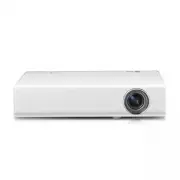


 LG HU715QW
User Manual
LG HU715QW
User Manual
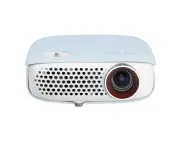 LG PW800G
User Manual
LG PW800G
User Manual
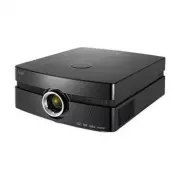 LG AF115
User Manual
LG AF115
User Manual
 LG AN215
User Manual
LG AN215
User Manual
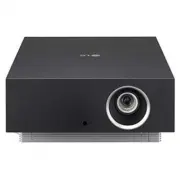 LG AU810PB
User Manual
LG AU810PB
User Manual
 LG BD430
User Manual
LG BD430
User Manual
 LG BD450
User Manual
LG BD450
User Manual
 LG BD460
User Manual
LG BD460
User Manual
 LG BF40QS
User Manual
LG BF40QS
User Manual
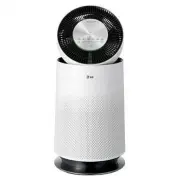 LG BF50NST
User Manual
LG BF50NST
User Manual
 LG BF50RG
User Manual
LG BF50RG
User Manual
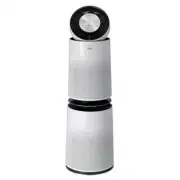 LG BF60PST
User Manual
LG BF60PST
User Manual
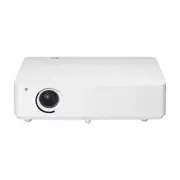 LG BG630
User Manual
LG BG630
User Manual
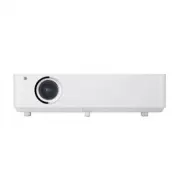 LG BG650
User Manual
LG BG650
User Manual
 LG BU50NST
User Manual
LG BU50NST
User Manual
 LG BU50RG
User Manual
LG BU50RG
User Manual
 LG BU53PST
User Manual
LG BU53PST
User Manual
 LG BU53RG
User Manual
LG BU53RG
User Manual