Page 2 - LICENSE; NOTE
2 LICENSE LICENSE Supported licenses may differ by model. For more information about licenses,visit www.lg.com. Manufactured under license from Dolby Laboratories. Dolby and the double-D symbol are trademarks of Dolby Laboratories. This DivX Certified ® device has passed rigorous testing to ensure i...
Page 3 - SAFETY INSTRUCTIONS; misuse of the projector.; WARNING; WARNING
3 SAFETY INSTRUCTIONS SAFETY INSTRUCTIONS Please take note of the safety instructions to prevent any potential accident or misuse of the projector. y y Safety precautions are given in two forms, i.e. WARNING and CAUTION as detailed below. WARNING Failure to follow the instructions may cause serious ...
Page 4 - CAUTION; Power
4 SAFETY INSTRUCTIONS - Failure to do so may result in fire, electric shock, or corrosion. y y Do not install the product onto a wall or ceiling that is close to sources of steam or oil mist. - The product may be damaged and fall, resulting in serious injury. y y Do not place the projector where it ...
Page 5 - When In Use
5 SAFETY INSTRUCTIONS CAUTION y y Hold the plug firmly when unplugging. - A damaged wire may create a fire hazard. y y Ensure the power cord and plug are not damaged, modified, severely bent, twisted, pulled, sandwiched or hot. Do not use the product if the power outlet is loose. - This may result i...
Page 6 - Cleaning
6 SAFETY INSTRUCTIONS - This may cause suffocation. y y Do not keep your hand on the projector for a long time when it is running. y y When you play a game by connecting a game console to a projector, it is recommended that you maintain a distance of more than four times the diagonal length of the s...
Page 7 - Others
7 SAFETY INSTRUCTIONS y y When cleaning plastic parts such as the projector case, unplug the power first and wipe with a soft cloth. Do not spray with water or wipe with a wet cloth. Never use glass cleaner, auto- mobile or industrial shiner, abrasives, wax, benzene, or alcohol as these can damage t...
Page 8 - Risk Group 2; For USA; ANTENNA; Outdoor Antenna Grounding
8 SAFETY INSTRUCTIONS y y Store batteries away from metallic ob- jects, such as keys and paper clips. - Excess current may cause a rapid increase in temperature, resulting in fire or burns. y y Do not store the batteries near any heat source, such as a heater. - This may result in fire or damage to ...
Page 9 - USA; Federal Communications; FCC Radio Frequency
9 SAFETY INSTRUCTIONS USA Federal Communications Commission (FCC) Statement You are cautioned that changes or modifications not expressly approved by the part responsible for compliance could void the user’s authority to operate the equipment.This equipment has been tested and found to comply with t...
Page 10 - CANADA; Industry Canada Statement:; Avis d’Industrie Canada :; IC Radiation Exposure
10 SAFETY INSTRUCTIONS CANADA Industry Canada Statement: This device complies with RSS-210 of the Industry Canada Rules. Operation is subject to the following two conditions:1) this device may not cause interference and 2) this device must accept any interference, including interference that may cau...
Page 11 - For product having the; Warning; Avertissement
11 SAFETY INSTRUCTIONS For product having the wireless function using 5 GHz frequency bands Warning i. the device for operation in the band 5150–5250 MHz is only for indoor use to reduce the potential for harmful interference to co-channel mobile satellite systems; ii. the maximum antenna gain permi...
Page 12 - CONTENTS
12 CONTENTS To Set Channel 35 - To View Program Information 35 - To set Favorite Channels 35 - To use Favorite 35 Additional Options 36 - Adjusting Aspect Ratio 36 - Using the Keystone Function 36 - Changing Input Device 37 - To Use SIMPLINK 38 Using the Quick Menu 39 To Set Sound 40 - To Set Sound ...
Page 15 - PREPARATION; Accessories
15 PREPARATION PREPARATION Accessories Accessories included with the project are show below. The pictures may differ slightly from the actual product. Accessories are subject to change without prior notice. New accessories may be added or old ones removed. 70- $) FK YRO EDFN VPDUW / 40(18 Remote Con...
Page 16 - Optional Extras
16 PREPARATION Optional Extras To purchase optional accessories, visit an electronics store or online shopping site or contact the retail store where you purchased the product. Optional accessories are subject to change without prior notice. Projection Screen Tripod HDMI Cable Video Cable Audio Cabl...
Page 17 - Parts and Components; Front; Button
17 PREPARATION Parts and Components The projector is manufactured using high-precision technology. You may, however, see tiny black dots and/or bright colored dots (red, blue, or green) that continuously appear on the projector screen. This is a normal result of the manufacturing process and does no...
Page 18 - Back; COMPONENT IN Port
18 PREPARATION Back $9,1 $17(11$,1 &20321(17 ,1 237,&$/ ',*,7$/ $8',2287 /$1 '&,1 (USB IN) Port COMPONENT IN Port (HDMI IN) Port A/V IN Port OPTICAL DIGITAL AUDIO OUT Port ANTENNA IN Port LAN Port DC IN Port (Headphone) Port
Page 19 - Installation; Installation Precautions
19 PREPARATION Installation Installation Precautions y y Place the projector in a well-ventilated environment. - To prevent internal heat build-up, install the projector in a well-ventilated place. Do not place anything near the projector as this may block its air vents. If the air vents are blocked...
Page 20 - Projection Distance per Screen Size
20 PREPARATION Projection Distance per Screen Size 1 Place the projector on a sturdy, level surface, together with the PC or audio/video source. 2 Place the projector an appropriate distance away from the screen. The distance between the projector and the screen determines the actual size of the ima...
Page 21 - How to Install the Projector On a Tripod; Kensington Security System
21 PREPARATION How to Install the Projector On a Tripod y y You can install this projector using a camera tripod. As shown below, you can mount the projector instead of a camera on the tripod. y y When stabilizing the tripod, we recommend using a locking bolt of standard size 4.5 mm (0.1 inches) or ...
Page 22 - REMOTE CONTROL
22 REMOTE CONTROL REMOTE CONTROL Open the lid at the back of the remote control and insert the batteries as described in the instructions. Use new batteries and do not mix regular or rechargeable batteries. (1.5 V AAA) CAUTION y y Do not mix new batteries with old ones. 70- $) POWER Turns the projec...
Page 24 - MAGIC REMOTE CONTROL; battery low; Pointer Signal Transmitter
24 MAGIC REMOTE CONTROL MAGIC REMOTE CONTROL If the battery low message appears while using the projector, replace the batteries. As shown in the figure, press the top of the battery cover and slide it down the cover. Insert two new and identical batteries (1.5 V, AA type) with + and - poles pointin...
Page 25 - MY APPS
25 MAGIC REMOTE CONTROL FK YRO EDFN VPDUW / 40(18 Opens the self-diagnosis window. The universal remote is displayed. Allows you to change the projector settings easily. , VOL Adjusts the volume level. (MUTE) Mutes the sound of the projector. , CH Changes the TV channel. 1 2 1 Displayed when you pre...
Page 26 - To Register the Magic Remote Control; SMART
26 MAGIC REMOTE CONTROL To Register the Magic Remote Control To use the magic remote control, register it with your projector first. 1 Turn on the projector and wait for about 10 seconds and then press the Wheel (OK) button while pointing the remote control at the projector. 2 The remote control is ...
Page 27 - Using the Magic Remote Control
27 MAGIC REMOTE CONTROL Using the Magic Remote Control 1 Shake the magic remote control lightly when there is no pointer displayed on the screen. A pointer will be displayed on the screen. - The pointer disappears if the remote control is not used for a certain period of time. 2 When you move the po...
Page 28 - USING THE; Connecting to an; Copper wire
28 USING THE PROJECTOR USING THE PROJECTOR Connecting to an Antenna or Cable To watch TV using an indoor/outdoor antenna, connect a wall terminal and the antenna port of the Projector using an RF cable (75 Ω). You can watch terrestrial or cable (analog, digital) TV.(The RF cable is sold separately.)...
Page 29 - Connecting the Portable Antenna; Antenna connection
29 USING THE PROJECTOR Connecting the Portable Antenna Antenna connection Cable Projector CAUTION y y It is recommended to attach the antenna to a window. This makes the reception better than when attaching it to a wall. y y Install the antenna in a place where it is out of reach of children. y y Th...
Page 30 - HDTV Reception; ANTENNA IN; Antenna Installation
30 USING THE PROJECTOR HDTV Reception 1 Connect an RF cable to the connector port on the bottom of the antenna. If the cable is not long enough, you can use a coaxial cable. 2 Connect the other end of the cable to the ANTENNA IN port of the projector. 3 Attach the antenna to a wall near a window tem...
Page 31 - Watching Projector; Initial Setup; POWER
31 USING THE PROJECTOR Watching Projector Initial Setup The menu screen display in this owner's manual is an example to help users understand how to operate the product and may look different from the actual screen. 1 Connect the power cord correctly. 2 After waiting for a moment, press the POWER bu...
Page 32 - Store; Home
32 USING THE PROJECTOR * Store mode is used when displaying the product in-store. The picture mode is automatically reset after a certain period of time. You can select Home to use the product at home.
Page 34 - Focus and Position of the; Watching With the
34 USING THE PROJECTOR Focus and Position of the Screen Image When an image appears on the screen, check if it is in focus and fits the screen properly.To adjust the focus of the image, rotate the focus ring. Focus Ring Watching With the Projector 1 In Standby mode, press the POWER button to turn th...
Page 35 - To Set Channel; To View Program Information; Description; To set Favorite Channels; → Settings; Set as Favorite; OK; To use Favorite
35 USING THE PROJECTOR To Set Channel Displays information on current program or current time, etc.Image shown may differ from your projector. To View Program Information 1 Move the pointer of the magic remote control to the top of the projector screen. 2 Click the activated channel banner area. 3 T...
Page 36 - Additional Options; Adjusting Aspect Ratio; → Settings →; Using the Keystone
36 USING THE PROJECTOR Additional Options Adjusting Aspect Ratio y y Select SMART HOME ⰶᲳ ㄮᗺ ⱞⳮ Ẳⱞ⩛ / ხ㢢☎⳿ ? → Settings → PICTURE → Aspect Ratio to change the aspect ratio. y y You can also use the Q.MENU, SETTINGS , or RATIO button. Menu Description FULL Changes to the full screen regardless of the...
Page 37 - Selecting an Input Label; → Input List; Changing Input Device; To select an external input
37 USING THE PROJECTOR Selecting an Input Label Displays which devices are connected to which input ports. 1 Select SMART HOME ⰶᲳ ㄮᗺ ⱞⳮ Ẳⱞ⩛ / ხ㢢☎⳿ ? → Input List or press the INPUT button on the remote control to display the input selection screen. 2 Press the red button. 3 Press the or button to go...
Page 38 - To Use SIMPLINK; → SIMPLINK
38 USING THE PROJECTOR To Use SIMPLINK SIMPLINK is a feature that enables you to control and manage various multimedia devices conveniently using the projector remote control only via the SIMPLINK menu. 1 Connect the projector's HDMI IN terminal with SIMPLINK device's HDMI output terminal using HDMI...
Page 39 - Explanation Of SIMPLINK Features; Using the Quick Menu
39 USING THE PROJECTOR Explanation Of SIMPLINK Features Menu Description Direct Play Plays the multimedia device on the projector instantly. Select multimedia device. Selects the desired device via the SIMPLINK menu to control it from the projector screen instantly. Disc playback Manages the multime...
Page 40 - To Set Sound; To Set Sound Output; To use projector’s speakers; To use External Speaker; To use Digital Sound Out
40 USING THE PROJECTOR Menu Description AV Mode Sets the genre. Mode Off You can watch using the settings in the video/audio menu. Cinema Change to optimal video/audio settings for movies. Game Change to optimal video/audio settings for games. Del/Add Can delete or add channels. USB Device Allows yo...
Page 42 - To Connect and Use a; → Settings → SOUND; Using the Multi Audio; → Quick Menu → Multi; In the case of digital broadcast; → Settings → OPTION; In the case of analog broadcast
42 USING THE PROJECTOR To Connect and Use a Bluetooth headset Sound output is through the Bluetooth headset. y y SMART HOME ⰶᲳ ㄮᗺ ⱞⳮ Ẳⱞ⩛ / ხ㢢☎⳿ ? → Settings → SOUND → Sound Out → LG Sound Sync (Wireless) y y The devices that can be connected are:LG BTS1, LG HBS-700, LG HBS-730, LG HBS-800 (Product a...
Page 43 - ENTERTAINMENT; To Use Smart Features; To Use Home Screen
43 ENTERTAINMENT ENTERTAINMENT To Use Smart Features To Use Home Screen With all smart projector features on one screen, everyone can access a wealth of content and applications conveniently via the quick and easy-to-use menu, arranged by themes such as Card, MY APPS, etc. y y Press the SMART HOME ⰶ...
Page 44 - To Use MY APPS; → More; To Edit Items in MY APPS; → More → MY APPS →
44 ENTERTAINMENT To Use MY APPS y y SMART HOME ⰶᲳ ㄮᗺ ⱞⳮ Ẳⱞ⩛ / ხ㢢☎⳿ ? → More y y Select More at the bottom of the home screen. y y Select More to check apps pre-installed apps and apps you have downloaded. To Edit Items in MY APPS On the MY APPS page, select ( Edit) at the top of the screen to move o...
Page 45 - To Connect Network; Connection; To Connect to a Network
45 ENTERTAINMENT To Connect Network A wireless or wired network connection is required to use smart features.When connected to the network, you can use premium content, LG Smart World, DLNA and more. One-click Network Connection Connects easily to a wired/wireless network. y y SMART HOME ⰶᲳ ㄮᗺ ⱞⳮ Ẳⱞ...
Page 46 - To Use the Wi-Fi Direct; To Use the MiracastTM/
46 ENTERTAINMENT To Use the Wi-Fi Direct Function Wi-Fi Direct is a function that allows your projector to connect with a Wi-Fi Direct device without Internet connection. With SmartShare™, you can watch the files stored on a device connected via Wi-Fi Direct. y y Select SMART HOME ⰶᲳ ㄮᗺ ⱞⳮ Ẳⱞ⩛ / ხ㢢☎...
Page 47 - Tips for Network Settings
47 ENTERTAINMENT Tips for Network Settings y y Use a standard LAN cable (Cat5 or higher with RJ45 connector, 10 Base-T or 100 Base TX LAN port). y y Resetting your modem can cause network connection problems. To resolve the problem, turn the power off, disconnect and reconnect, and then turn the pow...
Page 48 - D FUNCTION; Before Watching 3D; While Watching 3D
48 3D FUNCTION 3D FUNCTION 3D technology uses different video frames for each eye to add depth to the video. Before Watching 3D While Watching 3D WARNING y y If you view 3D video or images too closely for a long period of time, your eyesight may become worse. y y If you watch the projector or game s...
Page 50 - Requirements for Watching 3D Images
50 3D FUNCTION Requirements for Watching 3D Images * Optimum viewing angle: Top/Bottom/Left/Right 9° Recommended viewing distance: 3 m to 5 m (9.8 feet to 16.4 feet) Recommended screen size: 101 cm (39.7 inches) * Watching 3D videos should be done in dark room environments only. NOTE y y The pairing...
Page 51 - To view 3D images
51 3D FUNCTION Using the DLP-LINK (DLP-Ready) Type Glasses 1 While watching 3D images from the projector, press buttons on the glasses. 2 When you press the button, the glasses flicker while synchronizing with the 3D images. (The flickering is a unique operation method of DLP-LINK type glasses. It m...
Page 52 - Supported 3D Input Formats; D Auto Conversion Formats
52 3D FUNCTION Supported 3D Input Formats 3D Auto Conversion Formats Signal Horizontal Frequency (KHz) Vertical Frequency (Hz) Supported 3D Formats HDMI 1080p 54 23.976 24 F/P, L/A 26.973 27 23.976 24 S/B, T&B, S/S Full 33.716 33.75 29.97 30.00 S/B, T&B, S/S Full 67.5 30 F/P, L/A 60 S/S, T&a...
Page 53 - D Manual Conversion Formats
53 3D FUNCTION 3D Manual Conversion Formats Signal Horizontal Frequency (KHz) Vertical Frequency (Hz) Supported 3D Formats HDMI-DTV 1080p 27 23.976 24 2D to 3D, S/S, T&B, C/B, R/I, C/I 33.75 29.97 30 67.50 59.94 60 2D to 3D, S/S, T&B, C/B, F/S, R/I, C/I 1080i 33.75 59.94 60 2D to 3D, S/S, T&...
Page 54 - SMARTSHARE; Before Using; Connecting a USB Device; Removing a USB Device
54 SMARTSHARE SMARTSHARE Before Using Connecting a USB Device Connect a USB device (external HDD, USB memory) to the USB port of projector to enjoy the content files stored in the USB device with your projector. You cannot write or delete data in the USB device. Connect a USB flash drive as shown be...
Page 55 - Tips for Using a USB Device
55 SMARTSHARE Tips for Using a USB Device y y If the USB storage device has a built-in auto recognition program or uses its own driver, it may not work. y y Some USB storage devices may not work or may work incorrectly. y y If you use a USB extension cable, the USB device may not be recognized or ma...
Page 56 - To use SmartShareTM; SmartShareTM
56 SMARTSHARE To use SmartShare™ 1 Press the SMART HOME ⰶᲳ ㄮᗺ ⱞⳮ Ẳⱞ⩛ / ხ㢢☎⳿ ? button on the remote control. 2 Select SmartShare™ . You can watch the photo, music, video and document on the projector by connecting a USB or home network (DLNA). The photo, music, video and document files of all devices...
Page 57 - Watching the Videos; Playing video - warning
57 SMARTSHARE Watching the Videos In the Movie List, you can watch movies stored on the connected USB device.Controls playback and sets options while viewing videos. Playing video - warning y y Some subtitles created by users may not work properly. y y The video and subtitle files should be placed i...
Page 58 - To control video playback; Item; Option
58 SMARTSHARE To control video playback You can control playback using the following buttons. Shows the current playing position. Use the or button to move forward or backward. Item Description Resumes normal playback.Pauses the video player. Displays in slow motion. Whenever this button is pressed,...
Page 59 - Viewing the Photos; To control photo view
59 SMARTSHARE Viewing the Photos You can view photos stored on a connected device. To control photo view You can control playback using the following buttons. Item Description Selects the previous or next photo.If no picture is selected, all photos in the current folder are displayed in a slide show...
Page 60 - Listening to Music; To control music playback
60 SMARTSHARE Listening to Music You can play audio files stored on the connected device. To control music playback You can control playback using the following buttons. Changes the playing position. Item Description ꕙ ꕙ Plays the previous/next file. Pauses the music player.Resumes normal playback.S...
Page 61 - Viewing Files; Supported File Formats
61 SMARTSHARE Viewing Files You can see document files stored on a connected device. Supported File Formats XLS, DOC, PPT, TXT, XLSX, PPTX, DOCX, PDF Microsoft Office 97/2000/2002/2003/2007 version Adobe PDF 1.0/1.1/1.2/1.3/1.4 version y y File Viewer realigns a document, so it may look different fr...
Page 62 - To Set SmartShareTM Related Functions; → SmartShareTM → Settings; Advanced Setting
62 SMARTSHARE To Set SmartShare™ Related Functions Select SMART HOME ⰶᲳ ㄮᗺ ⱞⳮ Ẳⱞ⩛ / ხ㢢☎⳿ ? → SmartShare™ → Settings . Changes settings related to SmartShare™ content playback. Advanced Setting Item Description My Projector Name Changes the name that appears when searching for the projector from othe...
Page 63 - Video Supported Codec
63 SMARTSHARE Video Supported Codec Maximum resolution: 1920 x 1080 @ 30p Extension Codec .asf .wmv Video VC-1 Advanced Profile, VC-1 Simple and Main Profile Audio WMA Standard, WMA 9 Professional .divx .avi Video DivX3.11, DivX4, DivX5, DivX6, XViD, H.264/AVC,Motion Jpeg, MPEG-4 Part 2 Audio MPEG-1...
Page 64 - Audio File; Profile
64 SMARTSHARE Audio File File type Item Info mp3 Bit rate 32 Kbps to 320 Kbps Sample freq. 16 kHz to 48 kHz Support MPEG1, MPEG2, Layer2, Layer3 Available photo file File type Item Profile 2D (jpeg, jpg, jpe) JPEG Minimum: 64 x 64Maximum: Normal Type: 15360 (W) x 8640 (H)Progressive Type: 1920 (W) x...
Page 65 - To Use the LG Cloud; What is the LG Cloud?; LG Cloud; → More → LG Cloud
65 SMARTSHARE To Use the LG Cloud What is the LG Cloud? LG Cloud is a service that allows you to enjoy your contents, such as video, music and photos on your LG Projector, SmartPhone and LG Website at any time, regardless of where you are. y y SMART HOME ⰶᲳ ㄮᗺ ⱞⳮ Ẳⱞ⩛ / ხ㢢☎⳿ ? → More → LG Cloud y y S...
Page 66 - Main screen layout; Video playback
66 SMARTSHARE To Use the LG Cloud y y SMART HOME ⰶᲳ ㄮᗺ ⱞⳮ Ẳⱞ⩛ / ხ㢢☎⳿ ? → More → LG Cloud y y Enter the e-mail and password you provided during the sign-up procedure to sign in to the service. Main screen layout This is the main screen you will see first after signing in. Folder selection tabs File d...
Page 67 - To Connect DLNA; Authenticated; Share my mobile phone; To Connect DLNA DMR
67 SMARTSHARE To Connect DLNA DLNA stands for Digital Living Network Alliance, which allows you to enjoy video / music / photo files stored on a PC or server on your Projector via home networking. To Connect a DLNA- Authenticated Smartphone The Projector and the smartphone should be on the same netw...
Page 68 - To Connect DLNA DMP
68 SMARTSHARE To Connect DLNA DMP (Digital Media Player) With a PC having SmartShare™ PC software , music / video / photo files may be replayed on the projector via home networking. 1 Configure projector and PC on the same network. The projector and each device should be connected through a single a...
Page 69 - SmartShareTM PC SW Installing and Setting; PC requirement for installing LG SmartShareTM; Minimum Specifications
69 SMARTSHARE SmartShare™ PC SW Installing and Setting Install the SmartShare™ PC SW (DLNA) program on your PC. 1 Download the setup file from the path below in order to use the DLNA function. http://liu.lge.com/smartshare/release/smartshare.zip 2 Install the downloaded SmartShare™ PC software. 3 Yo...
Page 70 - In Case of a DLNA
70 SMARTSHARE In Case of a DLNA Malfunction y y If a DLNA feature does not work properly, check network settings. y y A 5-GHz access point is needed to view 1080p videos via DLNA. A 2.4-GHz access point may cause frequent buffering or other problems. y y DLNA may not work properly on a wireless netw...
Page 71 - To Use A Premium Service; → Premium; To Use Paid Content; My Page → Payment inquiry; My Page → Purchase
71 SMARTSHARE To Use A Premium Service y y SMART HOME ⰶᲳ ㄮᗺ ⱞⳮ Ẳⱞ⩛ / ხ㢢☎⳿ ? → Premium y y This service gives you easy access to a wide variety of content, such as video, news, and UCC, at any time, as long as you are connected to the network. Premium content includes specialized country-specific ser...
Page 72 - To Reset Premium; → Premium → Option → Initialization of Premium
72 SMARTSHARE To Reset Premium y y SMART HOME ⰶᲳ ㄮᗺ ⱞⳮ Ẳⱞ⩛ / ხ㢢☎⳿ ? → Premium → Option → Initialization of Premium y y Resets premium list, premium information, country setting, and user sign-in information. y y Resetting will resolve errors occurring during premium update. NOTE y y Content offered ...
Page 73 - To use LG Smart World; → LG Smart World; Sign Out
73 SMARTSHARE To use LG Smart World y y SMART HOME ⰶᲳ ㄮᗺ ⱞⳮ Ẳⱞ⩛ / ხ㢢☎⳿ ? → LG Smart World LG Smart World is a projector application service available through Smart projector Service. You can download and enjoy many different apps (for fee or free) including education, entertainment, life and news. A...
Page 74 - To Use Search Function; To Use the Voice Recognition Function; Using this Function Through Search; → Search
74 SMARTSHARE To Use Search Function y y SMART HOME ⰶᲳ ㄮᗺ ⱞⳮ Ẳⱞ⩛ / ხ㢢☎⳿ ? → Search y y You can search apps and contents using the Search function of LG Smart Projector. When you enter keywords using the input device, such as the remote control, you can find apps of LG Smart World and some contents o...
Page 75 - Using this Function on; → Internet
75 SMARTSHARE Using this Function on the Internet 1 Go to SMART HOME ⰶᲳ ㄮᗺ ⱞⳮ Ẳⱞ⩛ / ხ㢢☎⳿ ? → Internet . Move the Magic Remote Control pointer in the text field on a website to open the virtual keyboard. 2 Select the voice recognition icon ( ㄮᗺ ⰶᲳ ⱞⳮ ➎Ẳ㞢 / 忉蝽瓩篚 ) on the left of the text field on the ...
Page 76 - To Use Voice Mate Function
76 SMARTSHARE To Use Voice Mate Function What Is Voice Mate? Voice Mate allows you to search desirable programs and content with your voice and adjust the projector. 1 Press the voice recognition ( ㄮᗺ ⰶᲳ ⱞⳮ ➎Ẳ㞢 / 忉蝽瓩篚 ) button on the magic remote control. 2 When the Voice Display bar is activated on...
Page 77 - How to Use Voice Mate?; What Are Other Functions
77 SMARTSHARE How to Use Voice Mate? y y To use all the functions and services of Voice Mate, you need to set Smart Wizard and Time. Set up the network, region, auto tuning, and universal remote control through the Smart Wizard. y y In order to use Voice Mate, you must set up the network, time, regi...
Page 78 - To Use On Now; To see in Mini view; → On Now
78 SMARTSHARE What Is On Now? On Now allows you to select and watch recommended programs currently available on your Projector. The Favorite function allows you to select and watch recommended content related to the program you are watching. To Use On Now To see in Mini view y y SMART HOME ⰶᲳ ㄮᗺ ⱞⳮ ...
Page 79 - To See in Full View; → My Card →
79 SMARTSHARE To See in Full View y y SMART HOME ⰶᲳ ㄮᗺ ⱞⳮ Ẳⱞ⩛ / ხ㢢☎⳿ ? → My Card → On Now Sets the options. Refreshes all the list items and moves the screen up simultaneously. Move to Mini view. Find Sign in y y For TV channels, you need to complete Auto Tuning to use this service properly. y y If ...
Page 80 - To Use Internet
80 SMARTSHARE To Use Internet y y SMART HOME ⰶᲳ ㄮᗺ ⱞⳮ Ẳⱞ⩛ / ხ㢢☎⳿ ? → Internet Types URL manually on Projector or visits websites added to favorite. ❶ ❸ ❷ Description ❶ Types in the web address. ❷ Chooses when you open several web browsers. ❸ Add the current page to favorites. y y Internet supports u...
Page 81 - Frequently Asked Questions for Smart Projector
81 SMARTSHARE Frequently Asked Questions for Smart Projector Sign up is required to use LG Smart World.You can sign up on either your Projector or the LG website (www.lgappstv.com). Free apps are available immediately after signing up.You can purchase paid apps using your credit card registered with...
Page 83 - → MY APPS
83 SMARTSHARE Problem Solution I installed an app on the projector. Where can I check the installed app? Select SMART HOME ⰶᲳ ㄮᗺ ⱞⳮ Ẳⱞ⩛ / ხ㢢☎⳿ ? → MY APPS . All paid and free apps installed on projector are displayed. There is a difference between the app size shown on the screen and the actual app ...
Page 84 - Problem
84 SMARTSHARE Problem Solution Do I need to change my ID format to the email address? For new sign-up members, the ID format has changed from a combination of numbers and alphabets to the email address.If you are already a member, you can still use your existing ID or change it to the email address....
Page 85 - USING ADVANCED FUNCTIONS; To Use Screen Remote; To Control a Device Connected to the Projector Using
85 USING ADVANCED FUNCTIONS USING ADVANCED FUNCTIONS To Use Screen Remote To Use Screen Remote Press the button on the magic remote control. Select a button on the screen remote displayed on the screen using the magic remote control. y y The type of buttons on the screen remote varies depending on t...
Page 86 - To Use the Universal Control function; For magic remote control only; To change or clear the Universal Control settings; Change Settings; → Universal Control
86 USING ADVANCED FUNCTIONS To Use the Universal Control function For magic remote control only With the magic remote control, you can control a set-top box, Blu-ray player, home theatre system, etc. 1 Check if a device you want to set is connected to your Projector. 2 After pressing the button on t...
Page 87 - To Control a Projector Using a Smartphone; Premium
87 USING ADVANCED FUNCTIONS To Control a Projector Using a Smartphone You can download the LG TV Remote app from Google Play Store or Apple App Store and use it on any projector connected with your smartphone. y - Now you can enjoy your favorite projector shows on your smartphone. (Some models only)...
Page 88 - To Use a USB Input Device On a Projector; To Use a USB Wired/wireless Mouse; Mouse; Wheel Button; To Use a USB Wired/wireless Keyboard
88 USING ADVANCED FUNCTIONS To Use a USB Input Device On a Projector To Use a USB Wired/wireless Mouse Connect your mouse to the USB port. Use the mouse to move the pointer on the Projector screen and select the menu you want. Mouse Magic Remote Control Left Button OK Button on Magic Remote Control ...
Page 89 - CUSTOMIZING SETTINGS; SETTINGS
89 CUSTOMIZING SETTINGS CUSTOMIZING SETTINGS SETTINGS 1 Press the SETTINGS button. (Press the SMART HOME ⰶᲳ ㄮᗺ ⱞⳮ Ẳⱞ⩛ / ხ㢢☎⳿ ? button and select Settings .) 2 Use the or button to select the desired item and press the OK button. 3 Use the , , , or button to set up the desired item and press the OK b...
Page 90 - PICTURE Settings
90 CUSTOMIZING SETTINGS PICTURE Settings 1 Press the SETTINGS button. (Press the SMART HOME ⰶᲳ ㄮᗺ ⱞⳮ Ẳⱞ⩛ / ხ㢢☎⳿ ? button and select Settings .) 2 Use the or button to select PICTURE and press the OK button. 3 Use the , , , or button to set up the desired item and press the OK button. - To return to ...
Page 92 - Advanced Control; Expert Control
92 CUSTOMIZING SETTINGS Advanced Control Item Description Dynamic Contrast Adjusts contrast and color to the optimal level according to the screen’s brightness. Dynamic Color Adjusts colors for more natural-looking colours. Preferred Color Skin Color Skin color spectrum can be separately set to impl...
Page 94 - Picture Option
94 CUSTOMIZING SETTINGS Picture Option Item Description Noise Reduction Reduces screen noise in the video. MPEG Noise Reduction Eliminates noise generated while creating digital picture signals. Black Level Adjusts the brightness or darkness of the screen to suit the black level of the picture input...
Page 95 - SOUND Settings
95 CUSTOMIZING SETTINGS SOUND Settings 1 Press the SETTINGS button. (Press the SMART HOME ⰶᲳ ㄮᗺ ⱞⳮ Ẳⱞ⩛ / ხ㢢☎⳿ ? button and select Settings .) 2 Use the or button to select SOUND and press the OK button. 3 Use the , , , or button to set up the desired item and press the OK button. - To return to the ...
Page 98 - CHANNEL Settings
98 CUSTOMIZING SETTINGS CHANNEL Settings 1 Press the SETTINGS button. (Press the SMART HOME ⰶᲳ ㄮᗺ ⱞⳮ Ẳⱞ⩛ / ხ㢢☎⳿ ? button and select Settings .) 2 Use the or button to select CHANNEL and press the OK button. 3 Use the , , , or button to set up the desired item and press the OK button. - To return to ...
Page 99 - TIME Settings
99 CUSTOMIZING SETTINGS TIME Settings 1 Press the SETTINGS button. (Press the SMART HOME ⰶᲳ ㄮᗺ ⱞⳮ Ẳⱞ⩛ / ხ㢢☎⳿ ? button and select Settings .) 2 Use the or button to select TIME and press the OK button. 3 Use the , , , or button to set up the desired item and press the OK button. - To return to the pr...
Page 100 - LOCK Settings
100 CUSTOMIZING SETTINGS LOCK Settings 1 Press the SETTINGS button. (Press the SMART HOME ⰶᲳ ㄮᗺ ⱞⳮ Ẳⱞ⩛ / ხ㢢☎⳿ ? button and select Settings .) 2 Use the or button to select LOCK and press the OK button. - To enter the LOCK menu, enter the preset 4-digit password. The initial password is set as 0000 ....
Page 102 - OPTION Settings
102 CUSTOMIZING SETTINGS OPTION Settings 1 Press the SETTINGS button. (Press the SMART HOME ⰶᲳ ㄮᗺ ⱞⳮ Ẳⱞ⩛ / ხ㢢☎⳿ ? button and select Settings .) 2 Use the or button to select OPTION and press the OK button. 3 Use the , , , or button to set up the desired item and press the OK button. - To return to t...
Page 106 - NETWORK Settings
106 CUSTOMIZING SETTINGS NETWORK Settings 1 Press the SETTINGS button. (Press the SMART HOME ⰶᲳ ㄮᗺ ⱞⳮ Ẳⱞ⩛ / ხ㢢☎⳿ ? button and select Settings .) 2 Use the or button to select NETWORK and press the OK button. 3 Use the , , , or button to set up the desired item and press the OK button. - To return to...
Page 107 - SUPPORT
107 CUSTOMIZING SETTINGS SUPPORT 1 Press the SETTINGS button. (Press the SMART HOME ⰶᲳ ㄮᗺ ⱞⳮ Ẳⱞ⩛ / ხ㢢☎⳿ ? button and select Settings .) 2 Use the or button to select SUPPORT and press the OK button. 3 Use the , , , or button to set up the desired item and press the OK button. - To return to the prev...
Page 108 - CONNECTING DEVICES
108 CONNECTING DEVICES CONNECTING DEVICES You can connect various external devices to the projector. HDMI - page 109Composite (AV) - page 110Component - page 111USB Devices - page 54Headphones - page 114Digital Amp - page 115Mobile Phone - page 116 Computer/Laptop Video/DVD USB Digital Device LG Aud...
Page 109 - Connecting to HD; HDMI Connection; HDMI; HDMI
109 CONNECTING DEVICES Connecting to HD Receiver, DVD, or VCR Player, External Devices Connect an HD receiver, DVD, VCR player, or external devices to the projector and select an appropriate input mode. HDMI Connection With an HDMI cable, you can enjoy high quality picture and sound. Using a HDMI ca...
Page 110 - HDMI to DVI Connection; AV Connection; INPUT
110 CONNECTING DEVICES HDMI to DVI Connection Using an HDMI to DVI cable, connect the projector's HDMI port to the DVI OUT port. To output audio, use an audio cable for connection.Press the INPUT button on the remote control to select HDMI . DVI OUT AUDIO OUT S VOL - VOL + CH CH $9,1 $17(11$,1 &...
Page 111 - Component Connection; COMPONENT IN; Component; Connecting a PC
111 CONNECTING DEVICES Component Connection You can enjoy a video by connecting the Component port of an external device to the COMPONENT IN port of the projector. Press the INPUT button on the remote control to select Component . Check whether cables of the same color are connected properly. $9287 ...
Page 113 - Connecting a Laptop
113 CONNECTING DEVICES Connecting a Laptop You can connect the projector to a laptop to use various functions. HDMI Connection Using an HDMI cable, connect the HDMI port of the projector to the HDMI output port of your laptop. Both video and audio are output at the same time. S VOL - VOL + CH CH $9,...
Page 114 - Connecting to
114 CONNECTING DEVICES Connecting to Headphones You can listen to the audio through a headphone. S VOL - VOL + CH CH $9,1 $17(11$,1 &20321(17 ,1 237,&$/ ',*,7$/ $8',2287 /$1 '&,1 S VOL - VOL + CH CH $9,1 $17(11$,1 &20321(17 ,1 237,&$/ ',*,7$/ $8',2287 /$1 '&,1 * Optional Extr...
Page 115 - Connecting a Digital; OPTICAL DIGITAL AUDIO OUT; OPTICAL DIGITAL
115 CONNECTING DEVICES Connecting a Digital Amp Using an optical cable, connect the digital audio input port of a digital amp to the OPTICAL DIGITAL AUDIO OUT port of the projector. The output of an amp with a digital converter must be set to the desired audio format. When using a HDMI cable to conn...
Page 116 - Using the Mirroring Function of a Mobile Phone; MHL Connection
116 CONNECTING DEVICES Using the Mirroring Function of a Mobile Phone MHL Connection The Mobile High-definition Link (MHL) is an interface that can connect a mobile phone to the projector and play video and audio from the mobile phone through the projector.This only applies to products with a HDMI i...
Page 117 - MAINTENANCE; Cleaning the Projector; How to Attach the
117 MAINTENANCE MAINTENANCE Clean your Projector to keep it in optimal condition. Cleaning Cleaning the Lens If there is any dust or staining on the lens surface, you must clean the lens.Use an air spray or a cleaning cloth to clean the lens. To remove dust or stains, use an air spray or apply a sma...
Page 118 - INFORMATION; To Update Projector Software
118 INFORMATION INFORMATION To Update Projector Software Uses Software Update to check and obtain the latest version.It is also possible to check manually for available updates. 1 Press the SETTINGS button. (Press the SMART HOME ⰶᲳ ㄮᗺ ⱞⳮ Ẳⱞ⩛ / ხ㢢☎⳿ ? button and select Settings .) 2 Select SUPPORT an...
Page 119 - Before Reporting a Problem, Check the; General; Picture; → Settings → SUPPORT → Picture Test
119 INFORMATION Before Reporting a Problem, Check the Following: If the following symptoms occur, please carry out the checks and adjustments described below. There may be no malfunction. General Problem Solution Cannot view certain programs. y y Adjust the location or orientation of the antenna. y ...
Page 120 - Sound; → Settings → SUPPORT → Sound Test
120 INFORMATION Problem Solution Digital broadcasting is not available even though the cable is connected. y y Check with the cable operator providing your subscription and/or signal. (Depending on your subscription, digital broadcasting may not be supported.) The display is inactive or unclear when...
Page 122 - Problems Replaying Movies in My Media; I cannot view the files on; → Settings → SUPPORT → Product/Service Info.
122 INFORMATION Problems Replaying Movies in My Media Problem Solution I cannot view the files on the Movie List. y y Check whether the file on the USB storage device can be read on a computer. y y Check whether the file extension is supported. This file is invalid. message appears or the image disp...
Page 123 - SPECIFICATIONS
123 SPECIFICATIONS SPECIFICATIONS Model PA77U (PA77U-JE) Resolution (Pixel) 1280 (Horizontal) × 800 (Vertical) Aspect ratio 16:10 (Horizontal:Vertical) Panel size (mm) 11.623 Projection distance (Video size) 0.90 m to 3.06 m (76.2 cm to 254.0 cm) 35.4 inches to 120.4 inches (30 inches to 100 inches)...
Page 124 - Component supported mode
124 SPECIFICATIONS y y If an invalid signal is input into the product, it will not be displayed properly on the screen or a message such as No Signal or Invalid Format will be displayed. y y The product supports the DDC1/2B type as the Plug & Play function (Auto-recognition of PC monitor). y y 1...
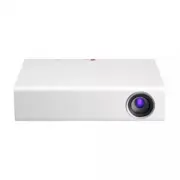


 LG HU715QW
User Manual
LG HU715QW
User Manual
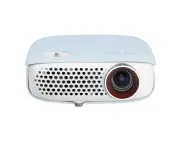 LG PW800G
User Manual
LG PW800G
User Manual
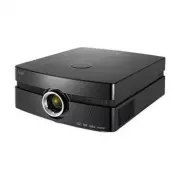 LG AF115
User Manual
LG AF115
User Manual
 LG AN215
User Manual
LG AN215
User Manual
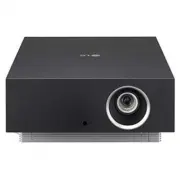 LG AU810PB
User Manual
LG AU810PB
User Manual
 LG BD430
User Manual
LG BD430
User Manual
 LG BD450
User Manual
LG BD450
User Manual
 LG BD460
User Manual
LG BD460
User Manual
 LG BF40QS
User Manual
LG BF40QS
User Manual
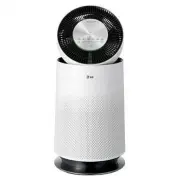 LG BF50NST
User Manual
LG BF50NST
User Manual
 LG BF50RG
User Manual
LG BF50RG
User Manual
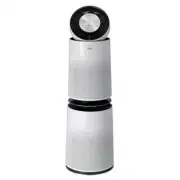 LG BF60PST
User Manual
LG BF60PST
User Manual
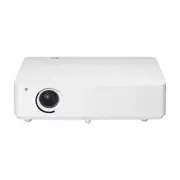 LG BG630
User Manual
LG BG630
User Manual
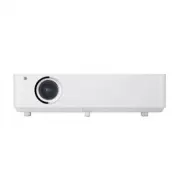 LG BG650
User Manual
LG BG650
User Manual
 LG BU50NST
User Manual
LG BU50NST
User Manual
 LG BU50RG
User Manual
LG BU50RG
User Manual
 LG BU53PST
User Manual
LG BU53PST
User Manual
 LG BU53RG
User Manual
LG BU53RG
User Manual