Page 2 - LICENSE; NOTE
2 LICENSE LICENSE Manufactured under license from Dolby Laboratories. "Dolby" and the double-D symbol are trademarks of Dolby Laboratories. ABOUT DIVX VIDEO: DivX® is a digital video format created by DivX, LLC, a subsidiary of Rovi Corporation. This is an official DivX Certified® device tha...
Page 3 - SAFETY INSTRUCTIONS; WARNING
3 SAFETY INSTRUCTIONS SAFETY INSTRUCTIONS Please take note of the safety instructions to prevent any potential accident or misuse of the projector. y y Safety precautions are given in two forms, i.e. Warning and Caution as detailed below. WARNING : Failure to follow the instructions may cause seriou...
Page 4 - Indoor Installation
4 SAFETY INSTRUCTIONS Read these instructions.Keep these instructions.Heed all warnings.Follow all instructions. Indoor Installation WARNING y y Do not place the projector in direct sunlight or near heat sources such as radiators, fires, stoves, etc. - This may cause fire. y y Do not place inflammab...
Page 5 - CAUTION; Power
5 SAFETY INSTRUCTIONS CAUTION y y When installing the projector on a table, be careful not to place it near the edge. - The projector may fall causing injury to persons or product malfunction. Make sure that you use the cabinet or stand that fits the projector. y y Disconnect the projector from the ...
Page 6 - When in Use
6 SAFETY INSTRUCTIONS CAUTION y y Hold the plug firmly when unplugging. - A broken wire in the cord may cause fire. y y Ensure the power cord and plug are not damaged, modified, severely bent, twisted, pulled, sandwiched or hot. Do not use the product if the power outlet is loose. - This may cause f...
Page 8 - Cleaning
8 SAFETY INSTRUCTIONS Cleaning WARNING y y Do not spray the projector with water when cleaning. Do not allow water to get into the projector or do not allow it to get wet. - This may cause fire or electric shock. y y In the event that smoke or a strange smell comes out from the projector or a foreig...
Page 9 - Others
9 SAFETY INSTRUCTIONS Others WARNING y y Only a qualified technician can disas-semble or modify the projector. For inspection, adjustment, or repair, con-tact your seller or our service center. - Otherwise, this may cause fire or electric shock. CAUTION y y Do not mix new batteries with old batterie...
Page 10 - Antenna; Antenna grounding according to
10 SAFETY INSTRUCTIONS Antenna y y If you are using an outdoor antenna, please install it away from electrical wires to make sure it does not touch any nearby wires even when it falls down due to heavy wind. - Failure to do so may cause electric shock or physical injury. y y To prevent any raindrops...
Page 11 - FCC NOTICE
11 SAFETY INSTRUCTIONS FCC NOTICE Federal Communications Commission (FCC) Statement You are cautioned that changes or modifications not expressly approved by the part responsible for compliance could void the user’s authority to operate the equipment. This equipment has been tested and found to comp...
Page 12 - Industry Canada Statement:
12 SAFETY INSTRUCTIONS IC (CANADA) Industry Canada Statement: This device complies with RSS-210 of the Industry Canada Rules. Operation is subject to the following two conditions: 1) this device may not cause interference and 2) this device must accept any interference, including interference that m...
Page 13 - Disposal of your old appliance
13 SAFETY INSTRUCTIONS Disposal of your old appliance 1. When this crossed-out wheeled bin symbol is attached to a product it means the product is covered by the European Directive 2002/96/EC. 2. All electrical and electronic products should be disposed of separately from the municipal waste stream ...
Page 14 - NOTE TO CABLE/TV INSTALLER
14 SAFETY INSTRUCTIONS For USA NOTE TO CABLE/TV INSTALLER This reminder is provided to call the CATV system installer’s attention to Article 820 - 40 of the National Electric Code (U.S.A.). The code provides guide- lines for proper grounding and, in partic- ular, specifies that the cable ground shal...
Page 15 - Table of contents
15 Table of contents Using the Projector Functions 31 - Home Menu 31 Additional Options 32 - Adjusting the Aspect Ratio 32 - Using the Keystone Function 33 - Using the Input List 33 Using the Quick Menu 34 ENTERTAINMENT 35 Network Setup 35 - One-Click Network Connection 35 - Expert Settings for Netw...
Page 17 - PREPARATION; Accessories
17 PREPARATION PREPARATION Accessories Check the accessories provided with the product.The picture may be different from the actual product. y y When connecting a cable to the HDMI or USB port, be sure to use the jack that fits into the USB/HDMI port. Use a standard sized jack . VOL ENERGY SAVING IN...
Page 18 - Optional Accessories
18 PREPARATION Optional Accessories To purchase optional accessories, visit an electronics store or online shopping site or contact the retail store where you purchased the product.Without prior notice, optional extras are subject to change in order to improve the per-formance of the product, and ne...
Page 19 - Parts and Components; Button
19 PREPARATION Parts and Components * The projector is manufactured using high-precision technology. You may, however, see tiny black dots and/or bright colored dots (red, blue or green) that continuously appear on the projector screen. This is a normal result of the manufacturing process and does n...
Page 20 - Installation; Installation Precautions
20 PREPARATION Installation Installation Precautions y y Place the projector in a well-ventilated environment. - To prevent internal heat from build- ing up, install the projector in a well-ventilated place. Do not place anything near the projector as this may block its air vents. If the air vents a...
Page 21 - Projection Distance per Screen Size; Keystone
21 PREPARATION Projection Distance per Screen Size 1 Place the projector on a sturdy, level surface, together with the computer or audio/ video source. 2 Place the projector at an appropriate distance from the screen. The distance be- tween the projector and the screen determines the actual size of ...
Page 22 - Kensington Security System; How to Install the Projector Using a Tripod
22 PREPARATION Kensington Security System y y This projector has a Kensington Security Standard connector. Connect a Kensington Security System cable as shown below. y y For more information on installation and use of the Kensington Security System, refer to the user’s guide provided with the Kensin...
Page 23 - REMOTE CONTROL
23 REMOTE CONTROL REMOTE CONTROL Open the battery cover on the back of the remote control and insert the specified batteries as per instructions . The same type of batteries (1.5 V AAA) must be used. These must also be new batteries. CAUTION y y Do not mix new batteries with old ones. VOL ENERGY SAV...
Page 25 - MAGIC REMOTE CONTROL
25 MAGIC REMOTE CONTROL MAGIC REMOTE CONTROL If the battery low message appears while using the projector, replace the batteries. As shown in the figure, press the top of the battery cover and slide it down the cover. Insert two new and identical alkaline batteries (1.5V, AA type) with + and - poles...
Page 26 - Pairing the Magic Remote Control; Re-pairing the Magic Remote Control; Using the Magic Remote Control
26 MAGIC REMOTE CONTROL Pairing the Magic Remote Control y y You must pair the magic remote control with the projector to use it. y y Pair the magic remote control prior to use as follows: 1 Turn on the projector and press the HOME ⰶᲳ ㄮᗺ ⱞⳮ Ẳⱞ⩛ / ხ㢢☎⳿ ? wheel (OK) button toward the projector. When t...
Page 27 - WATCHING WITH THE PROJECTOR; Connecting the; Copper Wire
27 WATCHING WITH THE PROJECTOR WATCHING WITH THE PROJECTOR Connecting the Antenna or Cable To watch TV using an indoor/outdoor antenna, connect a wall terminal to the antenna terminal of the projector using a RF cable (75 Ω). You can watch public TV or cable (ana-log, digital) TV.(The RF cable is so...
Page 28 - Connecting the Portable Antenna; Antenna connection
28 WATCHING WITH THE PROJECTOR Connecting the Portable Antenna Antenna connection Cable Projector CAUTION y y It is recommended to attach the antenna to a window. This makes the reception better than when attaching it to a wall. y y Install the antenna in a place where it is out of reach of children...
Page 29 - HDTV reception; Antenna Installation
29 WATCHING WITH THE PROJECTOR HDTV reception 1 Connect an RF cable to the connec- tor port on the bottom of the antenna. If the cable is not long enough, you can use a coaxial cable. 2 Connect the other end of the cable to the Antenna In port of the projector. 3 Attach the antenna to a wall near a ...
Page 30 - Using the Projector; Turning on the Projector
30 WATCHING WITH THE PROJECTOR Using the Projector Turning on the Projector 1 Connect the power cord correctly. 2 After waiting for a moment, press the POWER button on the remote control or the control panel. (The light on the control panel will be turned on.) y y Check if the lens cap is open befor...
Page 31 - Using the Projector Functions; Home Menu; Description
31 WATCHING WITH THE PROJECTOR Using the Projector Functions The menu screen display in this owner's manual is an example to help users understand how to operate the product and may look different from the actual screen. Home Menu 1 Press the HOME button of the remote control. More ... My Apps The m...
Page 32 - Additional Options; Adjusting the Aspect Ratio; Just scan
32 WATCHING WITH THE PROJECTOR Additional Options Adjusting the Aspect Ratio Resize an image to view at its optimal size by pressing RATIO while you are using the projector. NOTE y y Available options may vary depend- ing on the input signal. y y You can also change the image size by pressing Q.MENU...
Page 33 - Using the Keystone; Using the Input List
33 WATCHING WITH THE PROJECTOR Using the Keystone Function If the projector is not at a right angle to the screen, you can use the trapezoidal setting to adjust the screen. Because the Keystone function may cause inferior screen image quality, use this function only when it is not possible to set up...
Page 34 - Using the Quick Menu
34 WATCHING WITH THE PROJECTOR Using the Quick Menu You can customize frequently used menus. 1 Press the MY APPS button and select the Q.MENU . 2 Press the ︿ or ﹀ button to scroll through the following menus and press OK . Menu Description Aspect Ratio Resizes the picture. Picture Mode Changes the p...
Page 35 - ENTERTAINMENT; Network Setup; Connection
35 ENTERTAINMENT ENTERTAINMENT Network Setup To use the network media sharing fea-tures like DLNA, the projector must first be connected to wireless network. To use any Internet related Smart functions, your network must be connected to the Internet. One-Click Network Connection If your wireless rou...
Page 36 - Wireless Network Connection; SETTINGS
36 ENTERTAINMENT Wireless Network Connection You can use a wireless network by using the built-in wireless network module as shown below. A wireless router must be installed and operating at this time. Refer to the wireless router's user manual to see how to install it. The network settings and conn...
Page 37 - Using the Wi-Fi Screen; Connecting the Wi-Fi Direct; Using WiDi; WiDi Setup
37 ENTERTAINMENT Using the Wi-Fi Screen Share Function With this function, you can use a wireless connection such as Wi-Fi Direct or WiDi, etc. Using SmartShare™, you can share a device's screen through Wi-Fi Screen Share. Connecting the Wi-Fi Direct 1 Press the SETTINGS button. 2 Press the or butto...
Page 38 - Tips for Network Setup
38 ENTERTAINMENT Tips for Network Setup y y Modem reconfiguration may cause network connection problems. If it does, turn off the modem and discon-nect it from the projector; then turn on the modem again. It will be working normally. y y LG Electronics is not responsible for any Internet connection ...
Page 39 - Using Media Link; Connecting Media Link; MY APPS
39 ENTERTAINMENT Using Media Link If you install the Plex server on a com-puter that is connected on the same network as the smart projector, you can directly and easily use various multime-dia, such as photos, videos, or music stored on the computer. Connecting Media Link 1 Install the Plex Media S...
Page 40 - System Requirements for
40 ENTERTAINMENT System Requirements for PLEX installation y y Minimum requirements PC with 1.6 GHz Intel Core Duo Processor and Windows XP SP3 or higher, 512 MB RAM or more Recommendations for HD contents transcoding (720p and1080p) PC with 2.4 Ghz Intel Core Duo Processor and Windows XP SP3 or hig...
Page 41 - Using the Premium Service; Premium
41 ENTERTAINMENT Using the Premium Service This service gives you easy access to a wide variety of content, such as news and UCC at any time, as long as you are connected to the Internet. In addition to global contents, the premium contents are specialized based on the country you are in. Using the ...
Page 42 - SmartShareTM; Before Using; Connecting a USB Storage
42 SmartShare™ SmartShare™ Before Using Connecting a USB Storage Device Connect a USB storage device (external HDD or USB memory stick) to the USB port of the projector to view the content files stored on the USB device.You cannot write or delete data in the USB storage device.Connect a USB memory s...
Page 43 - Tips for Using a USB Device
43 SmartShare™ Tips for Using a USB Device y y A USB storage device installed using an automatic recognition program or its own driver might not be recogniz-able. y y Some USB devices may not be sup-ported or will not work properly. y y Please use only a USB storage de-vice formatted as a FAT32 or N...
Page 44 - Connecting DLNA
44 SmartShare™ Connecting DLNA Digital Living Network Alliance (DLNA) allows you to enjoy videos, music and photos saved on your PC or server using the Smart Projector through a home network. Connecting the DLNA-Certified Mobile Device • Smart Projector and smartphone should be connected to the same...
Page 46 - Using SmartShareTM; those in the devices connected via USB are displayed.)
46 SmartShare™ Using SmartShare™ 1 Press the HOME button of the remote control. 2 Select SmartShare™ . You can open photos, music, videos, and documents form a USB file. You can open open photos, music, and videos from computers on your local network using DLNA and Media Link. The photo, music, vide...
Page 47 - Watching Videos; Tips for Playing Videos
47 SmartShare™ Watching Videos In the Movie List, you can watch movies from a connected USB device. Tips for Playing Videos y y Some subtitles created by a user may not work. y y A video file and its subtitle file must be located in the same folder. A video file name and its subtitle file name must ...
Page 48 - Video Codec; Extension
48 SmartShare™ Video Codec Maximum supported resolution: 1920 x 1080 @30p Extension Codec .asf .wmv Video VC-1 Advanced Profile, VC-1 Simple and Main Profile Audio WMA Standard, WMA 9 Professional .divx .avi Video DivX3.11, DivX4, DivX5, DivX6, XViD, H.264/AVC, Motion Jpeg Audio MPEG-1 Layer I, II, ...
Page 49 - Controlling the Video Playback; Item
49 SmartShare™ Controlling the Video Playback You can control playback using the following buttons. Options Hide Exit Item Description ◀▶ Shows the current playing position. You can use the < or > button to move forward or backward. ꕗ Stops playing and returns to Movie List. ꕖ Resumes normal playbac...
Page 50 - Viewing the Photos; Photo File; File Format
50 SmartShare™ Viewing the Photos You can view photos stored on a connected device. Photo File File Format Item Profile 2D (jpeg, jpg, jpe) 3D (jps) Supported format SOF0: baseline SOF1: Extend Sequential SOF2: Progressive Size Min. 64 x 64 Max. Normal Type: 15360 (W) x 8640 (H) Progressive Type: 19...
Page 51 - Controlling the Photo Playback
51 SmartShare™ Controlling the Photo Playback You can control playback using the following buttons. Option List Slideshow BGM Item Description <, > Selects the previous or next photo. Slide show If no picture is selected, all photos in the current folder are displayed in a slide show. If some photos...
Page 52 - Listening to Music; Audio File; Controlling Music Playback
52 SmartShare™ Listening to Music You can play audio files stored on the connected device. Audio File No Audio Codec Bit rate Sampling rate Remark 1 MP3 32 Kbps - 320 Kbps 16 kHz, 48 kHz MPEG1, MPEG2, Layer2, Layer3 Controlling Music Playback You can control playback using the following buttons. Opt...
Page 53 - Viewing the Files; Supported File Formats
53 SmartShare™ Viewing the Files You can see document files stored on a connected device. Supported File Formats XLS, DOC, PPT, TXT, XLSX, PPTX, DOCX, PDF Microsoft Office 97/2000/2002/2003/2007 versions Adobe PDF 1.0/1.1/1.2/1.3/1.4 versions y y File Viewer realigns a document, so it may look diffe...
Page 54 - Using the Magical Mirroring Function; Running Magical Mirroring; Magical Mirroring
54 SmartShare™ Using the Magical Mirroring Function The magical mirroring feature is used to wirelessly transmit and project the screen of a network- connected laptop (PC) to a projector. To use this feature, the MirrorOp Sender, an application for PC, should be installed in the user's laptop (PC). ...
Page 55 - Connect
55 SmartShare™ 2 After running Magical Mirroring, execute the MirrorOp Sender program on the com- puter. 3 In the Remote Box IP field of the MirrorOp Sender, enter the IP which is the same as the host IP of the Magical Mirroring and press Connect . <PC Screen>
Page 56 - OK
56 SmartShare™ 4 If MirrorOp Sender runs normally, the connected PCs are displayed in the Device List of Magical Mirroring as shown below. (All connected PCs are displayed.) If MirrorOp Sender does not run, the Device List of Magical Mirroring is shown as follows. Check the network connection. 5 In ...
Page 57 - MirrorOp Sender; Changing MirrorOp Mode
57 SmartShare™ MirrorOp Sender Changing MirrorOp Mode ꔈ Move the button to this position to change the transfer mode to application mode . ꔈ Move the button to this position to change the transfer mode to movie mode . Mode Description Application Mode When MirrorOp is set to this mode, the software ...
Page 58 - Configuring MirrorOp
58 SmartShare™ Configuring MirrorOp - Search Host - Projection Quality NOTE y y Using this option, you can select "Normal" or "Best" for the projection quality. If the network connection is good, select "Best"; if not, "Normal".
Page 59 - - TV Offset Compensation
59 SmartShare™ - TV Offset Compensation - Auto Power Management y y When you use the Notebook to run the MirrorOp application, please choose this op-tion. This option helps the notebook switch to the enabled mode. Your Wi-Fi network card will always work at an optimum level. - Auto Wi-Fi Connect y y...
Page 60 - - Activate This Sender Software
60 SmartShare™ - Activate This Sender Software y y Buy a license or import the license if you already have one. - Check for Updates y y Check the newest version on the network System Requirements CPU Dual core 1.8 GHz or higher (excluding Atom processor) Display Adaptor nVIDIA or ATI graphic card wi...
Page 61 - D FUNCTION; Before Watching 3D; While Watching 3D
61 3D FUNCTION 3D FUNCTION 3D technology uses different video frames for each eye to add depth to the video. y y Warning about photosensitivity sei-zures - Some users may experience a seizure or other abnormal symptoms when they are exposed to a flash-ing light or particular patterns from a video ga...
Page 63 - Requirements for Watching 3D Images
63 3D FUNCTION Requirements for Watching 3D Images * Watching 3D videos should be done in dark room environments only. * For 3D watching, set the energy saving mode to Minimum. * Optimum viewing angle: Top/Bottom/Left/Right 9° Recommended viewing distance: 3 m - 5 m Recommended screen size: 101 cm N...
Page 64 - Supported 3D Input Formats; D Auto Conversion Formats
64 3D FUNCTION Using the DLP-LINK (DLP-Ready) Type Glasses 1 While watching 3D images from the projector, press buttons on the glasses. 2 When you press the button, the glasses flicker while synchronizing with the 3D im- ages. (The flickering is a unique operation method of DLP-LINK type glasses. It...
Page 65 - D Manual Conversion Formats; Watching 3D Images; AUTO
65 3D FUNCTION 3D Manual Conversion Formats Signal Horizontal Frequency (KHz) Vertical Frequency (Hz) Supported 3D Formats HDMI-DTV 1080p 27.00 24 2D to 3D, S/S, T&B, C/B 33.75 30 67.50 60 2D to 3D, S/S, T&B, C/B, F/S, R/I, C/I 1080i 33.75 2D to 3D, S/S, T&B 720P 45.00 2D to 3D, S/S, T&a...
Page 66 - CUSTOMIZING SETTINGS; Settings Menu
66 CUSTOMIZING SETTINGS CUSTOMIZING SETTINGS Settings Menu 1 Press the SETTINGS button. 2 Use the ︿ , ﹀ , ︿ or ﹀ button to select a desired item and press the OK button. 3 Use the ︿ , ﹀ , ︿ or ﹀ button to set up a desired item and press the OK button. 4 Press the EXIT button when completed. Menu Des...
Page 67 - PICTURE Settings
67 CUSTOMIZING SETTINGS PICTURE Settings 1 Press the SETTINGS button. 2 Press the ︿ or ﹀ button to select PICTURE and press the OK button. 3 Use the ︿ , ﹀ , ︿ or ﹀ button to set up a desired item and press the OK button. - To return to the previous menu, press the ꕣ button. The available picture set...
Page 68 - Advanced Control
68 CUSTOMIZING SETTINGS Item Description Advanced Control Customizes the advanced settings. Picture Option Sets optional settings. Picture Reset Restores each mode's options to the factory default. Aspect Ratio Changed the image size to view images at its optimal size. Picture Wizard II By following...
Page 70 - Picture Option
70 CUSTOMIZING SETTINGS Item Description Color Man- agement system Adjusts Red/Green/Blue/Yellow/Cyan/Magenta colors. Allows an expert to adjust the tint using a test pattern. Six colors (Red/Green/Blue/Cyan/Magenta/Yellow) can be selectively adjusted without af-fecting other colors.You may not see ...
Page 71 - SOUND Settings
71 CUSTOMIZING SETTINGS SOUND Settings 1 Press the SETTINGS button. 2 Press the ︿ or ﹀ button to select SOUND and press the OK button. 3 Use the ︿ , ﹀ , ︿ or ﹀ button to set up a desired item and press the OK button. - To return to the previous menu, press the ꕣ button. The available audio settings ...
Page 72 - CHANNEL Settings
72 CUSTOMIZING SETTINGS CHANNEL Settings 1 Press the SETTINGS button. 2 Press the ︿ or ﹀ button to select CHANNEL and press the OK button. 3 Use the ︿ , ﹀ , ︿ or ﹀ button to set up a desired item and press the OK button. - To return to the previous menu, press the ꕣ button. The available channel set...
Page 73 - TIME Settings
73 CUSTOMIZING SETTINGS TIME Settings 1 Press the SETTINGS button. 2 Press the ︿ or ﹀ button to select TIME and press the OK button. 3 Use the ︿ , ﹀ , ︿ or ﹀ button to set up a desired item and press the OK button. - To return to the previous menu, press the ꕣ button. The available time settings are...
Page 74 - LOCK Settings; Setting
74 CUSTOMIZING SETTINGS LOCK Settings 1 Press the SETTINGS button. 2 Press the ︿ or ﹀ button to select LOCK and press the OK button. 3 Use the ︿ , ﹀ , ︿ or ﹀ button to set up a desired item and press the OK button. - To return to the previous menu, press the ꕣ button. The available lock settings are...
Page 75 - Downloadable; Input Block
75 CUSTOMIZING SETTINGS Setting Description TV Rating- General Blocks the TV programs that you want based on the ratings by using the Parental Control Function (V-Chip). NOTE y y The V-Chip electronically reads TV program ratings and al- lows parents to block program that are unsuitable for children...
Page 76 - OPTION Settings
76 CUSTOMIZING SETTINGS OPTION Settings 1 Press the SETTINGS button. 2 Press the ︿ or ﹀ button to select OPTION and press the OK button. 3 Use the ︿ , ﹀ , ︿ or ﹀ button to set up a desired item and press the OK button. - To return to the previous menu, press the ꕣ button. The available option settin...
Page 78 - NETWORK Settings
78 CUSTOMIZING SETTINGS NETWORK Settings 1 Press the SETTINGS button. 2 Press the ︿ or ﹀ button to select NETWORK and press the OK button. 3 Use the ︿ , ﹀ , ︿ or ﹀ button to set up a desired item and press the OK button. - To return to the previous menu, press the ꕣ button. 4 Press the EXIT button w...
Page 79 - CONNECTING EXTERNAL DEVICES
79 CONNECTING EXTERNAL DEVICES CONNECTING EXTERNAL DEVICES You can connect various external devices to the projector. HDMI - Page 80Component - Page 82External Input (AV) - Page 81RGB - Page 80USB Device - Page 42Headphone - Page 82 Computer/Laptop Video DVD Digital Device USB Headphones Game Consol...
Page 80 - Connecting HD; HDMI Connection; INPUT; Connecting PC; RGB Connection
80 CONNECTING EXTERNAL DEVICES Connecting HD Receiver, DVD Player, or VCR Connect a HD receiver, DVD Player, or VCR to the projector and select an ap-propriate input mode. HDMI Connection With an HDMI cable, you can enjoy high quality picture and sound. Press the INPUT button on the remote control t...
Page 81 - Connecting AV; AV
81 CONNECTING EXTERNAL DEVICES Connecting AV Connect the output ports of an external device and the A/V IN port of the projec-tor. Press the INPUT button to select AV . $9287 /HIW 5LJKW $8',2287 $9,1 5*%,1 $9,1 '&,1 $17(11$,1 5*%,1 H V O L - V O L + CH CH '&,1 5*%,1 $9,1 '&,1 $17(11$,1 5...
Page 82 - Component Connection; Component; Connecting
82 CONNECTING EXTERNAL DEVICES Component Connection You can enjoy vivid images when you connect an external device with a com-ponent port to the RGB IN port of the projector. Press the INPUT button on the remote control to select Component . Purchase an RGB to component cable and use it. $9287 /HIW ...
Page 83 - Connecting a Laptop
83 CONNECTING EXTERNAL DEVICES Connecting a Laptop You can connect the projector to a lap-top to use various functions. 5*%,1 $9,1 '&,1 $17(11$,1 5*%,1 H VO L - VO L + CH CH The table below shows examples of switching the output. For more infor-mation, refer to the "External Output", �...
Page 84 - MAINTENANCE; Cleaning the Lens; How to Fix the Lens
84 MAINTENANCE MAINTENANCE Clean your projector to keep it in optimal condition. Cleaning Cleaning the Lens If there is any dust or staining on the lens surface, you must clean the lens.Use an air spray or a cleaning cloth to clean the lens. To remove dust or stains, use an air spray or apply a smal...
Page 85 - Updating the Software
85 MAINTENANCE Updating the Software When a software update is required, run the software update to obtain the latest soft-ware version. You can manually check for and download any software updates. 1 On the HOME screen, press the SETTINGS button. 2 Select SUPPORT and go to Software Update . Item De...
Page 86 - Smart Projector FAQ; Problem
86 MAINTENANCE Smart Projector FAQ Problem Troubleshooting Whenever I enter a menu, the 'Initializing' message is always displayed. The 'Initializing' message indicates the CPU and hardware booting time, network communication setup, or communication time with SDP (device authorization and basic info...
Page 87 - WIRELESS SPECIFICATIONS; Specifications
87 WIRELESS SPECIFICATIONS WIRELESS SPECIFICATIONS Wireless LAN Module (TWFM-B003D) Specifications Standard IEEE802.11a/b/g/n Frequency Range 2400 MHz to 2483.5 MHz 5150 MHz to 5250 MHz 5725 MHz to 5850 MHz Modulation CCK / OFDM / MIMO Output Power (Typical) 802.11a: 15 dBm 802.11b: 14 dBm 802.11g: ...
Page 88 - Standard; Communication; FCC ID of Bluetooth module inside
88 WIRELESS SPECIFICATIONS Bluetooth Module (BM-LDS302) Specifications Standard Bluetooth Version 3.0 Frequency Range 2400 MHz - 2483.5 MHz Output Power (Max.) 10 dBm or lower Data rate (Max.) 3 Mbps Communication Distance Line of Open Sight approx. 10 m ꔈ FCC ID of Bluetooth module inside Projector...
Page 89 - SPECIFICATIONS; MODELS
89 SPECIFICATIONS SPECIFICATIONS MODELS PA75U (PA75U-JE) Resolution (Pixel) 1280 (Horizontal) × 800 (Vertical) Aspect ratio 16:10 (Horizontal:Vertical) Panel size (mm) 11.623 Projection distance (Video size) 0.90 m-3.06 m (76.2 cm - 254.0 cm) Ratio of upward projection 100 % Working range of the rem...
Page 90 - Supported Monitor Display
90 SPECIFICATIONS HDMI/DVI-DTV mode supported Resolution Horizontal Frequency (kHz) Vertical Frequency (Hz) 720 x 480 31.47 31.47 31.5 60 59.94 60 1280 x 720 44.96 45 59.94 60 1920 x 1080 33.75 33.72 67.5 67.432 27 26.97 33.75 33.71 60 59.94 60 59.939 24 23.976 30 29.97 y y If an invalid signal is i...
Page 91 - Component Port Connection
91 SPECIFICATIONS Component Port Connection Signal Component 480i / 576i o 480p / 576p o 720p / 1080i o 1080p o (50 Hz / 60 Hz only) Open Source software Information To obtain the source code under the GPL, LGPL, MPL and other open source licenses, which are contained in this product, please visit h...
Page 92 - MODEL
The model and serial number of the projec- tor are located on the back or on the side of the projector. Record them below should you ever need service. MODEL SERIAL
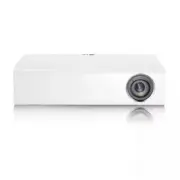


 LG HU715QW
User Manual
LG HU715QW
User Manual
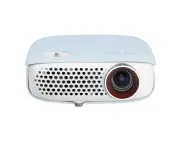 LG PW800G
User Manual
LG PW800G
User Manual
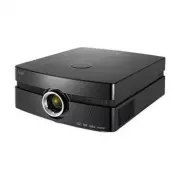 LG AF115
User Manual
LG AF115
User Manual
 LG AN215
User Manual
LG AN215
User Manual
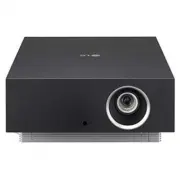 LG AU810PB
User Manual
LG AU810PB
User Manual
 LG BD430
User Manual
LG BD430
User Manual
 LG BD450
User Manual
LG BD450
User Manual
 LG BD460
User Manual
LG BD460
User Manual
 LG BF40QS
User Manual
LG BF40QS
User Manual
 LG BF50NST
User Manual
LG BF50NST
User Manual
 LG BF50RG
User Manual
LG BF50RG
User Manual
 LG BF60PST
User Manual
LG BF60PST
User Manual
 LG BG630
User Manual
LG BG630
User Manual
 LG BG650
User Manual
LG BG650
User Manual
 LG BU50NST
User Manual
LG BU50NST
User Manual
 LG BU50RG
User Manual
LG BU50RG
User Manual
 LG BU53PST
User Manual
LG BU53PST
User Manual
 LG BU53RG
User Manual
LG BU53RG
User Manual