Page 2 - Safety Information; CAUTION
1 Getting Started Getting Started 2 Getting S tar ted 1 Safety Information CAUTION RISK OF ELECTRIC SHOCK DO NOT OPEN CAUTION: TO REDUCE THE RISK OF ELECTRIC SHOCK DO NOT REMOVE COVER (OR BACK) NO USER-SERVICEABLE PARTS INSIDE REFER SERVICING TO QUALIFIED SERVICE PERSONNEL. This lightning flash with...
Page 4 - Table of Contents; Getting Started
Table of Contents 4 Table of Contents 1 Getting Started 2 Safety Information 6 Main Features 6 Accessories6 Introduction7 Top Panel 8 Rear Panel 2 Connecting 9 Connecting the AC Adapter 10 Initial Multi-Room Setup10 – Wired connection (Music Flow Mesh Network Connection) 10 – Wireless connection (St...
Page 5 - Troubleshooting
Table of Contents 5 1 2 3 4 5 4 Troubleshooting 52 Troubleshooting52 – General53 – Network54 – Application and PC Software 5 Appendix 55 File requirement55 Trademarks and Licenses56 About Status LED’s Condition57 Specifications58 Handling the Speaker58 Important Information Relating to Network Servi...
Page 6 - Main Features; Android device; Music Flow Player application; Accessories; Introduction; Symbol used in this manual; Note; Caution
Getting Started 6 Getting S tar ted 1 Main Features Made for iPod/iPhone/iPad or Android device Enjoys music from iPod/iPhone/iPad or Android device with simple connection. Portable In Listens to music from your portable device. Music Flow Player application Listens to music stored on your smart dev...
Page 7 - Top Panel
Getting Started 7 Getting S tar ted 1 Top Panel a 1 / !/ F button - Power On / Changing the mode - Switching to the standby mode (page 33) b Volume wheel Turn the wheel clockwise to increase volume, or counterclockwise to decrease volume. c Bluetooth status LED (page 56) d Portable In status LED (pa...
Page 8 - Rear Panel
Getting Started 8 Getting S tar ted 1 Rear Panel a Speaker duct A hole for plentiful bass sound on speaker cabinet. b Wi-Fi SETUP button Connects initial Music Flow product to your network wirelessly. (page 16) c ADD button Adds additional Music Flow products to your network. (In case one or more Mu...
Page 9 - Connecting the AC
2 Connecting Connecting 9 C onnecting 2 Connecting the AC Adapter Connect the speaker to the power supply with the supplied AC adapter. 1. Connect the supplied AC power cord to the AC adapter. 2. Connect the AC adapter cable to DC. IN adapter input. 3. Plug the AC power cord into an AC outlet. AC Ad...
Page 10 - Setup; Wired connection (Music Flow; Wireless connection (Standard
Connecting 10 C onnecting 2 Initial Multi-Room Setup When installing the Music Flow product for the first time, you can choose two types of connection as below. Wired connection (Music Flow Mesh Network Connection) Connect your speaker to the home router using LAN cable.Then you can connect the addi...
Page 11 - Installing “Music Flow; Through Apple “App Store” or; Through QR code
Connecting 11 C onnecting 2 Installing “Music Flow Player” App Through Apple “App Store” or Google “Play Store” 1. Tap the Apple “App Store” icon or Google “Play Store” icon. 2. Type in “Music Flow Player” in the search bar and tap “Search”. 3. Select “Music Flow Player” in the search result list to...
Page 12 - Starting with Music Flow
Connecting 12 C onnecting 2 Starting with Music Flow Player app When you launch Music Flow Player app for the first time, the terms of use and Chromecast Service appear on the screen. 1. Check the contents of terms of use and select [Accept]. 2. Check the contents of Chromecast Service and select [A...
Page 13 - Connecting the
Connecting 13 C onnecting 2 Connecting the speaker to your Home Network Using a wired network provides the best performance, because the attached devices connect directly to the network without radio frequency interference.Please refer to the documentation for your network device for further instruc...
Page 14 - Connecting the speaker to
Connecting 14 C onnecting 2 3. If the network password is set, security screen is displayed. Type the password. 4. After typing password, tap [Next]. 5. Tap [Finish] to finish making the connection. Connecting the speaker to your network with a LAN cable Connection overview LAN Broadband service Rou...
Page 22 - Notes on Network Connection
Connecting 22 C onnecting 2 Notes on Network Connection y Many network connection problems during set up can often be fixed by re-setting the router. After connecting the speaker to the home network, quickly power off and/or disconnect the power cable of the home network router or cable modem. Then ...
Page 23 - Connecting the additional
Connecting 23 C onnecting 2 Connecting the speakers to your Home Network (Additional) You can enjoy the music with multiple speakers and single smart device you have. Requirements y Wireless router y Smart device (Android or iOS) y Another speaker Signal interference may lead to stop playback. , Not...
Page 27 - Using the Bridge; Use as a root device (wired to; If there is no speaker with wired
Connecting 27 C onnecting 2 7. Then select the [Next] on the screen. 8. Select [Finish] to complete the connection. Speakers may be not connected if the distance between the Sound Bar (Main) connected by LAN cable and the speaker (Add) to be connected is too far. , Note Using the Bridge Bridge (R1) ...
Page 29 - Use as a wireless extender; If there is at least one speaker with
Connecting 29 C onnecting 2 Use as a wireless extender If there is at least one speaker with wired connection to the router When you want to expand Music Flow mesh network coverage, add the Bridge (R1) to your home network. Bridge (R1) 1. Attach the power cord to the power port on the rear of the Br...
Page 30 - Using Media Server for; Music Flow PC Software for; About Music Flow PC Software
Connecting 30 C onnecting 2 6. Follow the instruction on Music Flow Player app and tap [Next] on the screen. 7. Select [Finish] to complete the connection. 8. Connect the speaker to Bridge (R1) . Refer to “Connecting the speakers to your Home Network (Additional)” on page 25. Using Media Server for ...
Page 31 - Nero MediaHome 4 Essentials
Connecting 31 C onnecting 2 y You might close firewalls and Anti-Virus programs on your PC while installing Music Flow PC Software. y The Music Flow PC Software is a customized software edition only for sharing files and folders to this speaker. y If you want a full explanation about Music Flow PC S...
Page 32 - Sharing music files
Connecting 32 C onnecting 2 System requirements (Macintosh) y Mac OS X 10.5 (Leopard) or 10.6 (Snow Leopard) y Macintosh computer with an Intel x86 processor y Hard drive space: 200 MB hard drive space for a typical installation of Nero MediaHome standalone y Memory: 256 MB RAM Sharing music files O...
Page 33 - Basic Operations; Using; Power On; Standby mode; Changing the mode; Using volume button
3 Operating Operating 33 Oper ating 3 Basic Operations Using 1 / ! / F button Power On Press the 1 / !/ F button. Standby mode Press and hold the 1 / !/ F button for 5 seconds. (page 50) The speaker switches to the standby mode if there is no music playback or no button operation for 20 minutes. , N...
Page 34 - Enjoying the Music; Overview of Home menu
Operating 34 Oper ating 3 Enjoying the Music with Music Flow Player app With Music Flow Player app, you can play music in your smart device. y For more detailed instruction about Music Flow Player app, switch on the [User Guide] in [Settings] > [General] on the side menu. y Some of the content in...
Page 35 - Edit the Online streaming Service; Overview of the side menu
Operating 35 Oper ating 3 Edit the Online streaming Service list 1. Launch Music Flow Player app on your smart device. The [Home] appears. 2. Tap the [EDIT ] menu. y Select the checkbox of the Online service you want to see on Home. y Drag upwards or downwards to change the order of the Online servi...
Page 36 - Playing a song
Operating 36 Oper ating 3 Playing a song 1. Launch Music Flow Player app on your smart device. The [Home] appears. 2. Tap the button. 3. Side menu appears. Select the [My Phone] on the side menu. 4. Select the desired album. 5. Select the desired song. Then selected song is displayed and played. If ...
Page 37 - Managing a playlist; Overview of Playback
Operating 37 Oper ating 3 Managing a playlist On an album screen, tap the [ ] of the desired song. The pull down menu appears. a Play next – Selects music to play next. b Add to queue – Adds to queue list. c Add to playlist – Adds to a desired playlist. Depending on your wireless environment, playin...
Page 38 - Selecting Sound effect
Operating 38 Oper ating 3 Selecting Sound effect This speaker has a number of pre-set surround sound fields. You can select a desired sound mode by tapping [ ].The displayed items for the equalizer may be different depending on sound sources and effects. 1. During playback, tap the [ ] as below. 2. ...
Page 39 - Group Playback
Operating 39 Oper ating 3 Group Playback You can group multiple speakers linked to the Music Flow Player app and play the same music through all the connected speakers in the same group. If you want to enjoy the group playback and Surround playback, it is recommended that at least one speaker is con...
Page 40 - Seamless playback
Operating 40 Oper ating 3 3. Grouping option appears. Tap the checkbox to select the speaker you want to play with. Then select [OK]. 4. The speakers is ready to group playback. y If the speakers are not grouped, you can enjoy different music on each speaker. y It is recommended to connect less than...
Page 41 - Changing playing speaker from a; Changing the active speaker to a
Operating 41 Oper ating 3 Changing playing speaker from a smart device to a speaker 1. If the smart device playing music is carried from outside to a room where the connected speaker is in, the pop-up window on the smart device will appear to ask you which speaker you want to play music through. 2. ...
Page 42 - Setting the Speaker; Overview of setting menu
Operating 42 Oper ating 3 Setting the Speaker with Music Flow Player app With Music Flow Player app, you can set the connected speaker in your smart device. y For more detailed instruction about Music Flow Player app, switch on the [User Guide] in [Settings] > [General] on the side menu. y Some o...
Page 43 - User Guide
Operating 43 Oper ating 3 [General] Menu Sets for easier use of the speaker. Lock Screen Setting (Android only) This function allows you to display the Music Flow Player on the lock screen. (Lock screen setting is [ON] by default.) [Lock Screen Setting] may differ from Music Flow Player app dependin...
Page 44 - Alarms
Operating 44 Oper ating 3 [Alarms/Sleep Timer] Menu Turns on and off the speaker at a designated time. Alarms Speaker will let you know when it is time. Deletes selected alarm. Adds new alarm. Sleep Timer Sets a time to automatically turn off the speaker. 1. Select the speaker to set timer on [Sleep...
Page 45 - Mesh Network Channel; Mesh Network direct connection
Operating 45 Oper ating 3 [Advanced Settings] Menu Mesh Network Channel If normal playback or group playback is not smooth using multiple speakers including wireless speaker connection, changed the mesh network channel to improve network speed. 1. Select the [Settings] -> [Advanced Settings] opti...
Page 46 - Auto Music Play; Sensitivity Settings
Operating 46 Oper ating 3 Auto Music Play You can easily change the rendering device from your smart device or a speaker to another speaker by approaching your smart device to the desired speaker. y Your smart device should support Bluetooth Smart. y This function is subject to the smart device capa...
Page 47 - Learn how to cast; Chromecast built-in open legal
Operating 47 Oper ating 3 [Chromecast] Menu Learn how to cast Shows how to use Chromecast. Chromecast enabled apps Shows available apps on Chromecast. Cast Groups Select [Learn about Cast Groups] or [How to cast to a group] to show the selected information. To use Cast Groups, install Google Home ap...
Page 48 - Using a Bluetooth; About Bluetooth; Bluetooth profiles
Operating 48 Oper ating 3 Using a Bluetooth Wireless Technology About Bluetooth Bluetooth® is wireless communication technology for short range connection. The sound may be interrupted when the connection interfered by the other electronic wave or you connect the bluetooth in the other rooms.Connect...
Page 49 - NFC for Easy Pairing
Operating 49 Oper ating 3 y When using Bluetooth® technology, you have to make a connection between the unit and the bluetooth device as close as possible and keep the distance. However it may not work well in the case below : - There is a obstacle between the unit and the bluetooth device. - There ...
Page 50 - Listening to Music
Operating 50 Oper ating 3 Listening to Music from Your External Device The speaker can be used to listen to the music from many types of external device. 1. Connect the external device to the PORTABLE IN on the speaker. External device Portable cable (Not supplied) 2. Press 1 / ! / F button repeated...
Page 51 - Reset the Speaker; Resetting the speaker; Resetting the Music Flow R1
Operating 51 Oper ating 3 Reset the Speaker If the speaker is not turned on or doesn’t respond, reset the speaker. Resetting the speaker y Press and hold the ADD button until you hear the beep sound once. Then all wireless network ports are deactivated and the stored wireless network information is ...
Page 52 - Troubleshooting; General; Symptoms
4 Troubleshooting Troubleshooting 52 Trouble shoo ting 4 Troubleshooting General Symptoms Cause & Solution The unit does not work properly. y Turn off the power of this unit and the connected external device ( TV, Woofer, DVD-player, Amplifier, etc.) and turn it on again. y Disconnect the power ...
Page 53 - Network
Troubleshooting 53 Trouble shoo ting 4 Network Symptoms Cause & Solution Cannot connect the speaker to your home network. The wireless communication may be interrupted from household devices that are using radio frequencies. Move the speaker away from them. Media servers are not displayed on the...
Page 54 - Application and PC Software
Troubleshooting 54 Trouble shoo ting 4 Application and PC Software Symptoms Cause & Solution Music Flow Player app doesn’t work properly. Does an error occur when accessing the app? y Make sure that your smart device is compatible with the app. y Make sure that the Music Flow Player app is the l...
Page 55 - File requirement; Trademarks and
5 Appendix Appendix 55 Appendix 5 File requirement Available File extensions : “.mp3”, “.wma”, “.flac”, “.m4a”, “.aac”, “.ogg”, “.wav” Sampling frequency: within 32 to 48 kHz (mp3, wma), up to 192 kHz/24 bit (flac) Bit rate: up to 320 kbps (mp3, wma) y The file requirements are not always compatible...
Page 56 - About Status LED’s Condition
Appendix 56 Appendix 5 About Status LED’s Condition Bluetooth Condition Color Waiting for Bluetooth pairing Blinks Bluetooth paired Portable In Condition Color Connected portable cable Network Condition Color Waiting for network connection Blinks Connected Connecting ( Wi-Fi SETUP button is pressed)...
Page 57 - Specifications
Appendix 57 Appendix 5 Specifications General Power Supply 18 V 0 2.67 A (AC adapter) Power consumption NP8740 (NA9740) : 12 W NP8540 (NA9540) : 10 WNetworked standby : 5.4 W AC adapter Model : DA-48A18 Manufacturer: Yang Ming Industrial Input: 100 - 240 V ~ 50 - 60 Hz Output: 18 V 0 2.67 A Dimensio...
Page 58 - Handling the Speaker; When shipping the speaker; Important Information
Appendix 58 Appendix 5 Handling the Speaker When shipping the speaker Please save the original shipping carton and packing materials. If you need to ship the speaker, for maximum protection, re-pack the speaker as it was originally packed at the factory. Keeping the exterior surfaces clean y Do not ...
Page 59 - TERMS OF USE
Appendix 59 Appendix 5 TERMS OF USE These Terms of Use apply to those individuals and groups who use LG’s Multiroom Speaker (LG Mutiroom Speaker), any software(s) associated with LG Multiroom Speaker, this application and any services associated this application (collectively “LG Software”). They se...
Page 61 - Open Source Software Notice
Appendix 61 Appendix 5 If you have any questions or comments about these Terms of Use please contact www.lg.com. These Terms of Use may be updated by LGE from time to time. If we make a material change to our Terms of Use, we will update you via your LG Software or other means. Open Source Software ...


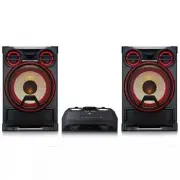 LG CK99
User Manual
LG CK99
User Manual
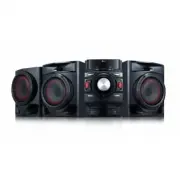 LG CM4590
User Manual
LG CM4590
User Manual
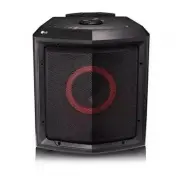 LG FH2
User Manual
LG FH2
User Manual
 LG FJ3
User Manual
LG FJ3
User Manual
 LG FJ5
User Manual
LG FJ5
User Manual
 LG GP3
User Manual
LG GP3
User Manual
 LG GP9
User Manual
LG GP9
User Manual
 LG ND5630
User Manual
LG ND5630
User Manual
 LG ND8630
User Manual
LG ND8630
User Manual
 LG NP3530
User Manual
LG NP3530
User Manual
 LG NP5550WO
User Manual
LG NP5550WO
User Manual
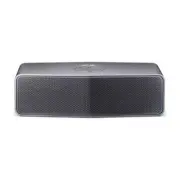 LG NP7550
User Manual
LG NP7550
User Manual
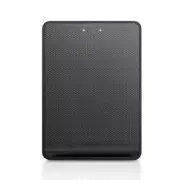 LG NP8340
User Manual
LG NP8340
User Manual
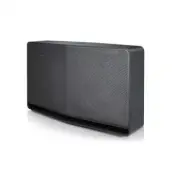 LG NP8740
User Manual
LG NP8740
User Manual
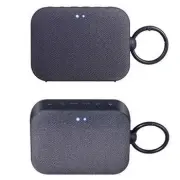 LG P2
User Manual
LG P2
User Manual
 LG P5
User Manual
LG P5
User Manual
 LG P7
User Manual
LG P7
User Manual
 LG PK3
User Manual
LG PK3
User Manual
 LG PK5
User Manual
LG PK5
User Manual
 LG PK7
User Manual
LG PK7
User Manual