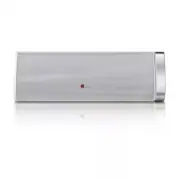
Page 2 - Safety Information; CAUTION
1 Getting Started Getting Started 2 Getting S tar ted 1 Safety Information CAUTION RISK OF ELECTRIC SHOCK DO NOT OPEN CAUTION: TO REDUCE THE RISK OF ELECTRIC SHOCK DO NOT REMOVE COVER (OR BACK) NO USER-SERVICEABLE PARTS INSIDE REFER SERVICING TO QUALIFIED SERVICE PERSONNEL. This lightning flash with...
Page 4 - IMPORTANT SAFETY
Getting Started 4 Getting S tar ted 1 CAUTION: Any changes or modifications not expressly approved by the party responsible for compliance could void the user’s authority to operate this equipment. FCC RF Radiation Exposure Statement : This equipment complies with FCC radiation exposure limits set f...
Page 5 - Table of Contents; Getting Started
Table of Contents 5 1 2 3 4 Table of Contents 1 Getting Started 2 Safety Information 6 Main Features 6 – LG Bluetooth Remote 6 Accessories6 Introduction7 Main Unit 8 Charging the Unit 8 – Connecting the AC adapter 8 – Checking the charging status 8 – Battery protection 2 Operating 9 Basic Operations...
Page 6 - Main Features; Android device; LG Sound Sync; LG Bluetooth Remote; Accessories; Introduction; Symbol used in this manual; Note; Caution
Getting Started 6 Getting S tar ted 1 Main Features Made for iPod/iPhone/iPad or Android device Enjoys music from iPod/iPhone/iPad or Android device with simple connection. Portable In Listens to music from your portable device. LG Sound Sync Controls volume level of this unit by the remote control ...
Page 7 - Main Unit
Getting Started 7 Getting S tar ted 1 Main Unit a 1/! - Turns on / off : Press and hold 1/! - Selects the function and input source. b +/- ( Volume) : Adjusts speaker volume. c Phone button d Speaker e Microphone f Wi-Fi SETTING : Connects your unit to the existing Wi-Fi network. g SOUND SYNC Synchr...
Page 8 - Charging the Unit; Connecting the AC adapter; Checking the charging status; Battery protection
Getting Started 8 Getting S tar ted 1 Charging the Unit Connecting the AC adapter This device uses built-in battery. Before using it, charge the battery by connecting the AC Adapter.1. Connect the supplied AC power cord to the AC adapter. 2. Connect the AC adapter cable to DC IN adapter input. 3. Pl...
Page 9 - Basic Operations; Using power button; Power On; Power Off; Using volume button; Listening to Music
2 Operating Operating 9 Oper ating 2 Basic Operations Using power button Power On Activate AirPlay feature Press and hold the 1/! button. Deactivate AirPlay feature Press and hold down the AIR DIRECT / RESET button first, followed by the 1/! button. When Airplay feature is set to off, power consumpt...
Page 10 - Using a Bluetooth; About Bluetooth; Bluetooth profiles; Listening to music of a
Operating 10 Oper ating 2 About ferrite core (Optional) This ferrite core can reduce noises. How to attach the ferrite core 1. Pull the stopper [a] of the ferrite core to open.2. Wind the portable cable on the ferrite core.3. Close the ferrite core until it clicks. Using a Bluetooth Wireless Technol...
Page 12 - Using bluetooth app
Operating 12 Oper ating 2 Using bluetooth app About “LG Bluetooth Remote” app “LG Bluetooth Remote” app brings a suite of new features to this unit.To enjoy more features, you are recommended to download and install free “LG Bluetooth Remote” app. Install “LG Bluetooth Remote” app through “Apple App...
Page 13 - Activate bluetooth with “LG
Operating 13 Oper ating 2 Activate bluetooth with “LG Bluetooth Remote” app “LG Bluetooth Remote” app helps to connect your bluetooth device to this unit. In case of iOS device ; After performing the pairing operation, activate Bluetooth with LG Bluetooth Remote App. , Note 1. Tap “LG Bluetooth Remo...
Page 14 - Using AirPlay; Air Direct
Operating 14 Oper ating 2 Using AirPlay Apple AirPlay technology enables you to play your iTunes music library, hosted on a Mac, PC, iPhone, iPod touch, or iPad on any AirPlay-enabled device connected to the Wi-Fi network. To stream audio wirelessly by AirPlay, you need : Air Direct Webpage Compatib...
Page 15 - Connecting AirPlay-enabled; Option 1 : Using Air Direct
Operating 15 Oper ating 2 Connecting AirPlay-enabled device Option 1 : Using Air Direct On Unit 1. Press 1/! button repeatedly on the unit to select AirPlay function. 2. Press AIR DIRECT / RESET on the unit. Then 1/! button blinks with white and amber color alternately. Then it stops blinking and st...
Page 16 - Option 2 : Using webpage
Operating 16 Oper ating 2 Option 2 : Using webpage The new Wi-Fi network created by this unit only allows access of one Wi-Fi enabled device. To avoid interference from any other Wi-Fi devices, you are recommended to temporarily disable the Wi-Fi function on your other Wi-Fi devices. y “LG AUDIO Set...
Page 17 - Streaming audio from your; Stream from your iPod touch/
Operating 17 Oper ating 2 y If you use other characters than the English alphabet or digits for the SSID name of your access point or wireless router, it may be displayed differently. y WEP security mode generally have 4 keys available on an access point setting. If your access point or wireless rou...
Page 19 - Other Operations; Using handsfree function; Auto power down
Operating 19 Oper ating 2 Other Operations Using handsfree function Preparation: Your smartphone must be paired with the unit via bluetooth.1. When a call cames in, press { to receive the phone. y While listening to music, if incoming calls, the music pauses automatically. Then the unit and your sma...
Page 20 - With wireless connection
Operating 20 Oper ating 2 LG Sound Sync You can control some functions of this unit by your TV’s remote control with LG Sound Sync. It is compatible with the LG TV that is supported LG Sound Sync. Make sure of the LG Sound Sync logo on your TV.Controllable function by LG TV’s remote control : Volume...
Page 21 - Troubleshooting; General; Problem
3 Troubleshooting Troubleshooting 21 Trouble shoo ting 3 Troubleshooting General Problem Cause & Correction No Power. y The battery is discharged. Recharge the battery. y Connect the unit to the power supply with the AC adapter No sound or sound distortion y The unit or your smart device’s volum...
Page 22 - About
4 Appendix Appendix 22 Appendix 4 About 1/! Button’s Condition Turned on white Turned on red Turned on amber or green Turned off Beep Sound Battery Power AC Adapter Condition Color Off Connected Charging Full charge On Disconnected Low battery Blinks quickly On Connected Charging Full charge - Conne...
Page 23 - Trademarks and; Handling the Unit; When shipping the unit
Appendix 23 Appendix 4 Trademarks and Licenses Bluetooth® wireless technology is a system which allows radio contact between electronic devices within a max. range of 10 meters.Connecting individual devices under Bluetooth® wireless technology does not incur any charges. A mobile phone with Bluetoot...
Page 24 - Specifications
Appendix 24 Appendix 4 Specifications General Power requirements DC 12 V 0 1.5 A AC adapter requirements 100 - 240 V, 50 / 60 Hz Power consumption 18 W Dimensions ( W x H x D) 300 mm x 95 mm x 98 mm (11.8” x 3.7” x 3.9”) Net Weight (Approx.) 1.37 kg Operating temperature 5 °C to 35 °C (41 °F to 95 °...