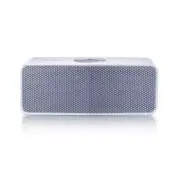
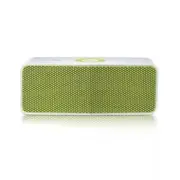
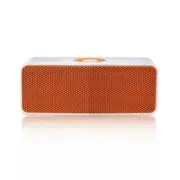
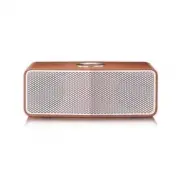
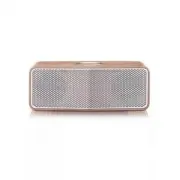
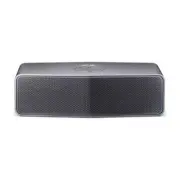
Page 3 - Safety Information; CAUTION
1 Getting Started Getting Started 3 Getting Star ted 1 Safety Information CAUTION RISK OF ELECTRIC SHOCK DO NOT OPEN CAUTION: TO REDUCE THE RISK OF ELECTRIC SHOCK DO NOT REMOVE COVER (OR BACK) NO USER-SERVICEABLE PARTS INSIDE REFER SERVICING TO QUALIFIED SERVICE PERSONNEL. This lightning flash with ...
Page 5 - IMPORTANT SAFETY
Getting Started 5 Getting Star ted 1 IMPORTANT SAFETY INSTRUCTIONS 1. Read these instructions. 2. Keep these instructions.3. Heed all warnings. 4. Follow all instructions. 5. Do not use this apparatus near water. 6. Clean only with dry cloth. 7. Do not block any ventilation openings. Install in acco...
Page 7 - Getting Started; Troubleshooting; Table of Contents
Table of Contents 7 1 2 3 4 1 Getting Started 3 Safety Information 5 IMPORTANT SAFETY INSTRUCTIONS 8 Main Features 8 Accessories8 Introduction9 Main Unit 10 Charging the Unit10 – Connecting the AC adapter10 – Checking the charging status11 Using BLUETOOTH App11 – Install “Music Flow Bluetooth” App o...
Page 8 - Main Features; Accessories; Introduction
Getting Started 8 Getting Star ted 1 Main Features Portable In Listens to music from your portable device. LG Sound Sync Controls volume level of this unit by the remote control of your LG TV that is compatible with LG Sound Sync. Music Flow Bluetooth You can control this unit with your iPod touch/ ...
Page 9 - Main Unit
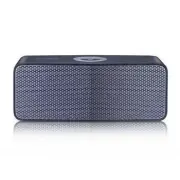
Getting Started 9 Getting Star ted 1 Main Unit a o : Turn up the volume. b j - Connects a Bluetooth device to the unit. (Press j ) - Adds a Bluetooth device for multi pairing. (Press and hold j ) - Changes to Bluetooth mode in portable mode. (Press j ) c p : Turn down the volume d T - Starts or paus...
Page 10 - Charging the Unit; Connecting the AC adapter; Checking the charging status
Getting Started 10 Getting Star ted 1 Charging the Unit Connecting the AC adapter This device uses built-in battery. Before using it, charge the battery by connecting the AC Adapter.1. Connect the supplied USB cable to the AC adapter. 2. Connect the USB cable to USB port of of the unit.3. Plug the A...
Page 11 - Using BLUETOOTH App; Install “Music Flow Bluetooth”; Activate BLUETOOTH with
Getting Started 11 Getting Star ted 1 Using BLUETOOTH App About “Music Flow Bluetooth” App “Music Flow Bluetooth” app brings a suite of new features to this unit.To enjoy more features and use this unit more comfortably, you are recommended to download and install free “Music Flow Bluetooth” app. In...
Page 13 - Basic Operations; Using power button; Simple Operation Guide
2 Operating Operating 13 Oper ating 2 Basic Operations Using power button Power On / Off Press and hold the 1/! button. Using volume button You can adjust speaker volume. While adjusting volume if you try to increase or decrease the volume when it is already at maximum or minimum level, a beep is pl...
Page 14 - Using BLUETOOTH®; Listening to music stored on the; devices
Operating 14 Oper ating 2 Using BLUETOOTH® technology About BLUETOOTH Bluetooth i s wireless communication technology for short range connection. The sound may be interrupted when the connection interfered by the other electronic wave or you connect the Bluetooth in the other rooms. Connecting indiv...
Page 16 - Dual Play Connection; Dual Play Auto Connection
Operating 16 Oper ating 2 Dual Play Connection (Optional) You can enjoy the sound in stereo by using two speakers. Two speakers are needed to enjoy in stereo. 1. Connect the speaker to a Bluetooth device. 2. Press and hold both speaker’s buttons as indicated below at the same time. - speaker : j , o...
Page 17 - LG Sound Sync; With wireless connection
Operating 17 Oper ating 2 LG Sound Sync (TV Private Sound) You can control some functions of this unit by your TV’s remote control with LG Sound Sync. The Feature is only compatible with LG TV’s that support LG Sound Sync. Make sure of the LG Sound Sync logo is on your TV.Controllable function by LG...
Page 18 - Listening to Music from; Other Operation; Resetting
Operating 18 Oper ating 2 Listening to Music from Your External Device The unit can be used to listen to the music from many types of external device. 1. Connect the external device to the Portable In connector of the unit. 2. Turn the power on by pressing and holding 1/! button . 3. Turn the extern...
Page 19 - Troubleshooting; General
3 Troubleshooting Troubleshooting 19 Troubleshoo ting 3 Troubleshooting General Problem Cause & Correction No Power. y The battery is discharged. Recharge the battery. y Connect the unit to the power supply with the AC adapter. No sound or sound distortion. y The unit or your smart device’s volu...
Page 20 - About LED indicator
4 Appendix Appendix 20 Appendix 4 About LED indicator General Battery indicator turns from red to green. In Charging Fully Charged 1/! blinks in white with the sound. Power is turned on. 1/! blinks in amber with the sound. Battery is discharged. (Blinks rapidly) Battery indicator blinks in red and g...
Page 21 - Trademarks and; Handling the Unit
Appendix 21 Appendix 4 Trademarks and Licenses Bluetooth wireless technology is a system which allows radio contact between electronic devices within a max. range of 10 meters.Connecting individual devices under Bluetooth wireless technology does not incur any charges. A mobile phone with Bluetooth ...
Page 22 - Specifications
Appendix 22 Appendix 4 Specifications General Power requirements 5 V 0 1.8 A (AC adapter) Built-in rechargeable battery Power consumption 9 W Dimensions (W x H x D) Approx. 153 mm x 58 mm x 59.5 mm (6-1/32 x 2-9/32 x 2-11/32 inches) Net Weight (Approx.) 0.47 kg (1.04 lb) Operating temperature 5 °C t...