Page 3 - Safety Information; CAUTION
Getting Started 3 Getting S tar ted 1 Safety Information CAUTION RISK OF ELECTRIC SHOCK DO NOT OPEN CAUTION: TO REDUCE THE RISK OF ELECTRIC SHOCK DO NOT REMOVE COVER (OR BACK) NO USER-SERVICEABLE PARTS INSIDE REFER SERVICING TO QUALIFIED SERVICE PERSONNEL. This lightning flash with arrowhead symbol ...
Page 4 - IMPORTANT SAFETY
Getting Started 4 Getting S tar ted 1 This device is equipped with a portable battery or accumulator. Safety way to remove the battery from the equipment: Remove the old battery or battery pack, follow the steps in reverse order than the assembly. To prevent contamination of the environment and brin...
Page 6 - Table of Contents; Getting Started
Table of Contents 6 Table of Contents 1 Getting Started 3 Safety Information 8 Introduction8 – About the “ 7 ” symbol display 9 Front Panel 9 Rear Panel 10 Remote Control11 Installing the sound bar 11 Mounting the main unit on a wall 2 Connecting 13 Wireless Subwoofer Connection 13 – Pairing wireles...
Page 7 - Troubleshooting
Table of Contents 7 1 2 3 4 5 6 5 Troubleshooting 50 Troubleshooting50 – General51 – Network52 – Picture52 – Sound52 – Customer Support52 – Open Source Software Notice 6 Appendix 53 Controlling a TV with the Supplied Remote Control 53 – Setting up the remote to control your TV 54 Network Software Up...
Page 8 - Introduction; About the “
Getting Started 8 Getting S tar ted 1 Introduction Term Symbol Description Note , Indicates special notes and operating features. Caution > Indicates cautions for preventing possible damages from abuse. About the “ 7 ” symbol display “ 7 ” may appear on your TV display during operation and indica...
Page 9 - Front Panel; Note; Caution; Rear Panel
Getting Started 9 Getting S tar ted 1 Front Panel a b d c e f f a 1/! (Standby/On) b p / o ( Volume) Adjusts speaker volume. c F (Function) Press it repeatedly to select other function. d USB Port Open USB cover by using your finger to connect USB. , Note e Display window f Speakers Precautions in u...
Page 10 - Battery Installation; Remote Control
Getting Started 10 Getting S tar ted 1 10 Battery Installation Remove the battery cover on the rear of the Remote Control, and insert two R03 (size AAA) battery with and matched correctly. • • • • • • a • • • • • • 1 (Power): Switches the unit ON or OFF. OPTICAL/TV SOUND: Changes input mode to optic...
Page 11 - Installing the sound; Mounting the main
Getting Started 11 Getting S tar ted 1 Installing the sound bar You can hear the sound by connecting the unit to the other device : TV, Blu-ray disc player, DVD player, etc.Place the unit in front of the TV and connect it to the device you want. (Refer to pp. 14 - 17.) For best performance of wirele...
Page 13 - Wireless Subwoofer; Pairing wireless subwoofer; LED indicator of wireless subwoofer; Setting up the wireless subwoofer
Connecting 13 C onnecting 2 Wireless Subwoofer Connection Pairing wireless subwoofer LED indicator of wireless subwoofer LED Color Status Yellow-green (Blink) The connection is trying. Yellow-green The connection is completed. Red The wireless subwoofer is in standby mode or the connection is failed...
Page 14 - Connecting to Your TV; HDMI Connection; Additional Information for HDMI
Connecting 14 C onnecting 2 Connecting to Your TV HDMI Connection If you have a HDMI TV or monitor, you can connect it to this unit using a HDMI cable ( Type A, High speed HDMI™ cable with Ethernet). Connect the HDMI jack on the unit to the HDMI jack on a HDMI compatible TV or monitor. TV HDMI cable...
Page 15 - function; Resolution Setting
Connecting 15 C onnecting 2 What is SIMPLINK? Some functions of this unit are controlled by the TV’s remote control when this unit and LG TV’s with SIMPLINK are connected through HDMI connection.Controllable functions by LG TV’s remote control : Power on/off, volume up/down, etc.Refer to the TV owne...
Page 16 - OPTICAL IN connection
Connecting 16 C onnecting 2 y If your TV does not accept the resolution you have set on the unit, you can set resolution to 480p as follows:1. Press HOME ( ) to disappear the HOME menu. 2 Press Z (Stop) for more than 5 seconds. y If you select a resolution manually and then connect the HDMI jack to ...
Page 17 - Connections with; Connecting to your; Wired network connection
Connecting 17 C onnecting 2 Connections with external device OPTICAL IN connection You can enjoy the sound from your component with a digital optical connection through the speakers of this system. To the digital optical output jack of your component Connect the optical output jack of your component...
Page 18 - Wired network setup; Advanced Setting
Connecting 18 C onnecting 2 Router Broadband service DLNA certified servers Wired network setup If there is a DHCP server on the local area network (LAN) via wired connection, this unit will automatically be allocated an IP address. After making the physical connection, a small number of home networ...
Page 19 - Wireless network connection
Connecting 19 C onnecting 2 2. Use W/S/A/D to select the IP mode between [Dynamic] and [Static]. Normally, select [Dynamic] to allocate an IP address automatically. If there is no DHCP server on the network and you want to set the IP address manually, select [Static] then set [IP Address], [Subnet M...
Page 20 - Wireless network setup
Connecting 20 C onnecting 2 Wireless network setup For the wireless network connection, the unit needs to be set up for network communication. This adjustment can be done from the [Settings] menu. Adjust the [NETWORK] setting as follow. Setting up the access point or the wireless router is required ...
Page 23 - Initial Setup
System Setting 23 S ys tem Se tting 3 Initial Setup When you turn on the unit for the first time, the initial setup wizard appears on the screen. Set the display language and network settings on the initial setup wizard.1. Press 1 (Power). The initial setup wizard appears on the screen. 2. Use W/S/A...
Page 24 - Settings; Adjust the setup settings
Operating 24 Oper ating 4 9. Check all the settings that you have set in the previous steps. Press ENTER ( b ) while [Finish] is highlighted to finish the initial setup settings. If there is any settings to be changed, use W/S/A/D to select 1 and press ENTER ( b ). 10. Displays private sound mode gu...
Page 26 - TV Aspect Ratio; HDMI Color Setting
System Setting 26 S ys tem Se tting 3 [DISPLAY] menu TV Aspect Ratio Select a TV aspect ratio option according to your TV type. [4:3 Letter Box] Select when a standard 4:3 TV is connected. Displays theatrical images with masking bars above and below the picture. [4:3 Pan Scan] Select when a standard...
Page 27 - Display Menu; HD AV Sync
27 S ys tem Se tting 3 [LANGUAGE] menu Display Menu Select a language for the [Settings] menu and on-screen display. [AUDIO] menu Each file has a variety of audio output options. Set the unit’s Audio options according to the type of audio system you use. Since many factors affect the type of audio o...
Page 29 - TV Sound Connecting; Initialize; Closed Caption
System Setting 29 S ys tem Se tting 3 TV Sound Connecting You can listen to TV sound through this unit’s speaker automatically when TV is turned on. TV and this unit should be connected with optical cable. Press W to move and press A/D to select [On] or [Off ]. Select [OK] and press ENTER ( b ). Ini...
Page 30 - Sound Effect
System Setting 30 S ys tem Se tting 3 Adjusting the [Digital Option] When [CC Mode] is selected to [Custom], you can adjust detail settings of closed caption. a Selects a typeface for the text. Font1 : Default / Font2 : Courier Font3 : TimesNewRoman / Font4 : Helvetica Font5 : Arial / Font6 : Casual...
Page 31 - Home Menu Display; Using the SmartShare
4 Operating Operating 31 Oper ating 4 Home Menu Display Using [HOME] menu The home menu appears when you press HOME ( ). Use W/S/A/D to select a category and press ENTER ( b ). Depending on the region, the [LG Smart World], [My Apps], [ 4 ] and [ 3 ] may not be available. , Note a [SmartShare] - Dis...
Page 32 - Playing the Linked; Playing a USB device; yui; Notes on USB device
Operating 32 Oper ating 4 Playing the Linked Devices Playing a USB device yui This unit can play video, audio and photo files contained on a USB device.1. Connect a USB device on the unit. You can connect a USB device more easily by using USB gender changer supplied as an accessory. , Note When you ...
Page 33 - Playing a file on Android; Notes on Connecting Android device
Operating 33 Oper ating 4 Playing a file on Android device This player can play video, audio and photo files contained in the Android device.1. Connect the Android device to the unit with USB cable. Make sure that MTP is activated on Android device. 2. Press HOME ( ). 3. Select [MTP] and press ENTER...
Page 34 - Playing a file on a network; Using Home Network; About SmartShare PC Software; Installing SmartShare PC
Operating 34 Oper ating 4 Playing a file on a network server yui This unit can play video, audio and photo files located in a DLNA server through your home network.1. Check the network connection and settings (page 17). 2. Press HOME ( ). 3. Select [SmartShare] and press ENTER ( b ). 4. Select a DLN...
Page 35 - Sharing files and folders; System requirements; Minimum System
Operating 35 Oper ating 4 y SmartShare PC Software is not supported with Mac OS. y The SmartShare PC Software (DLNA) is a customized software edition only for sharing files and folders to this player. y This manual explains operations with the English version of SmartShare PC Software (DLNA) as exam...
Page 36 - General Playback; Basic operations for video and; yu
Operating 36 Oper ating 4 General Playback Basic operations for video and audio content To stop playback Press Z (Stop) during playback. To pause playback Press M (Pause) during playback. Press d (Play) to resume playback. To play frame-by-frame (Video) Press M (Pause) during video playback. Press M...
Page 37 - To control video playback; Displaying content information on-
Operating 37 Oper ating 4 On-Screen Display You can display and adjust various information and settings about the content. To control video playback y You can control playback and set options while watching videos.During playback, press INFO/MENU ( m ) . a Progress bar - Displays the current positio...
Page 38 - To control photo view; Setting the slide show option
Operating 38 Oper ating 4 To control photo view Controls playback and sets options while viewing pictures in full screen.You can control playback and set options while viewing pictures in full screen.While viewing pictures, press INFO/MENU ( m ) . a [Slideshow] - Starts or pause slide show. b [Music...
Page 39 - Advanced Playback; Repeat playback; uy; Repeating a specific portion; Playing from selected time
Operating 39 Oper ating 4 Advanced Playback Repeat playback uy Video files During playback, press REPEAT ( h ) to select a desired repeat mode. A-B – Selected portion will be repeated continually. Title – The current title will be played back repeatedly. All – All the titles or files will be played ...
Page 40 - Selecting a subtitle language; Hearing a different audio; Changing the TV Aspect Ratio; Changing Subtitle Code Page
Operating 40 Oper ating 4 Selecting a subtitle language y 1. During playback, press INFO/MENU ( m ) . 2. Select an [Option] using A/D , and press ENTER ( b ) 3. Use W/S to select the [Subtitle] option. 4. Use A/D to select desired subtitle language. By pressing ENTER ( b ), you can set various subti...
Page 41 - Changing the Picture Mode; Viewing content information; Changing content list view
Operating 41 Oper ating 4 Changing the Picture Mode y You can change the [Picture mode] option during playback.1. During playback, press INFO/MENU ( m ) . 2. Select an [Option] using A/D , and press ENTER ( b ) 3. Use W/S to select the [Picture Mode] option. 4. Use A/D to select desired option. 5. P...
Page 42 - Selecting a subtitle file; Listening to music during slide
Operating 42 Oper ating 4 Selecting a subtitle file y If the subtitle file name is different from the video file name, you need to select the subtitle file on the [Movie] menu before playing the movie.1. Use W/S/A/D to select the subtitle file you wish to play in the [Movie] menu. 2. Press ENTER ( b...
Page 44 - Advanced Features; Connecting to a Wi-Fi DirectTM
Operating 44 Oper ating 4 Advanced Features Wi-Fi Direct™ Connecting to a Wi-Fi Direct™ certified device yui This unit can play movie, music and photo files located in a Wi-Fi Direct™ certified device. The Wi-Fi Direct™ technology make the unit to be directely connected to a Wi-Fi Direct™ certified ...
Page 45 - LG AV Remote; About Bluetooth; Bluetooth Profiles
Operating 45 Oper ating 4 LG AV Remote You can control this player with your iPhone or Android phone via your home network. This player and your phone must be connected to your wireless network device such as access point. Visit “Apple iTunes” or “Google Android Market (Google Play Store)” for detai...
Page 46 - Listening to music stored on; Pairing your unit and Bluetooth
Operating 46 Oper ating 4 Listening to music stored on the Bluetooth devices Pairing your unit and Bluetooth device Before you start the pairing procedure, make sure the Bluetooth feature is turned on in to your Bluetooth device. Refer to your Bluetooth device’s user guide. Once a pairing operation ...
Page 47 - Using the Premium; Using the LG Smart
Operating 47 Oper ating 4 Using the Premium You can use various content services via Internet with the Premium feature.1. Check the network connection and settings (page 17). 2. Press HOME ( ). 3. Select the [Premium] using A/D , and press ENTER ( b ). 4. Select an online service using W/S/A/D , and...
Page 48 - Signing in; Searching online content
Operating 48 Oper ating 4 Signing in To use the [LG Smart World] feature, you need to sign in with your account.1. On the [LG Smart World] or [My Apps] screen, press red ( R ) colored button. 2. Fill the [ID] and [Password] field using the virtual keyboard.If you do not have an account, press red ( ...
Page 49 - Using the My Apps; Move an application; Delete an application
Operating 49 Oper ating 4 Using the My Apps Menu You can move or delete an installed application in the [My Apps] menu.1. Press HOME ( ). 2. Select the [My Apps], and press ENTER ( b ). Move an application 1. Select an application, and press green ( G ) colored button to display the options. 2. Use ...
Page 50 - Troubleshooting; General; Symptom
5 Troubleshooting Troubleshooting 50 Trouble shoo ting 5 Troubleshooting General Symptom Cause & Solution The Power does not turned on. y Plug the power cord into the wall outlet securely. The connected USB storage device is not recognized. y Try using different USB cable, some USB cables may no...
Page 51 - Network
Troubleshooting 51 Trouble shoo ting 5 Network Symptom Cause & Solution Streaming video services (such as YouTube™, etc.) are often stopped or “buffer” during playback. y Your broadband service speed may not be fast enough to stream video services. Contact your Internet Service Provider (ISP) an...
Page 52 - Picture; Sound; Customer Support
Troubleshooting 52 Trouble shoo ting 5 Picture Symptom Cause & Solution There is no picture. y Select the appropriate video input mode on the TV so the picture from the unit appears on the TV screen. y Connect the video connection securely. y Check the [HDMI Color Setting] in the [Settings] menu...
Page 53 - Controlling a TV with; Setting up the remote to
6 Appendix Appendix 53 Appendix 6 Controlling a TV with the Supplied Remote Control You can control your TV using the buttons below. By pressing You can 1 ( TV POWER) Turn the TV on or off. AV/INPUT Switch the TV’s input source between the TV and other input sources. VOL +/– Adjust the volume of the...
Page 54 - Network Software; Network update notification
Appendix 54 Appendix 6 Network Software Update Network update notification From time to time, performance improvements and/or additional features or services may be made available to units that are connected to a broadband home network. If there is new software available and the unit is connected to...
Page 56 - Additional Information; File requirement; Video files
Appendix 56 Appendix 6 Additional Information File requirement Video files File Location File Extension Codec Format Audio Format Subtitle USB “.avi”, “.divx”, “.mpg”, “.mpeg”, “.mkv”, “.mp4”, “.asf ”, “.wmv”, “.m4v” (DRM free), “.vob”, “.3gp”, “.mov”, “.trp”, “.m2t”, “.mpe”, “.m1v”, “.m2v”, “.wm”, ...
Page 58 - About DLNA
Appendix 58 Appendix 6 About DLNA This Player is a DLNA Certified digital media player that can display and play video, photo and audio content from your DLNA-compatible digital media server (PC and Consumer Electronics).The Digital Living Network Alliance (DLNA) is a cross-industry organization of ...
Page 59 - Audio Output Specifications
Appendix 59 Appendix 6 Audio Output Specifications Jack/Setting Source HDMI OUT PCM DTS Re-encode * 3 Auto * 1 * 2 Dolby Digital PCM 5.1ch DTS Dolby Digital Dolby Digital Plus PCM 5.1ch DTS Dolby Digital Plus Dolby TrueHD PCM 5.1ch DTS Dolby TrueHD DTS PCM 2ch DTS DTS DTS-HD PCM 2ch DTS DTS-HD Linea...
Page 60 - Trademarks and
Appendix 60 Appendix 6 Trademarks and Licenses The terms HDMI and HDMI High-Definition Multimedia Interface, and the HDMI logo are trademarks or registered trademarks of HDMI Licensing LLC in the United States and other countries. Manufactured under license from Dolby Laboratories. Dolby and the dou...
Page 61 - Cinavia Notice
Appendix 61 Appendix 6 Cinavia Notice This product uses Cinavia technology to limit the use of unauthorized copies of some commercially-produced film and videos and their soundtracks. When a prohibited use of an unauthorized copy is detected, a message will be displayed and playback or copying will ...
Page 62 - Specifications
Appendix 62 Appendix 6 Specifications General AC adaptor requirements 100 - 240 V ~ 50 / 60 Hz / 25 V 0 2 A Power consumption 30 W Dimensions ( W x H x D) 1 038 mm x 71 mm x 56 mm (40.9” x 2.8” x 2.2”) ( With foot) Net Weight (Approx.) 2.45 kg (5.4 lbs) Operating temperature 5 °C to 35 °C (41 °F to ...
Page 63 - Maintenance; Handling the unit; When shipping the unit; Important Information
Appendix 63 Appendix 6 Maintenance Handling the unit When shipping the unit Please save the original shipping carton and packing materials. If you need to ship the unit, for maximum protection, re-pack the unit as it was originally packed at the factory. Cleaning the unit To clean the player, use a ...
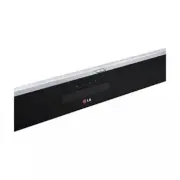


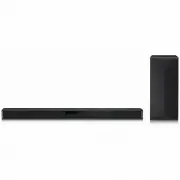 LG SN4
User Manual
LG SN4
User Manual
 LG SP70Y
User Manual
LG SP70Y
User Manual
 LG GX
User Manual
LG GX
User Manual
 LG LAB540W
User Manual
LG LAB540W
User Manual
 LG LAP240
User Manual
LG LAP240
User Manual
 LG LAP340
User Manual
LG LAP340
User Manual
 LG LAS160B
User Manual
LG LAS160B
User Manual
 LG LAS260B
User Manual
LG LAS260B
User Manual
 LG LAS350B
User Manual
LG LAS350B
User Manual
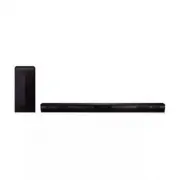 LG LAS450H
User Manual
LG LAS450H
User Manual
 LG LAS454B
User Manual
LG LAS454B
User Manual
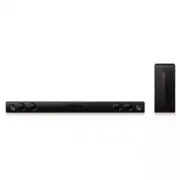 LG LAS465B
User Manual
LG LAS465B
User Manual
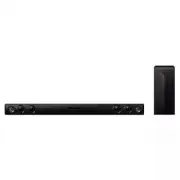 LG LAS485B
User Manual
LG LAS485B
User Manual
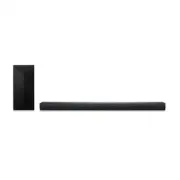 LG LAS551H
User Manual
LG LAS551H
User Manual
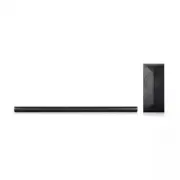 LG LAS751M
User Manual
LG LAS751M
User Manual
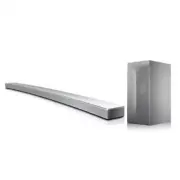 LG LAS855M
User Manual
LG LAS855M
User Manual
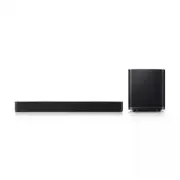 LG LAS950M
User Manual
LG LAS950M
User Manual
 LG LASC47
User Manual
LG LASC47
User Manual
 LG LASC58R
User Manual
LG LASC58R
User Manual